Last Updated: February 09, 2025
Overview:
Under S68(2) of the Singapore Income Tax Act of 1947, Employers in Singapore are required to prepare and submit employment income details. Each March 1st the Inland Revenue Authority of Singapore (IRAS) receives IR8A reports that include complete income details for the prior year of every employee. The guide delivers a detailed explanation which shows employers step-by-step procedures for IR8A filing through payroll software to meet all IRAS regulations.
Step-by-Step Guide to Filing IR8A Using Omni Payroll Software
Login to Omni using the company domain and credentials.
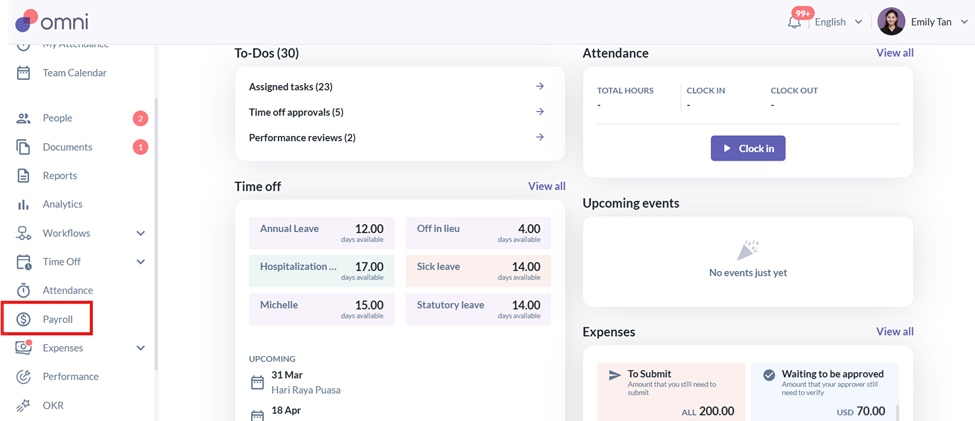
Upon logging in, navigate to the Dashboard, access the PAYROLL tab, and choose Singapore to view the company/entity.
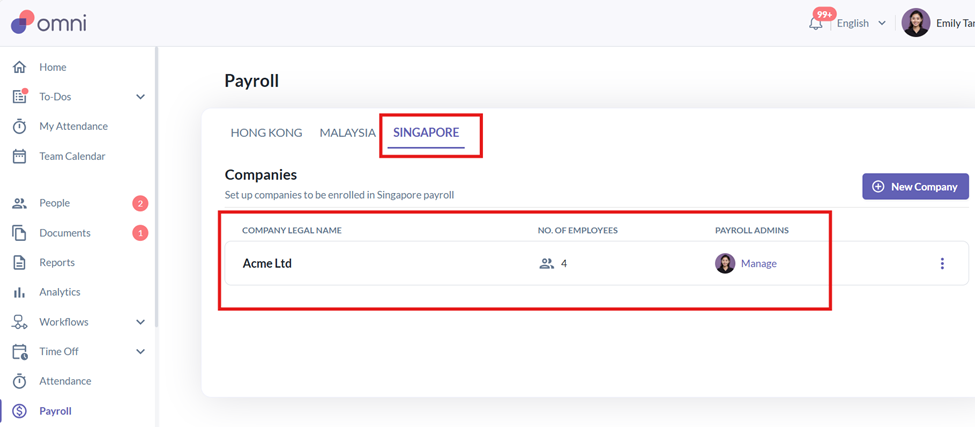
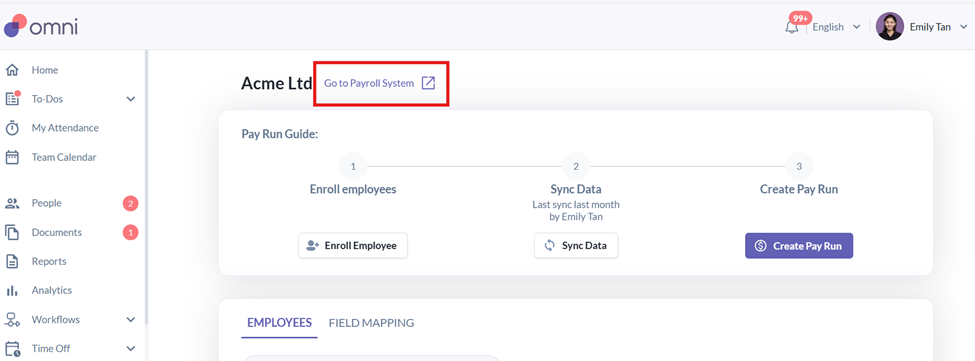
After selecting the company name, click "Go to Payroll System" next to the company name to open the payroll system. Since we need to generate the IR8A for the previous calendar year, all payroll months must be processed accordingly. You can proceed to the payroll system without creating a pay run.
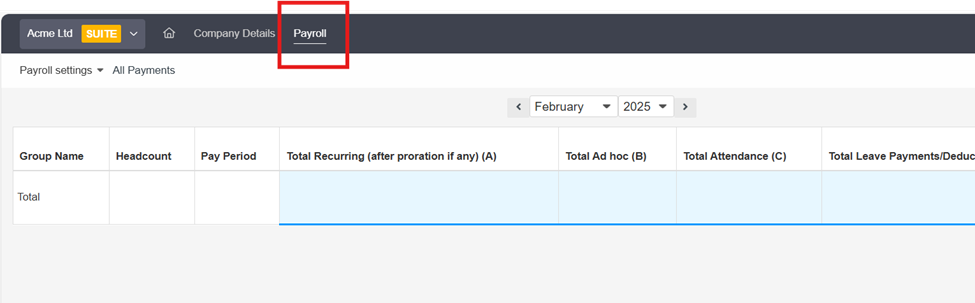
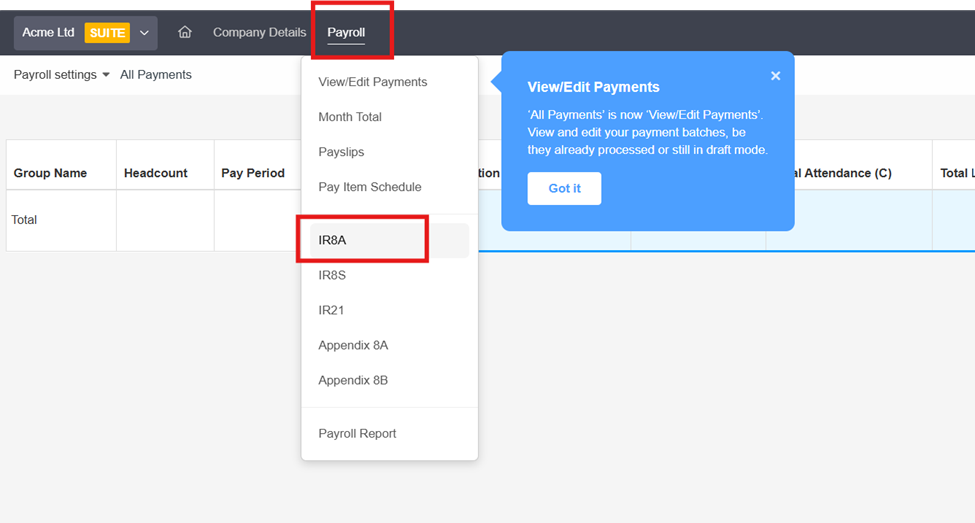
The Payroll System will open in a separate browser. Click PAYROLL in the upper left corner, next to the company details.
On the Payroll tab, select IR8A.
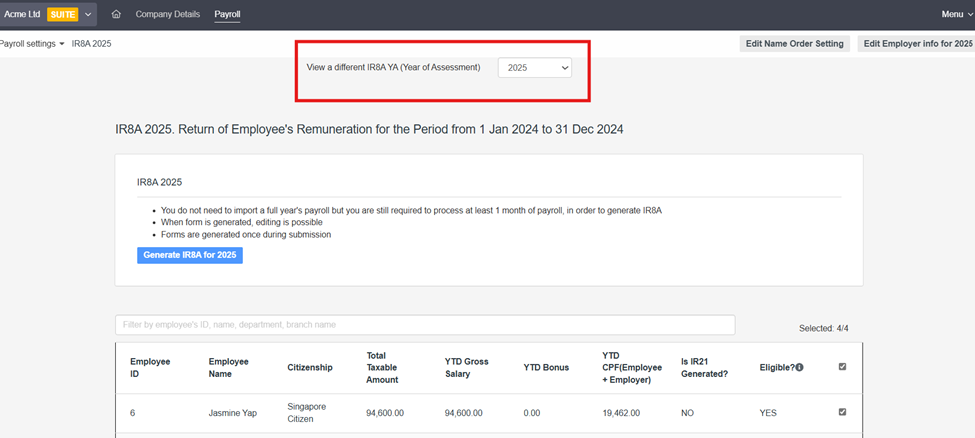
The screen will display all employees included for the current year of assessment tax filing. Ensure the Year of Assessment reflects the correct calendar year (covering January 1 – December 31 of the previous year).
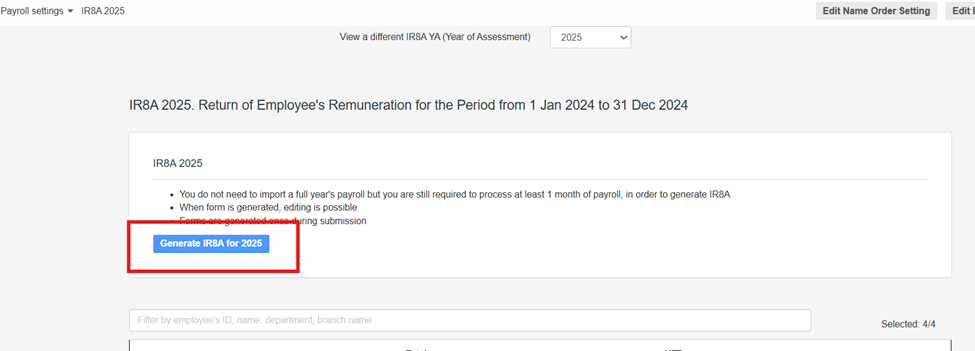
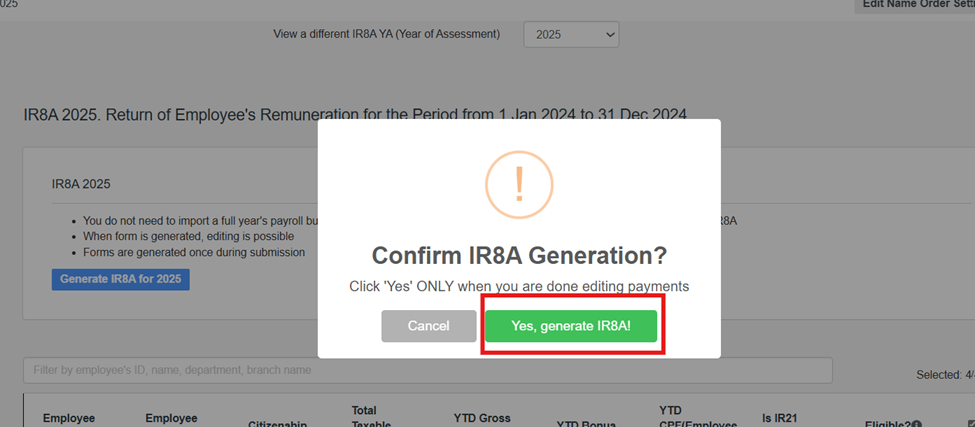
Click Generate IR8A Form and confirm Yes, generate IR8A.
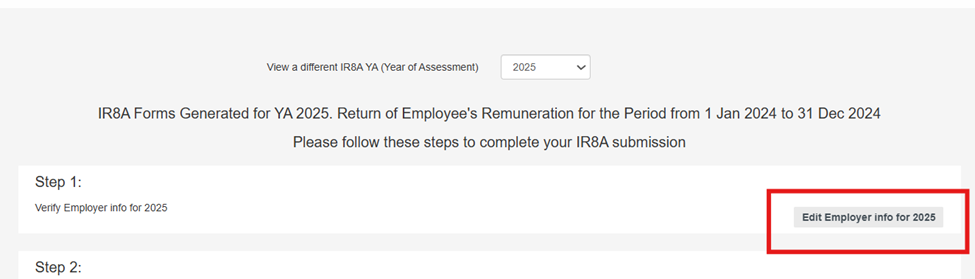
Go to Step 1: Edit Employer Info and ensure all employer details are correctly filled in. Click Save.
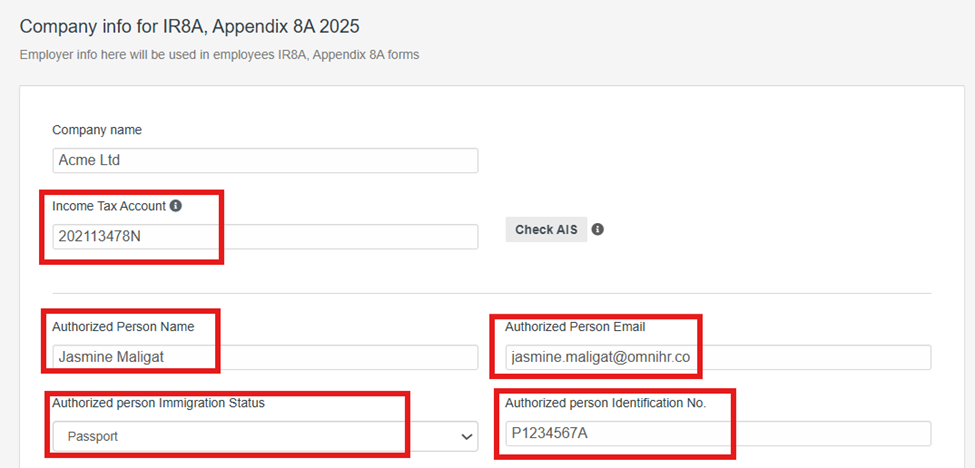
Note: If you are submitting on behalf of the company as a third-party tax agent, ensure to check "Submitting tax as a third-party agent”.
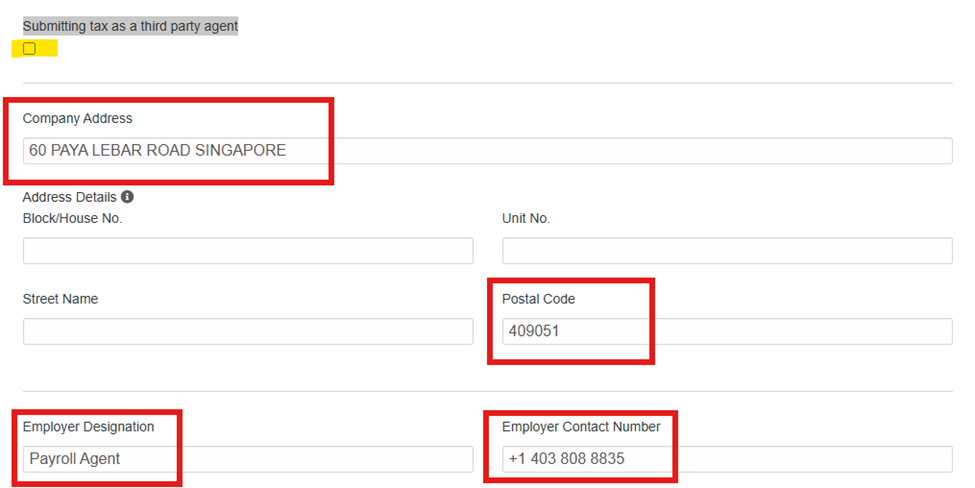
Go to Step 2: Review and correct employee IR8A forms
Scroll down to each employee's IR8A form and review it for errors. Employers must cross-check all figures for accuracy.
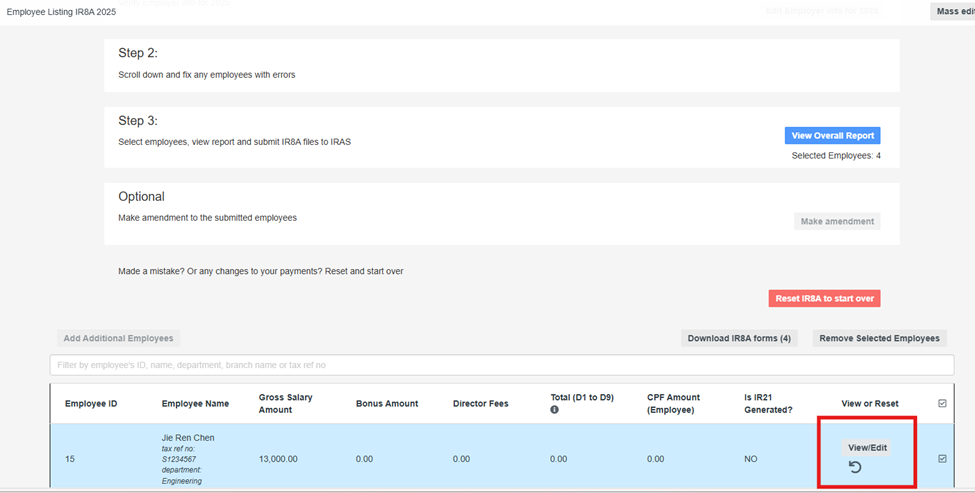
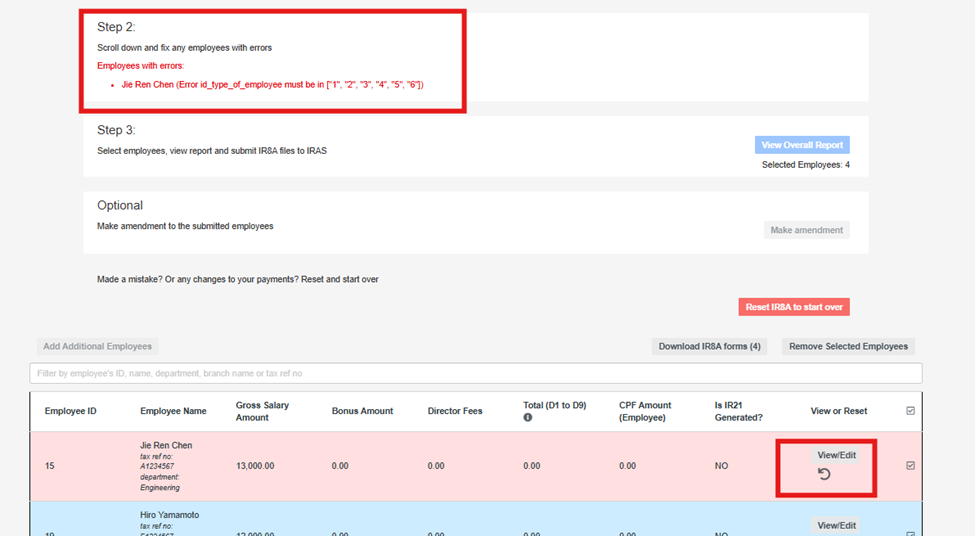
If there is an error in an employee's form, select the employee’s name, click View/Edit, and update the necessary details. Errors will be highlighted under Step 2, with affected employees marked in red highlight.
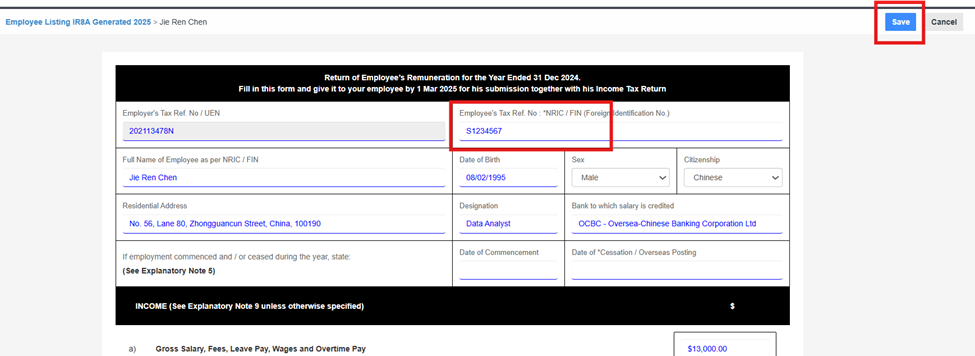
Click View/Edit to open the employee’s IR8A form. Update the required fields, click Save, return to the IR8A summary tab, and refresh the browser to reflect the updates.
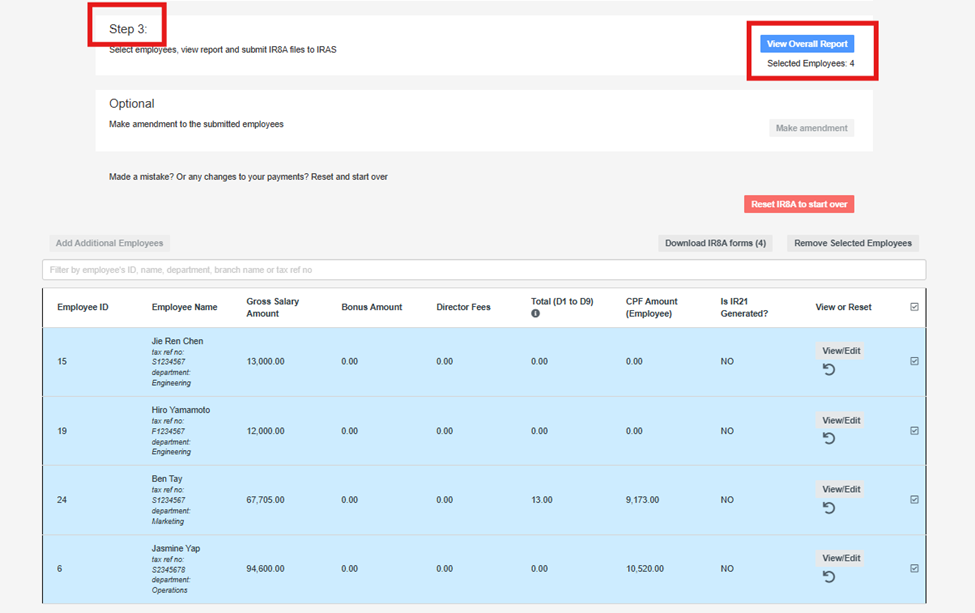
If all employees are highlighted in blue (indicating that all errors have been corrected), proceed to Step 3: View Overall Report. Ensure that all selected employees are counted.
Click View Overall Report and once the report appears, start by clicking the "Validate to IRAS”.
This step is safety check before we officially submit the IR8A to IRAS. It verifies IR8A data against IRAS official validation rules to make sure everything is correct for example the year use in generating the IR8A, employee count, salary totals and CPF amounts.
Once we click "validate to IRAS" it doesn't mean that it gets submitted at this stage, it will just helps catch any issues early so we don't run into problem later when we submit.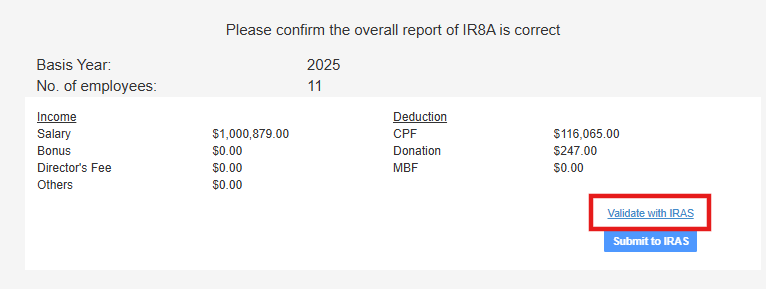
After it passes the validation, we can now proceed to click "Submit to IRAS”
The submission will process immediately, provided the company is successfully registered under the Auto-Inclusion Scheme (AIS), as the payroll system integrates with IRAS.
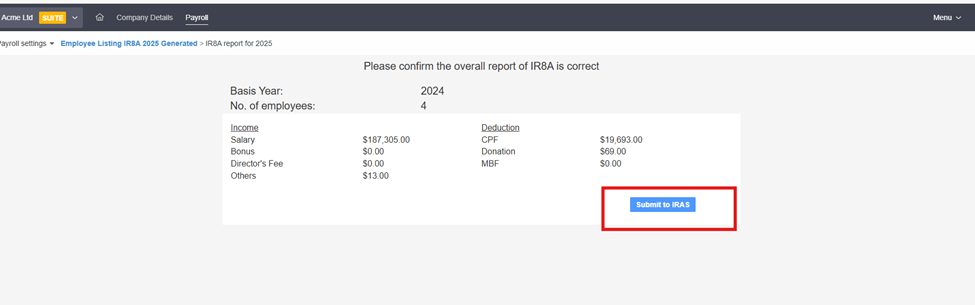
Take a screenshot or save a copy of the successful submission for future reference.
After a successful submission, inform employees to log into their myTax Portal and verify that their income details are correctly posted. (Replication may take one business day after submission using Omni.)
Download each employee’s IR8A form, upload it to their Omni HR profile under the Documents Tab, and categorize it under Personal Documents. If necessary, provide a digital or printed copy.
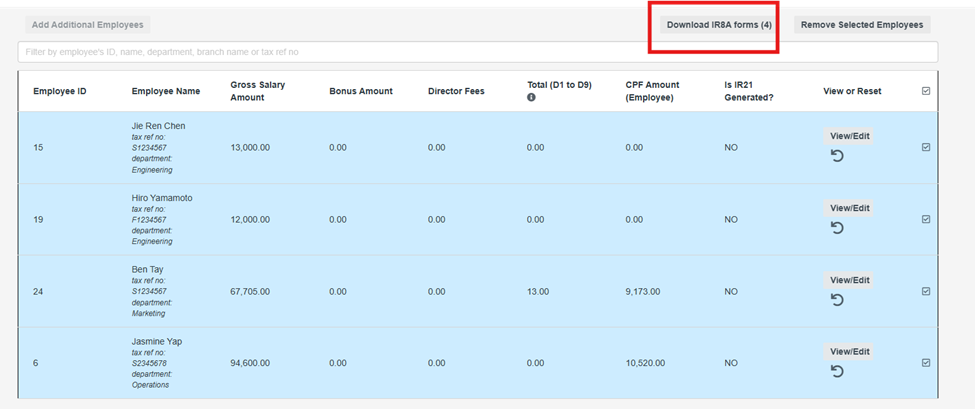
Note: If using a non-integrated payroll system, download the IR8A files and manually upload them to myTax Portal.
Related Article(s):
- Understanding IR8A and Related Forms
- Submitting the Singapore IR8A to IRAS
- Making Changes Post Submission
Still Need Help?:
Reach out to our support team should you need further assistance.
Was this article helpful?
That’s Great!
Thank you for your feedback
Sorry! We couldn't be helpful
Thank you for your feedback
Feedback sent
We appreciate your effort and will try to fix the article