Overview:
Our Document Library allows you to upload documents and customize sharing settings to ensure that only the intended users will see specific documents. We'll learn in this article how you can upload and share documents using the Document Library.
TABLE OF CONTENTS
- Uploading and Sharing Documents
- Sharing a Document that was previously not shared
- Checking the Acknowledgement Status
Uploading and Sharing Documents
1. To start, go to Documents > Document Library > Upload Document
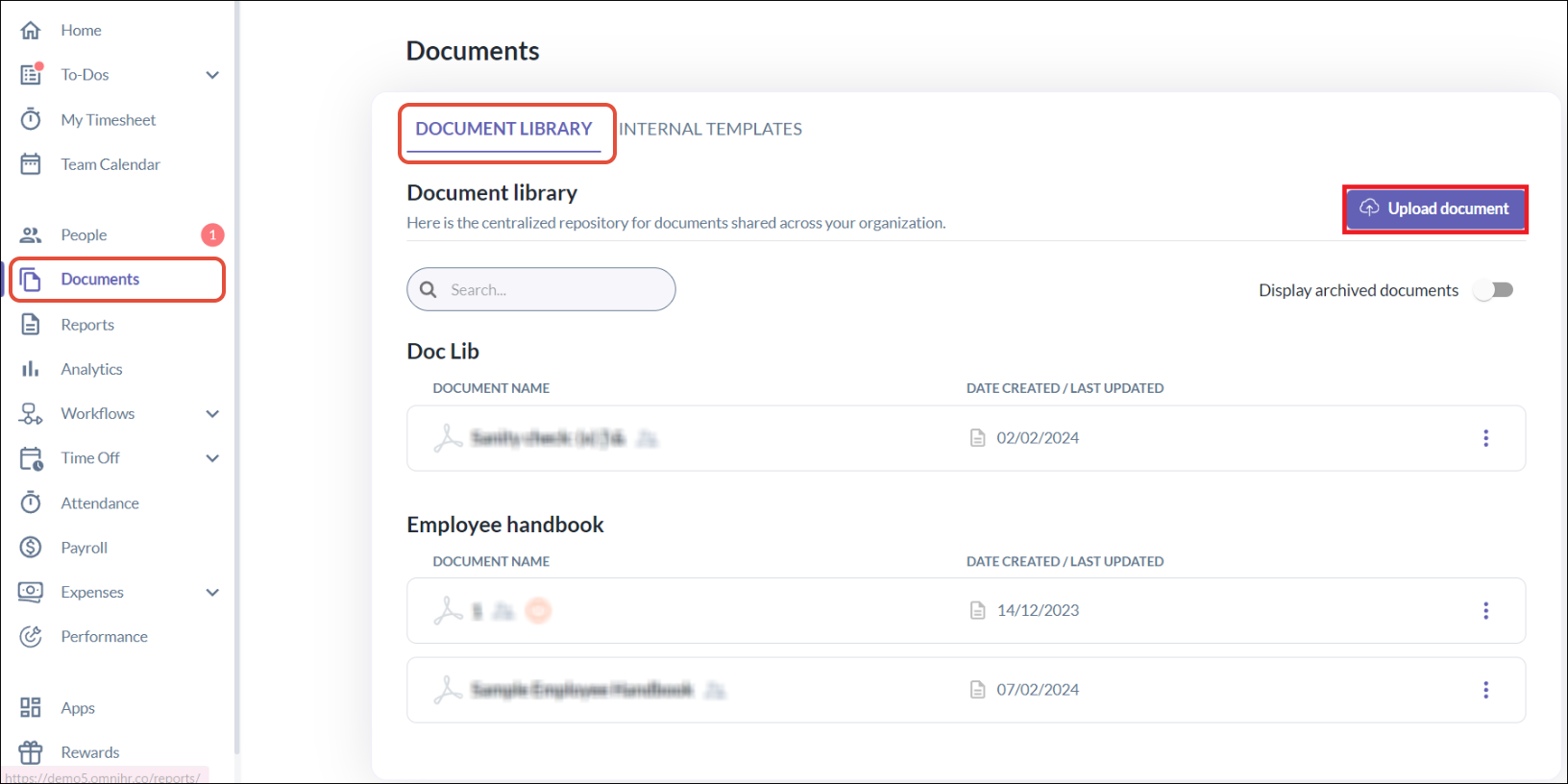
2. A pop-up will appear, where you can upload the document, and enter the Document name and select the Document type.
- If the Document type is not available, click Add New Document type in the drop-down.
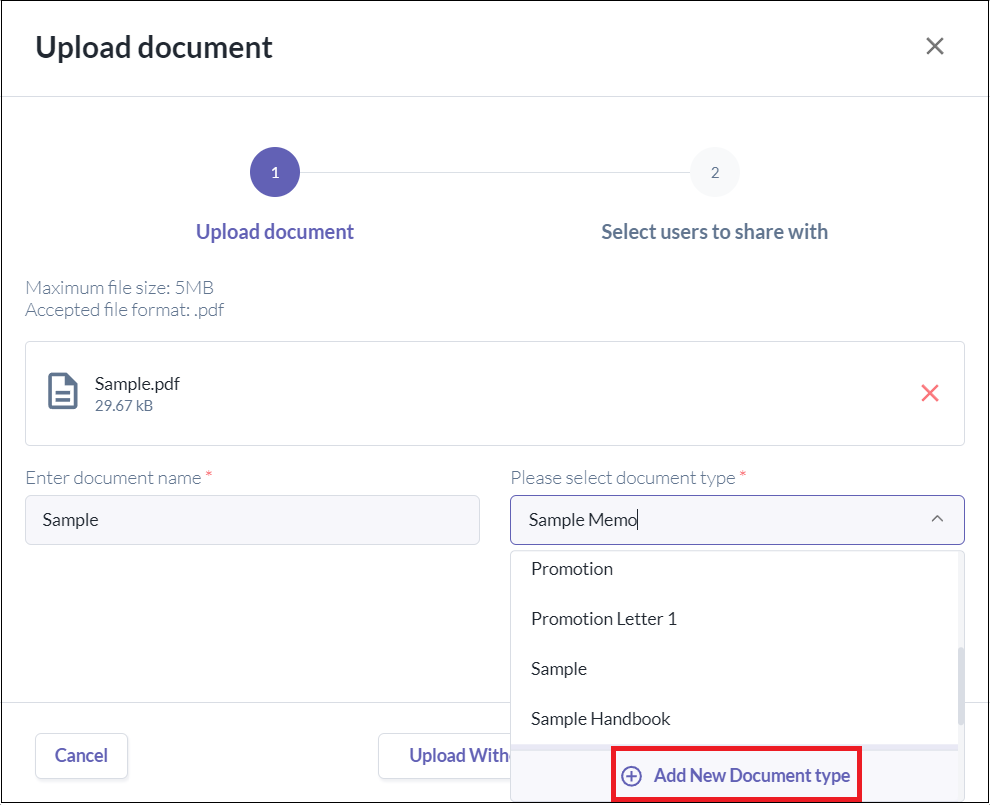
3. Click Next to be brought to Select Users to Share With
4. Choose if you want to Share with: No one, Everyone or Specific groups/employees
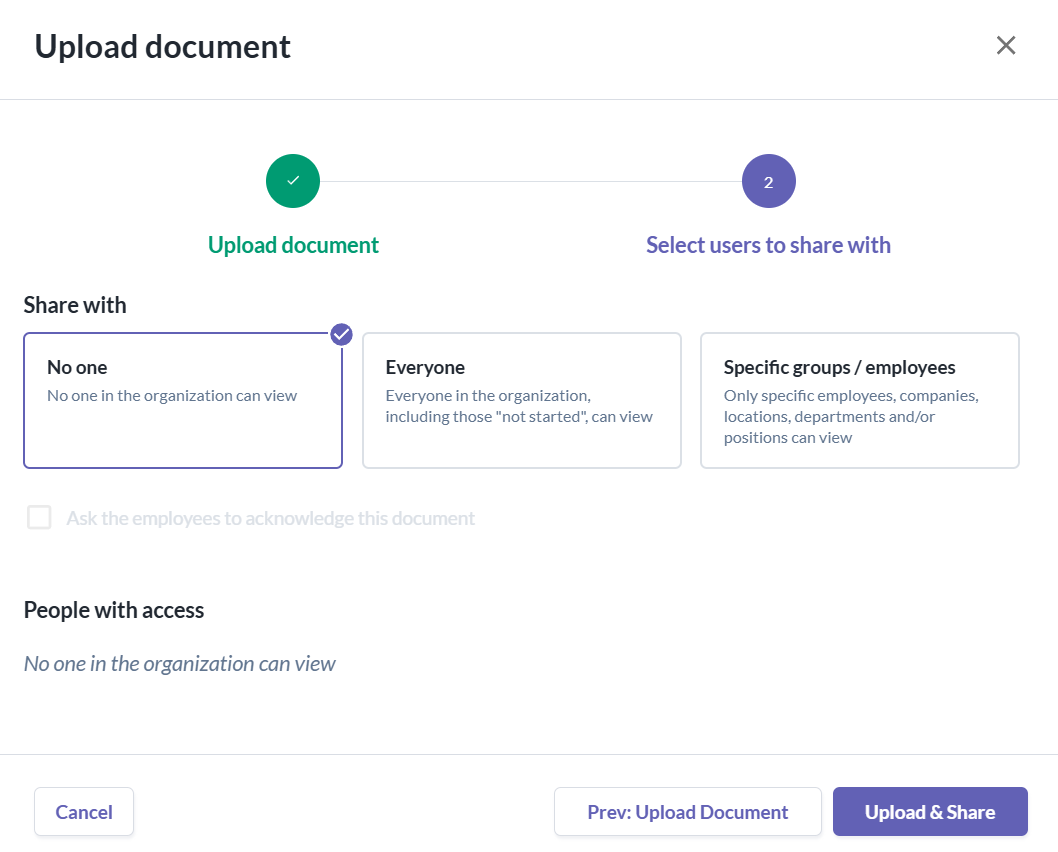
- No one - No one in the organization can view.
- Everyone - Everyone in the organization can view, including the "not started".
- Specific groups/employees - You can customize the user groups of specific employees you want to notify about the document by Specific groups or Specific employees. You can also create as many user groups as you want in this step.
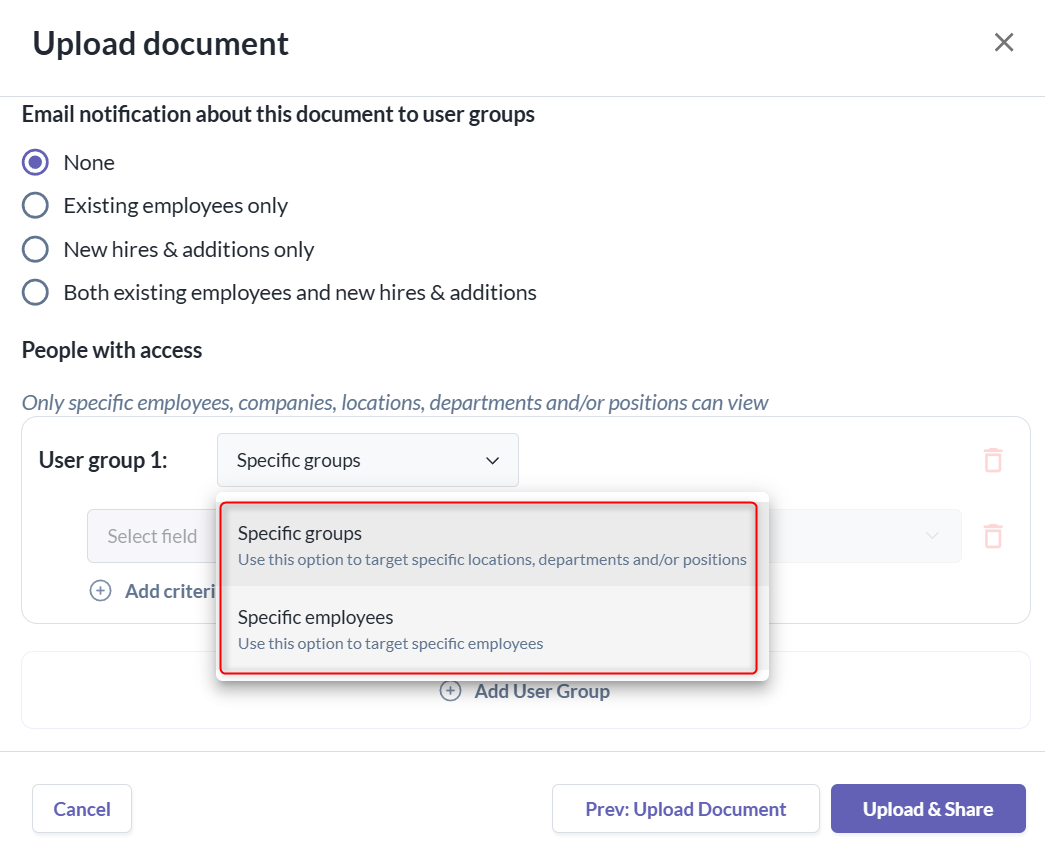
- By Specific groups - You can choose the groups of employees by Company, Department, Location, and Position.
- By Specific Employees - You can specify the names of the employees.
- You can further check 2 additional configuration if you choose Everyone and Specific groups/employees
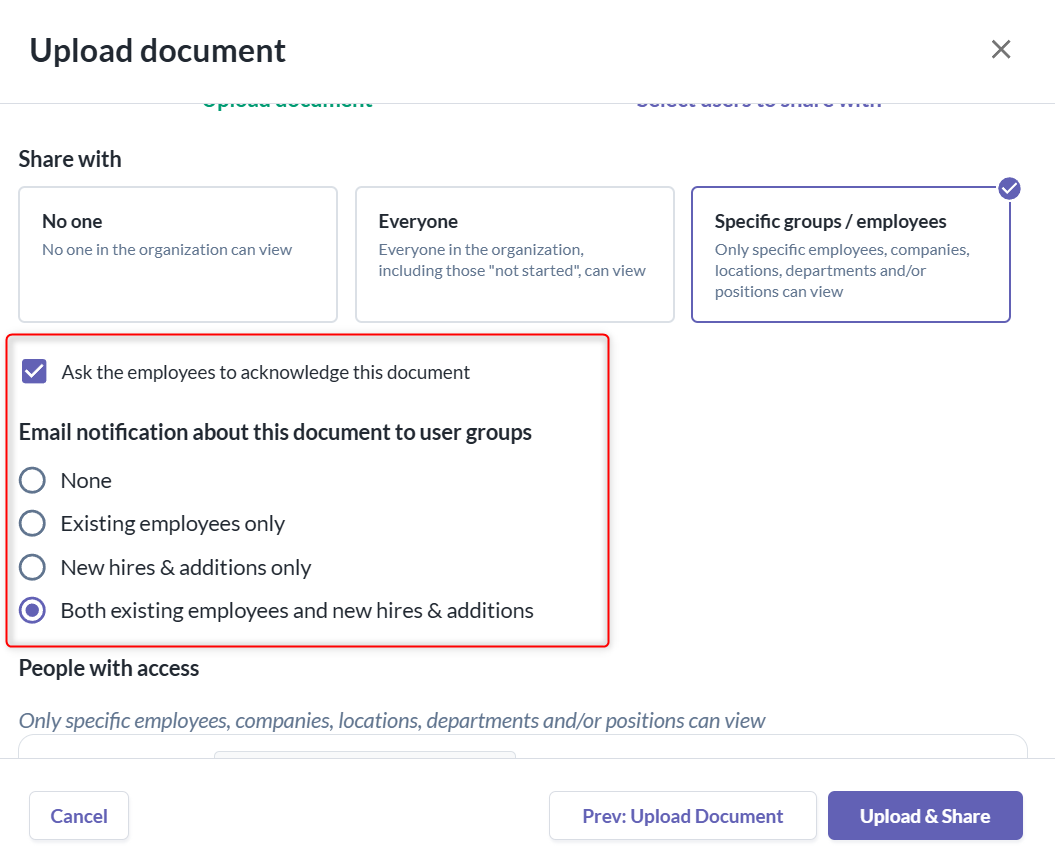
- Ask the employees to acknowledge this document - All employees in the specified group will receive an email notification, and they have to acknowledge the document.
- Email notification about this document to user groups
None - No email notification will be sent. This applies both when the document is initially shared and when new employees gain access in the future.
- Existing employees only - An email notification will be sent immediately to all current employees who match the sharing rules (specific groups or specific employees). Employees who gain access later will not receive an email notification.
- New hires & additions only - No email notification will be sent when the document is initially shared. Employees who gain access in the future (for example, new hires or employees newly added to the specified groups) will receive an email notification.
- Both existing employees and new hires - An email notification will be sent to current employees immediately. Future employees who gain access will also automatically receive an email notification.
- Click Upload & Share
Note: Employees with the status "Not Started" are counted as Existing Employees. Thus, if system self-service is granted to this employees prior to their start date, they will be able to view documents shared to them.
Sharing a Document that was previously not shared
- Click the Document you want to share.
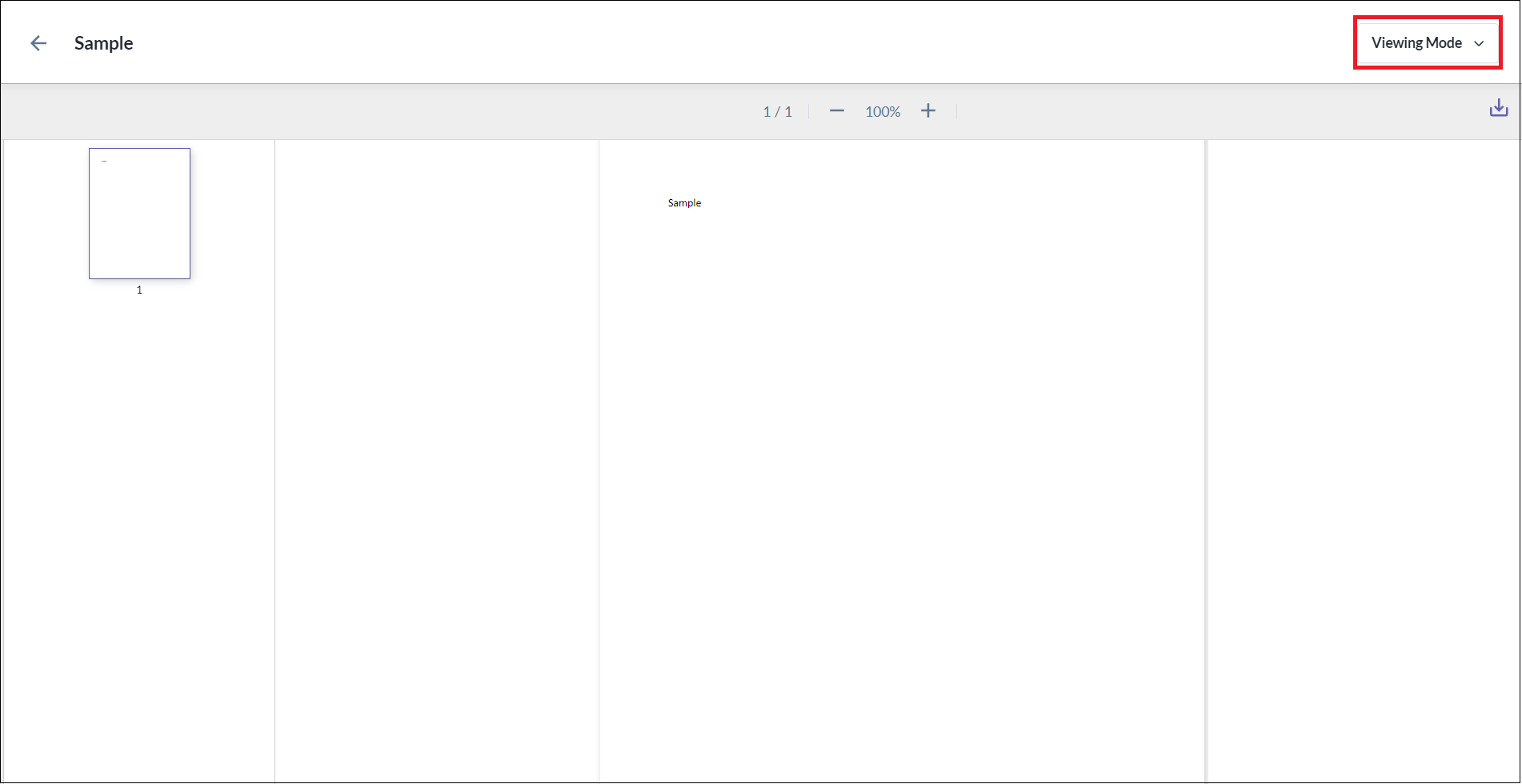
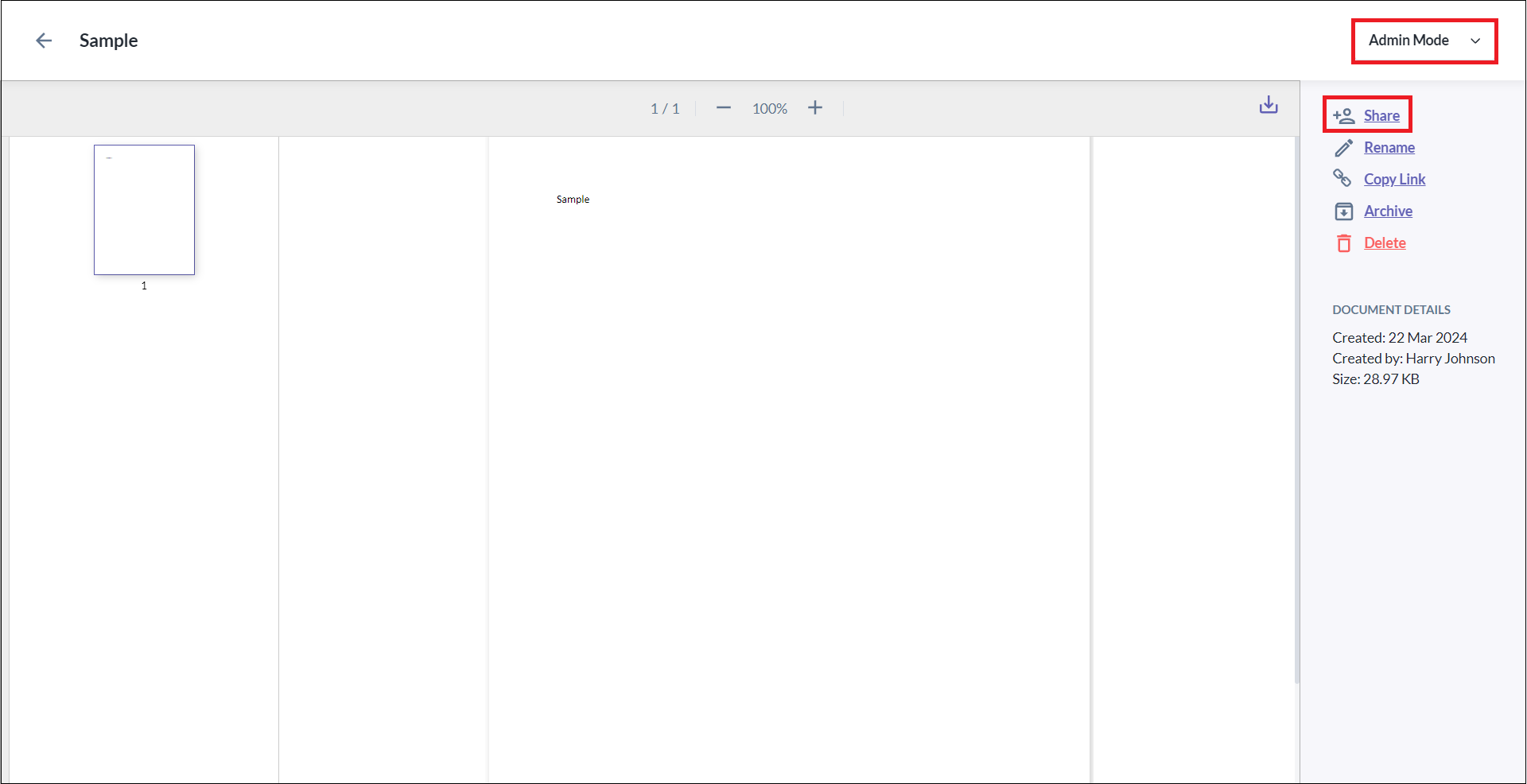
- At the top right side of the page, click the Viewing mode dropdown > choose Admin mode > click Share
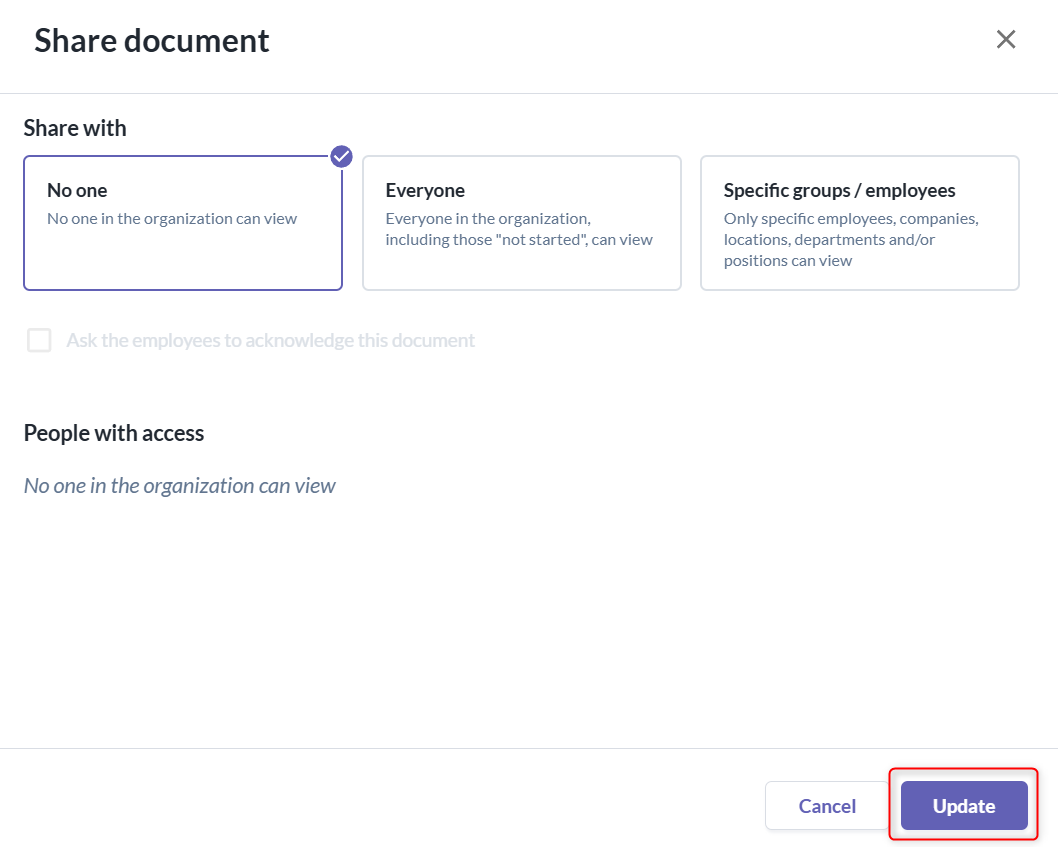
- Customise the Share settings accordingly (see Uploading and Sharing Documents), then click Update.
Checking the Acknowledgement Status
- You can also check the number of employees who have already acknowledged your document. To start, click the Document > Viewing mode dropdown > choose Admin mode
- Check the number of employees who have acknowledged via the Acknowledgements Section.
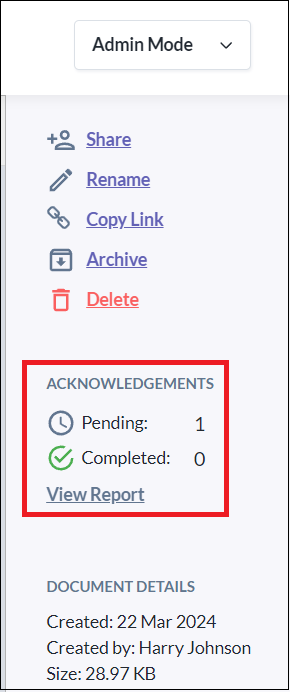
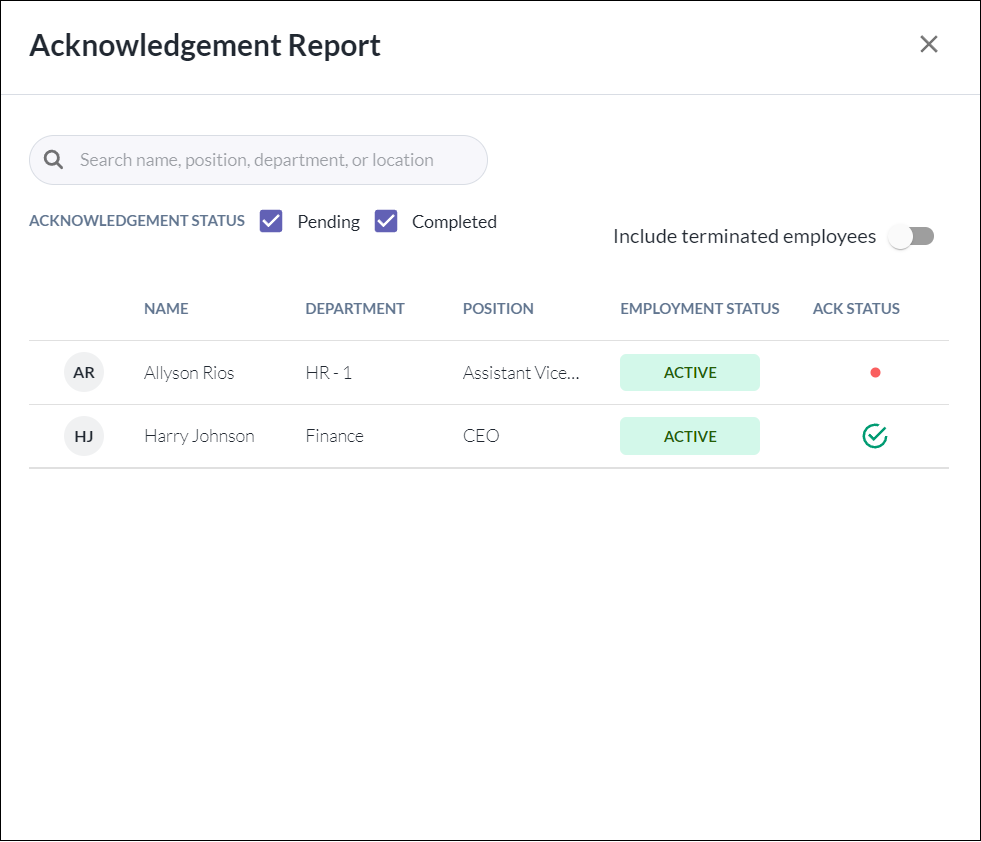
- You can also click View Report to see who has acknowledged and who are pending.
Still Need Help?:
Reach out to our support team should you need further assistance.
Was this article helpful?
That’s Great!
Thank you for your feedback
Sorry! We couldn't be helpful
Thank you for your feedback
Feedback sent
We appreciate your effort and will try to fix the article