Overview:
We have now released notifications and reminders to Microsoft Teams, similar to the notifications we have with Slack Integration!
Pre-requisite: The user or admin that does the connection on Omni HR is required to have Global Administrator role on Microsoft Azure Entra ID. This will allow the user or admin to ensure a synchronous connection between the two platforms.
TABLE OF CONTENTS
Integration Configuration:
(A) Add Omni HR app into teams
1. Download the Omni HR zip file attached
2. Login to your Teams application > Go to Apps on the left side menu
3. Click Manage your apps on the bottom left corner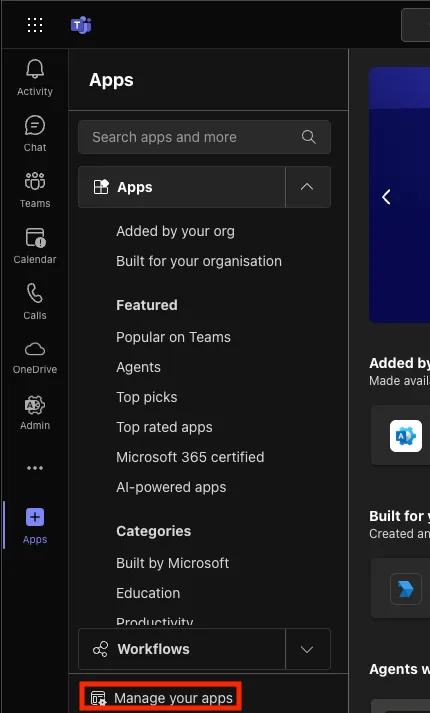
4. Click Upload an App at the upper center of the screen
5. Next, click Upload an app to your organization's app catalogue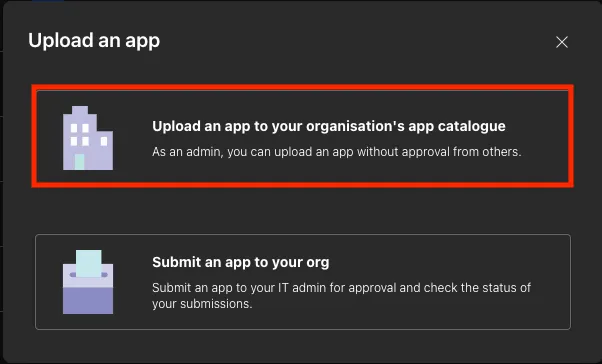
6. From the Browse computer pop-up, select the Omni HR zip file to upload the app and you will be navigated to the Built for your org page
7. Once the upload is successful, go back to Apps
8. Click the Add button on the Omni HR card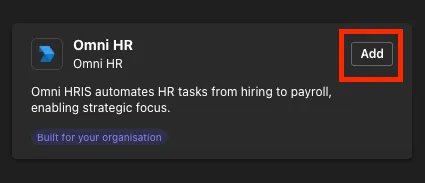
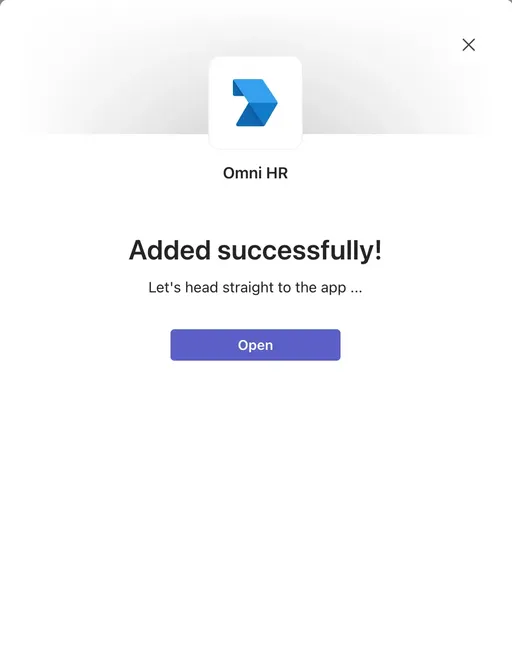
9. A pop-up will appear, click Add again. You will receive a pop up with a success message. You may close the tab. This will add Omni HR to your app list.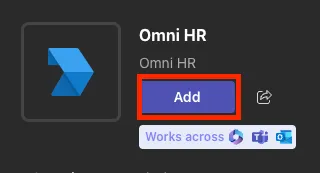
10. Next, sign-in to the Teams Admin Center
11. Navigate to Teams apps and then select Setup policies
12. Click on Global (Org-wide default)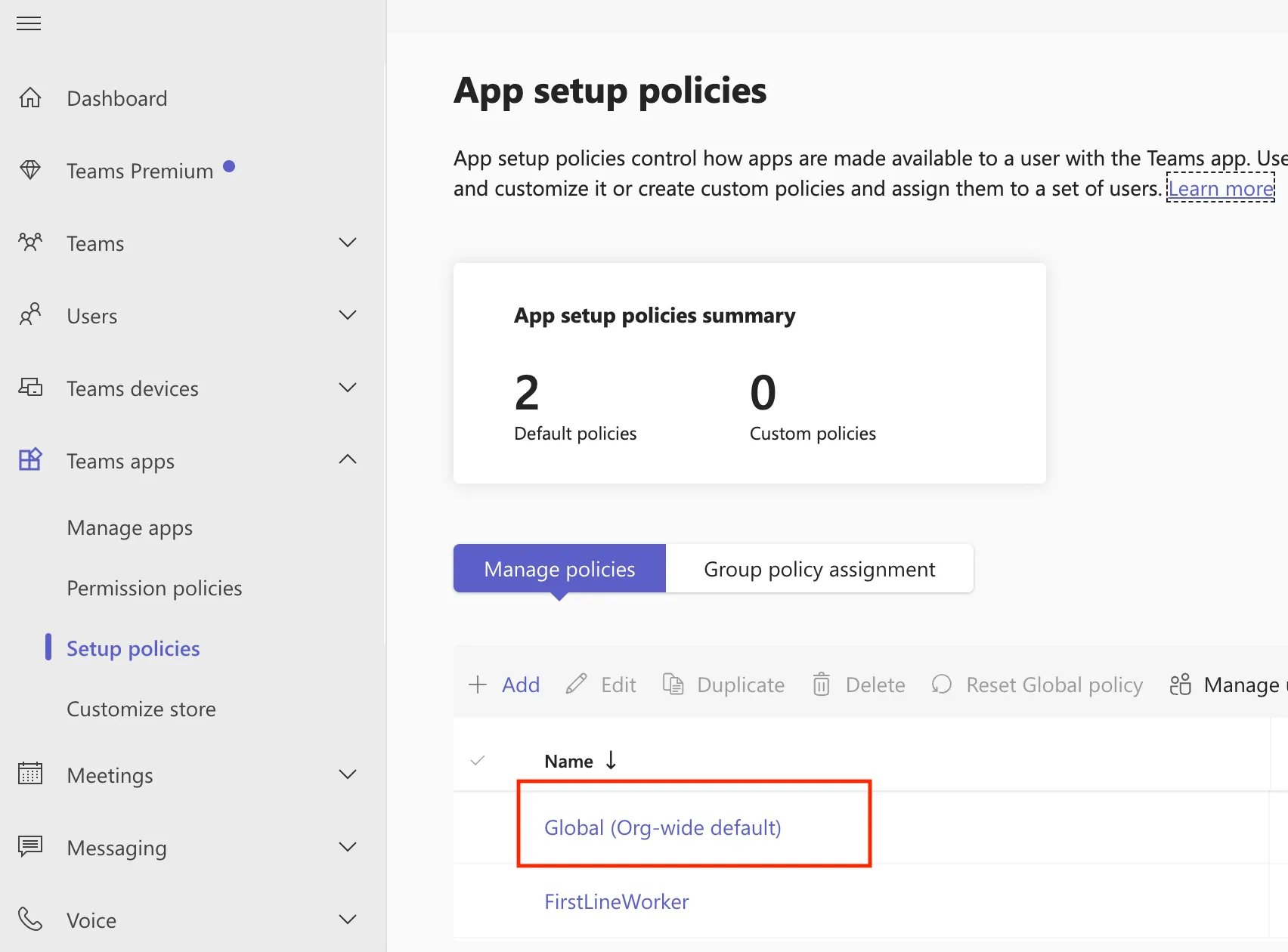
13. Click on Add apps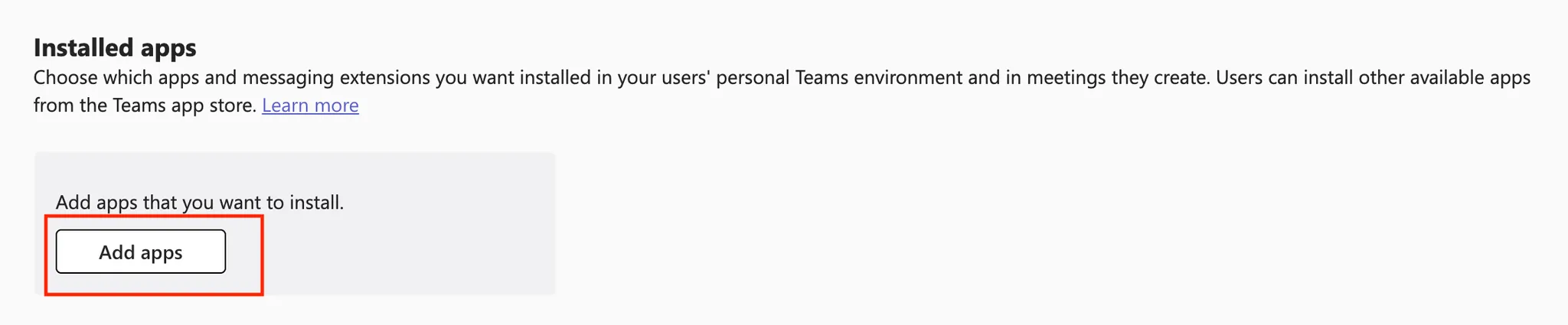
14. Search for Omni HR and select the app. Click Add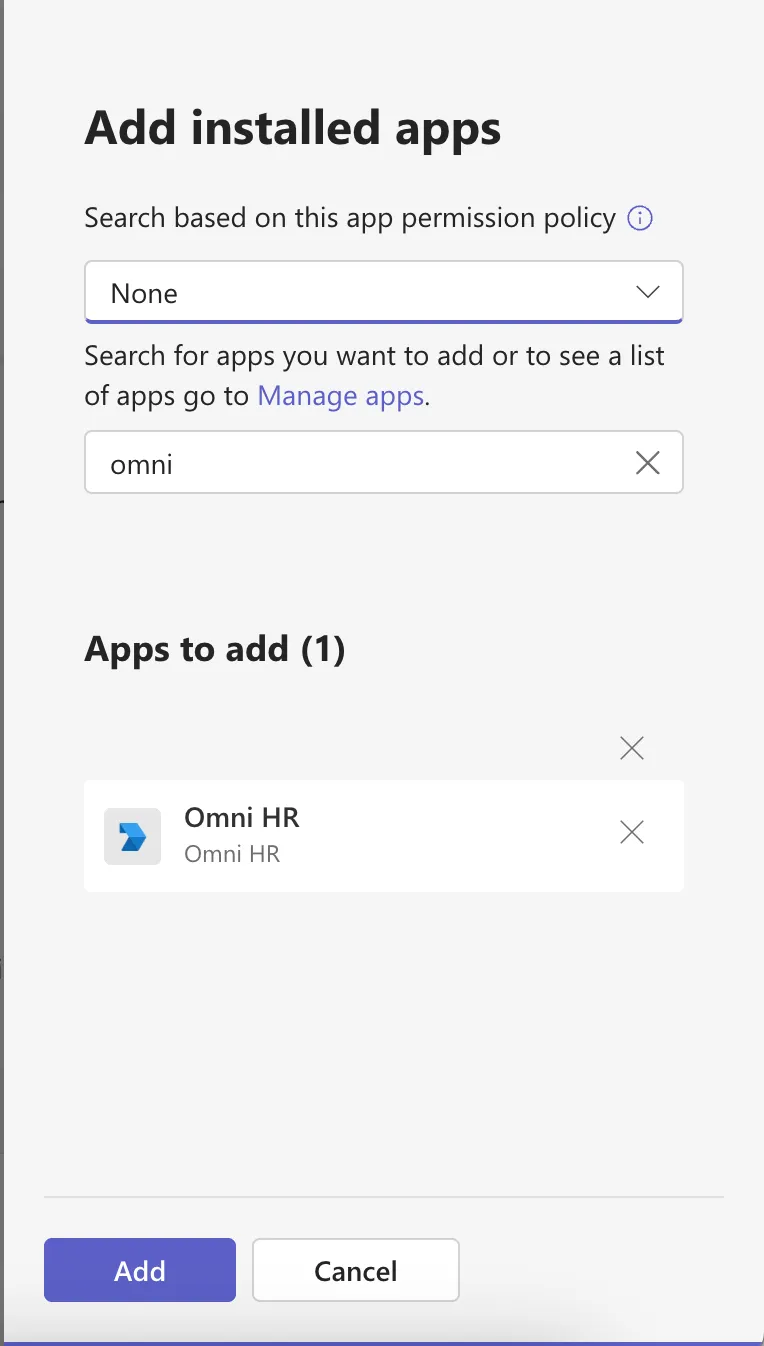
15. Finally click on Save and then Confirm. This will install the Omni HR bot by default for all users on the organization.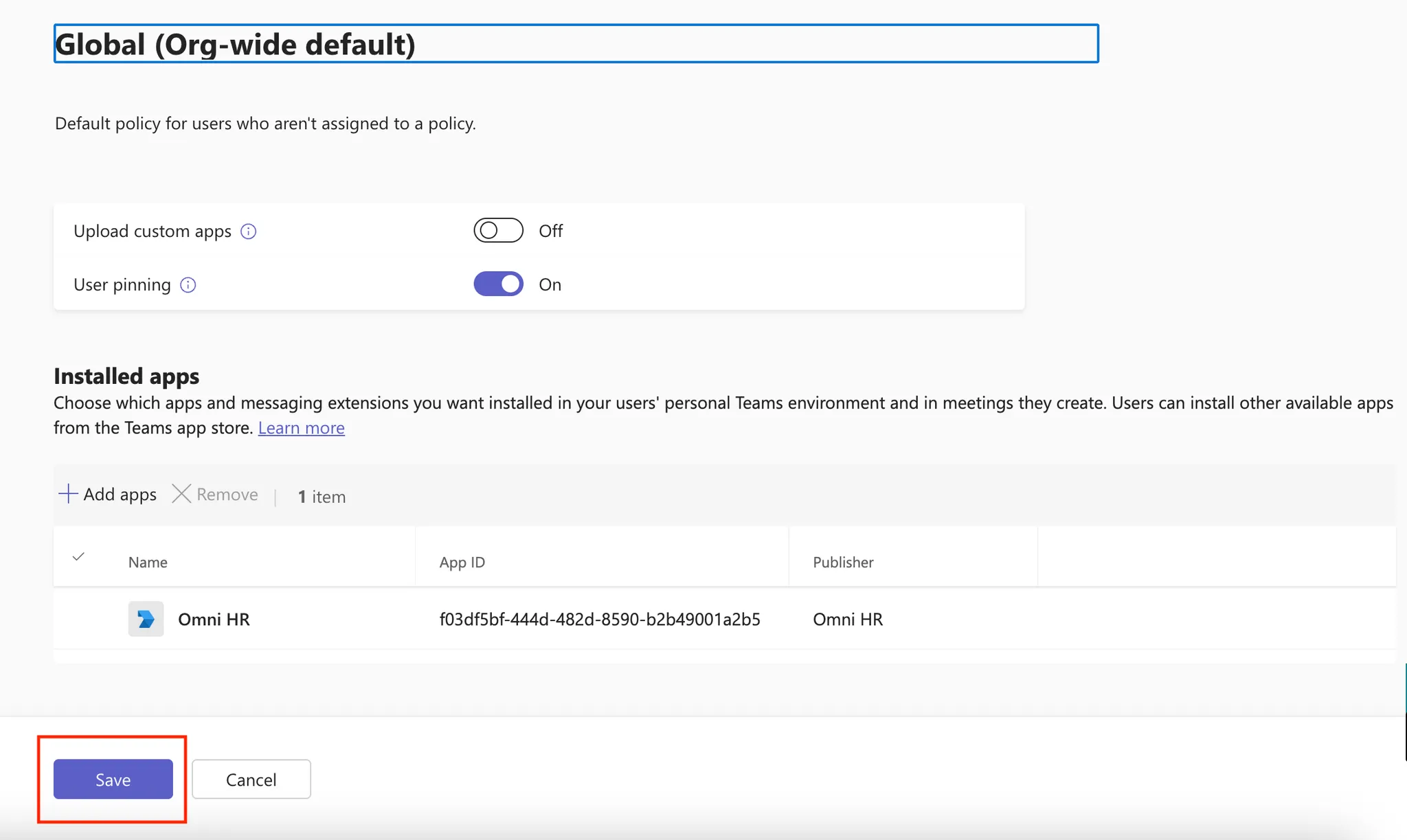
(B) Integrate Omni HR app with Teams
REMINDER: The user or admin that does the connection on Omni HR is required to have Global Administrator role on Microsoft Azure Entra ID. This will allow the user or admin to ensure a synchronous connection between the two platforms.
1. Go to Apps > Other Integrated Apps > Microsoft Teams.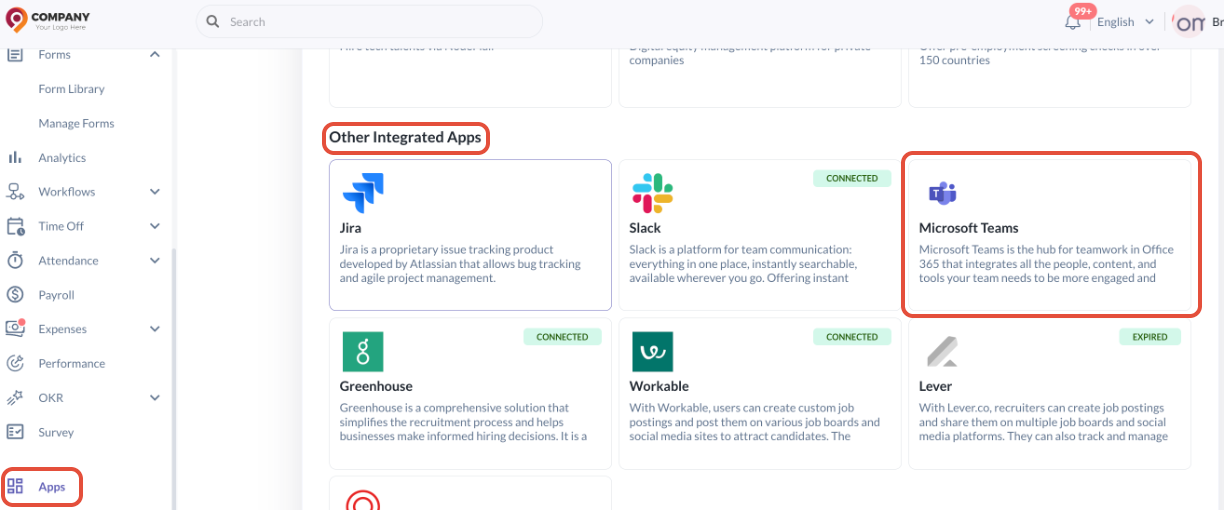
2. In the pop-up, click Connect to connect to Microsoft Teams.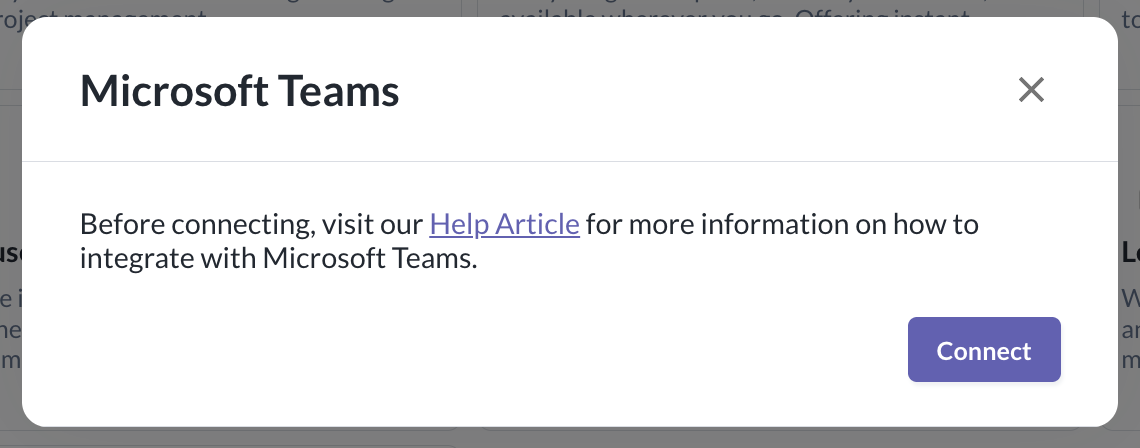
(C) Enable Teams Notifications
1. Once you have connected successfully, you will be able to customize events you want to opt out of, if you do not want recipients to be notified.
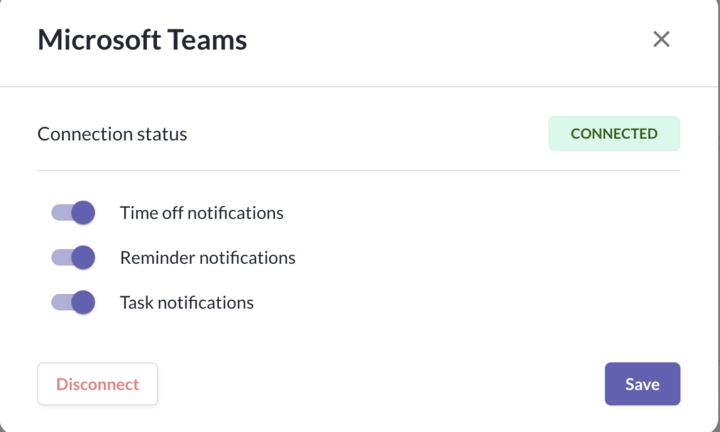
Time Off Notifications
- Whenever an employee submits a time off request in Omni, the approver(s) will receive a notification informing them about the submitted time off request
- Approver can directly choose to Approve or Reject
- Once the approver Approves or Rejects, they will receive a feedback message stating Thank you for your submission
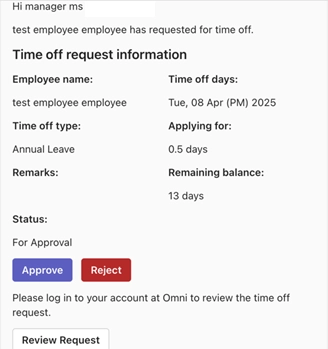
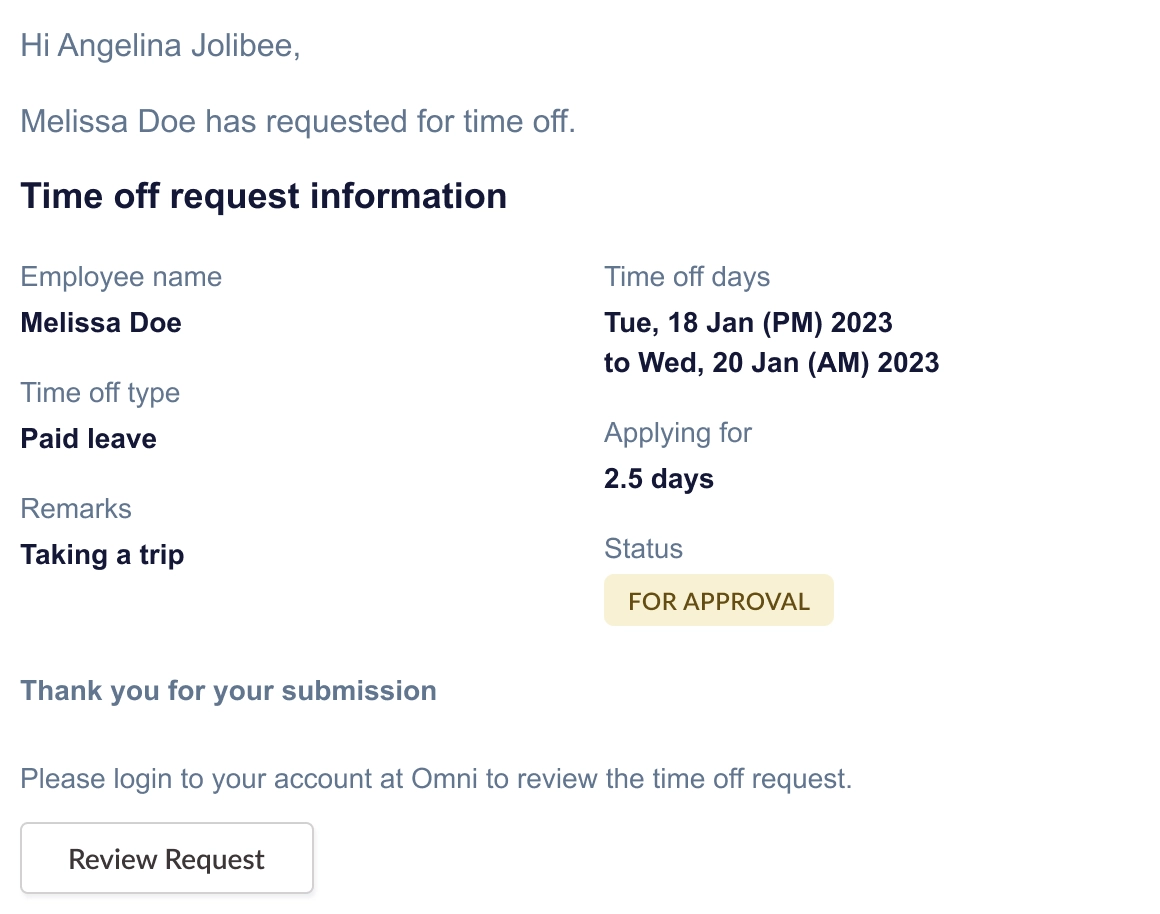
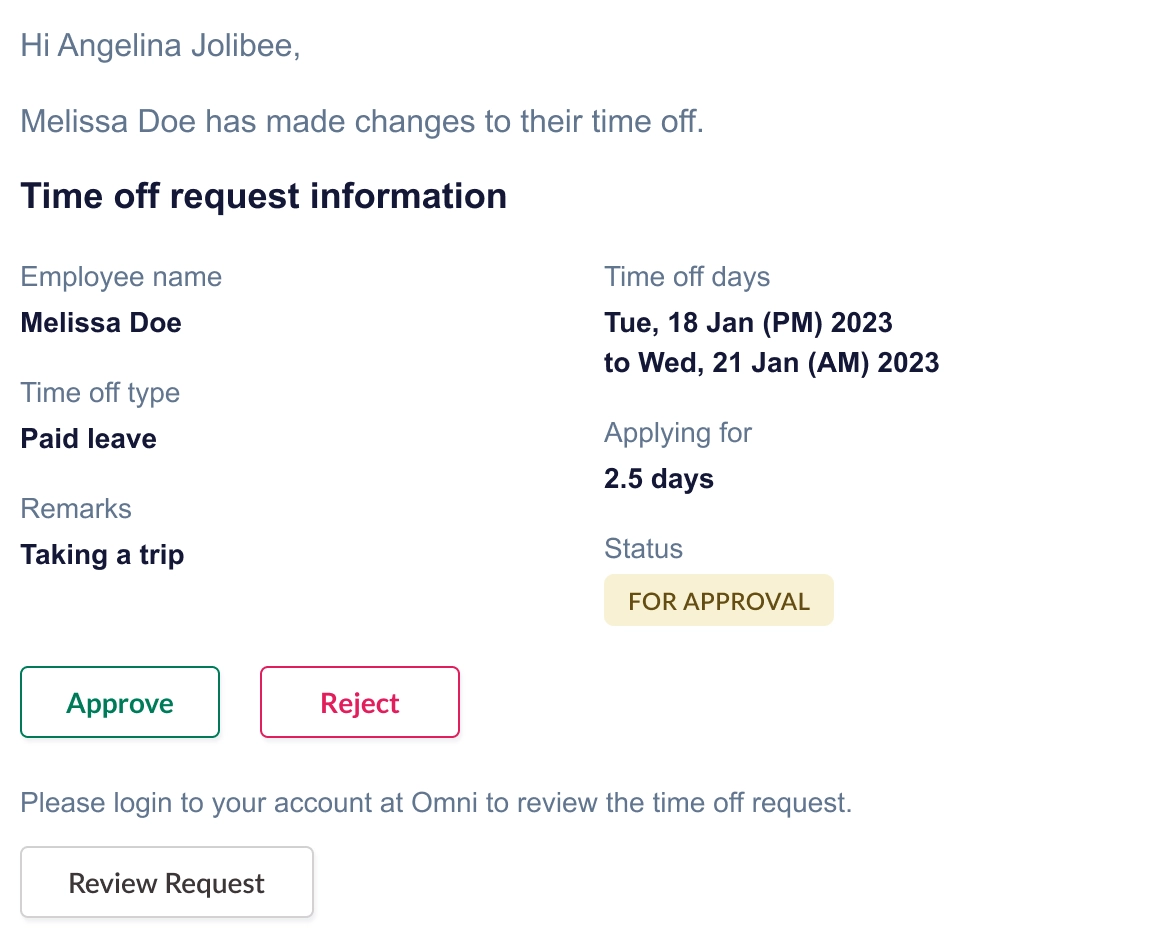
- If an employee Updates the time off request, the approver(s) will also receive a notification on the update
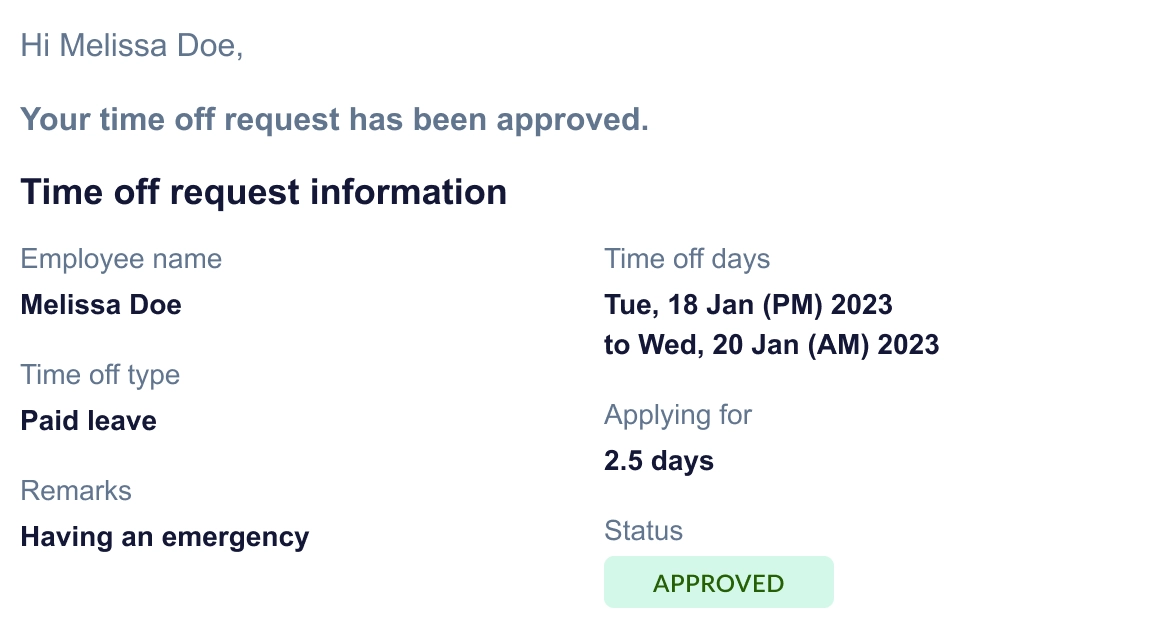
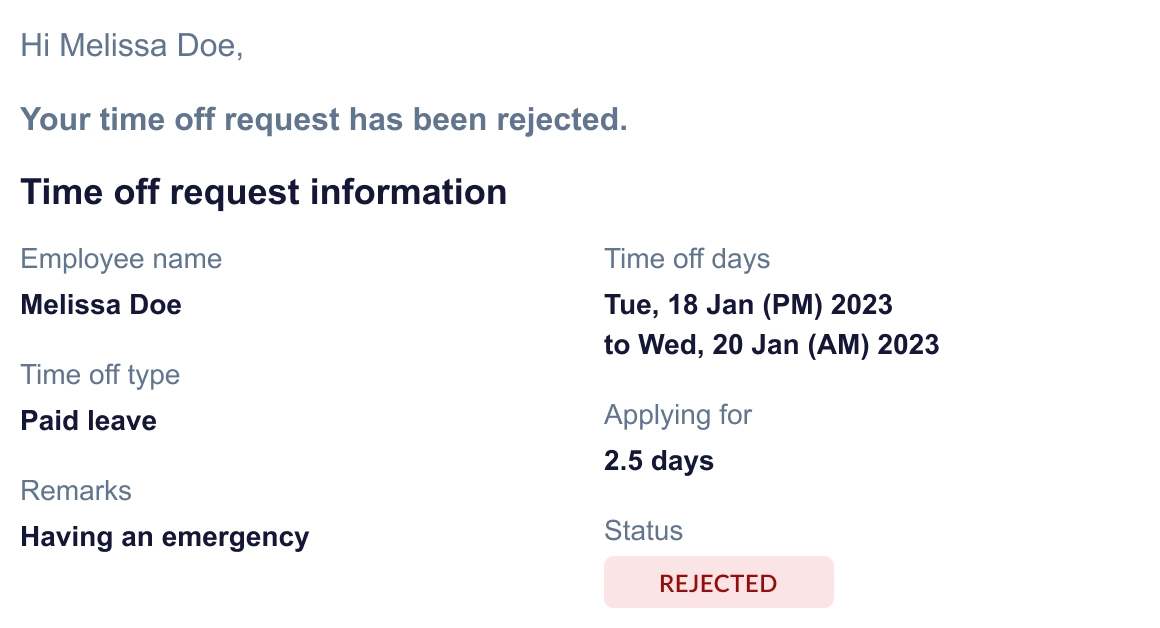
- Employees will be notified if the request was Approved or Rejected
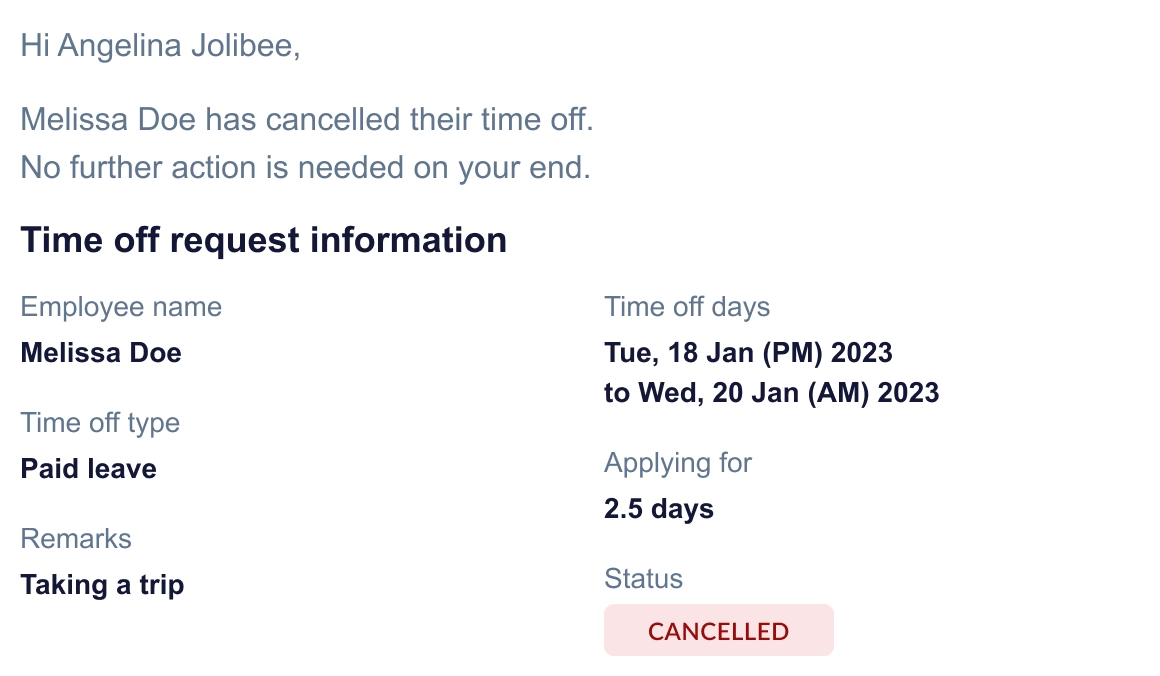
- Approvers will also be notified on any Cancellations of time off request
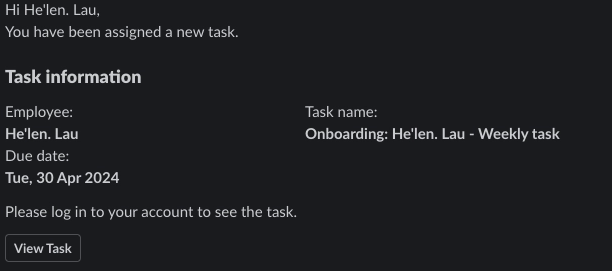
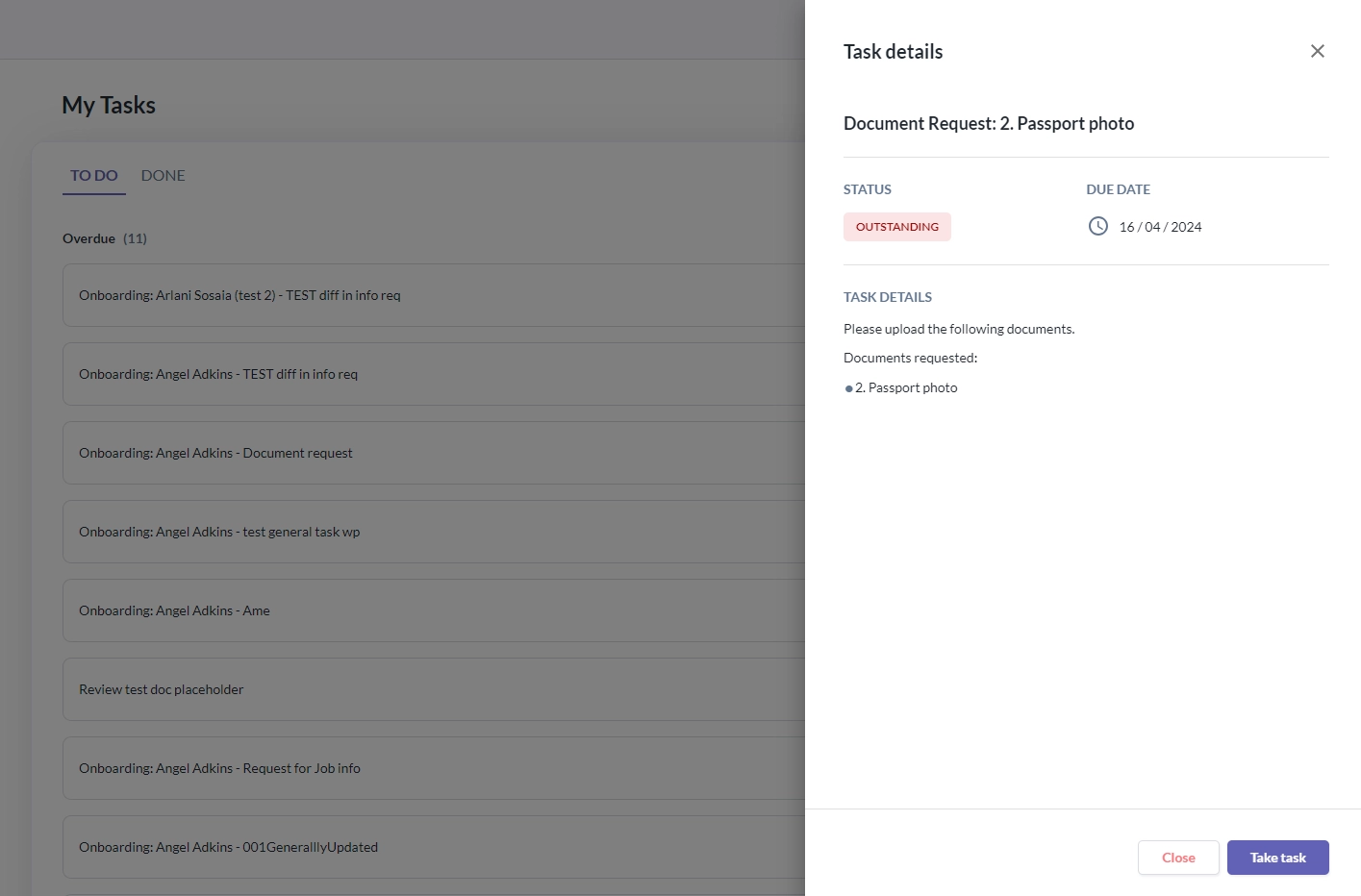
Workflow & Tasks Notifications - When a task is assigned to an employee, they will receive a notification. Clicking on the View Task will direct them to log in and view the task in their Omni account
- When an employee receives a Document Request Task, they will receive a notification in Teams.
- Clicking on the Review Document Request will directly take them to the task in the system where they can proceed by Taking the Task.
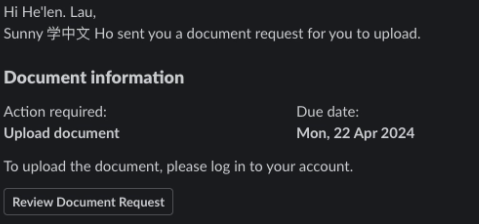
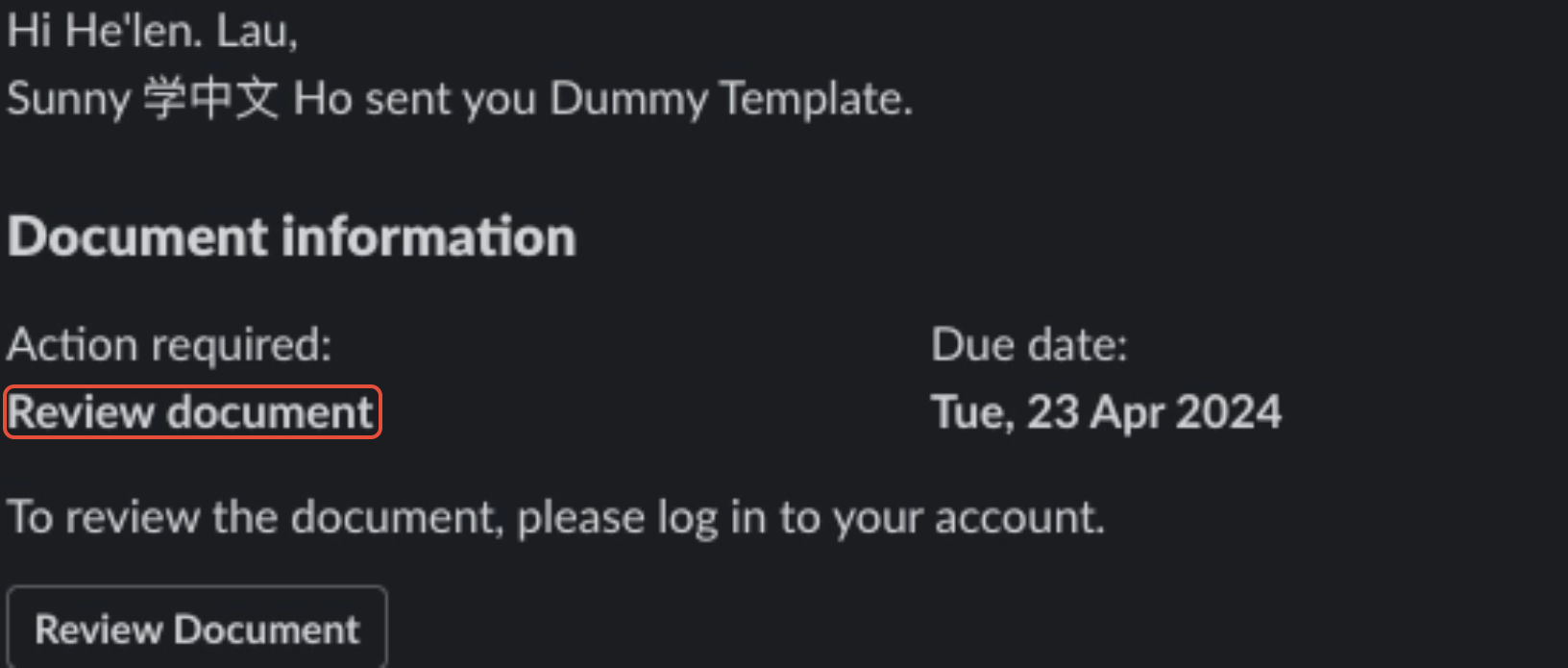
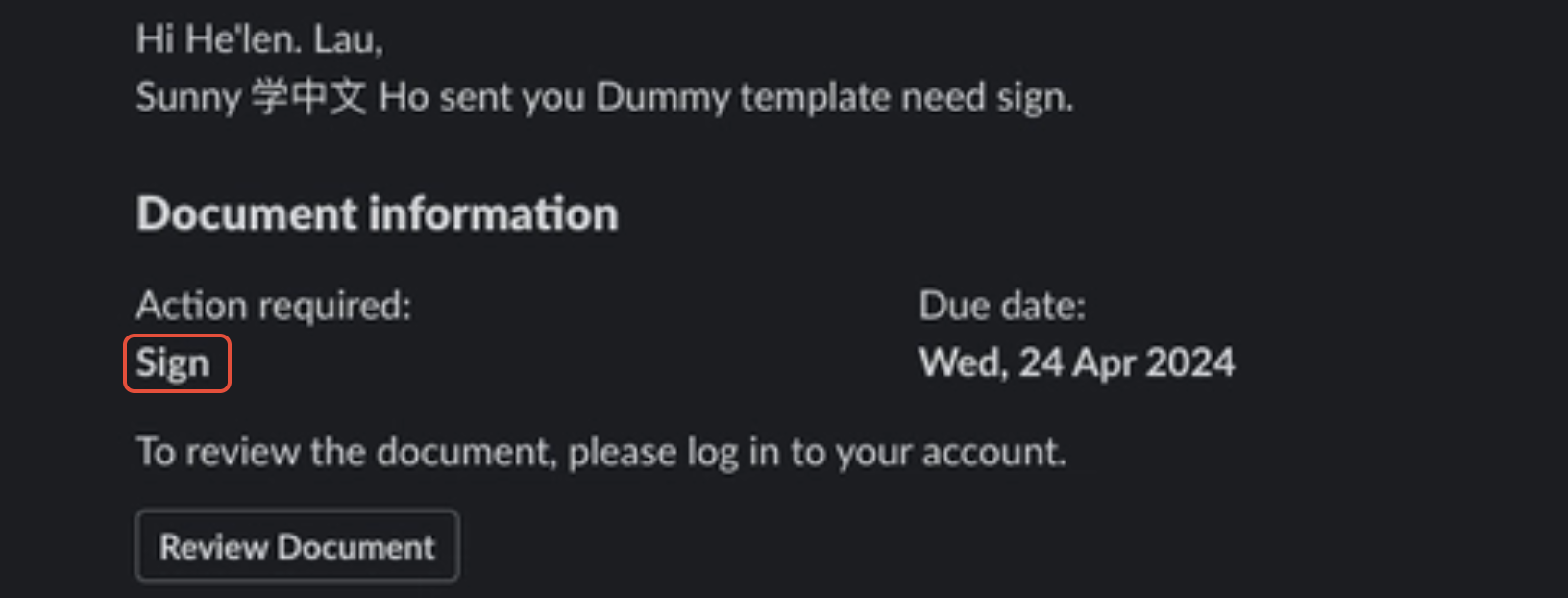
- When a document is sent for review or review and sign, they will also receive a Teams notification and the Action required will inform the recipient if they need to review or sign the document.
Reminders Notifications - Based on the reminders set up within your organization, if the Send notification by email is toggled on, the same notifications will be received in Teams
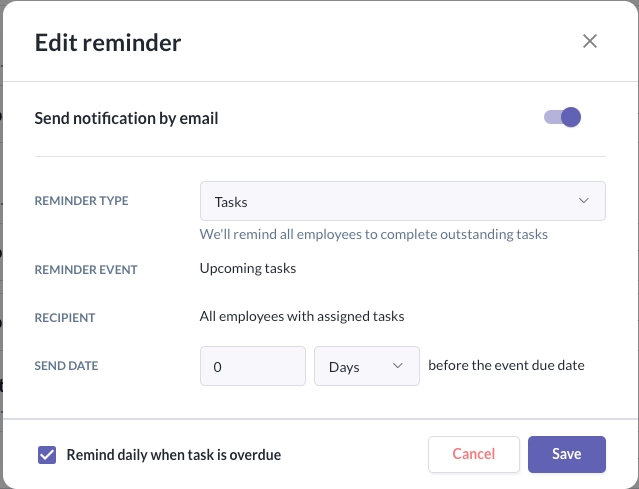
- Reminders for the below can be sent via Teams:
- Tasks
- Time off
- policy end dates
- carryover expiry date
- Important Dates
- upcoming hire date
- upcoming last day of work
- upcoming ID expiry date
- Performance Reviews
Still Need Help?
Reach out to our support team should you need further assistance.
Was this article helpful?
That’s Great!
Thank you for your feedback
Sorry! We couldn't be helpful
Thank you for your feedback
Feedback sent
We appreciate your effort and will try to fix the article