Overview
You can now connect your payroll account to QuickBooks (QB) and push processed payroll entries directly into your accounting system.
With the new accounting integration, payroll teams can:
- Connect their QuickBooks company to payroll
- Configure how payroll entries should be grouped in QB
- Map payroll items to the appropriate Chart of Accounts (COA) and Suppliers
- Select which payroll groupings should be exported
- Push completed monthly payroll entries directly into QuickBooks
TABLE OF CONTENTS
- Connecting to Quickbooks
- How to configure export settings of payroll entries
- Mapping payroll entries to QB COA and suppliers
- Pushing payroll entries to QB monthly
Connecting to Quickbooks
To get started, navigate to: More → Integrations → QuickBooks Online
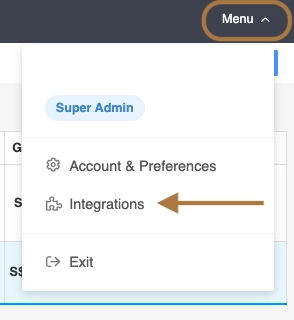
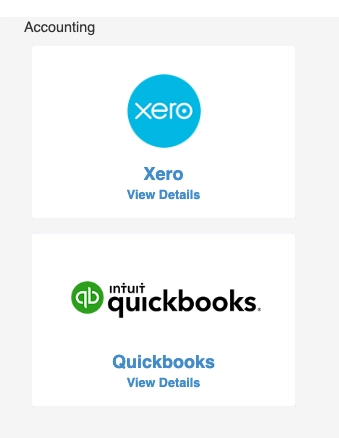
Select Connect to QuickBooks and you will be redirected to QuickBooks Online to authorise the connection to your company.
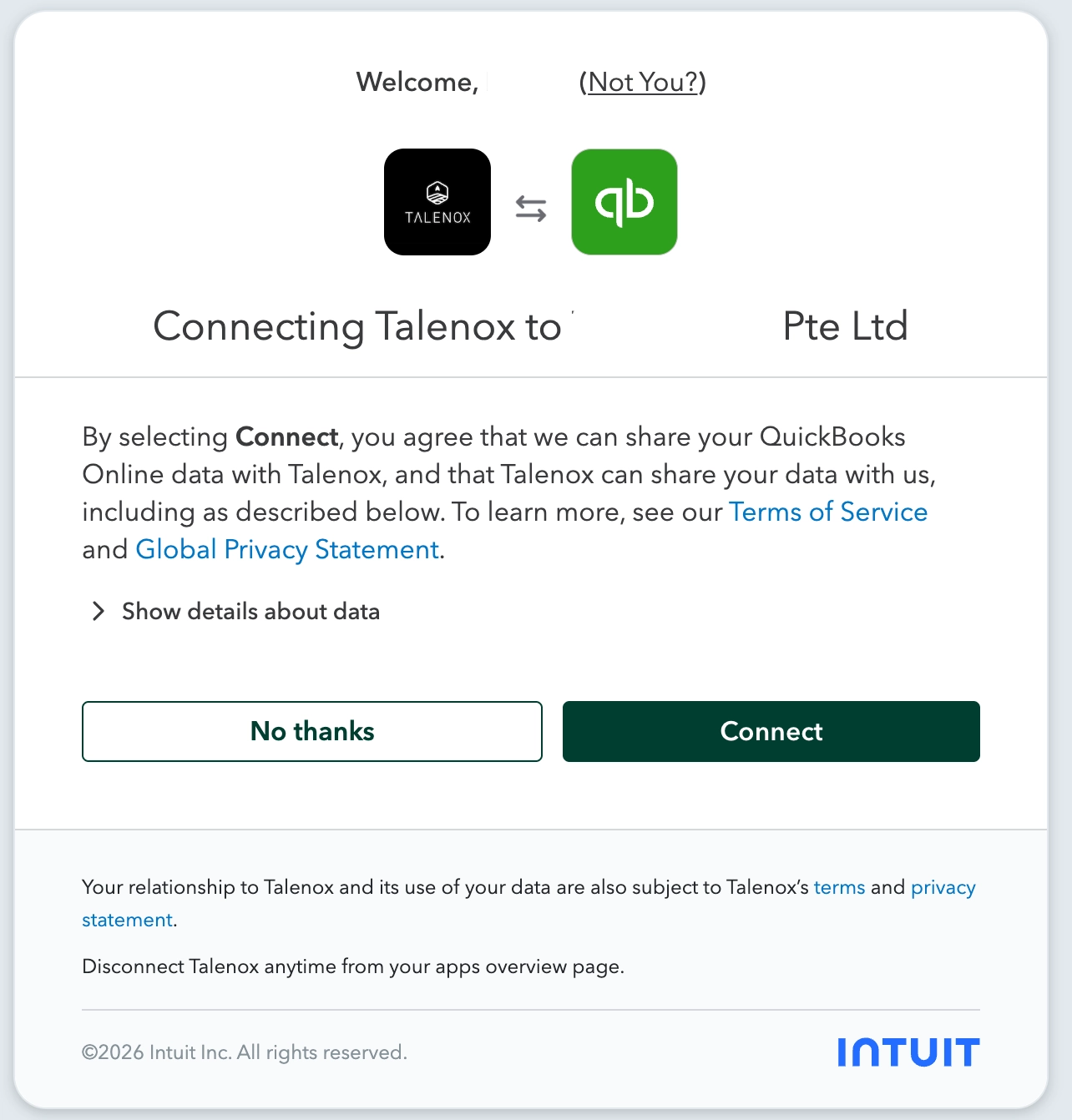
Once the connection has been completed, you can return to the integration settings to configure how your payroll entries should be exported.
How to configure export settings of payroll entries
Payroll entries are exported to QuickBooks as Bills. You can choose how the individual line items should be grouped:

By Cost Centre
Payroll amounts are consolidated according to their Cost Centre. This is useful where Finance teams only require the overall payroll expense by Cost Centre and do not need individual employee salary amounts to be reflected in QB.
Grouping by Cost Centre also helps prevent individual employee salaries from being displayed in QuickBooks.
By Employee
Payroll amounts are separated and reflected according to the individual employee. This provides Finance teams with a more detailed employee-level breakdown of payroll expenses.
Mapping payroll entries to QB COA and suppliers
Before exporting payroll, configure the Export Groupings that should be sent to QB.
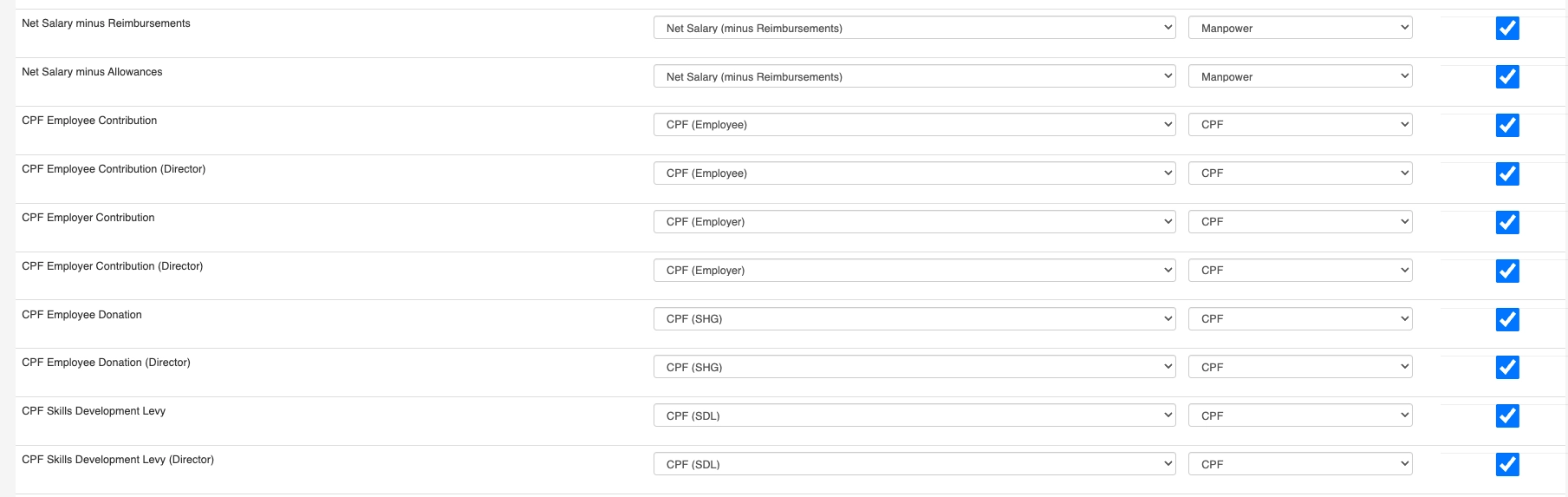
For each payroll grouping, you can:
- Enable the Export Grouping: Only enabled payroll groupings will be included when payroll entries are pushed to QB
- Map the Expense Account: Select the corresponding account from your QB Chart of Accounts. This determines where the payroll expense will be recorded in QB.
- Map the Supplier: Select the corresponding Supplier configured in QB.
Once all relevant payroll groupings have been mapped, save your configuration. These settings will then be used when payroll records are subsequently exported to QuickBooks Online.
Charts of Accounts and Suppliers should first be set up correctly in QB in accordance to financial and audit guidance.
Pushing payroll entries to QB monthly
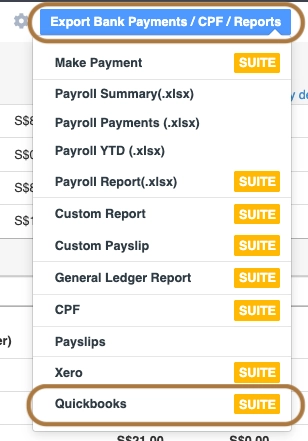
Once payroll for the month has been fully processed:
- Navigate to the payroll Month Total page.
- Select Export Bank Payments / Reports.
- Select QuickBooks.
- The system will push the payroll entries to your connected QB account.
- A confirmation will be displayed once the payroll entries have been successfully sent.
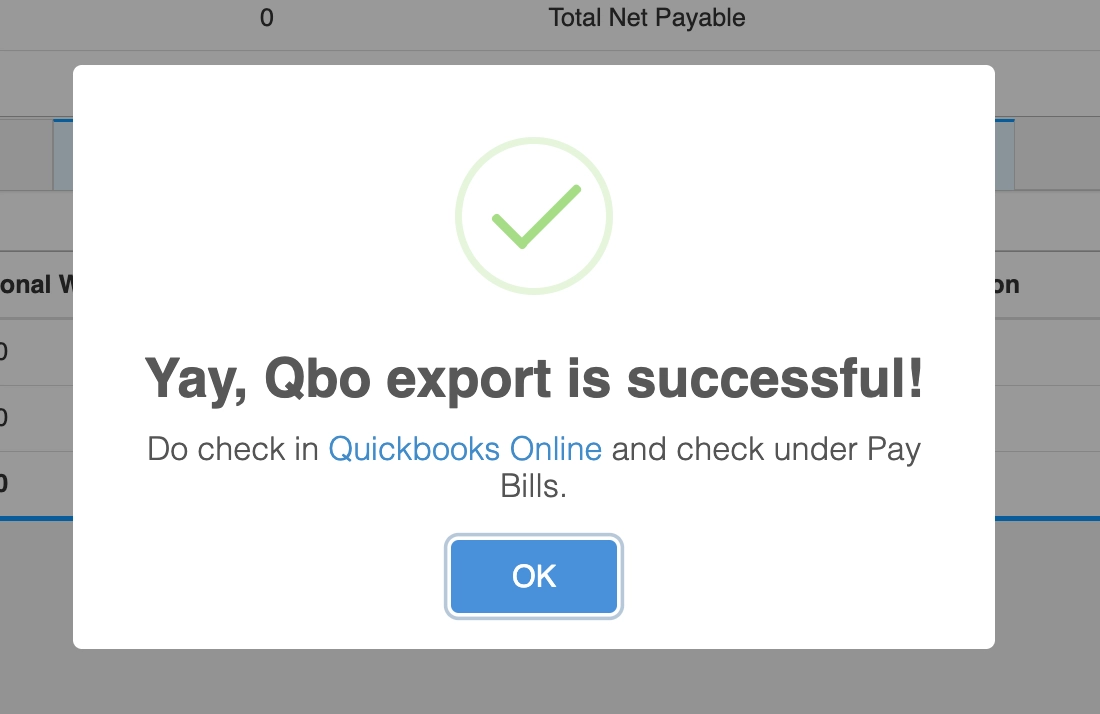
The resulting Bills can be viewed from the Expenses section in QB.

The line items will follow the Employee or Cost Centre grouping and accounting mappings configured in your integration settings. No additional approval is required within QB for the pushed entries.
Was this article helpful?
That’s Great!
Thank you for your feedback
Sorry! We couldn't be helpful
Thank you for your feedback
Feedback sent
We appreciate your effort and will try to fix the article