Overview:
This guide explains how Objective and Key Results (OKRs) from the OKR module can be incorporated into Performance Cycles.
These are determined by configurations on:
- Including employee objectives directly in performance reviews
- Controlling which OKRs are included
- Defining how objectives are weighted in evaluations
Proper configuration ensures the performance cycles accurately reflect employees OKRs and progress to be referred to during performance reviews.
TABLE OF CONTENTS
- Step 1: Enable Objectives in a Performance Cycle
- Step 2: Configure Objective Timeframe
- Step 3: Set Objective Selection and Manage Objective Weightages (Optional)
- Important Notes
Step 1: Enable Objectives in a Performance Cycle
- This step allows the inclusion of OKRs in the Performance Cycle to be reviewed
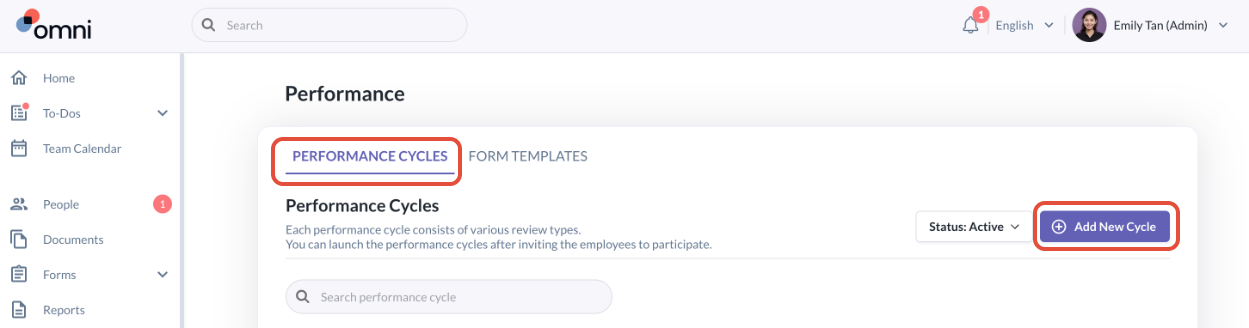
- Go to Performance Module > Performance Cycles
- Click Add New Cycle
- Under Set Up Review Cycle, toggle Objectives to be on and proceed with selecting the review personas responsible for reviewing the objectives.
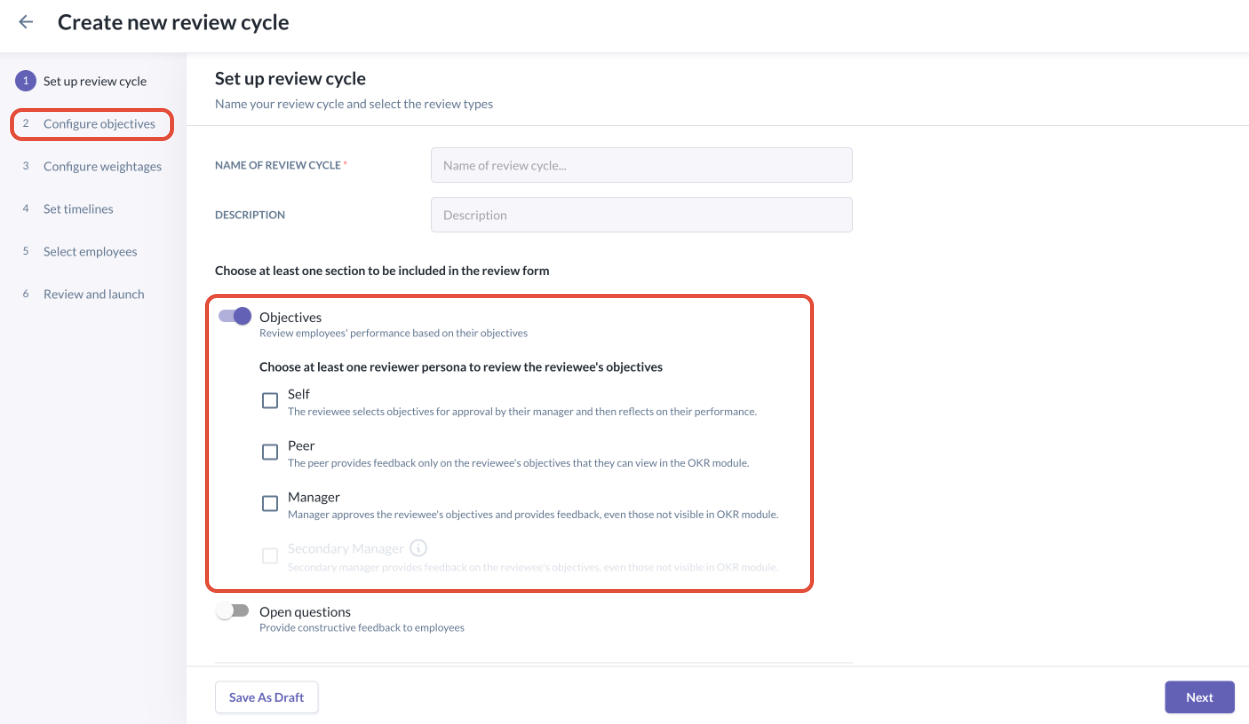
- Once enabled, a new section called "Configure Objectives" will appear in the setup panel on the left
Step 2: Configure Objective Timeframe
This determines which OKRs are eligible to be included in the performance cycle.
- Following the Set Up Review Cycle step, click Next to proceed to Configure Objectives
- Under Select timeframe of Objectives to be included for selection, choose the relevant period (based on OKR period)
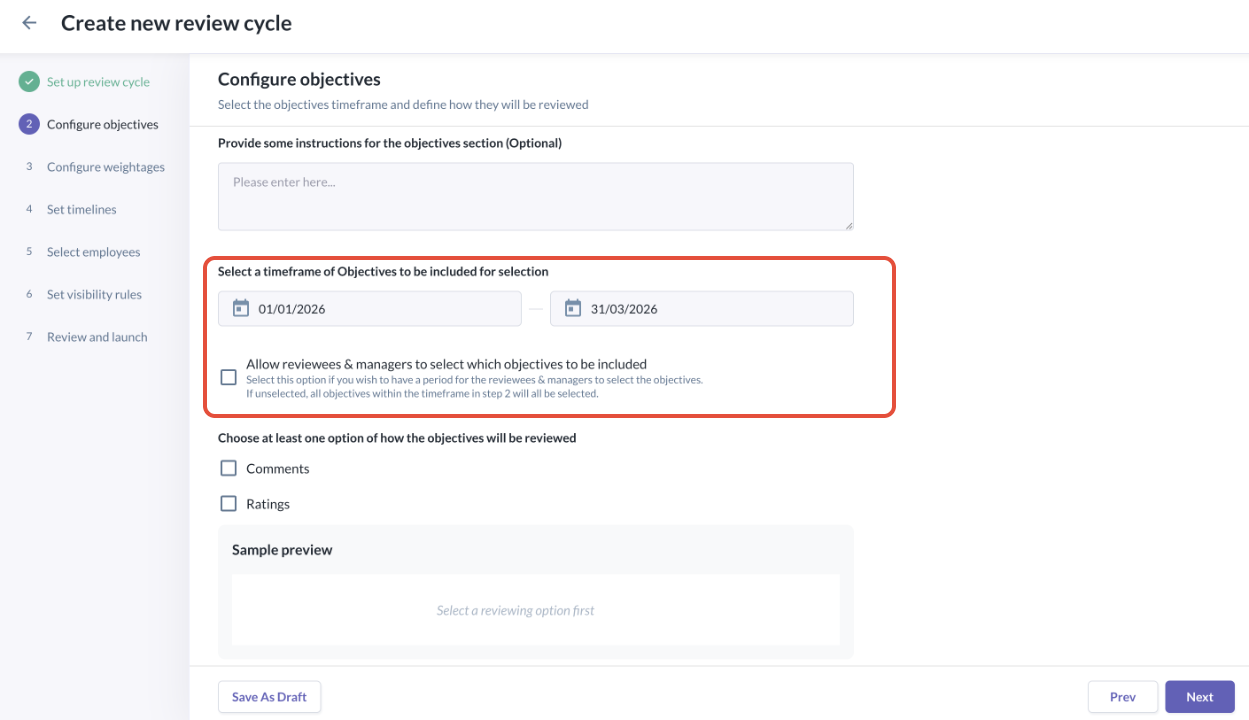
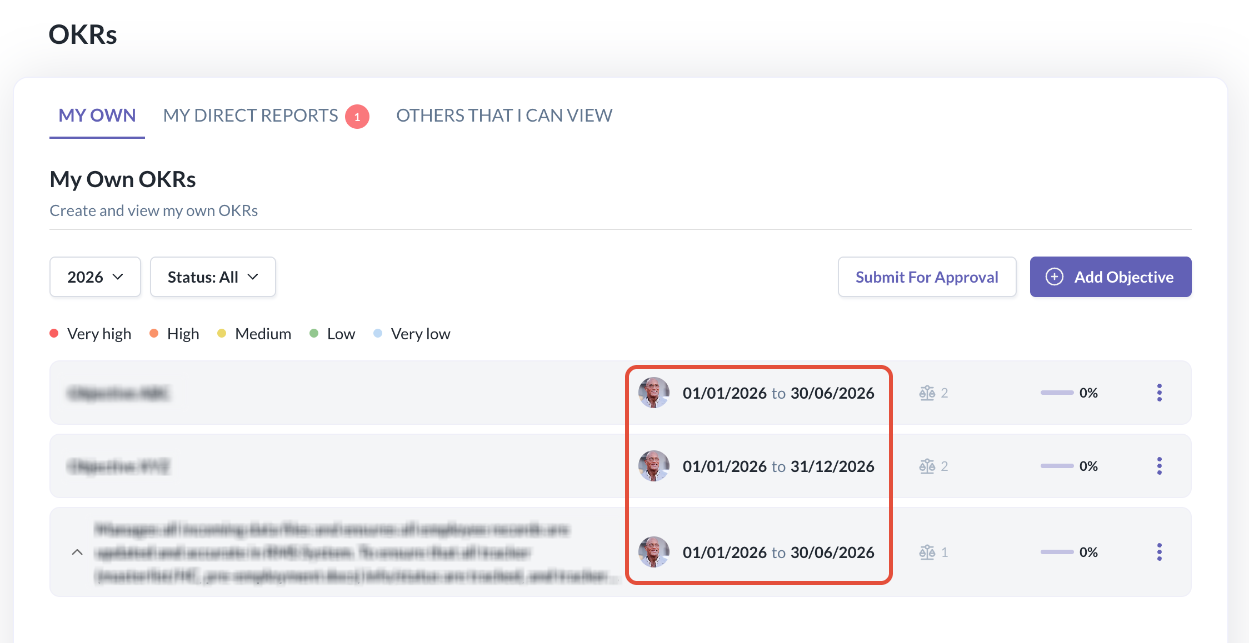
How it works: - Only OKRs with timelines that overlap with the selected timeframe will be included
- OKR timelines can be referred to in image below in the OKR module
- By ticking the checkbox for "Allow reviewees and Managers to select which objectives to be included", you can also determine whether Employees/Managers can select specific objectives to be included in the review, or if the checkbox is unticked, you can allow for all eligible objectives to be automatically included
Step 3: Set Objective Selection and Manage Objective Weightages (Optional)
- If you allow users to choose which OKRs to include in the previous step, under Set Timelines, you can define the Objective Selection Period
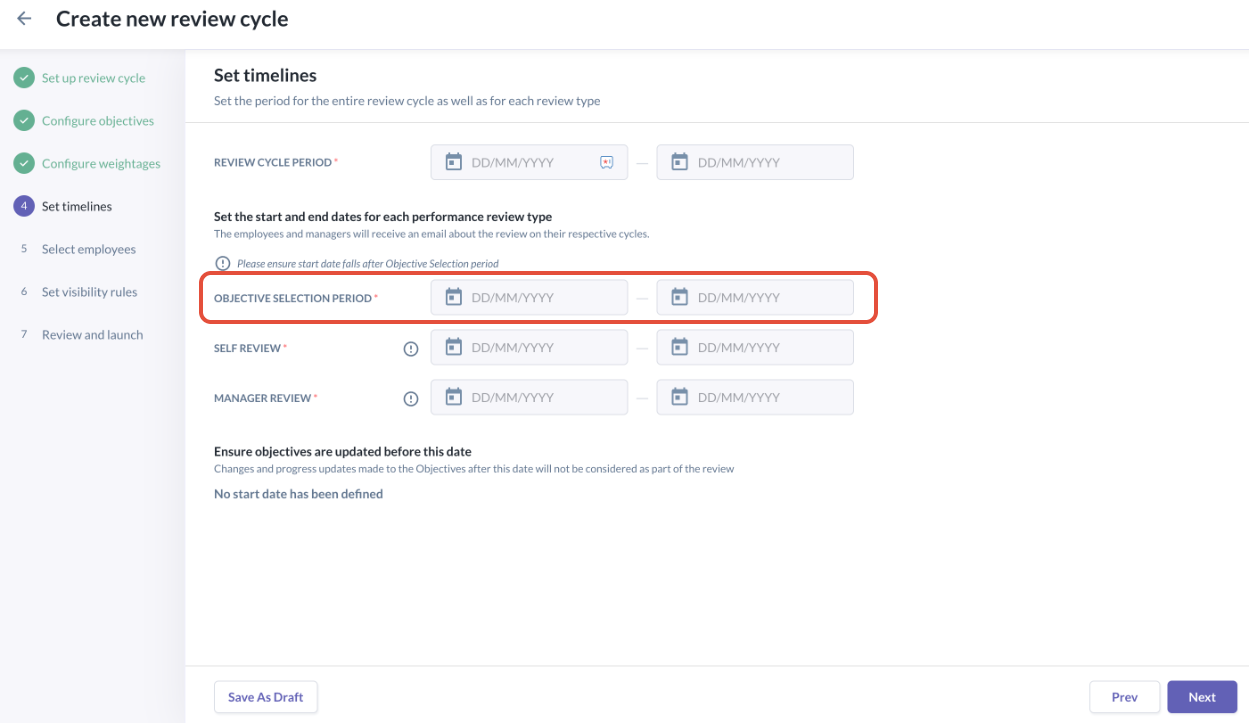
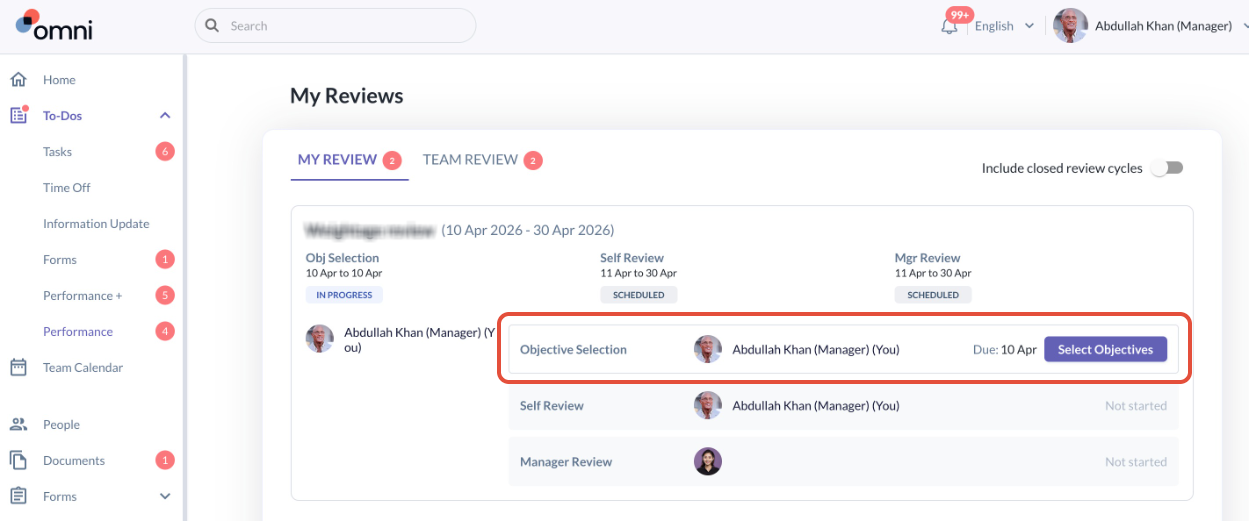
What Happens After Launching the Performance Cycle? - Employees can click "Select Objectives"
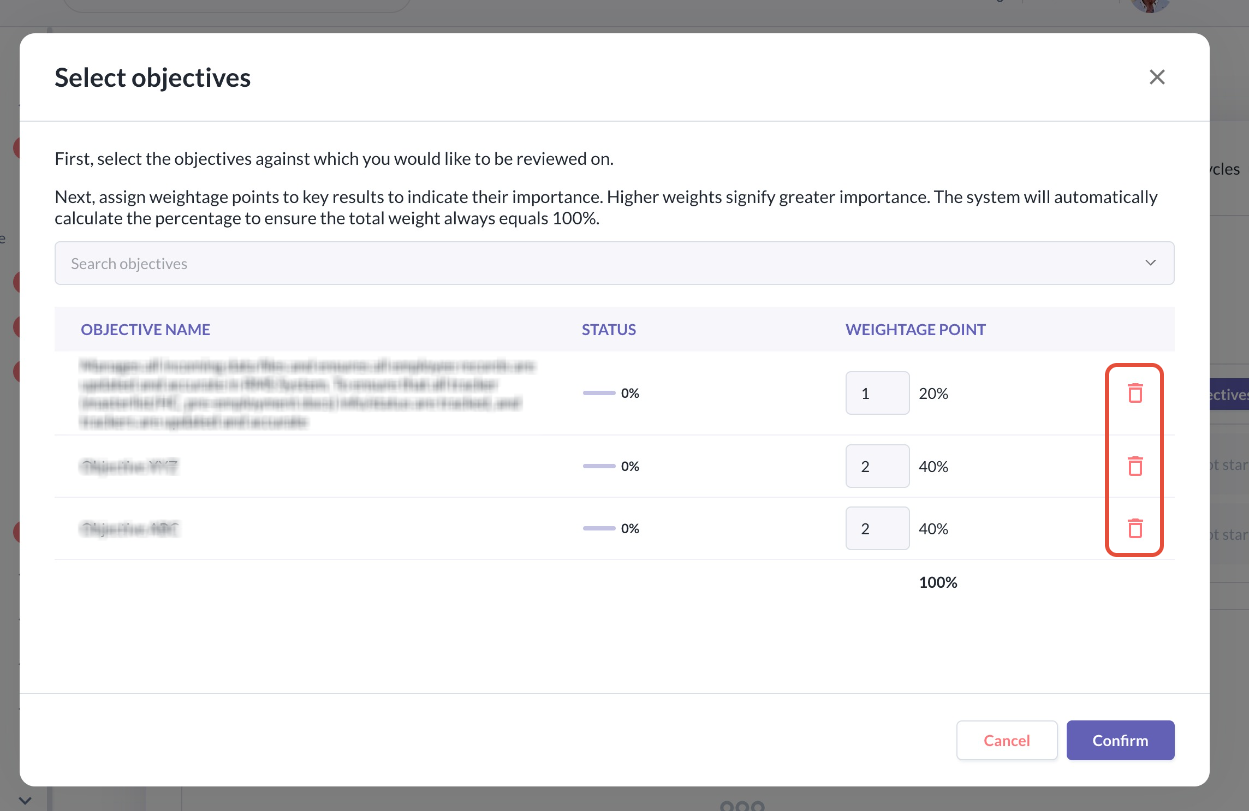
- A pop-up will show all eligible OKRs and the users can choose to remove objectives using the bin icon on the right in the image below
- Weightage points of the individual OKRs are also automatically carried over from the OKR module
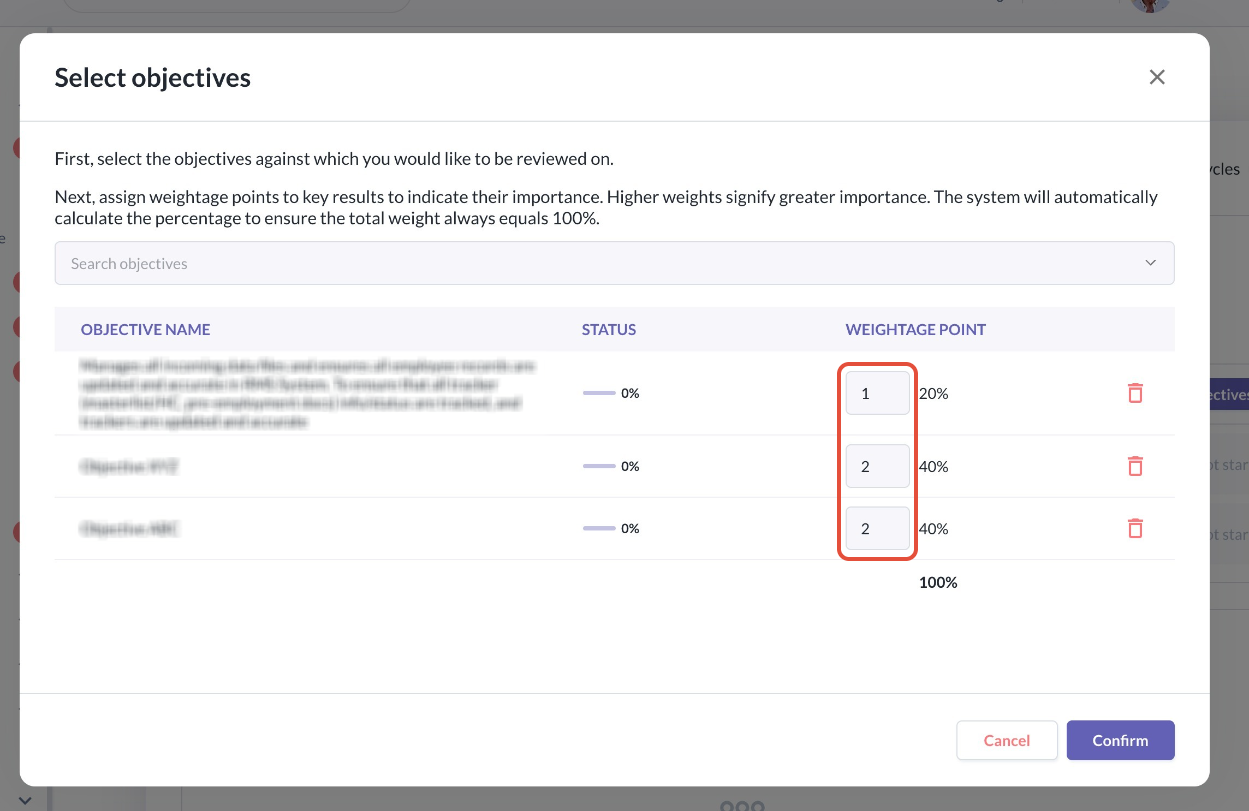
- Employees/Managers can also adjust the weightage points which will automatically modify the percentage distribution within the Objectives section in the Performance Review
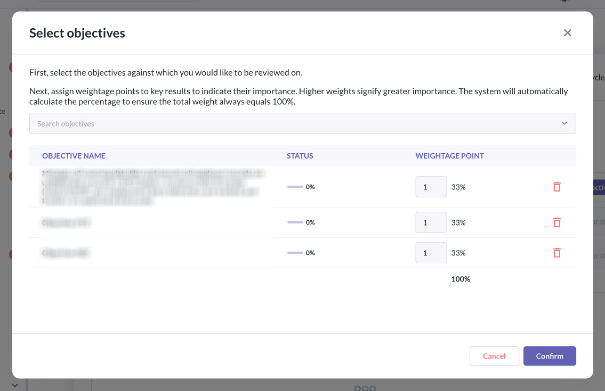
- If the Performance Cycle was configured to have the "Allow reviewees and Managers to select which objectives to be included" unticked, the Objective Selection stage is skipped and there will be no manual selection in the process
Important Notes
Snapshot / Cut Off Period
- There is a cut-off date for updating and approving OKRs before they are used in performance reviews.
| Scenario | Cut-off Timing |
|---|---|
| No Objective Selection | 1 day before Self Review Start Date |
| With Objective Selection | 1 day before Objective Selection Start Date |
- After those dates (based on your configurations), no further edits on the OKRs will be reflected in the performance cycle
- Cut-off date reminder example (No Objective Selection)

- Cut-off date reminder example (With Objective Selection)

Activity Visibility
- During the review process, employees and managers can view Objective Progress and expand to view the Key Results and it's individual Progress as well
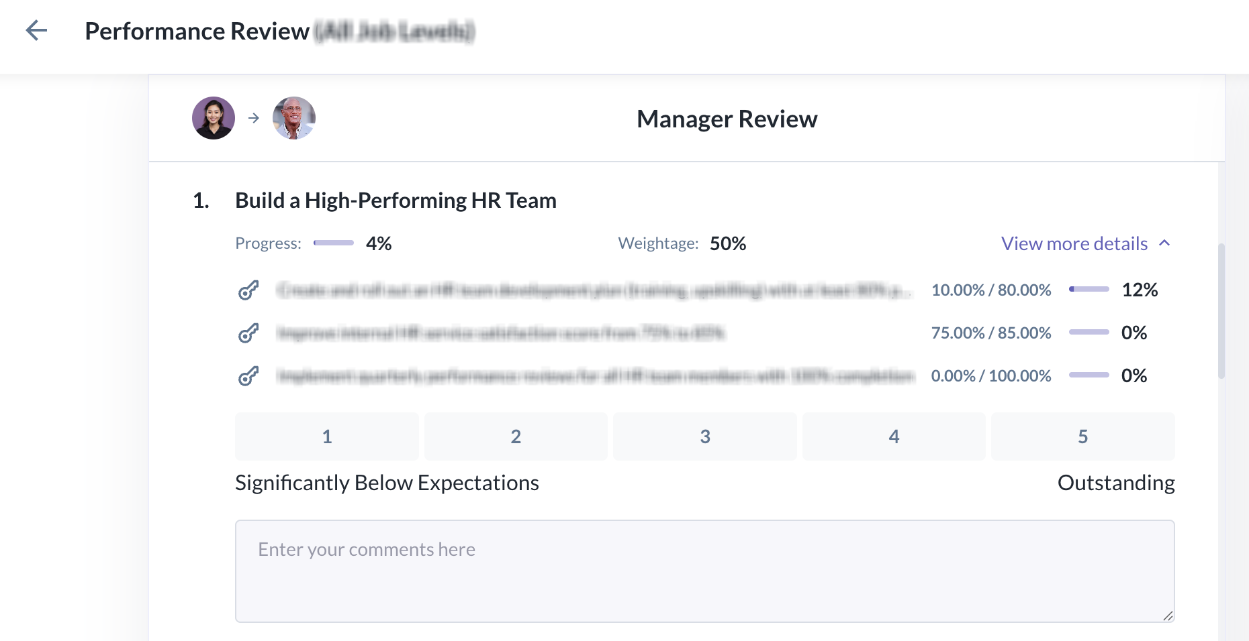
- Detailed activity logs of each Key Result can still be referred to in the OKR module
Still Need Help?:
Reach out to our support team should you need further assistance.
Was this article helpful?
That’s Great!
Thank you for your feedback
Sorry! We couldn't be helpful
Thank you for your feedback
Feedback sent
We appreciate your effort and will try to fix the article