Overview:
Email-based Two-Factor Authentication (2FA) adds an extra layer of security to user logins which is supported on both Web and Mobile.
When enabled:
- Users log in with email + password
- A 6-digit verification code (OTP) is sent to their email
- Users must enter the code to successfully access the system
This ensures that only verified users can complete the login process into Omni HR system.
TABLE OF CONTENTS
- Enabling 2FA for your Organization
- User Login Flow
- Key Behaviours when 2FA is enabled
- Important Considerations
Enabling 2FA for your Organization
- You will need to reach out to support@omnihr.co to request to enable the 2FA feature for your organization
- Once it has been enabled, Admins can view the configuration and switch it on
- Users with Admin roles would have the permission enabled by default. However, you can always check or change these permissions at the Settings > Access Control > (Scroll down to) System Functions > Settings

- Now go to Settings > General, where you will be able to see the Two-Factor Authentication section
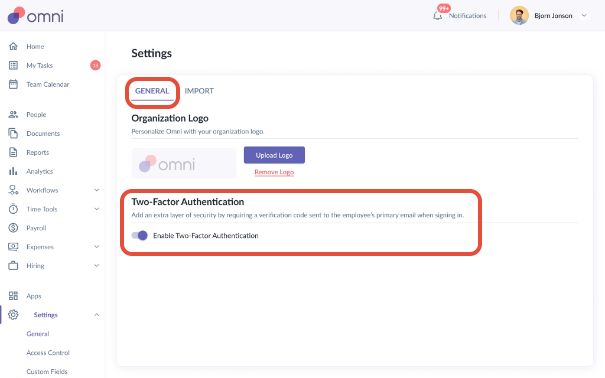
- You can toggle the Enable Two-Factor Authentication to On
- Once this is enabled, the 2FA is enforced for all users in the organisation and must complete verfication during login
User Login Flow
Once 2FA is enabled, the login process will include an additional verification step:
- User logs in with email and password
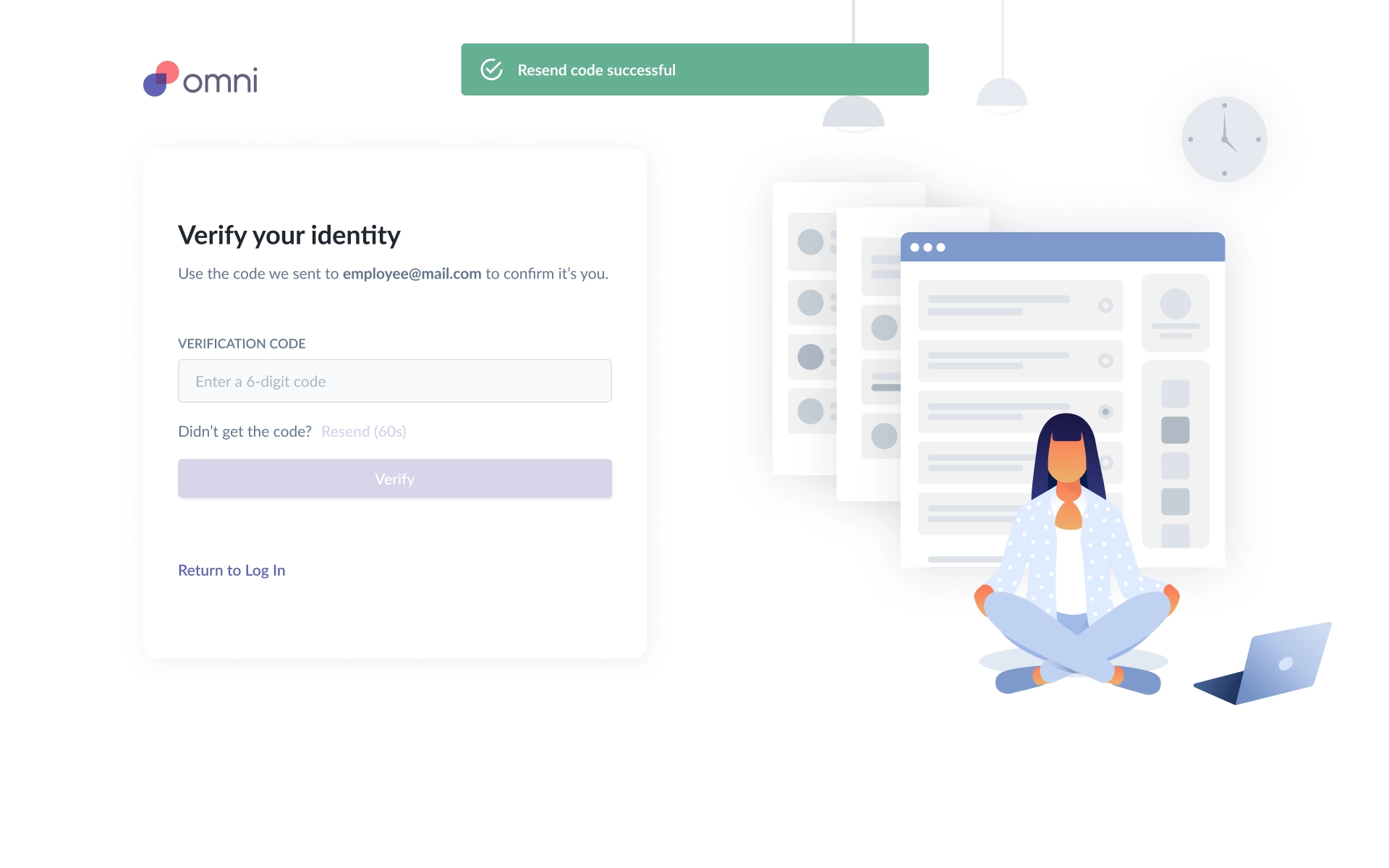
- System will prompt them with "Verify your identity"
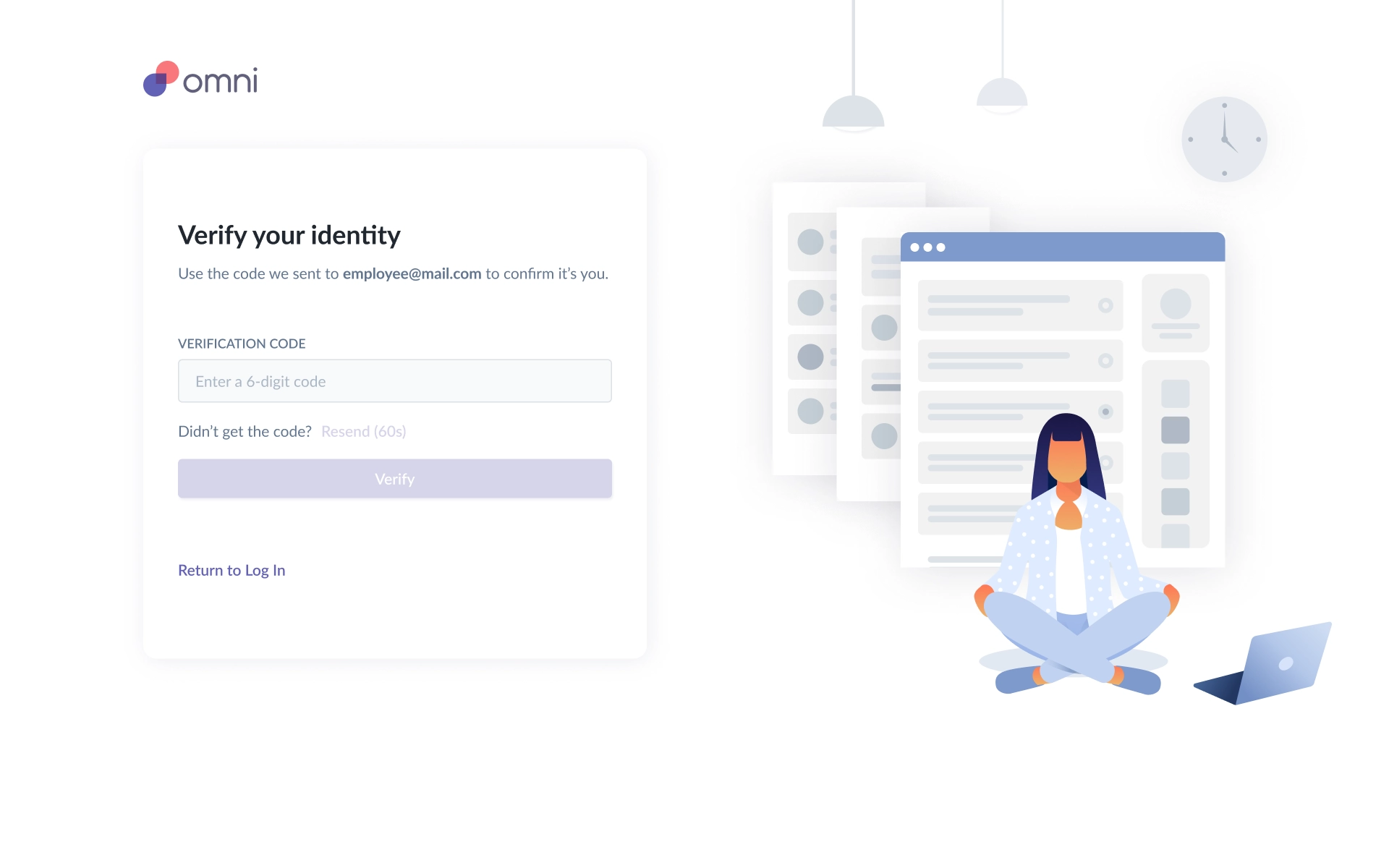
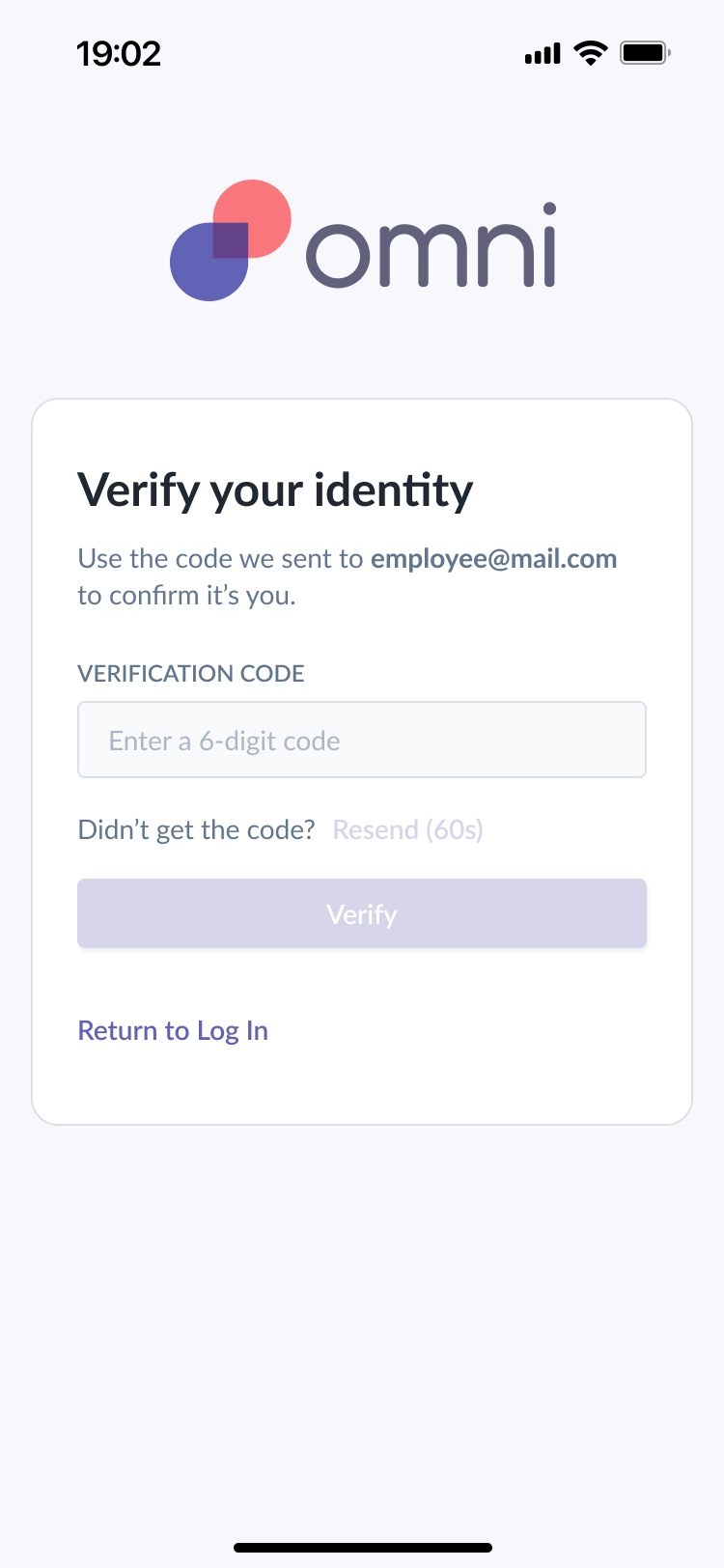
- A 6-digit code is sent to the user's primary email
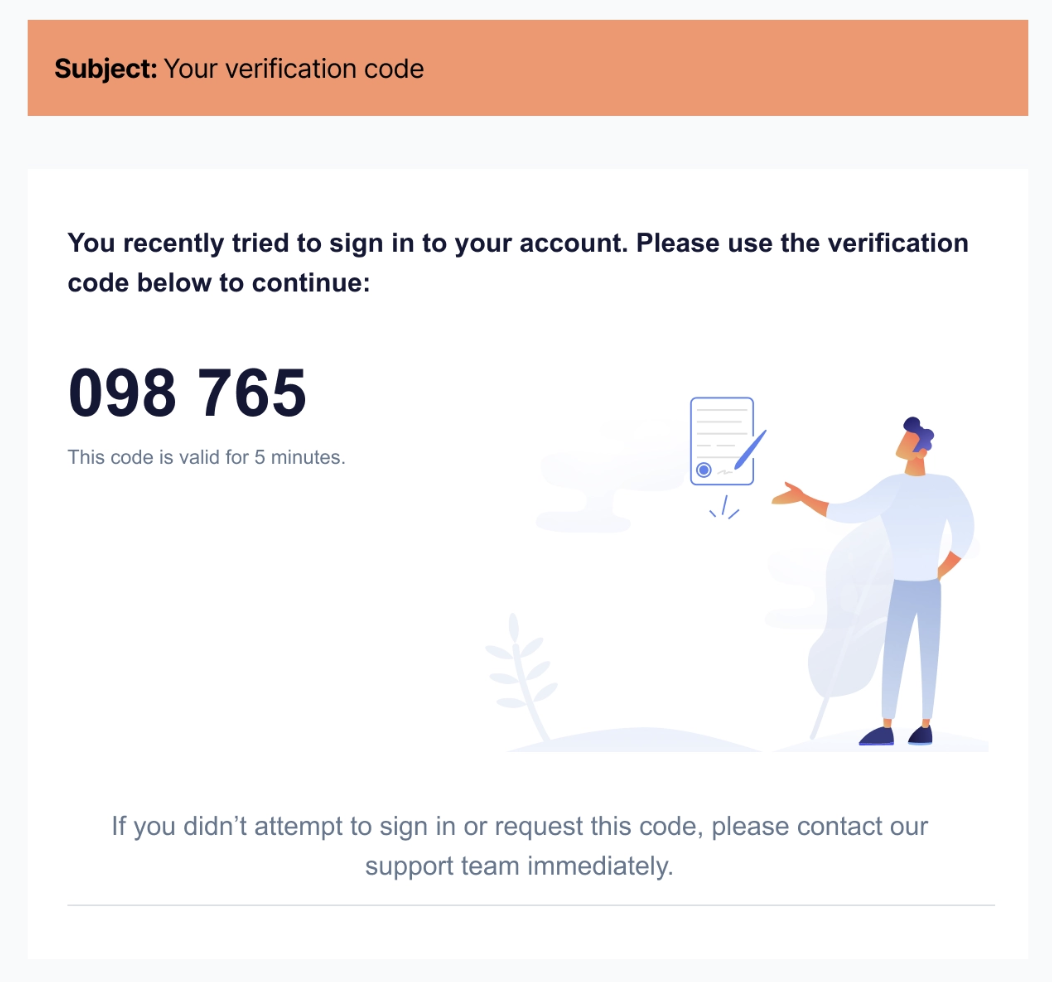
- Users enters the code and click Verify
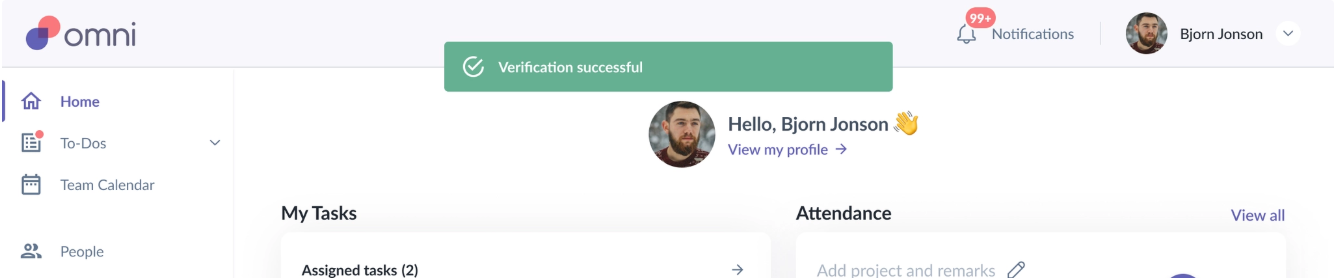
- Upon success, the user will be logged in and they will also see the "Verification successful" banner
Key Behaviours when 2FA is enabled
Email Requirement
- Users must log in using their primary email address
- The verification code will always only be sent to the primary email
Verification Code
- The code is valid for 5 minutes
- Only the latest code will be valid
- Users can request a new code via Resend (after the 60 seconds countdown) and they should see the "Resend code successful" banner
Failed Attempts
- Users are allowed a maximum of 3 incorrect attempts per login session
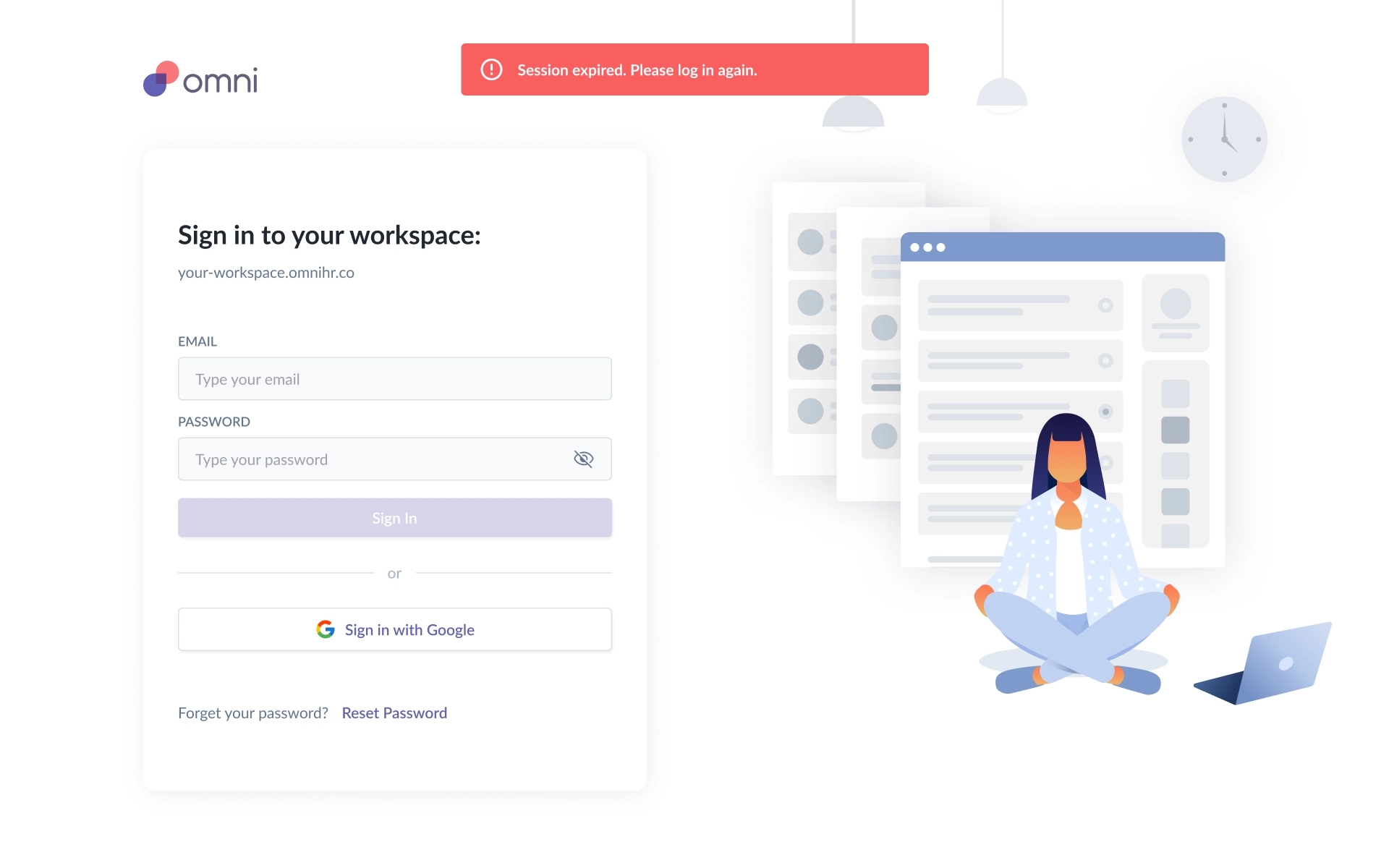
- After exceeding the attempts, user is directed back to login and must restart the login process
- If the verification step is not completed in time, the session will expire and users must login again
Important Considerations
- Mobile App Compatibility
Users are recommended to update to the latest version of the application if they face any login issues. - SSO Login
If your organisation uses SSO-only Login, this 2FA feature does not apply
Still Need Help?:
Reach out to our support team should you need further assistance
Was this article helpful?
That’s Great!
Thank you for your feedback
Sorry! We couldn't be helpful
Thank you for your feedback
Feedback sent
We appreciate your effort and will try to fix the article