Overview
You can access and download a review results report once a review phase is completed. This guide will walk you through the steps to download this report from the performance+ module.
TABLE OF CONTENTS
How to access
Steps are below:
- Click on the Performance+ module
- Click on the Review Cycle
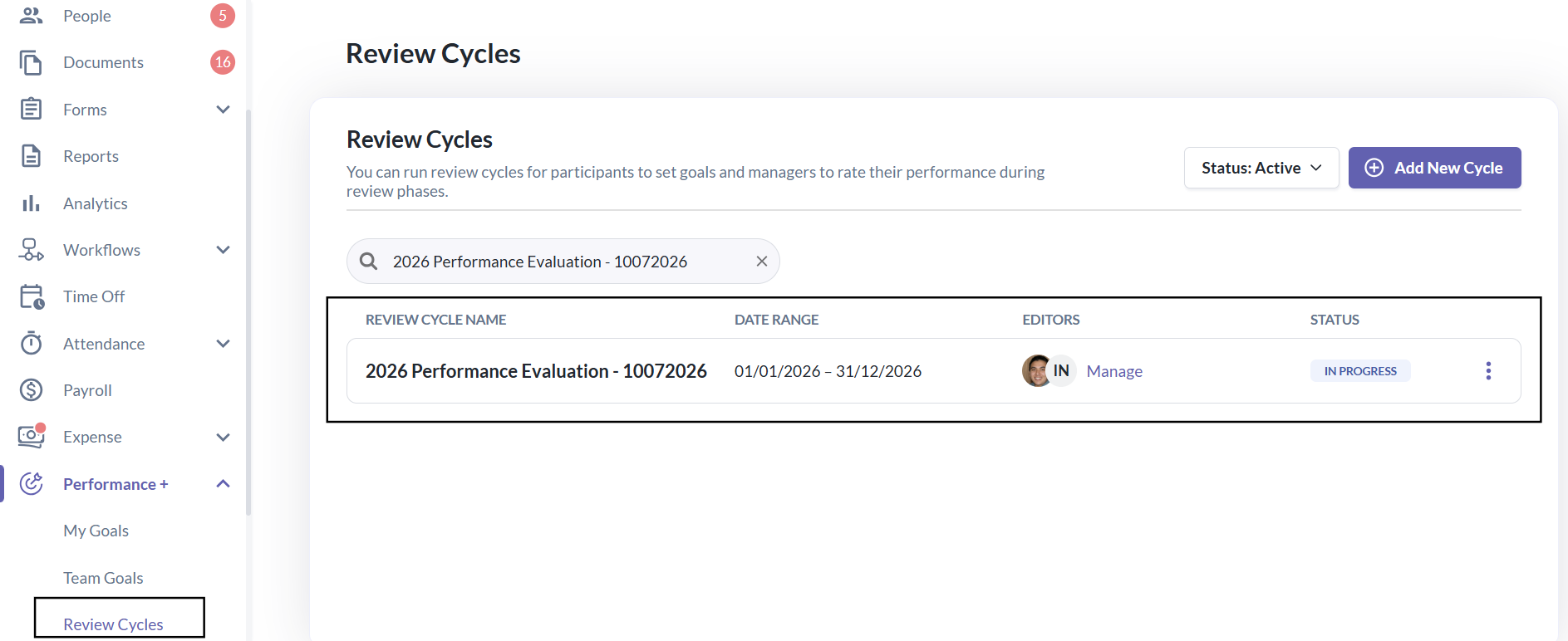
- Filter the status of the cycles or search for the intended review cycle
- Click on the specific Review Phase
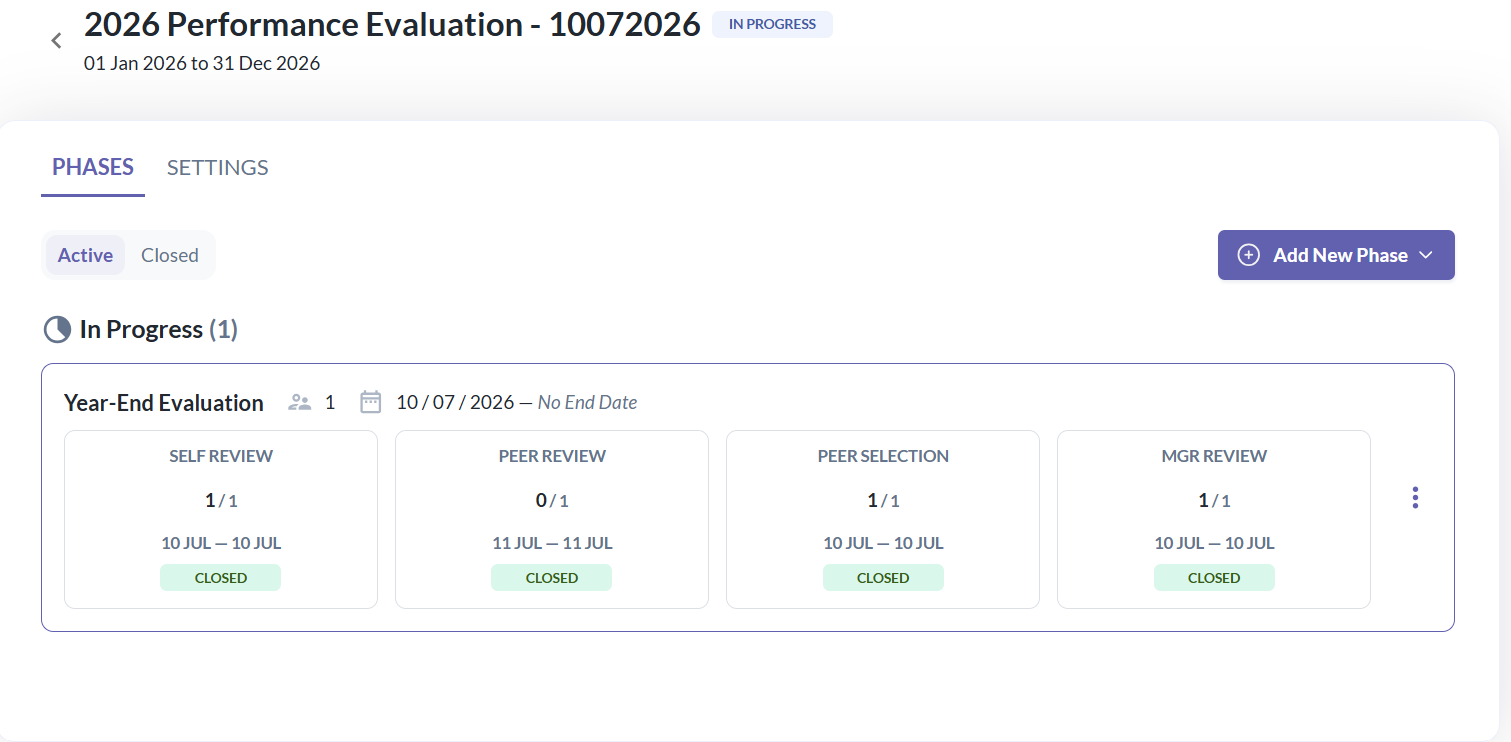
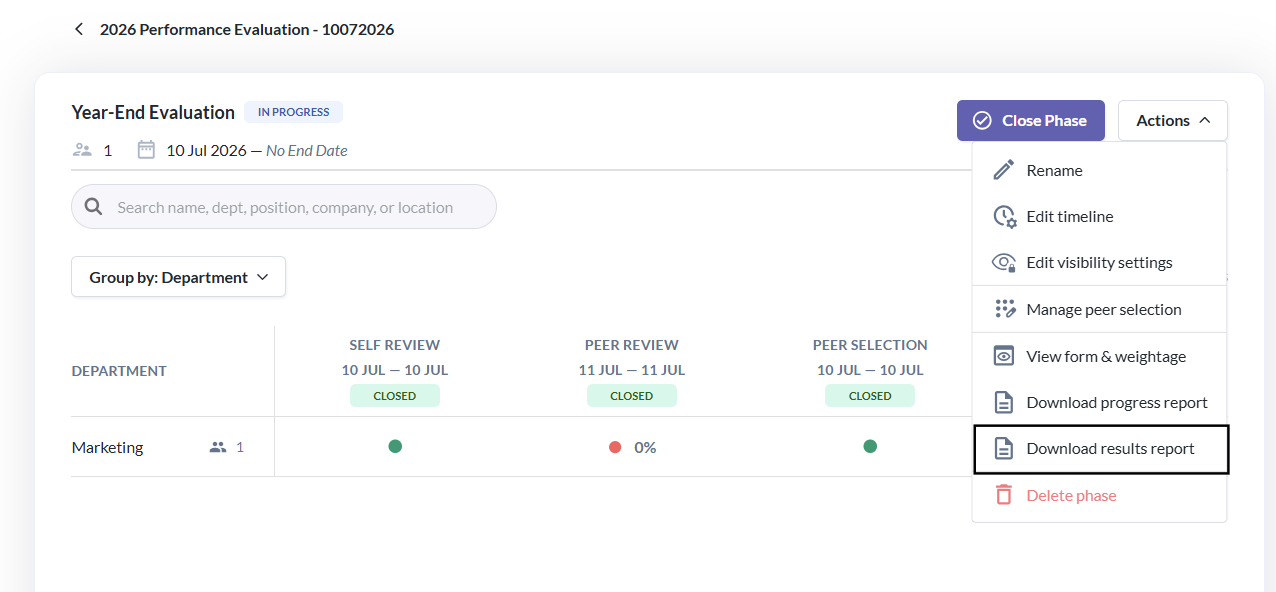
- Click on the Actions button
- To download the report, select "Download Result Report"
Report Notification & Sample
When you click on the "Download Result Report" button, a green notification banner will appear on your screen stating, "Your report will be sent to your primary email when it's ready." This message indicates that your progress report will be emailed to you once it is prepared.
- The report will be emailed to you and will constitute:
- Reviewee Info
- Reviewee Questions
- Responses
- Here is a sample report to view how the report will look like.
Still Need Help?
Reach out to our support team should you need further assistance.
Was this article helpful?
That’s Great!
Thank you for your feedback
Sorry! We couldn't be helpful
Thank you for your feedback
Feedback sent
We appreciate your effort and will try to fix the article