Overview:
Work Schedules is a feature in Omni that allows admins to create different work schedules for different employees. This is important as it affects leave deductions when employees have rest days. We'll learn how to create and assign work schedules in this article.
Creating Work Schedules:
- Go to Settings > Work Schedule > Work Schedule. If you already have some created work schedules, you'll see them in this page.
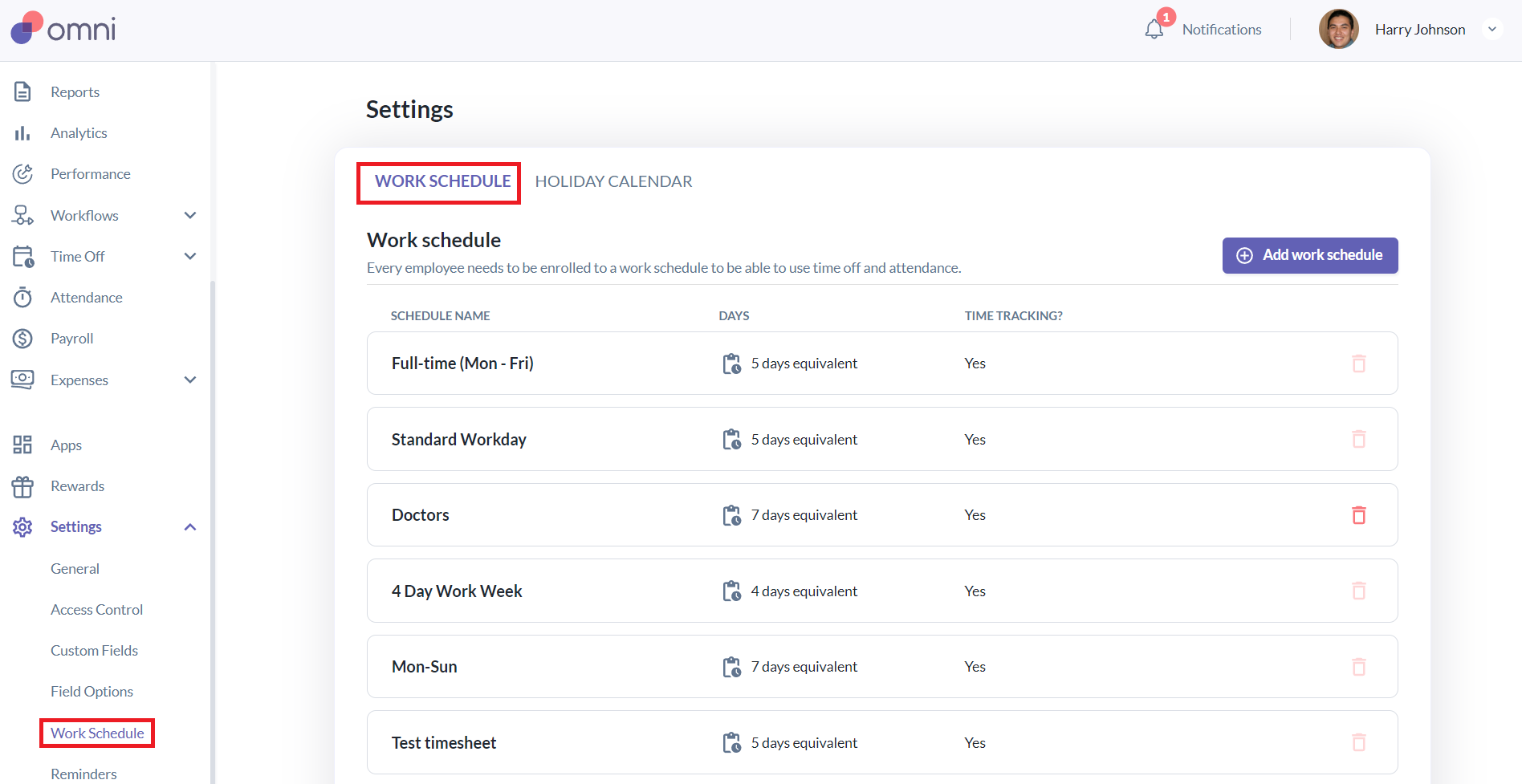
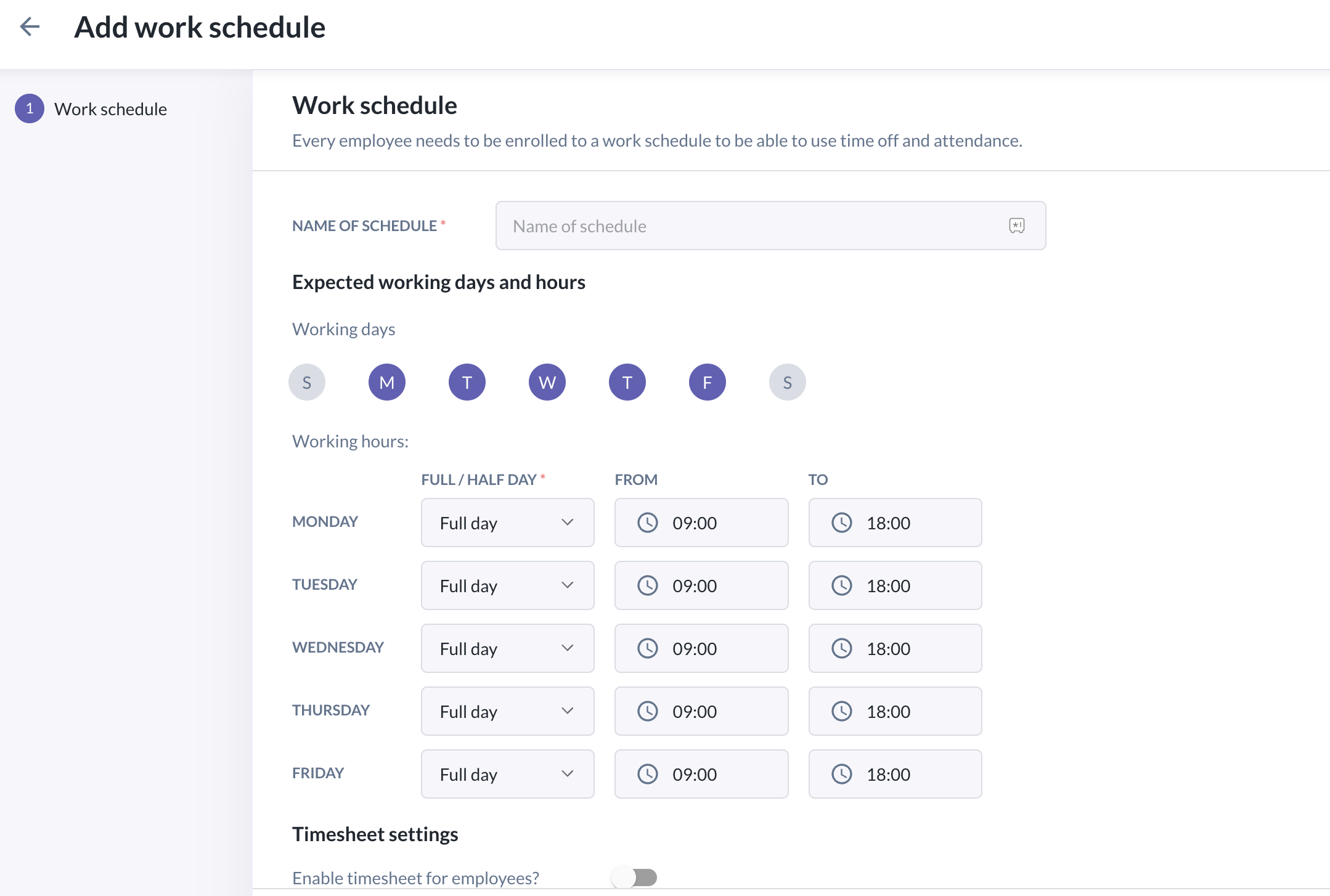
- Click Add work schedule. You will be brought to a page where you'll input the specifics of the work schedule.
- Input the important details, i.e. Name of Schedule, Working Days & Hours, Time tracking (applicable if you have the Attendance module). Click Save.
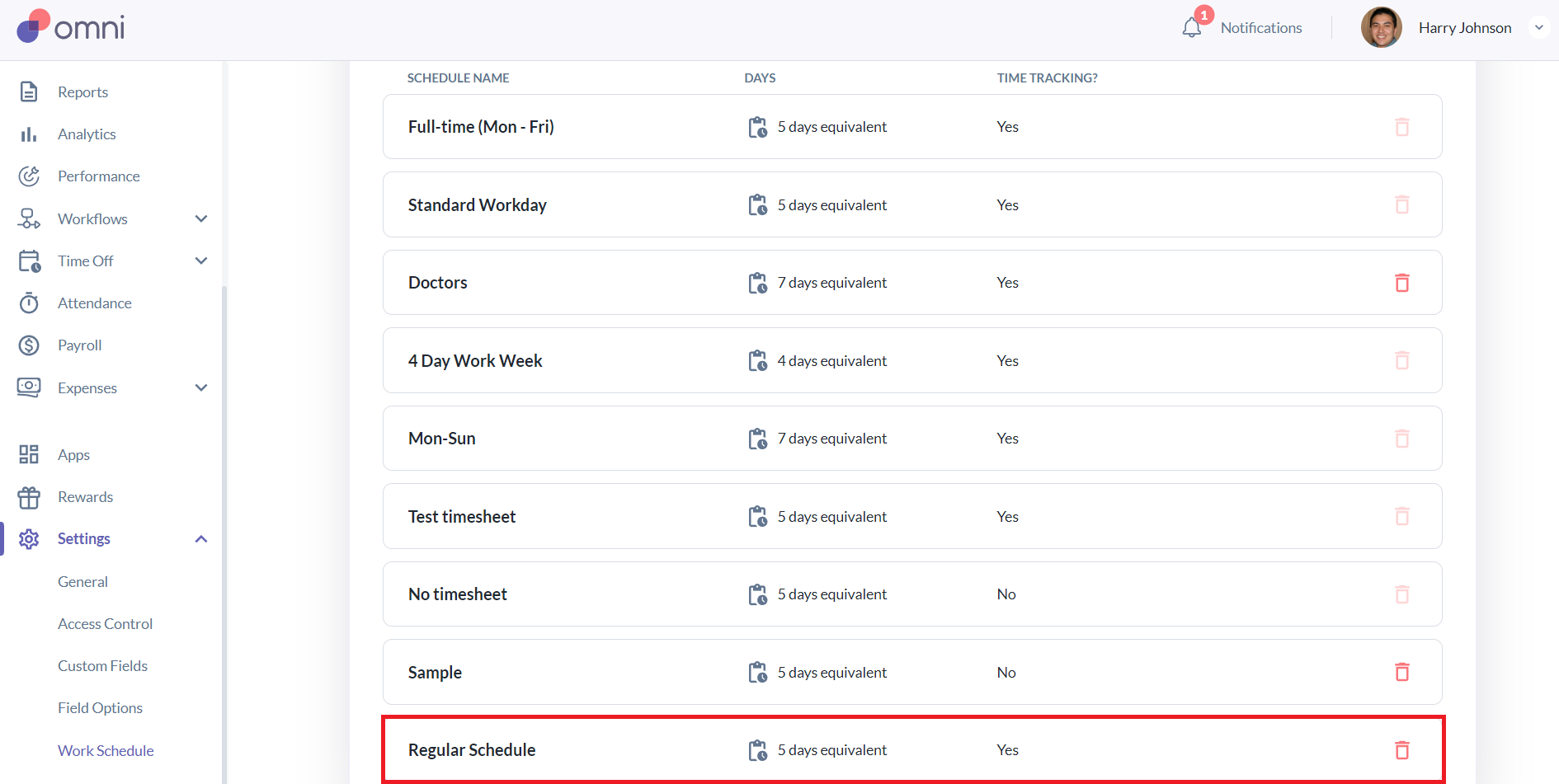
- It should now appear in the list of work schedules.
Assigning Work Schedules:
- Go to an Employee Profile > Time Off tab
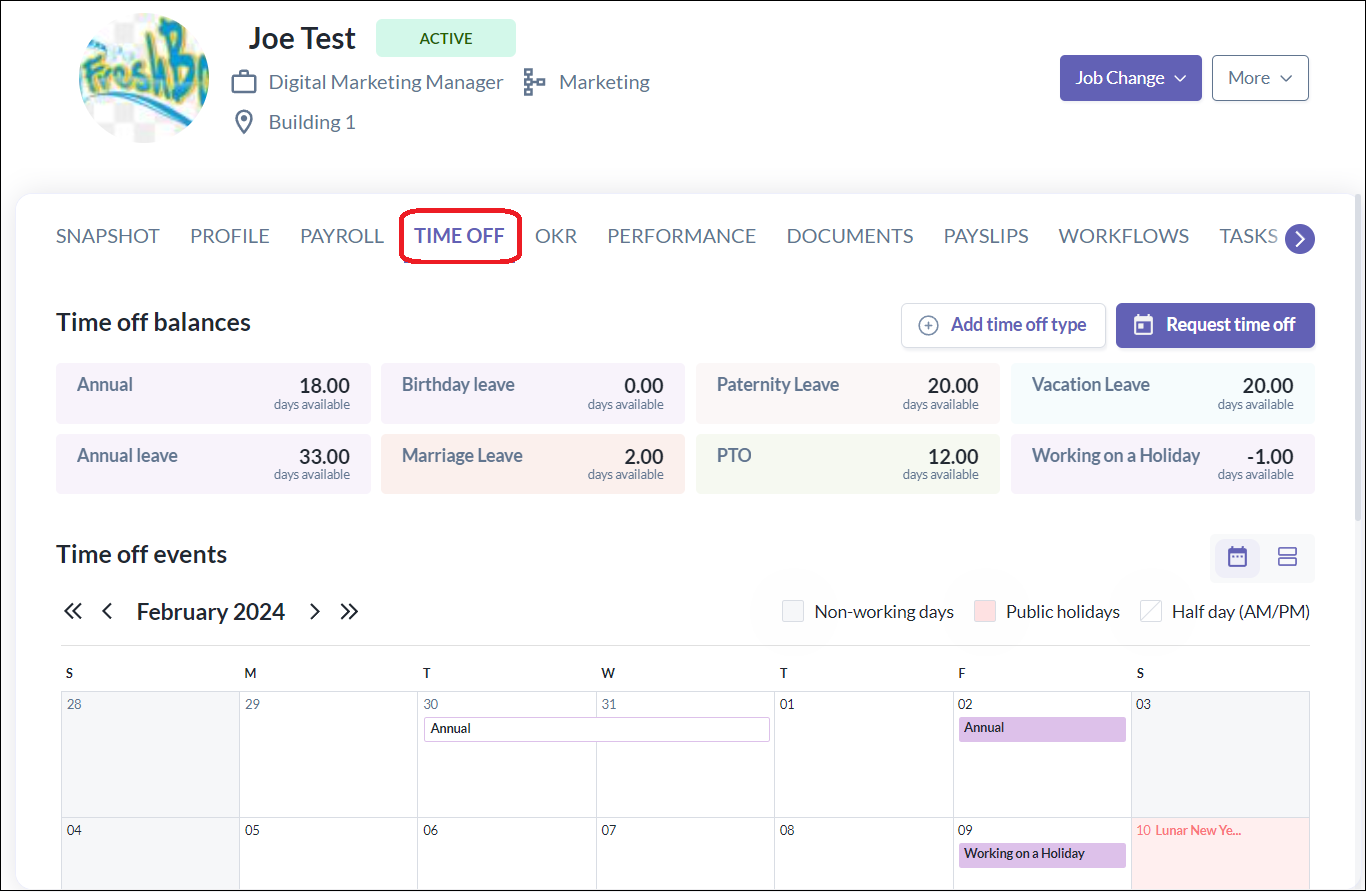
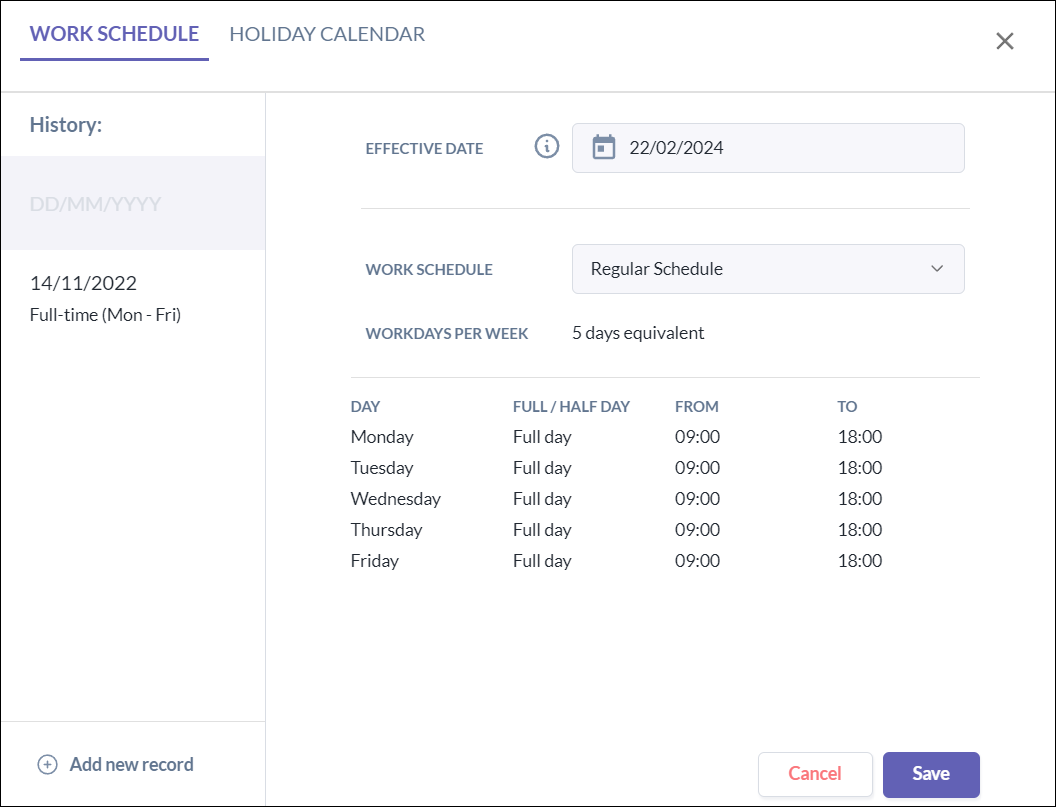
- Scroll down to Work Schedule > Hover your mouse and click Schedule a change > Enter the Effective Date and choose the Work Schedule from the dropdown > Click Save.
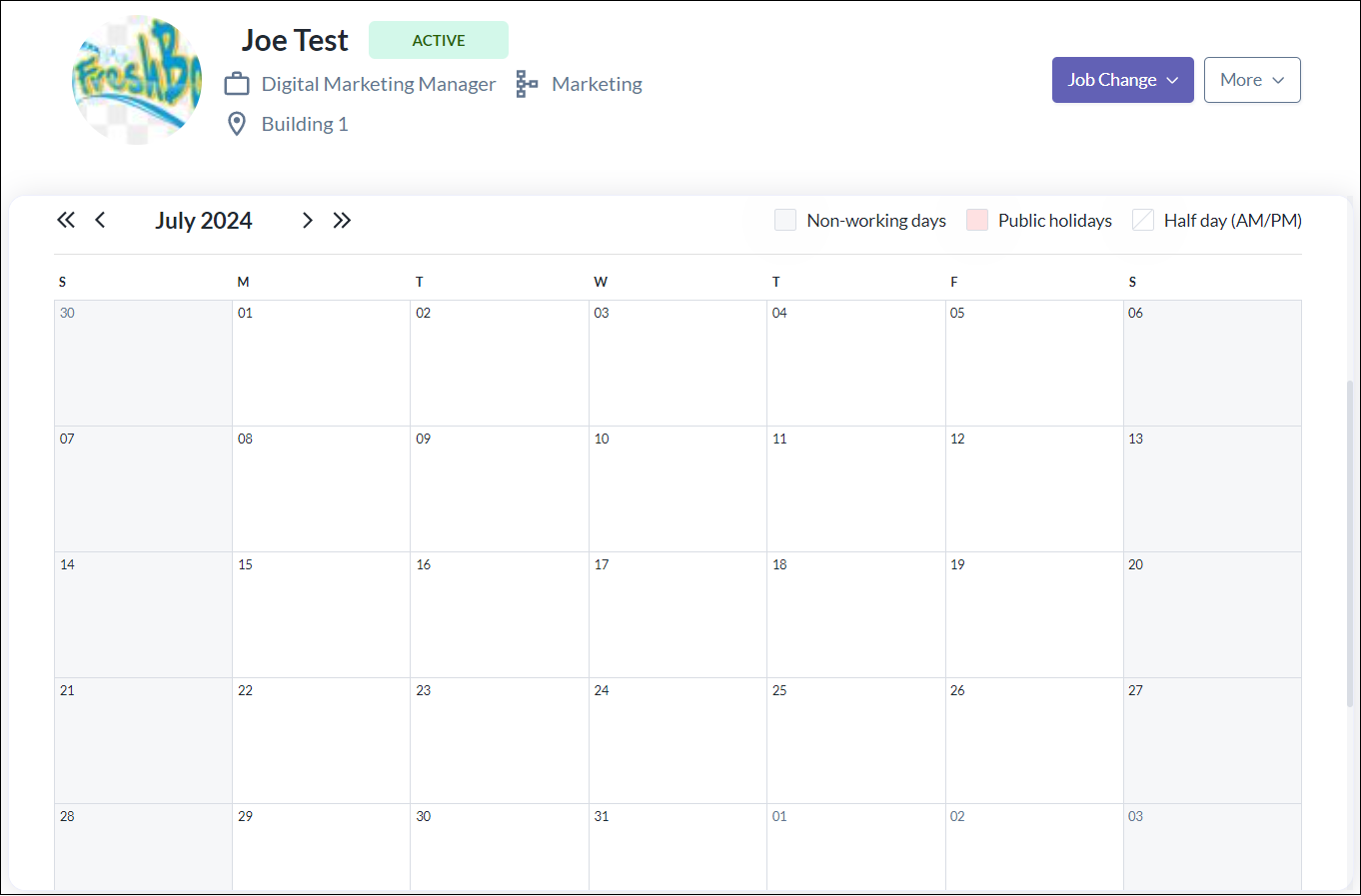
- The Work schedule should now reflect in the employee's calendar, with days colored gray as the rest days, and those colored white as the working days.
Still Need Help?:
Reach out to our support team should you need further assistance.
Was this article helpful?
That’s Great!
Thank you for your feedback
Sorry! We couldn't be helpful
Thank you for your feedback
Feedback sent
We appreciate your effort and will try to fix the article