Overview:
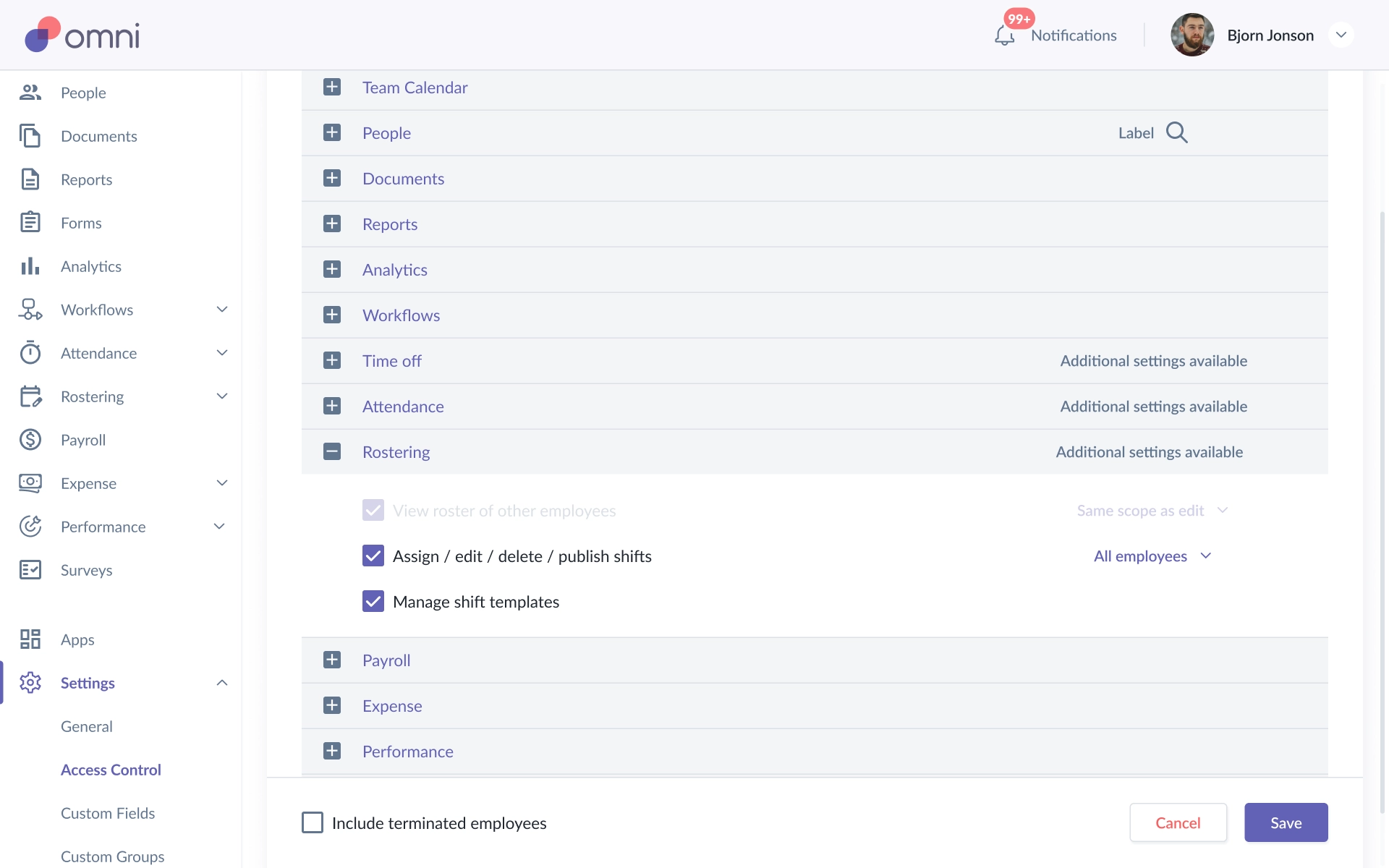
Admins can control who can access Rostering and what actions they can perform. Rostering permissions determine whether a user can:
- View other employees' rosters
- Assign, edit, delete, or publish shifts
- Manage shift templates
Access can be configured based on the user's role and permission scope.
TABLE OF CONTENTS
- Rostering Access Levels
- How to Configure Rostering Permissions
- Default Rostering Permissions
- Managing Shift Templates
- Important Notes: Employee Access Is Automatic
Rostering Access Levels
There are two main levels of access for managing Rostering:
1. Assign / Edit / Delete / Publish Shifts
Users with this permission have full control over shifts within their assigned permission scope.
They can:
- Create and assign shifts
- Edit shifts
- Delete shifts
- Publish shifts
- Perform bulk actions such as Bulk Select and Bulk Assign
- View unpublished shifts

The permission scope determines which employees the user can manage.
2. View Roster of Other Employees
This permission allows users to view other employees' rosters without modifying them.
Users with view-only access can:
- View rosters in the Roster Calendar
- View shifts assigned to other employees

They cannot:
- Edit shifts
- Select shifts for editing
- View unpublished shifts
How to Configure Rostering Permissions
- Open the Permissions & Access Control settings.
- Select the user role or permission configuration you want to update.
- Locate the Rostering permissions.
- Configure the required permissions:
- Assign / edit / delete / publish shifts
- View roster of other employees
- Manage shift templates
- Select the appropriate permission scope, such as all employees or the applicable employee group.
- Save the permission changes.
The permission screen shown in the product documentation includes Rostering as an additional setting and allows administrators to configure these access levels.
Default Rostering Permissions
The default permissions are:
| Role | View Other Employees' Roster | Assign/Edit/Delete/Publish Shifts | Manage Shift Templates |
|---|---|---|---|
| Admin | Yes - All employees | Yes - All employees | Yes |
| Manager | No | No | No |
| Employee | No | No | No |
Managing Shift Templates
Admins can separately control access to Manage Shift Templates.
Users with this permission can access Rostering → Shift Templates, where they can:
- Create shift templates
- Edit shift templates
- Delete shift templates

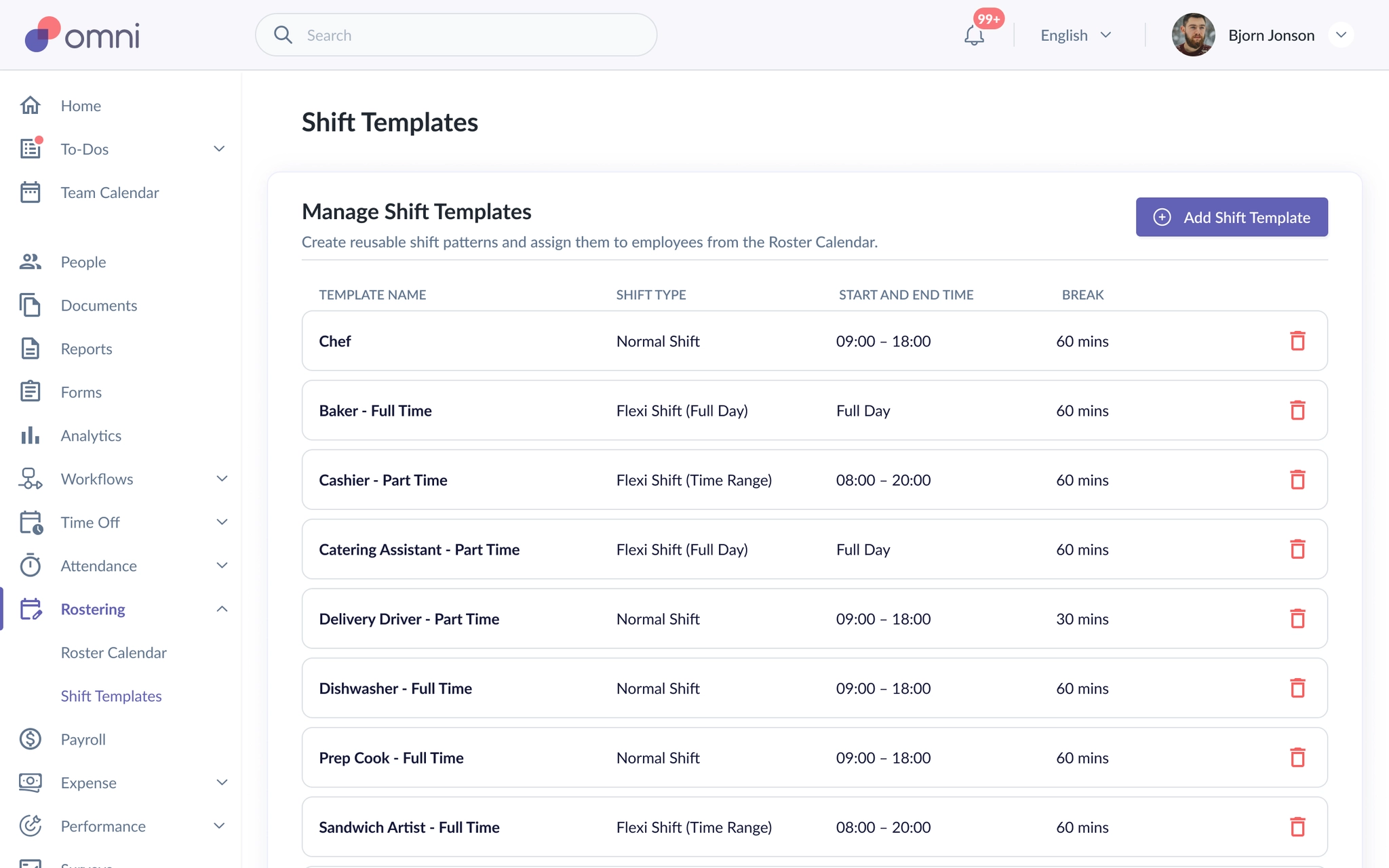
Shift templates are reusable building blocks for assigning shifts. Changes or deletion of a shift template do not affect shifts that have already been assigned.
Important Notes: Employee Access Is Automatic
- Employees do not need a separate permission check to view their own roster.
- An employee will be able to view their own roster when they are assigned a Rostering-type Work Schedule. Employees are automatically included in Rostering based on their Work Schedule.
- If an employee does not have a Rostering-type Work Schedule, their own roster will not be available in the same way.
Still Need Help?:
Reach out to our support team should you need further assistance.
Was this article helpful?
That’s Great!
Thank you for your feedback
Sorry! We couldn't be helpful
Thank you for your feedback
Feedback sent
We appreciate your effort and will try to fix the article