Overview:
You can now create expense custom fields and add them in your expense categories.
Creating Expense Custom Fields:
- Go to Expenses > Settings > Custom Fields > Add Field
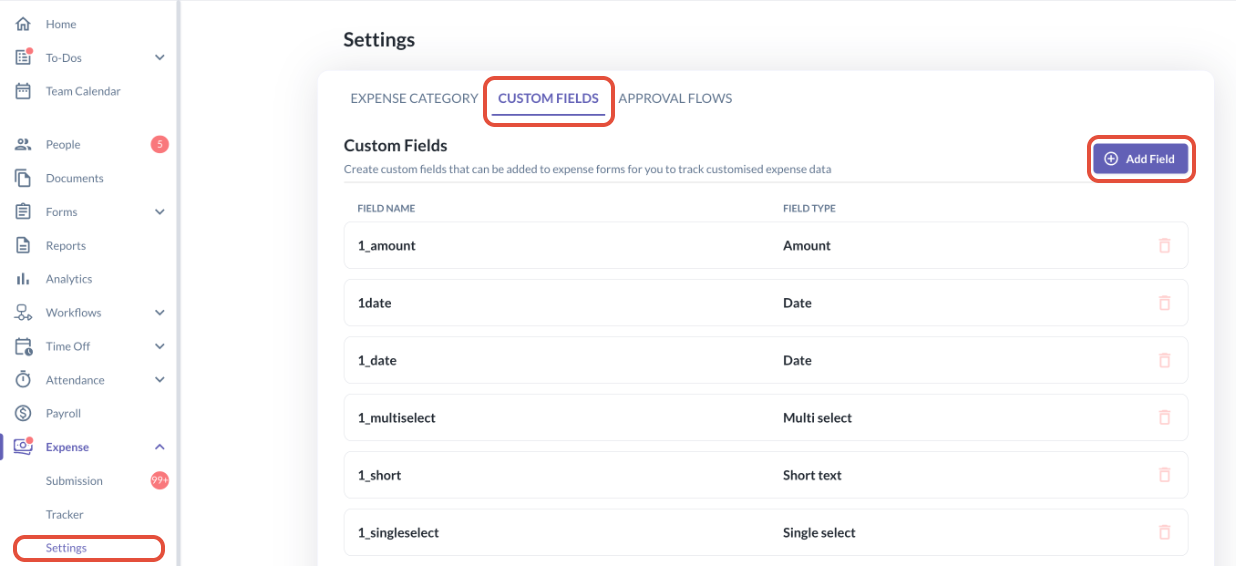
- In the side pop-up, choose the Field Name and Field Type. Click Save
- Once Field Type has been chosen, this cannot be changed.
- Once Field Type has been chosen, this cannot be changed.
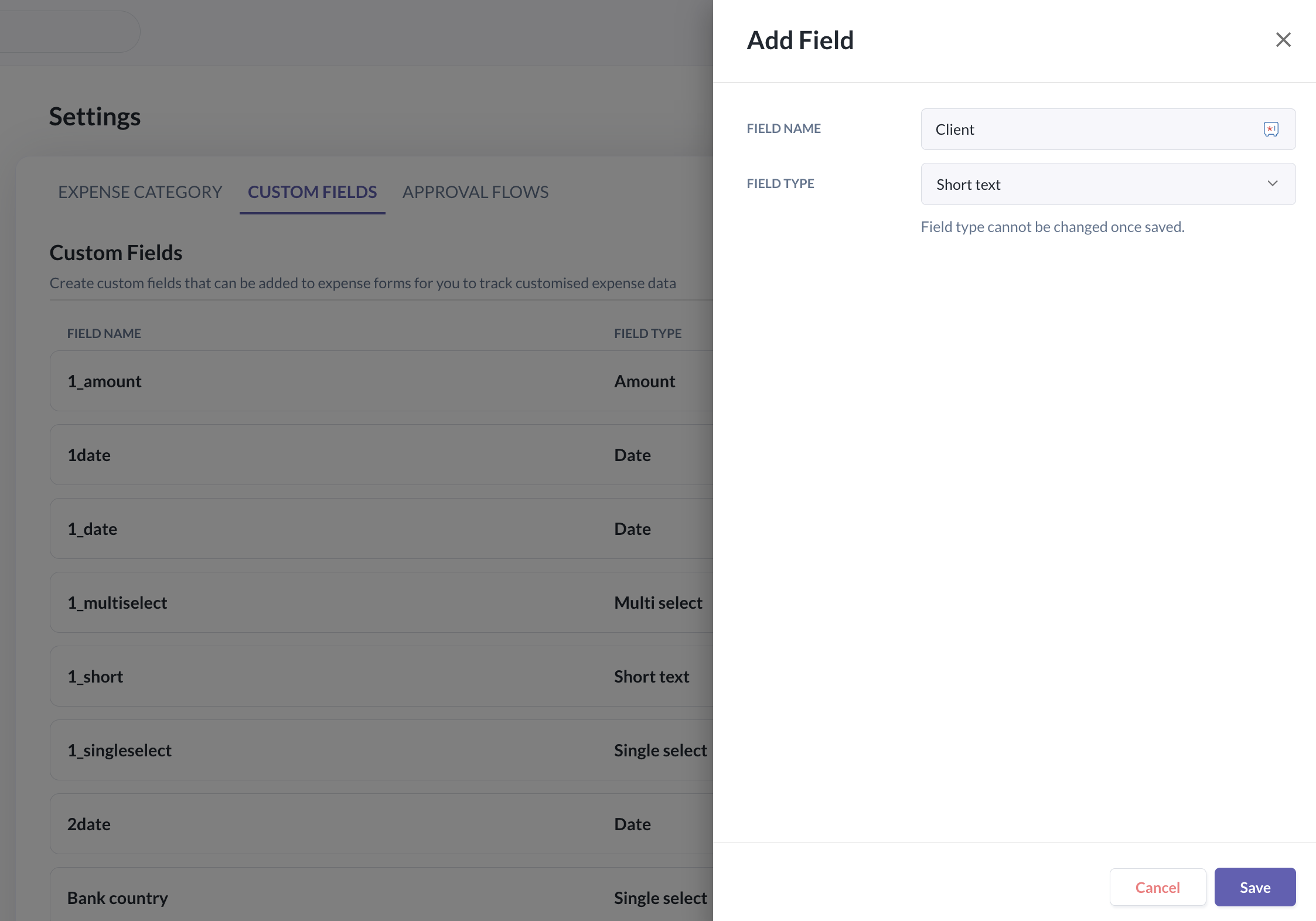
- The newly created Expense Custom Field will now appear in the list of Custom Fields.
Adding the Expense Custom Fields to your Expense Categories:
- Go to Expenses > Settings > Expense Category
- You can choose to Add Category or choose an existing category from the list.
- Choose an existing policy under the expense category or Add Expense Policy
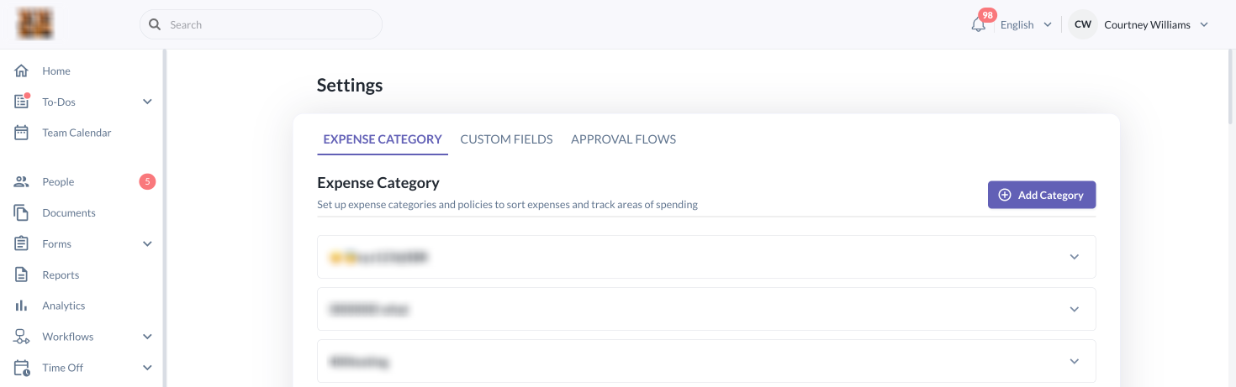

- In Step 3 (Edit expense form) of the Edit expense policy page, click "Add custom field" > choose the custom field in the dropdown.
- You can make the added custom field mandatory by ticking the button under the "Mandatory" column.
- Click Save.

- The custom field should now appear in the form of this specific policy when the employee chooses the category you edited.
Still Need Help?:
Reach out to our support team should you need further assistance.
Was this article helpful?
That’s Great!
Thank you for your feedback
Sorry! We couldn't be helpful
Thank you for your feedback
Feedback sent
We appreciate your effort and will try to fix the article