Overview
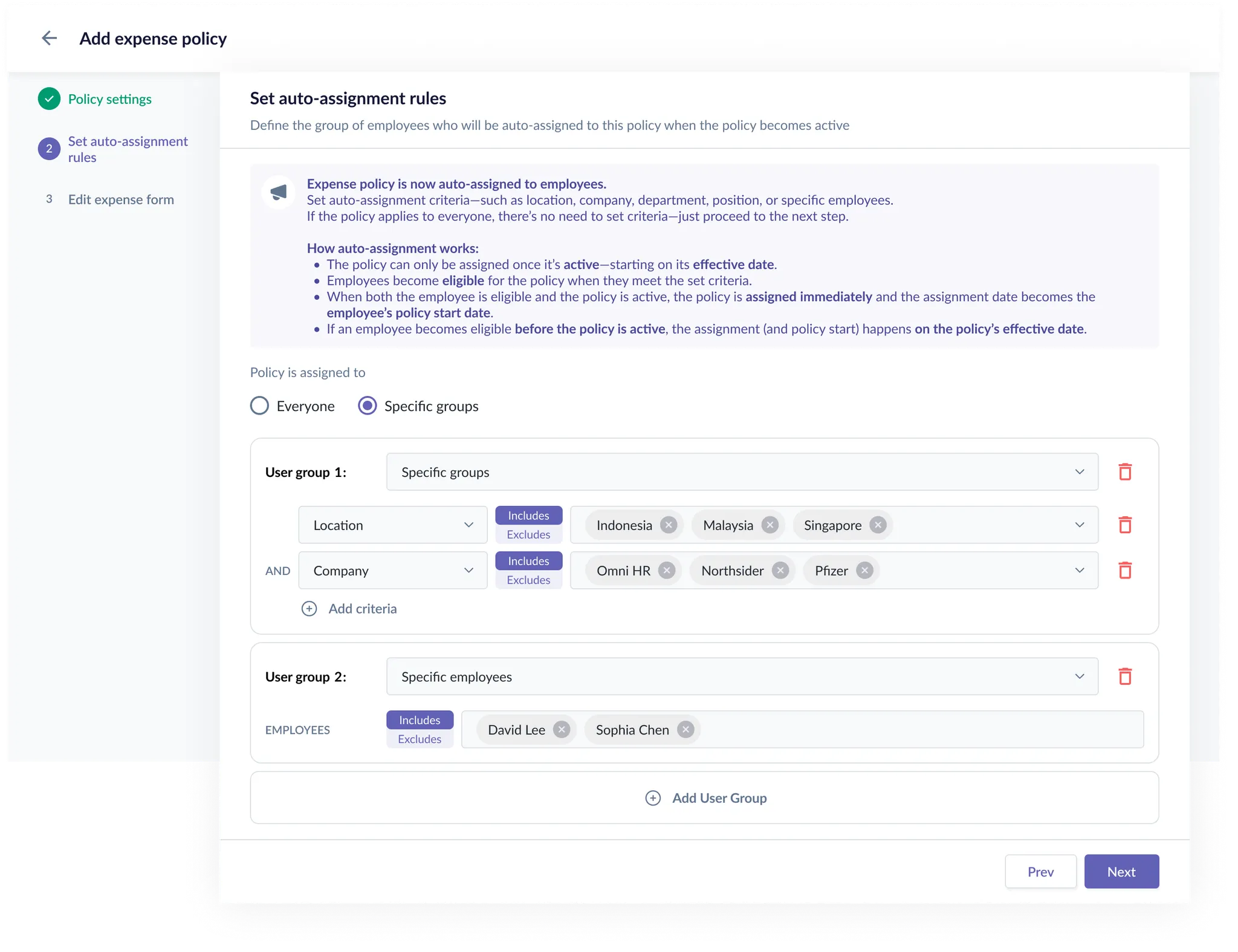
To eliminate manual work, Expense Policies can now be automatically assigned to employees based on:
- Company
- Department
- Specific Employees
- Location
- Position
You can configure one or more criteria to control who gets assigned to which policy. This ensures every employee is auto-mapped to the correct policy from Day 1 — no more manual maintenance needed.
This guide will aim to share how the auto-assignment logic will work in Omni HR. We will further provide sample use cases to best understand how to setup your auto assignment rules according to your policy criteria.
TABLE OF CONTENTS
- How auto-assignment works?
- Setting Auto-Assignment Rules: How to?
How auto-assignment works?

1. The policy can only be assigned once it's active - starting on it's effective date.
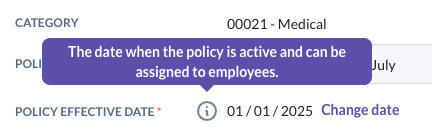
- Following this policy effective date, the auto-assignment will be carried out.
- Thus, if you create a policy effective in the future, it will not set any assignees until the policy becomes active.
2. Employees become eligible for the policy when they meet the set criteria.
- The system will always check employees eligibility against the set criteria of the user groups created.
3. When both the employee is eligible and the policy is active, the policy is assigned immediately and the assignment date becomes the employee's policy start date.
4. If an employee becomes eligible before the policy is active, the assignment (and policy start) happens on the policy's effective date.
- For example if you have a policy active on 1 Jan 2026:
- If the employee is eligible as of this date, the policy will be assigned to them with effective date 1 Jan 2026
- If another employee only is eligible as of 15 Jan 2026, the policy will be assigned to them with effective date 15 Jan 2026
Setting Auto-Assignment Rules: How to?
- We apply an AND criteria within user groups, and OR criteria between user groups.
- This means that as long as someone is within any of the user groups, they will be included under auto-assignment rules.
AND criteria within user groups explained
Scenario 1: Assign to specific company but exclude specific employees
- You want to setup an expense policy catered to company: AAA company but it excludes certain employees. You can setup the criteria within 1 user group like below:
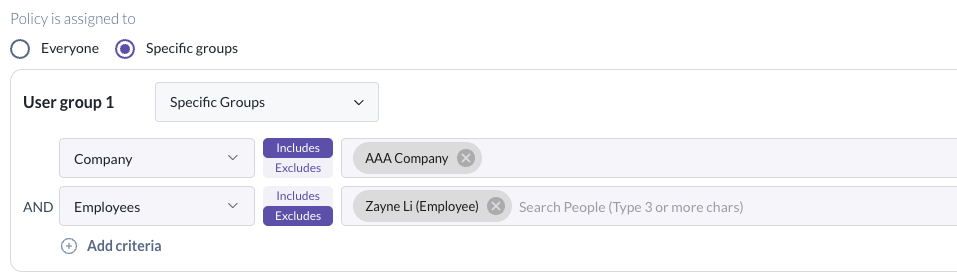
- Outcome: Policy will be assigned to all existing employees & new hires in AAA company except Zayne Li (Employee)
Scenario 2: Assign to specific positions only
- You want to setup an expense policy catered to a specific position: Non-Executive.You can easily set the criteria within 1 user group like below:
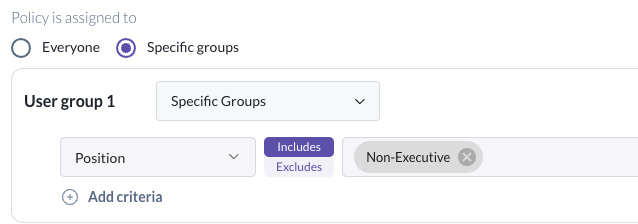
- Outcome: Policy will be assigned to all existing and new hires with position Non-Executive only.
Scenario 3: Assign to specific group based on other criteria not specified
- You want to setup an expense policy catered to a group of employees that have specific criteria that is outside the criteria options available.
- For example, the policy is catered to a specific job tier; Managers/Senior Managers
- For example, the policy is catered to a specific job tier; Managers/Senior Managers
- Our recommendation would be to set the criteria within the user group to include those specific employees.
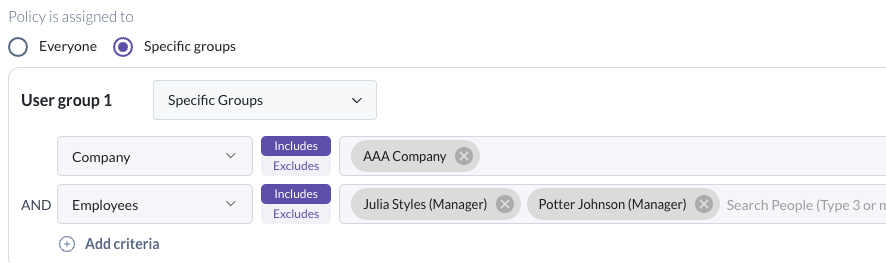
- Outcome: Policy will be assigned to the specific employees; Julia Styles (Manager) & Potter Johnson (Manager)
OR criteria within user groups explained
Scenario 1: Assign to multiple user groups that meet specific criteria
- You have an expense policy that can be assigned to Company: AAA Company & Department: Customer Success OR Company: Smart Company & Department: Management. You can setup two user groups like below:
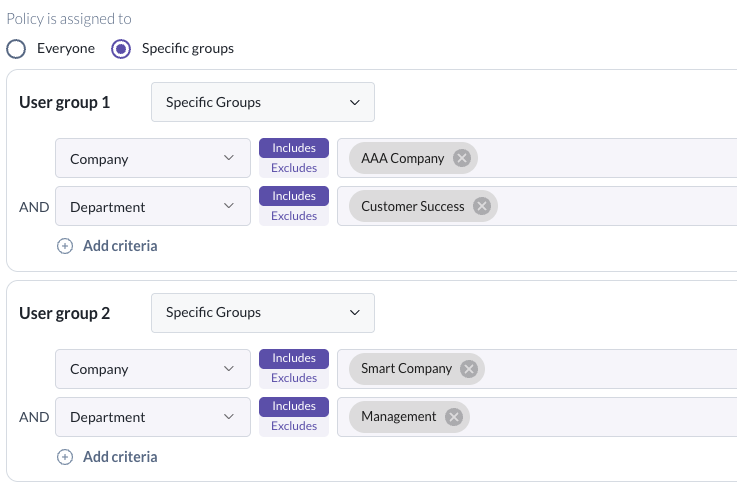
- Outcome: Policy will be assigned to existing employees and new hires who either are in the Customer Success department in AAA company OR Management department in Smart Company
Scenario 2: Policy still assigned even though they were excluded in one user group?
- You are trying to setup an expense policy and have setup two user groups as below, with the intention to assign to all employees in Singapore except Adam.
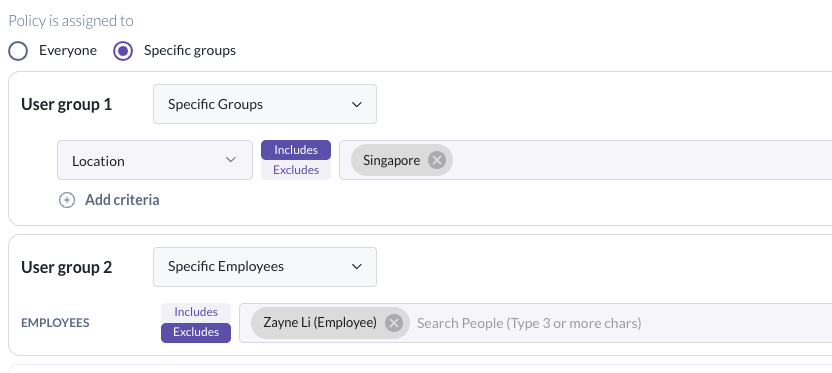
- Outcome: Policy will be assigned to Zayne because although in User group 2, you have excluded him, he is still eligible based on User group 1.
- As long an employee meets either criteria within the user groups, the employee will be assigned the policy.
- Rather, you should setup the policy like Scenario 1 in the previous section: AND criteria within user groups explained
Still Need Help?:
Reach out to our support team should you need further assistance.
Was this article helpful?
That’s Great!
Thank you for your feedback
Sorry! We couldn't be helpful
Thank you for your feedback
Feedback sent
We appreciate your effort and will try to fix the article