Overview:
We’ve introduced certain improvements to how attendance, rounding, grace periods, and overtime are calculated. These updates give admins greater control while ensuring more accurate and compliant payroll outcomes.
Previously, overtime was calculated purely based on timing deviation, not actual work duration.
This meant:
- Overtime could be triggered even when total hours worked did not exceed scheduled hours.
- Employees could appear to earn overtime without actually working additional time.
Now, admins can have greater control on accurate time tracking by setting grace period and/or time off rounding policies.
Prerequisite:
Before you can do this, please ensure you have the permission "Configure work schedule and holiday calendar" under Settings > Access Control > Your Role > Settings
This permission will allow you to setup or update existing work schedules with the time tracking policy you require
TABLE OF CONTENTS
- How to setup grace period and/or time off rounding policy for a work schedule?
- Setting up Grace Period: What does it mean and how will time be tracked?
- Setting up Time off rounding: What does it mean and how will time be tracked?
- Note: Special cases for grace period & time off rounding to be aware of
How to setup grace period and/or time off rounding policy for a work schedule?
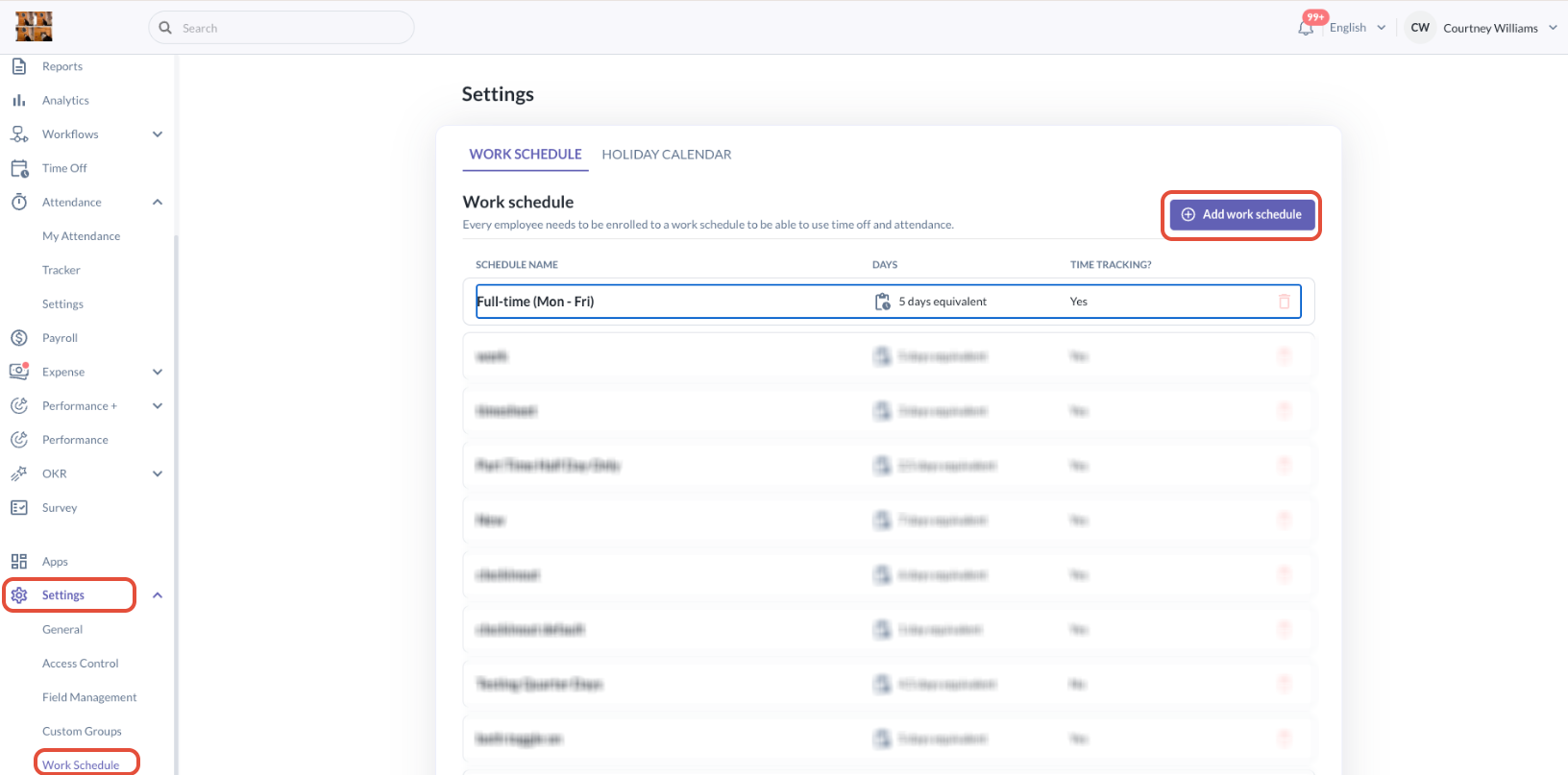
Step 1: Add a new work schedule or edit an existing work schedule
- Go to Settings > Work Schedule > Add Work Schedule or Edit an existing Work Schedule i.e. Full-time (Mon - Fri)
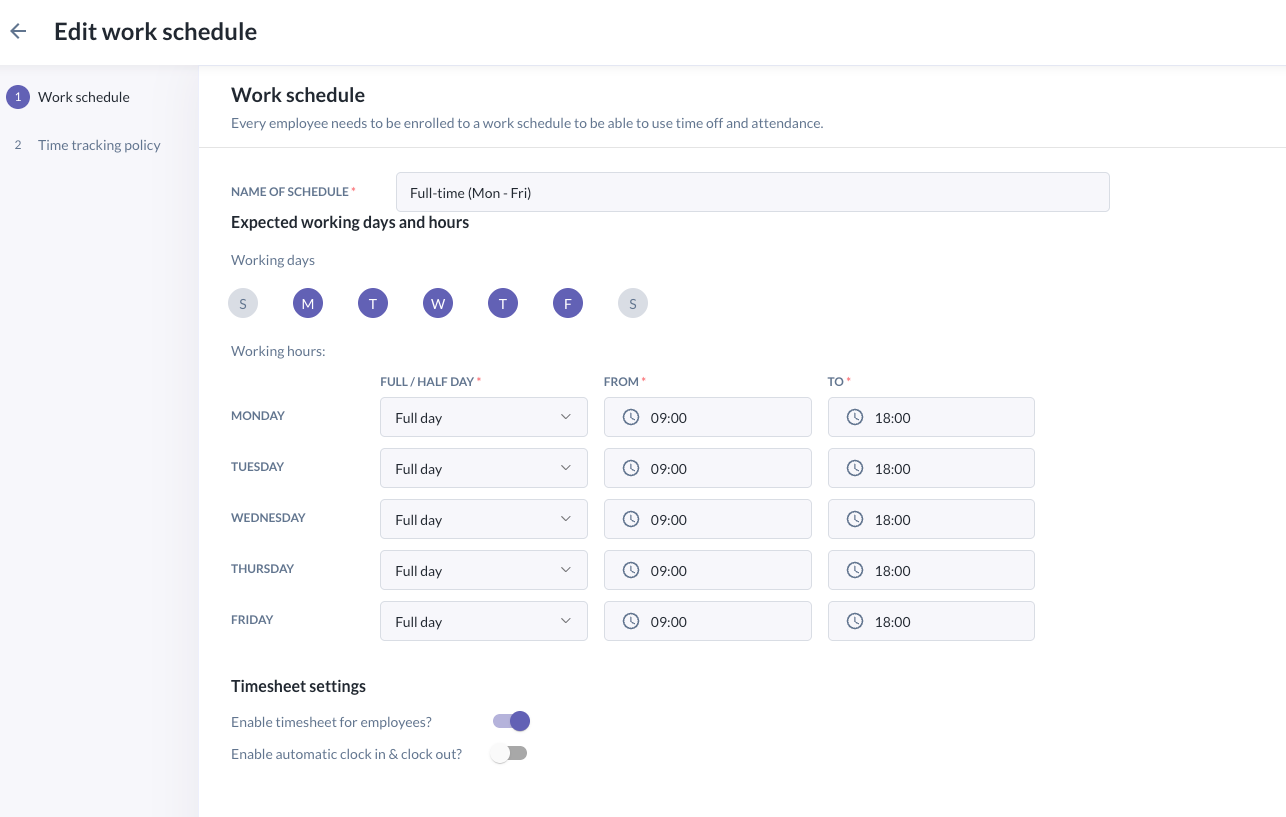
Step 2: Setup or Update the work schedule
- Setup the name of the schedule, the working days & hours
Step 3: Enable timesheet settings for employees
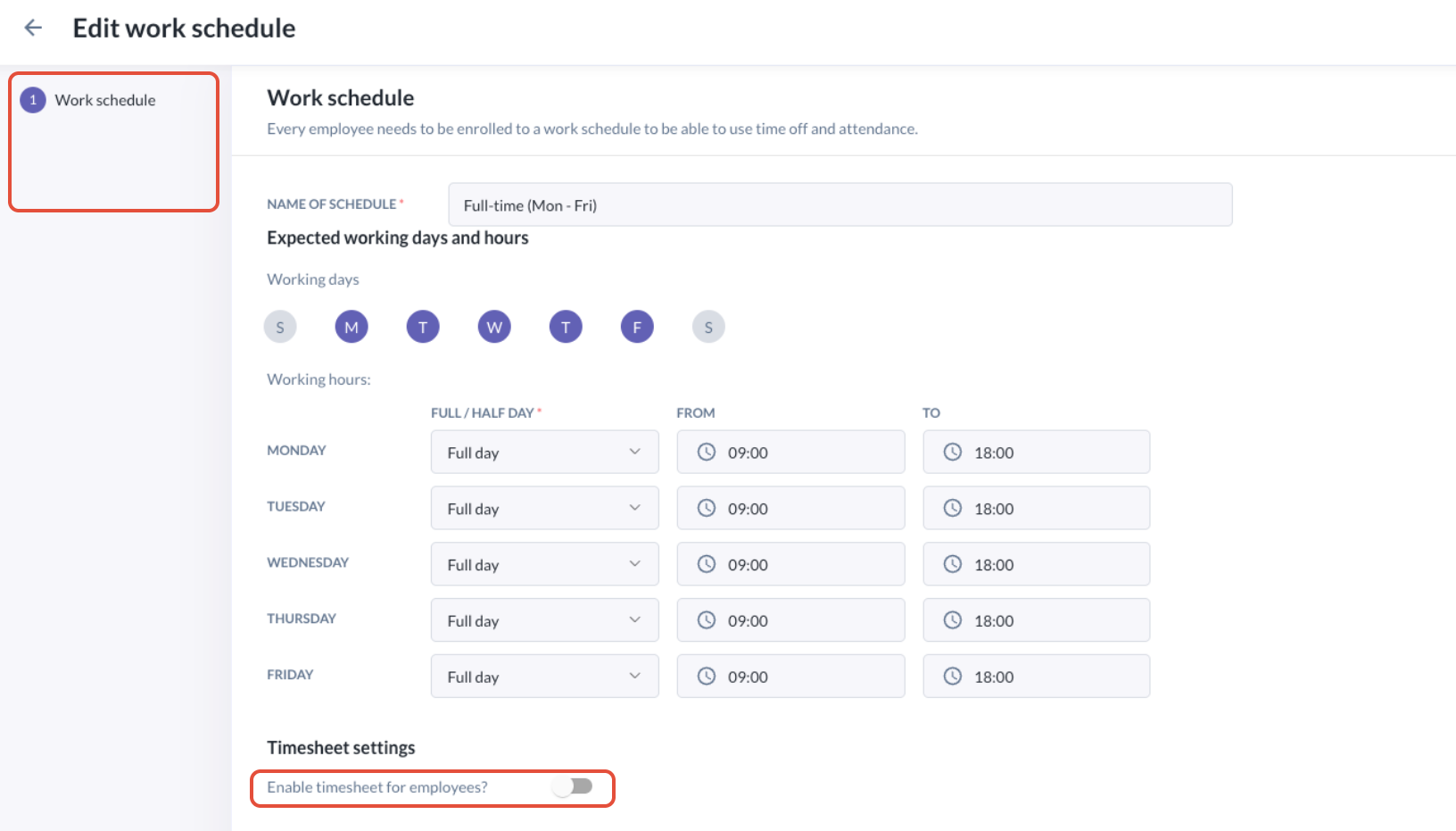
- To set up a time tracking policy, turn on "Enable timesheets for employees".
- If this is turned off, you will not be able to setup a time tracking policy for this work schedule.
- You may also turn on "Enable automatic clock in & clock out" to allow employees to automatically clock-in and clock-out via web or mobile.
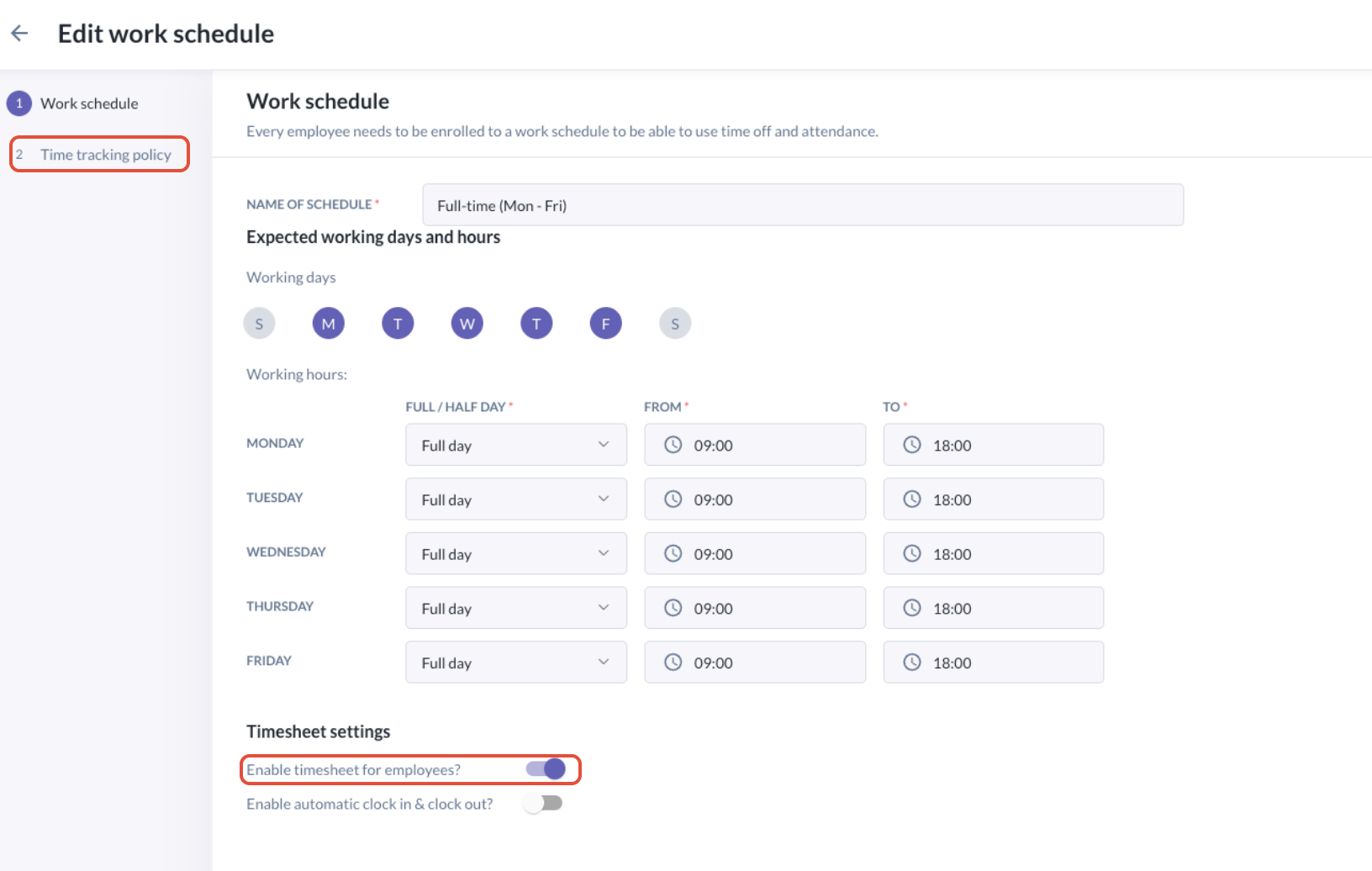
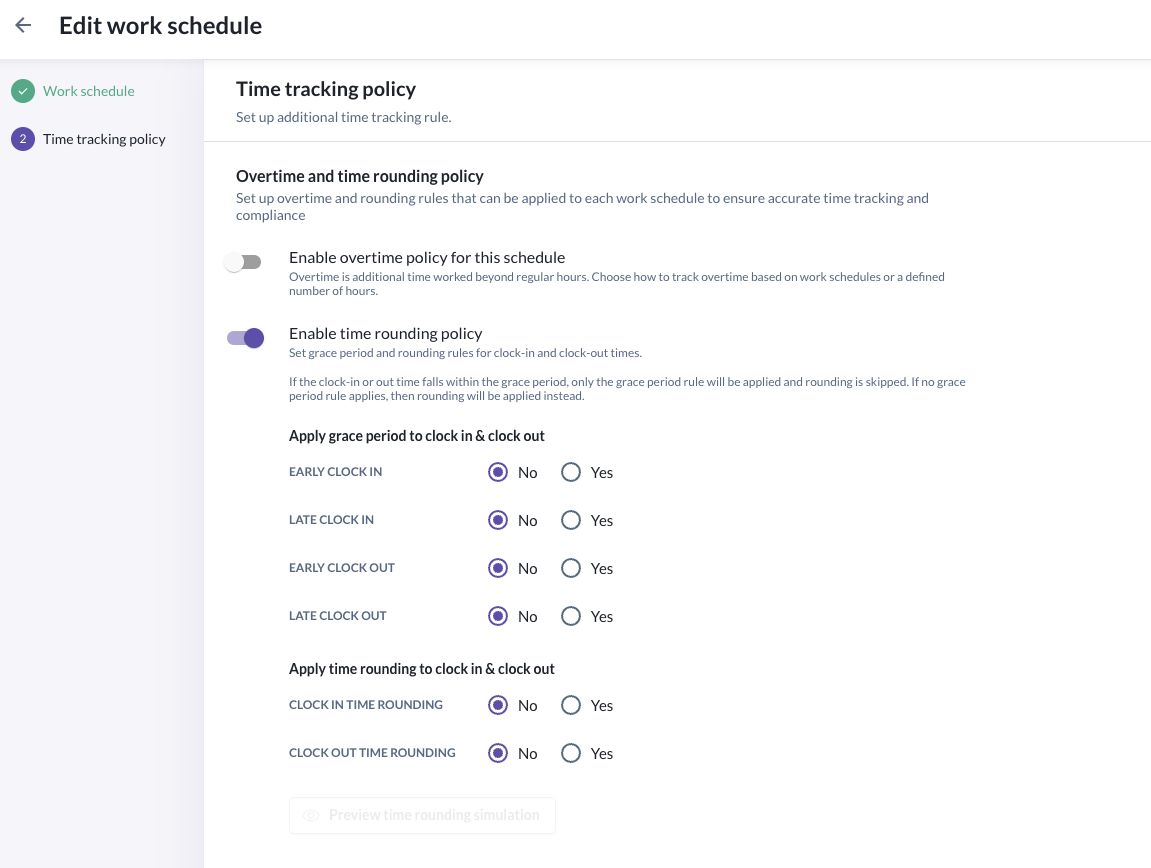
Step 4: Setup preferred time off rounding policy (setting grace period and/or time off rounding)
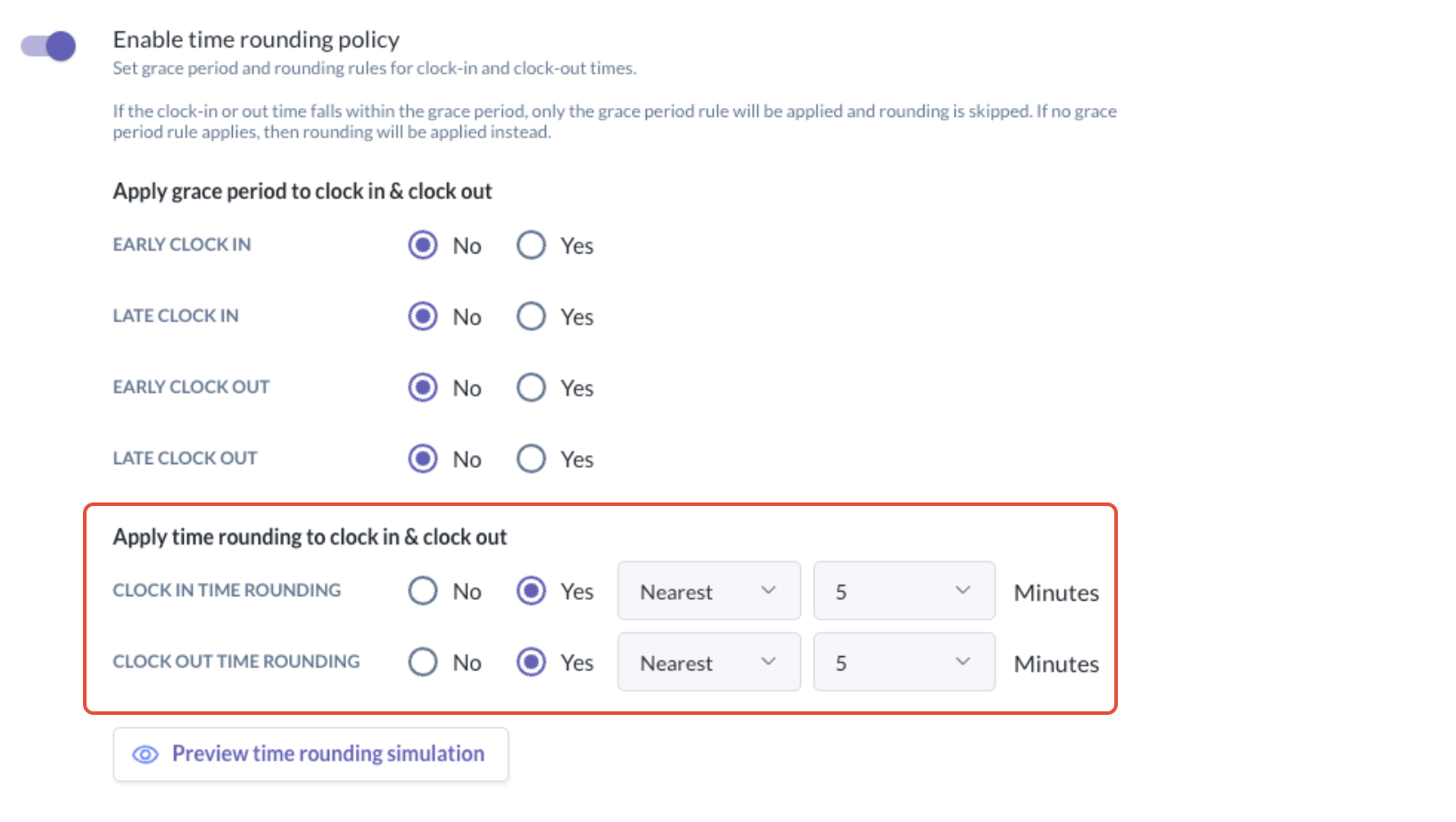
- Under time tracking policy, turn on "Enable time off rounding policy". When this is enabled, you will see two options to enable for the specific schedule:
- Apply grace period to clock in & clock out: A grace period allows small early/late clock-ins or clock-outs to “snap” to the scheduled shift time.
- Apply time rounding to clock in & clock out: Rounding standardises clock-in/out times to consistent intervals.
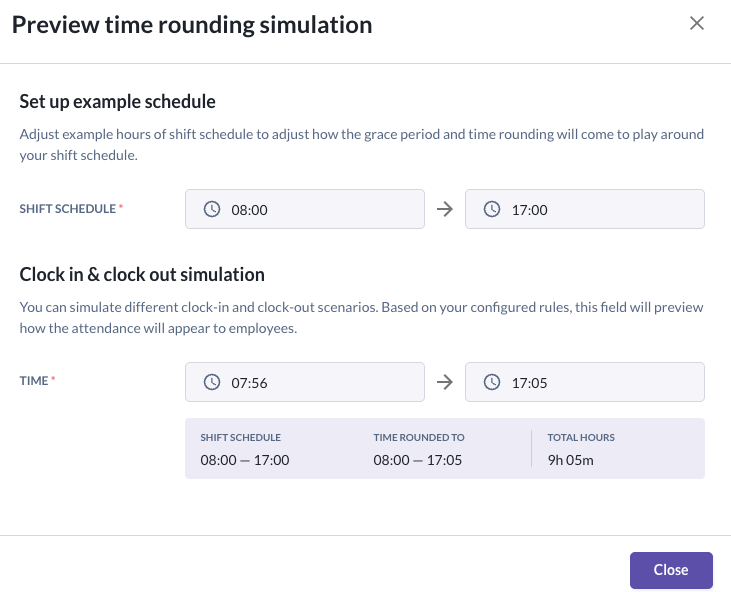
Tip: Use the preview time rounding simulation feature to visualise how the grace period & time rounding settings will apply in simulated clock in & out scenarios before saving
Step 5: Click "Save"
- After choosing your preferred options, you can click "Save" to save your time tracking policy for this work schedule.
Setting up Grace Period: What does it mean and how will time be tracked?
- A grace period allows small early/late clock-ins or clock-outs to “snap” to the scheduled shift time.
- It prevents:
- Unnecessary lateness deductions
- Accidental overtime from minor early clock-ins
- Four grace period settings are now supported in commonly-used denominations (5, 10, 15, 30 and 60 minutes):
- Early clock-in
- Late clock-in
- Early clock-out
- Late clock-out
How grace period works
- If a clock-in/out time falls within the defined grace window:
- The time is snapped to the shift start/end
- If rounding settings exist, rounding will NOT apply (grace period settings always takes precedence) if clock time falls within grace period
- Both actual and snapped time are stored
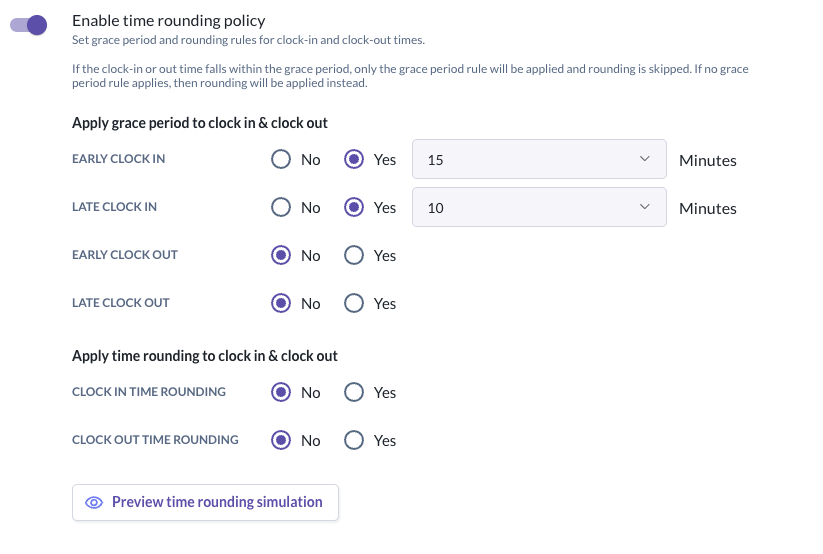
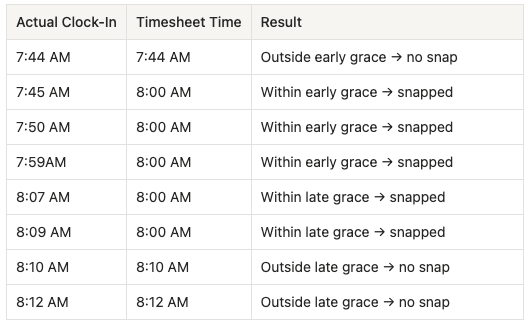
(a) Example 1 — Clock-in grace periods
Shift: 8:00 AM – 5:00 PM
Early clock-in grace: 15 minutes
Late clock-in grace: 10 minutes
Result: If clock-in time falls between 7:45:00 AM and 8:09:59 AM, timesheet time will snap to shift start time (8:00 AM)
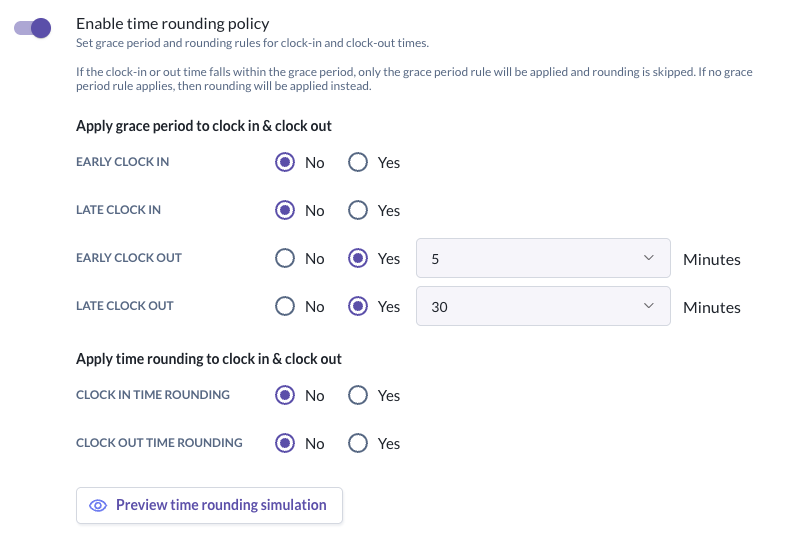
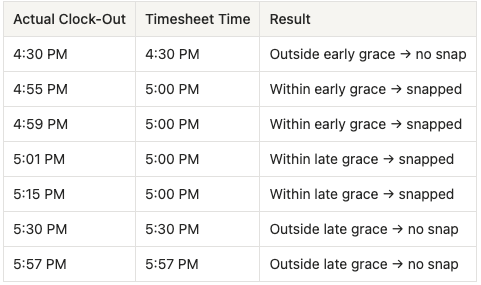
(b) Example 2 — Clock-out grace periods
Shift: 8:00 AM – 5:00 PM
Early clock-out grace: 5 minutes
Late clock-out grace: 30 minutes
Result: If clock-in time falls between 4:55:00 PM and 5:29:59 PM, timesheet time will snap to shift start time (5:00 PM)
(c) Example 3 — Clock-in and clock-out grace periods combined
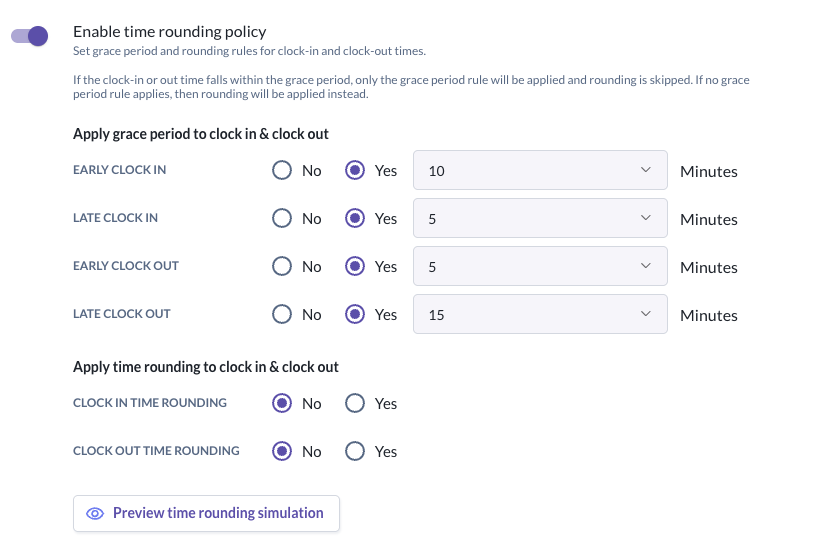
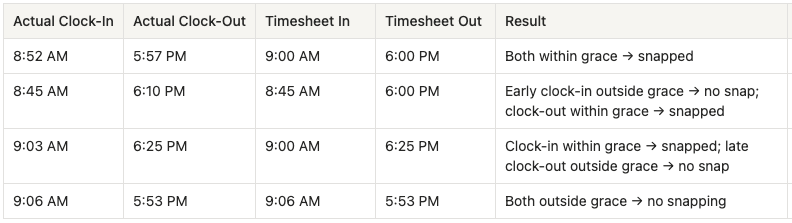
Shift: 9:00 AM – 6:00 PM
Early clock-in grace: 10 minutes
Late clock-in grace: 5 minutes
Early clock-out grace: 5 minutes
Late clock-out grace: 15 minutes
Result:
- If clock-in falls between 8:50:00 AM and 9:04:59 AM, timesheet time snaps to 9:00 AM.
- If clock-out falls between 5:55:00 PM and 6:14:59 PM, timesheet time snaps to 6:00 PM.
Setting up Time off rounding: What does it mean and how will time be tracked?
What time rounding does
- Rounding standardises clock-in/out times to consistent intervals.
- Three rounding settings are now supported in commonly-used denominations (5, 10, 15, 30 and 60 minutes)
- Nearest
- Up to
- Down to
Important rules
- Grace period is evaluated first.
- If grace period does not apply, rounding will apply. Both never apply at the same time.
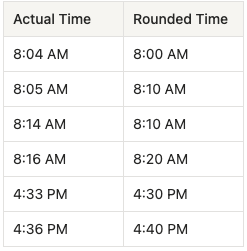
(a) Example 1 — Nearest 10 minutes
- Nearest means: round to the closest interval — up or down depending on which is closer.
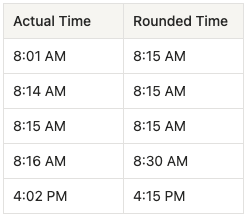
(b) Example 2 — Up to 15 minutes
- Rounding up always rounds forward to the next interval; even 1 minute past gets pushed forward.
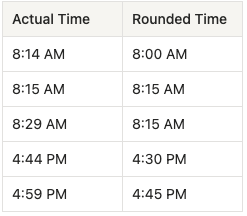
(c) Example 3 — Down to 15 minutes
- Rounding down always rounds backward.
(d) Example 4 — Clock-in and clock-out rounding settings combined
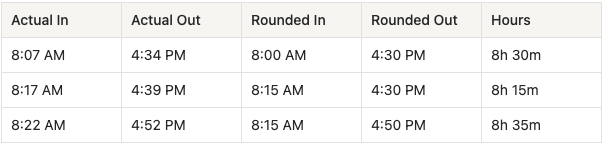
- Rounding direction per side matters more than people expect — having hours worked rounded to a consistent interval makes payment of salaries much easier.
- Clock-in rounding: Nearest 15 minutes
- Clock-out rounding: Down to 10 minutes

Note: Special cases for grace period & time off rounding to be aware of
- Sometimes, rare rounding and grace period settings result in unique rounded times.
- In these cases, either actual (not rounded) times are recorded in timesheets, or the entry will be not be allowed to be saved.
(e) Example 5 — When the Rounded clock-in time is the same as Rounded clock-out time
Settings:
Clock-in rounding: Nearest 10 minutes
Clock-out rounding: Nearest 10 minutes
Results:

Settings:
Shift: 9:00 AM – 6:00 PM
Early clock-in grace: 10 minutes
Clock-out rounding: Down to 10 minutes
Results: 
(f) Example 6 — When the Rounded clock-in before Rounded clock-out
Settings:
Clock-in rounding: Nearest 10 minutes
Clock-out rounding: Down to 10 minutes
Results: 
Still Need Help?:
Reach out to our support team should you need further assistance.
Was this article helpful?
That’s Great!
Thank you for your feedback
Sorry! We couldn't be helpful
Thank you for your feedback
Feedback sent
We appreciate your effort and will try to fix the article