Overview:
If your HR Administrator has enabled automatic attendance recording for your work schedule, you do not need to manually enter your hours, as your working time will be automatically recorded in your timesheet.
However, there may be situations where you need to adjust your recorded time. This article explains how you can edit your timesheets after automatic attendance recording has been applied, both with and without an approval process in place.
TABLE OF CONTENTS
- Edit timesheet with approval
- Edit timesheet without approval
- Update edit timesheet request
- Cancel edit request
Edit timesheet with approval
1. Go to Attendance > My Attendance, once you clocks out, the attendance will be automatically recorded. You can click the “Edit” (pencil) icon to modify the timesheet.

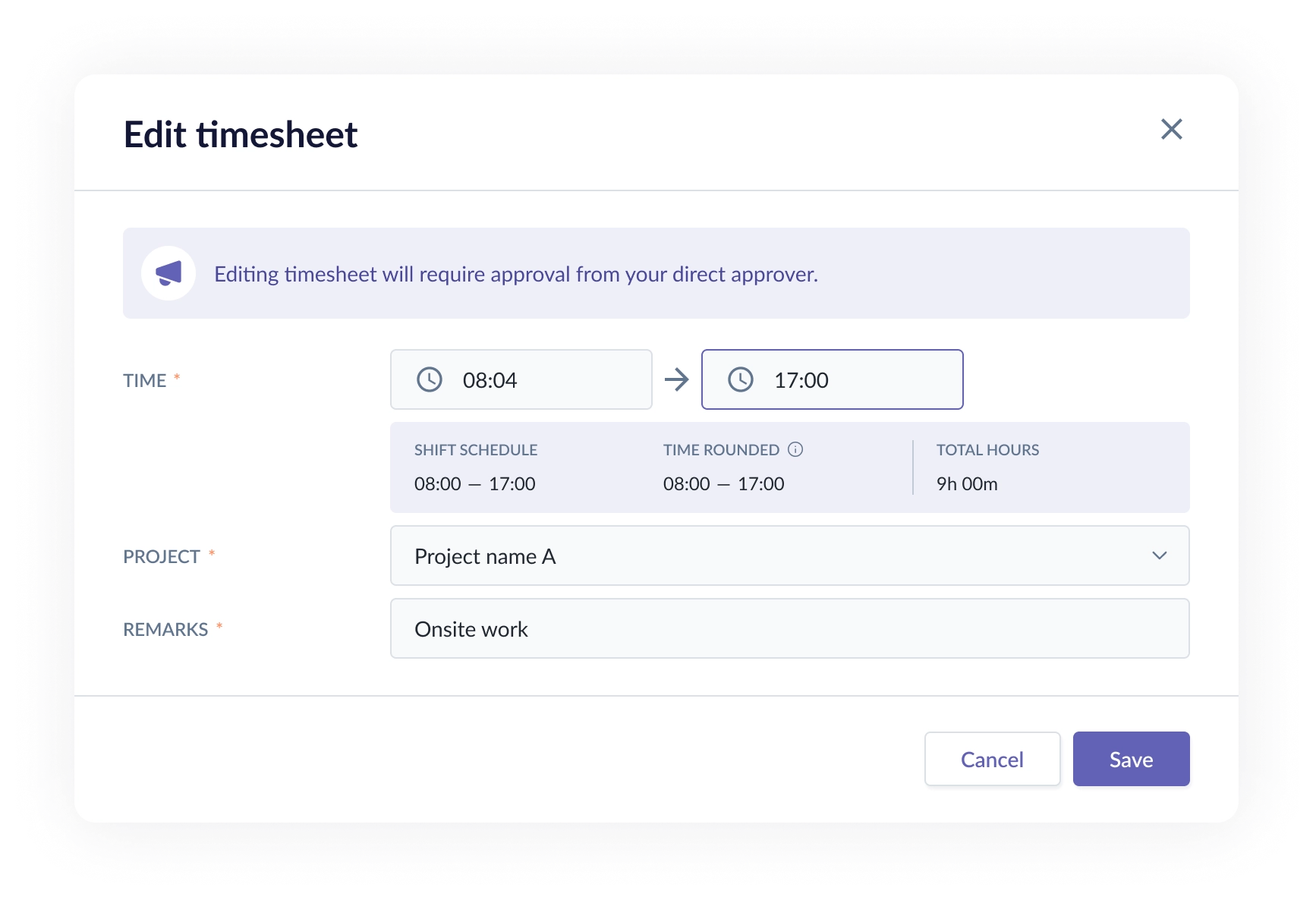
2. The Edit Timesheet pop-up will appear and you can update the time and click “Save” to submit the edit timesheet request for approval.
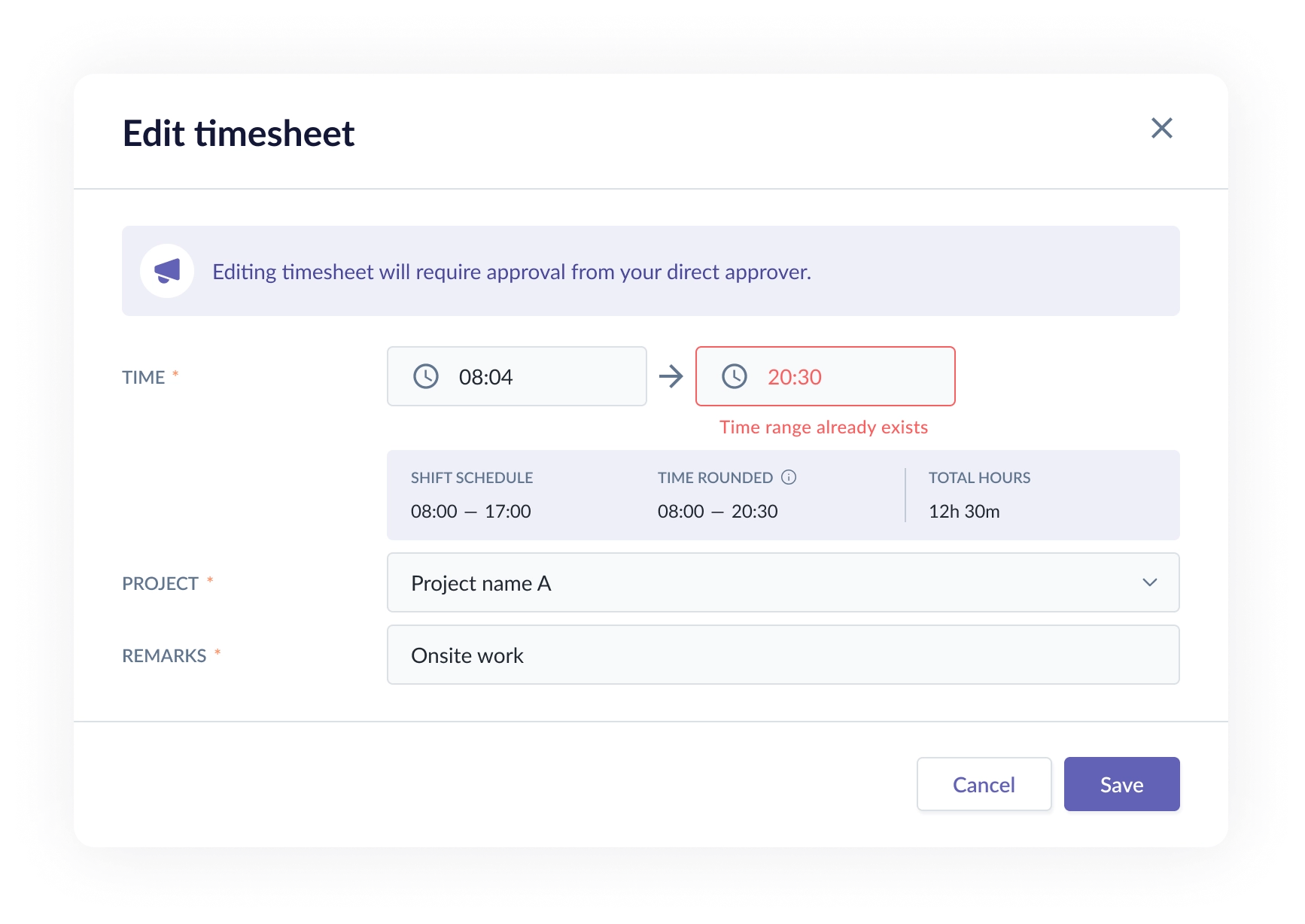
- If you tries to edit a time that already exists and it's overlap with another existing entry, the system will not allow the change until the overlapping time is corrected.
You will see a “Time range already exists” alert message appear, indicating that the selected time overlaps with an existing attendance record.
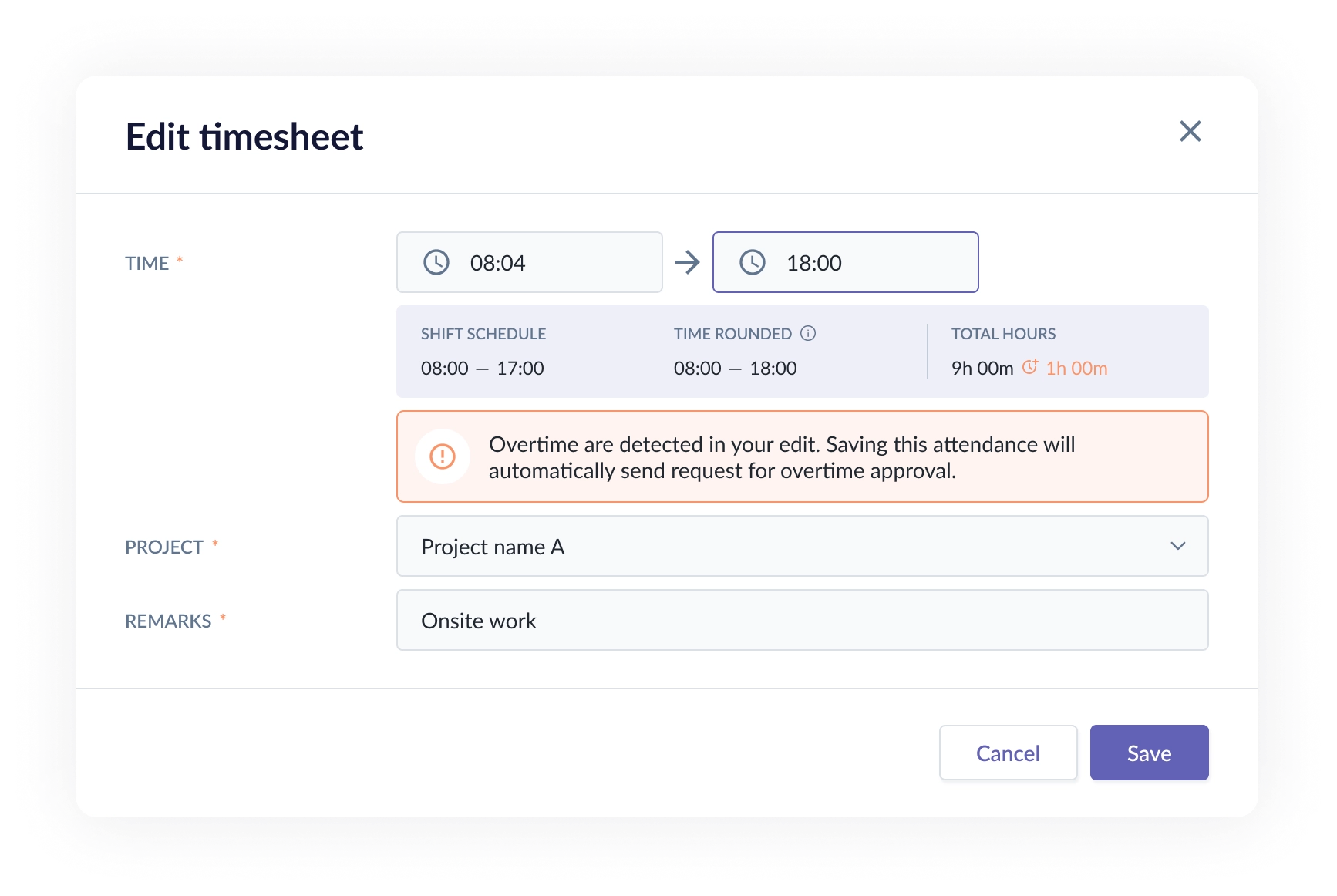
3. If the edited time creates overtime, you will submit an overtime request instead of edit timesheet request. Once approved, the updated attendance record may reflect overtime based on the adjusted time.
Edit timesheet without approval
1. Go to Attendance > My Attendance, once you clocks out, the attendance will be automatically recorded. You can click the “Edit” (pencil) icon to modify the timesheet.
2. If your HR has not enabled the Edit Timesheet Request approval rule, you can edit the attendance entry directly and save the changes immediately.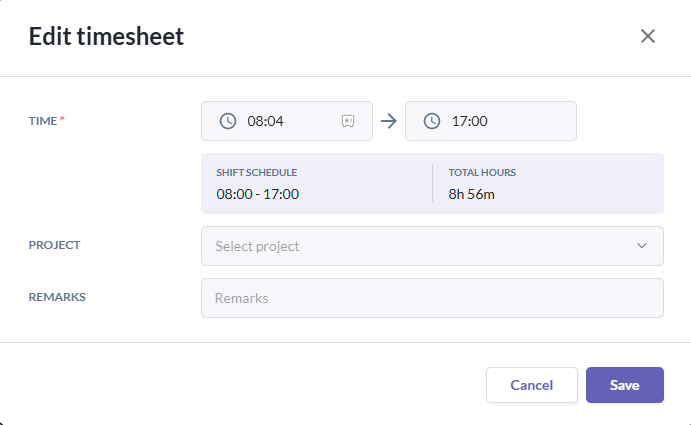
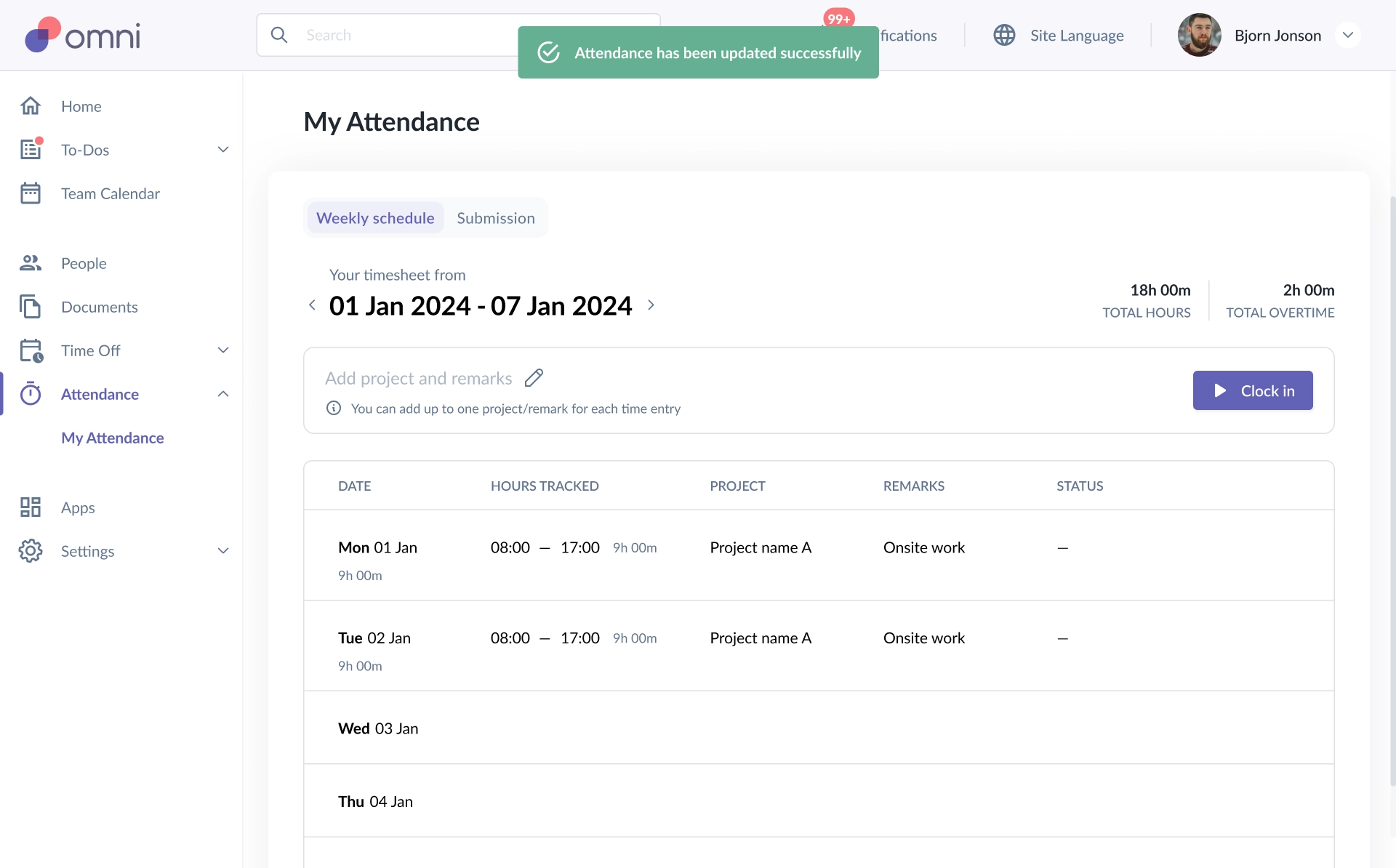
- You should see a message that says “Attendance has been updated successfully”, indicating that your attendance has been successfully updated.
Update edit timesheet request
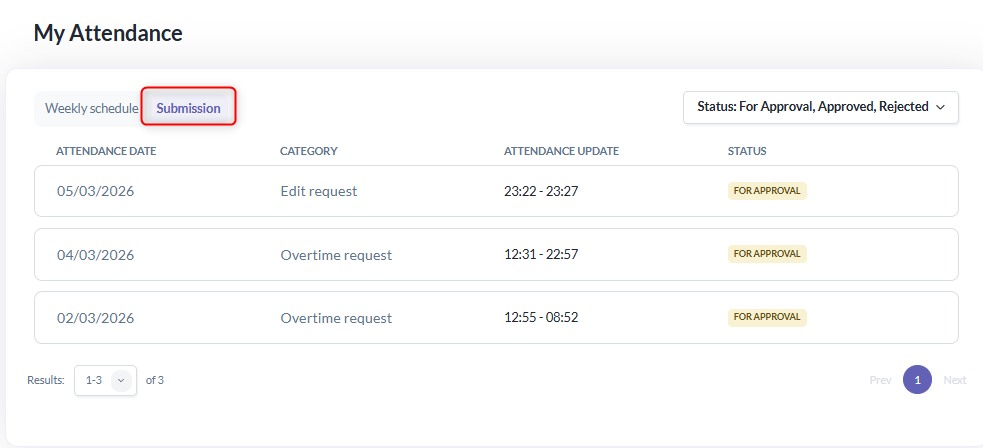
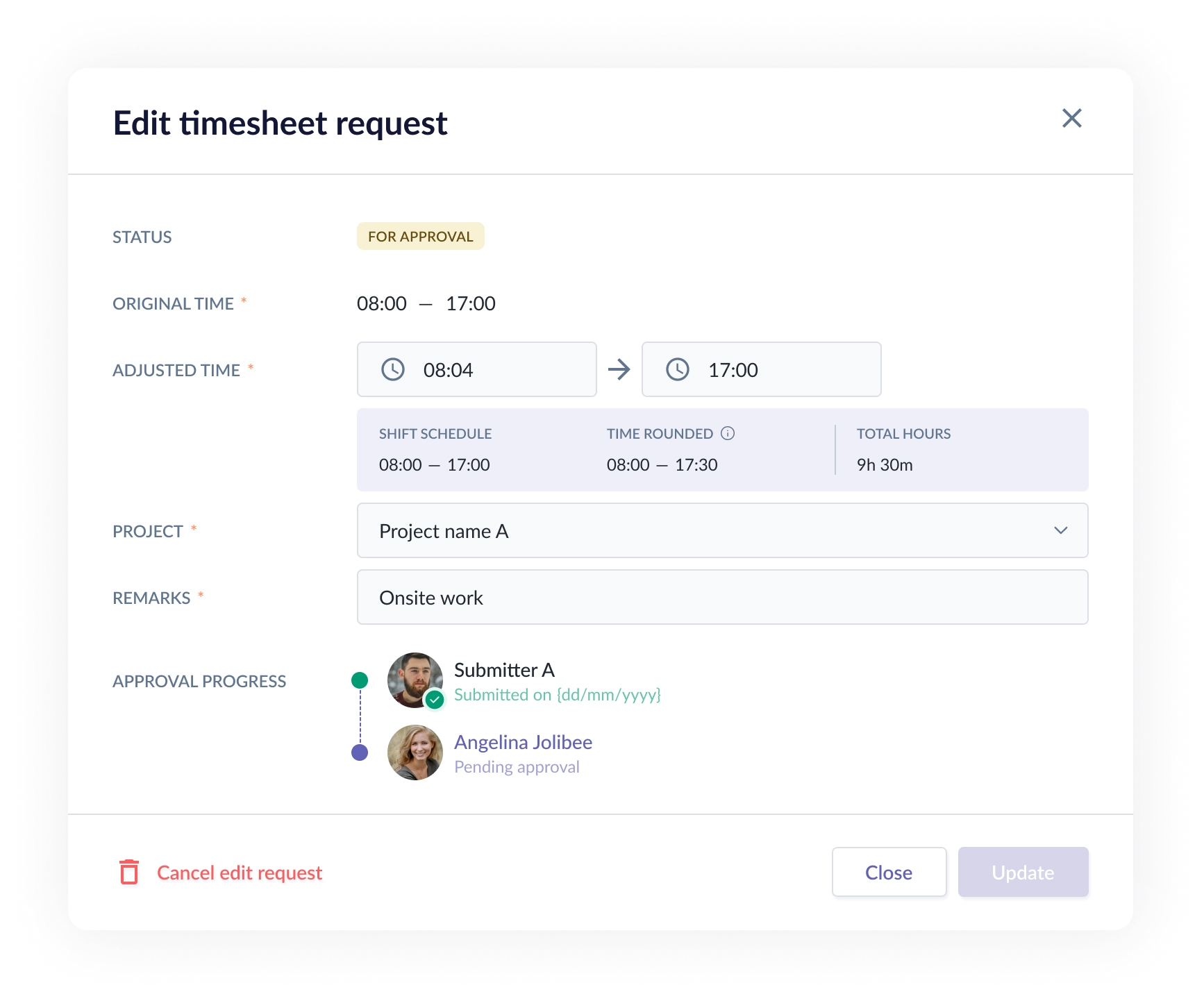
1. If you want to update the edit timesheet request, you can go to Attendance > My Attendance > Submission > Click on your request and make the necessary changes , and then click "Update" button to update the request. The request will continue through the approval flow based on the latest valid approval rule.
Cancel edit request
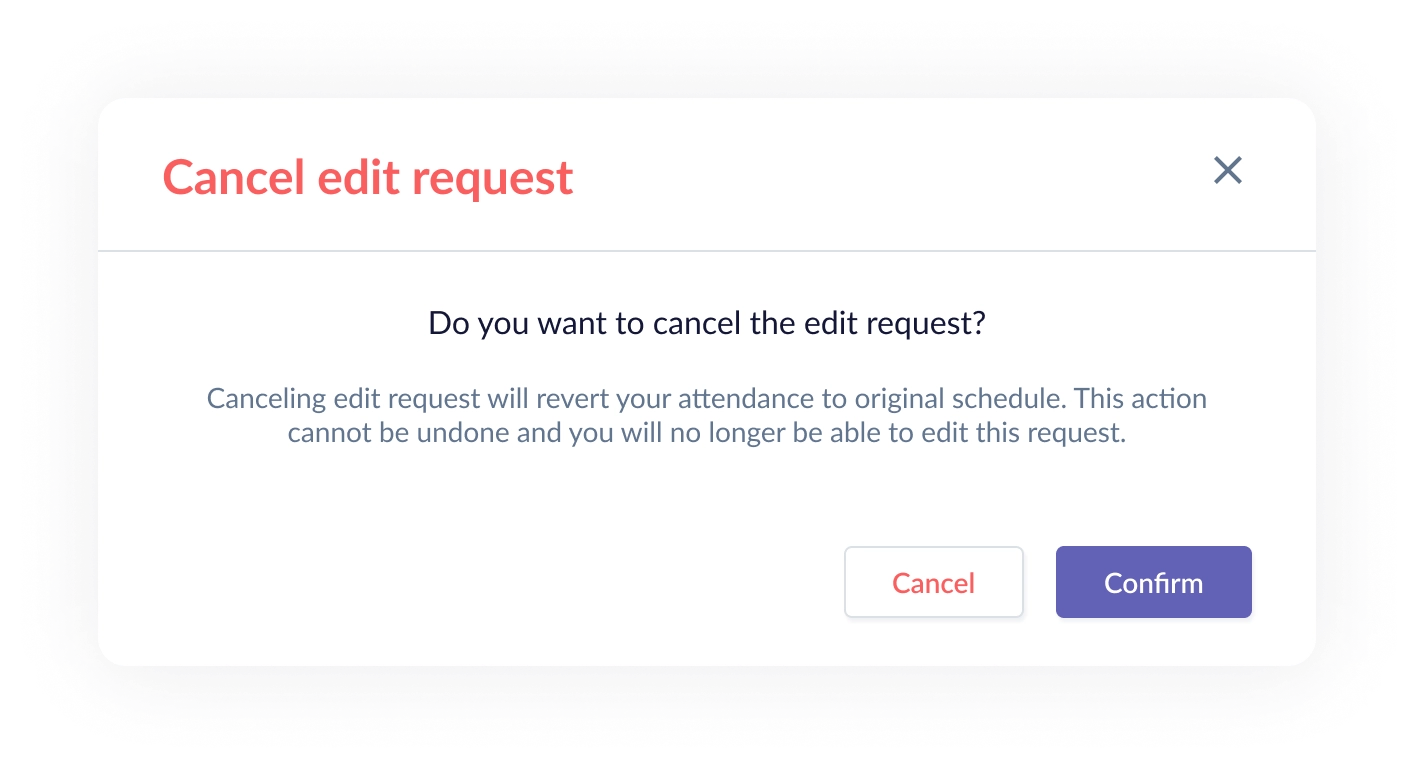
1. Go to My Attendance > Submission > Click on the edit request, then select "Cancel Overtime Request" to cancel it.
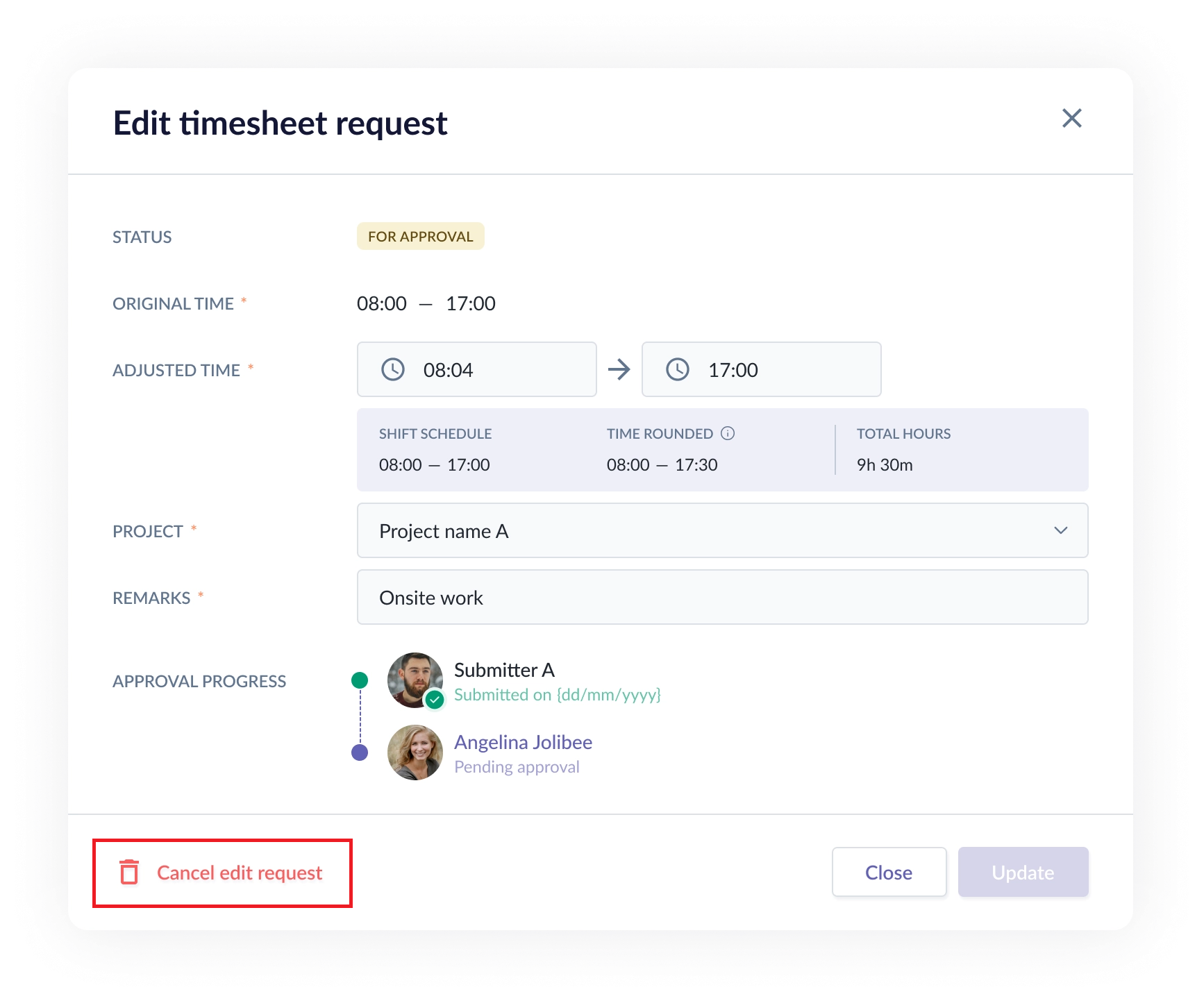
- You will be prompted with a confirmation message before proceeding with the cancellation. Once the request is cancelled, attendance record will revert back to original time.
Still Need Help?:
Reach out to our support team should you need further assistance.
Was this article helpful?
That’s Great!
Thank you for your feedback
Sorry! We couldn't be helpful
Thank you for your feedback
Feedback sent
We appreciate your effort and will try to fix the article