Overview:
If your HR Admin has enabled automatic time recording for your work schedule, you can submit an overtime request when you clock out for any extra hours worked. This guide will show you how to submit and manage your overtime requests.
TABLE OF CONTENTS
- Submit overtime request
- Cancel submitted request
- Submit overtime without approval
- Important notes on clocking from the mobile app
Submit overtime request
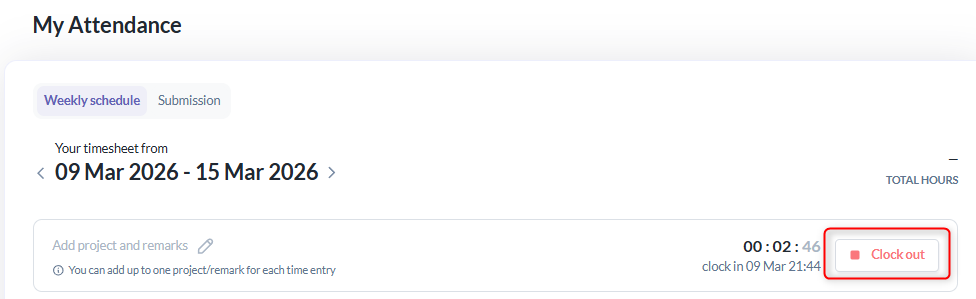
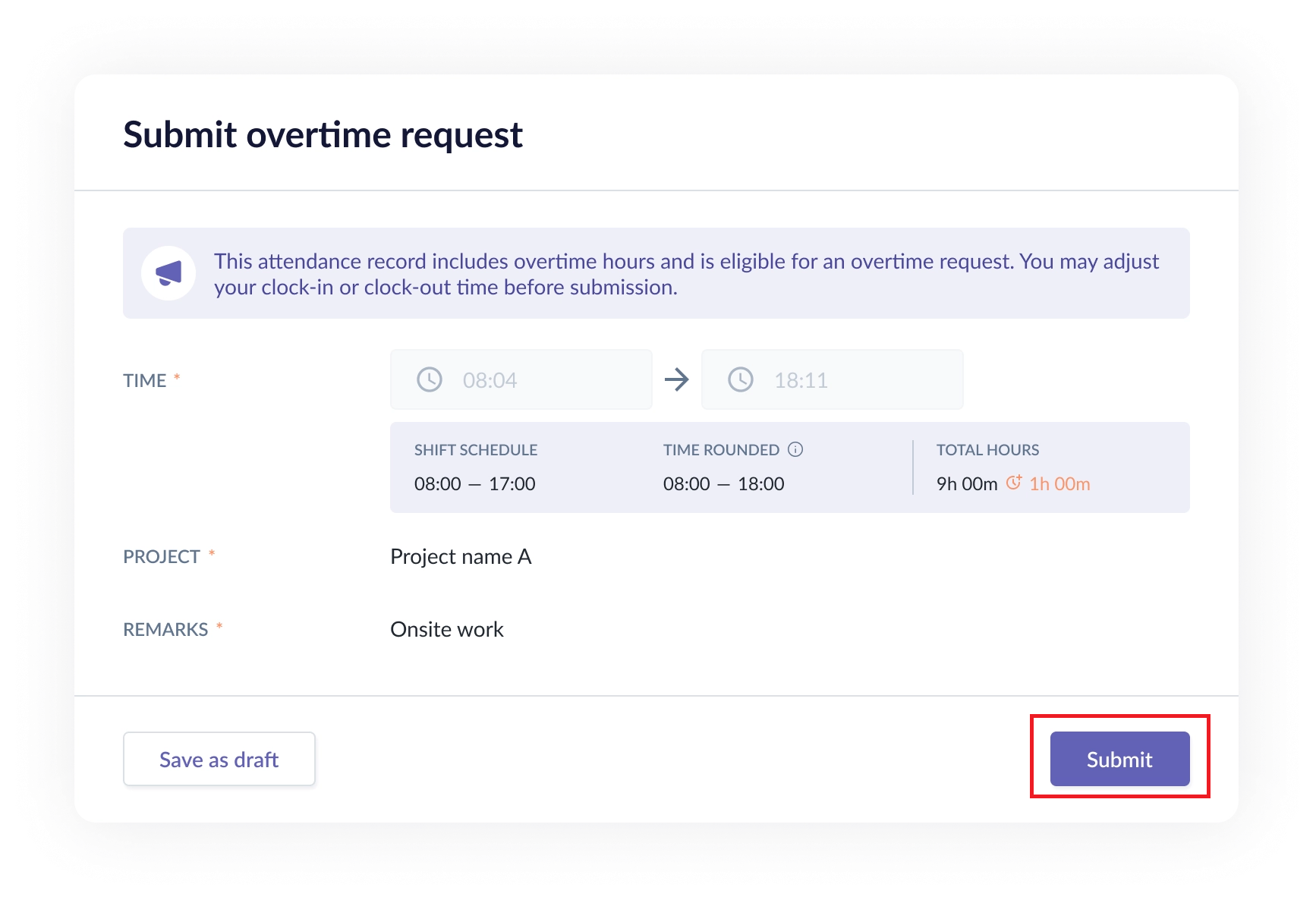
1. Go to Attendance > My Attendance > when you click "Clock Out", the system will automatically detect your overtime and a Submit Overtime Request pop-up will appear.
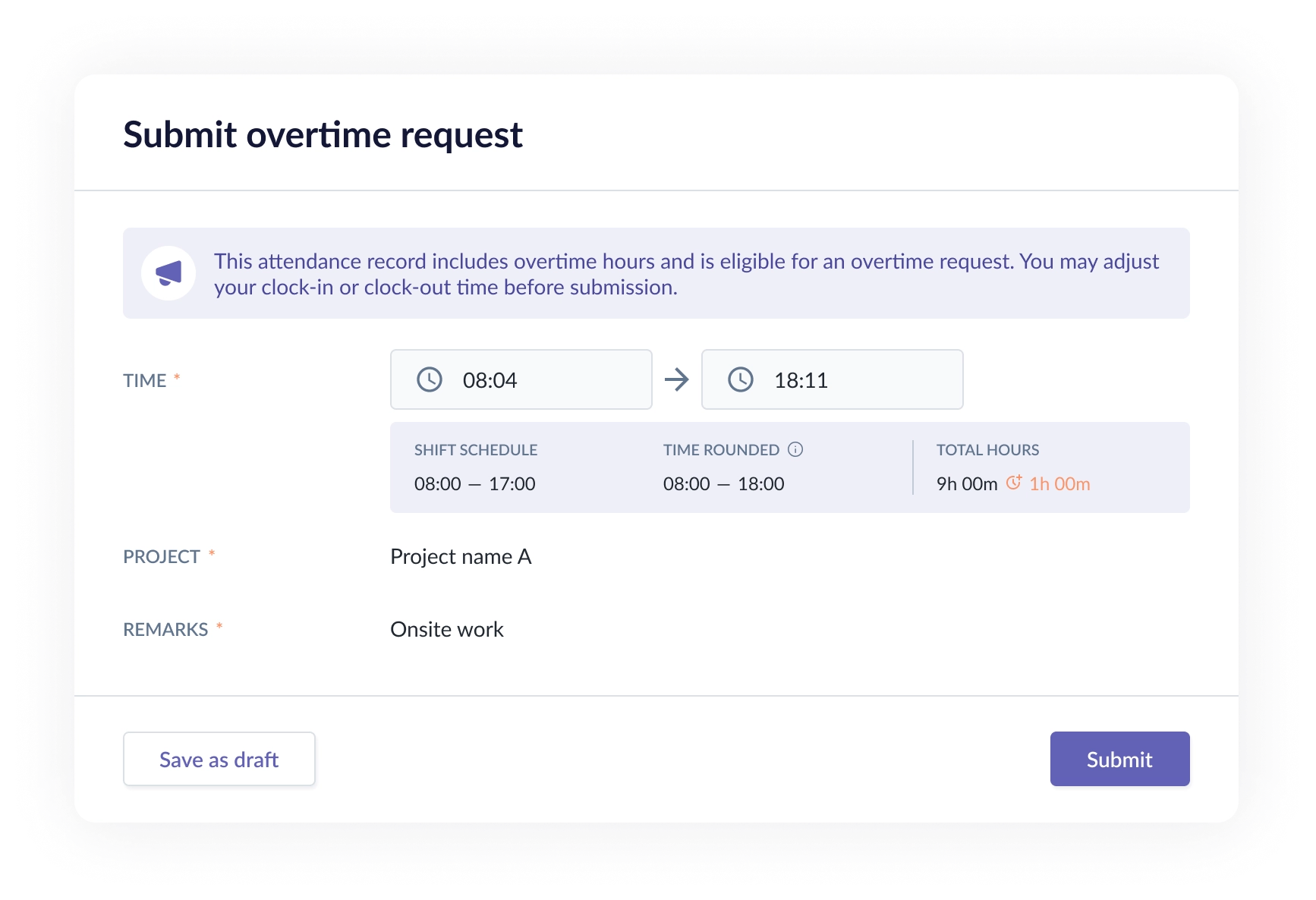
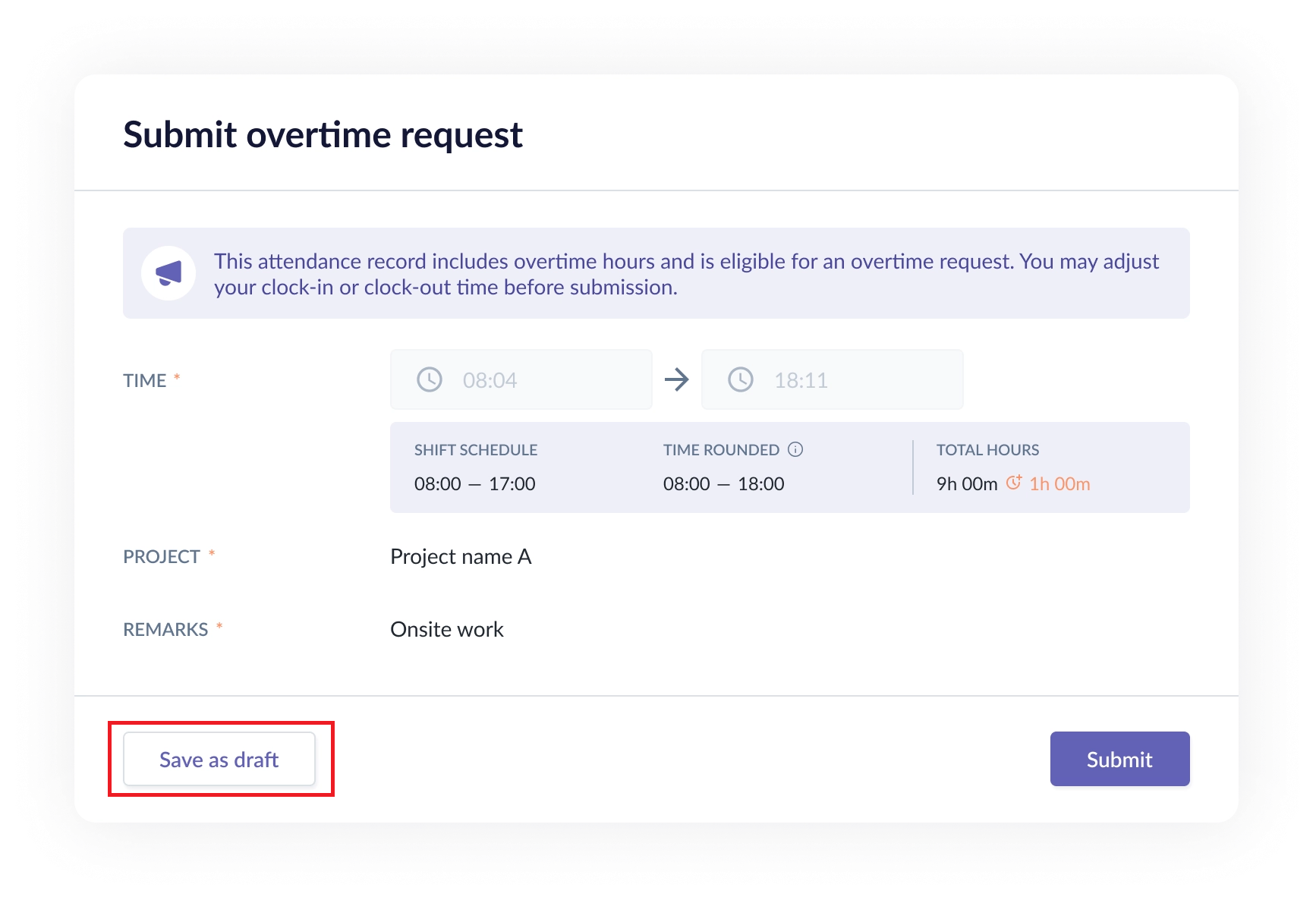
2. You can edit the time if you need to make changes. If you want to review it later, you can also click "Save as Draft" and submit the request later.
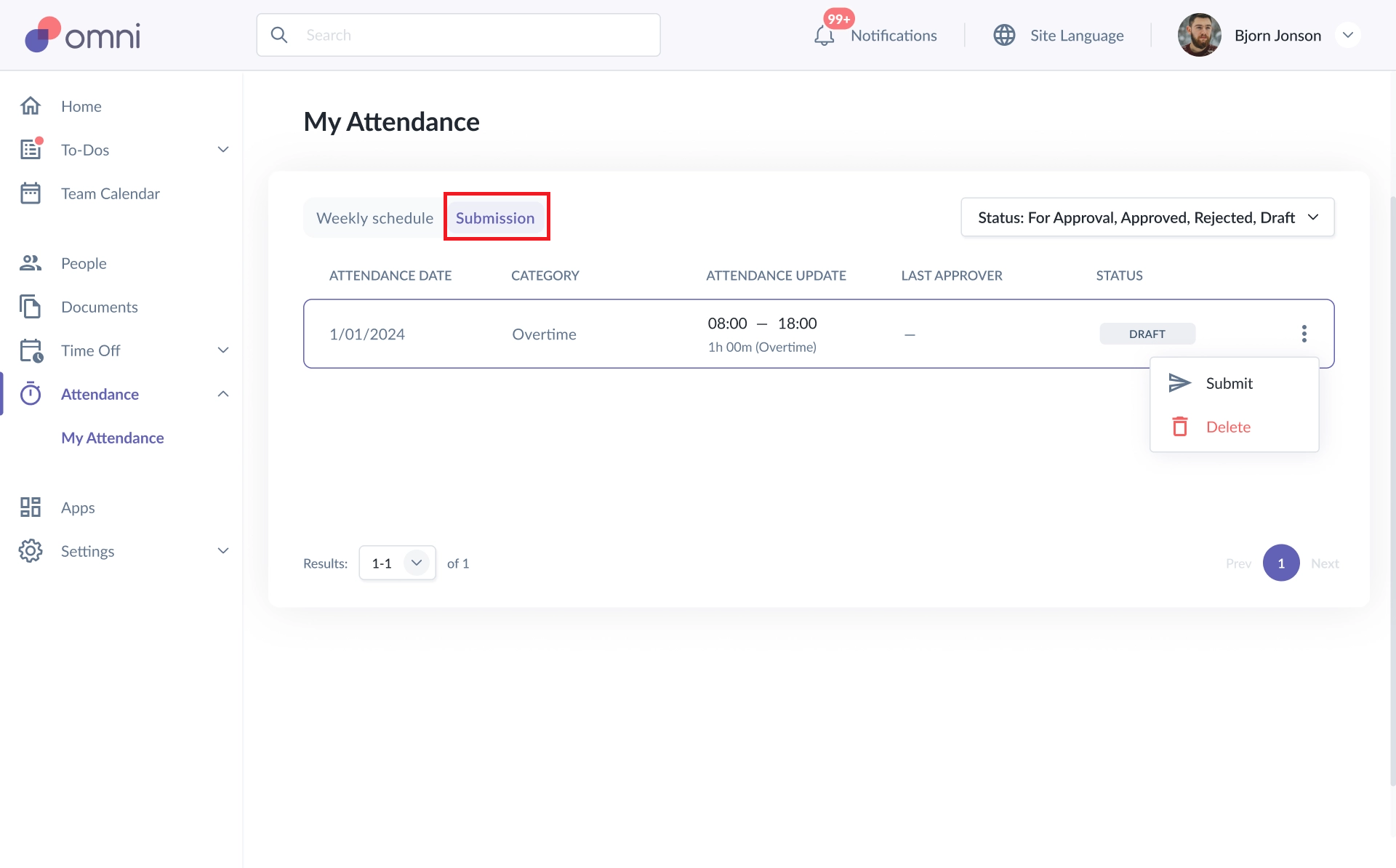
3. You can always find your draft overtime requests in the Submission list, where you can resume submitting them later or delete the request if it is no longer needed.
4. If you do not want to save it as a draft, you can click "Submit" after making the necessary updates to submit your request.
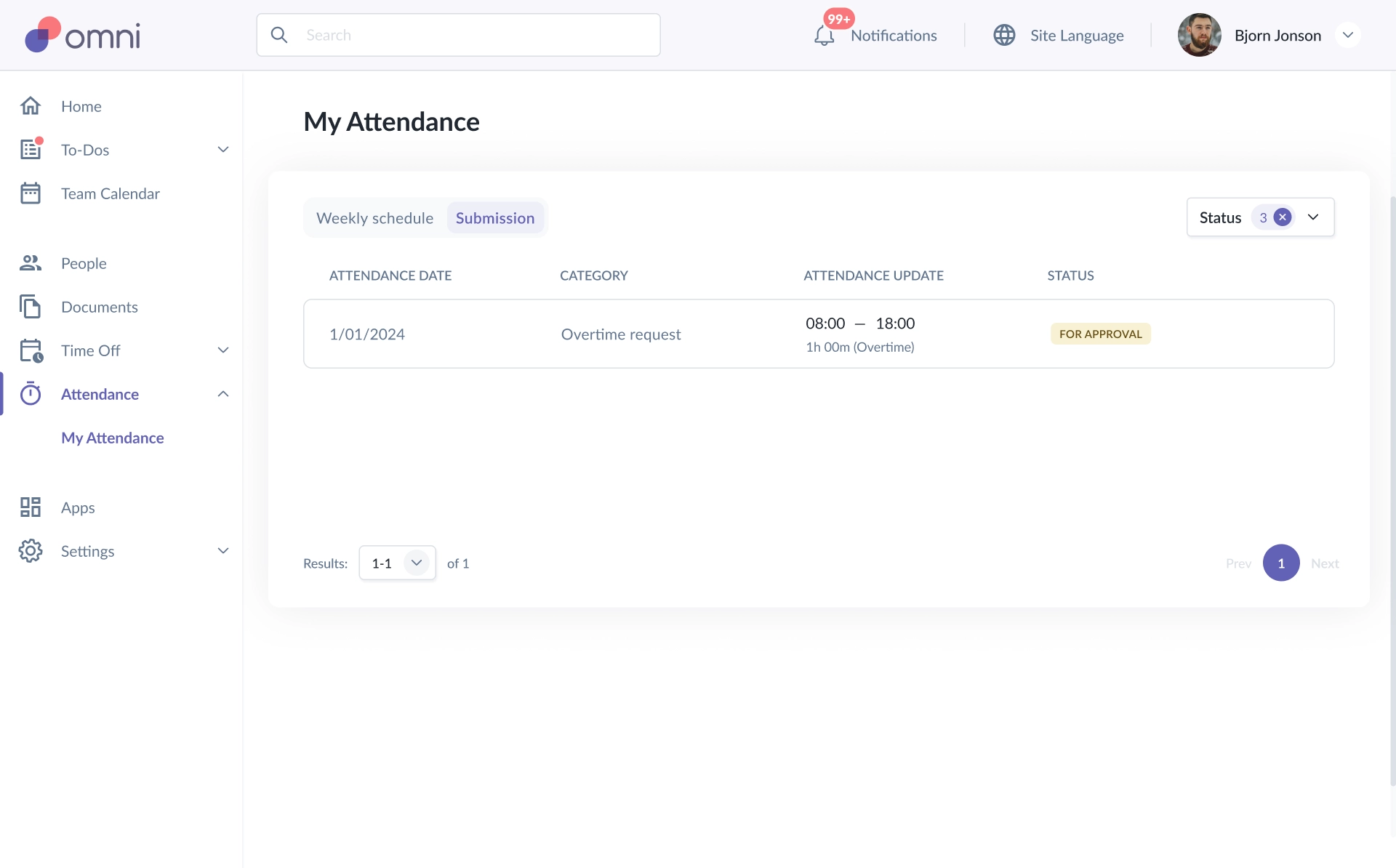
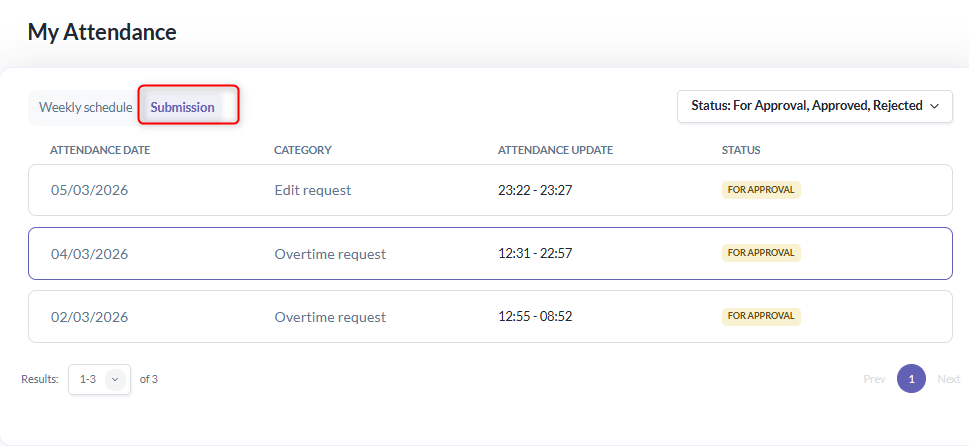
3. Once the overtime request is submitted, you can track it in the Attendance list with the status "For Approval", which means it is pending the approver’s review or you can also find it under My Attendance > Submission.

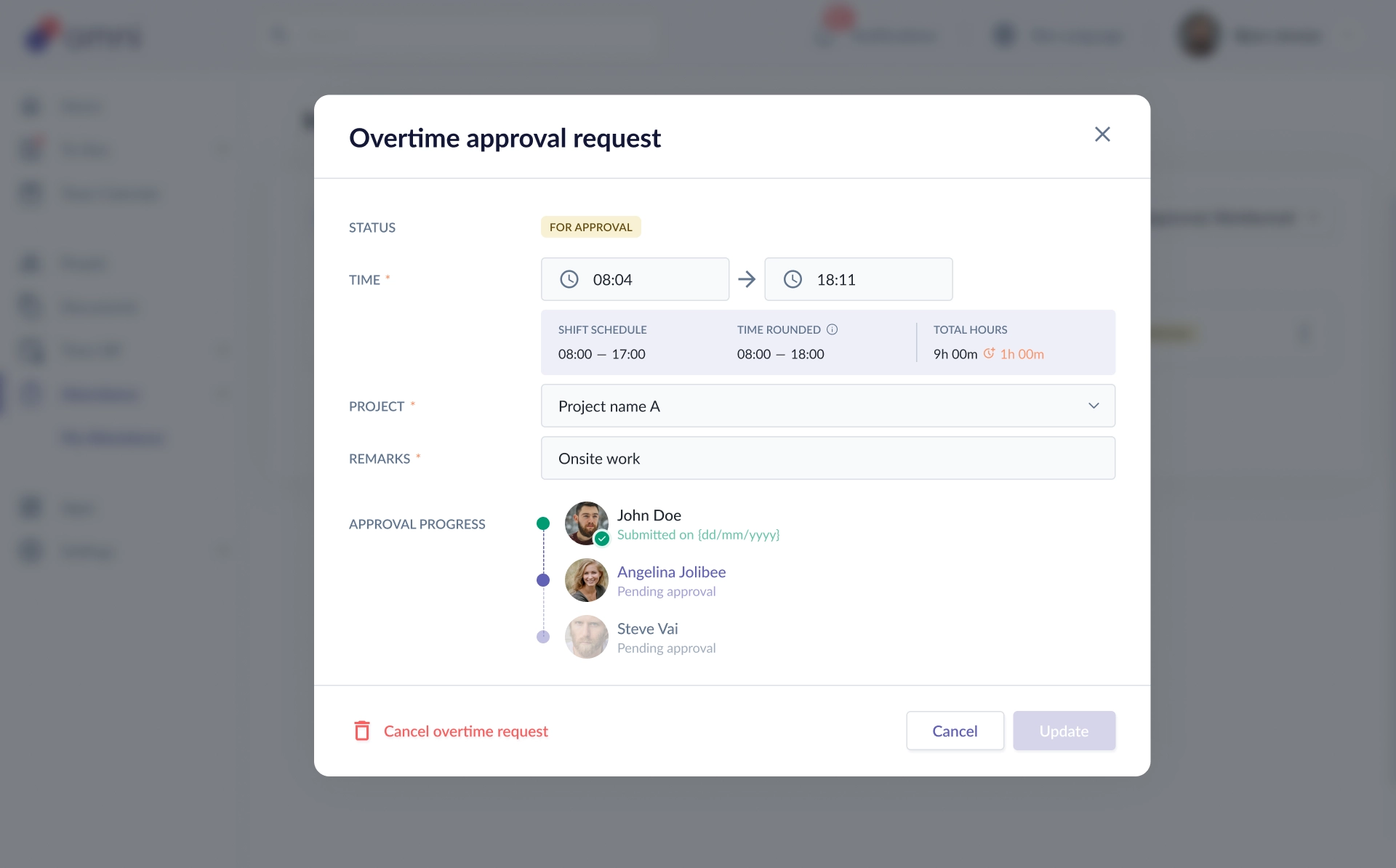
 4. You can view the details of your overtime request by going to My Attendance > Submission and clicking on the overtime request.
Cancel submitted request
1. Go to My Attendance > Submission > click on the submitted overtime request, then select "Cancel Overtime Request" to cancel it.
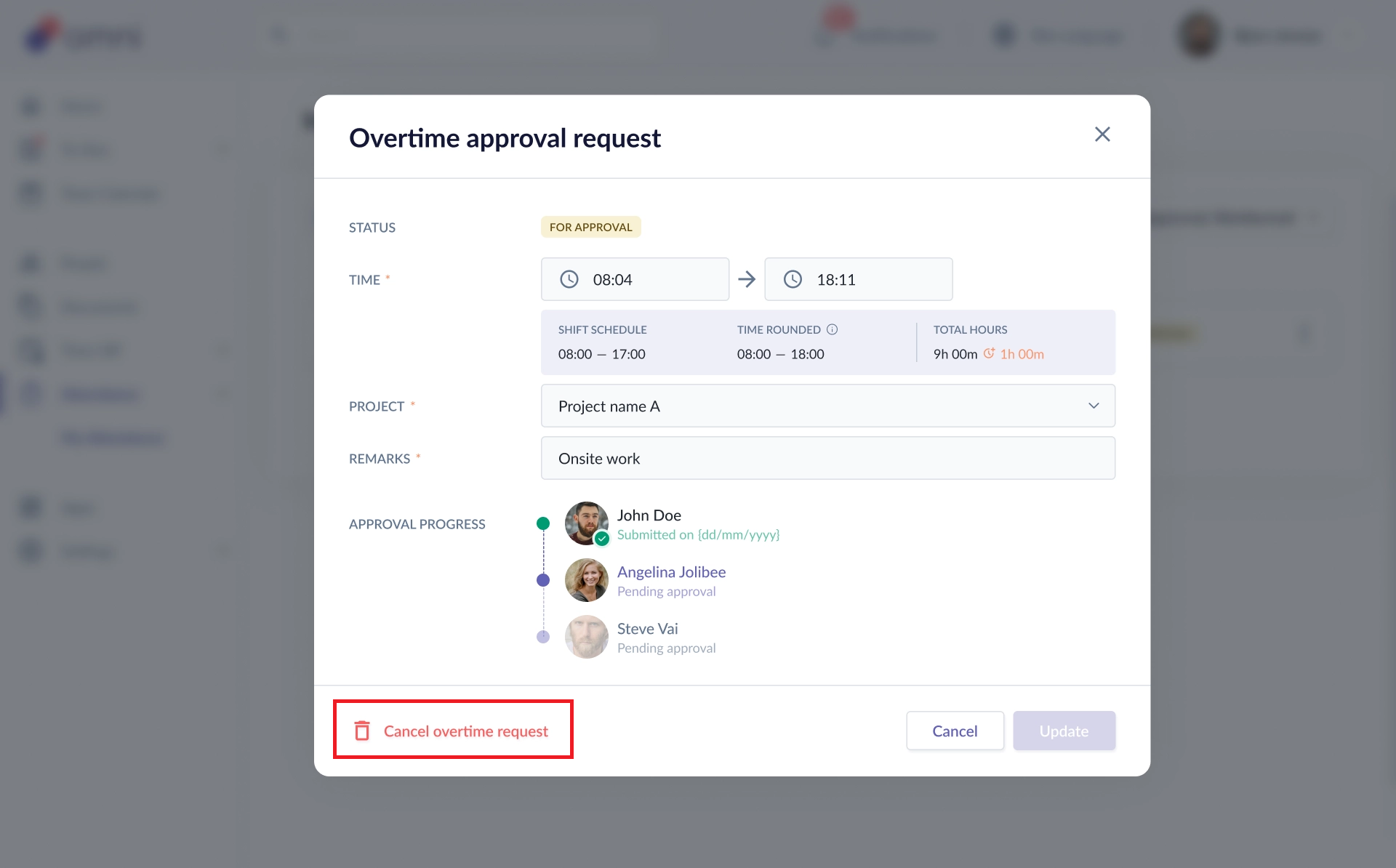
- You will be prompted with a confirmation message before proceeding with the cancellation.
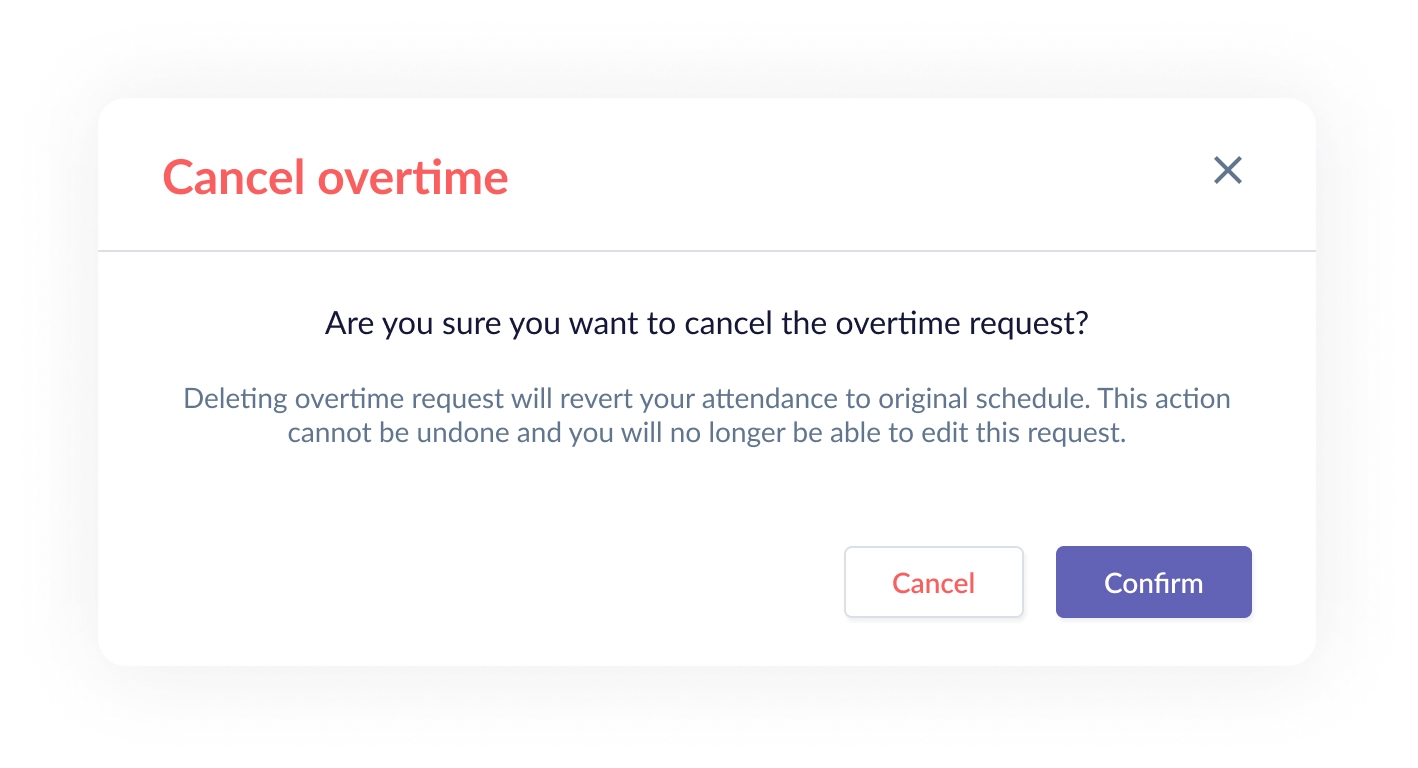
- If the overtime request is cancelled and the record is fully overtime, it will be removed. If it is partially overtime, the record will remain but will only show the timesheet without overtime.
Submit overtime without approval
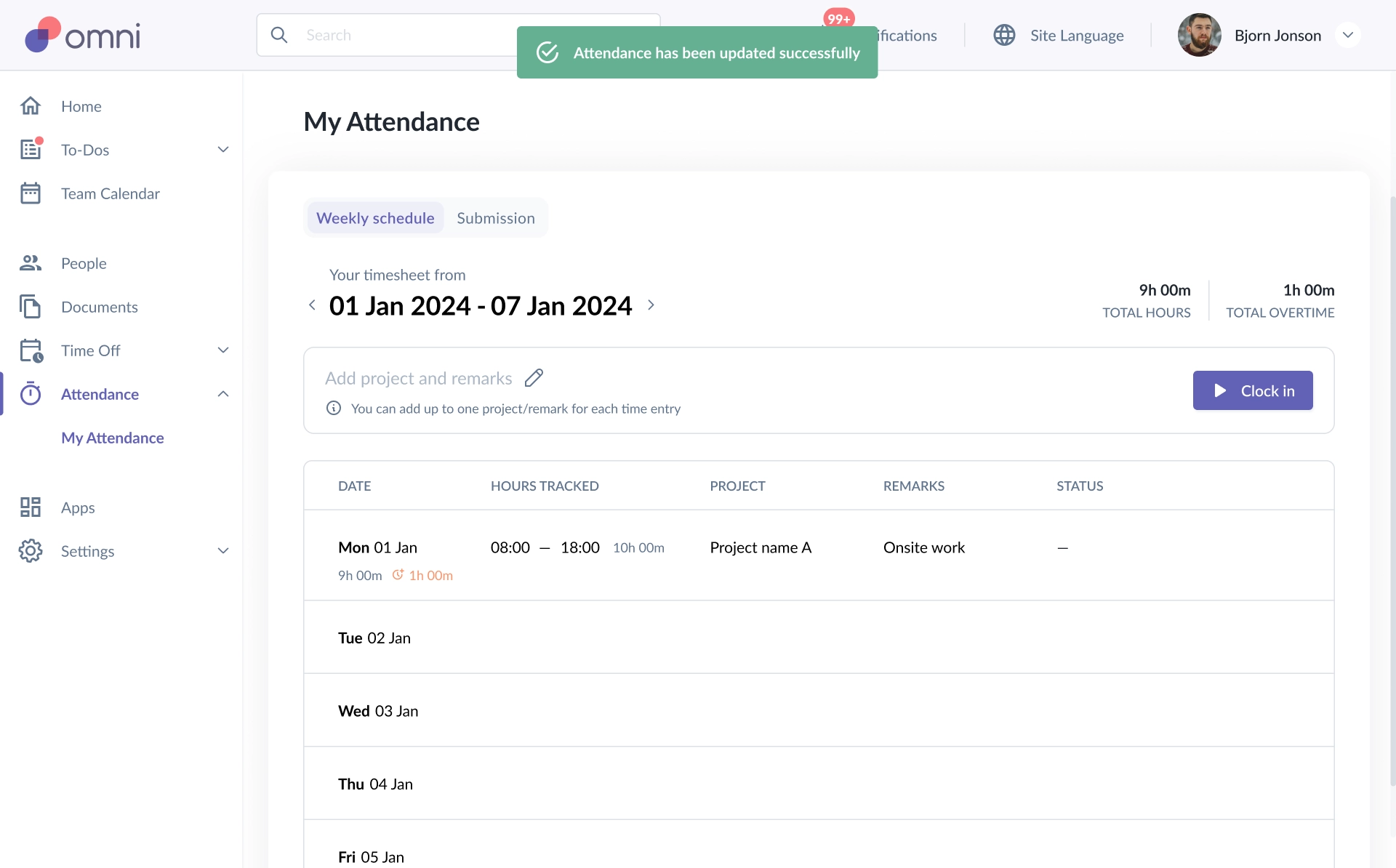
- If your HR Admin has not enabled approval for overtime requests, you can simply clock out and the overtime will be recorded.
- You should see a message that says "Attendance has been updated successfully", indicating that your attendance has been successfully recorded.
Important notes on clocking from the mobile app
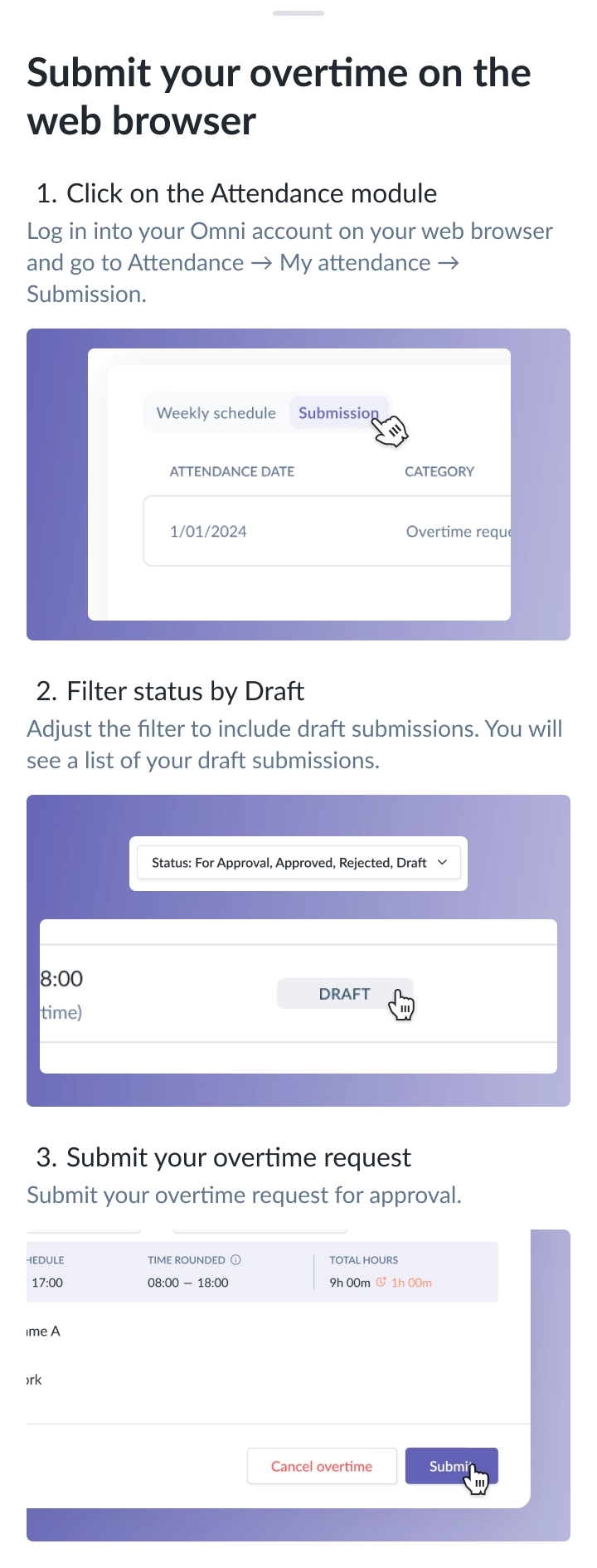
- If you clock out using the mobile app and overtime is detected, the overtime request will be saved as a draft.
- To submit the overtime request, please log in using the desktop or web browser.
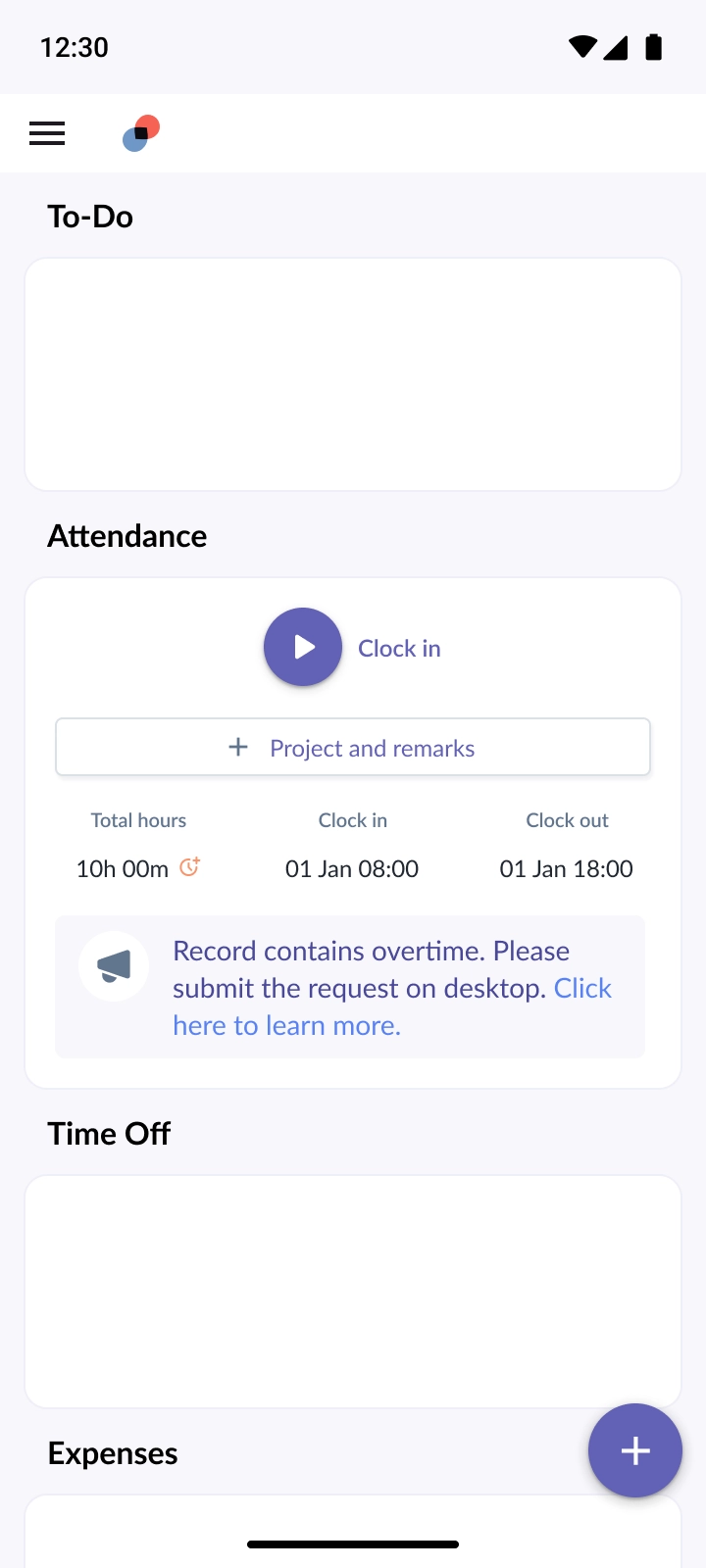
- On the mobile app screen, you will also see instructions on how to submit the request from the desktop or web version.
- Go to the Attendance module on web
- Open My Attendance
- Find the saved draft
- Submit the overtime request from desktop / browser
Still Need Help?:
Reach out to our support team should you need further assistance.
Was this article helpful?
That’s Great!
Thank you for your feedback
Sorry! We couldn't be helpful
Thank you for your feedback
Feedback sent
We appreciate your effort and will try to fix the article