Overview:
Admins can now edit the visibility settings of a launched review phase without needing to relaunch it. This article walks admins through the steps to edit participant visibility rules within a review phase.
TABLE OF CONTENTS
What's New
- A new Edit visibility settings option is available in the Actions menu on the Review Phase Details page.
- This function is always visible to admins regardless of review phase status: Scheduled, In Progress, Closed.
- Opens the Review Visibility Settings full-screen pop-up, where admins can review and edit the visibility settings for each review type within the review phase.
- Changes are applied immediately once saved.
Edit Participant Visibility
1. Go to Performance+ > Review Cycles > select the relevant review cycle. In the Review Cycle Details page, click on the respective review phase row, then click on Action menu > select Edit Visibility Settings.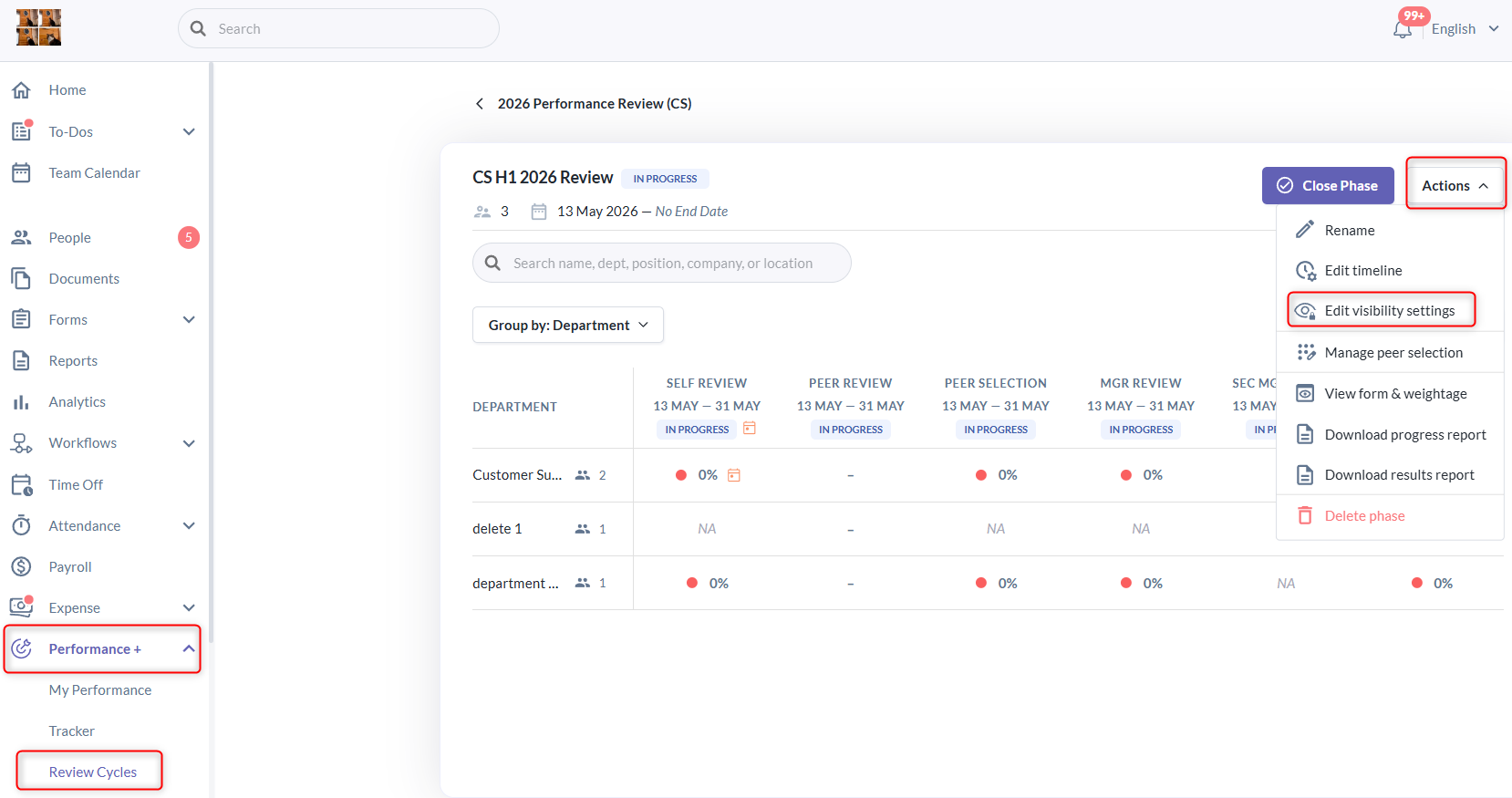
- The Review Visibility Settings pop-up groups the settings by review type, including:
- Self Review
- Peer Review
- Manager Review
- Secondary Manager Review
- Upward Review
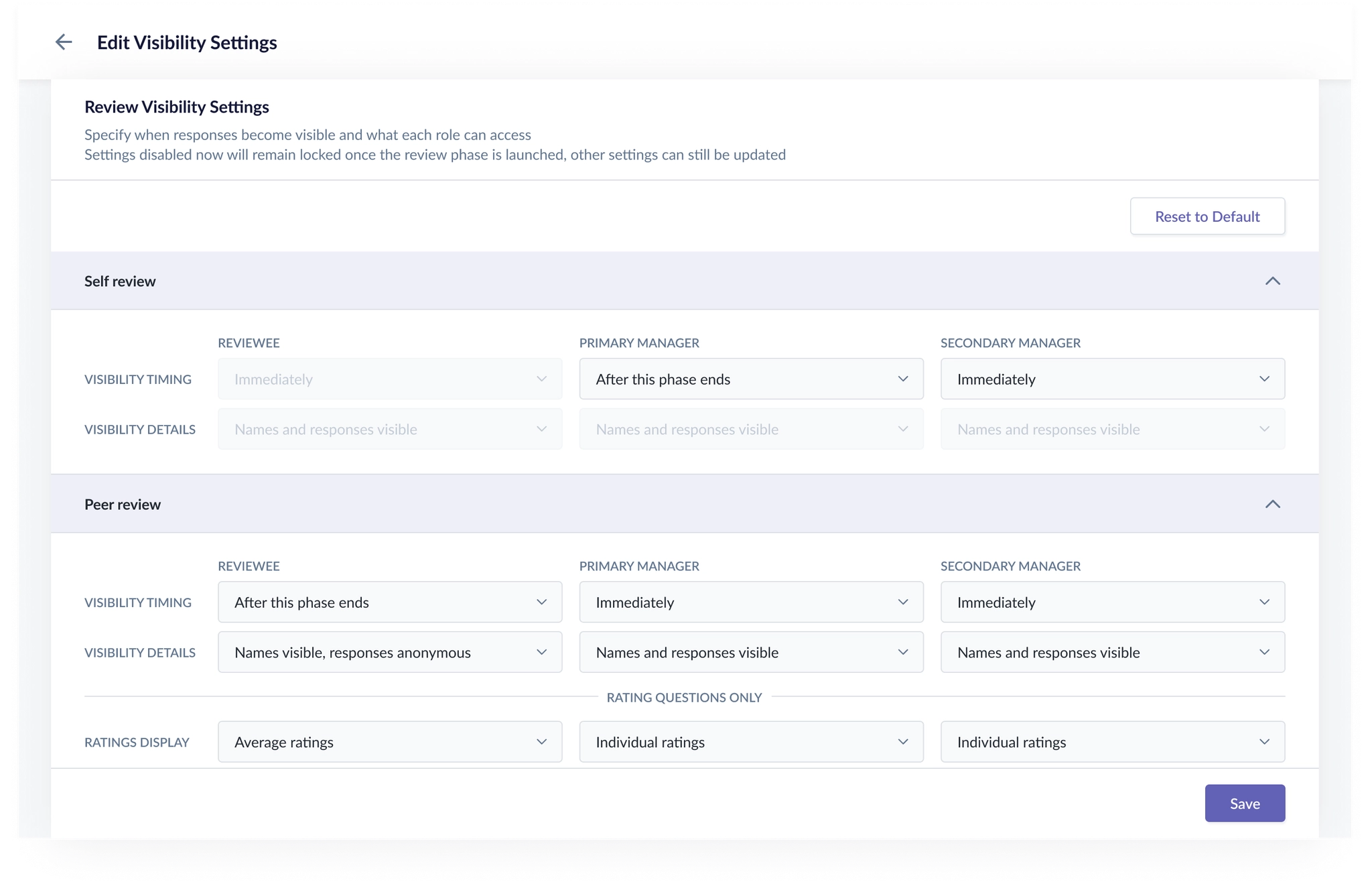
- For each review type, admins can configure visibility settings for the following viewer roles:
- Reviewee
- Primary Manager
- Secondary Manager
- Visibility Configuration Options
Setting Purpose Options Visibility Timing This controls when the review response becomes visible. Immediately / After this phase ends / After the review phase ends / Not shared Visibility details This controls what details are shown once the review becomes visible. Names and responses visible / Names visible, responses anonymous / Reviewer count only, responses anonymous / Hidden Ratings display Admin can also decide how ratings should be shown (only for review types with ratings) Individual ratings / Average ratings
- You can click here for a full article explaining how to setup visibility rules for different review type and viewer role.
2. Once the visibility rules is updated , a confirmation message will appear indicating that the visibility settings has been saved successfully.
Important Notes
- Changes take effect immediately once saved. Existing submitted responses will follow the updated visibility settings the next time they are viewed.
- If you would like to revert the changes, you may click the Reset to Default button to restore the default visibility settings.
- The Edit Visibility Settings option remains available for all review phase statuses, including after the review phase has been closed.
Still Need Help?:
Reach out to our support team should you need further assistance.
Was this article helpful?
That’s Great!
Thank you for your feedback
Sorry! We couldn't be helpful
Thank you for your feedback
Feedback sent
We appreciate your effort and will try to fix the article