 ⚠️ Important
Employers using LinkedIn's free job posting option may be subject to posting restrictions based on LinkedIn's policies. Depending on your account and the job posting, LinkedIn may require identity verification, job promotion, or may apply other eligibility criteria before a job can be published or continue receiving visibility.
These restrictions are determined solely by LinkedIn and cannot be overridden by Omni HR. If your job is affected, please refer to LinkedIn's official Help Center for the latest eligibility requirements and posting policies.
Overview
The LinkedIn Jobs integration allows you to post jobs to LinkedIn using either a Premium or Basic account.
Important Note:
Please note that for Basic accounts, LinkedIn requires a 30-day waiting period for new users connecting via an ATS. A system message will appear if you attempt to connect using LinkedIn Jobs Basic during this period.
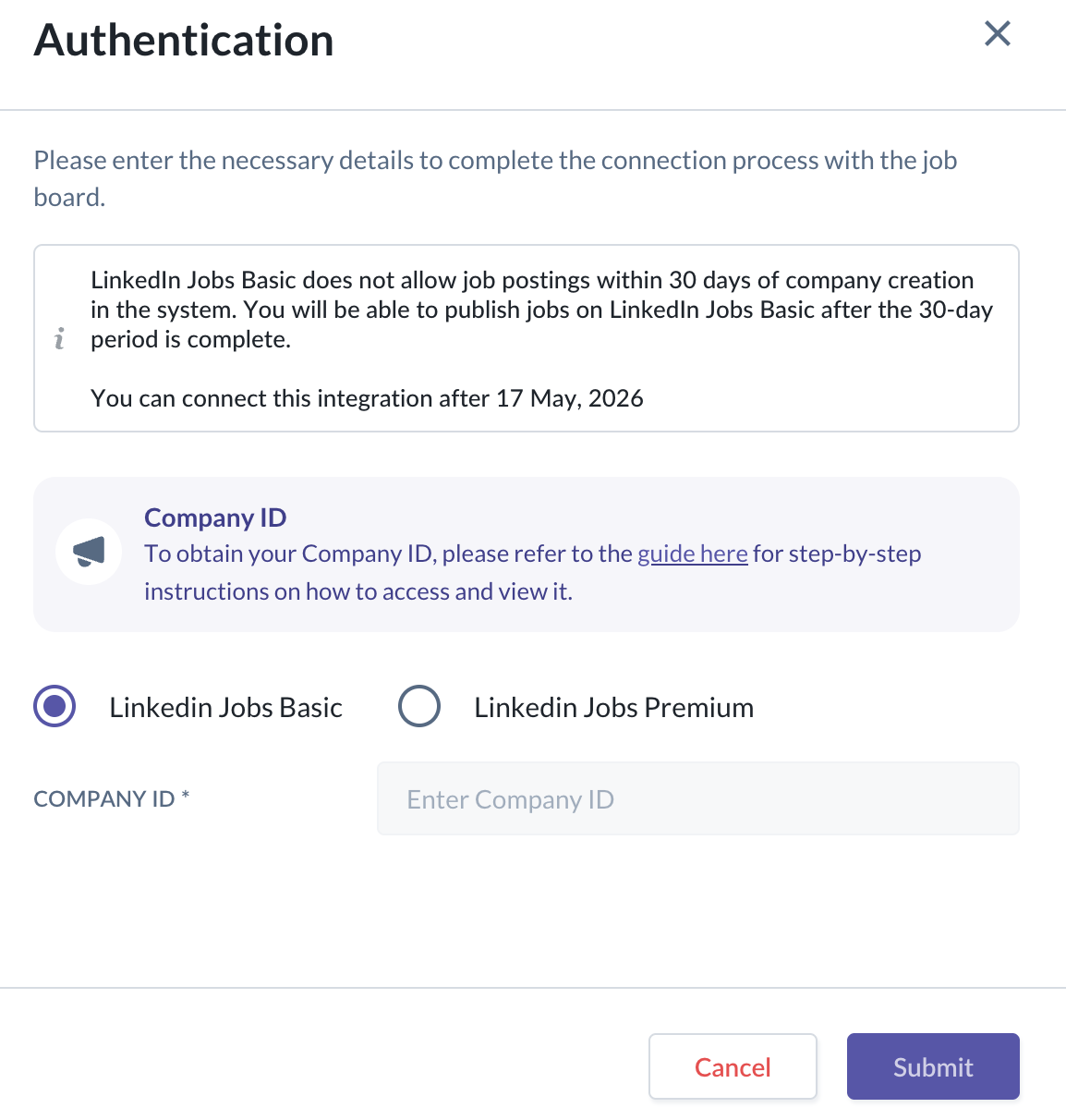
TABLE OF CONTENTS
Prerequisite: The user will need to have Admin access within the Recruit module to be able to access Company Integrations and make the necessary connections.
LinkedIn Jobs Integration: How to?
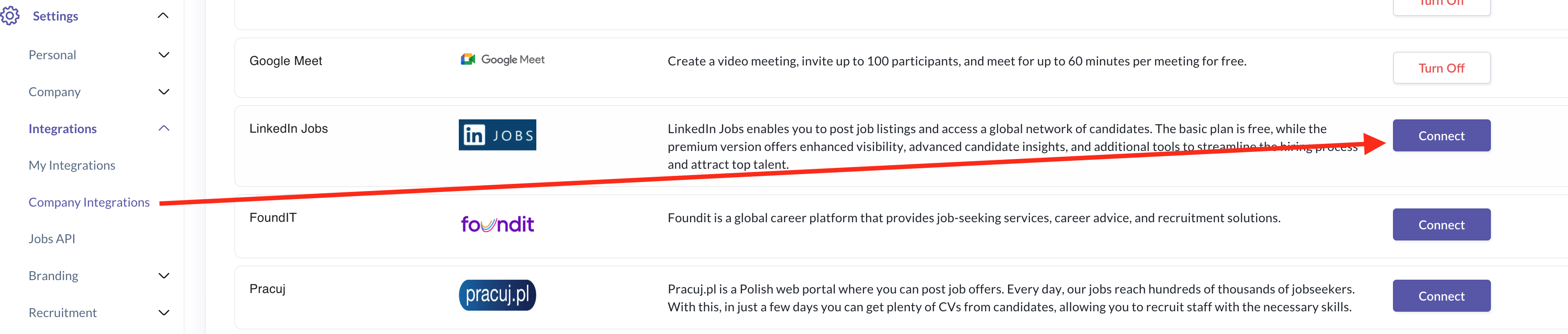
1. From the OmniHR recruit page, go to Settings > Company Integration and find for LinkedIn Jobs. Click Connect.
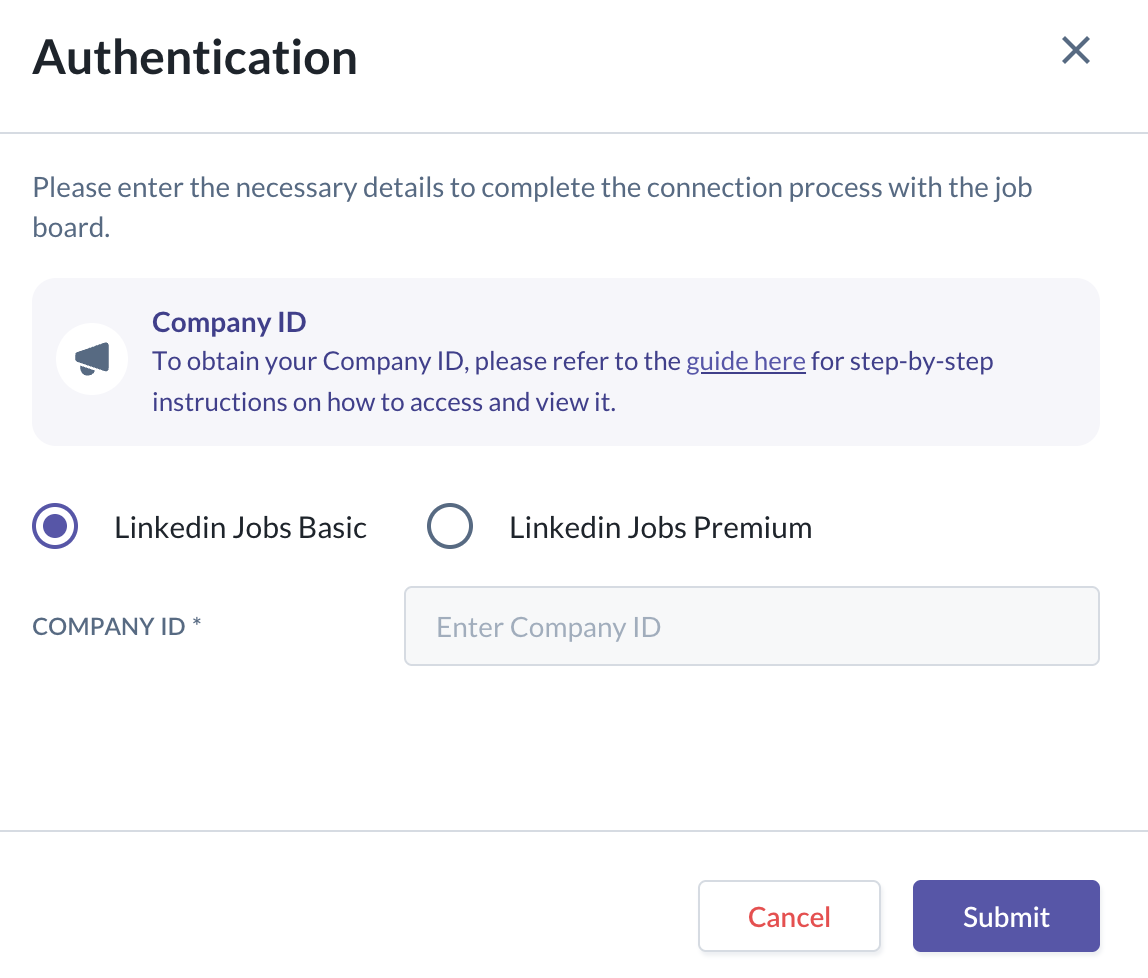
2. You will be asked to select either LinkedIn Jobs Basic or LinkedIn Jobs Premium.
LinkedIn Jobs Basic
- You will need to provide your LinkedIn Company ID. Instructions on how to obtain the Company ID are available by clicking the on-screen guide.
- You will need to provide your LinkedIn Company ID. Instructions on how to obtain the Company ID are available by clicking the on-screen guide.
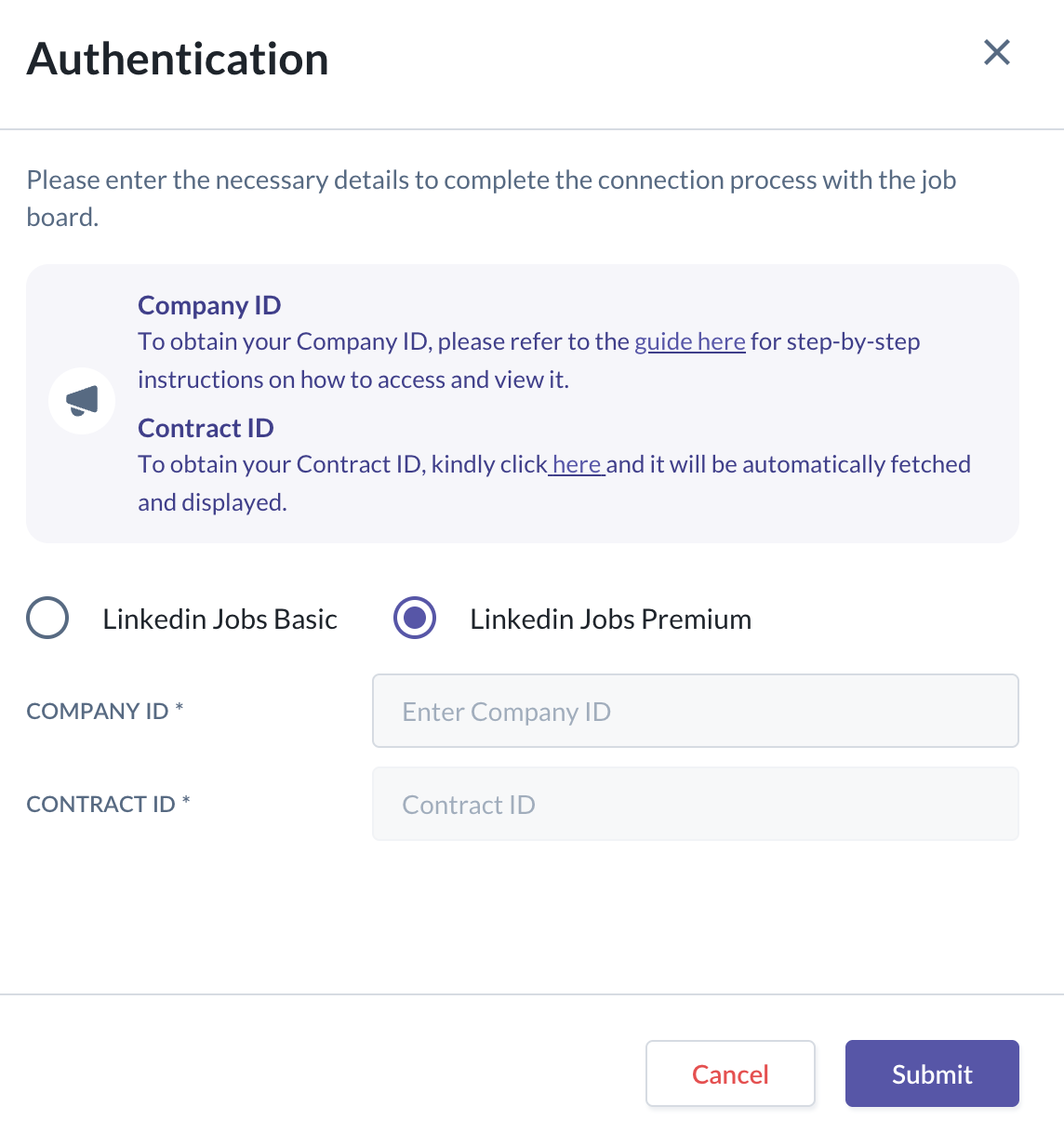
LinkedIn Jobs Premium
- On top of the Company ID, you also need to provide a Contract ID which can be automatically fetched by clicking the link on the screen.
- On top of the Company ID, you also need to provide a Contract ID which can be automatically fetched by clicking the link on the screen.
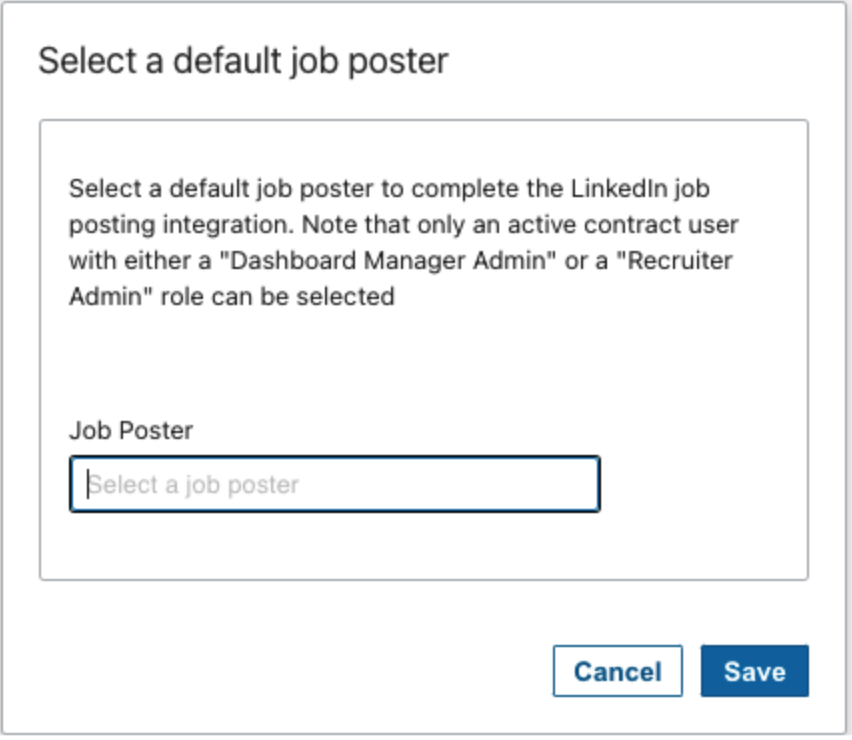
Note: During Contract ID fetching, if you see the screen below after logging into LinkedIn but are unable to select any name in the “Select a job poster” field, please ensure that at least one LinkedIn Recruiter user has been assigned either the “Dashboard Manager Admin” or “Recruiter Admin” role within your LinkedIn Recruiter account.
3. The connection is successful if the connect button switches to Disconnect

How to post jobs to LinkedIn Jobs
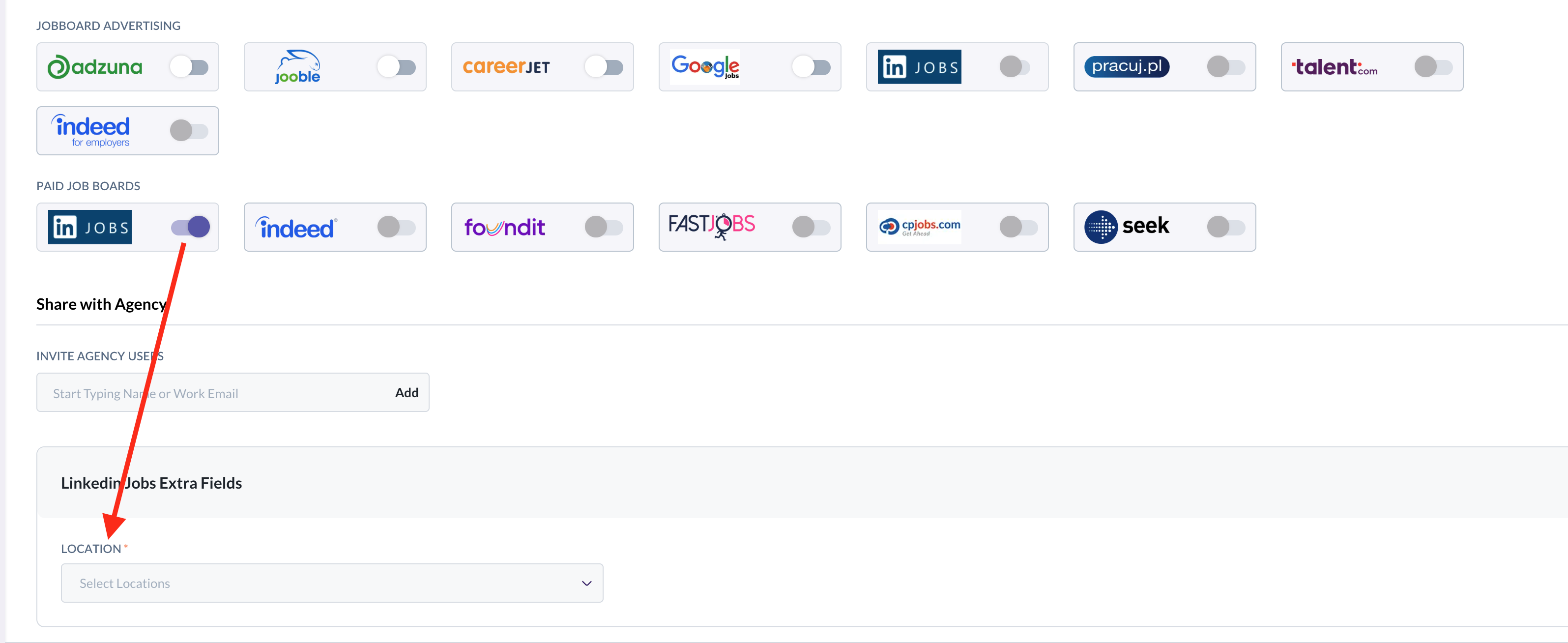
- When creating a new job post, you can publish the job to LinkedIn job board by toggling the option next to it.
- An additional location field will appear for you to complete before finalising the posting.
Still Need Help?
Reach out to our support team should you need further assistance
Was this article helpful?
That’s Great!
Thank you for your feedback
Sorry! We couldn't be helpful
Thank you for your feedback
Feedback sent
We appreciate your effort and will try to fix the article