Overview:
Admins can now rename or delete review phases directly from the Review Cycle page or the Review Phase Details page.
This article walks admins through the steps to rename or delete review phases.
TABLE OF CONTENTS
What's New
- A Rename option is now available, allowing admins to update the phase name while the phase is Scheduled or In Progress.
- A Delete option is now available, allowing admins to permanently remove a review phase regardless of its status.
Rename Review Phase
1. You can access the rename option using either of the following methods:
Option A: Go to Performance+ > Review Cycles > select the relevant review cycle. In the Review Cycle Details page, click the 3-dot icon on the respective review phase row, then select Rename.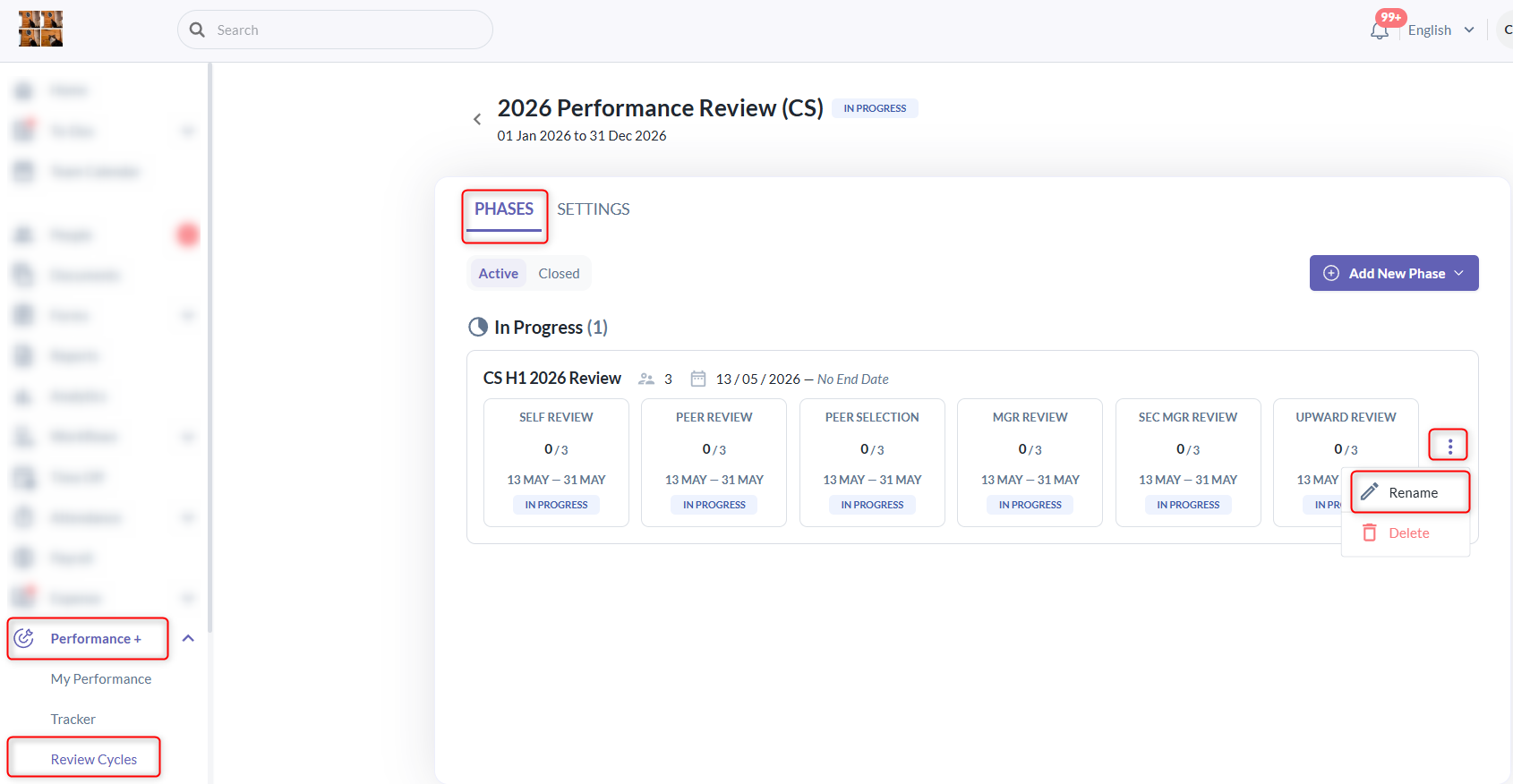
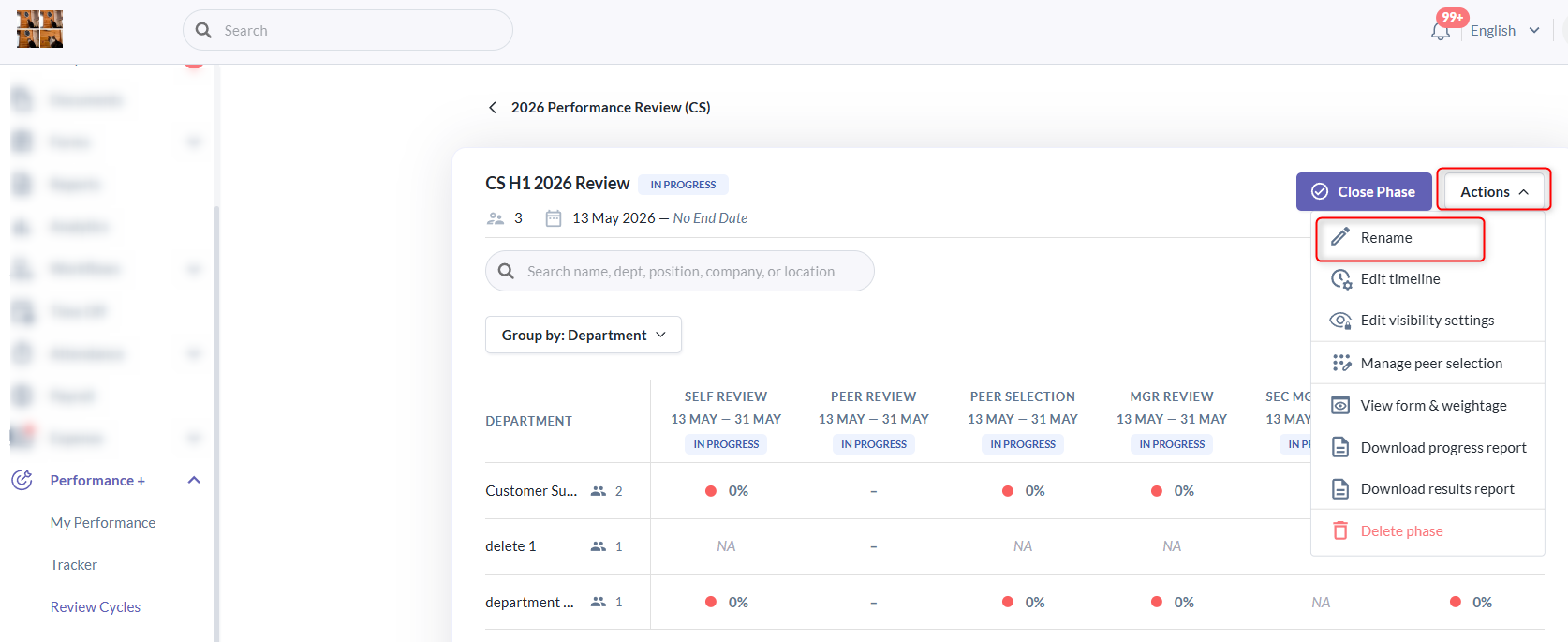
Option B: Go to Performance+ > Review Cycles > select the relevant review cycle. In the Review Cycle Details page, click on the respective review phase row, then click on Action menu > select Rename.
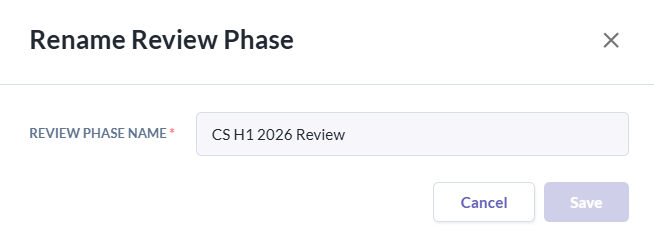
2. A pop-up titled Rename Review Phase will appear. The Review Phase Name field will be pre-filled with the current phase name. Admins can update the phase name and click Save.
Note: The Save button will remain disabled until a name is entered in the field
3. Once the update is successful, a confirmation message will appear indicating that the review phase has been renamed successfully.

Delete Review Phase
Important Note: Deleting a review phase means hard deleting the phase and its data from the system.
This action is not reversible and deleted review phases cannot be recovered.

We will advise generating progress and result reports before deleting a review phase for record keeping.
1. You can access the delete option using either of the following methods:
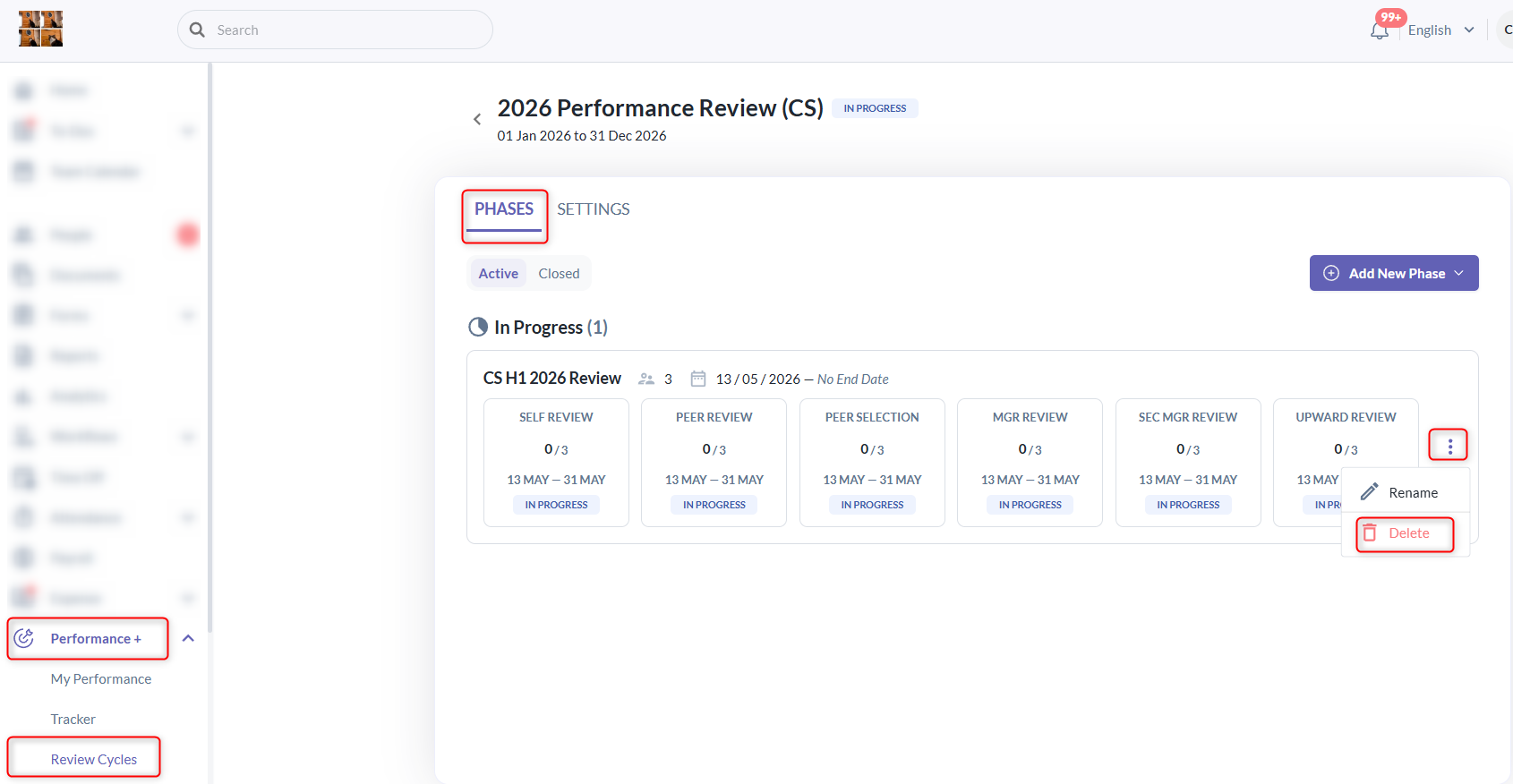
Option A: Go to Performance+ > Review Cycles > select the relevant review cycle. In the Review Cycle Details page, click the 3-dot icon on the respective review phase row, then select Delete.
Option B: Go to Performance+ > Review Cycles > select the relevant review cycle. In the Review Cycle Details page, click on the respective review phase row, then click on Action menu > select Delete phase.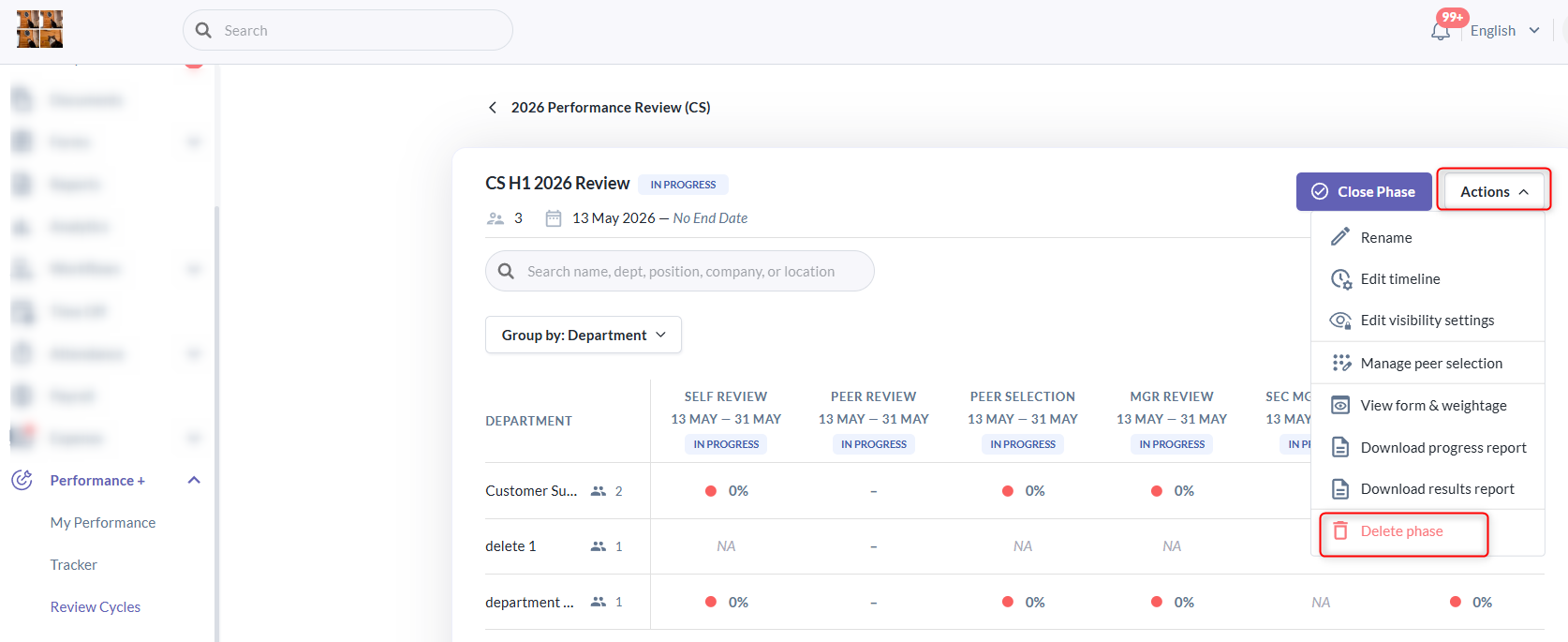
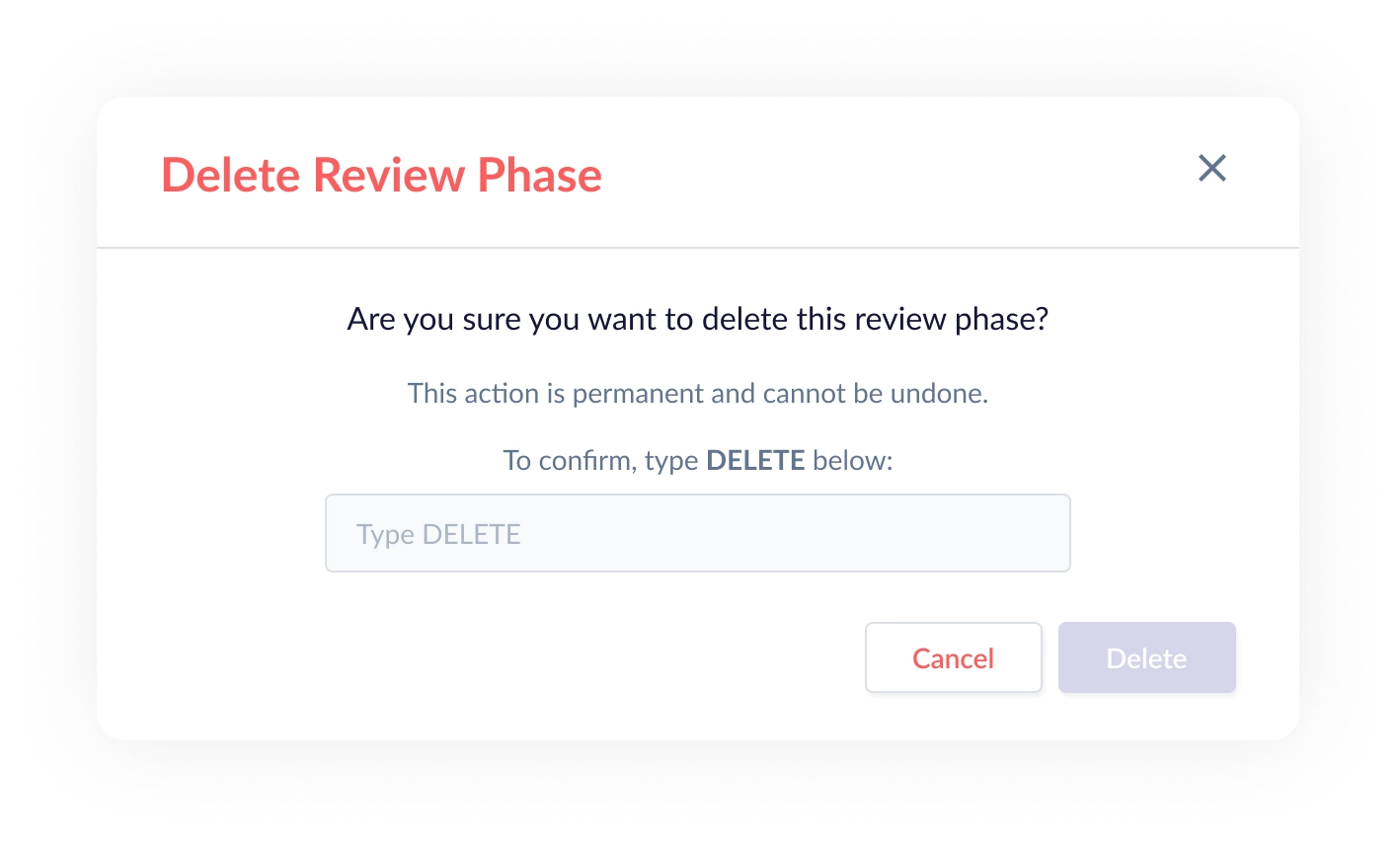
2. A confirmation pop-up titled Delete Review Phase will appear. To confirm the deletion of the review phase, you will need to type “DELETE” in the confirmation input field, then click Delete to proceed.
Note:
- Please use uppercase: DELETE
- The Delete button will remain disabled until the exact word DELETE is entered.
- Deleting a review phase is a permanent hard delete and cannot be recovered.
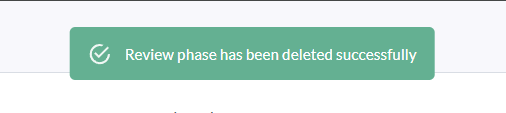
3. Once the review phase is deleted, a confirmation message will appear indicating that the review phase has been deleted successfully.
Still Need Help?:
Reach out to our support team should you need further assistance.
Was this article helpful?
That’s Great!
Thank you for your feedback
Sorry! We couldn't be helpful
Thank you for your feedback
Feedback sent
We appreciate your effort and will try to fix the article