Overview:
Employee profiles now include a Performance+ tab, listing every Goal Phase and Review Phase the employee has been part of.
As an admin, you can control access to this tab through four settings in role permissions
- Goal Phase: In Progress
- Goal Phase: Closed
- Review Phase: In Progress
- Review Phase: Closed
— and decide how much data is shown using three visibility modes: Self, Manager, and Admin.
This article will walk you through how you may setup different roles with different access & visibility modes that best suit your organisation.
TABLE OF CONTENTS
- How to Setup a Role's Access to Performance Tab
- What Employees See on Their Own Profile
- What Privileged Roles See on Other Profiles
How to Setup a Role's Access to Performance Tab
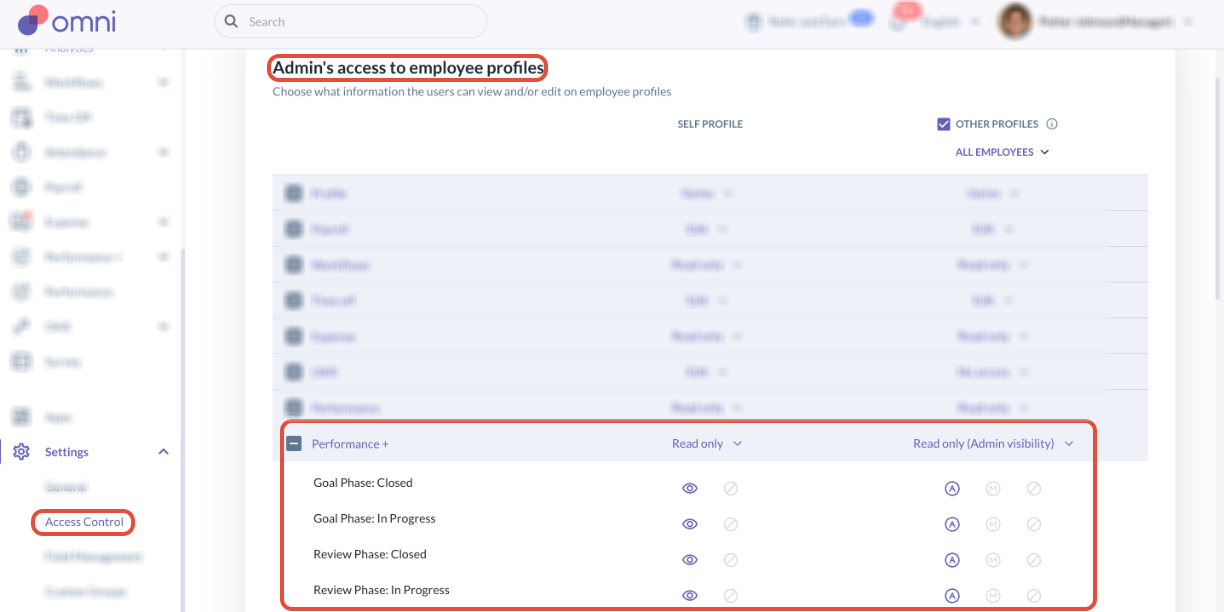
- Go to Settings > Access Control > [Role] > Access to employee profiles > Performance+
- Under Performance+, expand the section to reveal four phase rows:
- Goal Phase: In Progress
- Goal Phase: Closed
- Review Phase: In Progress
- Review Phase: Closed
- Each row has two columns — Self Profile and Other Profiles — so you can set access for each separately.
Note: Changes apply right away. The next time an affected user opens the Performance+ tab, they'll see the updated access — no refresh or re-login needed.
What Employees See on Their Own Profile
The tab shows up in the profile tab bar as PERFORMANCE+. Inside, you'll see a heading that reads "Performance Record," followed by a table of phase rows.
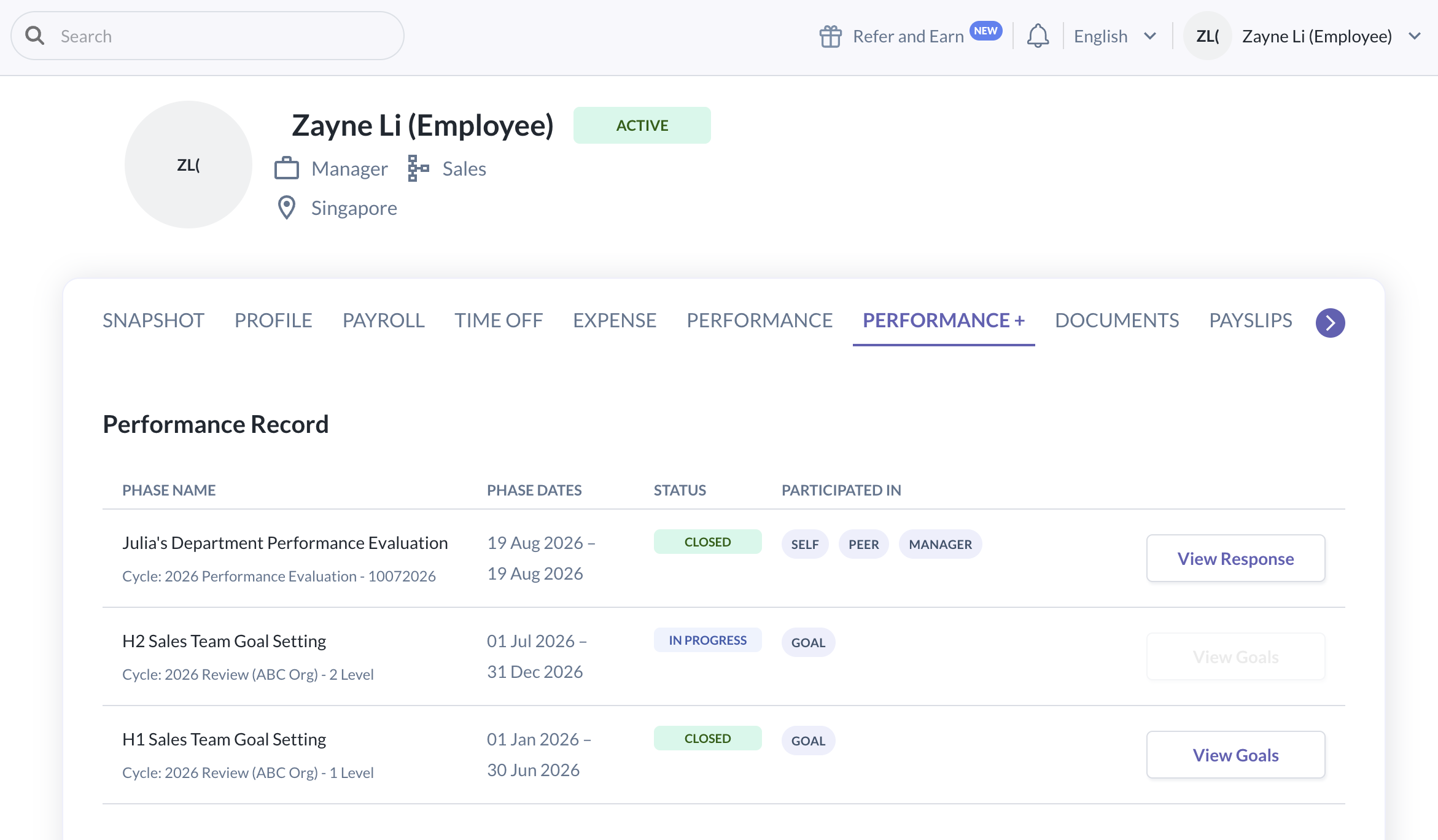
On their own profile, employees always see their data through Self visibility — the same view they're already entitled to see under each review phase's visibility settings. Manager-level or admin-level content never shows up on someone's own profile.
What Privileged Roles See on Other Profiles
The Performance+ tab only shows up on someone else's profile when both of these are true:
- The viewer's role has at least one phase set to Manager or Admin visibility under Other Profiles, and
- The employee falls within the viewer's configured scope.
For example, Julia Styles role = Global HR Mgr.
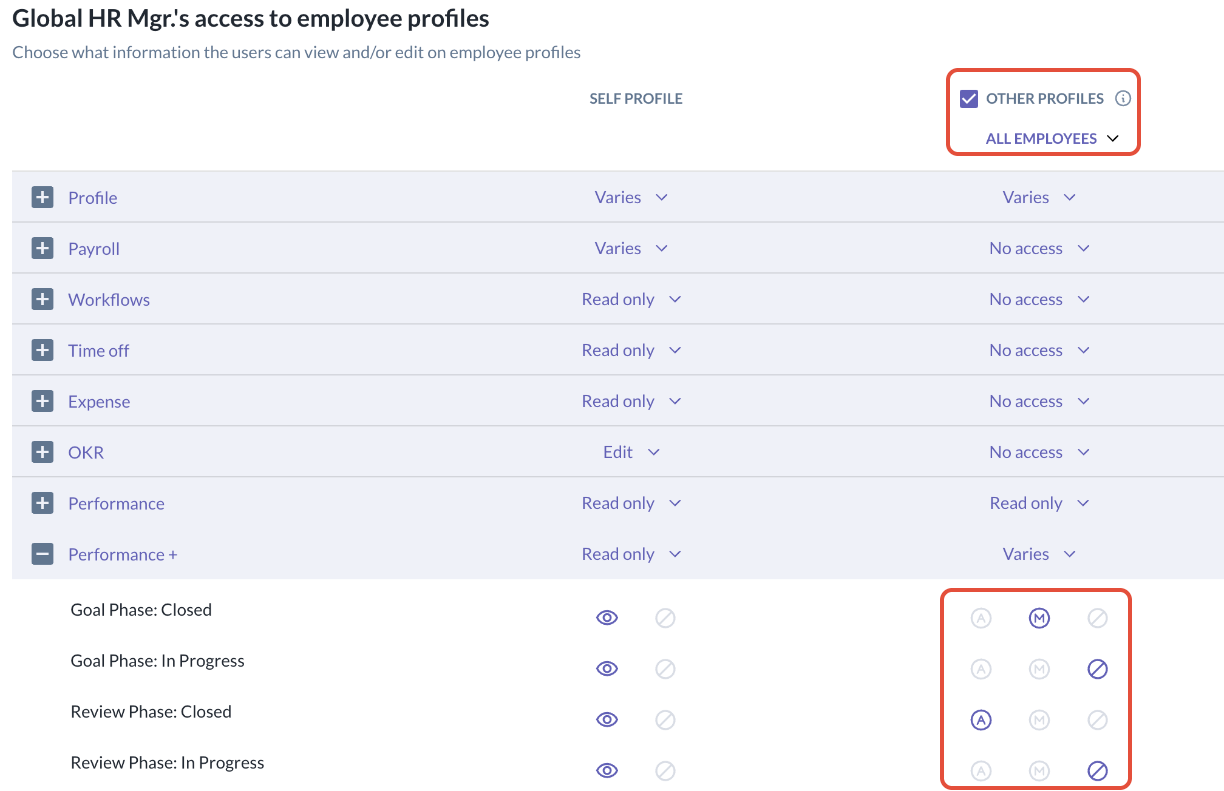
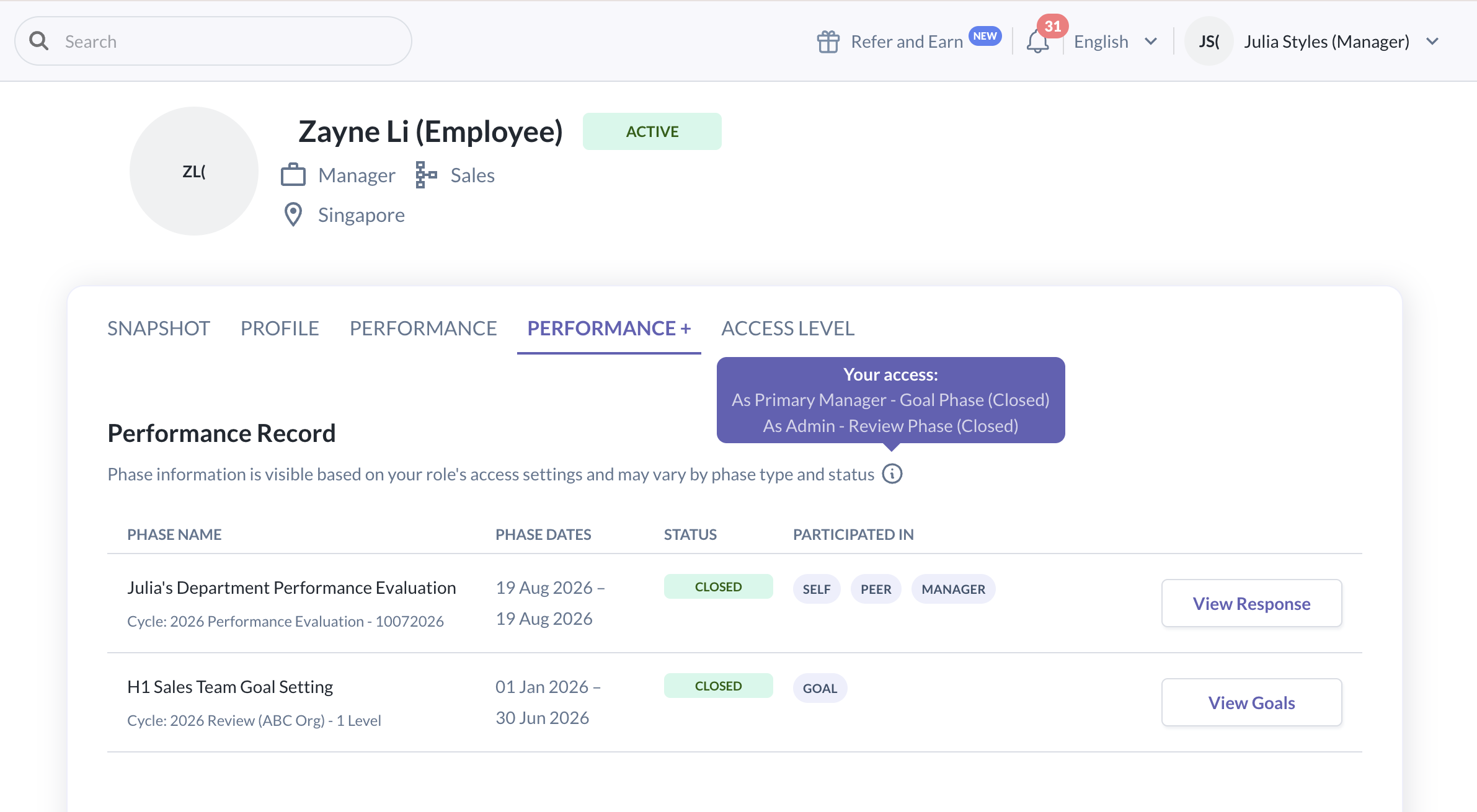
When viewing one of her employee's Performance+ tab, she is able to have Primary Manager visibility to closed goal phases and Admin visibility to closed review phases.
| Visibility Mode | What the Viewer Sees |
|---|---|
| Manager | The same responses that employee's primary manager would be allowed to see — even if the viewer isn't actually their primary manager. |
| Admin | Every submitted response, regardless of what the review phase's visibility settings normally allow. |
Still Need Help?:
Reach out to our support team should you need further assistance.
Was this article helpful?
That’s Great!
Thank you for your feedback
Sorry! We couldn't be helpful
Thank you for your feedback
Feedback sent
We appreciate your effort and will try to fix the article