Overview:
Want to see everything that's been written about you, or everything you've written about others? You can now do it all from one place in My Performance. This gives you a single dashboard to revisit any review phase you've been part of, making it easy to keep track of your own performance history.
TABLE OF CONTENTS
How does it work
- Go to Performance+ > My Performance > My Reviews
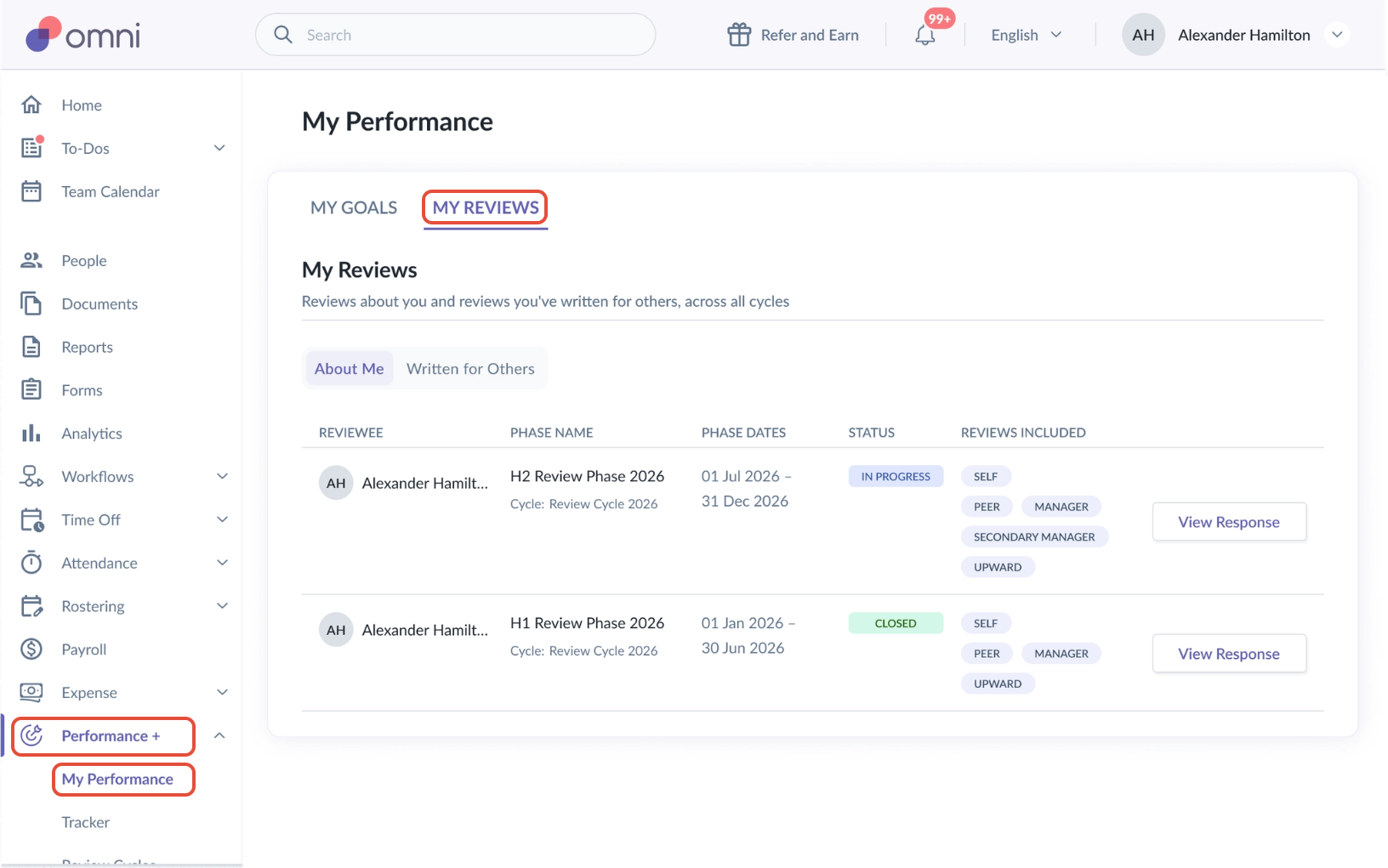
- Under My Reviews, there are two tabs:
- About Me: Reviews written about you
- Written for Others: Reviews written for others
About Me vs. Written for Others
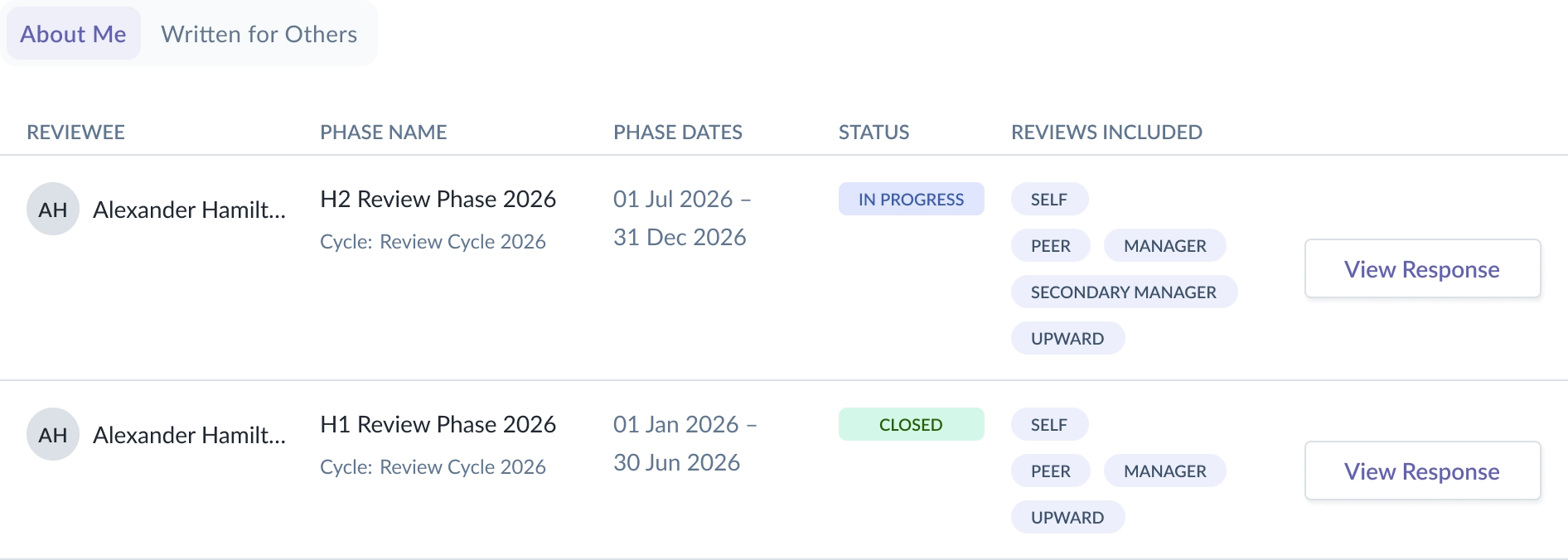
About Me
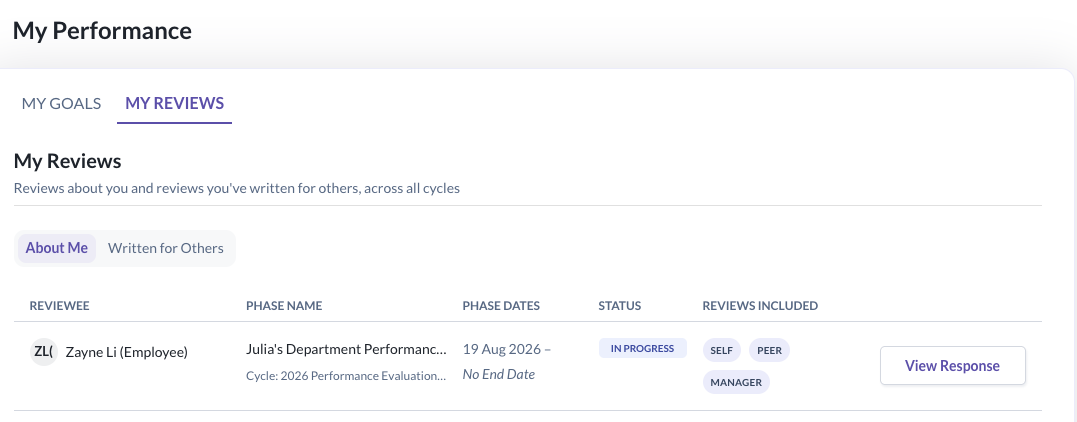
Shows one row per eligible review phase where you're the reviewee — regardless of whether any reviews have been submitted yet.
The Reviews included column shows chips for every review type setup in that phase: Self, Peer, Manager, Secondary Manager, and Upward.
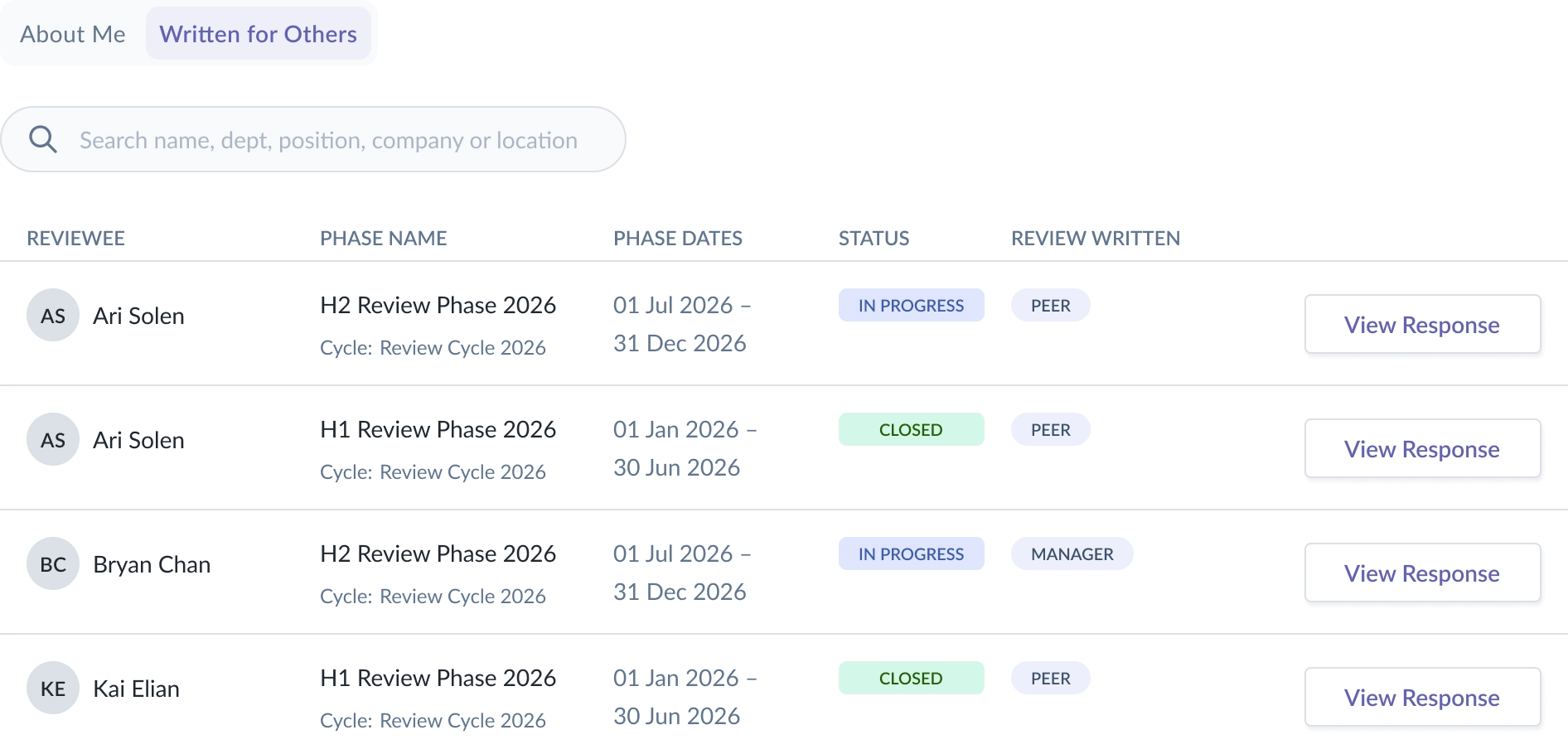
Written for Others
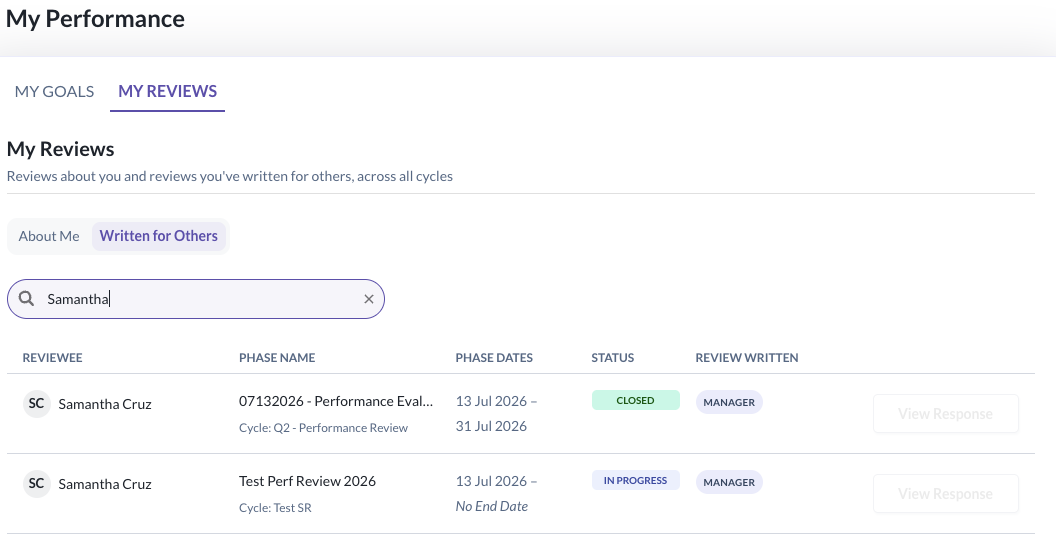
Shows one row per reviewee you were assigned to review, per phase.
The Review written column only shows chips for the review types you actually submitted for that reviewee — Peer, Upward, Manager, and/or Secondary Manager.
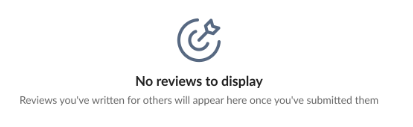
Note: If you haven't been assigned to review anyone in any eligible phase, this tab will show: "No reviews to display — Reviews you've written for others will appear here once you've submitted them."
Searching for a Reviewee
The search bar is available on the Written for Others tab, so you can quickly find a specific reviewee. It matches against employee name, department, position, company, and location.
Viewing a Response
About Me
If you are clicking View Response from any phase that you are the reviewee - you will be viewing the reviews written about you (including your own self review)
Written for Others
If you are clicking View Response for any reviewee in a specific phase - you will be viewing the reviews you have written for them.
If the View Response button is greyed out, you may hover over the button to see the reasons you are not able to view a response.
Some reasons the View Response button will be greyed out:
- Responses for this review are not shared with you
- Available later in the review phase
- No response has been submitted yet
Filtering by Review Type
Inside the View Response view, a row labelled Show other reviews displays toggleable chips for each review type: Self, Peer, Manager, Secondary Manager, and Upward.
Each chip behaves independently, and may appear as:
| Chip State | What It Means |
|---|---|
 | The review type is available to view. |
 | The review type has no submissions recorded. |
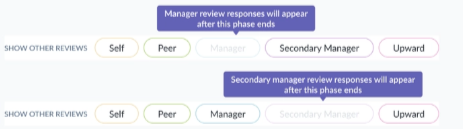 | The review type has been submitted but is not available to be viewed yet. |
 | The review type is not available to be viewed i.e. Peer & Upward Reviews are not visible due to visibility settings. |
For example, this employee is viewing the responses written about them via the About Me tab:
After clicking View Response this is what is shown to them:
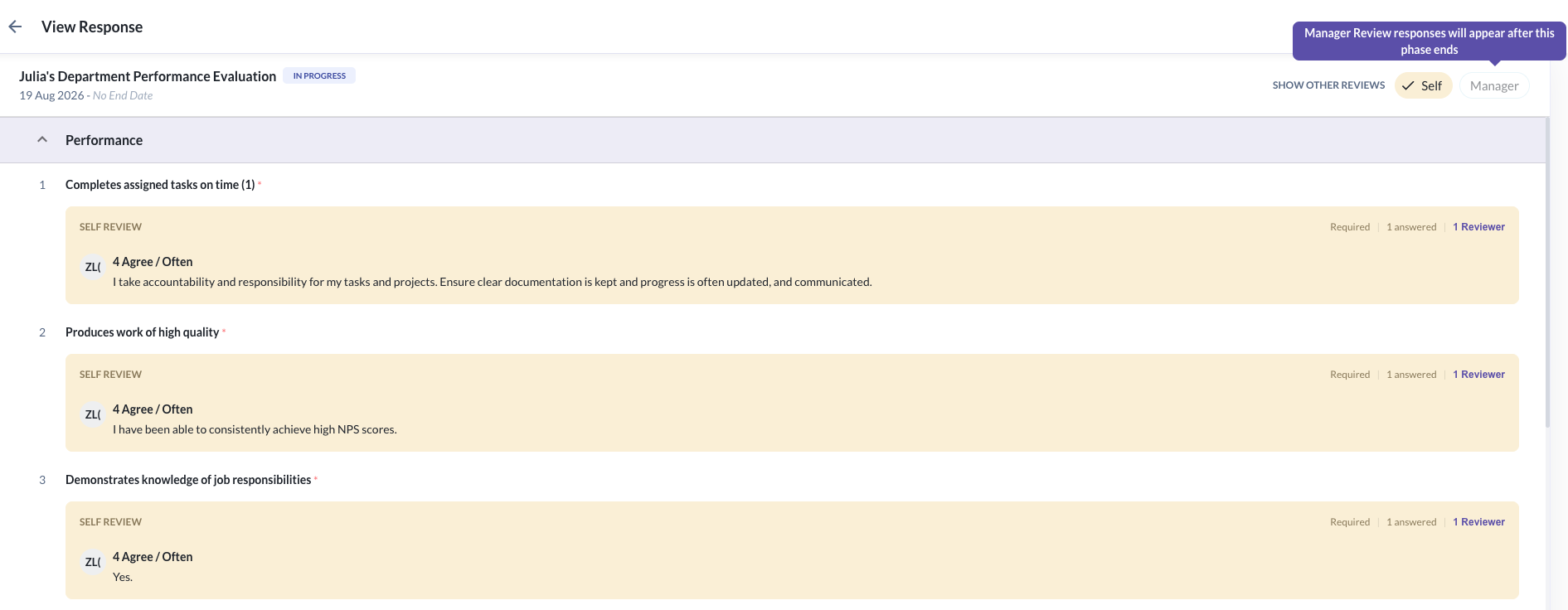
- They are able to view their own self review response and ratings
- They are not able to view their manager's review yet as due to the visibility settings for that phase, it is hidden while the phase is still in progress.
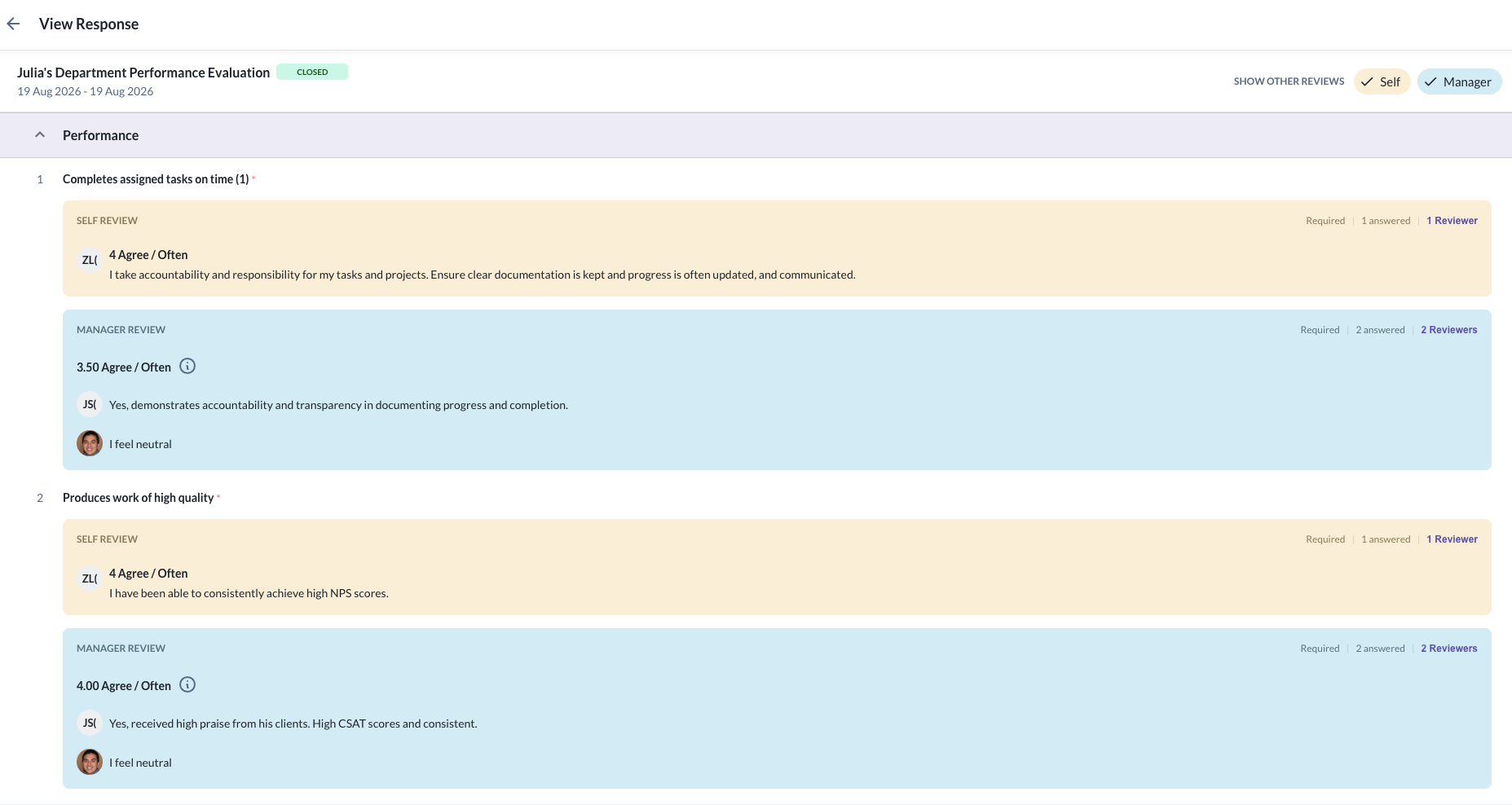
- When the manager review's phase is closed, then the employee is able to view their manager(s) response and ratings.
Still Need Help?:
Reach out to our support team should you need further assistance.
Was this article helpful?
That’s Great!
Thank you for your feedback
Sorry! We couldn't be helpful
Thank you for your feedback
Feedback sent
We appreciate your effort and will try to fix the article