Overview:
If your organisation carries out peer reviews in an ongoing review phase, they may invite you to select your peers to submit reviews of your performance. This article will guide you on how you may select, edit and view your selection during an ongoing review phase.
TABLE OF CONTENTS
Where can I go to select my peers?
Email notification
- When the review phase is launched, and peer selection starts, you will be notified via email:
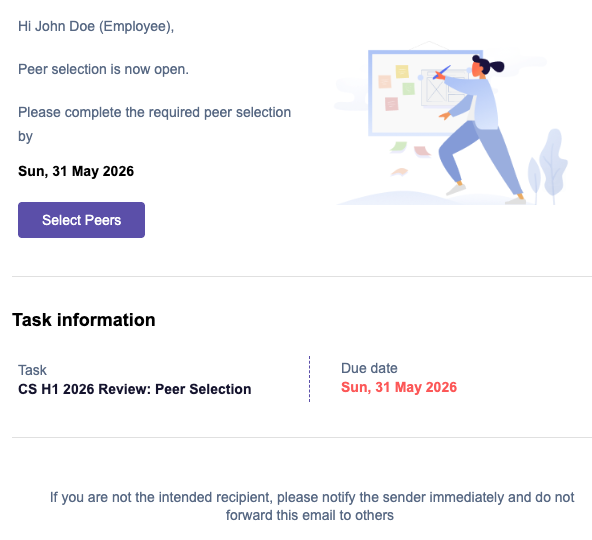
- The email will inform you of the task as well as the due date. You may then click Select Peers to be brought to your account to get started.
To Do
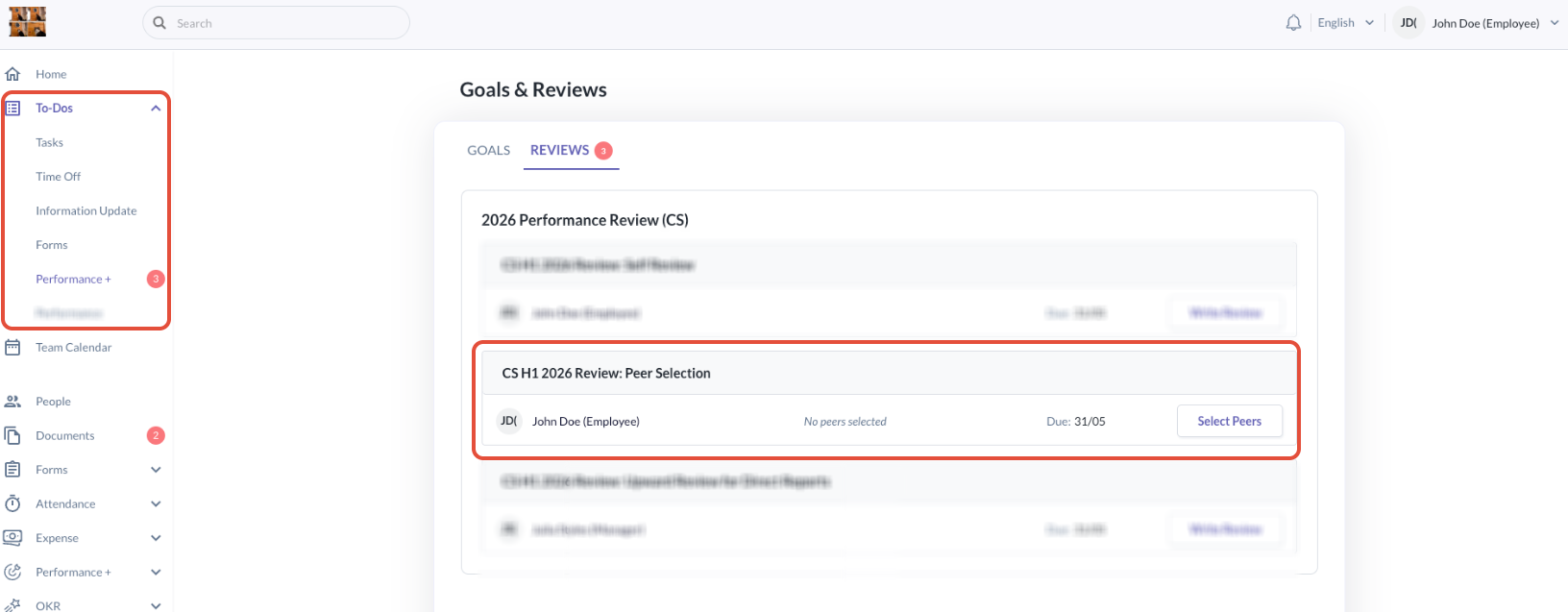
- You can also select your peers by going to your To Do > Performance+ > Reviews
- Look for the active cycle that requires you to select your peers
How does it work?
Selecting Peers
- Click Select Peers to launch the modal below:
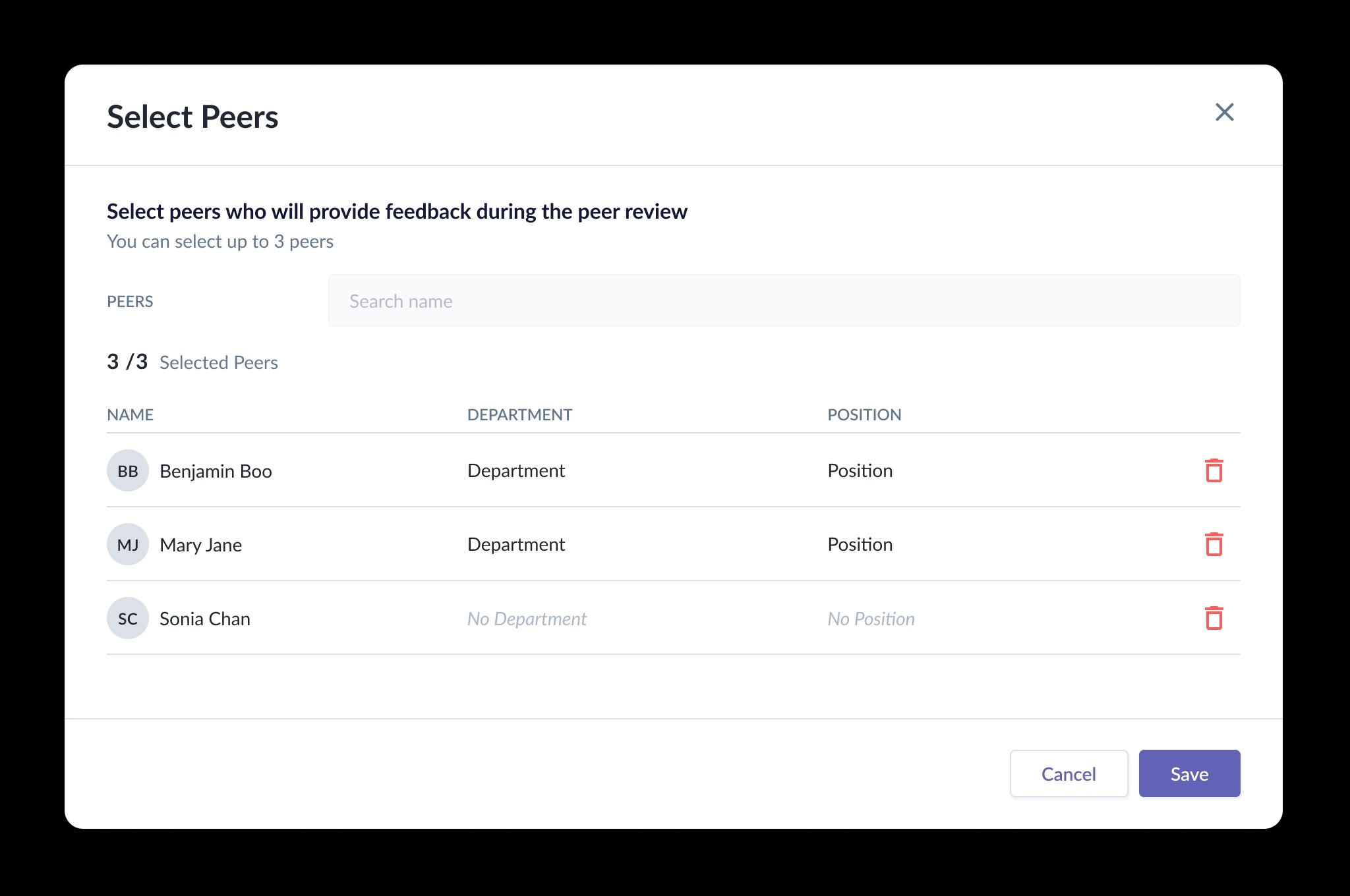
- You can see the instructions on how many peers you can select i.e. You can select up to 3 peers
- Use the search bar to look up the peers you wish to select
- You may use the trash icon to remove peers if you change your mind
- Once you are happy with your selection, you can click Save
Editing my selection of peers
- If you wish to edit your peer selection, you would be able to do it before the due date of the selection phase.
- After the selection is closed, you will not be able to make any edits, and the selection will be finalised.
- To edit, go back to your To Do > Performance+ > Reviews
- Look for the active cycle that allows you to edit your peers
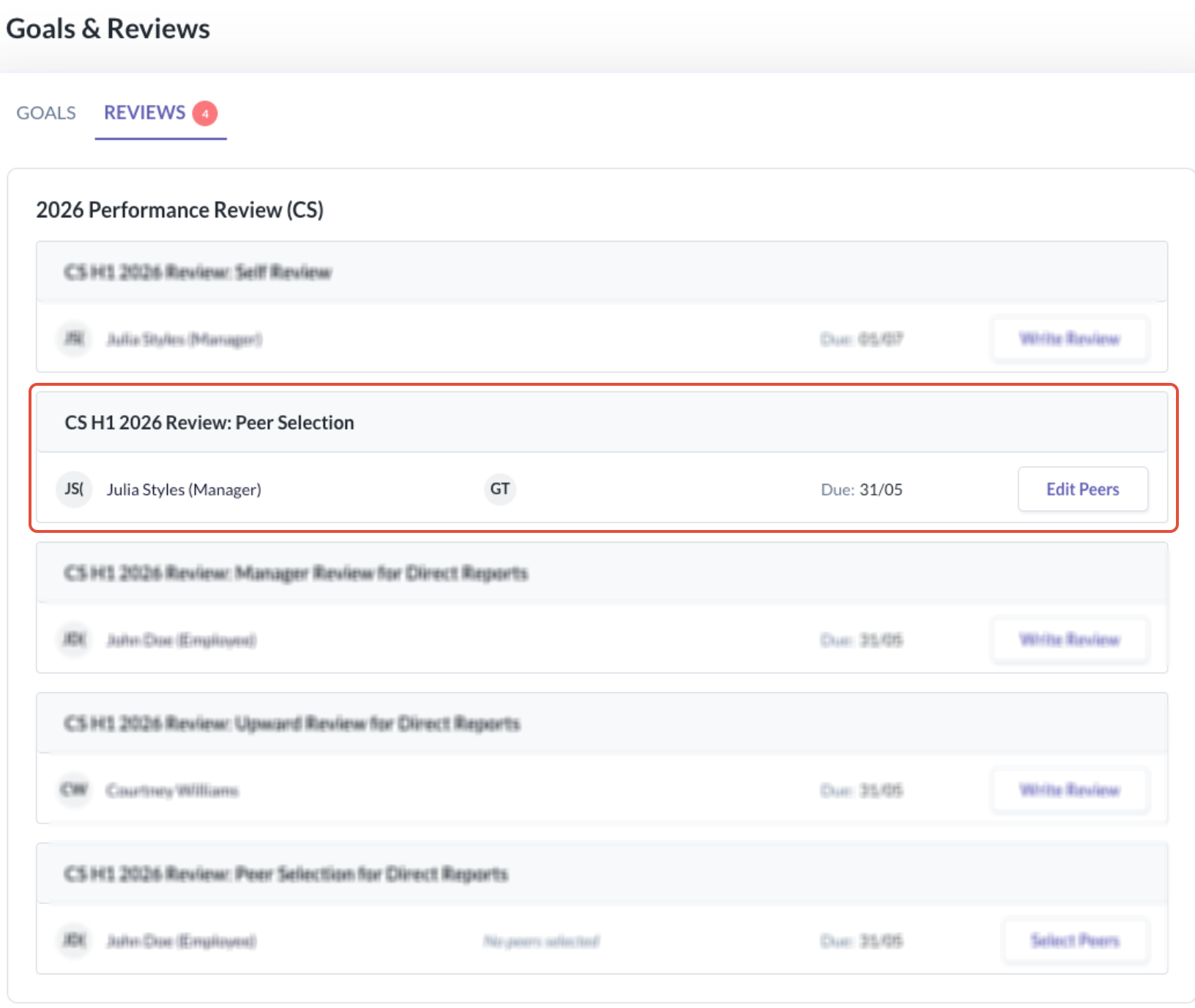
- You may then use the trash icon to remove peers and look up new peers to select
- Once done with your edits, click Save
- However, if your reviewing manager locks your peer selection, you will not be able to make any changes to the list after. You may need to reach out to your manager to request them to unlock if it is necessary
Can my manager or admin change my peer selection choices?
- Yes, your reviewing manager or admins, can view and edit your peer selection where they see fit
- When they make changes to your peer selection list, you will be notified via email as below:
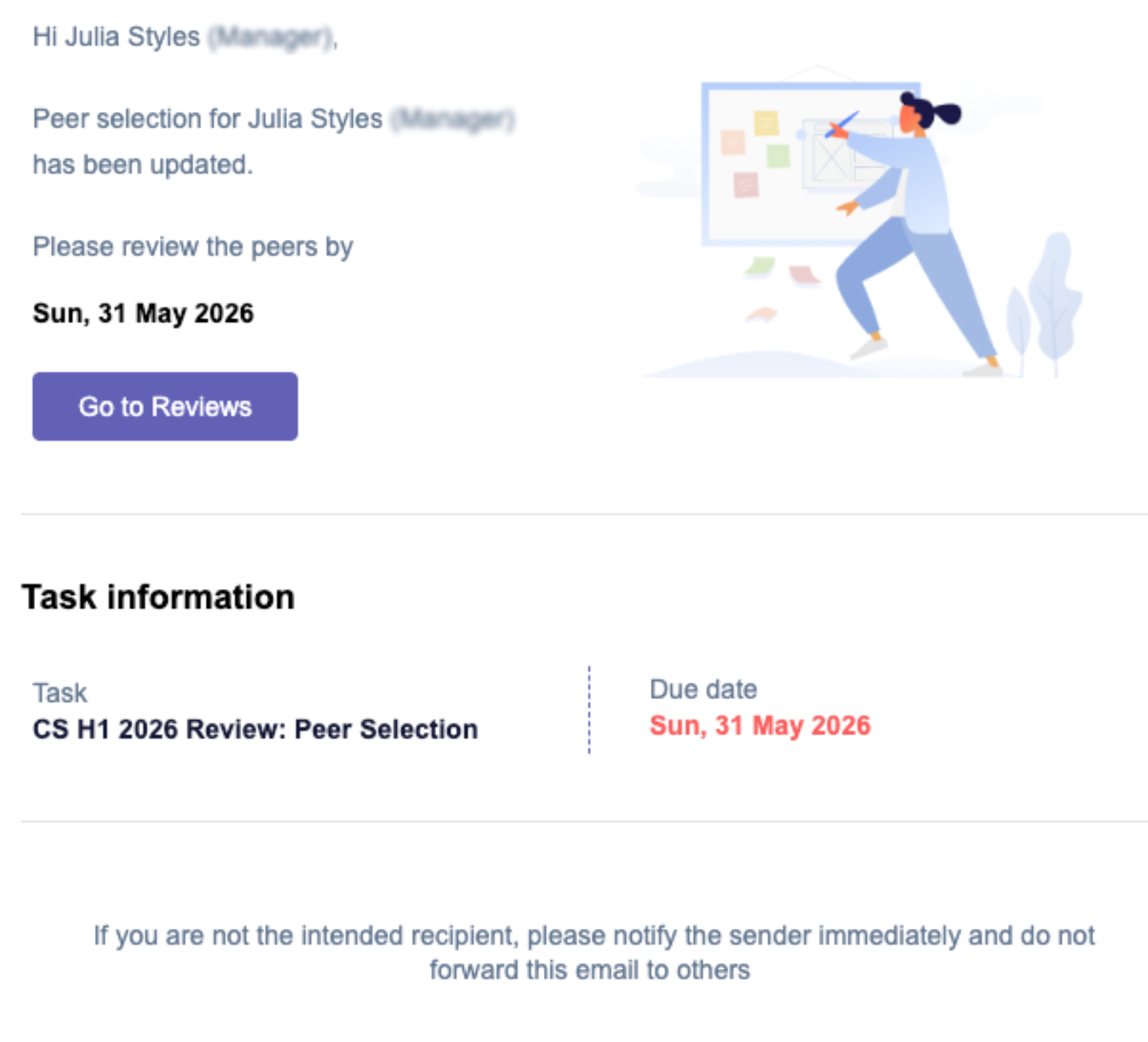
- You may click on Go to Reviews to view the changes made
Still Need Help?:
Reach out to our support team should you need further assistance.
Was this article helpful?
That’s Great!
Thank you for your feedback
Sorry! We couldn't be helpful
Thank you for your feedback
Feedback sent
We appreciate your effort and will try to fix the article