Overview
If Lembaga Hasil Dalam Negeri (LHDN) has issued your company a CP38 directive for an employee, you'll need to deduct a fixed additional amount from that employee's salary each month, on top of their usual monthly tax deduction. This article explains what a CP38 order is and walks you through adding it to a payroll run in our payroll system.
TABLE OF CONTENTS
- Overview
- What is a CP38 deduction?
- Steps to add a CP38 deduction in payroll
- Where the CP38 deduction shows up
What is a CP38 deduction?
CP38 is a directive issued by LHDN instructing an employer to deduct an additional, specified amount from a named employee's salary every month. It's separate from the employee's regular monthly tax deduction (PCB/MTD).
LHDN typically issues a CP38 order when an employee has outstanding tax owed that isn't fully covered by their normal monthly PCB/MTD deductions. Rather than the employee paying the shortfall in one lump sum, the CP38 mechanism lets them clear it gradually through fixed monthly deductions taken directly from payroll until the balance is settled.
As the employer, once you receive a CP38 letter from LHDN, you're required to start applying the stated deduction from the effective date given in the order.
Steps to add a CP38 deduction in payroll
- Navigate to the employee’s Omni profile and go to the Payroll tab > Select New Ad hoc Payment.
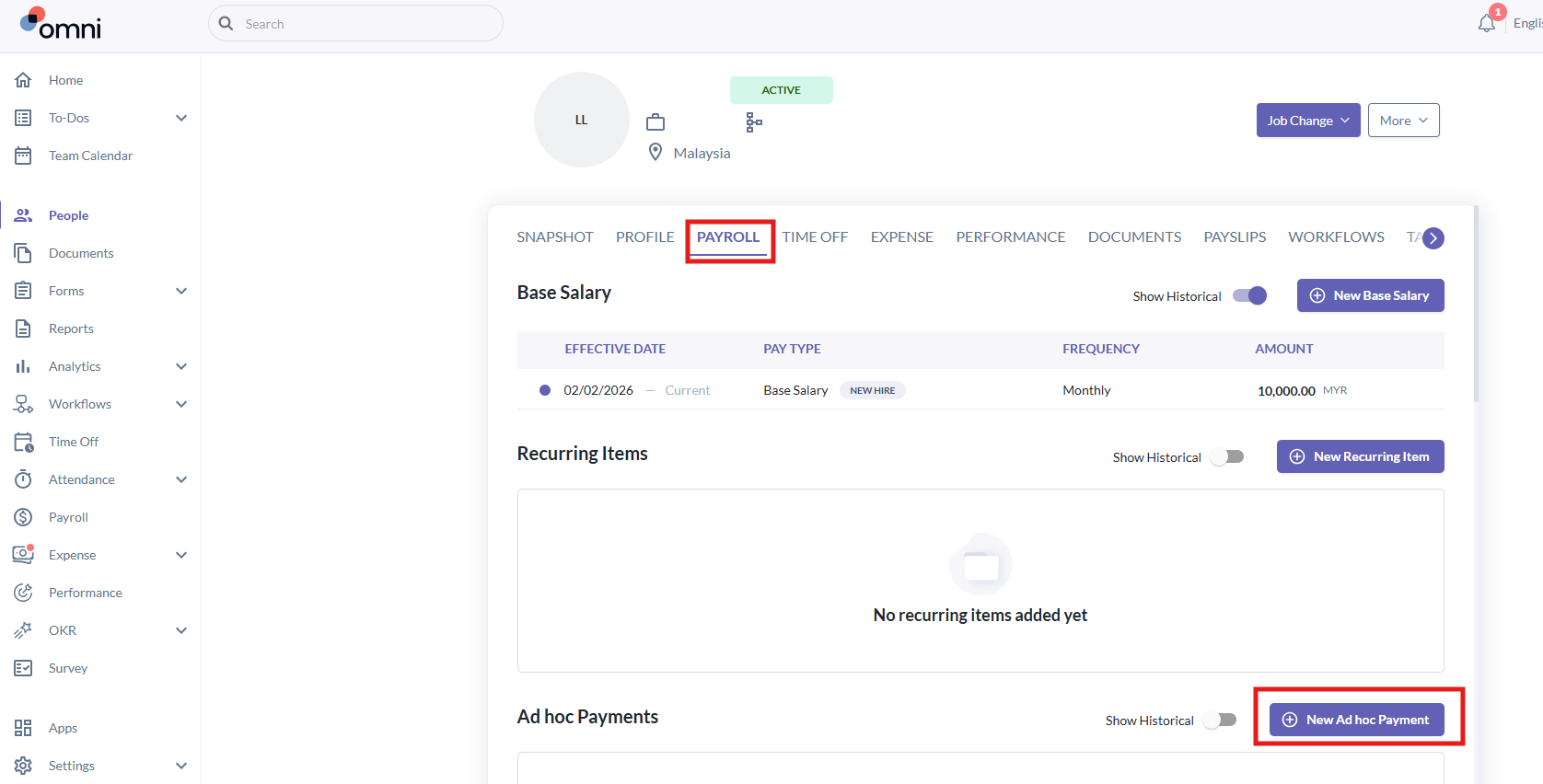
- Under Ad hoc Payment, record the CP38 tax deduction order.
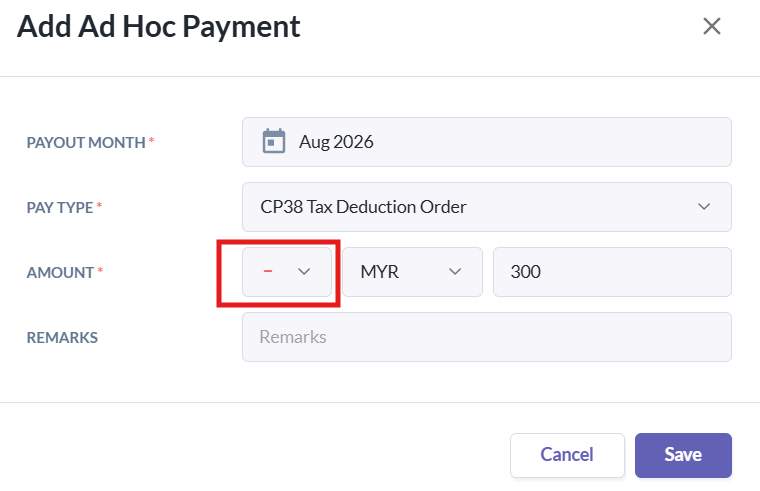
- Select the payout month.
- Enter the pay type and deduction amount.
- Please ensure that the item is selected as a Deduction, not an Earning (as shown in the example below).
- Click Save.
- Repeat the same steps for the subsequent months as specified in the CP38 directive. For example, if the deduction is required from August to October, repeat the process for each month and select the corresponding payout month accordingly. This ensures that the deduction is included in the payroll processing for the relevant month.
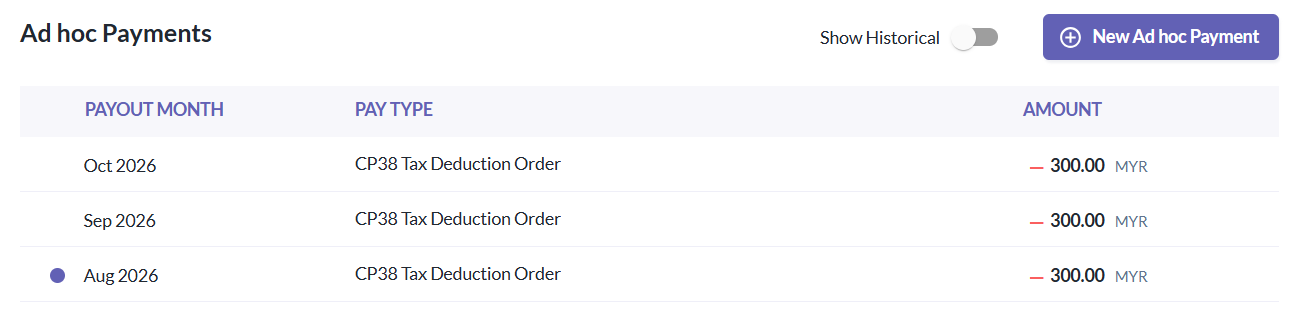
- After adding the ad hoc payment for the employee, please remember to map the relevant pay code to the payroll system > click Save to ensure it is properly processed.
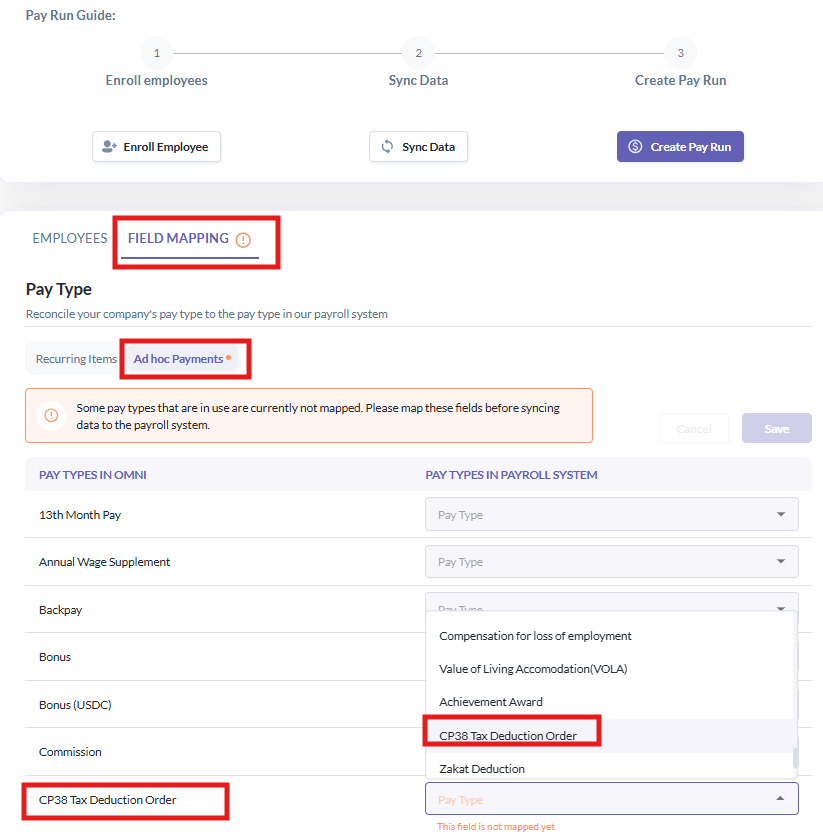
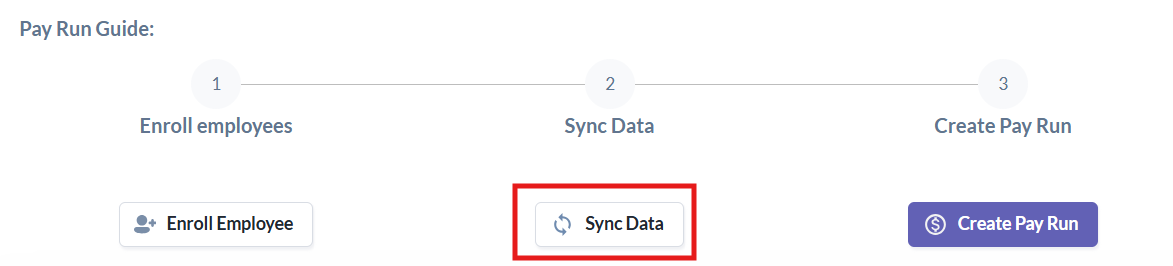
- Once all the required information has been updated, proceed to sync the data as usual.
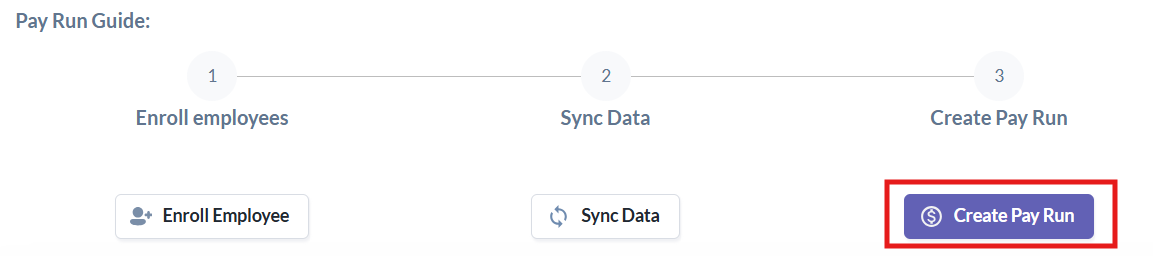
- Start processing payroll for the employee as usual by selecting Create Pay Run.
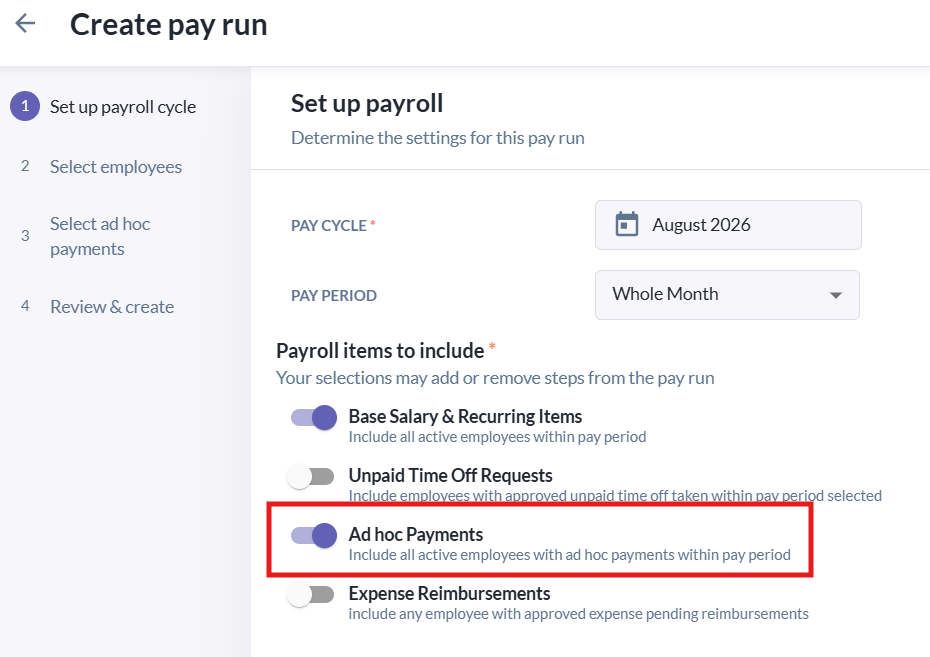
- Please be reminded to toggle on the Ad Hoc Payments option to ensure that the CP38 tax deduction order is included in the payroll processing.
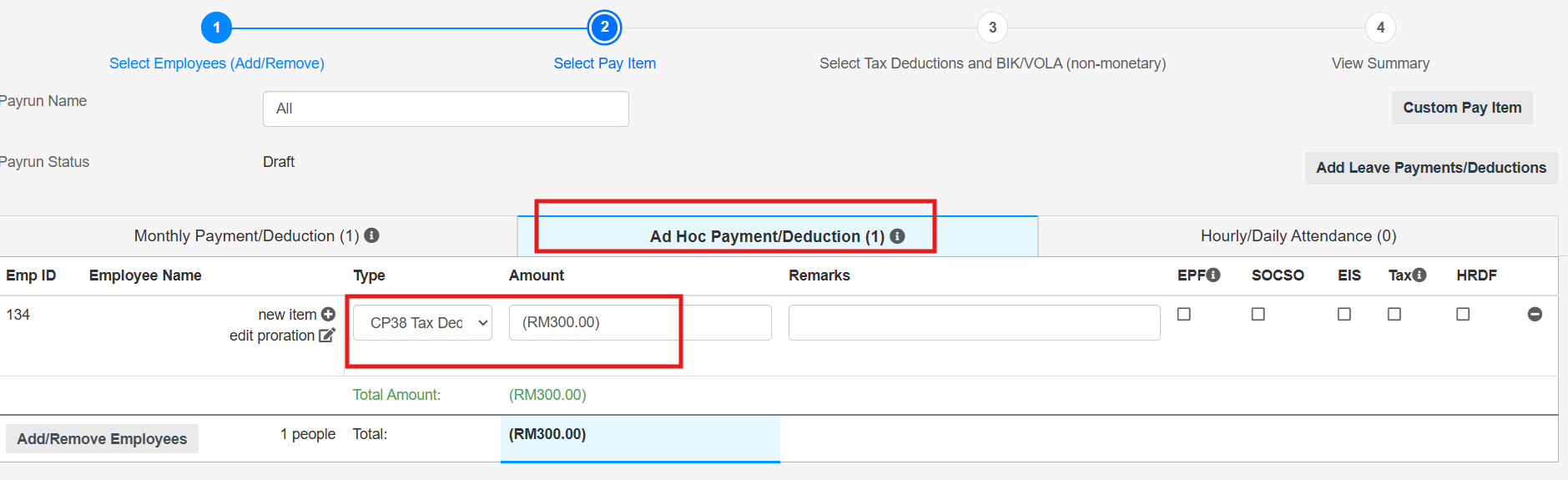
- After navigating to the Payroll system, you will see that the CP38 tax deduction order has been included in the payroll processing accordingly under Ad Hoc Payment/Deduction (1).
Where the CP38 deduction shows up
Once processed, the CP38 amount is tracked separately from the employee's regular PCB/MTD deduction throughout the system:
- Payslips: CP38 is itemised as its own line, distinct from the monthly PCB/MTD deduction, so employees can see exactly how much is going toward clearing their tax arrears each pay cycle.
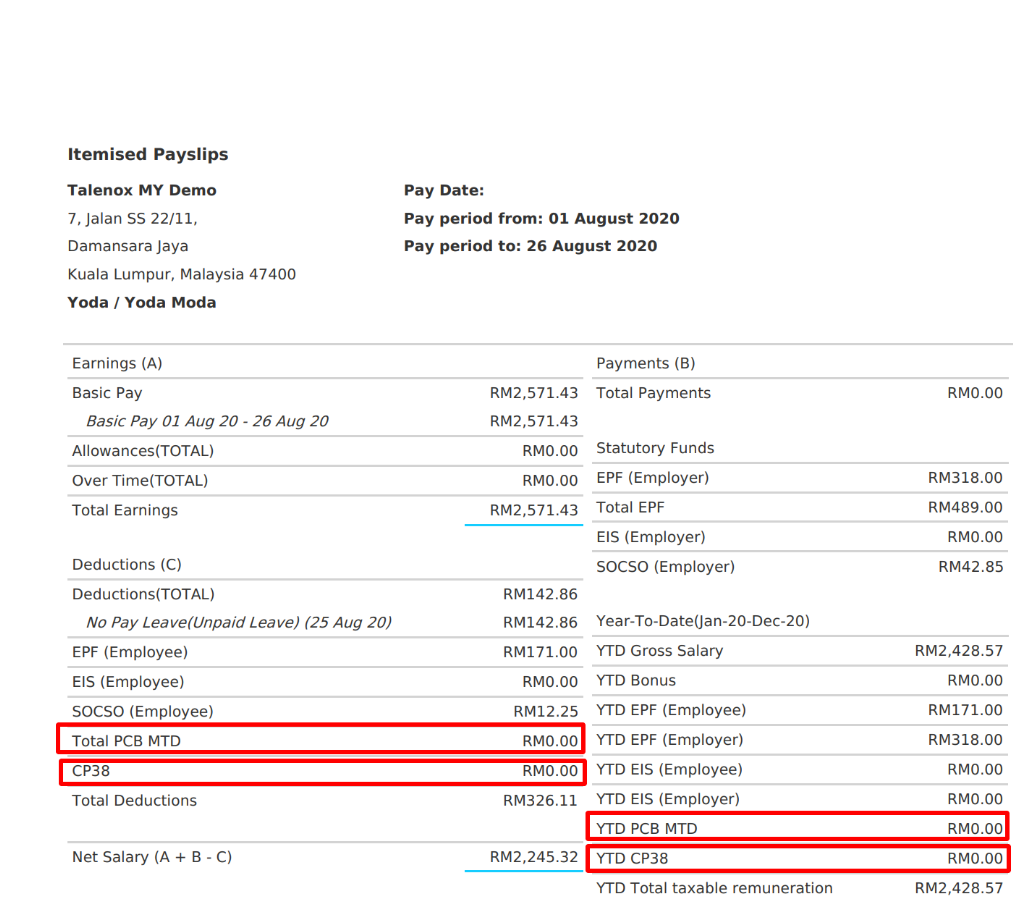
- Payroll reports: the Payroll YTD report also breaks out CP38 amounts separately from PCB/MTD, giving you a running total of what's been deducted.

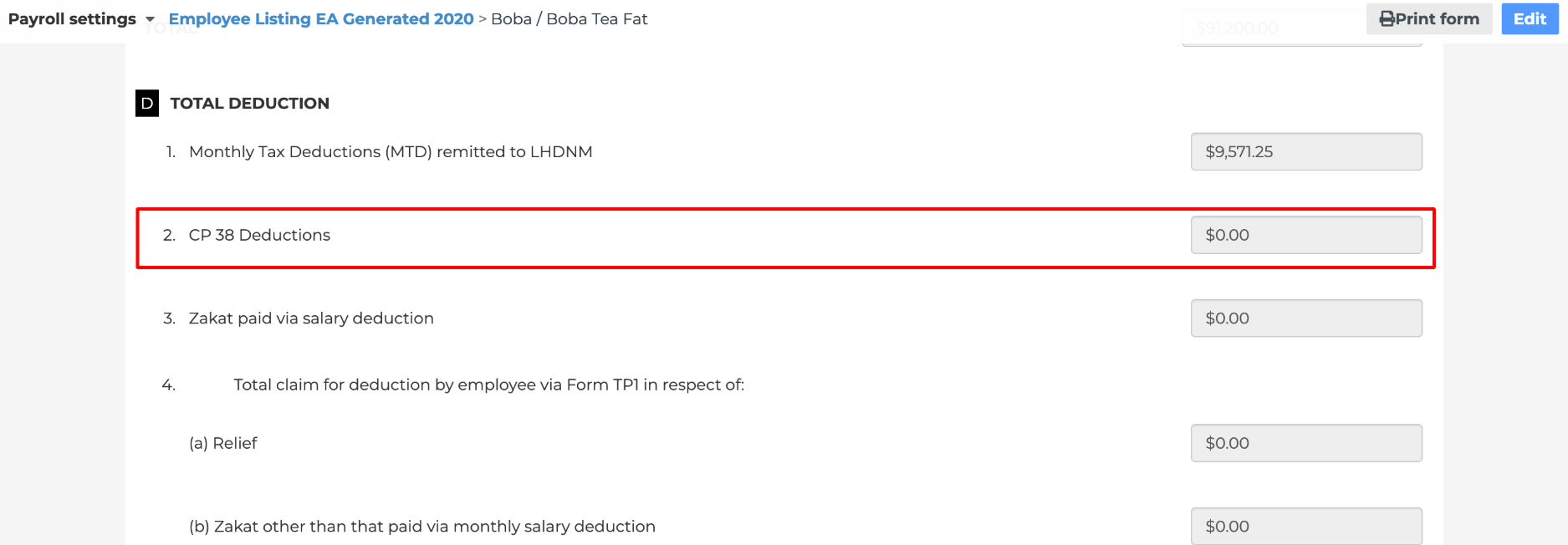
- Form EA: at year end, CP38 deductions processed through payroll automatically flow into the employee's Form EA, reported separately from PCB/MTD under Section D2.
Still Need Help?:
Reach out to our support team should you need further assistance.
Was this article helpful?
That’s Great!
Thank you for your feedback
Sorry! We couldn't be helpful
Thank you for your feedback
Feedback sent
We appreciate your effort and will try to fix the article