Overview
Once you've finished processing payroll for the month, payslips need to be published before employees can view them. This article walks you through publishing payslips for your team.
TABLE OF CONTENTS
Steps to publish payslips for all employees
Once all payments for the month have been processed, follow these steps:
- In the payroll system, select Payroll -> Payslips from the header.

- Click the Publish payslips button.

- In the pop-up that appears:
- Set a future payslip Pay Date.
- Select the option to send an email notification of the published payslip to employees on that Pay Date or publish it immediately.
- You can choose to also attach a copy of the payslip (as a PDF) to the notification email employees receive, by selecting the Attach payslip PDF to email option when publishing.
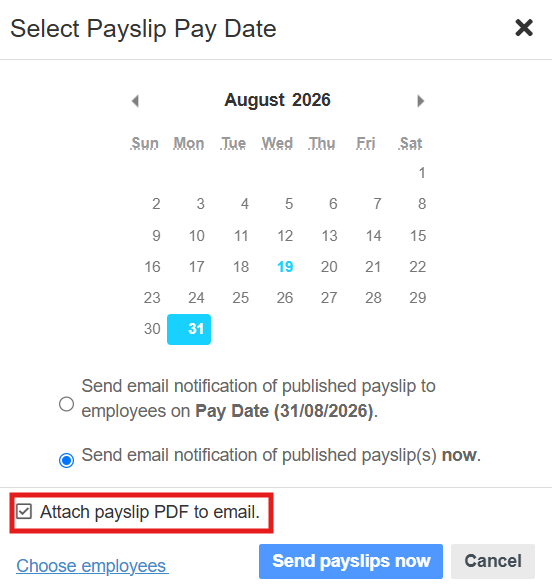
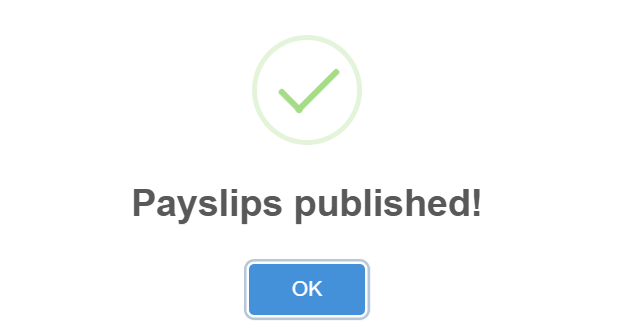
- Once all settings have been selected correctly, click the Send Payslip Now button at the bottom. A confirmation window as shown below will then appear.
- An email notification will be sent to employees on the selected Pay Date/immediately (based on your selection), informing them that their payslip is ready to view.
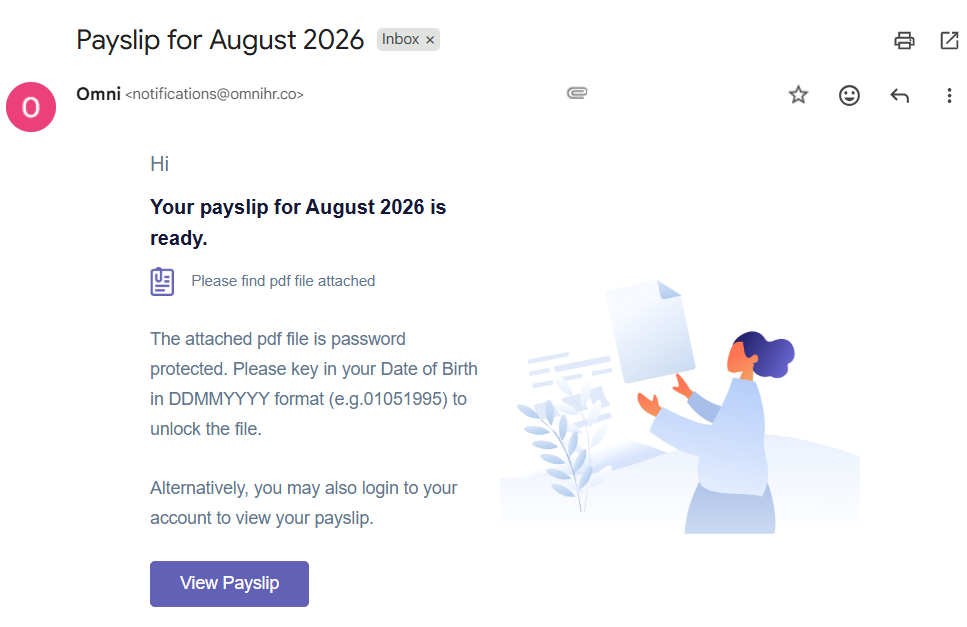
- If you choose to attach a copy of the payslip as a PDF to the notification email, the PDF will be encrypted for security. The password is the employee’s date of birth in the format DDMMYYYY, as stated in the email sent to them.
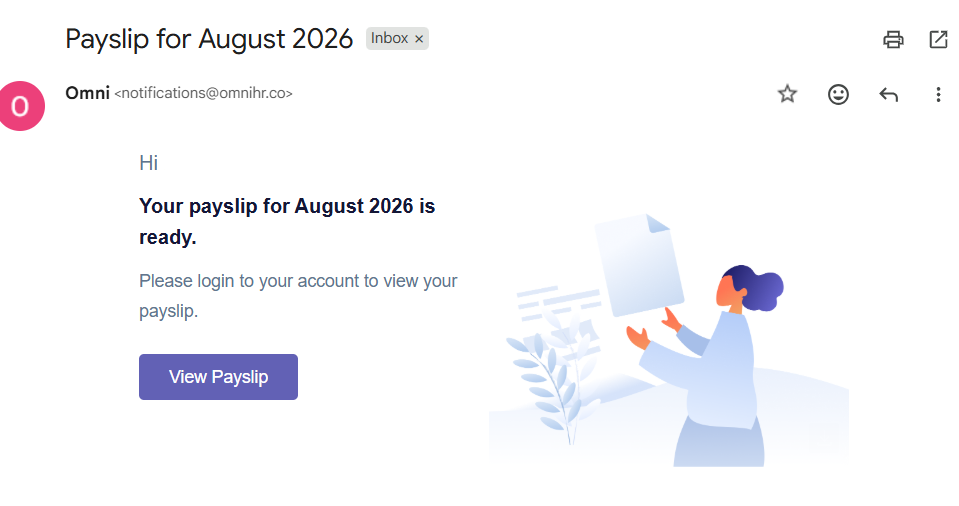
- If the attach Payslip PDF to Email option is not selected when publishing the payslip, employees will receive an email informing them that their payslip is ready to view. They can click the View Payslip button in the email to be directed to their Omni profile (under Payslips tab) where they can review their payslip.
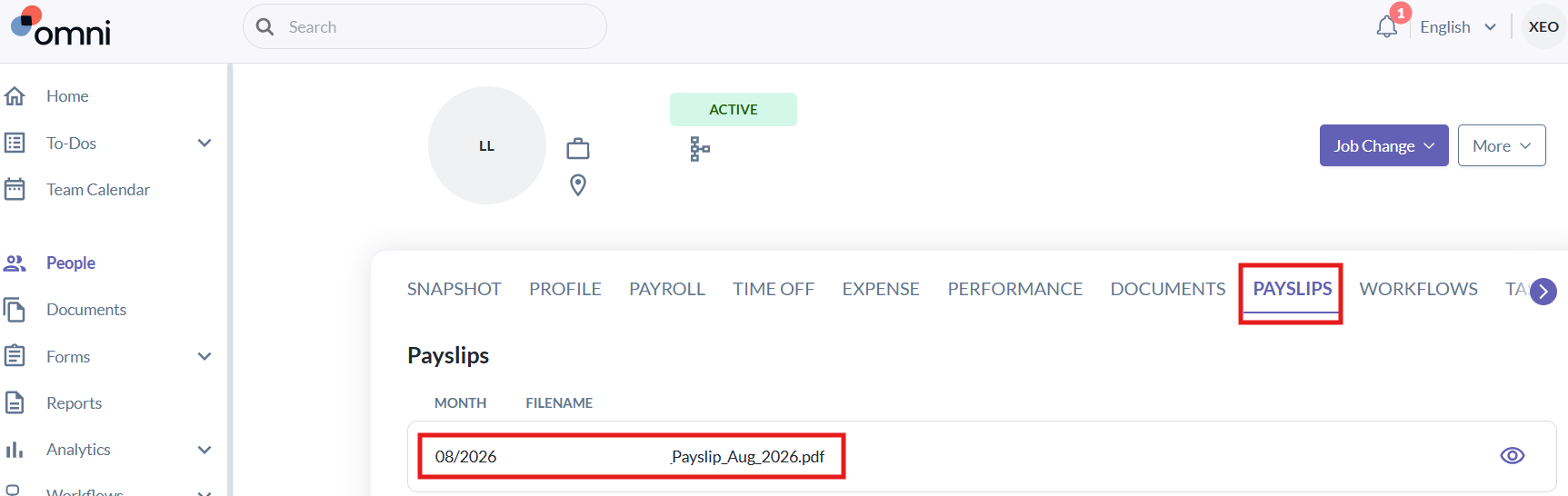
- If you choose to attach a copy of the payslip as a PDF to the notification email, the PDF will be encrypted for security. The password is the employee’s date of birth in the format DDMMYYYY, as stated in the email sent to them.
Note: Employees will only be able to view their payslip from the date you've selected.
A few things to keep in mind
- If payslips aren't published for a given payroll month, employees won't be able to view their payslip for that month.
- You can Un-publish Payslips and then publish again if you need to resend the notification — for example, after correcting an error.

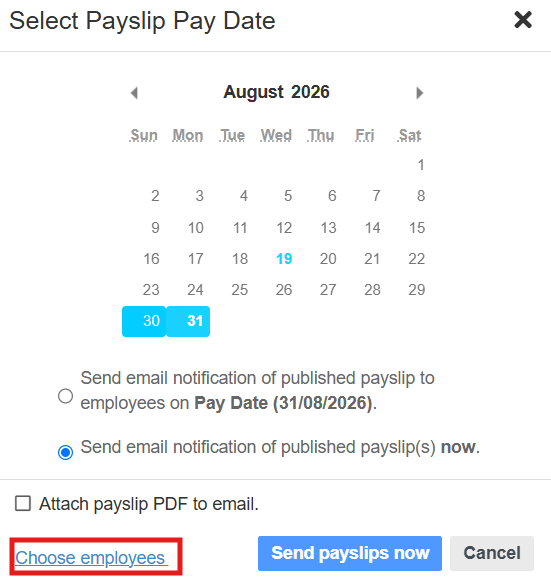
- Payslips can also be published in separate batches within the same payroll month, rather than all at once if that suits your process better. During the payslip publishing step, select Choose employees from bottom left corner, then select only the employee whose payslip you want to publish.
Still Need Help?:
Reach out to our support team should you need further assistance.
Was this article helpful?
That’s Great!
Thank you for your feedback
Sorry! We couldn't be helpful
Thank you for your feedback
Feedback sent
We appreciate your effort and will try to fix the article