Overview
We understand that it is a common practice and requirement for full legal name to be displayed for payroll related reporting and processes. This guide aims to share where will full legal name be used and displayed, and how you are able to change these settings.
TABLE OF CONTENTS
- Where can we display full legal name?
- Where can I find the settings to change the display?
- How does the Full Legal Name (Nickname) work?
- If I change the Name Display setting in the middle of the year, does it apply to all payslips retroactively?
Where can we display full legal name?
Our payroll system is able to display full legal name on payroll dashboards, reports as well as payslips based on the settings that you select in the payroll system.
Where can I find the settings to change the display?
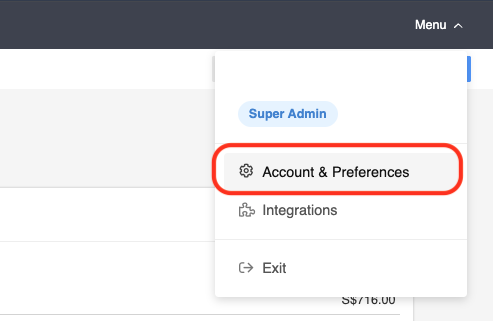
1. In our payroll system, find the Menu dropdown at the top-right corner of the screen and select Account & Preferences.
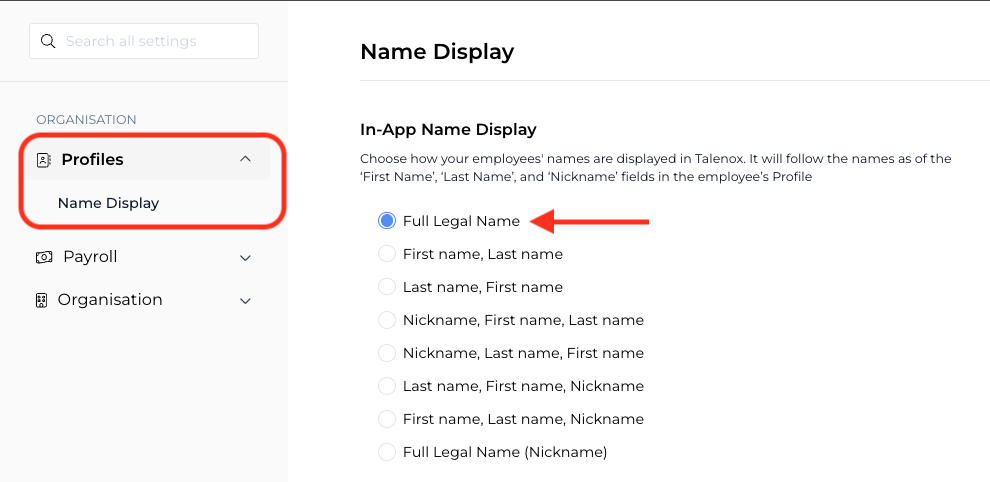
2. Select Profiles > Name Display and choose the Full Legal Name option.
How does the Full Legal Name (Nickname) work?
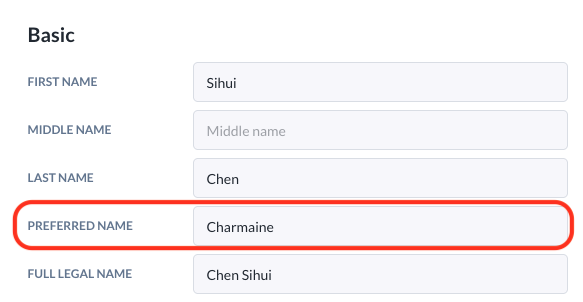
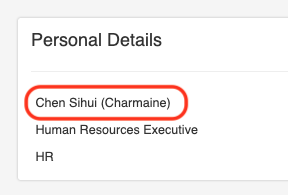
It works in the exact same way as Full Legal Name, with the exception that it also displays the employee's Preferred Name as long as the Preferred Name field is filled up and this option is selected in payroll. This makes searching for the employee easier in payroll and gives the payslip a bit more of a personal touch.
If I change the Name Display setting in the middle of the year, does it apply to all payslips retroactively?
It does not. As previous payslips have already been processed and published, you would need to unpublish payslips, re-process the pay run and re-publish payslips again for the new format to reflect correctly.
Still Need Help?
Reach out to our support team should you need further assistance.
Was this article helpful?
That’s Great!
Thank you for your feedback
Sorry! We couldn't be helpful
Thank you for your feedback
Feedback sent
We appreciate your effort and will try to fix the article