Overview
Rounding helps simplify Days Available balances that may result in complex decimals (e.g., 0.33 or 0.67) due to accrual logic or partial day requests and ensures that the Days Available balance displayed to employees follows a consistent format, making it easier for staff to understand how much time they can actually request.
Example:
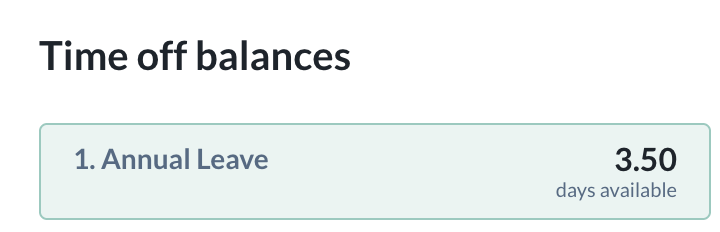
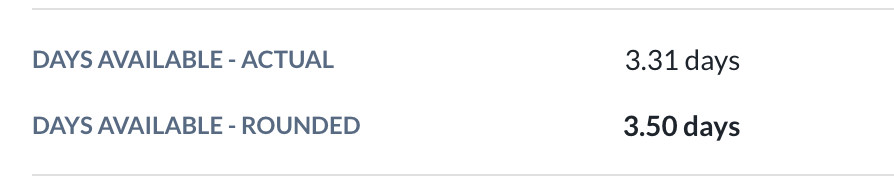
TABLE OF CONTENTS
- How to turn on time off rounding?
- Rounding Logic Examples
- Important Considerations
- Where will the rounded time off balance be displayed?
How to turn on time off rounding?
To enable or modify rounding, navigate to your Time Off > Settings > Time Off Type > Select the Time Off Policy.
You will find the following options under section Time off balance display;
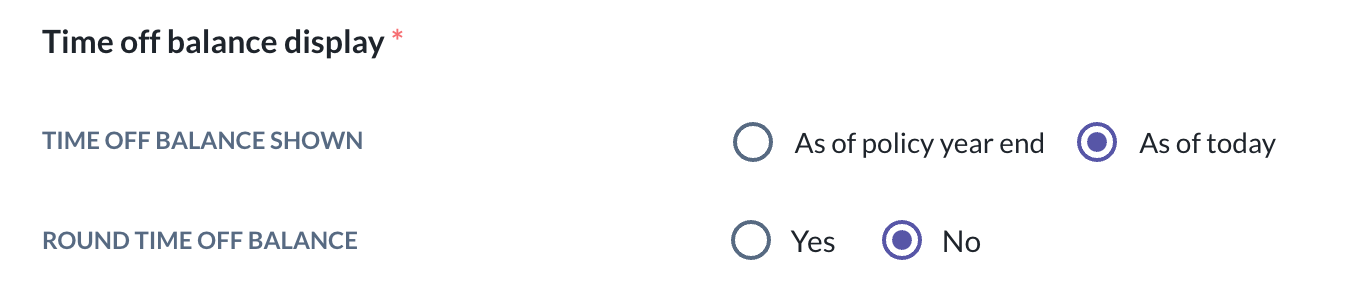
Round Time Off Balance:
No: Balances will show the exact decimal (e.g., 3.31 days).
Yes: Activates the rounding logic defined below.
1. Rounding Direction
If rounding is enabled, you must choose how the system handles the decimal:
Nearest: Rounds to the closest increment (either up or down).
Up To: Always rounds the balance up to the next specified increment.
Down To: Always rounds the balance down to the next specified increment.
2. Rounding Increments
This determines the "step" the system uses to round:
1.0 Day: Rounds to the nearest whole day.
0.5 Day: Rounds to the nearest half-day.
0.25 Day: Rounds to the nearest quarter-day.
Rounding Logic Examples
The table below illustrates how different settings affect a sample balance of 3.31 days:
| Rounding Increment | Nearest | Up To | Down To |
| 1.0 Day | 3.0 Days | 4.0 Days | 3.0 Day |
| 0.5 Day | 3.5 Days | 3.5 Days | 3.0 Day |
| 0.25 Day | 3.25 Days | 3.5 Days | 3.25 Days |
Important Considerations
Applicability: Rounding is applied specifically to the Days Available balance.
Decimal Handling: This feature is most useful for organisations that use accrual rates resulting in "unusual" decimals like 0.33, 0.67, or 0.8.
Requesting 0.25 days leave: If your policy requires quarter-day day leave (0.25), please contact our support team to have this option enabled for your account.
Where will the rounded time off balance be displayed?
1. Time off details (Profile -> Time off tab)
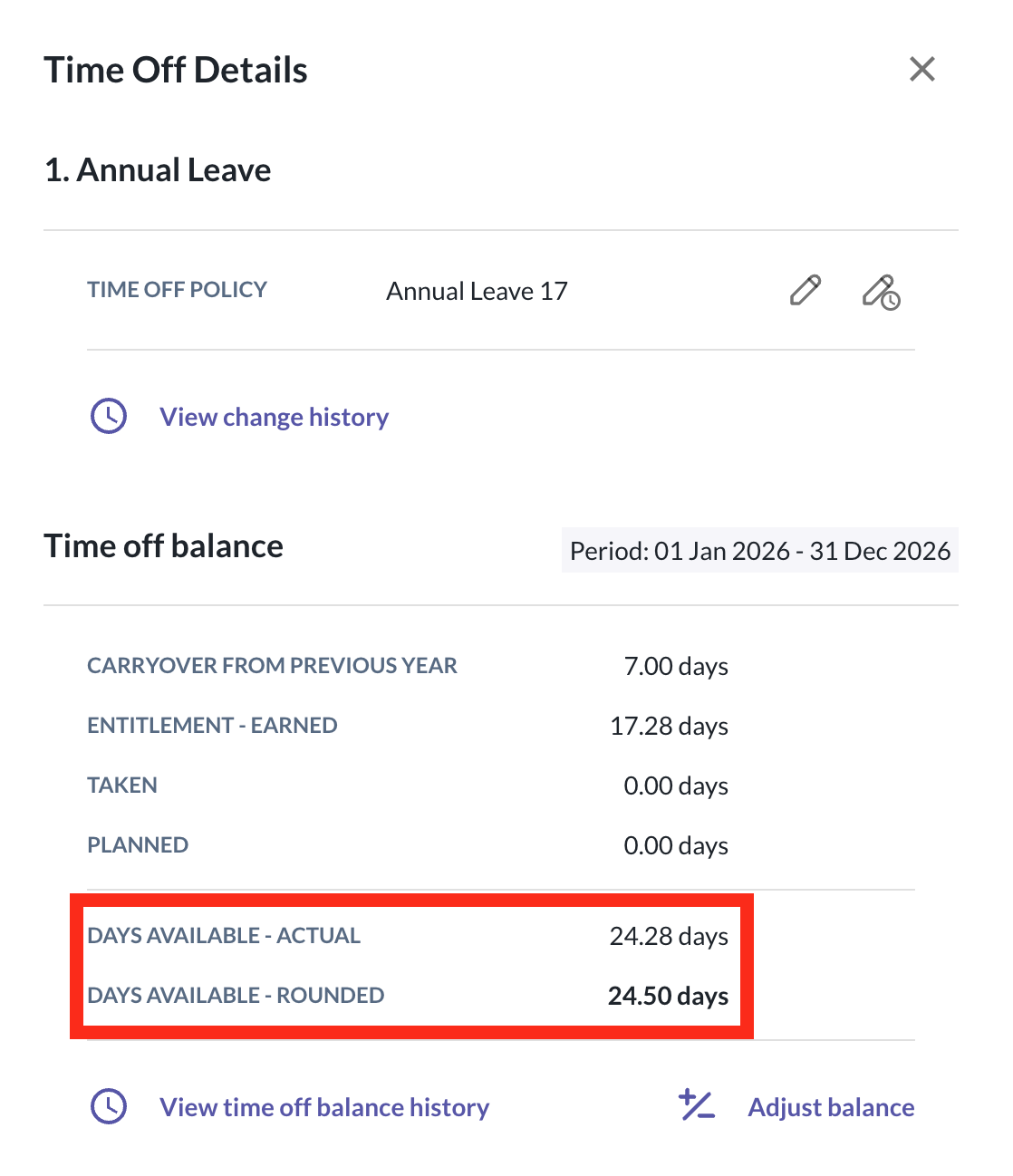
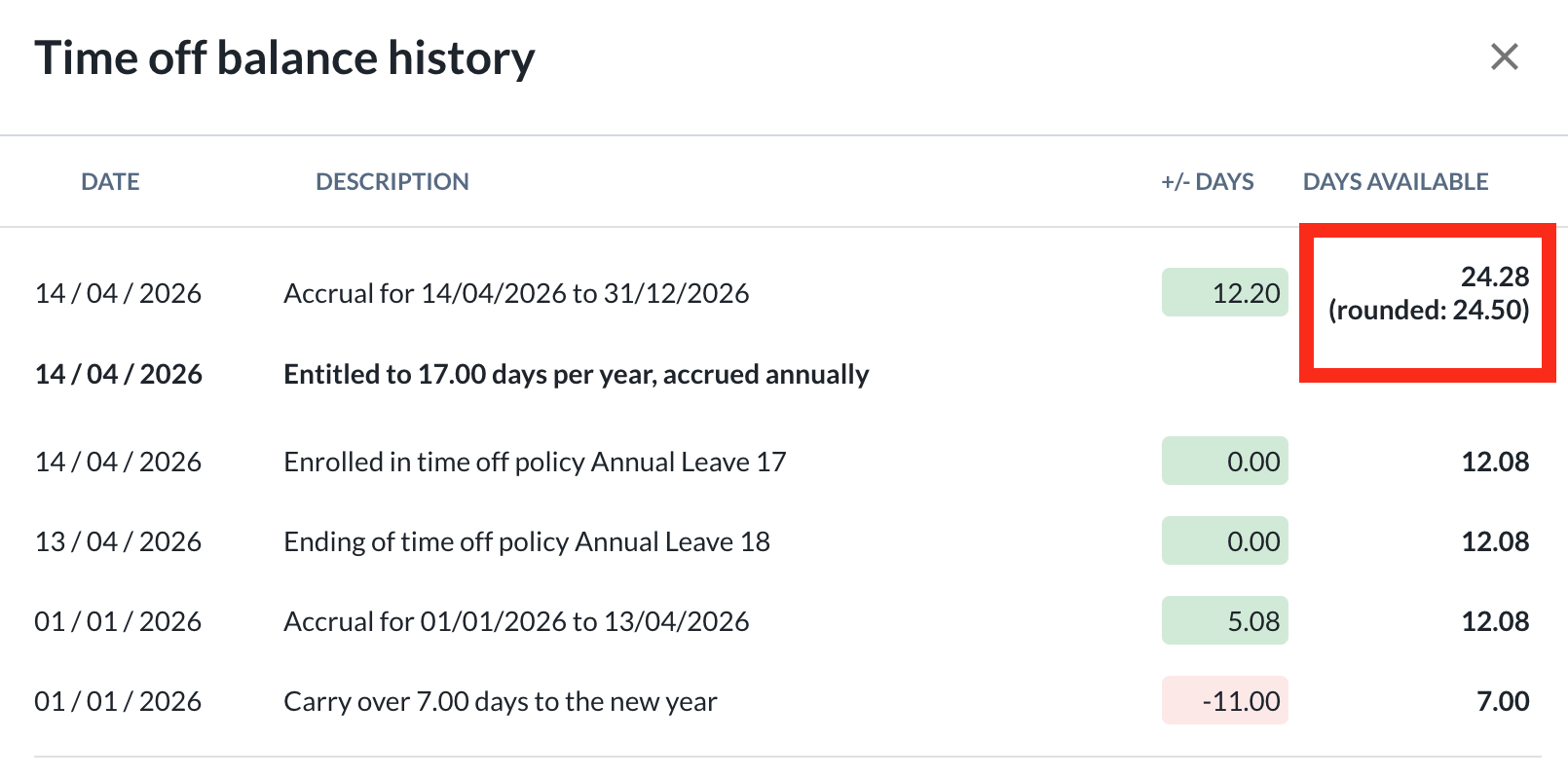
2. Time off balance history modal (Profile - Time off tab)
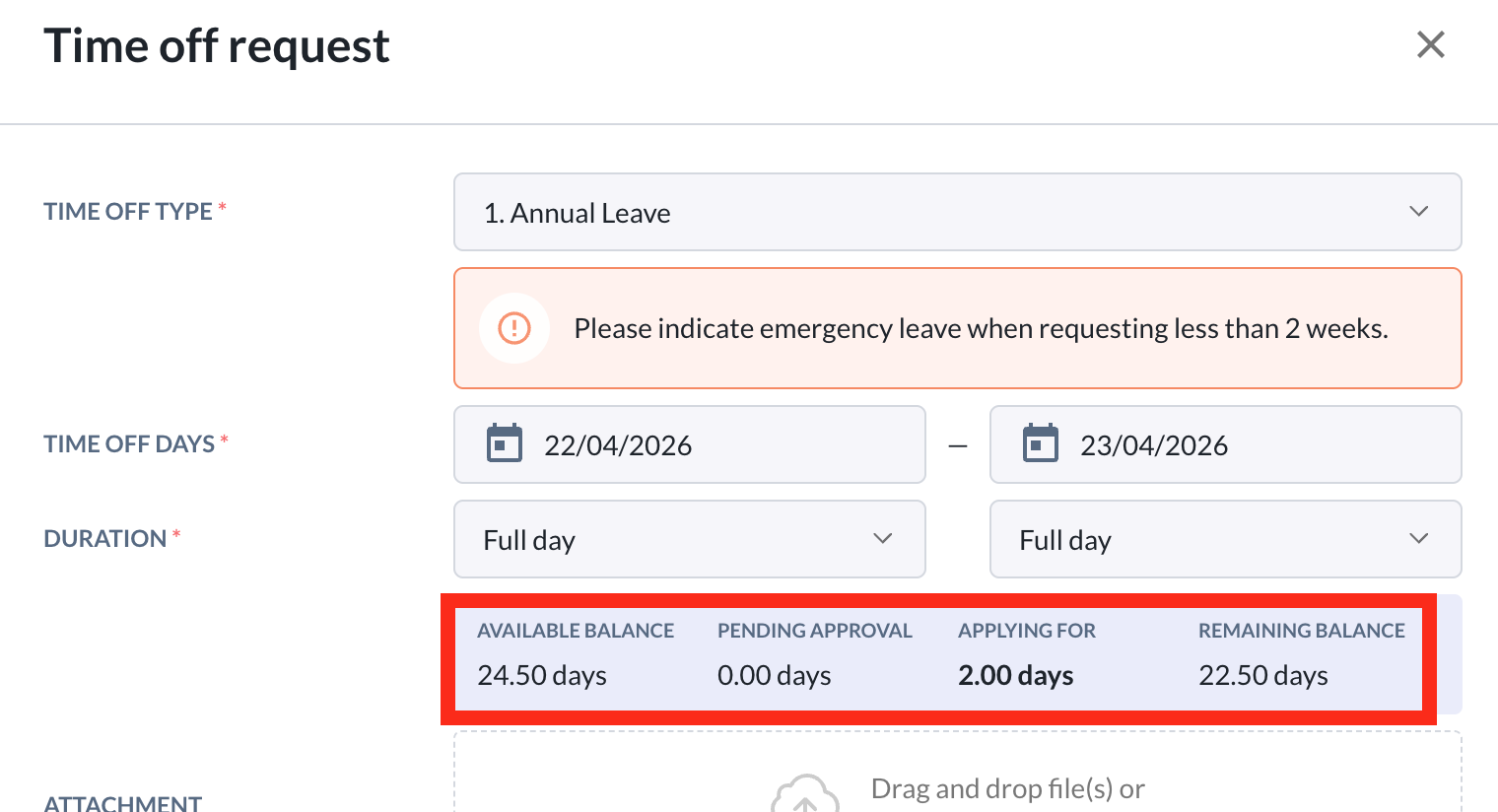
3. Time Off request
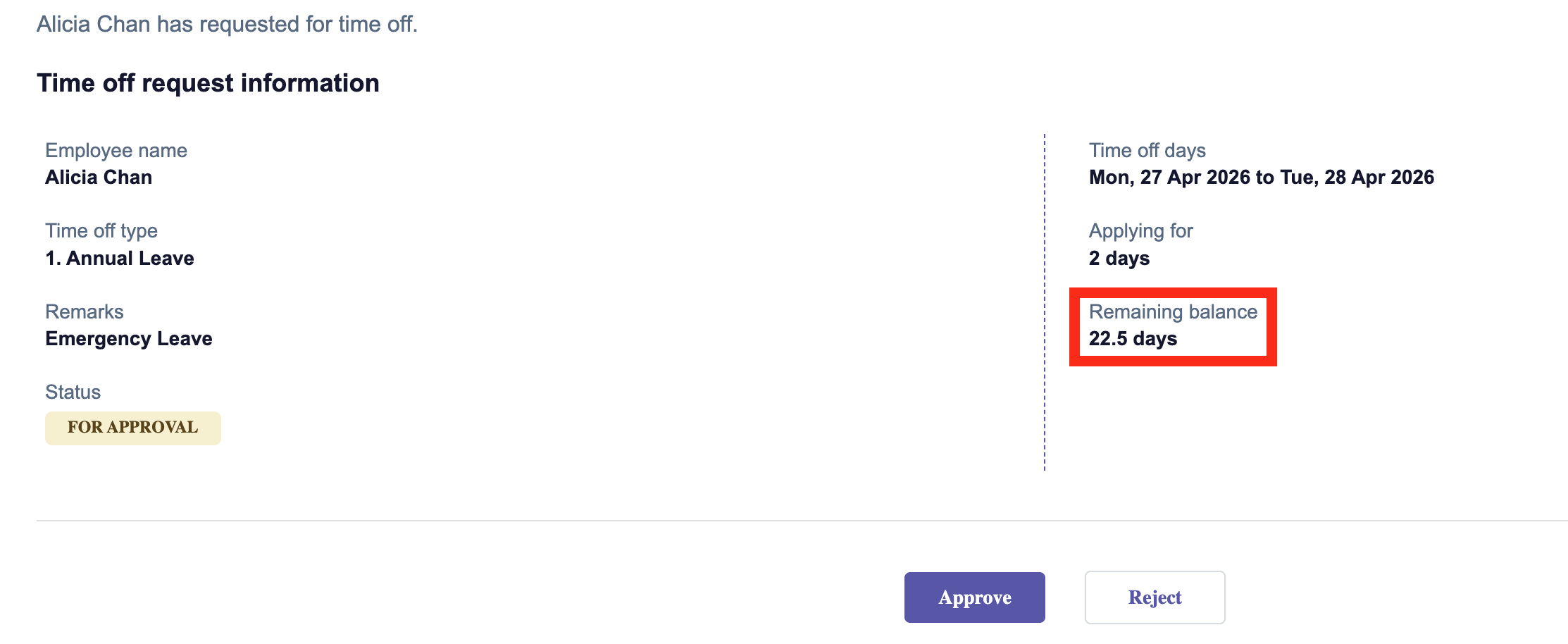
4. Time off approval email
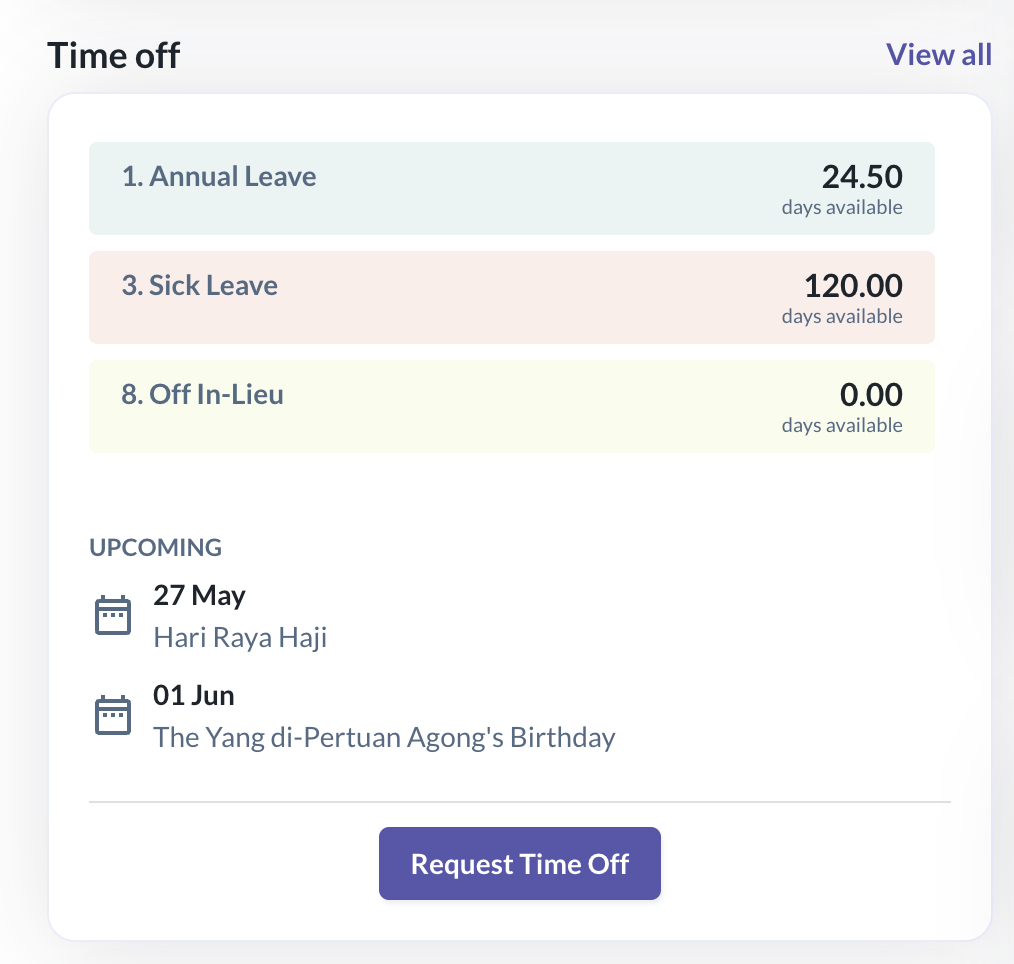
5. Profile dashboard
6. Time off balance report
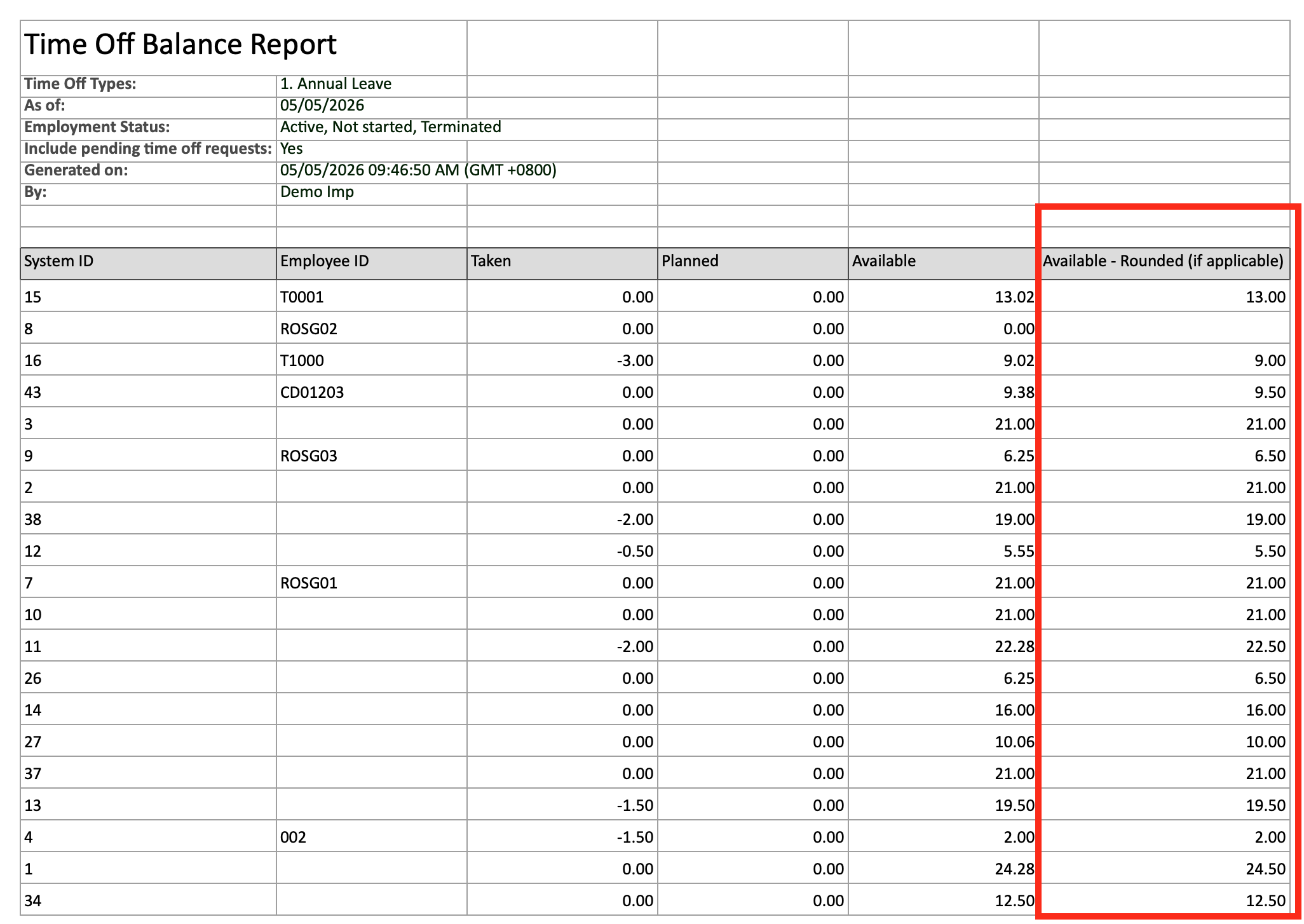
2. Time off balance history modal (Profile - Time off tab)
3. Time Off request
4. Time off approval email
5. Profile dashboard
6. Time off balance report
Still Need Help?
Reach out to our support team should you need further assistance.
Was this article helpful?
That’s Great!
Thank you for your feedback
Sorry! We couldn't be helpful
Thank you for your feedback
Feedback sent
We appreciate your effort and will try to fix the article