Overview:
Ad Hoc Time Off allows admins to give employees one-time, non-recurring leave. Previously, admins had to use Custom Time Off for things like Off in Lieu, emergency leave, or compassionate leave, which did not have a set usage period. With Ad Hoc Time Off, admins can now assign one-off leave with a custom usage period, making it easier and more flexible to manage special leave.
TABLE OF CONTENTS
- What's New?
- How to Create & Assign Ad Hoc Time Off Type
- How to Adjust Entitlement & Usage Period
- Important Notes on Ad Hoc Time Off
What's New?
1. New time off type: Ad Hoc Time Off - A one-time entitlement without accrual.
2. One off time-off entitlement - Leave granted only once to an employee and does not repeat.
3. Usage period governance - Admins can custom a specific start and end date during which leave can be used.
How to Create & Assign Ad Hoc Time Off Type
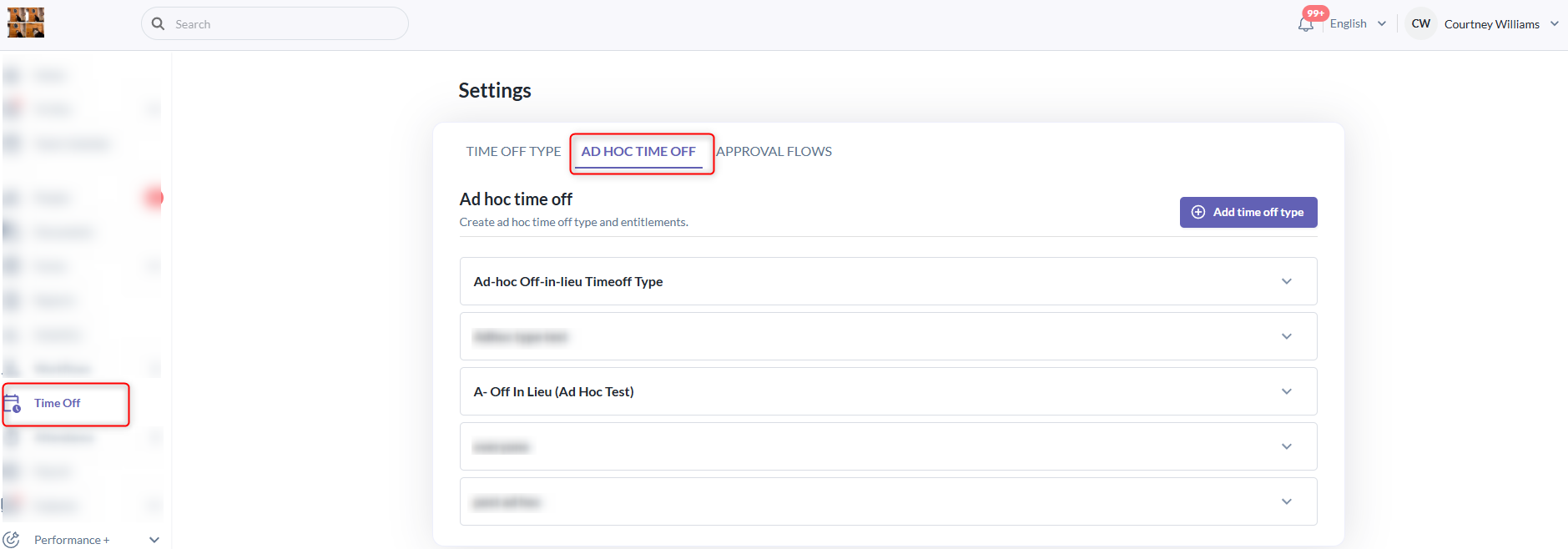
1. Go to Time Off > Settings > Ad Hoc Time Off
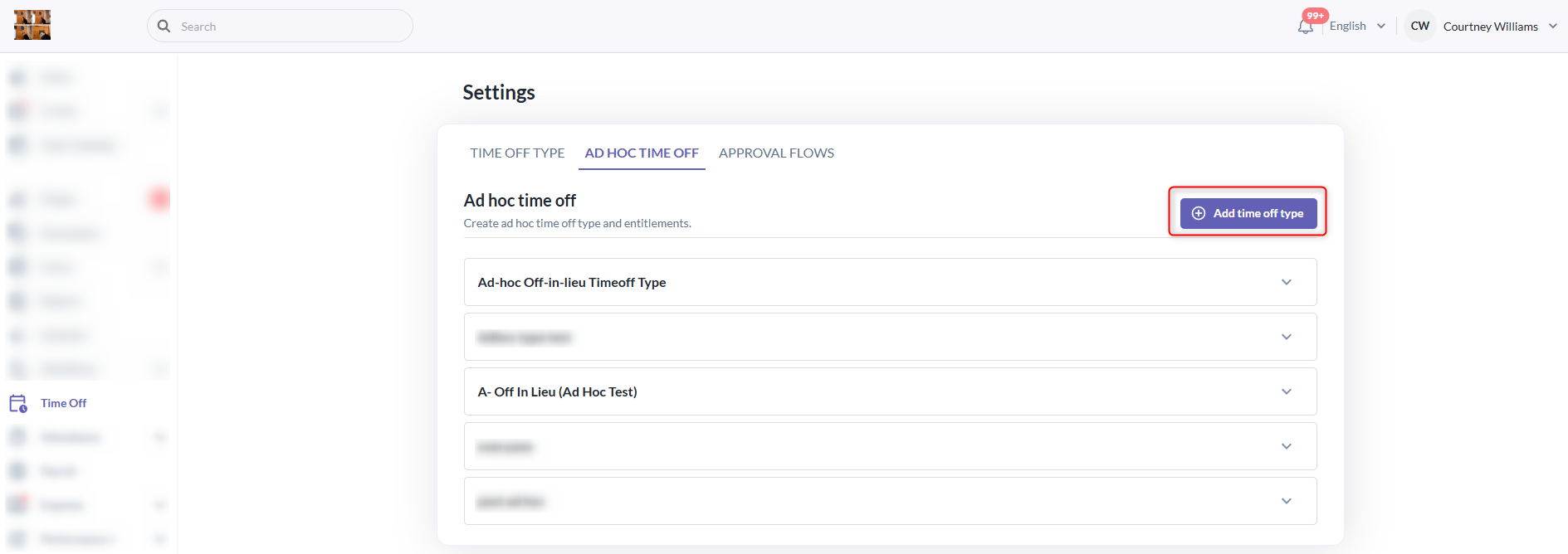
2. Click "Add time off type" to add new ad hoc time off type.
3. In the pop-up, enter the basic details of the Time Off Type — Name of Time Off, whether it is paid leave, the color, whether attachments or remarks are required, and if approval is needed for time off cancellation. Then, click Save.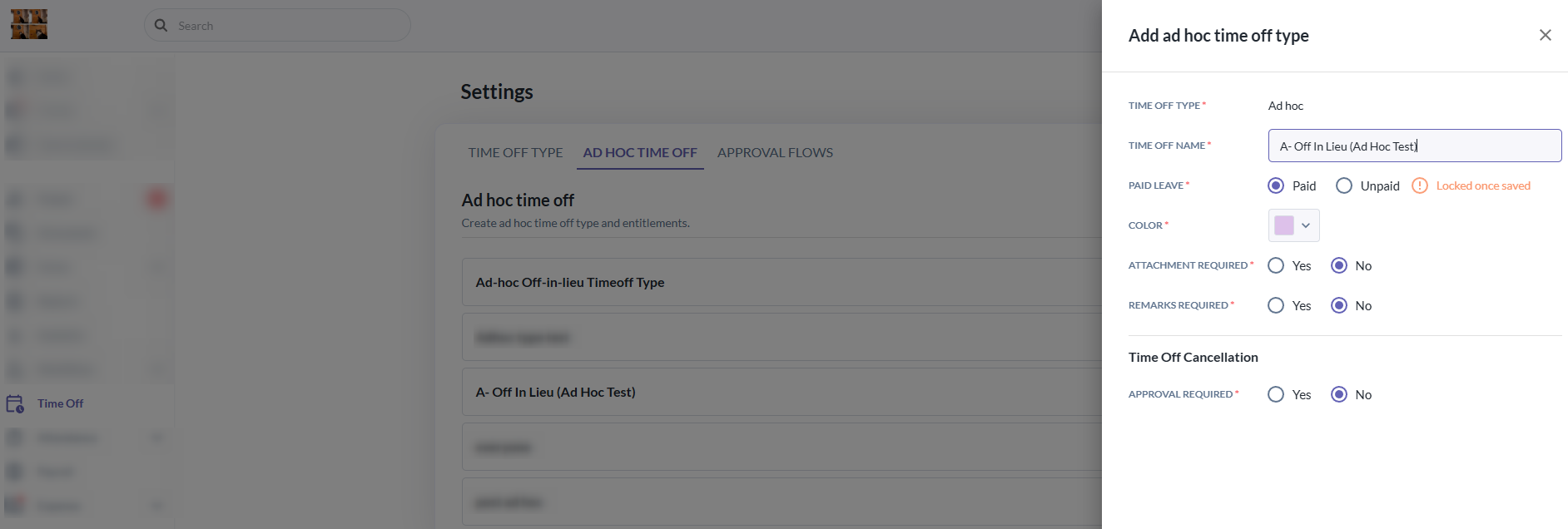
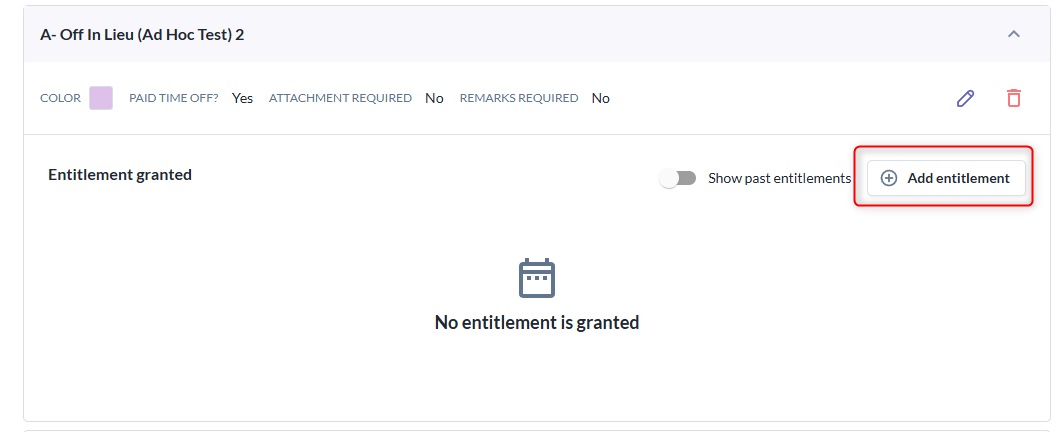
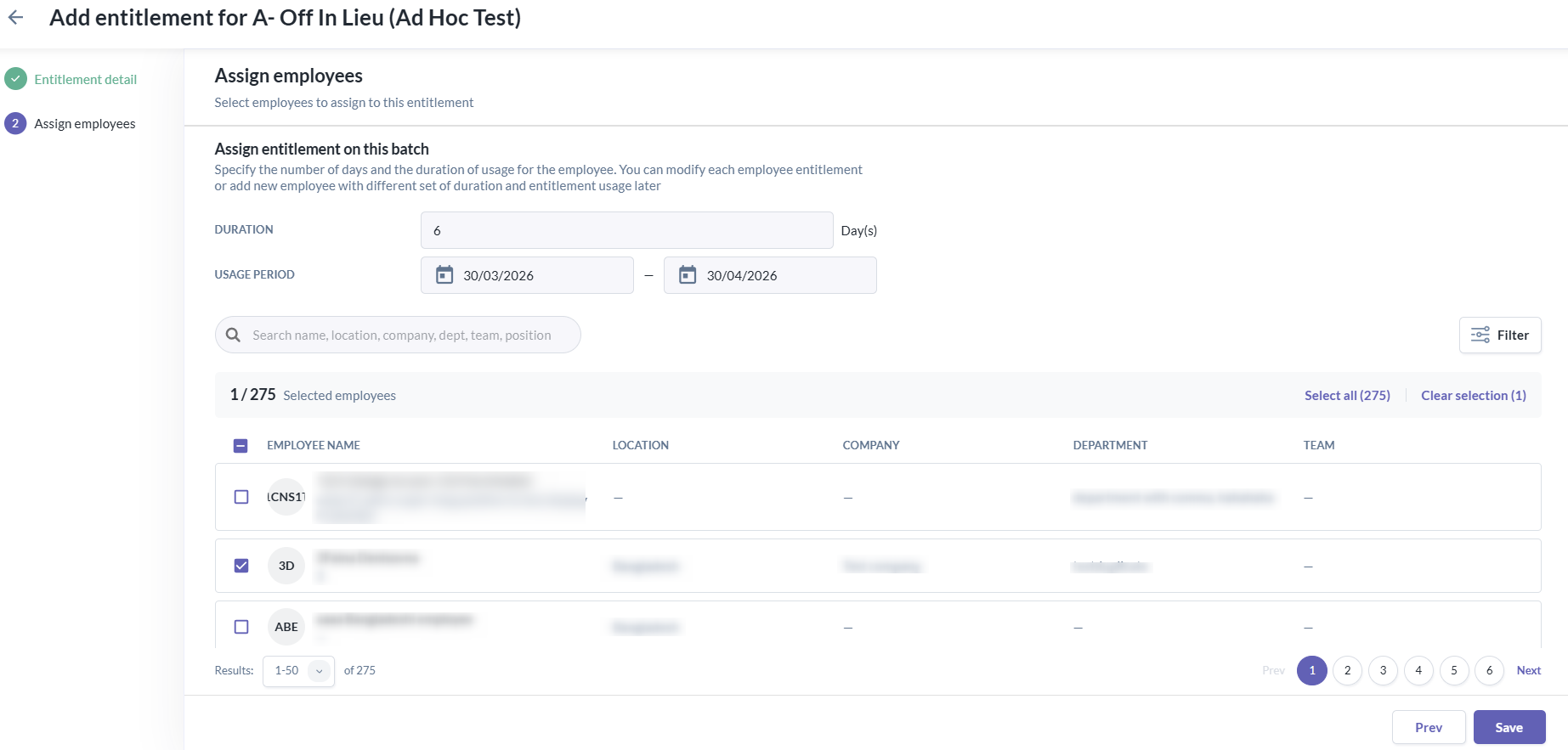
4. After creating the time off type, click “Add Entitlement” to set up the entitlement details, including the entitlement duration, entitlement usage period, and employee assignment.
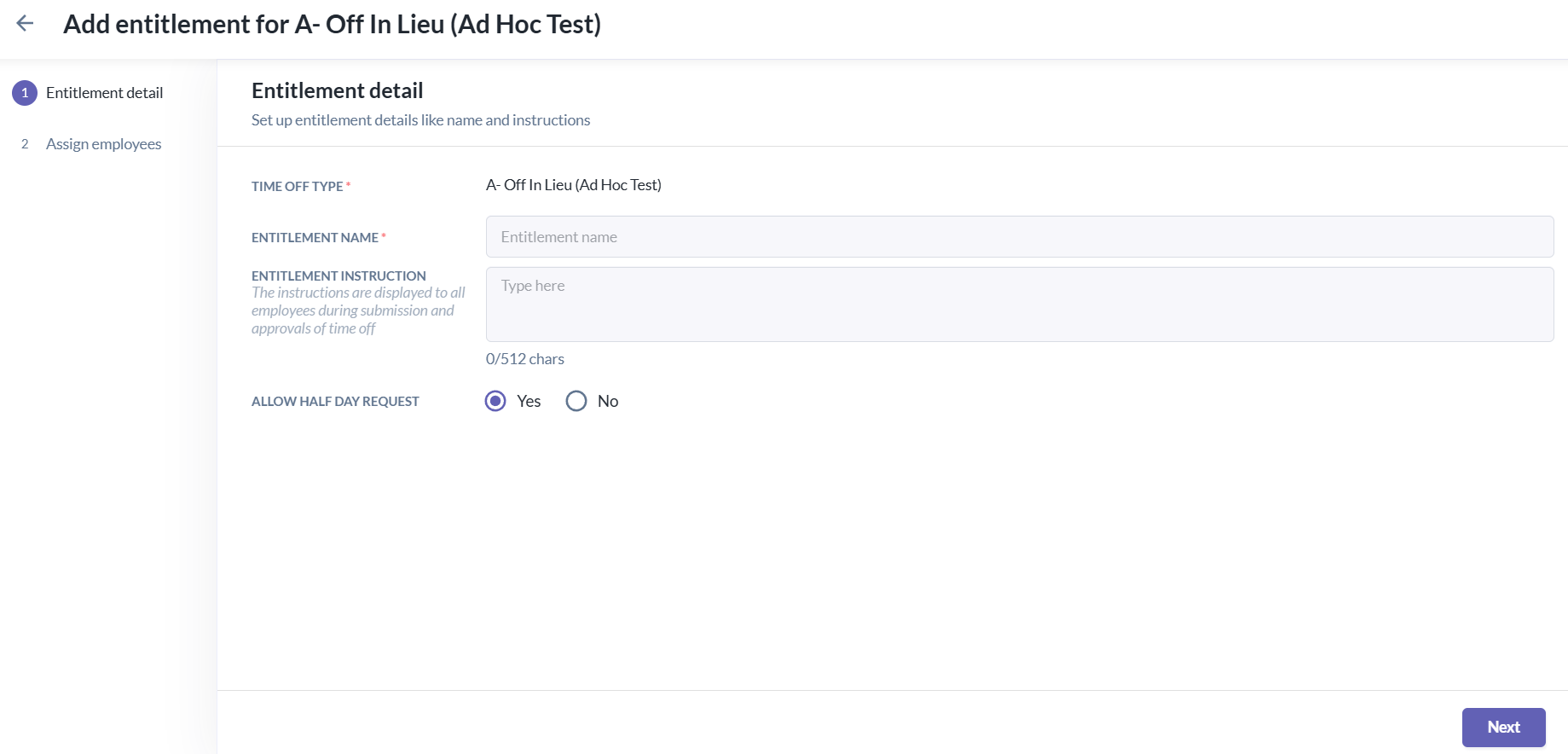
- Fill in the entitlement details - Entitlement Name, Entitlement Instruction and whether allow half day request. Then, click Next.
- Duration - The number of days given for the leave entitlement.
- Usage Period - The specific timeframe during which the employee is allowed to use the leave (start and end date for taking the leave).
- Selected employees - The employees who will be assigned with the leave entitlement (Admins can filter and select one or multiple employees).
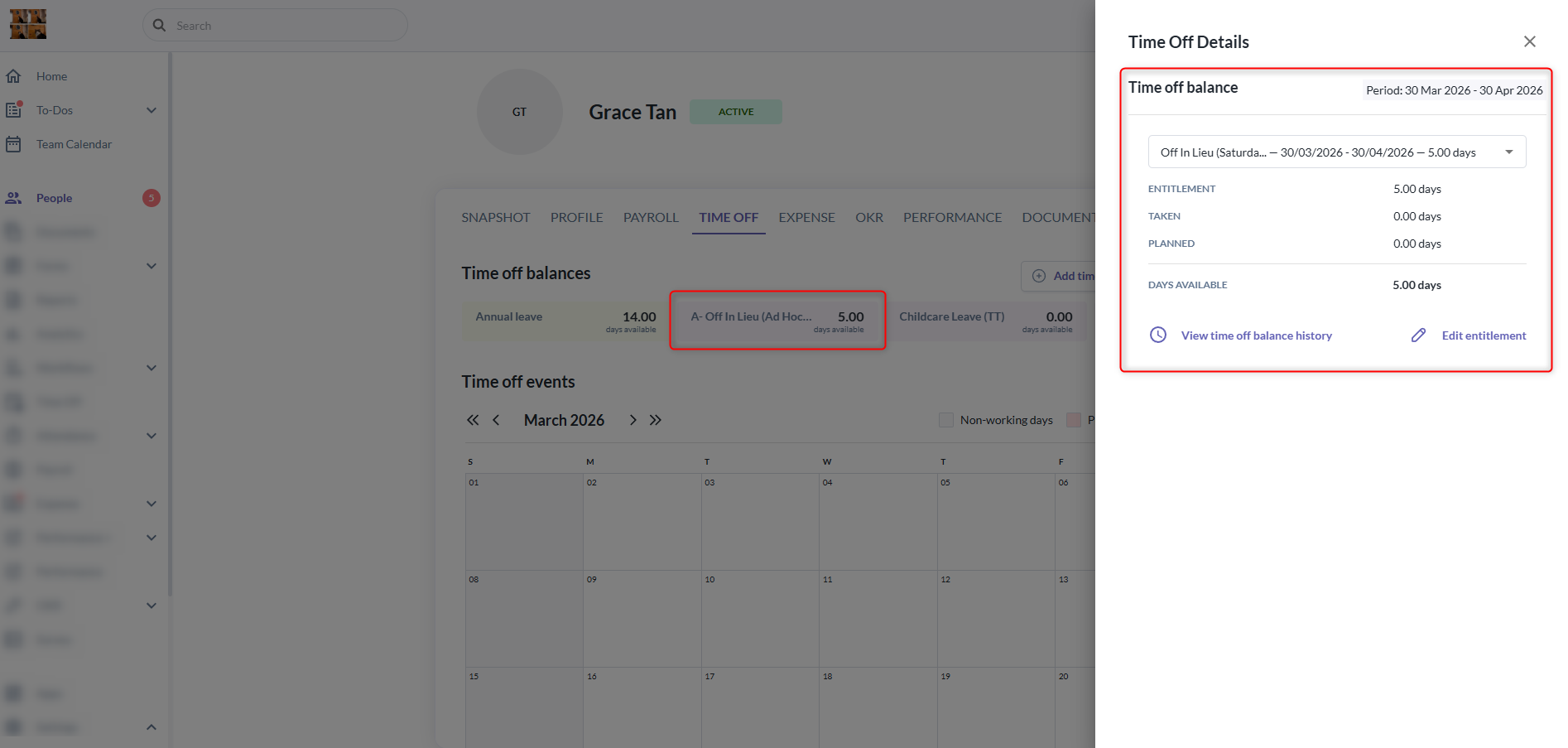
5. Once the time off entitlement is assigned, the time off card and balance will appear on the employee’s profile.
Assigning Ad Hoc Time Off from the Employee’s Profile
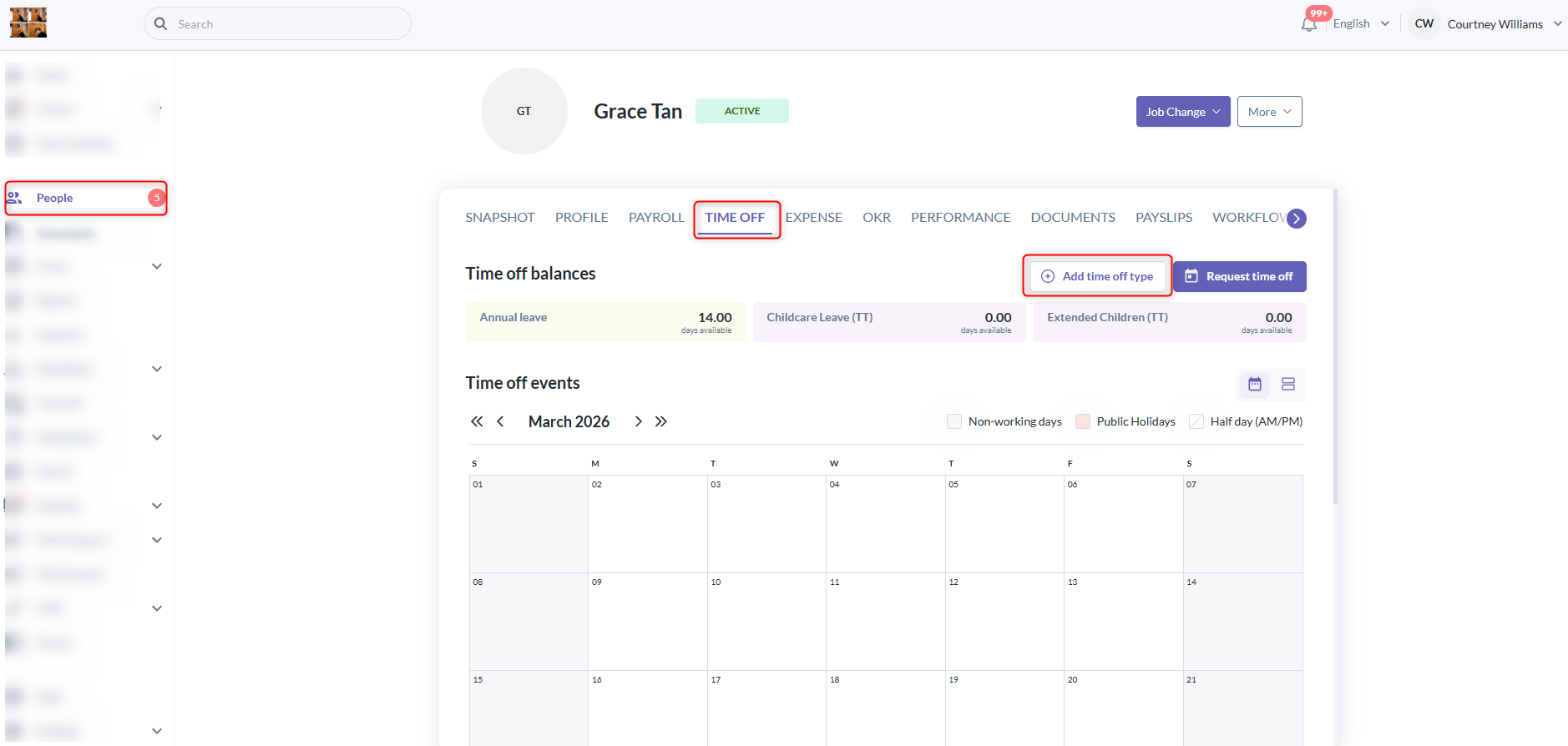
1. Ad Hoc Time Off can also be assigned directly from the employee’s profile. Go to the employee’s profile > Time Off tab > Add Time Off Type.
2. Select the ad hoc time off type that was created in Time Off Settings.
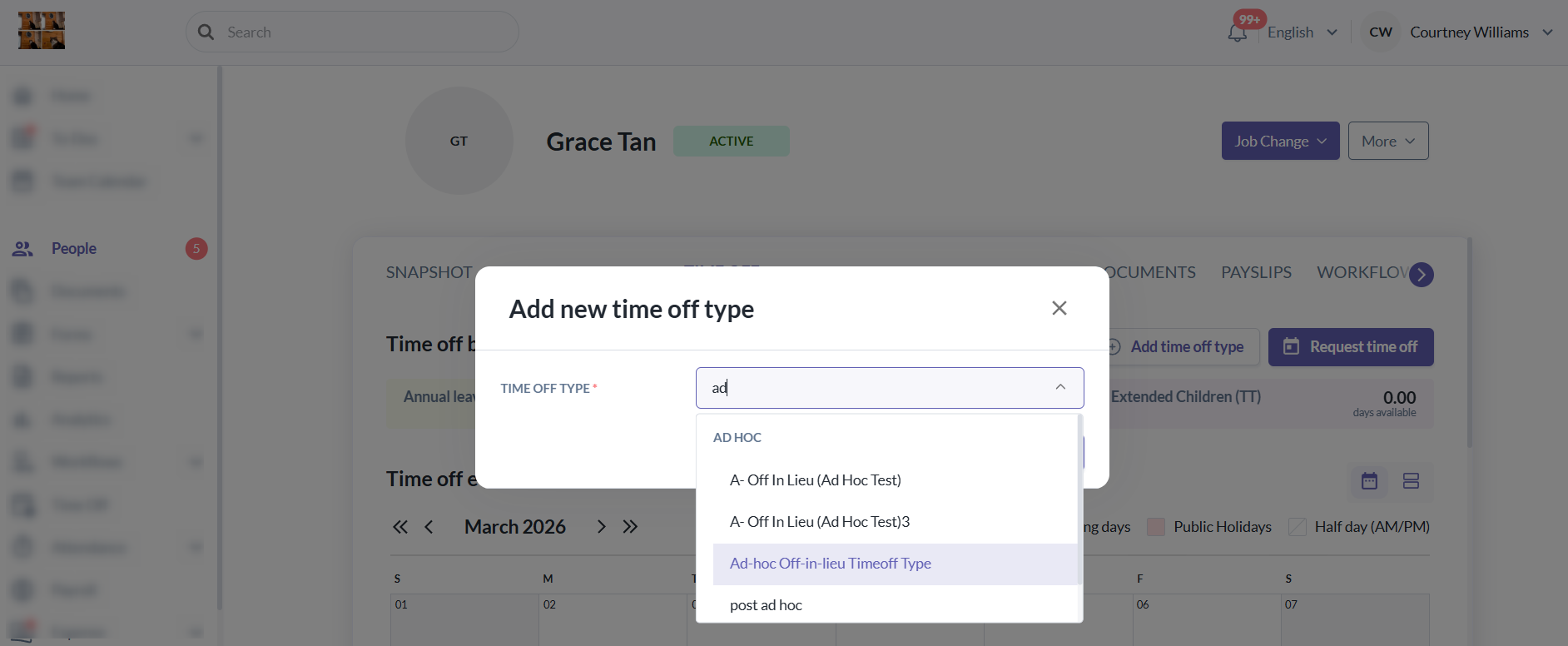
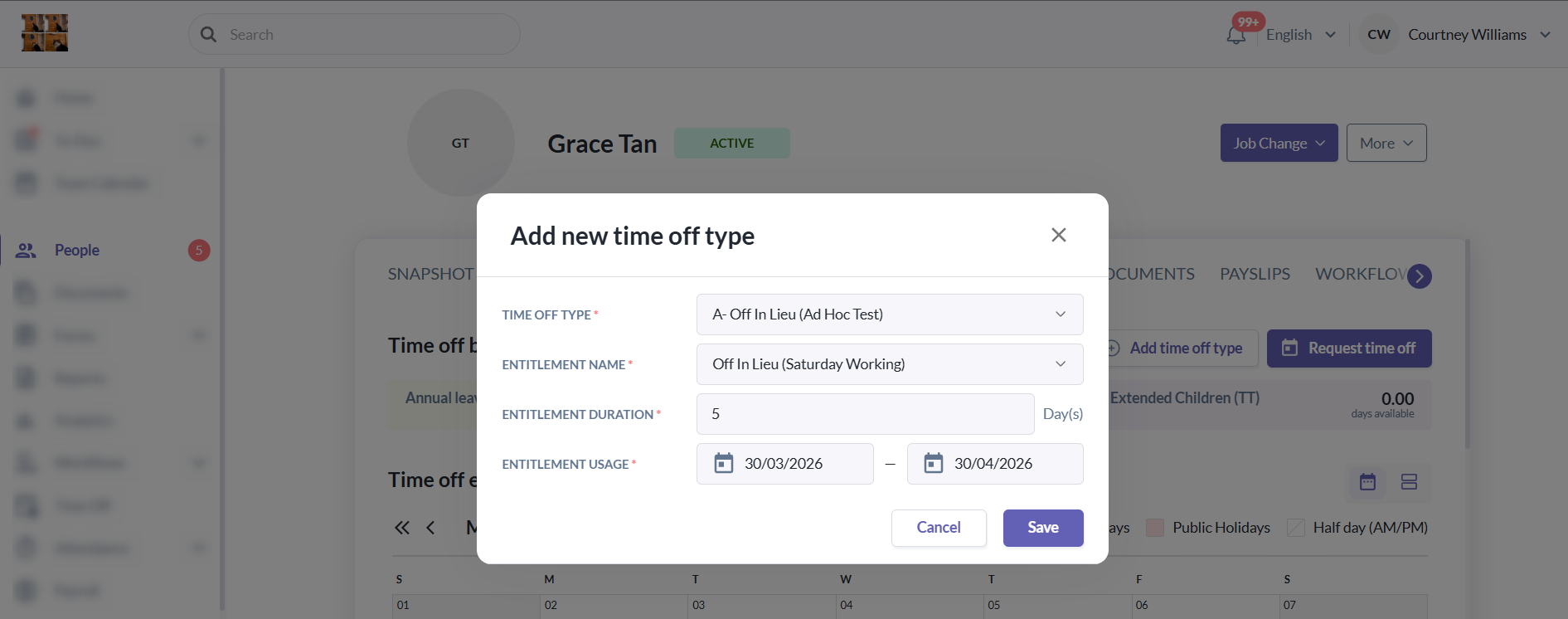
3. Choose the entitlement name, then enter the entitlement duration and entitlement usage period.
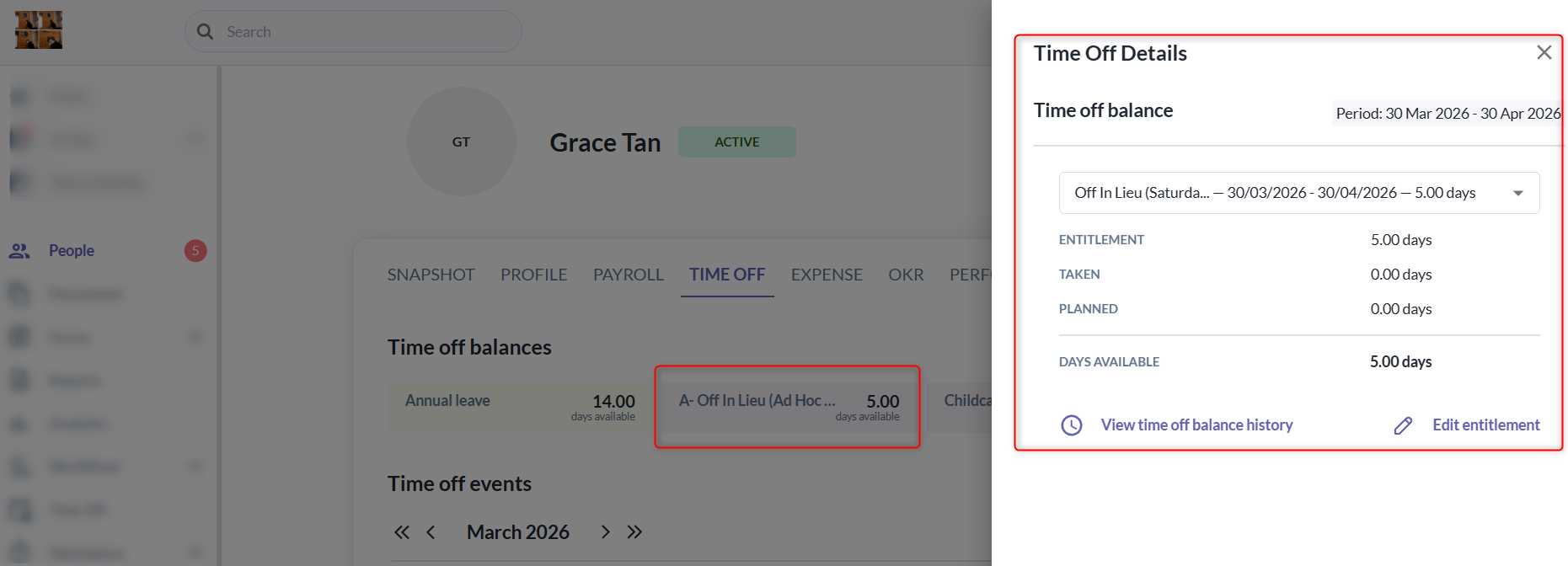
4. Once the time off entitlement is assigned, the time off card and balance will appear on the employee’s profile.
How to Adjust Entitlement & Usage Period
Admins can adjust or delete an Ad Hoc Time Off entitlement either from the Time Off Type settings or directly from the employee’s profile.
Adjust Entitlement, Usage Period, or Delete Entitlement from Time Off Type Settings
- Go to Time Off > Settings > Ad Hoc Time Off > Select the Ad Hoc time off type you want to adjust, then choose the entitlement to modify.
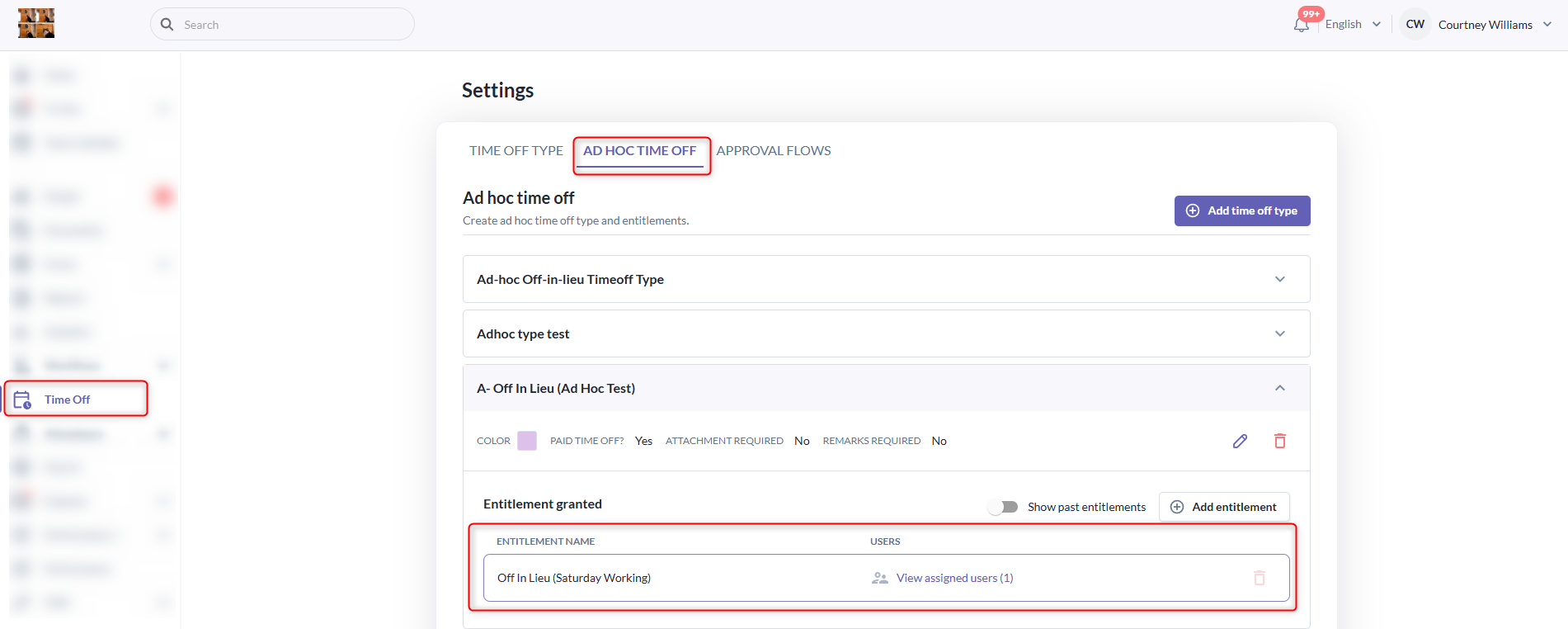
- Click the three-dot menu and select "Edit Entitlement".
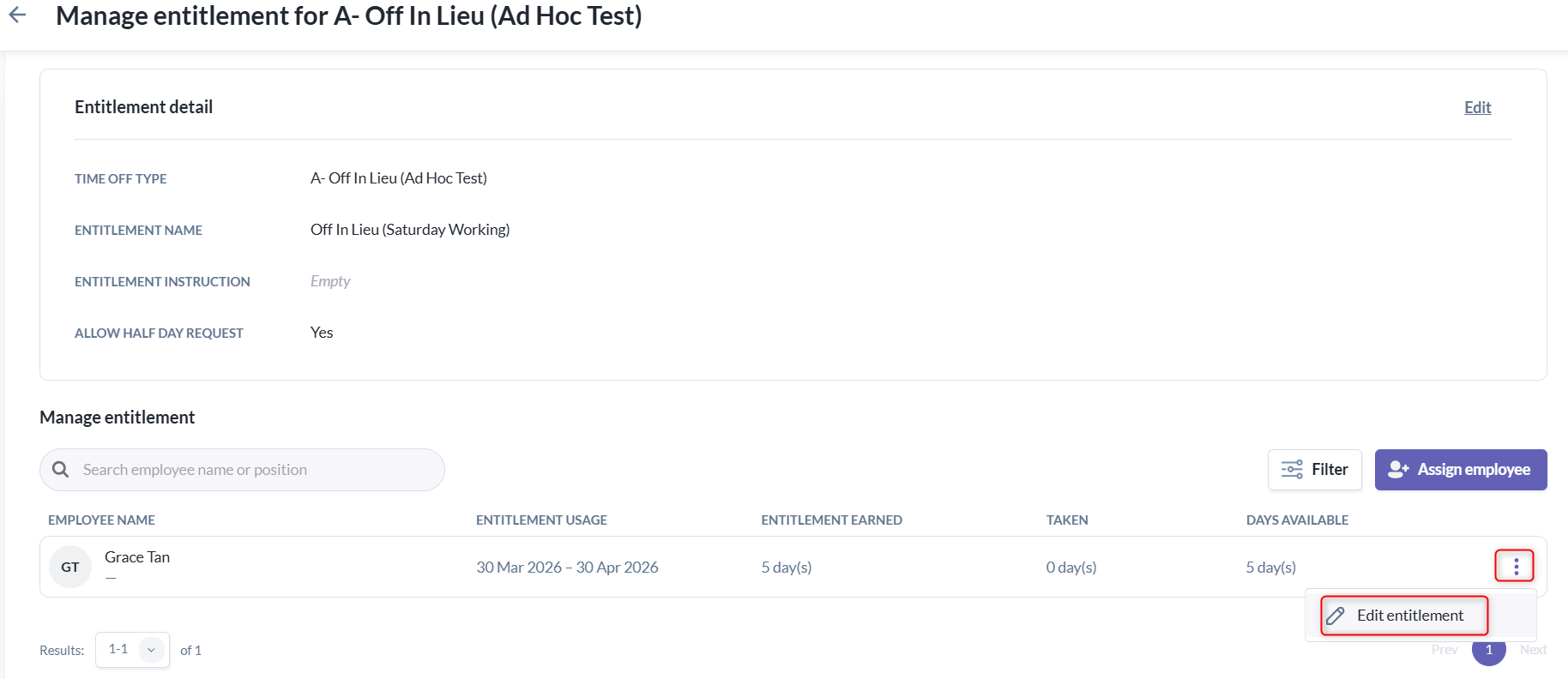
- Admins can then update the entitlement duration, adjust the usage period, or delete the entitlement.
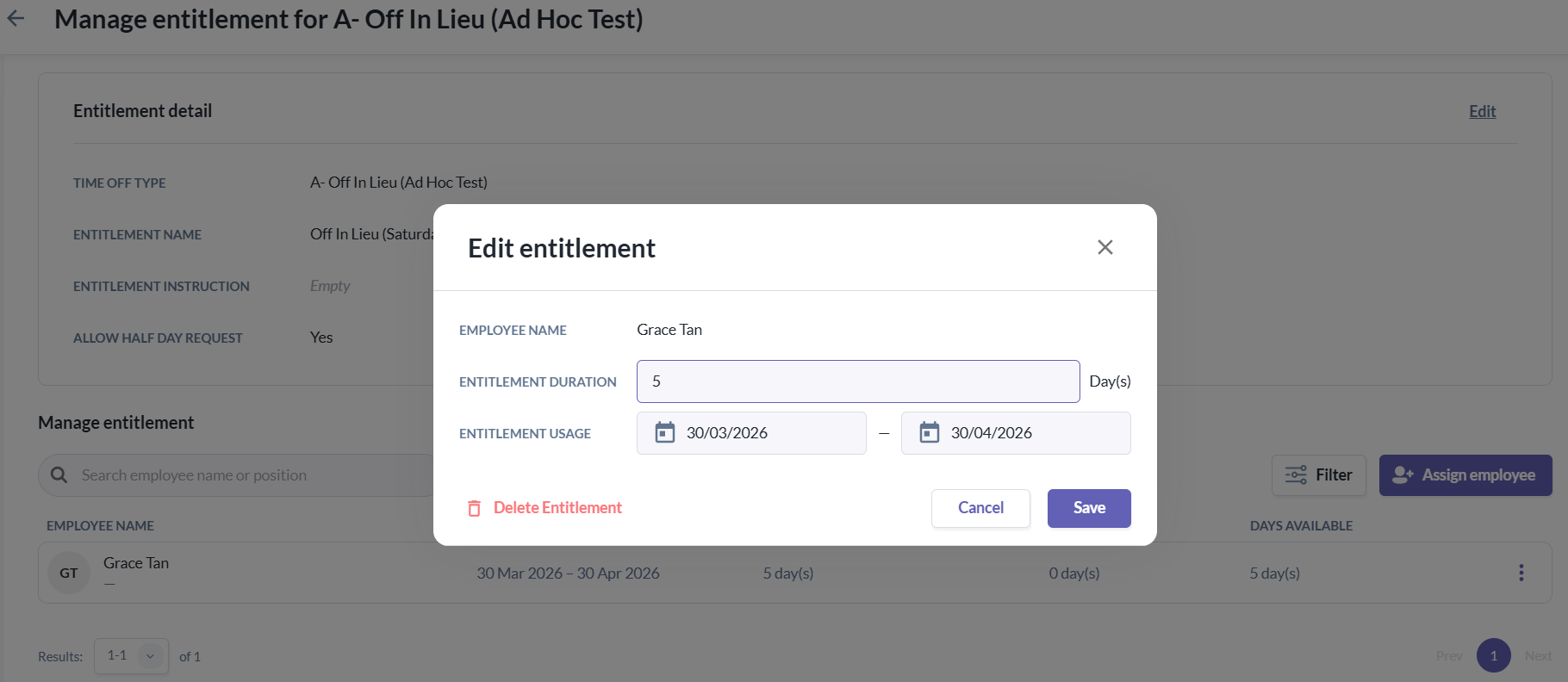
4. Once updated and saved, a message “Data has been saved successfully” will appear, indicating that the changes have been applied.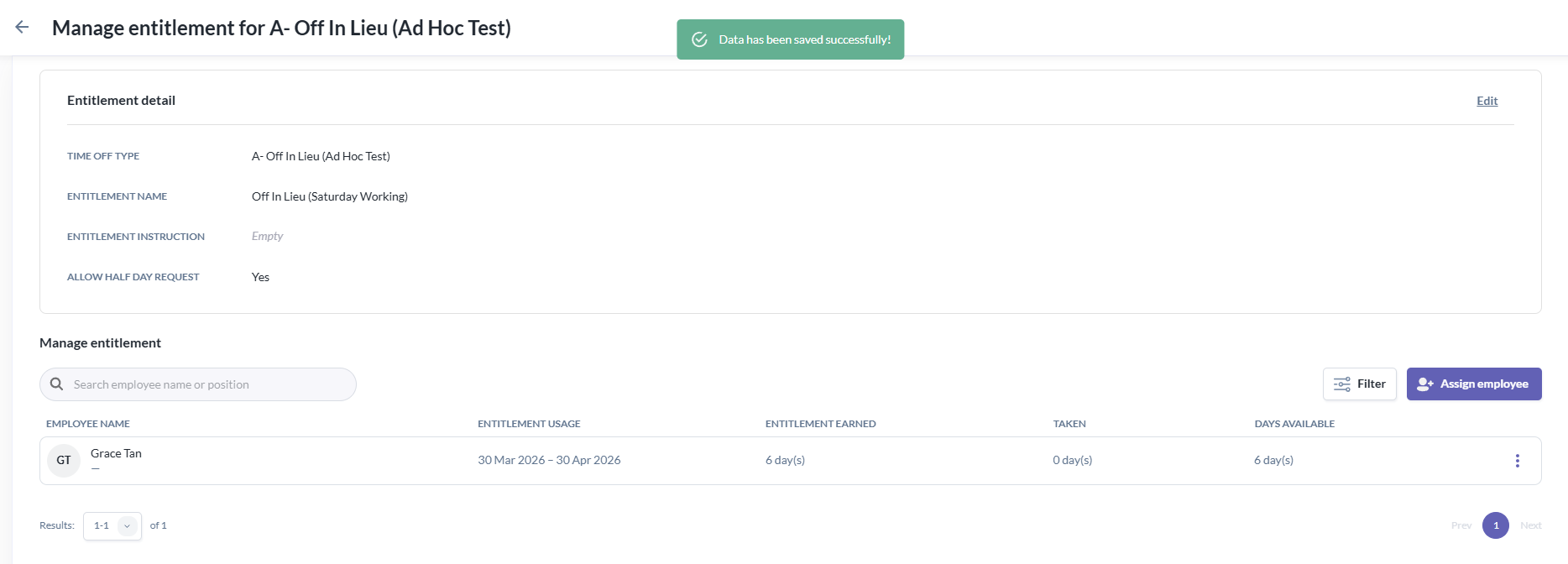
5. If you click "Delete Entitlement", a confirmation prompt will appear.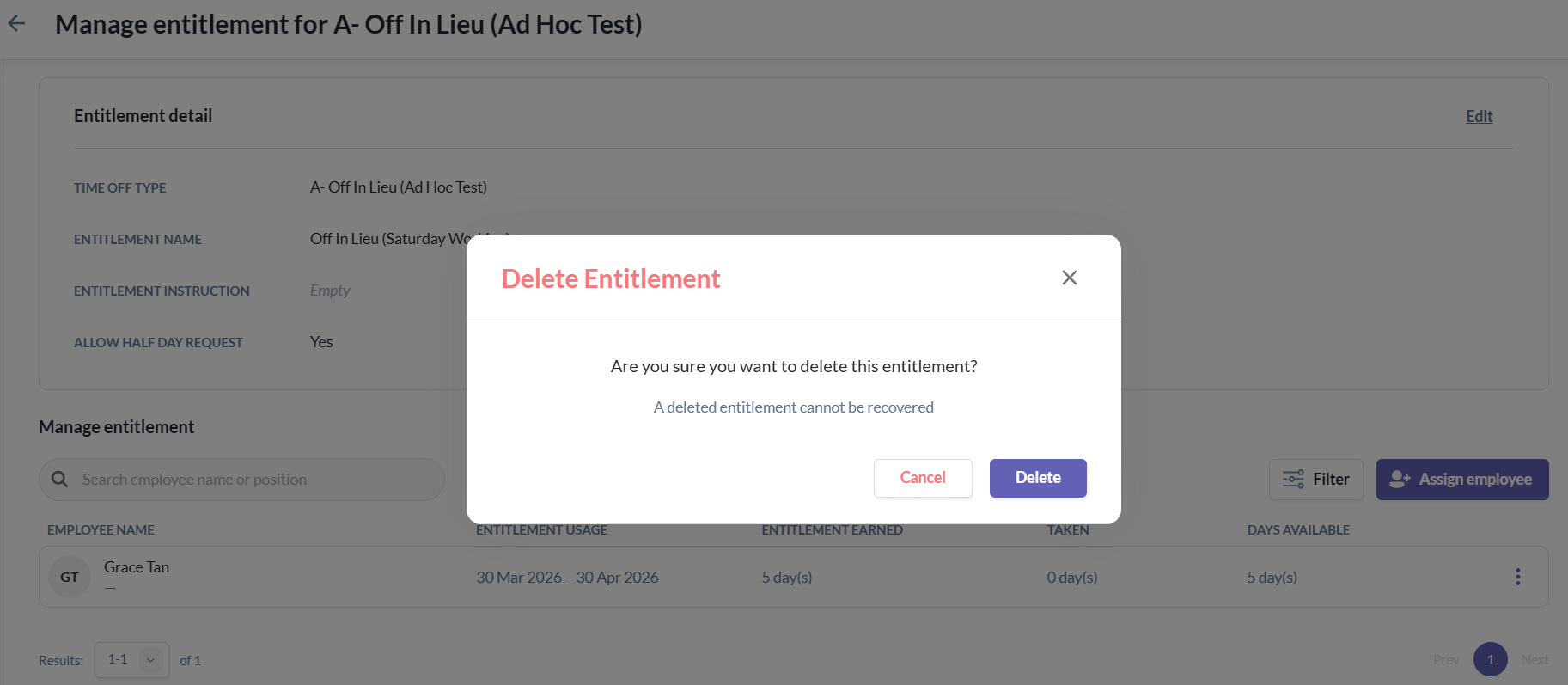
6. Once the entitlement is deleted, a message “Data has been deleted successfully” will be shown, indicating that the entitlement has been removed.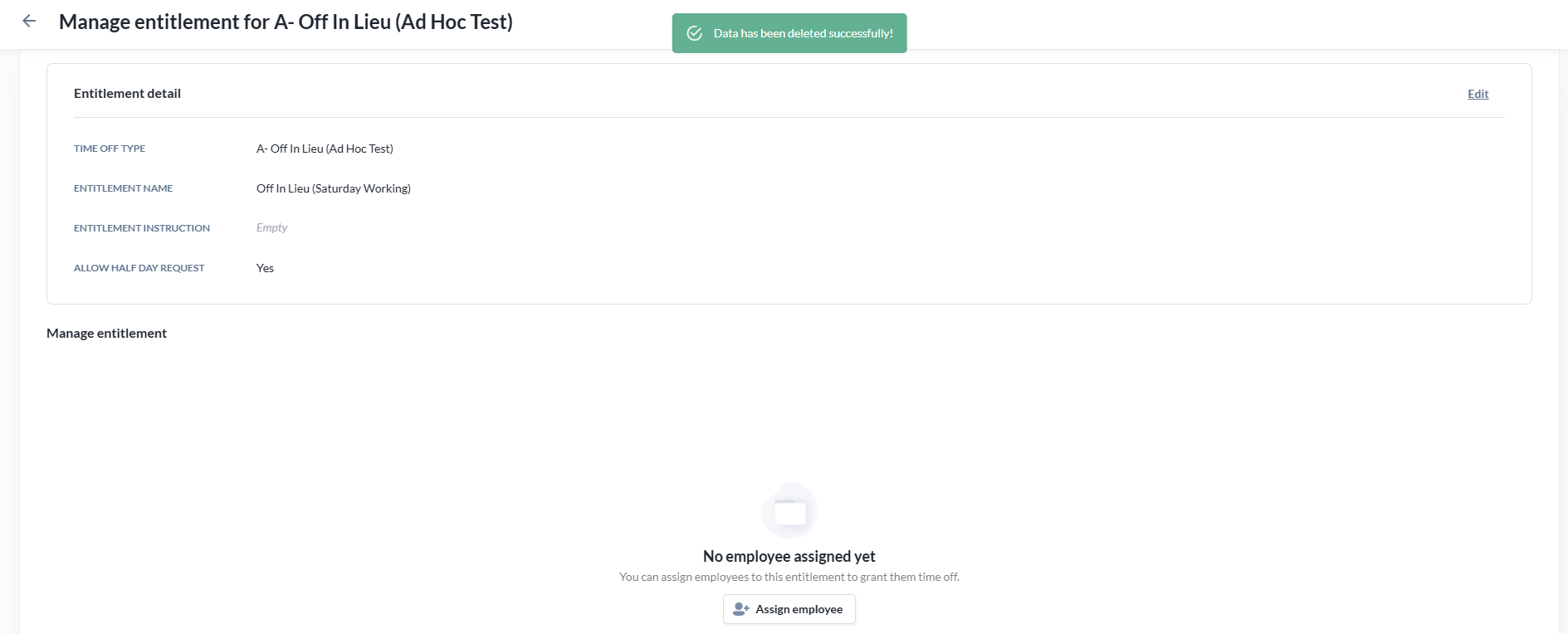
- Go to Time Off > Settings > Ad Hoc Time Off > Select the Ad Hoc time off type you want to adjust, then choose the entitlement to modify.
Adjust Entitlement, Usage Period, or Delete Entitlement from the Employee’s Profile
- Go to the employee’s profile > Time Off tab > Ad Hoc Time Off card.
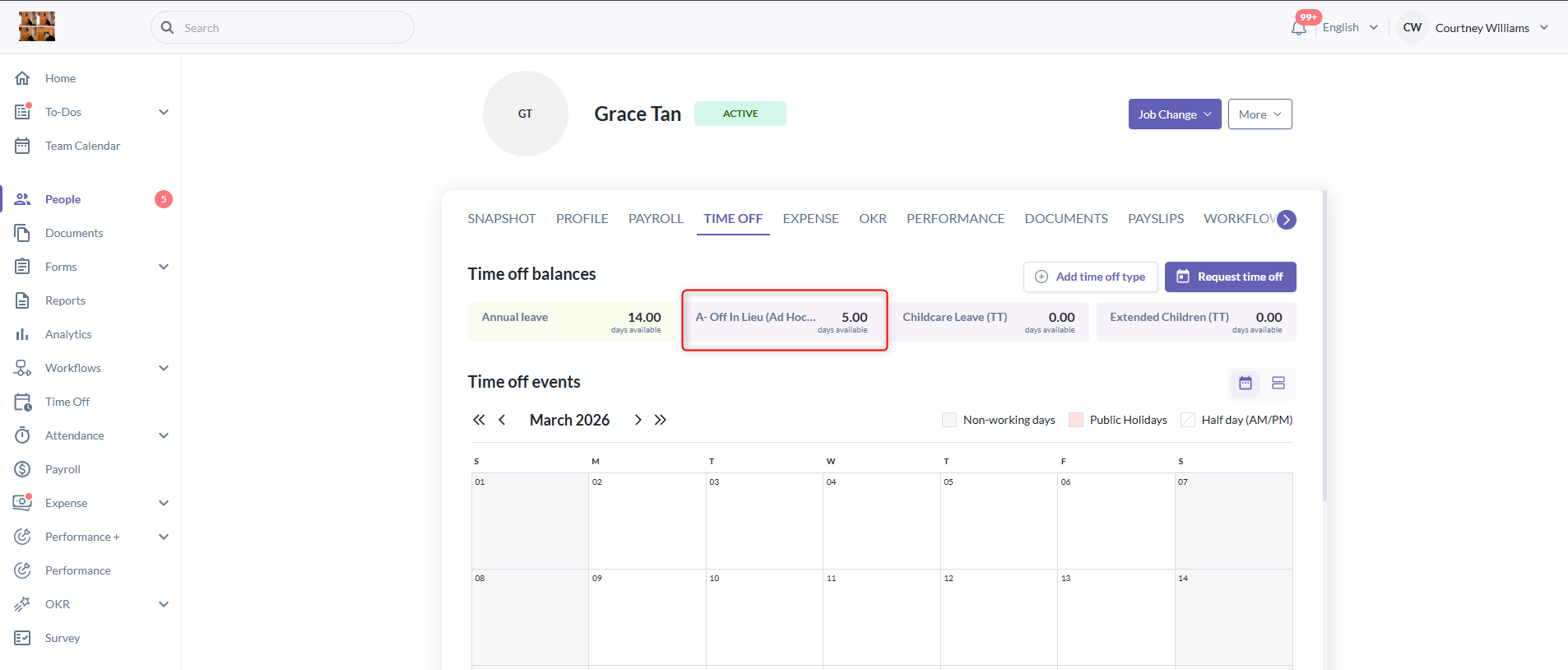
- In the time off details pop-up, click "Edit Entitlement".
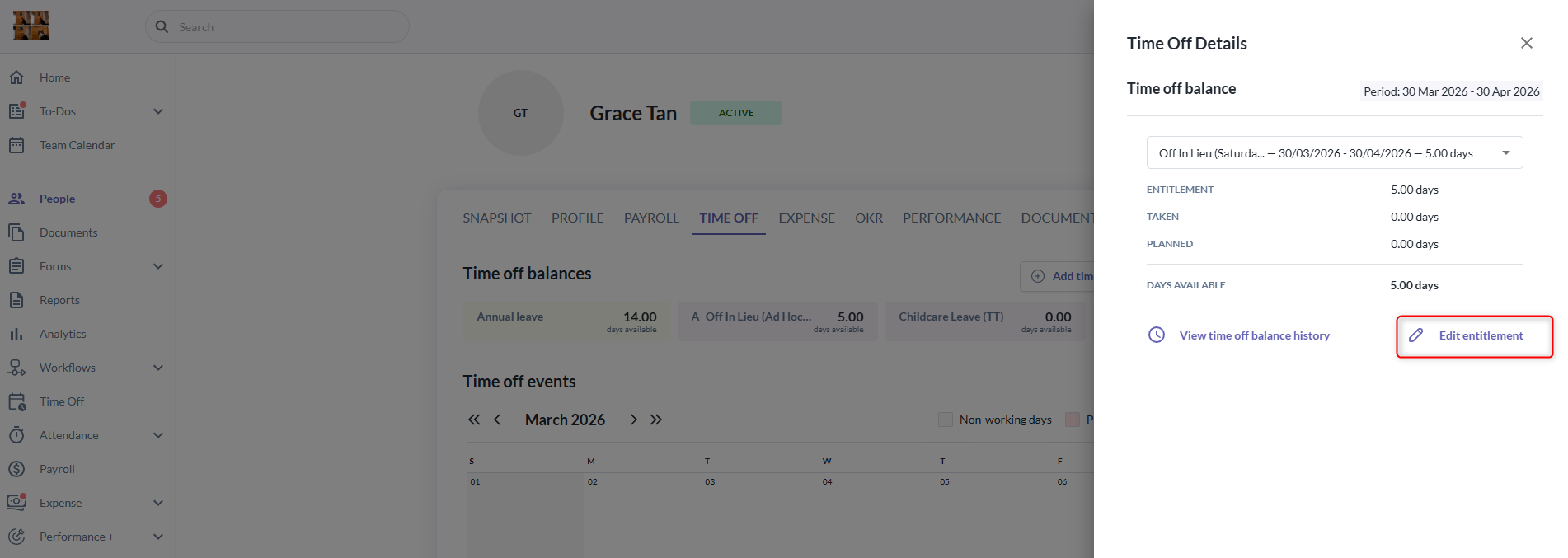
- Admins can then update the entitlement duration, adjust the usage period, or delete the entitlement.
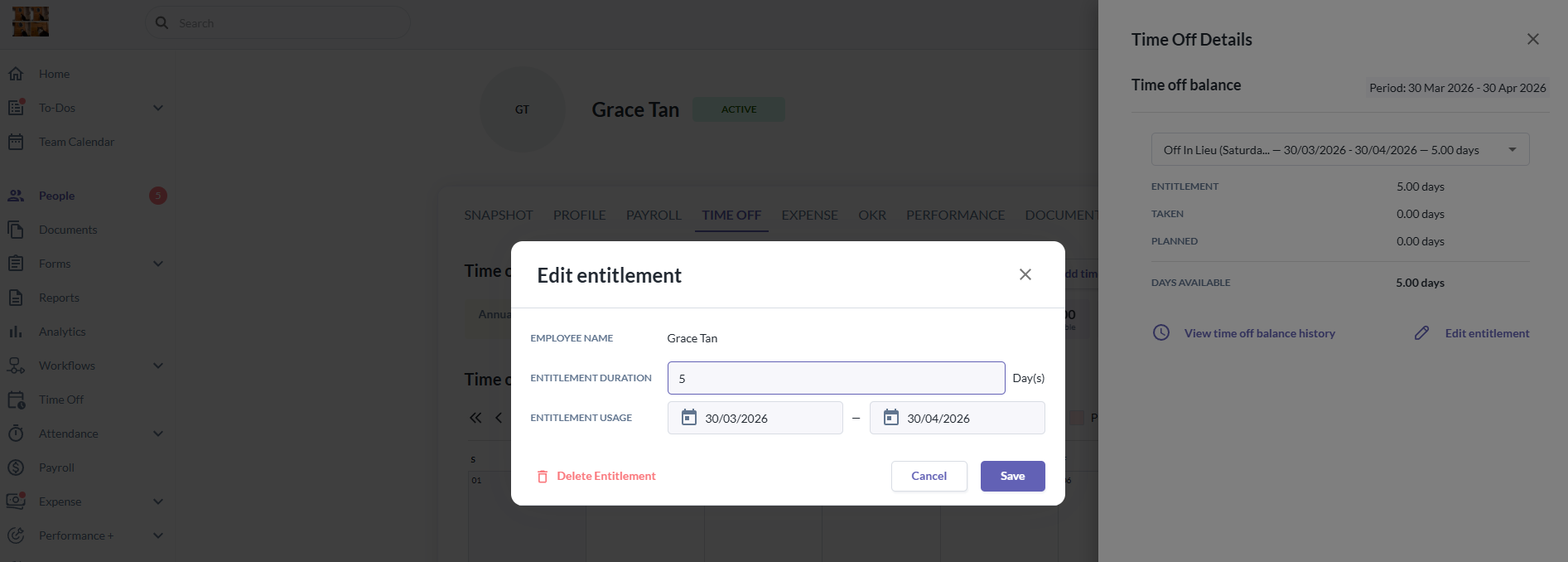
- Go to the employee’s profile > Time Off tab > Ad Hoc Time Off card.
Important Notes on Ad Hoc Time Off
Current Changes and Future enhancements
- This new ad hoc time off type will not support the below functions for the time being, however, this would be improvements that we will work on gradually - we will be sure to keep you informed when these are released:
- Bulk policy assignment via the new-import function (Only for custom time off type)
- Time off reports: Balance & Transactions
- Reminders
- Ad Hoc approval criteria
Still Need Help?:
Reach out to our support team should you need further assistance.
Was this article helpful?
That’s Great!
Thank you for your feedback
Sorry! We couldn't be helpful
Thank you for your feedback
Feedback sent
We appreciate your effort and will try to fix the article