Overview:
In Singapore (SG), employees with dependents are eligible to statutory leave policies such as maternity, paternity, childcare, and extended childcare leave.
In line with this, we have introduced preset time off types that adhere to the statutory requirements, which will allow admins to effectively manage dependent based leave entitlement. Admins will no longer be required to manually track newly added dependents, monitor dependent age progression and adjust leave entitlements accordingly.
TABLE OF CONTENTS
- What's New?
- SG Statutory Leave Types Entitlement Overview
- How to create & assign a preset time off policy (Step-by-Step Guide)
- How to edit the individual entitlement for a particular usage period?
- Important Notes on Preset Leave
What's New?
- New Preset leave types: Childcare leave, Extended Childcare Leave, Paternity, Maternity Leave (statutory leaves with predefined rules according to the law)
- Usage period governance: Custom Period vs Based on child birth date
- System granted entitlement when users add new dependents information
SG Statutory Leave Types Entitlement Overview
| Leave type | Default entitlement | Eligibility | Renewal |
|---|---|---|---|
| Childcare (CCL) | 6 days/year (Citizen) 2 days/year (Non-Citizen) | Youngest child < 7 | Auto — each year |
| Ext. Childcare (ECCL) | 2 days/year (Citizen only) | Youngest child aged 7–12 | Auto — each year |
| Paternity | 4 weeks (Citizen) | Child DOB + male employee | One-time per birth |
| Maternity | 16 weeks (Citizen) 12 weeks (Non-Citizen) | Child DOB + female employee | One-time per birth |
How to create & assign a preset time off policy (Step-by-Step Guide)
A. Create a preset time off type i.e. CCL
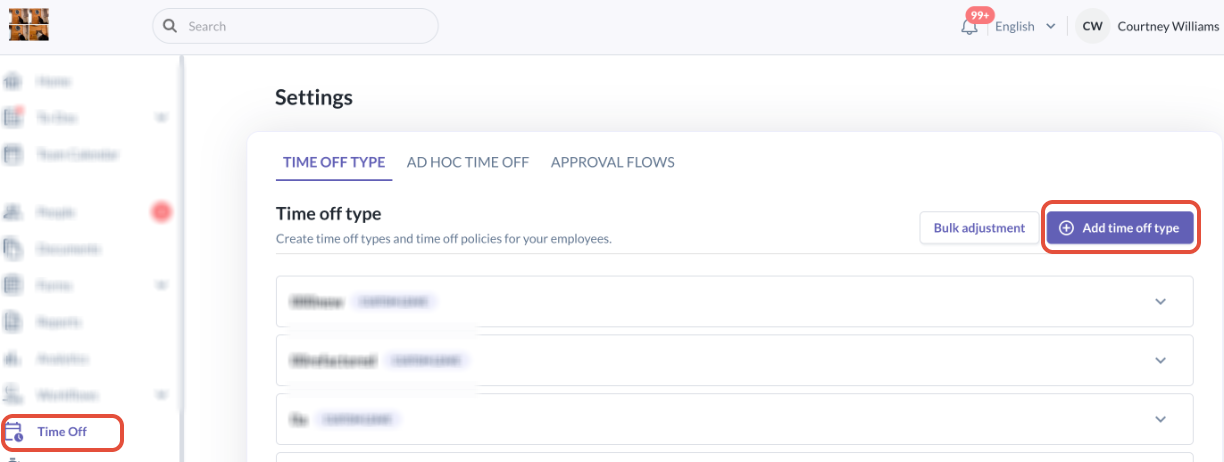
1. Go to Time off > Add Time Off Type
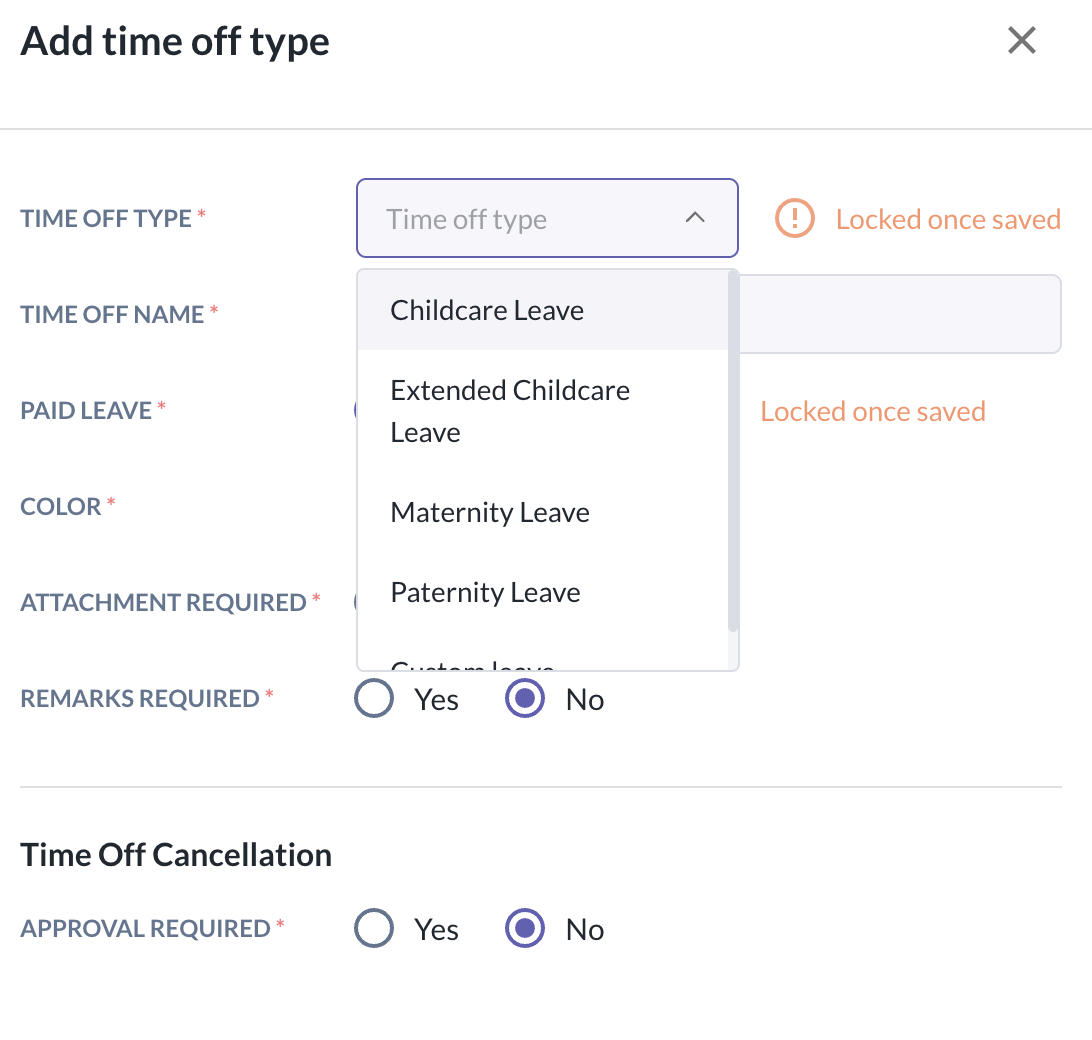
2. Click into Time Off Type and see the below time off type options available:
- Childcare leave (CCL)
- Extended Childcare Leave (ECCL)
- Paternity Leave
- Maternity Leave
- Custom Leave (i.e. Annual Leave, Sick Leave, etc)
Select the Time Off Type you wish to create i.e. Childcare leave (CCL)
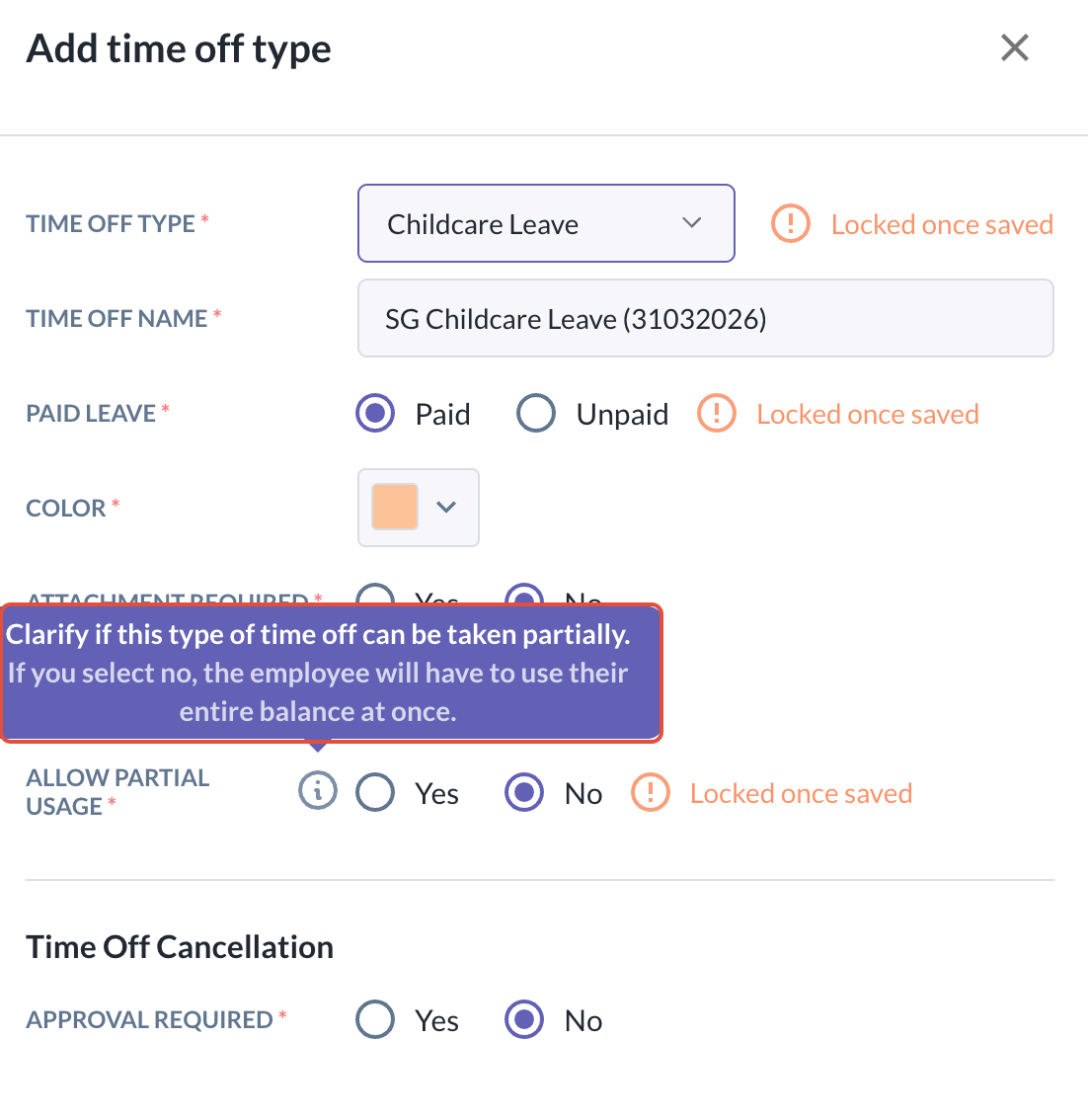
3. Fill in the other settings for the leave type; Name, Paid/Unpaid, Color, Attachment Required, Remarks Required. You can also enable a time off cancellation approval flow if required.
- For Allow Partial Usage - you can set whether you want to allow partial usage of the leave. If set to No, employees will have to use their entire balance at once.
4. Click Save once settings are completed.
B. Create a time off policy within created time off type i.e. CCL
1. Upon creation, you can add a new CCL policy by clicking on Add Time Off policy within the created time off type
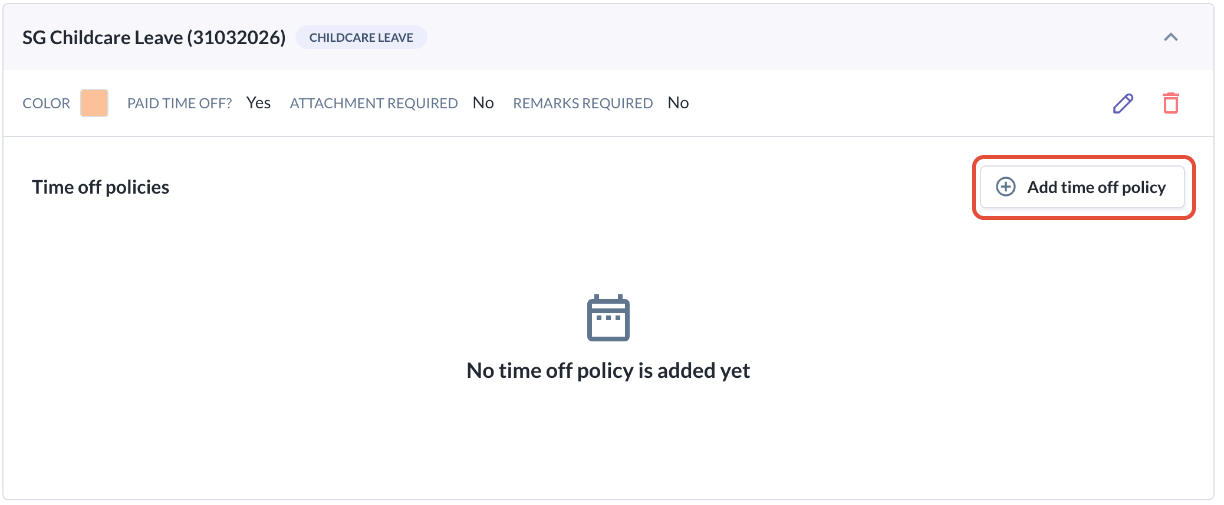
2. You will be brought to the below view to configure:
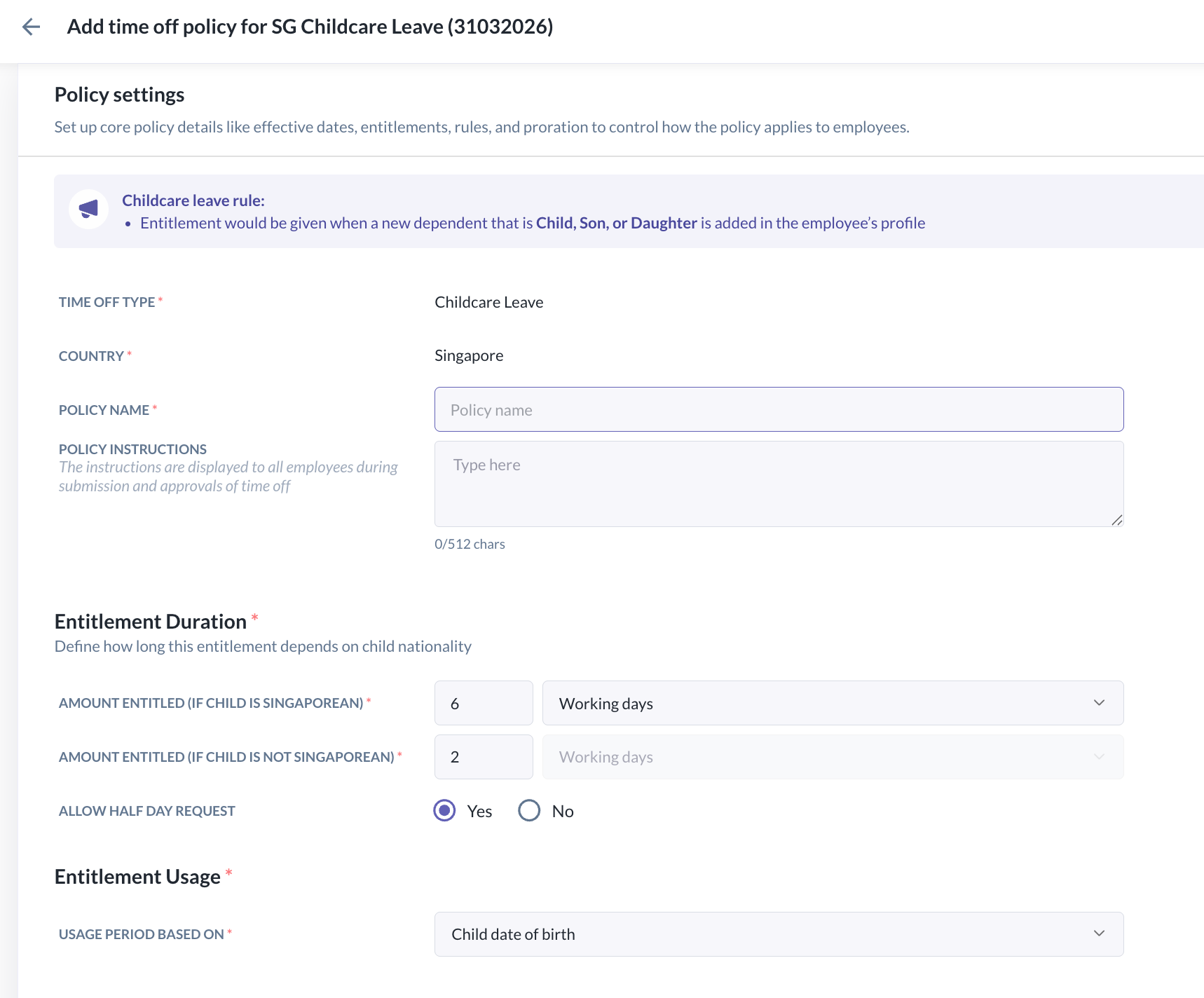
- Policy Name
- Policy Instructions
- Entitlement Duration
- By default it will display according to the statutory requirements of leave type, however, you are still able to edit this as per your organisation policy i.e. change working days to weeks or calendar days
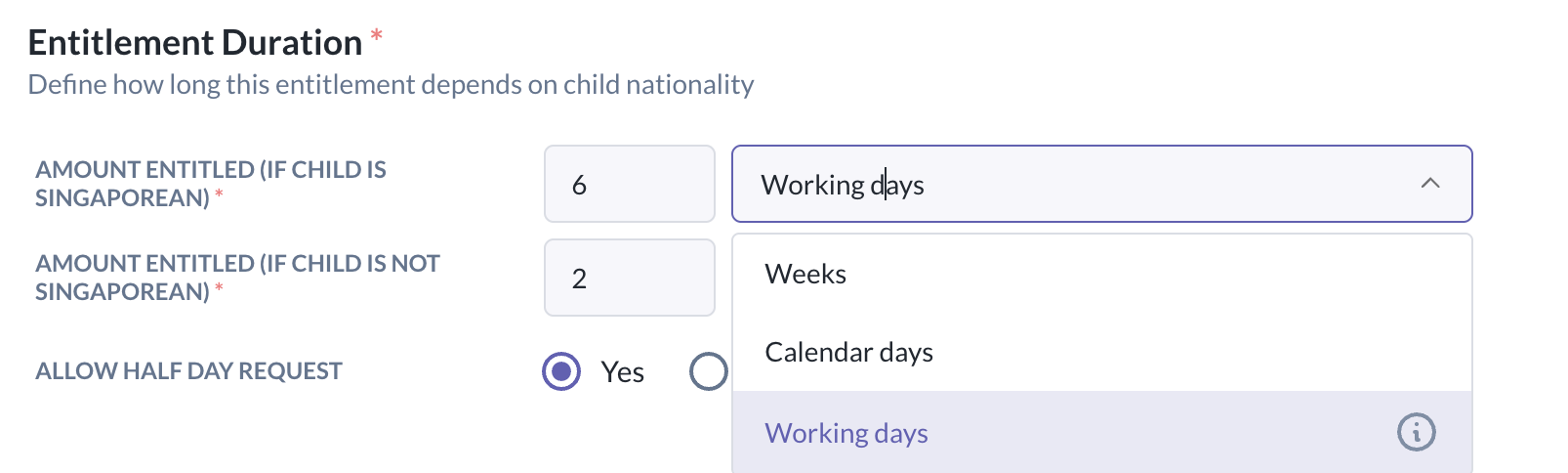
- You can also configure to allow half day request here
- By default it will display according to the statutory requirements of leave type, however, you are still able to edit this as per your organisation policy i.e. change working days to weeks or calendar days
- Entitlement Usage
- For Childcare & Extended childcare: User can choose based on Child date of birth or custom period
- For Maternity & Paternity: User can choose based on the earliest or latest from birth date
i.e. For CCL: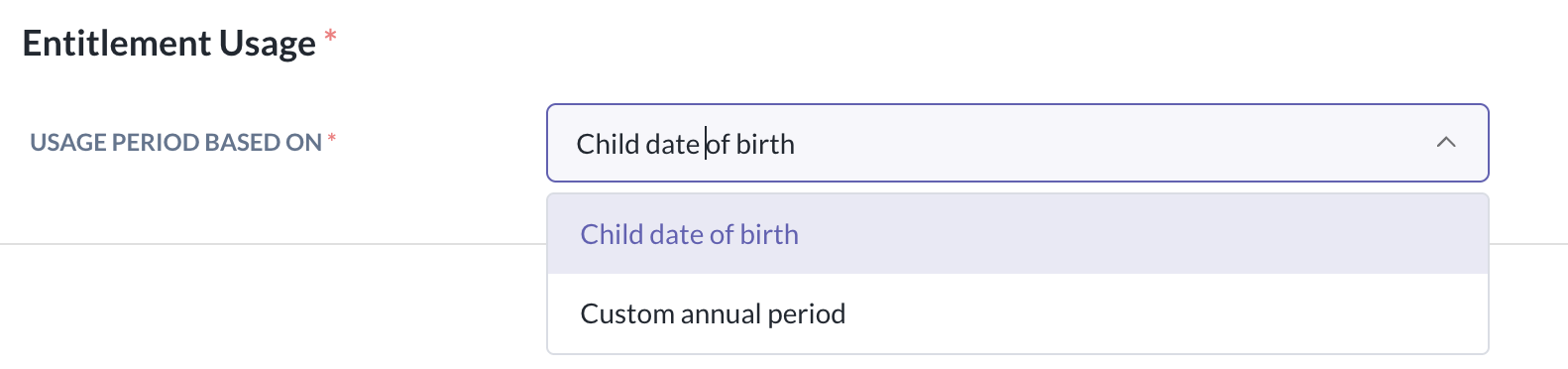

3. Click Save once settings are completed
C. Assign the CCL policy to an employee
Thing to note:
It is important that the policy assignment is done first BEFORE any dependent data is updated for an employee for the automated entitlement to be granted.
1. To assign the CCL policy created: Go to the employee's profile > Time Off > Add time off type
2. In the modal below, choose the time off type, policy and set an effective date this policy is to come into effect
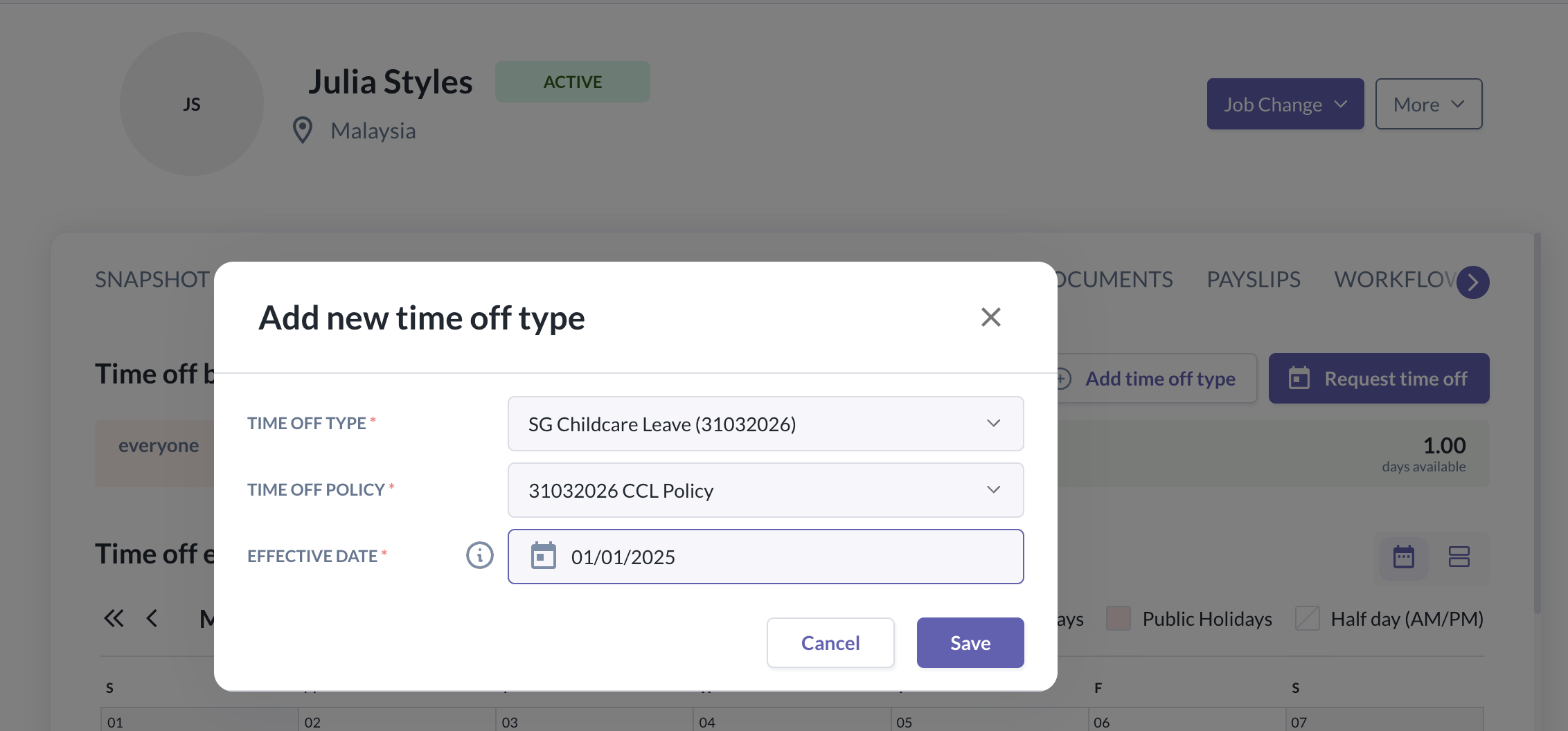
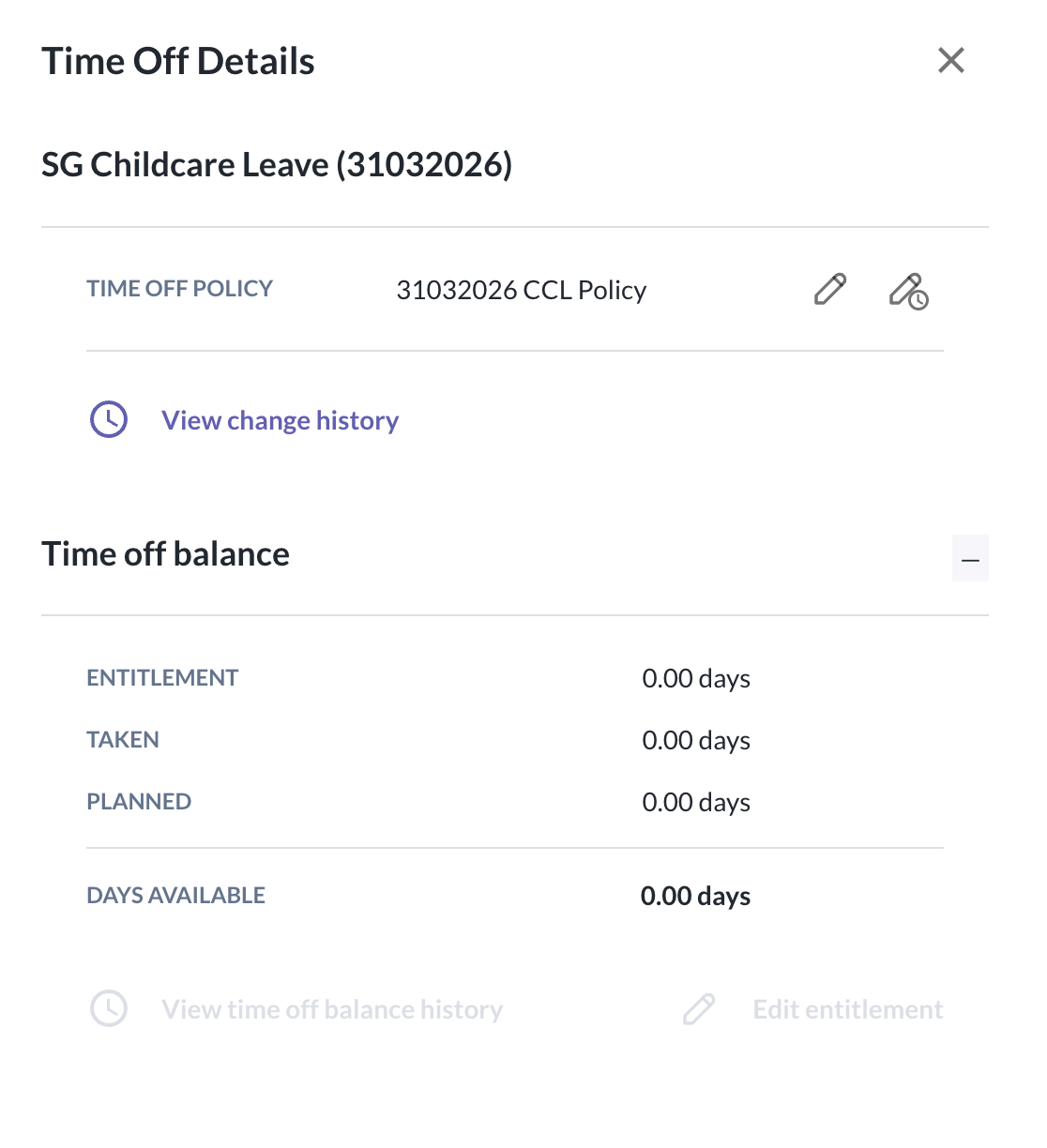
3. Upon assignment, this is how the time off policy card will look like when there are no dependents added yet to the employee's profile:
D. Entitlement granting for employee upon adding of dependent data
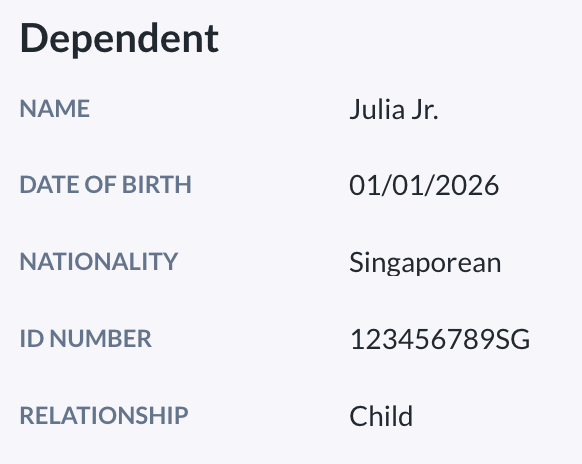
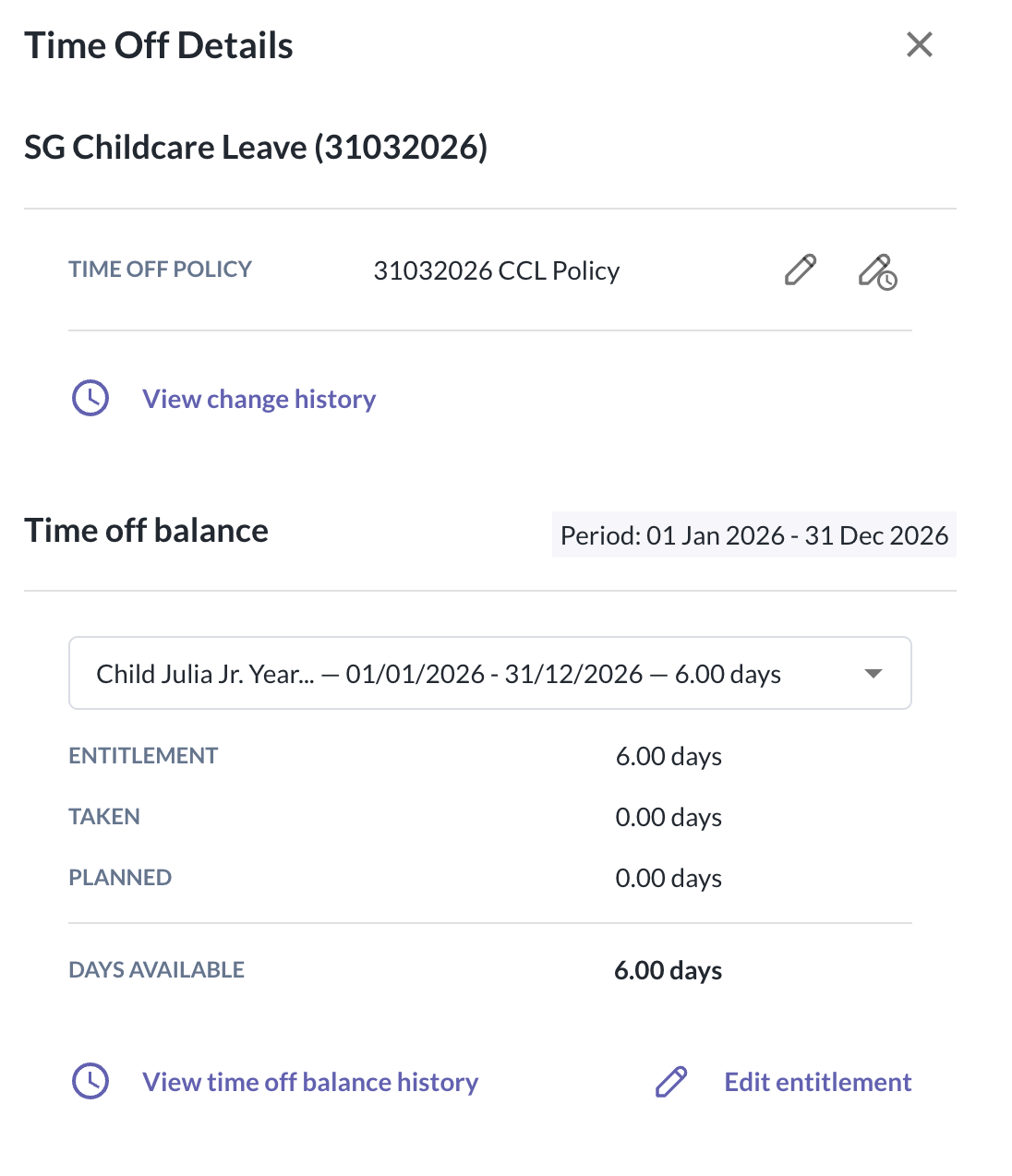
1. Once the employee or admin adds dependent data after policy has been assigned, both employee and admin will see that there will be time off balances entitled to the employees.
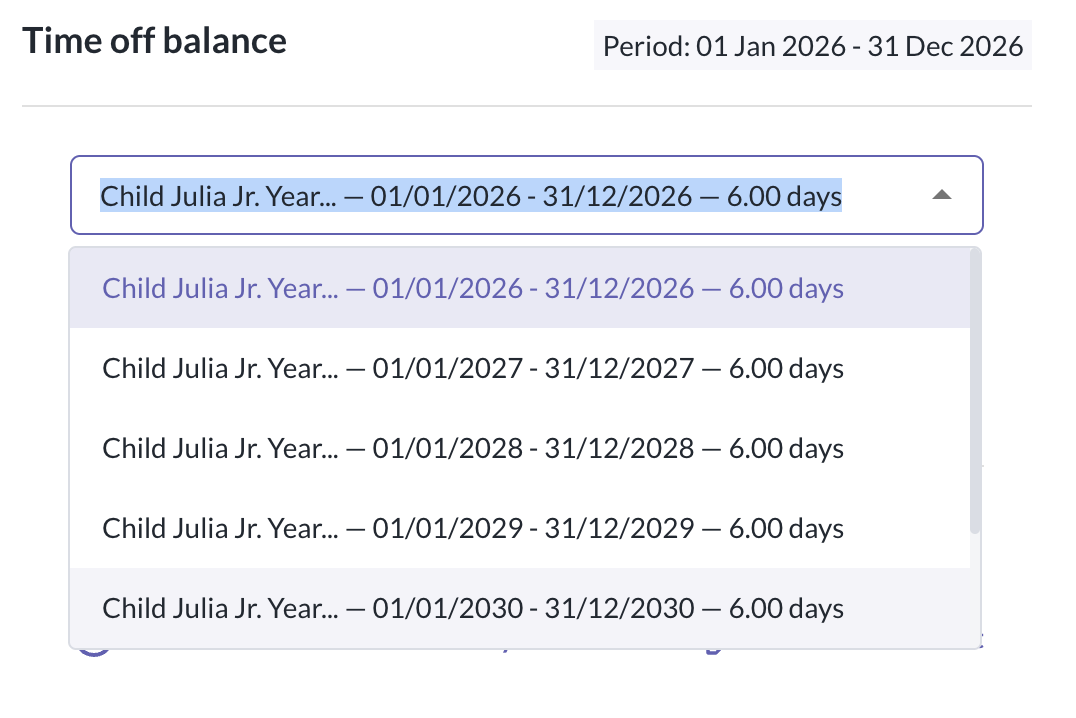
2. For a multi-year entitlement (i.e. childcare), admin will be able to see the upcoming years entitlement and its usage period right away.
How to edit the individual entitlement for a particular usage period?
If for any reason you require to edit the entitlements for an individual employee, you can do it directly from their time off policy card:
1. Go to the employee profile > time off tab > time off policy
2. Click on Edit Entitlement
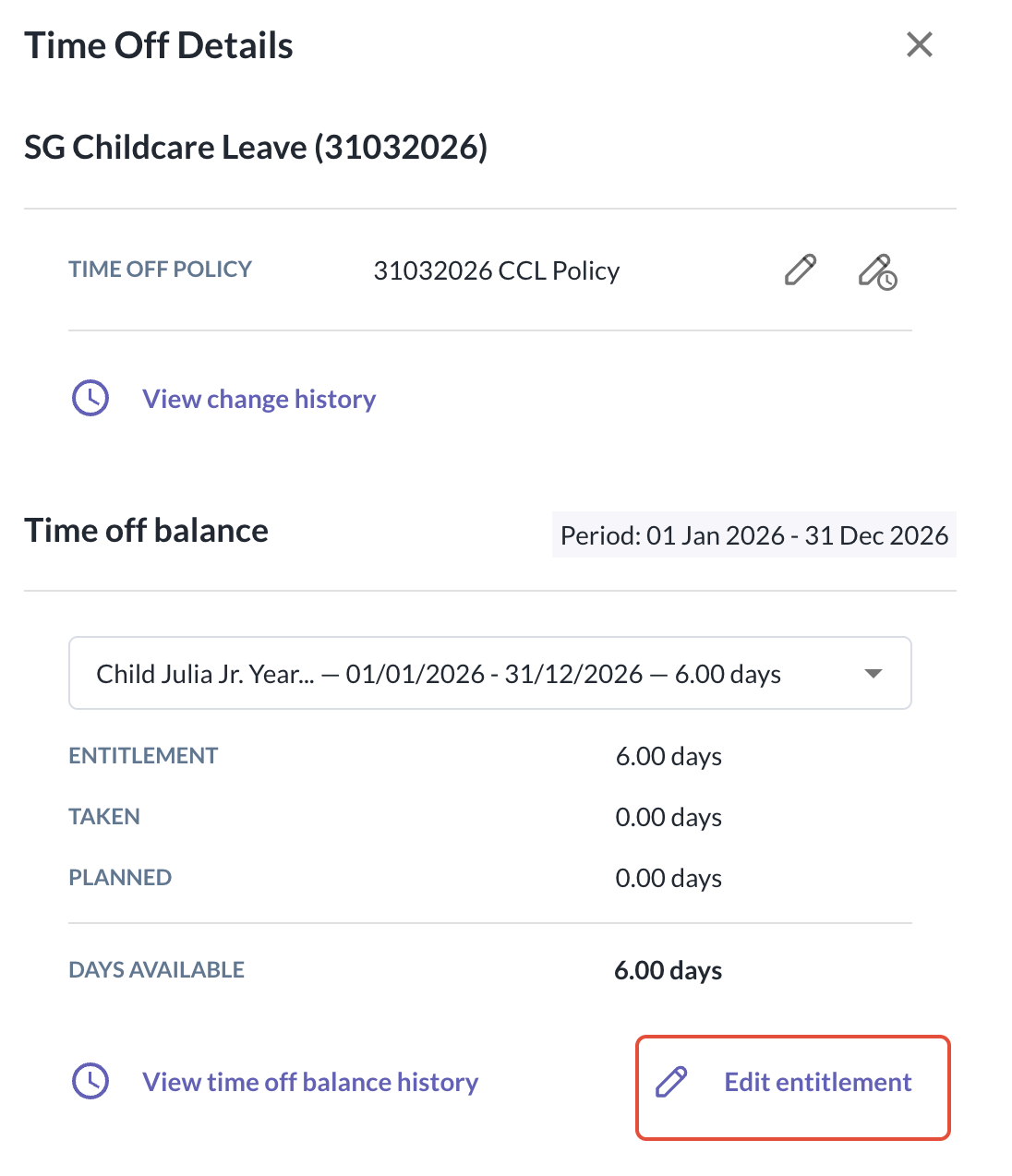
3. You may then edit the entitlement duration, the entitlement usage period or even delete an entitlement usage period if required
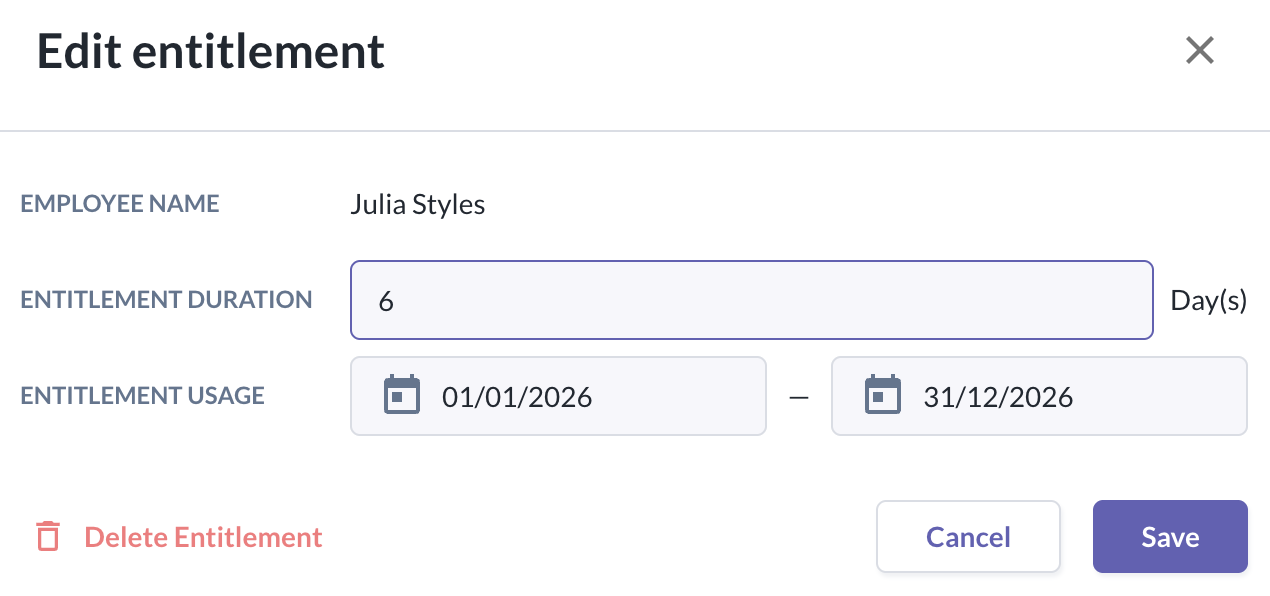
Important Notes on Preset Leave
1. Current changes and future enhancements
- This new preset leave type will not support the below functions for the time being, however, this would be improvements that we will work on gradually - we will be sure to keep you informed when these are released:
- Bulk policy assignment via the new-import function (Only for custom time off type)
- Time off reports: Balance & Transactions
- Reminders
- Childcare leave entitlement start date rule (next-year start not supported)
- Paternity leave to check marriage status
2. Automated granting of entitlements logic
- Automated granting of entitlements for the preset leave will only be triggered if the dependent information is updated AFTER the policy is assigned.
- Thus, if there are any dependent information added before policy assignment, there will be a need to re-upload the dependent information for the selected employees after assigning the preset leave policies.
Still Need Help?:
Reach out to our support team should you need further assistance.
Was this article helpful?
That’s Great!
Thank you for your feedback
Sorry! We couldn't be helpful
Thank you for your feedback
Feedback sent
We appreciate your effort and will try to fix the article