Overview:
We’ve introduced certain improvements to how attendance, rounding, grace periods, and overtime are calculated. These updates give admins greater control while ensuring more accurate and compliant payroll outcomes.
Previously, overtime was calculated purely based on timing deviation, not actual work duration.
This meant:
- Overtime could be triggered even when total hours worked did not exceed scheduled hours.
- Employees could appear to earn overtime without actually working additional time.
Now, admins can choose how to track overtime based on work schedules or a defined number of hours.
Prerequisite:
Before you can do this, please ensure you have the permission "Configure work schedule and holiday calendar" under Settings > Access Control > Your Role > Settings
This permission will allow you to setup or update existing work schedules with the time tracking policy you require
TABLE OF CONTENTS
- How to set up an overtime policy for a work schedule?
- What does each overtime (OT) policy mean and how is is tracked?
How to set up an overtime policy for a work schedule?
Step 1: Add a new work schedule or edit an existing work schedule
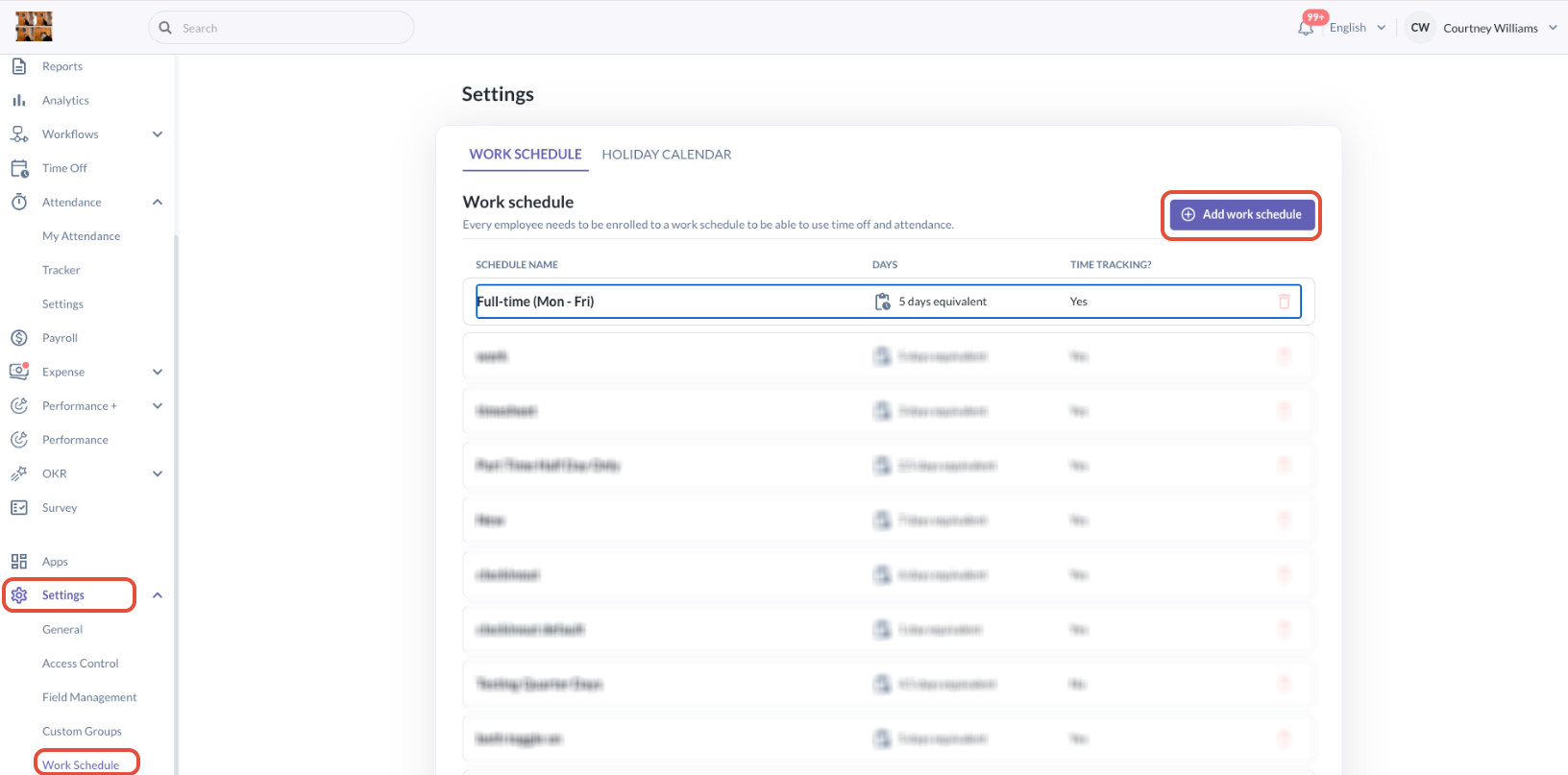
- Go to Settings > Work Schedule > Add Work Schedule or Edit an existing Work Schedule i.e. Full-time (Mon - Fri)
Step 2: Setup or Update the work schedule
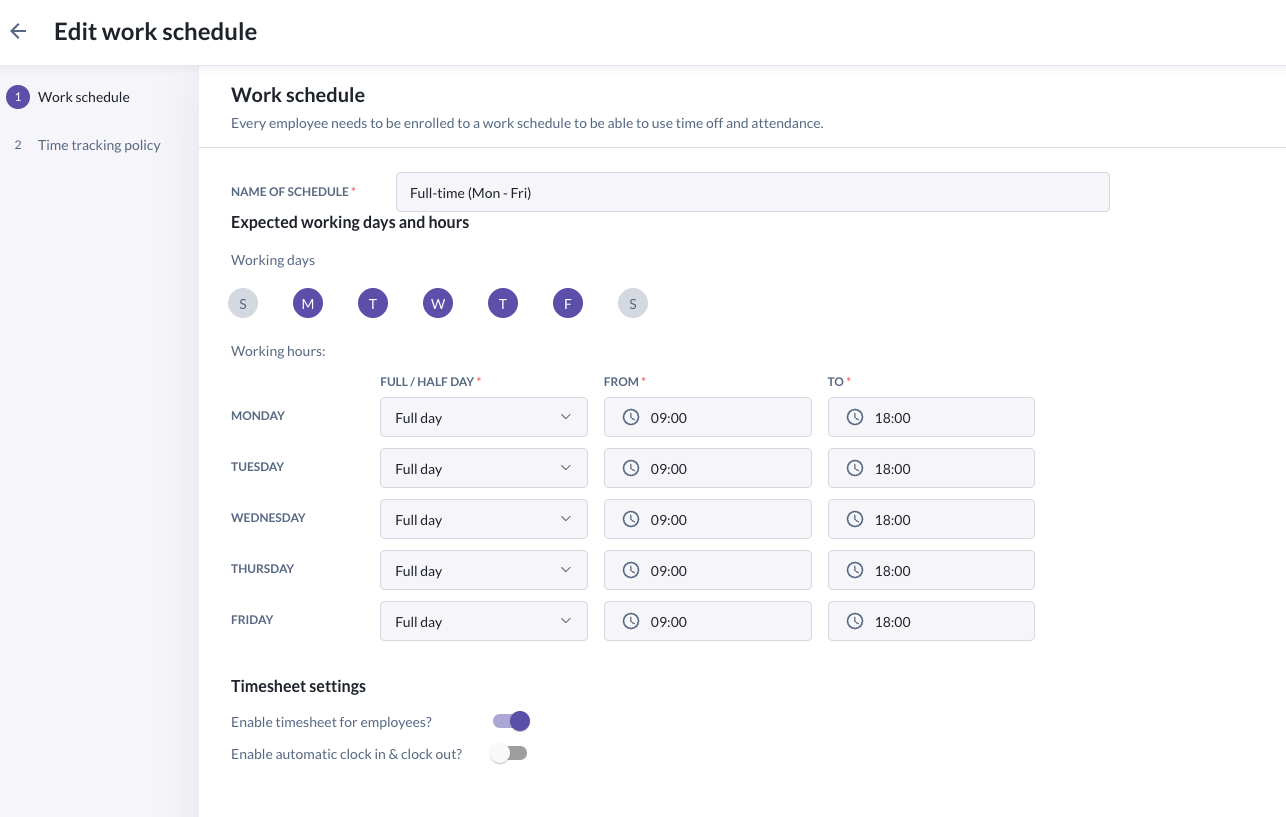
- Setup the name of the schedule, the working days & hours
Step 3: Enable timesheet settings for employees
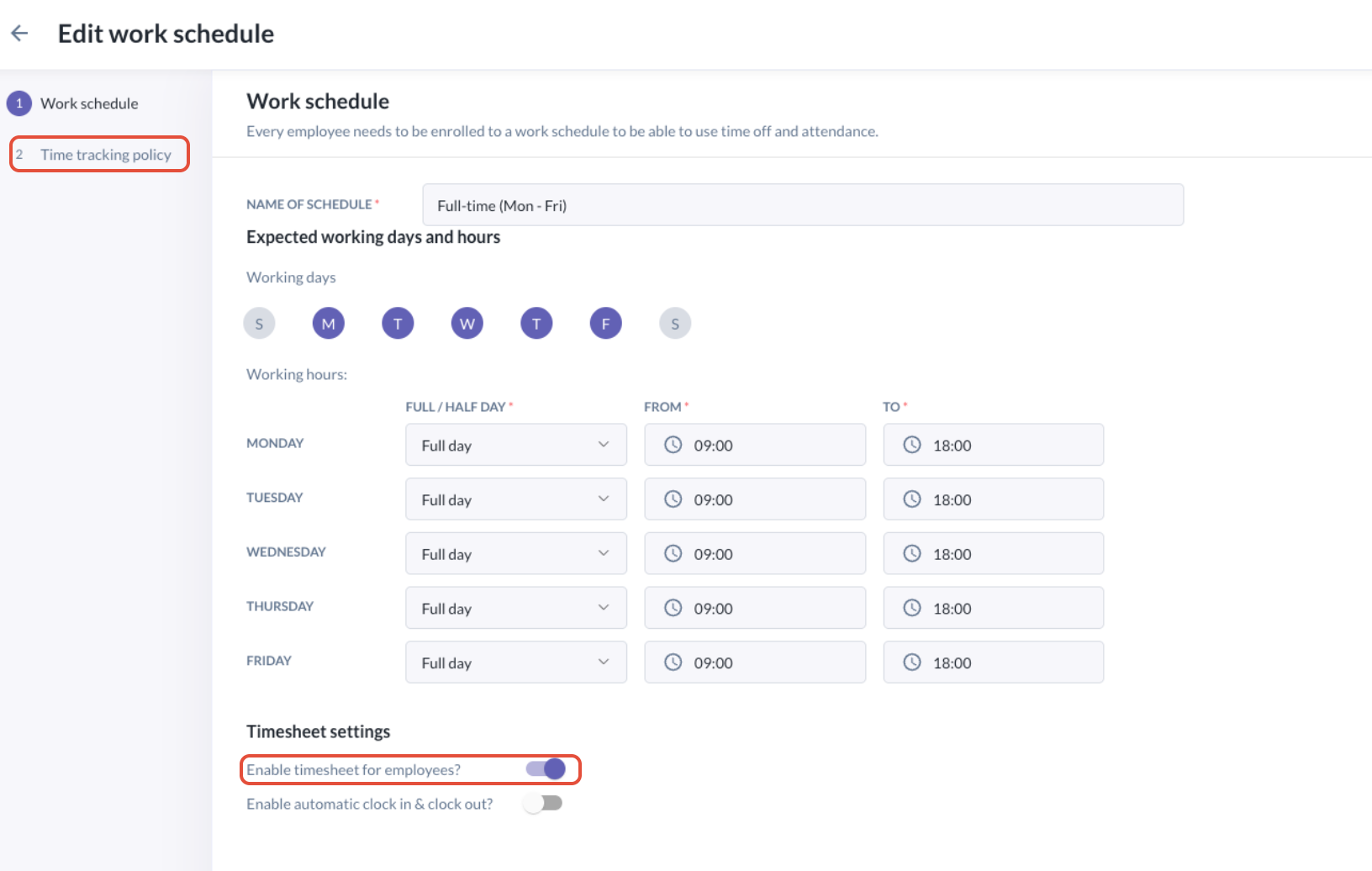
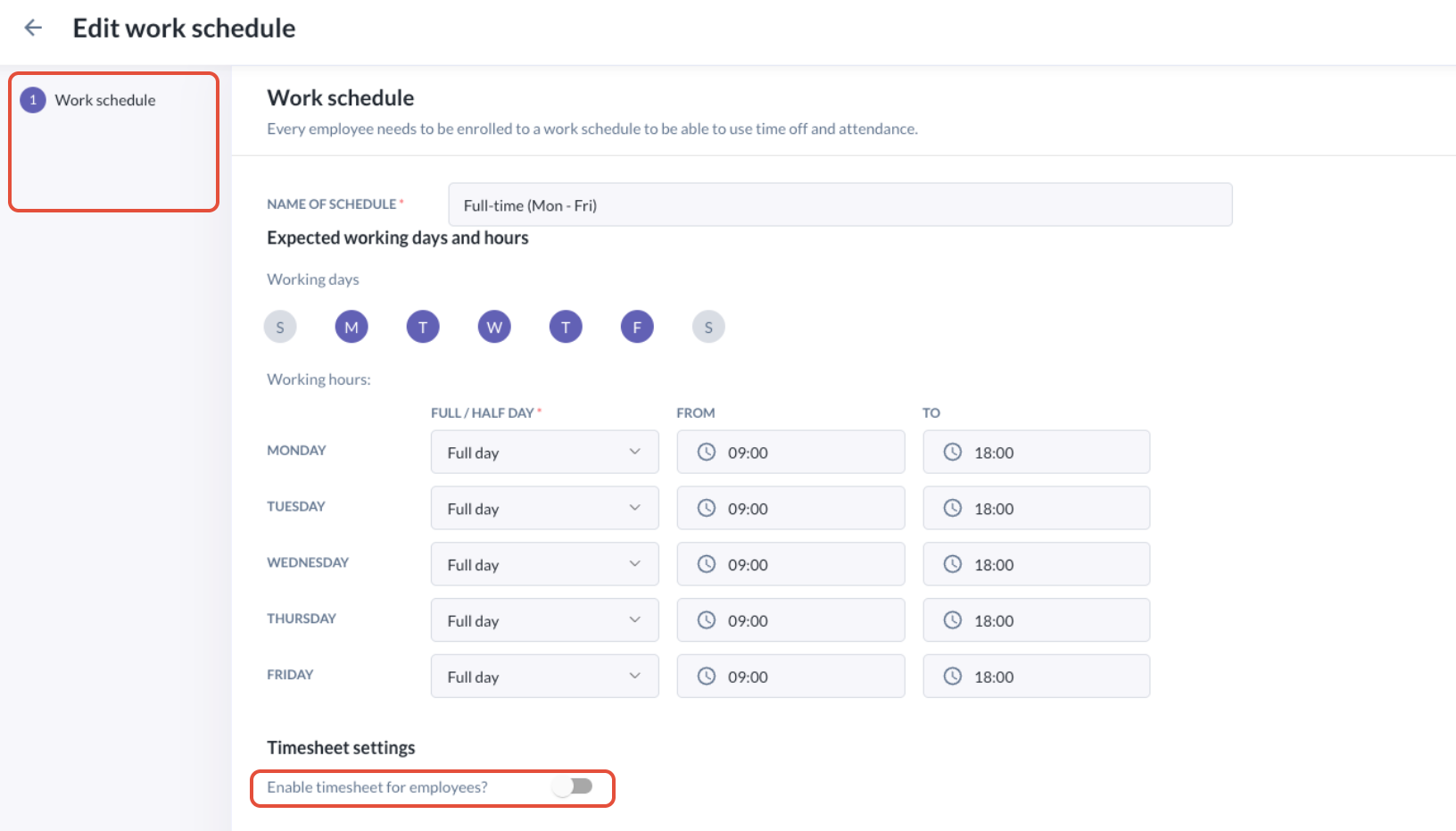
- To set up a time tracking policy, turn on Enable timesheets for employees.
- If this is turned off, you will not be able to setup a time tracking policy for this work schedule.
- You may also turn on Enable automatic clock in & clock out to allow employees to automatically clock-in and clock-out via web or mobile.
Step 4: Setup preferred overtime policy for work schedule
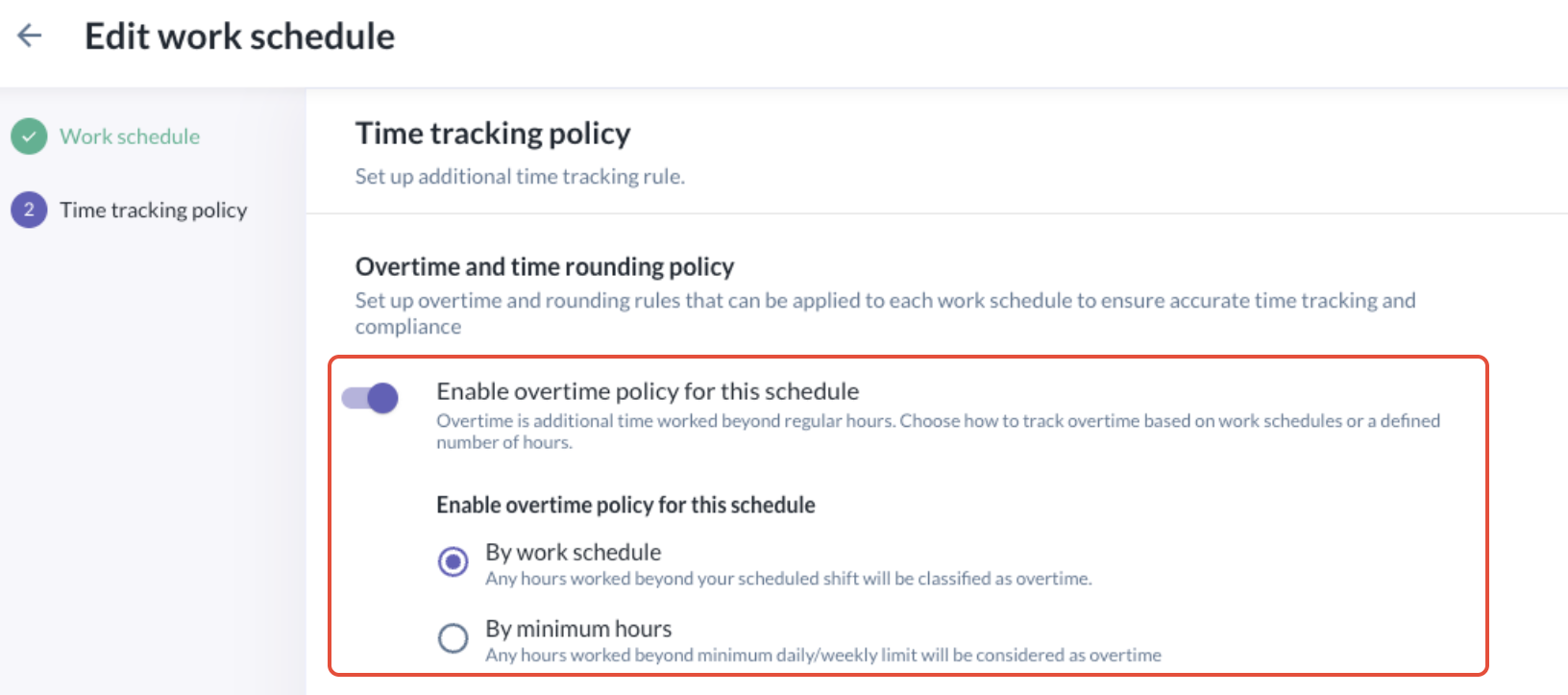
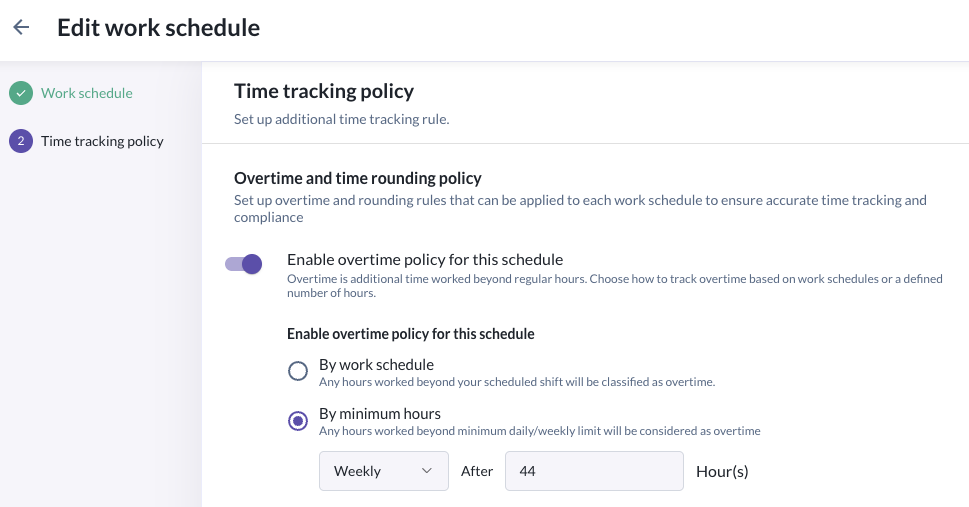
- Under time tracking policy, turn on Enable overtime policy for this schedule. When this is enabled, you will see two options to enable for the specific schedule:
- By work schedule: Any hours worked beyond your scheduled shift will be classified as overtime.
- By minimum hours: Any hours worked beyond minimum daily/weekly limit will be considered as overtime
- If Enable overtime policy for this schedule is disabled: All hours worked are regular, working hours
Step 5: Click "Save"
- After choosing your preferred options, you can click Save to save your time tracking policy for this work schedule.
- Overtime will start being tracked for new timesheets populated for employees assigned to this work schedule.
What does each overtime (OT) policy mean and how is is tracked?
1. Daily OT based on work schedule shifts
- Overtime applies only when total hours worked exceed scheduled shift hours. Even if clock-in (CI)/out (CO) differs from shift timing, overtime only applies if hours exceed total shift duration.
For example, Courtney is assigned to a work schedule with Shift: 9:00 AM – 6:00 PM (9 hours) where the schedule tracks overtime by work schedule.
(a) If she CI at 9.00AM but CO at 8.00PM, her total hours worked are: 11 hours [9 Hours shift hours, 2 Hours OT]. You can see the indication of OT hours in orange under Total Hours below.

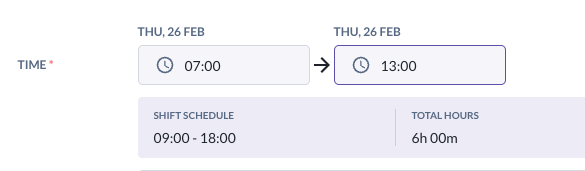
(b) If she CI early at 7.00AM and CO early at 1.00PM, her total hours worked are still within her regular hours, 6 Hours. Thus, there will be no OT recorded.
2. Daily OT based on fixed threshold
- Overtime applies only when total hours worked exceed daily hours worked threshold set. The shift schedule set will not be a factor for tracking and calculating OT.
For example, Courtney's work schedule now has been updated to track daily OT exceeding the minimum hours worked i.e. 8 Hours. Her shift schedule remains the same; Shift: 9:00 AM – 6:00 PM (9 hours)
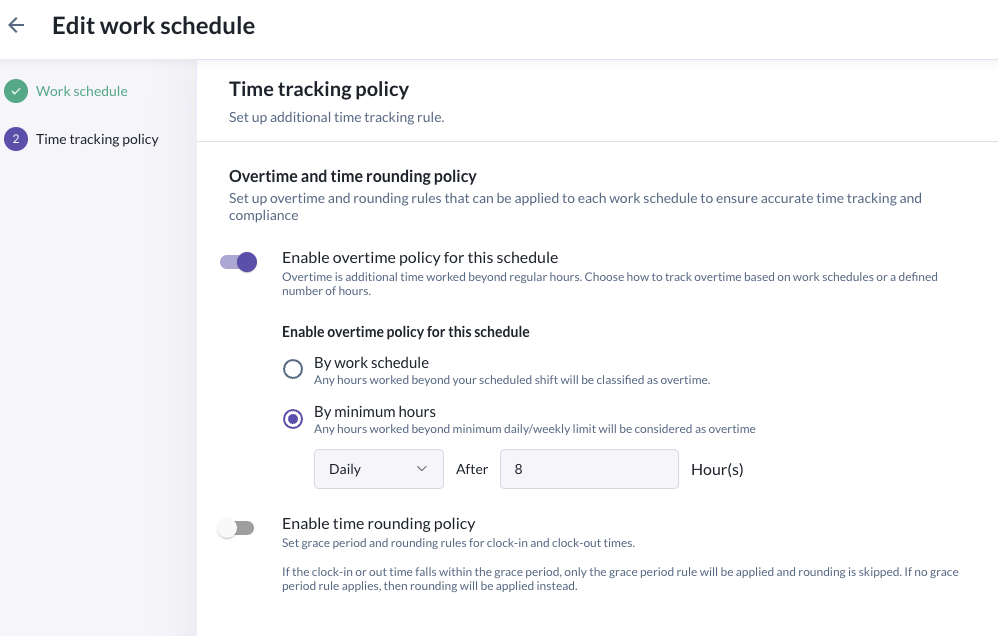
(a) If she now CI at 9.00AM but CO at 8.00PM, her total hours worked are: 11 hours but you will see that the regular hours tracked are 8 hours, and the OT has been calculated for 3 hours.

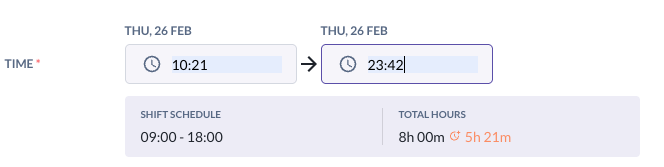
(b) If she CI late at 10:21 AM and CO late at 11:42 PM, her total hours worked are: 13h 21m but you will see that the regular hours tracked are 8 hours, and the OT has been calculated for 5h 21m
3. Weekly OT based on fixed threshold
- Overtime applies only when total hours worked exceed weekly hours worked threshold set. The shift schedule set will not be a factor for tracking and calculating OT.
- If total hours exceed threshold in a week, overtime is attached to the attendance record where the threshold is crossed.
For example, Courtney's work schedule now has been updated to track weekly OT exceeding the minimum hours worked i.e. 44 Hours. Her shift schedule remains the same; Shift: 9:00 AM – 6:00 PM (9 hours)
(a) If Courtney populated her work schedule as below, where she worked from 9AM to 8PM for the whole week:
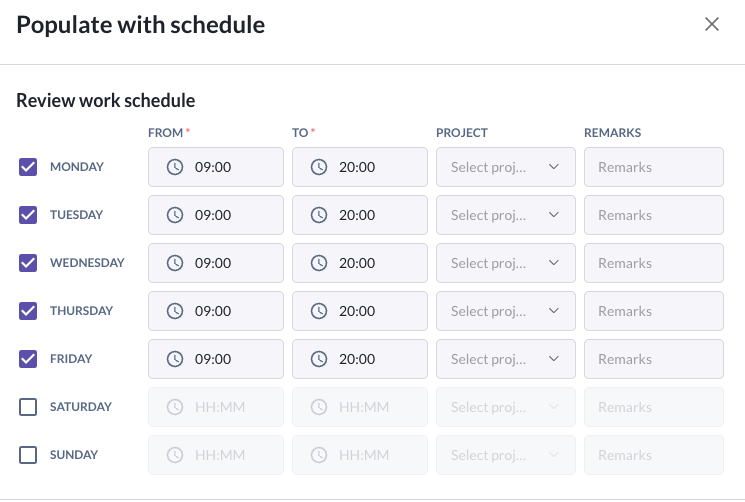
You will see that in her timesheet, on Friday, her whole shift has been recorded as OT for 11 hours:

The reason for this can be described as below:
| Day | Hours Worked | Regular | Overtime |
|---|---|---|---|
| Mon | 11h | 9h | — |
| Tue | 11h | 9h | — |
| Wed | 11h | 9h | — |
| Thu | 11h | 9h | — |
| Fri | 11h | 9h | 11h |
| Total | 55h | 45h | 11h |
- Since the weekly threshold was set to 44 hours, she had meet the weekly threshold on Thursday, thus, her whole Friday total hours worked will be counted as OT
4. No overtime policy found
- If you do not setup the overtime policy, the hours will be tracked as follows:
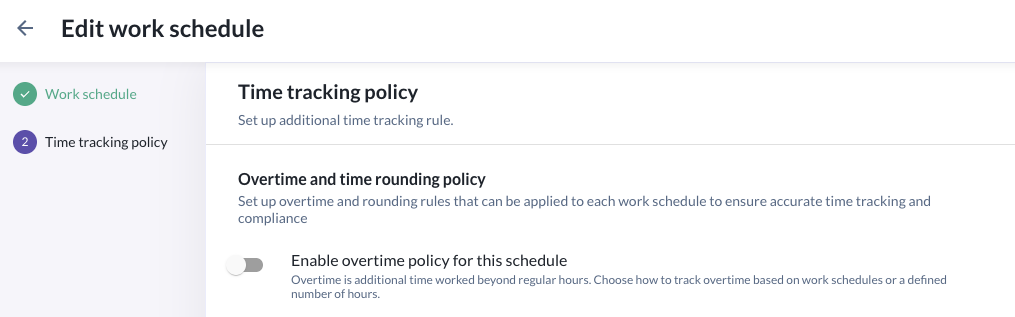
Using the same example as in 3 (a), where she worked from 9AM to 8PM for the whole week:
You will see that her timesheet will have no OT recorded, and all her hours will be recorded as regular working hours.

Still Need Help?:
Reach out to our support team should you need further assistance.
Was this article helpful?
That’s Great!
Thank you for your feedback
Sorry! We couldn't be helpful
Thank you for your feedback
Feedback sent
We appreciate your effort and will try to fix the article