This guide explains how Administrators can lock and unlock timesheets, how permissions are configured, and the impact on employees, approvers, and imports.
TABLE OF CONTENTS
1. Overview
The Lock Timesheet feature allows Admins to prevent employee-side changes within a selected period.
Locking a timesheet provides stronger control over when attendance records should stop being updated, typically before payroll processing.
Once locked:
Employees cannot edit, add, or clock in within the locked dates.
Imported records cannot override locked dates.
Bulk schedule population will not update locked records.
2. Permission Setup
New Permission
A new attendance permission has been introduced:
Lock timesheet for payroll
This permission controls whether a user can access the lock timesheet action.
It can be found under: Settings > Access Control > System Functions > Attendance > Lock timesheet for payroll
Permission Dependency
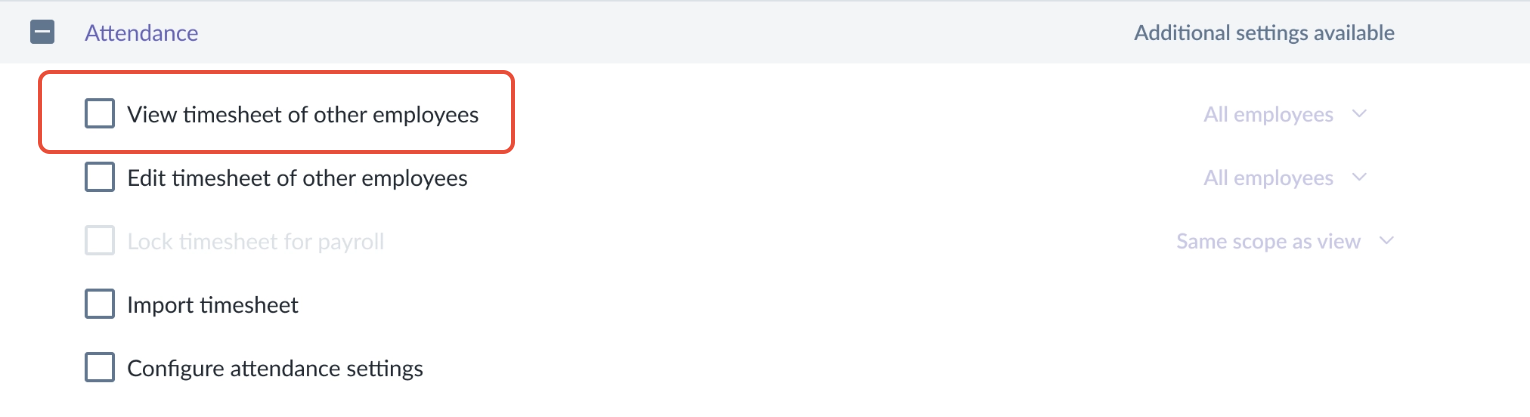
The Lock timesheet for payroll permission depends on:
View timesheet of other employees
This means:
The user must first have View timesheet of other employees enabled.
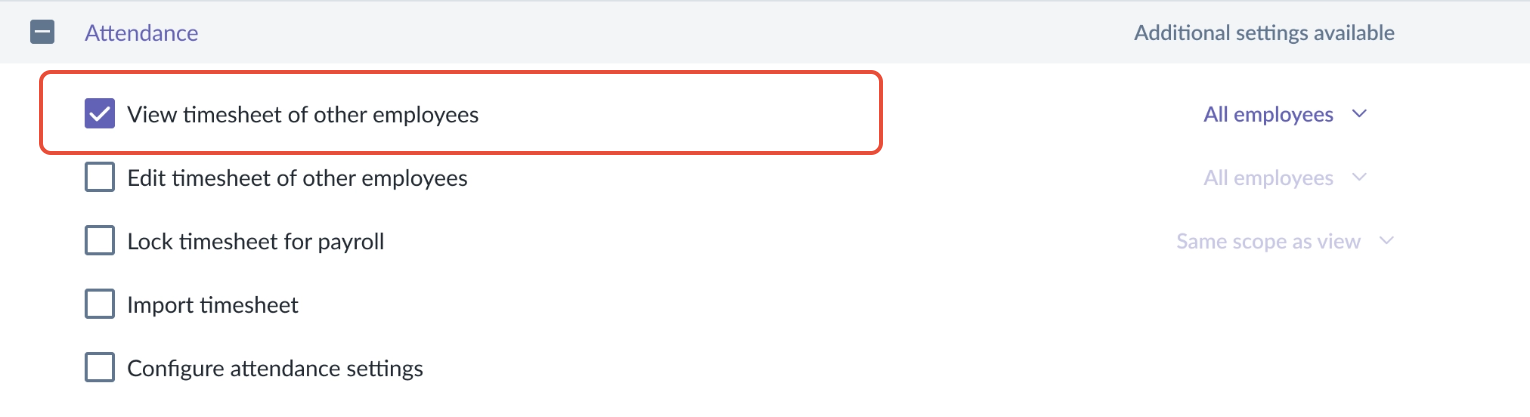
Only then can Lock timesheet for payroll be selected.
If “View timesheet of other employees” is not enabled, the lock permission will remain unavailable.
3. Lock Timesheet
Where Admin can find Lock Timesheets
Admins can lock timesheets from two locations:
1. Tracker Page (Main View)
From the main Tracker page, Admins can lock timesheets for a selected period.
Important:
Employees affected are determined by Access Control scope.
It is not based on filters currently applied on the Tracker page.
2. Individual Employee Timesheet View
After opening a specific employee’s timesheet from the Tracker page, Admins can lock the selected period for that employee only.
This allows flexibility to lock:
At a broader tracker level
At an individual employee level
Populate with Schedule (Before Locking)
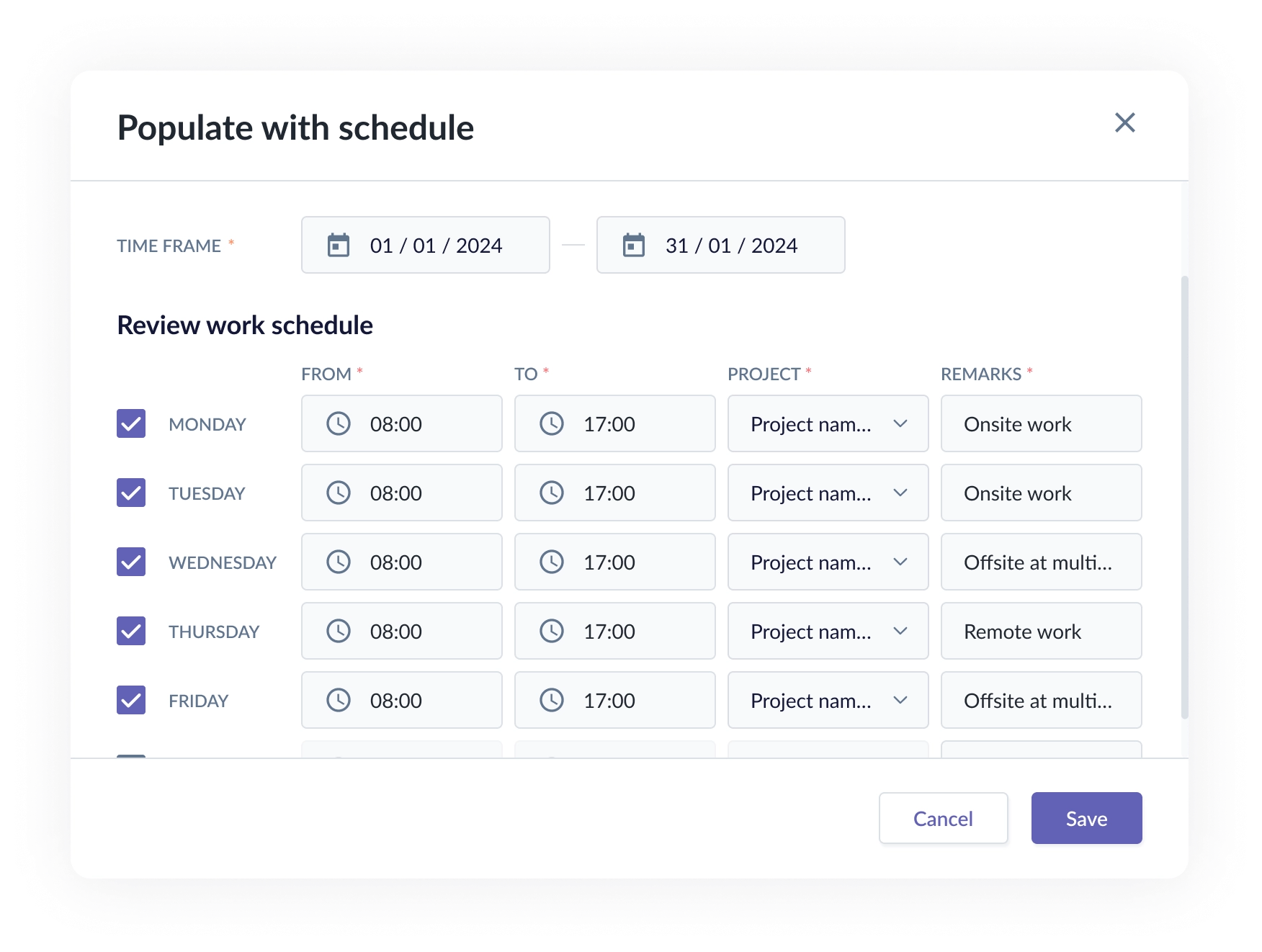
Before locking a timesheet, Admins can use Populate with schedule to generate timesheet entries based on the assigned work schedule.
This allows Admins to:
Prefill attendance records in bulk
Review generated entries
Save entries before locking
If overtime is detected, the system will continue applying the configured overtime rules.
Once locked, schedule population will no longer update the locked period.
Lock Process
Admins can lock a selected timesheet period from the Tracker page

When locking a timesheet, the Admin must select:
The period to lock
How to handle pending approval requests in progress
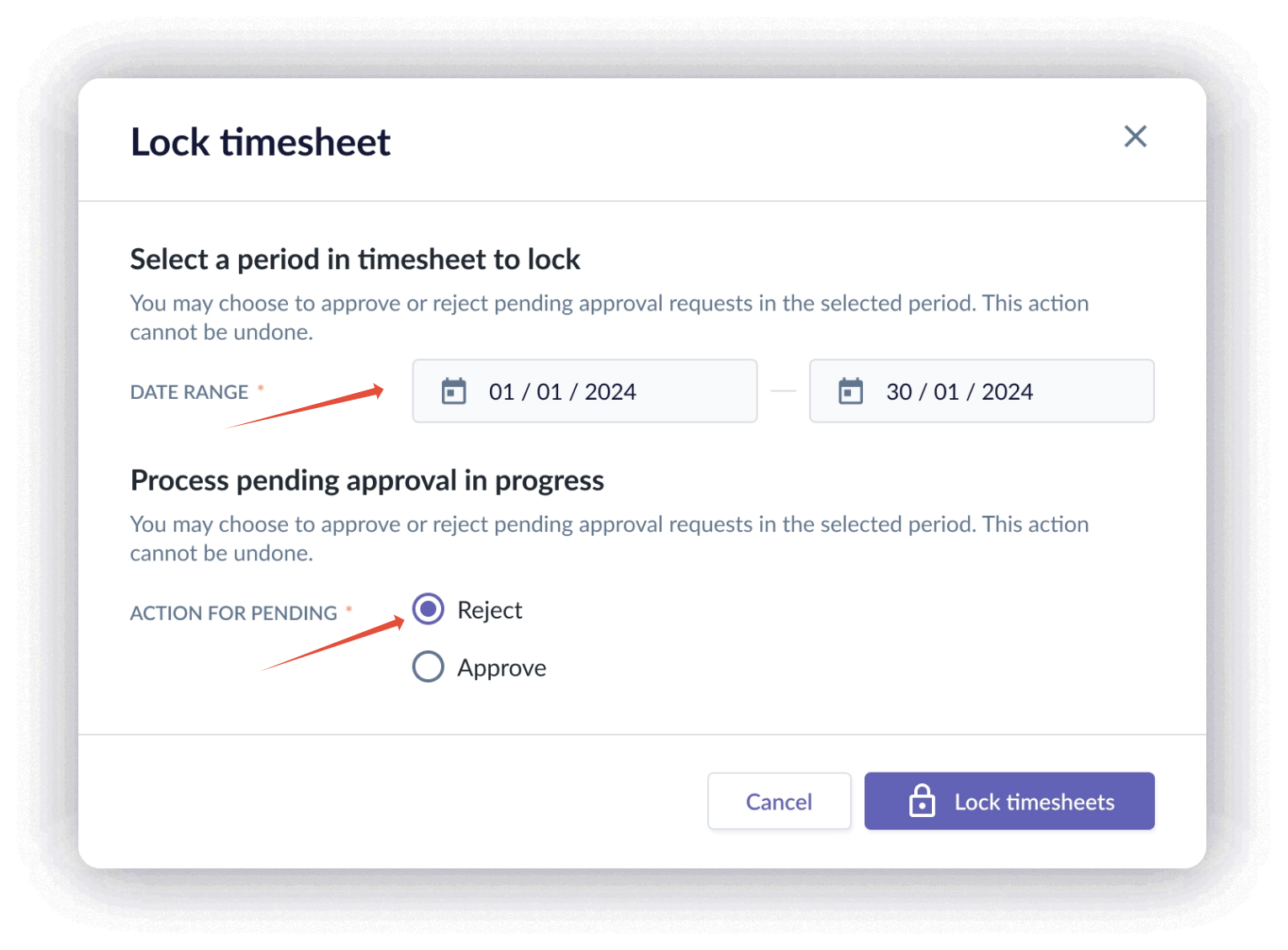
The system requires the Admin to decide how pending requests should be processed before completing the lock.
Once confirmed:
The timesheet period becomes locked.
Employee-side updates are restricted.
4. Impact of Locked Timesheet
Employee View (Employee POV)
When a timesheet is locked, employees cannot make changes within the locked dates.
This includes:
Automatic Attendance
Cannot adjust entries within locked period
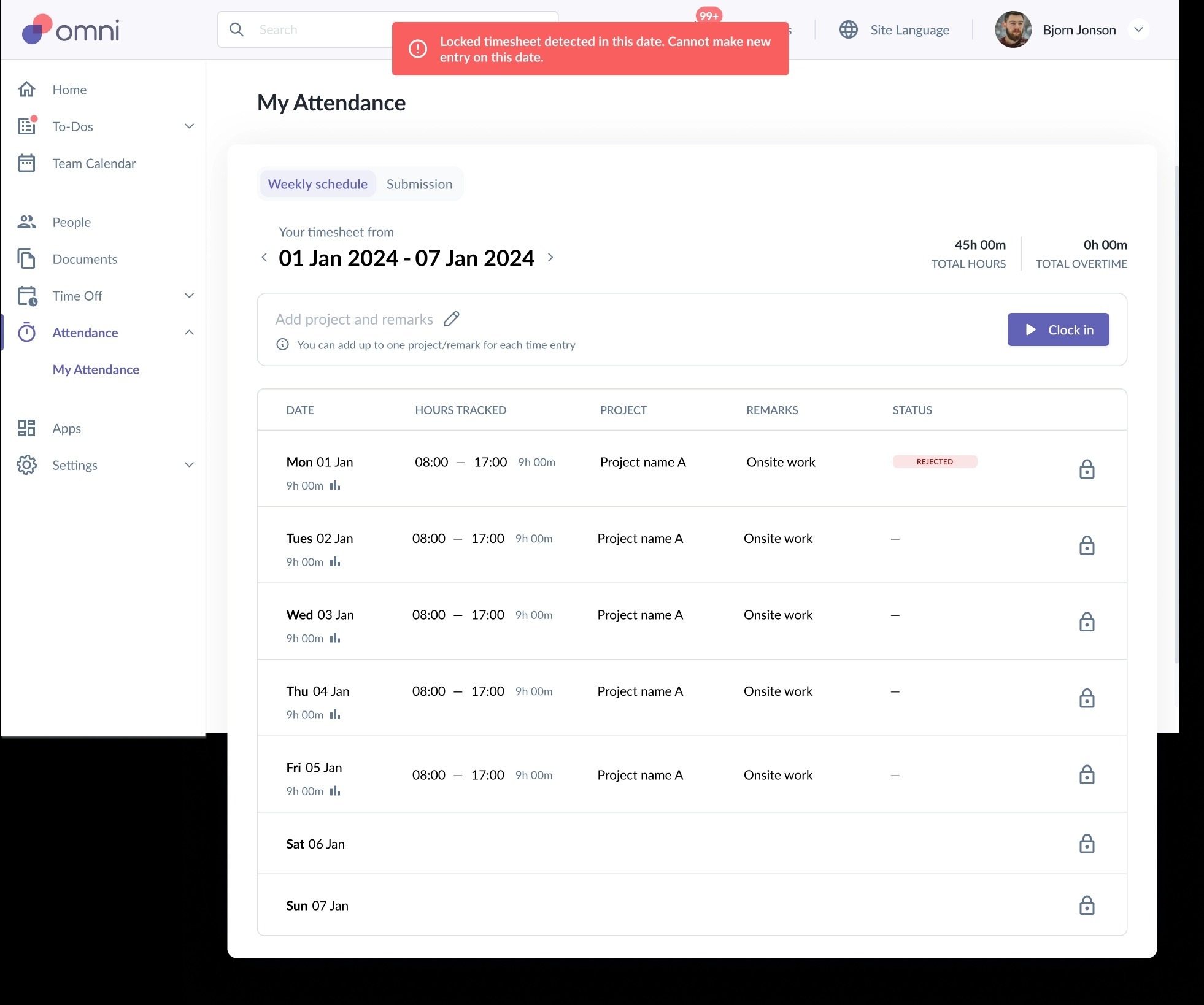
Cannot clock in on locked dates
System will block clock-in attempts and display a validation message
Manual Attendance
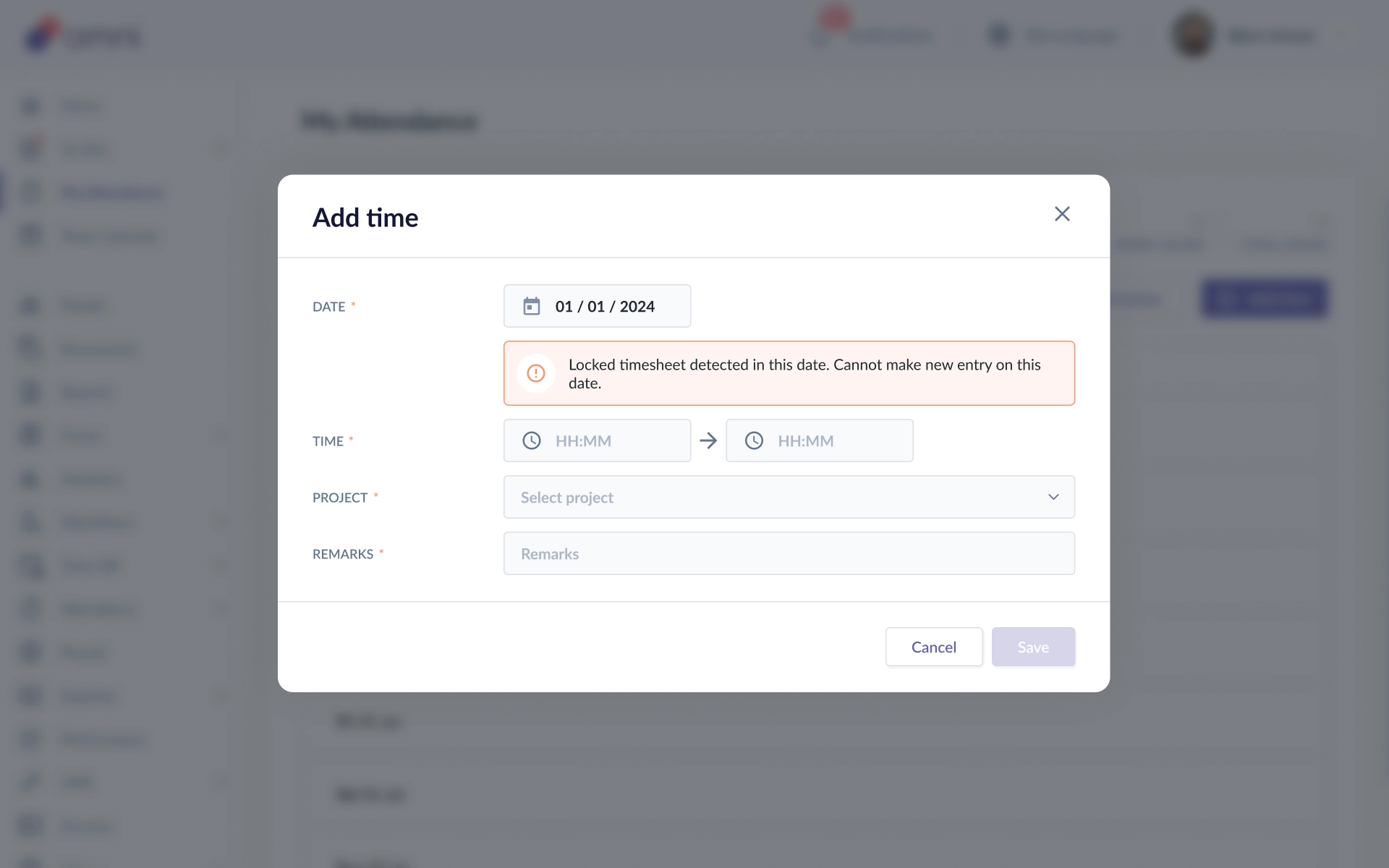
Cannot create new manual time entries
System will block saving attempts and display a validation message
In summary, employees cannot:
Edit existing entries
Create new entries
Clock in on locked dates
Approver POV
If there are approval-related requests tied to the locked period:
- their handling depends on how the admin chose to process pending requests during the lock action
- approvers may no longer need to act on requests that were resolved as part of locking
This is why the lock flow asks the admin how to process pending approval requests before the lock is completed.
Impact on Import for Locked Timesheet
Admins may still attempt to import timesheet records for a locked period.
However:
Imported rows cannot override locked dates.
If an imported record falls on a locked date:
The import will fail for that row.
The locked record will not be overwritten.
A validation error will be returned.
Error message:
- Fail! Timesheet is locked on the date of imported record
Admin Populate Schedule After Lock
After a timesheet is locked:
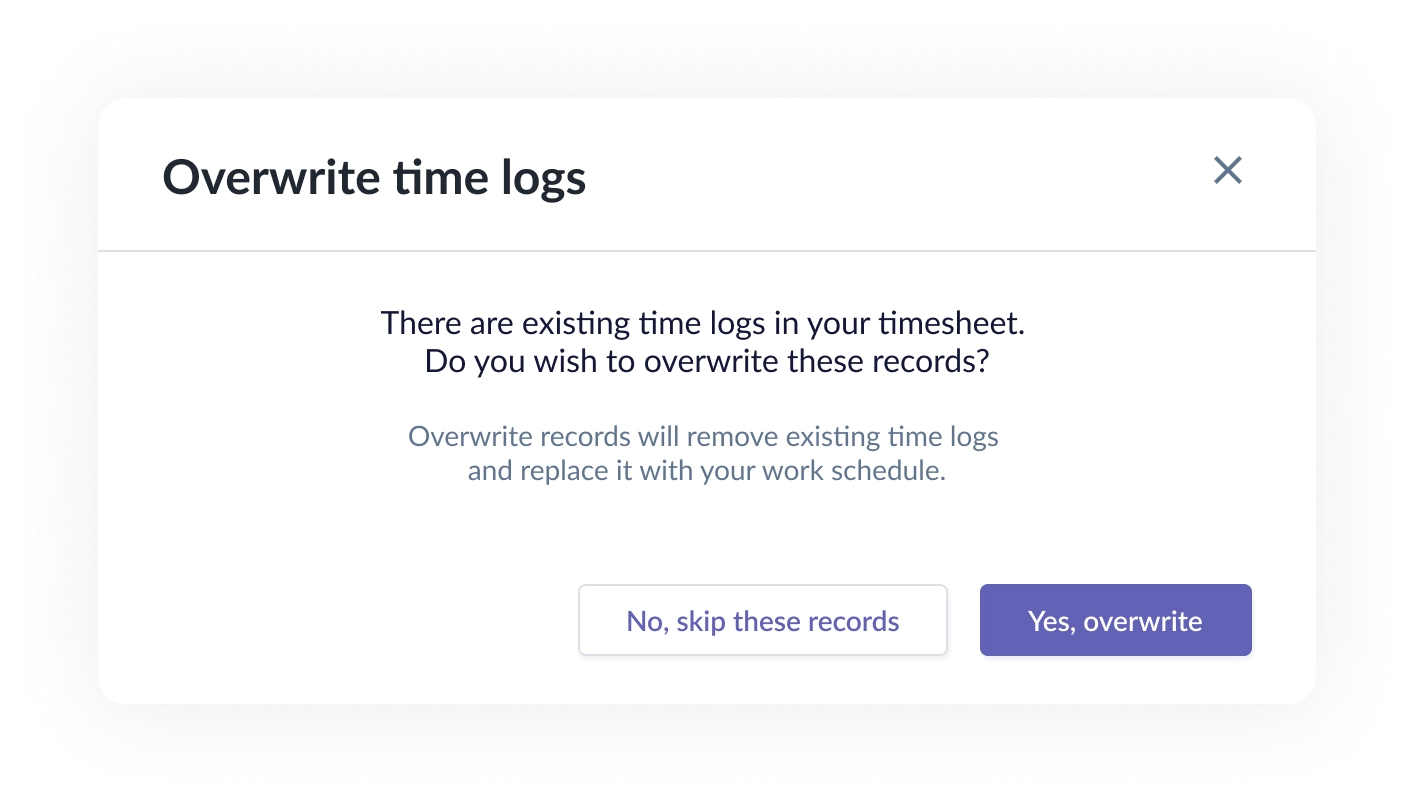
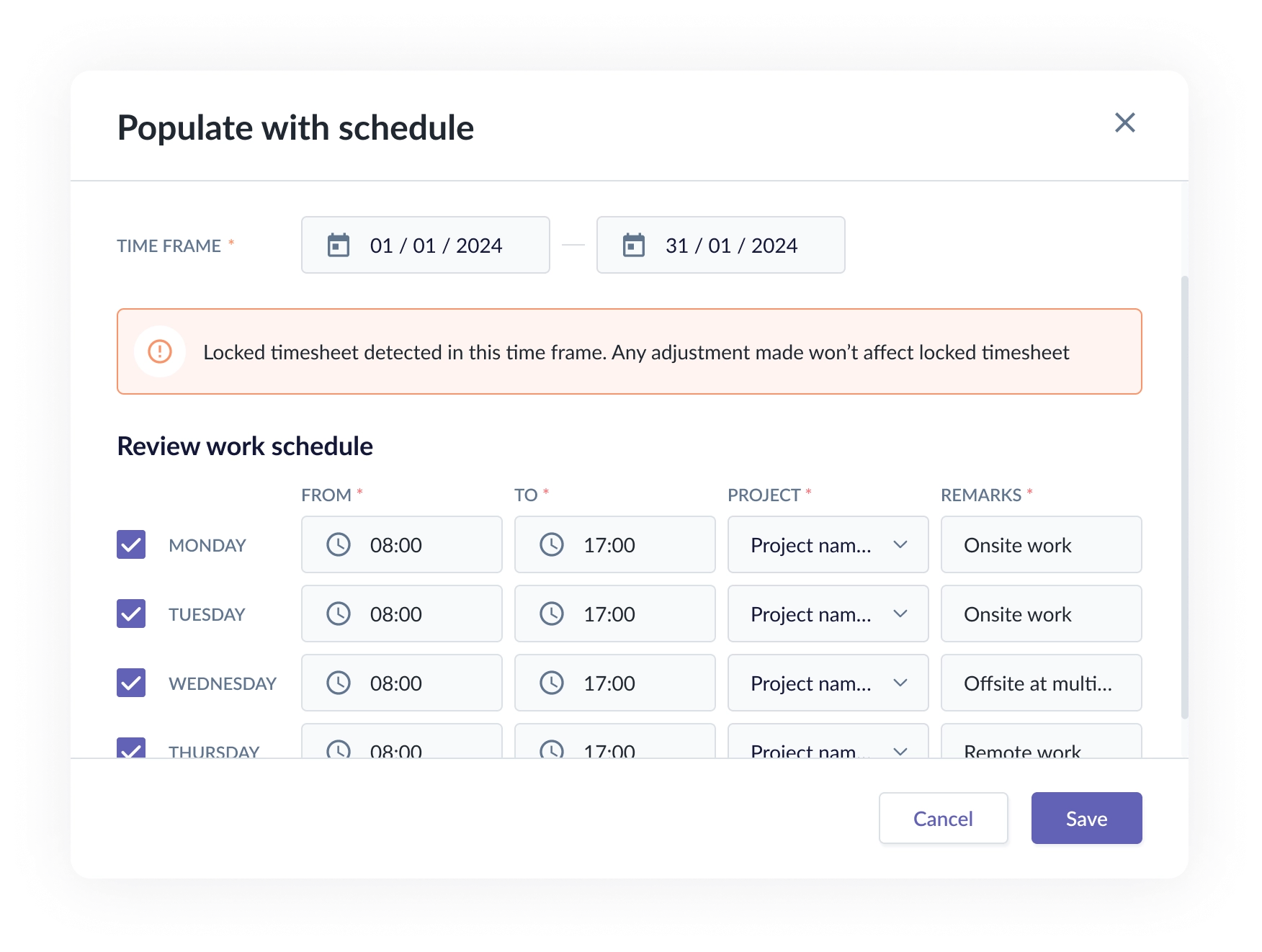
The Populate with schedule option may still be visible.
However, data for the locked period will be ignored.
Locked timesheets will not be updated.
This ensures locked records remain protected from bulk updates.
Admin Create New Time on Locked Timesheet
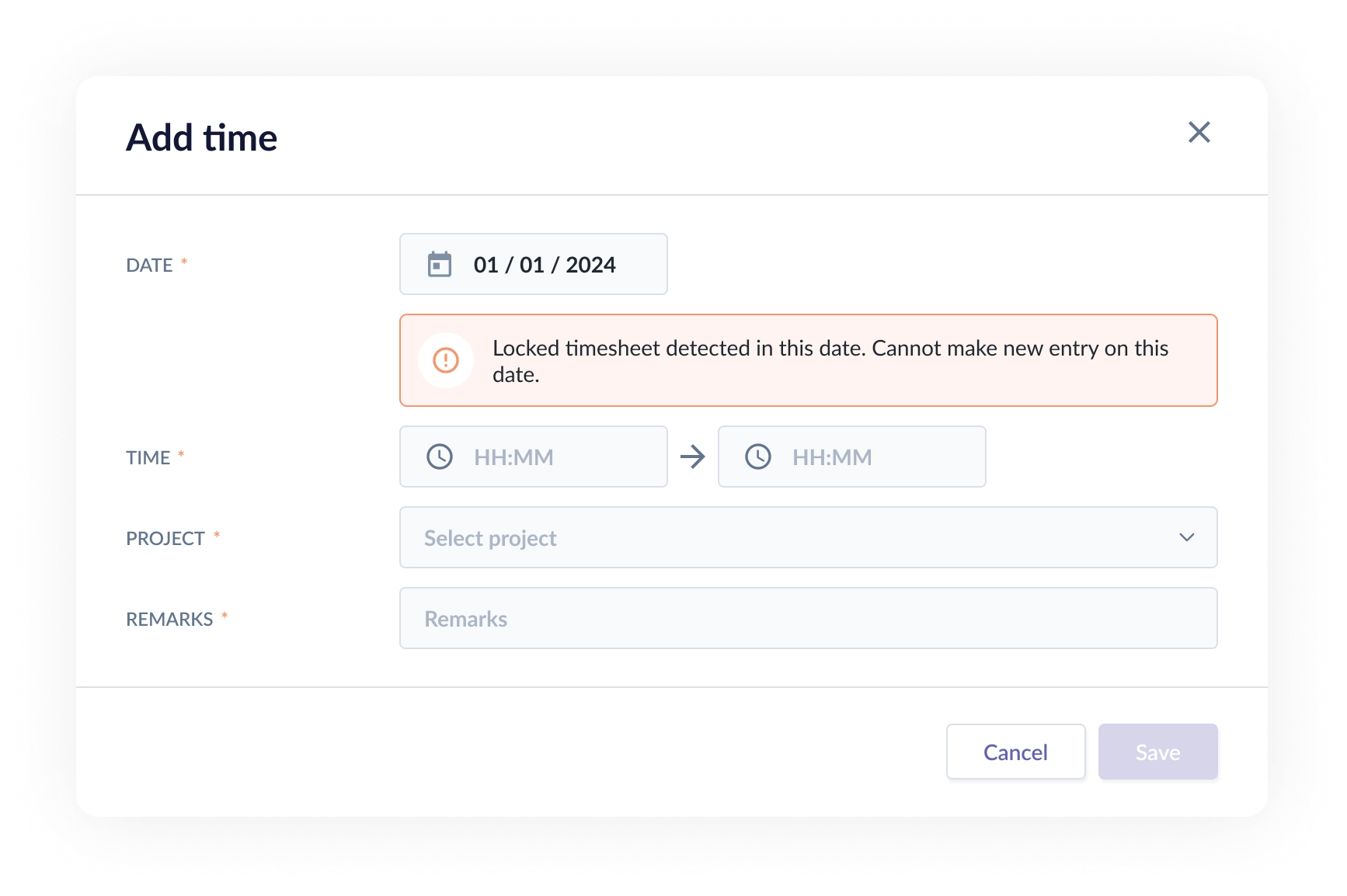
Admins may attempt to add a new manual time entry from the Tracker page.
However:
The system validates the selected date.
If the date falls within a locked period:
The entry cannot be created.
A validation error will be displayed.
Admin Edit Timesheet (Including Approve / Reject)
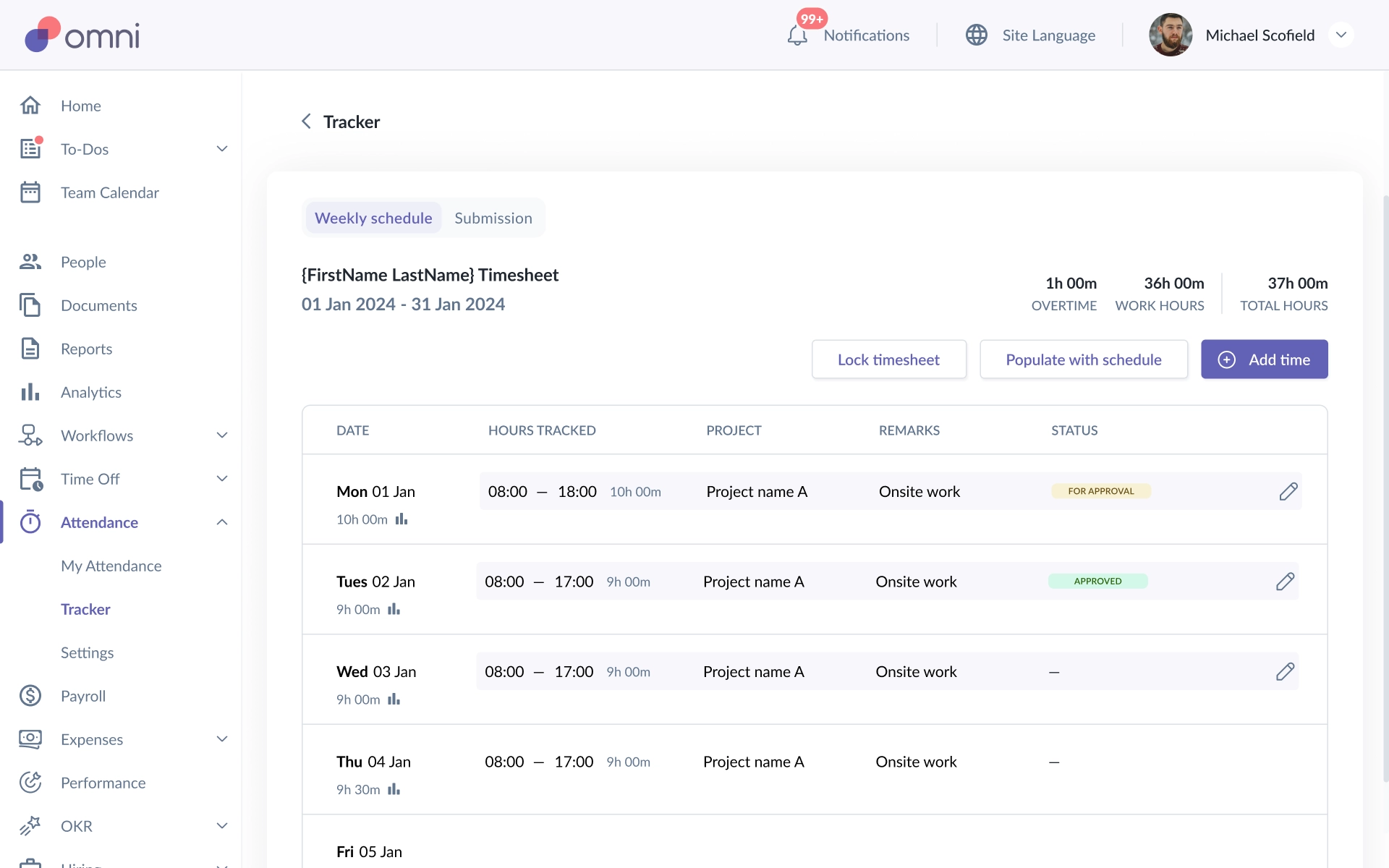
If a timesheet is not locked, Admins can:
Edit timesheet entries directly
Review request-linked entries
Approve or reject requests from the Admin side
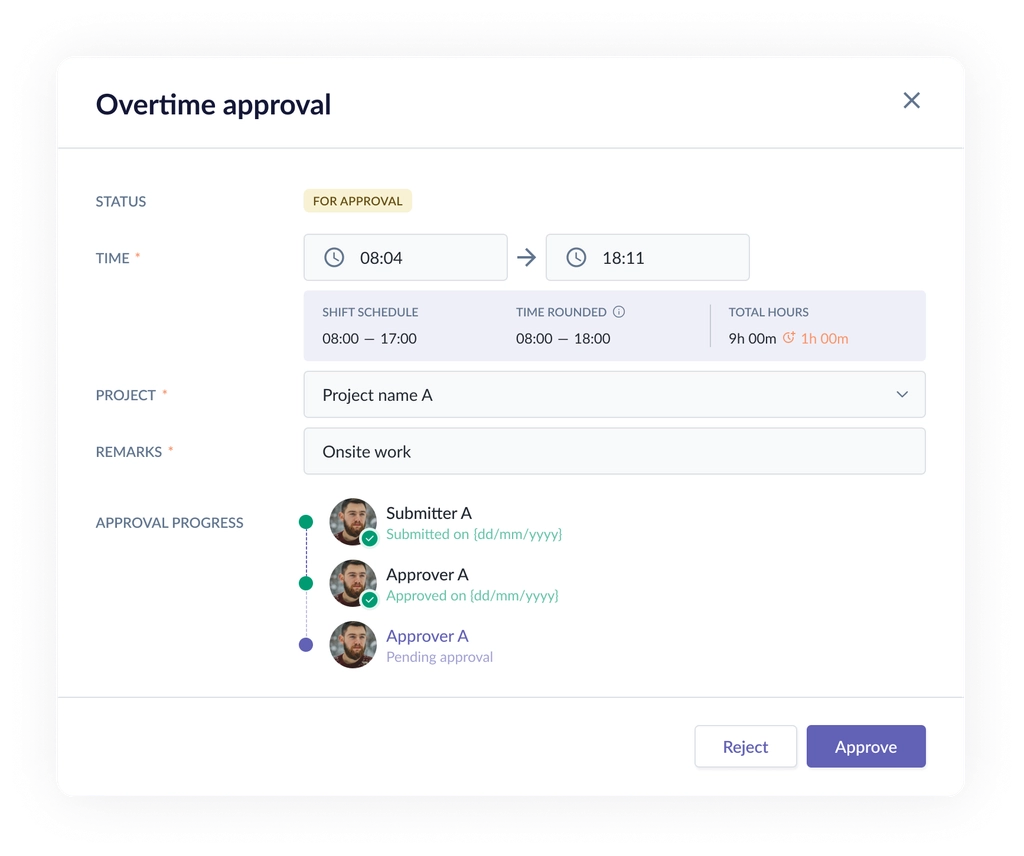
For request-linked entries:
Admins can open request details
Approve or reject requests
If Admin approves:
All approval levels are marked as approved
Original approver names remain visible
A message indicates approval was completed by Admin
If Admin rejects:
All approval levels are marked as rejected
Original approver names remain visible
Rejection reason indicates Admin action
Important:
The approval history will still display the original approver structure, even if the final action was taken by Admin override.
5. Unlock Timesheet
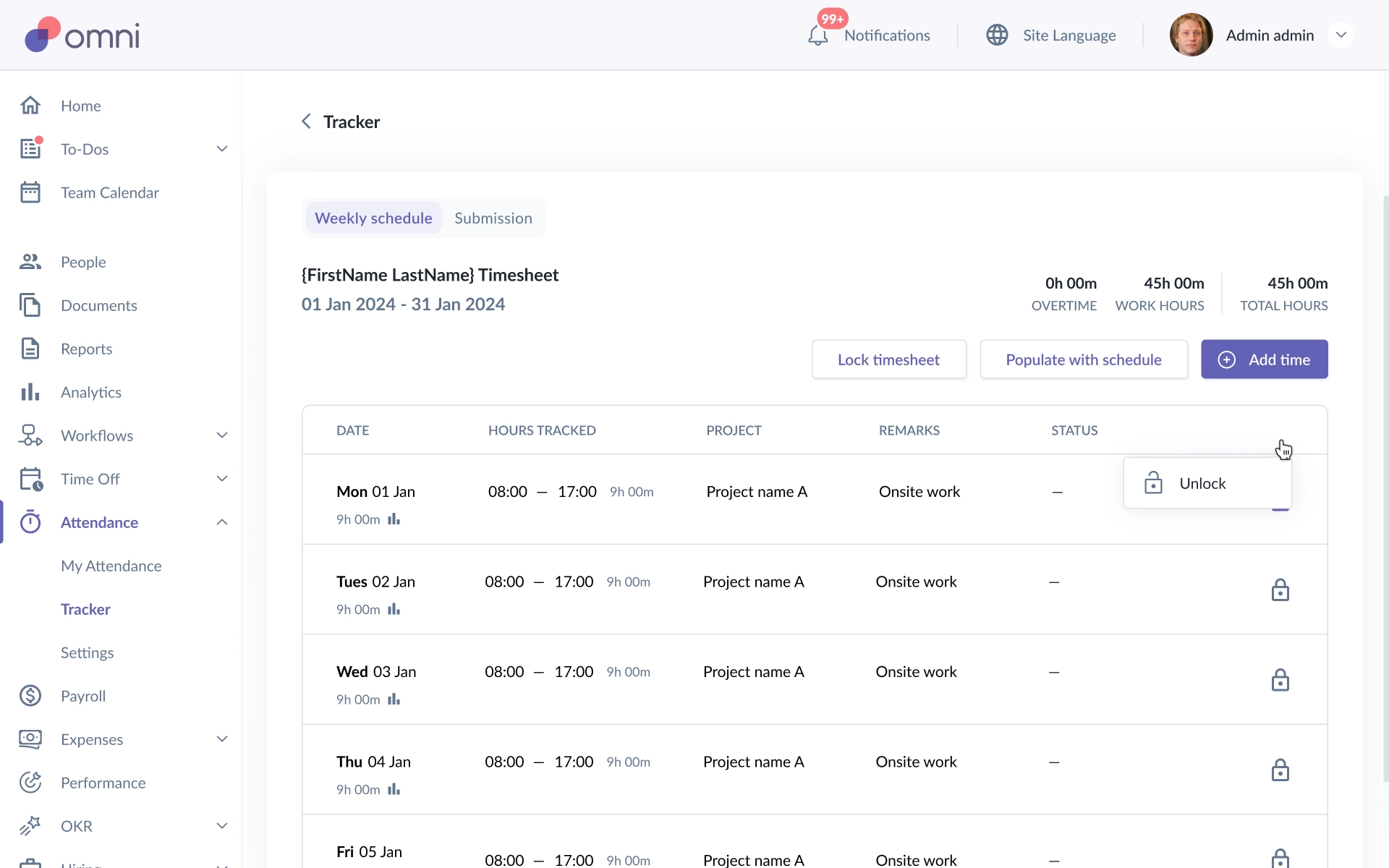
Unlocking is more restricted than locking.
Admins can only:
Unlock from the individual employee timesheet view
Unlock per day (no bulk unlock from main Tracker page)
There is no broad unlock option from the main Tracker list.
After unlocking:
The timesheet becomes editable again
Employee actions are no longer restricted
Normal system rules apply
This allows Admins to reopen a previously locked period when corrections are required.
If you need assistance configuring permissions or managing locked timesheets, please reach out to our support team.
Still Need Help?
Reach out to our support team should you need further assistance.
Was this article helpful?
That’s Great!
Thank you for your feedback
Sorry! We couldn't be helpful
Thank you for your feedback
Feedback sent
We appreciate your effort and will try to fix the article