Overview:
Holiday Calendars is a feature in Omni that allows admins to create holiday calendars according to countries, or create their own. This is important as it affects leave deductions, and also comes in handy if you have employees from different countries.
We’ve refreshed the Holiday Calendar experience to make holiday management more accurate, consistent across countries, and easier for admins to maintain throughout the year. Let’s learn how to create and assign holiday calendars in this article.
TABLE OF CONTENTS
Creating Holiday Calendars
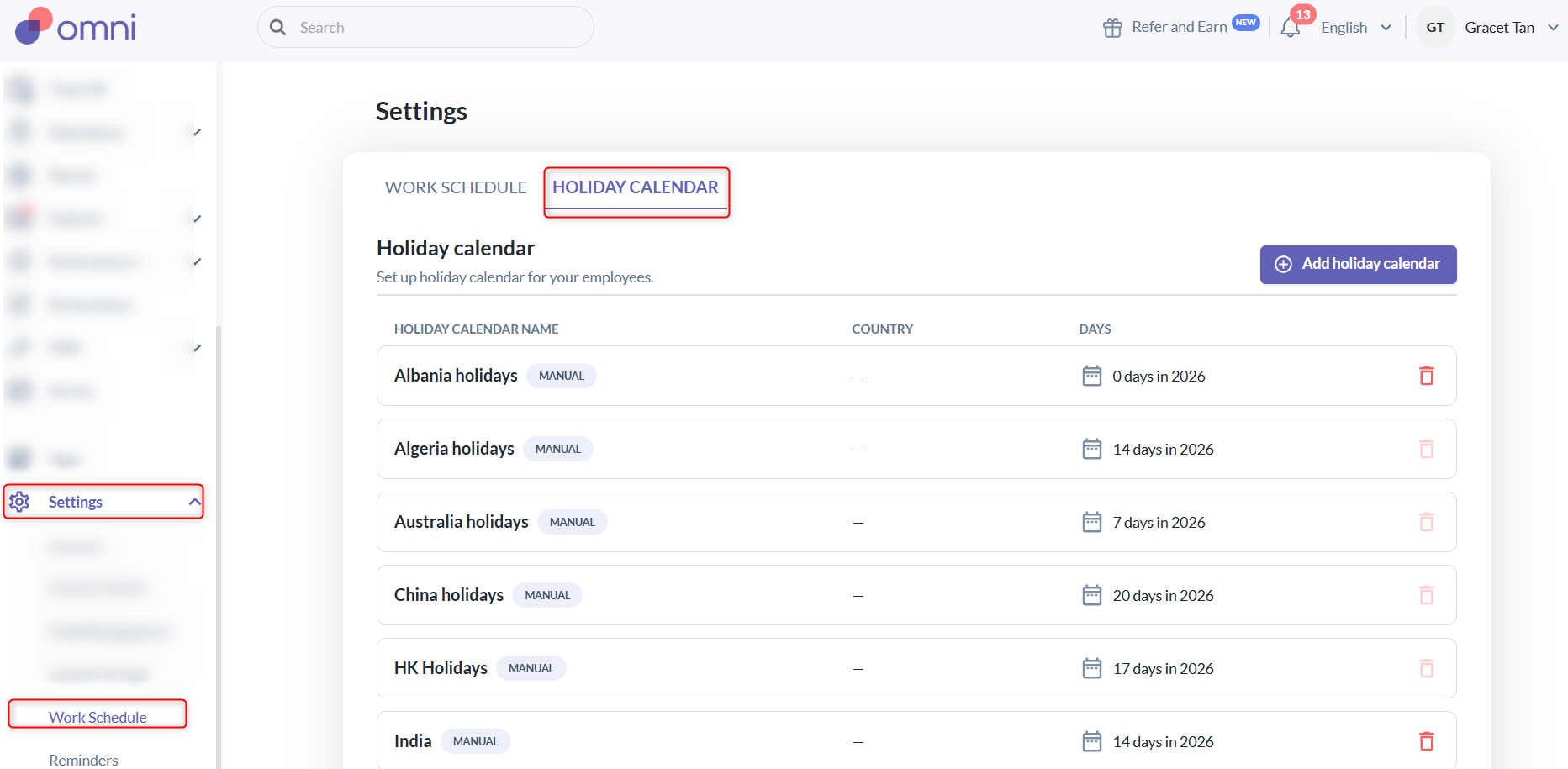
1. Go to Settings > Work Schedule > Holiday Calendar.
2. Click Add Holiday Calendar. A pop-up will appear with two options to create a holiday calendar. You can choose to either Import Holiday Calendar or Create Holiday Manually.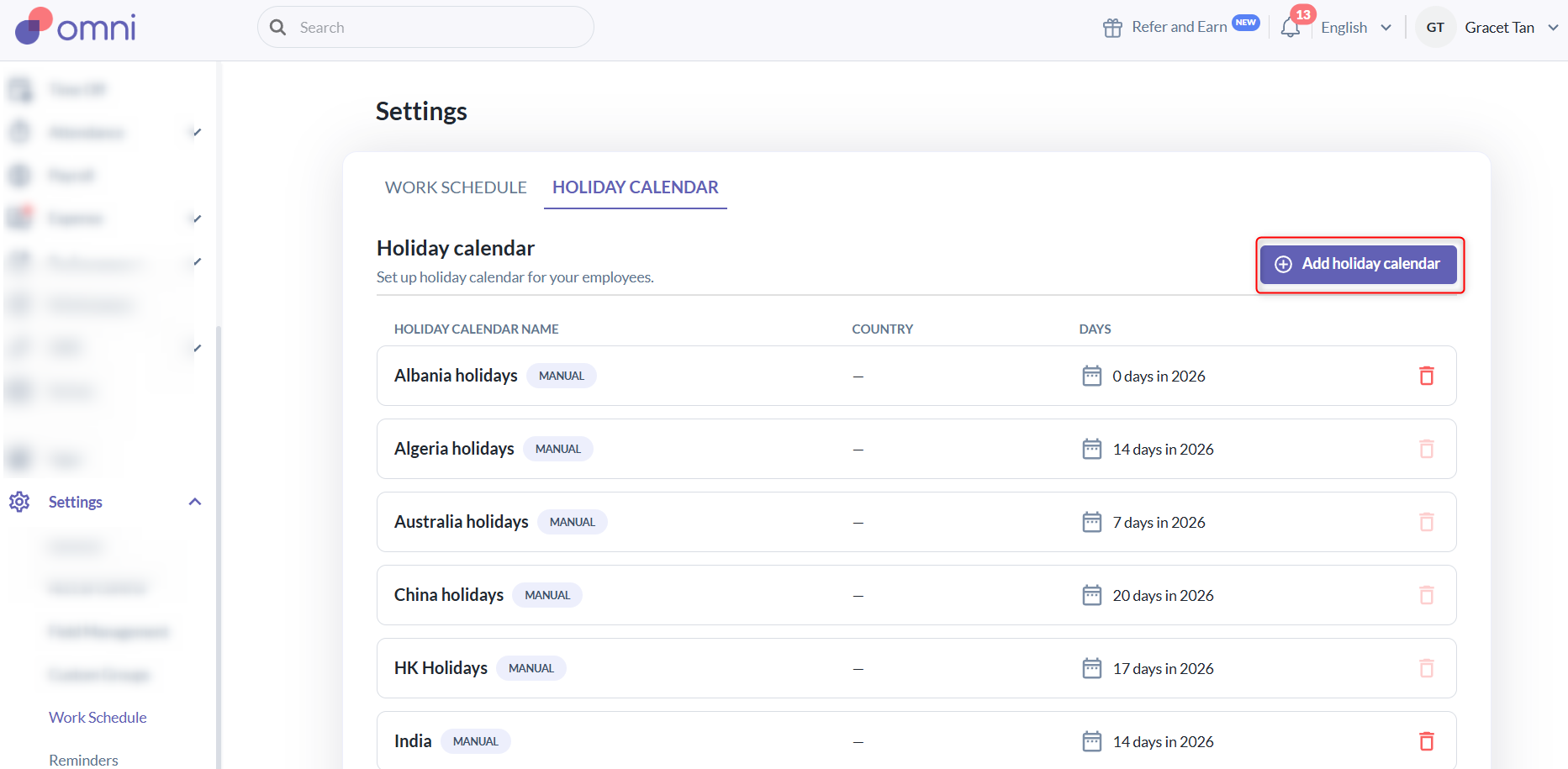
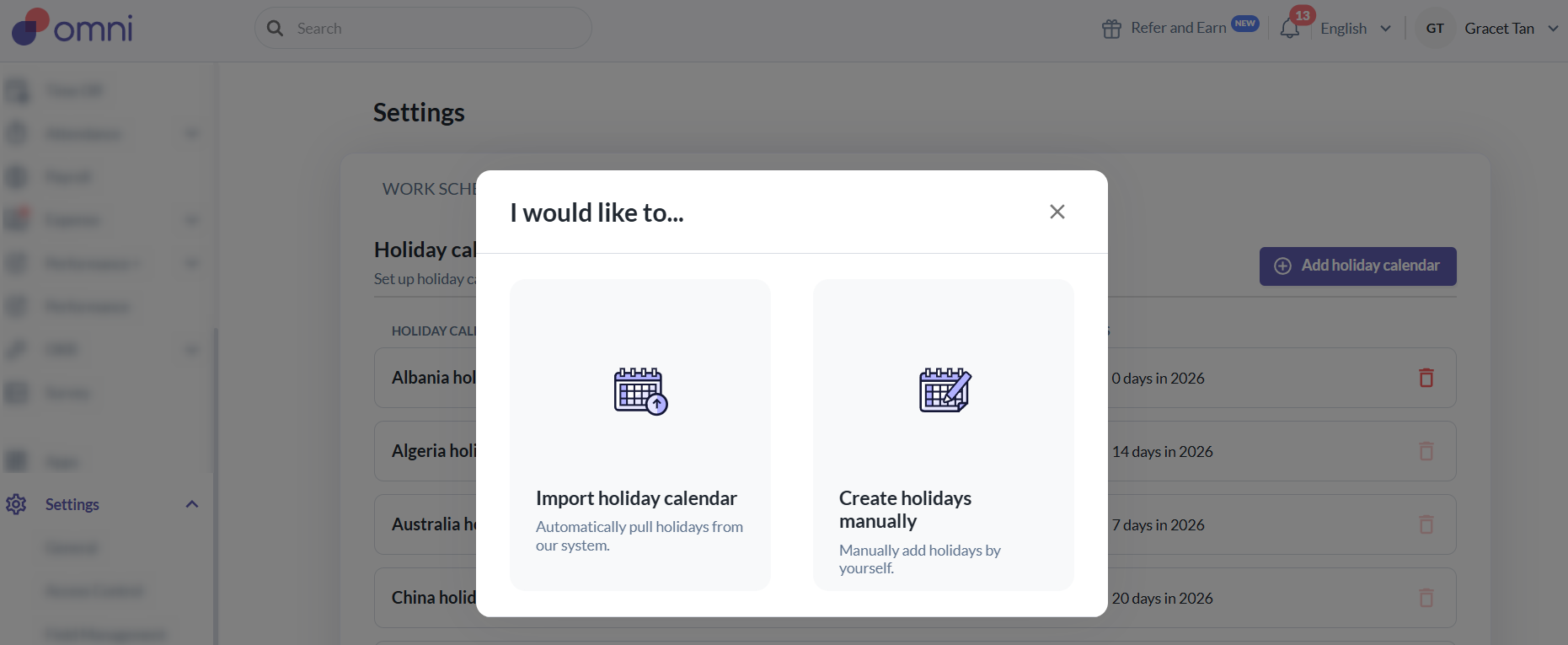
A. Import Holiday Calendar
- If you choose to Import holiday calendar, a pop-up will appear, where you'll select the country, then click Import.
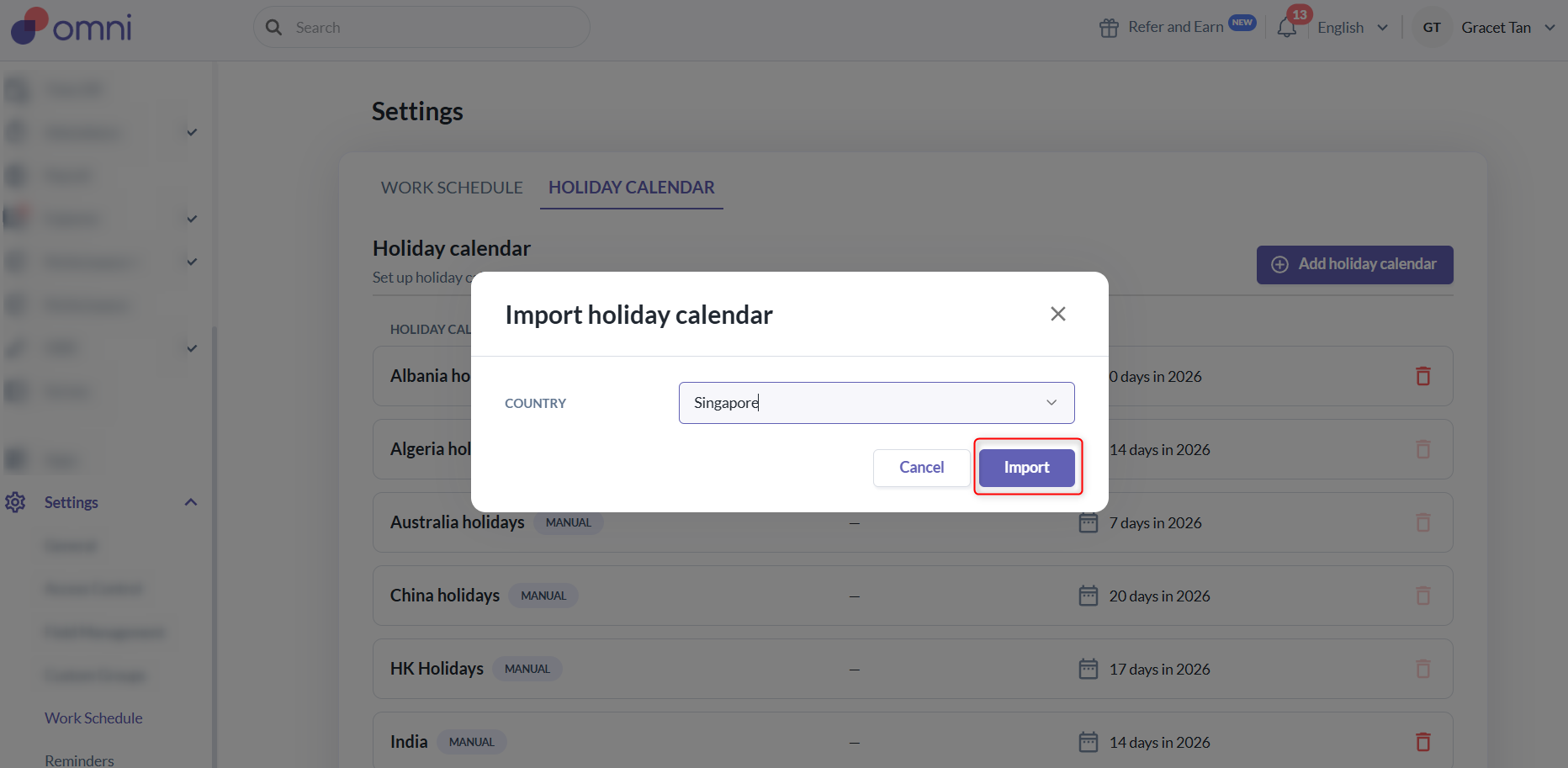
- Once the holiday is imported, a message Calendar has been imported successfully will appear, indicating that the holiday calendar has been successfully imported.
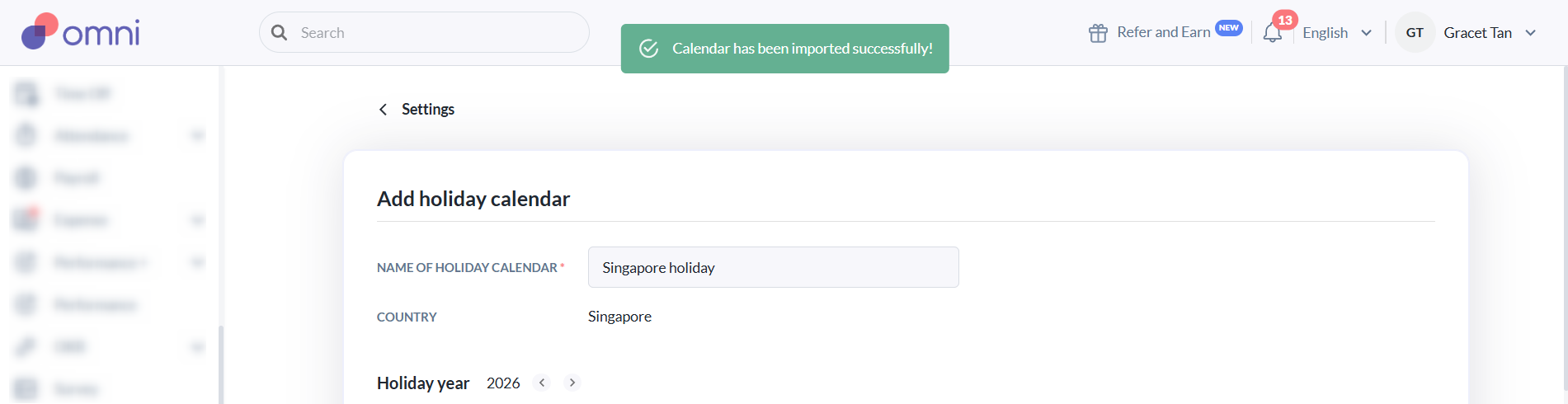
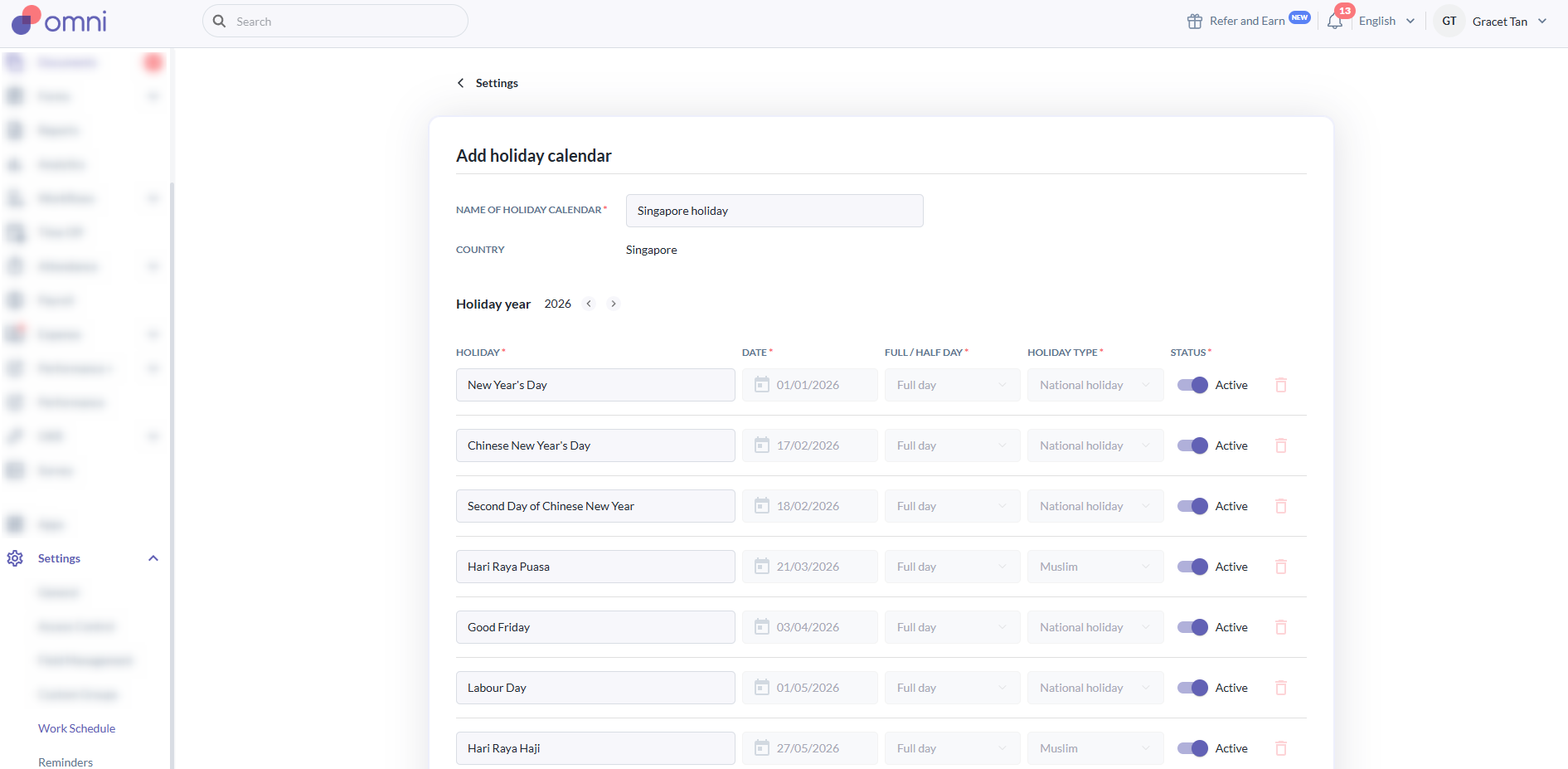
- Then, the holidays for that country for the current year and the following year will be automatically loaded.
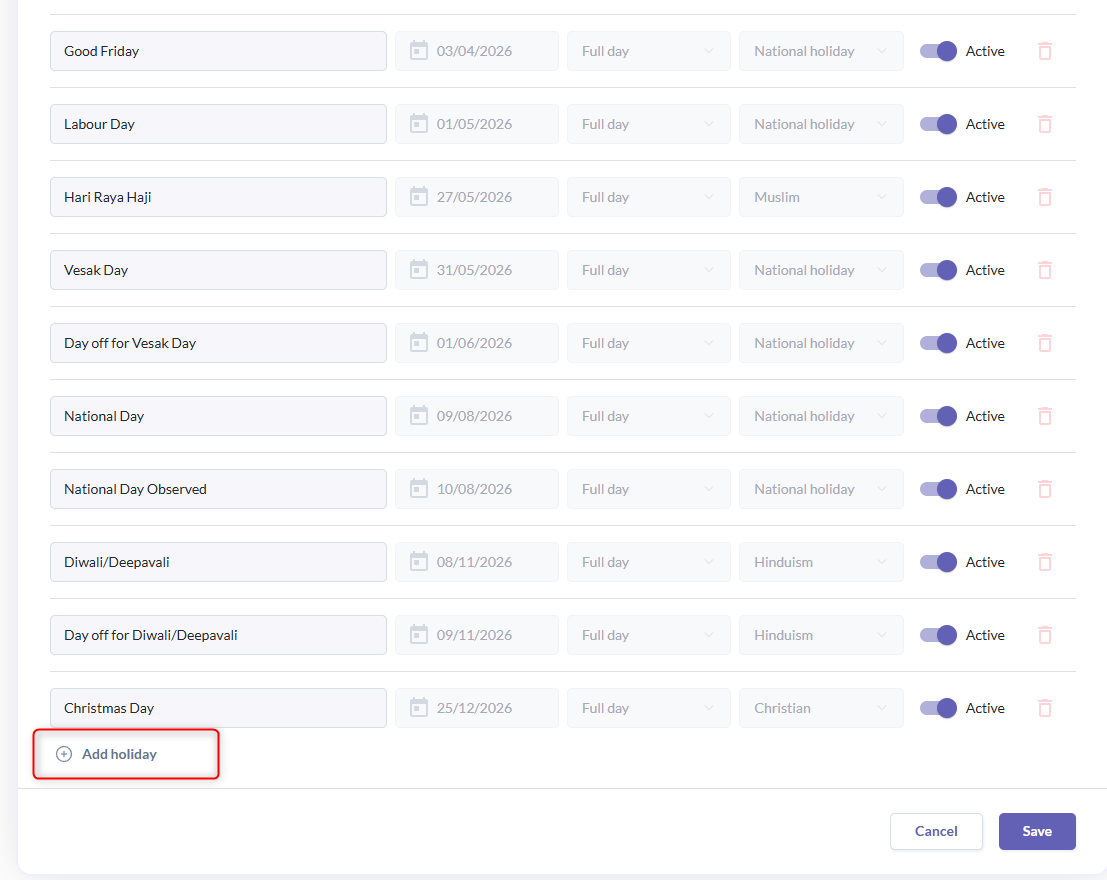
- You can also add more holidays by scrolling to the bottom and clicking Add Holiday.
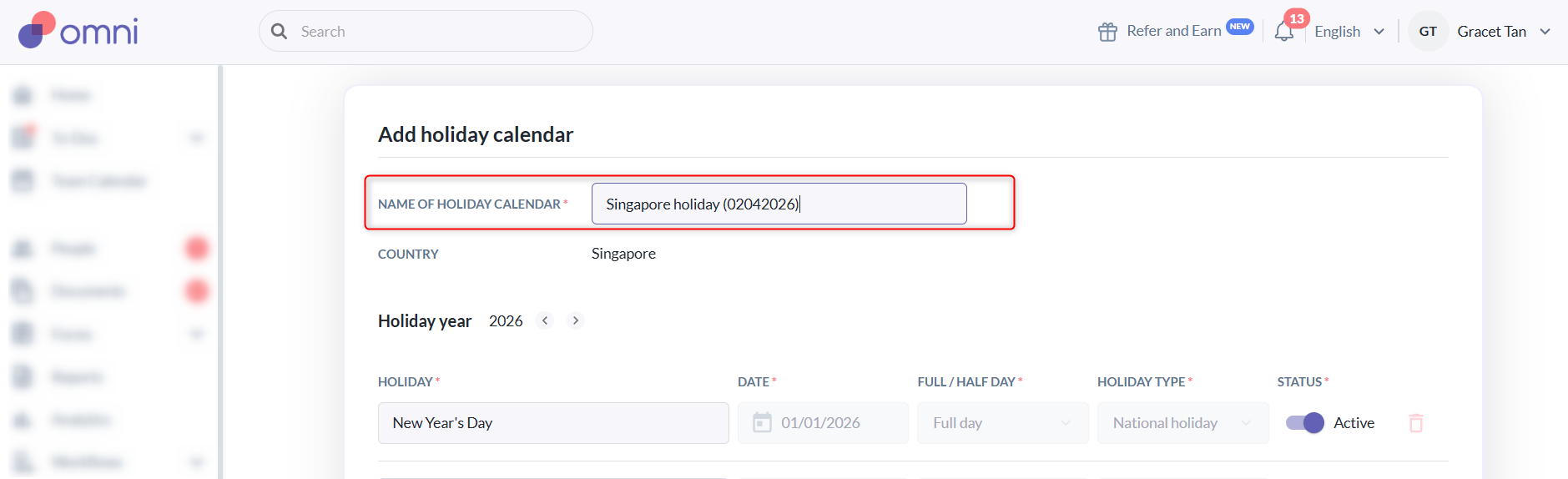
- Once the holidays are finalized, enter a name in the Name of Holiday Calendar field and click Save.
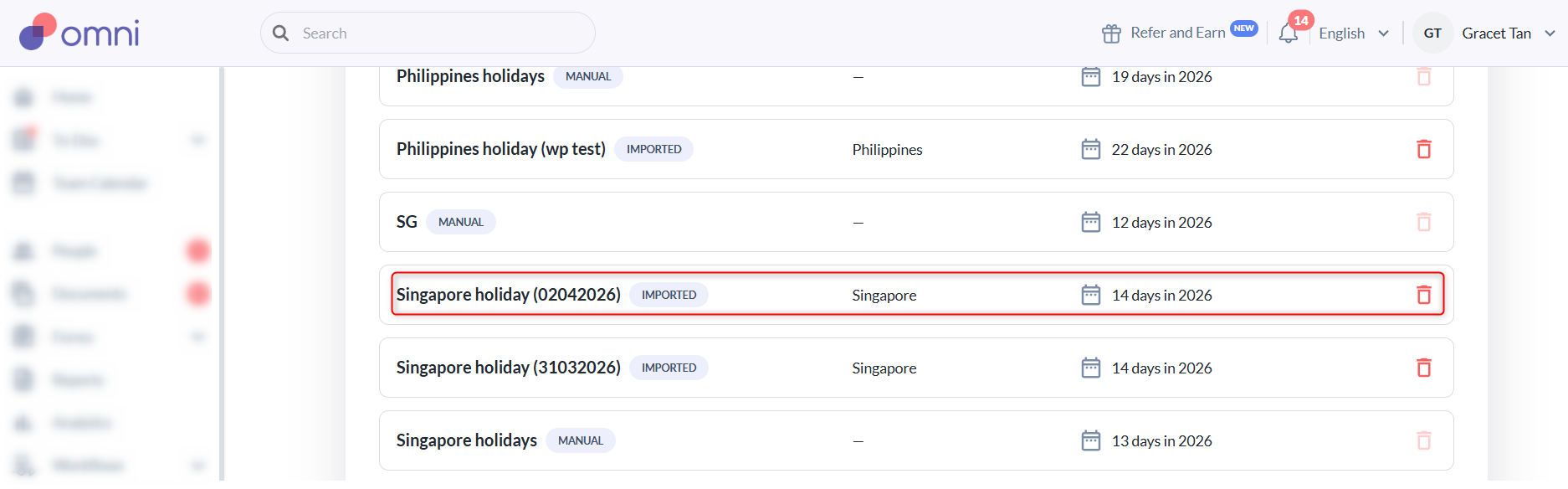
- After saving, the holiday calendar will appear in the list of Holiday Calendars. Each calendar will be tagged to indicate whether it was manually created or imported, along with its relevant country.
B. Create Holidays Manually
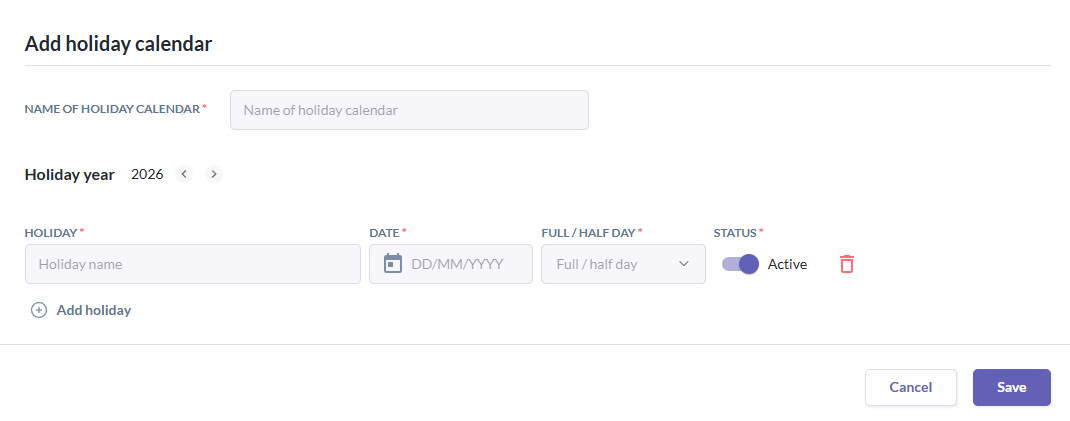
- If you choose Create Holidays Manually, you will need to input each holiday one by one, specifying the holiday calendar name, holiday name, date, whether it is a full or half day, and mark the holiday as Active or Inactive. Then, click Save.
Assigning Holiday Calendars
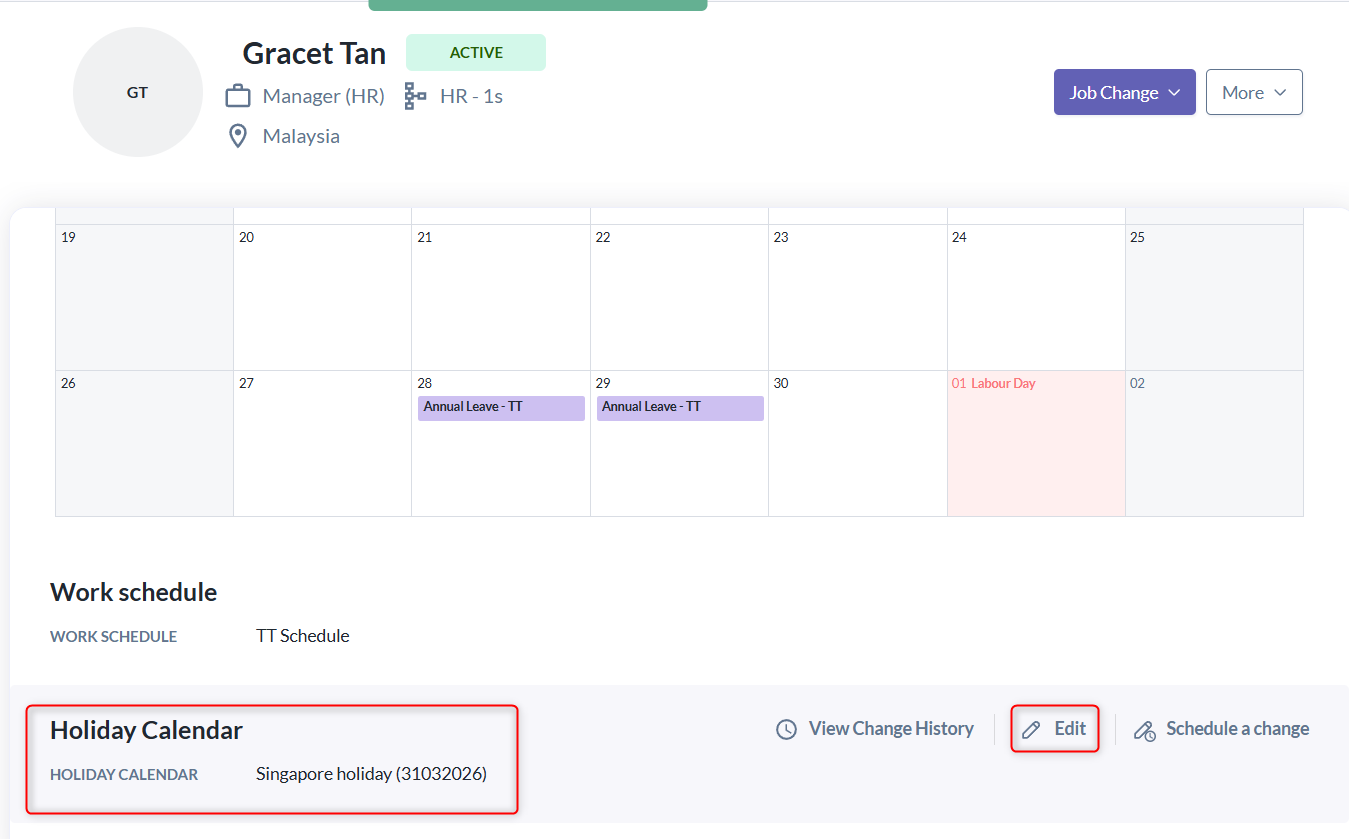
1. Go to People > Employee's profile > Time Off
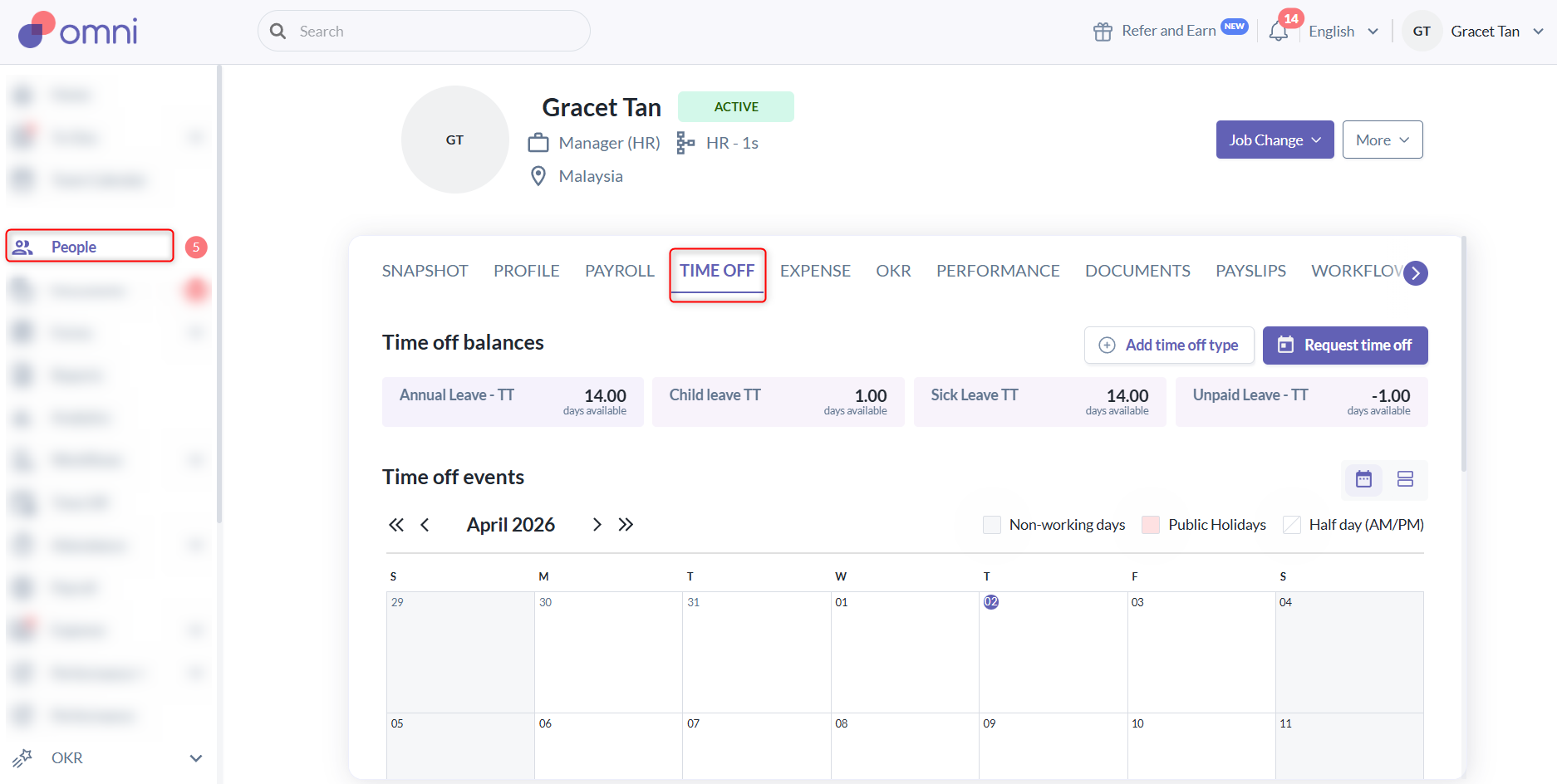
2. Scroll down to the Holiday Calendar section and hover over it. If this is your first time assigning a holiday calendar, click Schedule a Change. To update an existing holiday calendar, click Edit, and a pop-up will appear.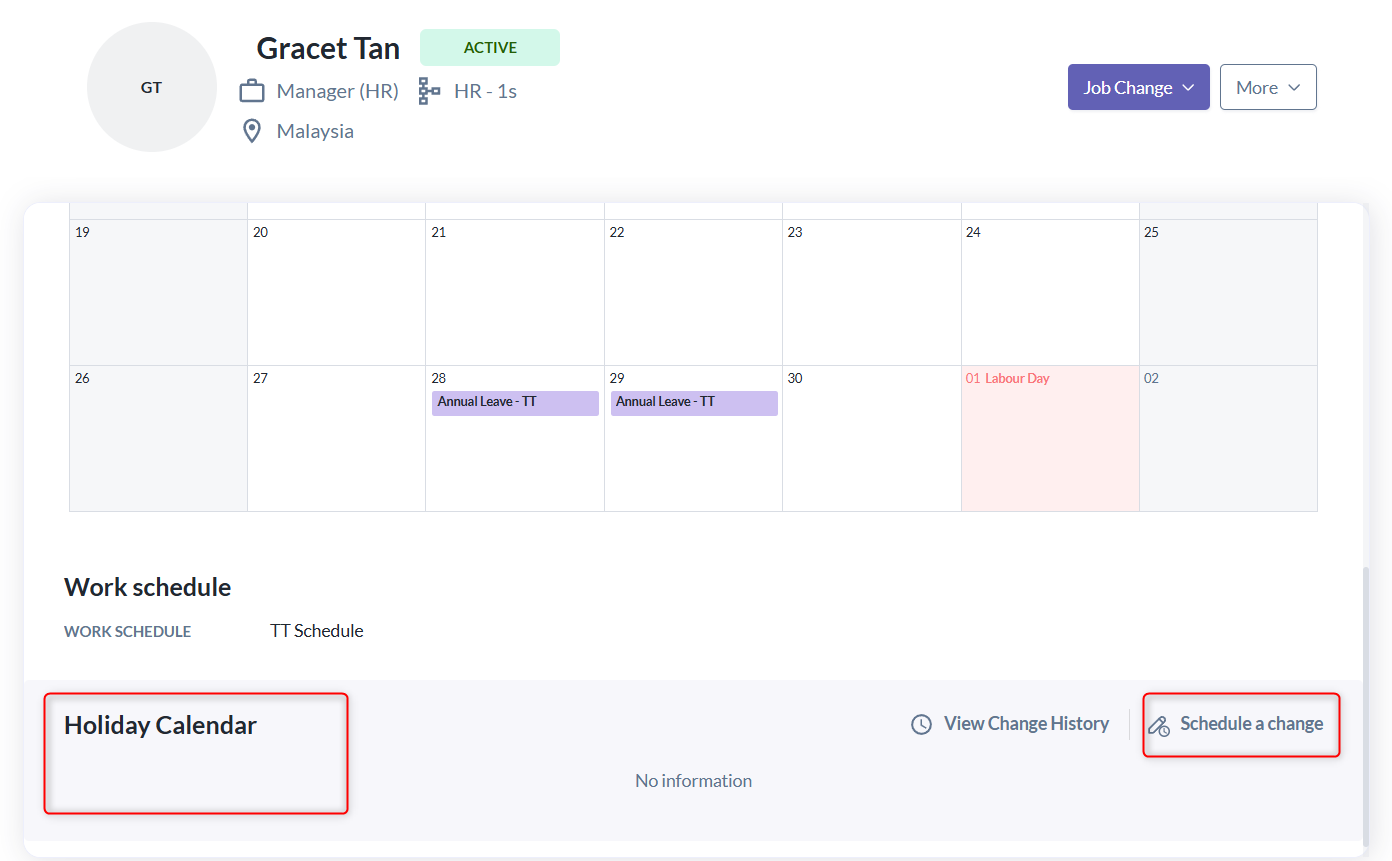
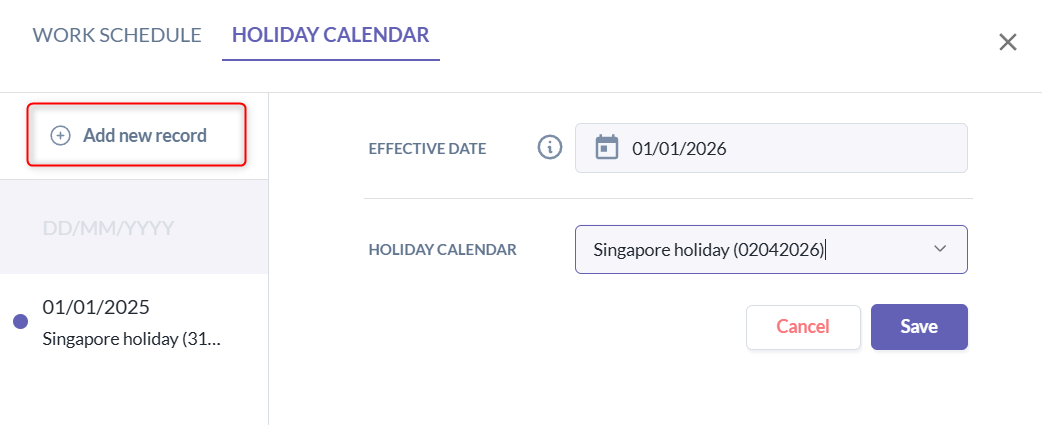
3. Click Add New Record, enter the effective date and the holiday calendar to be assigned, and click Save. Alternatively, you can update an existing record.
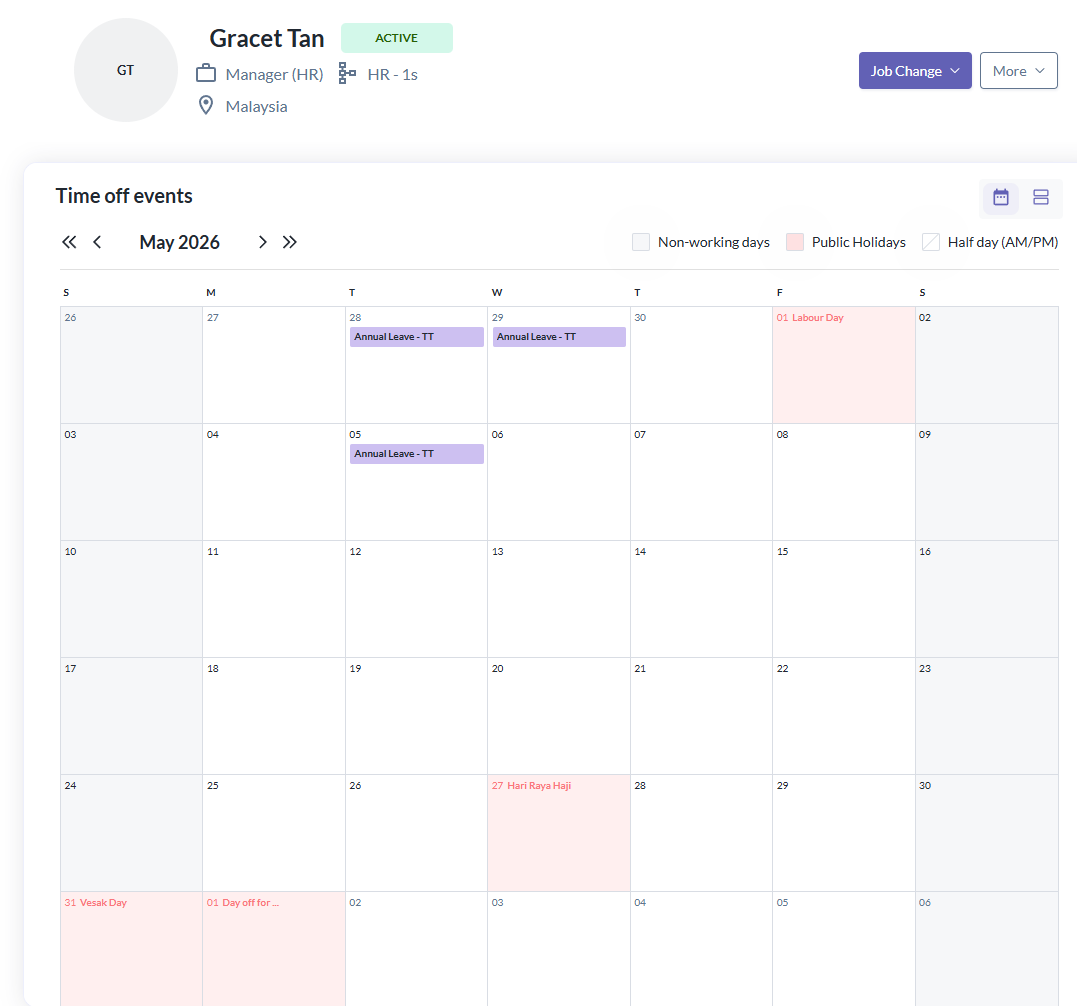
- The assigned holiday calendar should now be reflected in the employee’s calendar. Holidays can be easily identified as they are marked in red.
Still Need Help?:
Reach out to our support team should you need further assistance.
Was this article helpful?
That’s Great!
Thank you for your feedback
Sorry! We couldn't be helpful
Thank you for your feedback
Feedback sent
We appreciate your effort and will try to fix the article