Overview:
Updating manually created holiday calendars is easy in Omni HR. Let's see the steps on how you can do just that!
Navigating to the Holiday Calendars:
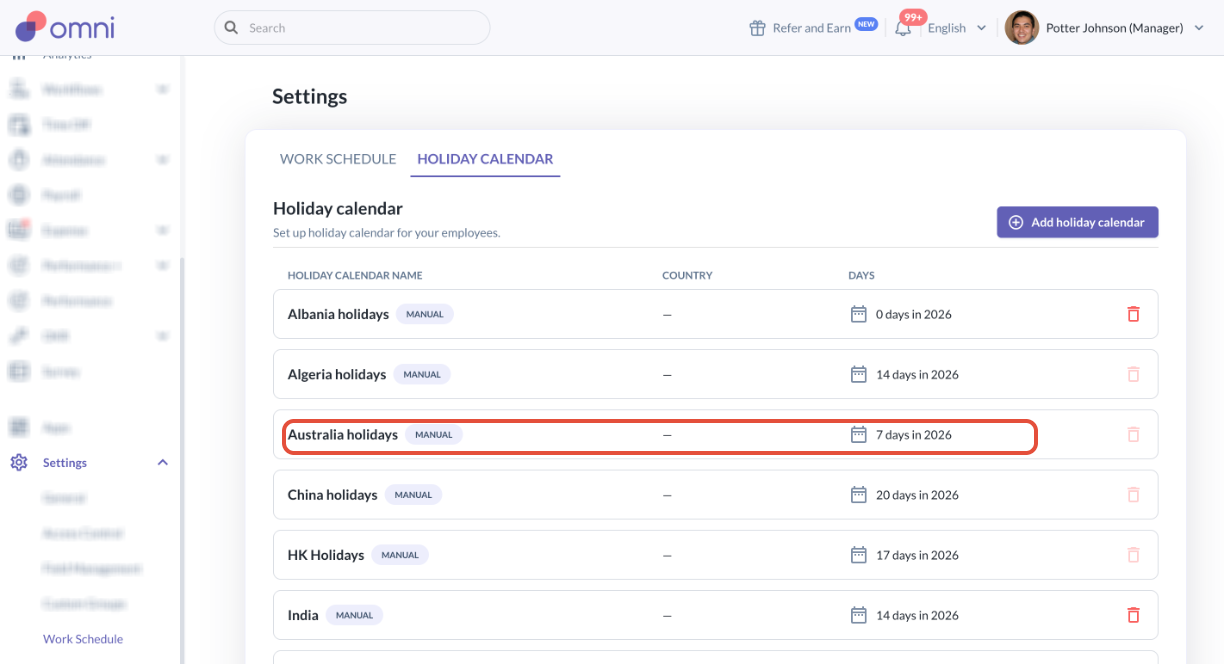
- Go to Settings > Work Schedule > Holiday Calendar > click the Holiday Calendar that is labeled manual you want to update.
- In the page you're brought to, you can:
- Delete existing holidays - Just click the trash icon to the right of the holiday.
- Edit the dates of existing holidays. - You may click the fields that contain the holiday name, the date, and full day/half day, then edit accordingly.
- Toggle the status of the holiday - You can choose to make the holiday active or inactive
- Add new holidays - Click "Add holiday" at the bottom most part of the page. Input the details of the holiday.
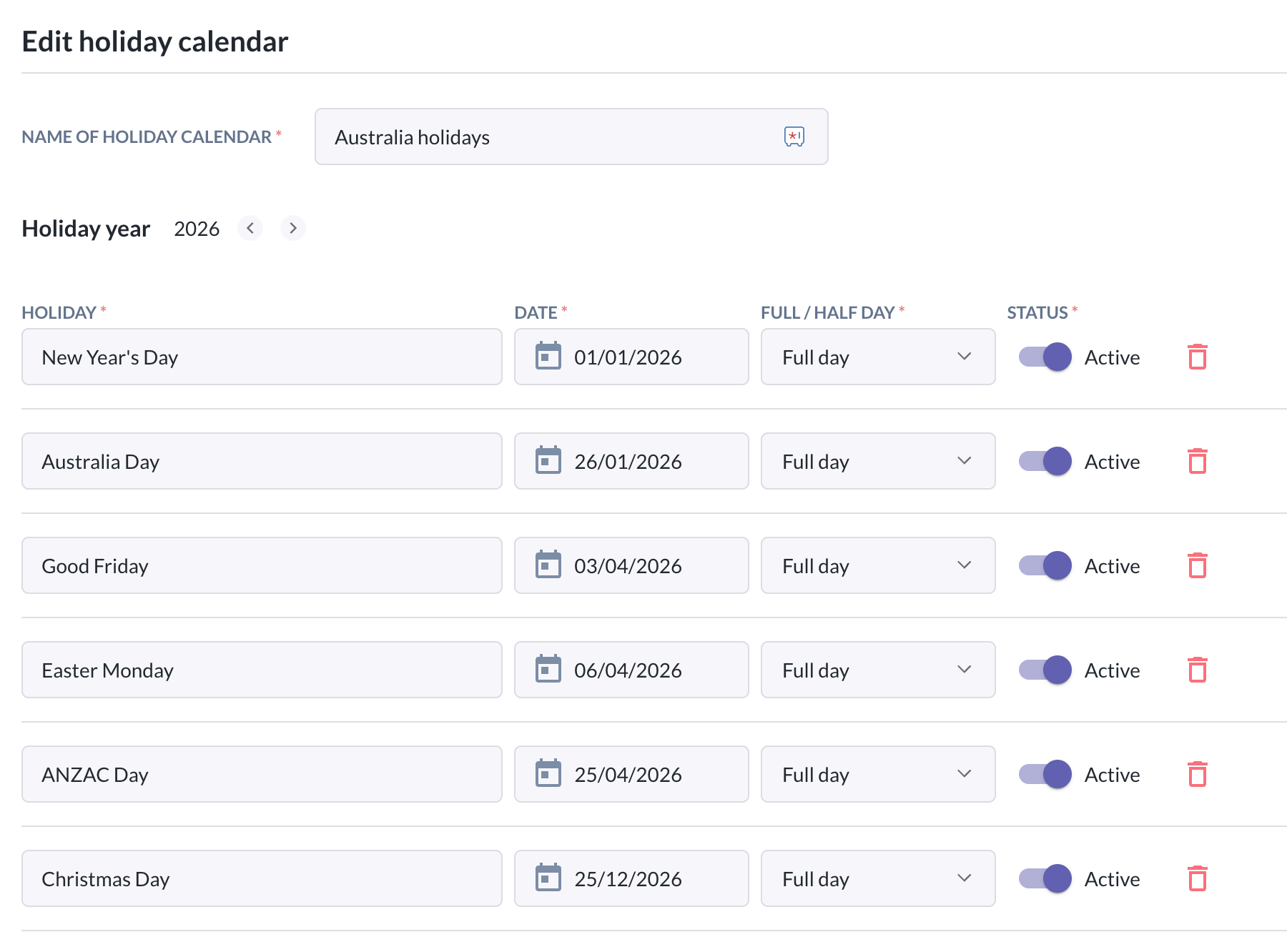
- Once you click Save, it will automatically appear in the Time off events Calendars or users assigned to the Holiday Calendar.
Still Need Help?:
Reach out to our support team should you need further assistance.
Was this article helpful?
That’s Great!
Thank you for your feedback
Sorry! We couldn't be helpful
Thank you for your feedback
Feedback sent
We appreciate your effort and will try to fix the article