Overview:
Admins can edit review phase timelines directly from the Review Phase Details page without needing to recreate the review phase configuration. This article walks admins through the steps to edit participant (selected vs all) timelines within a review phase.
TABLE OF CONTENTS
What's New
- Admins can choose to update the timelines for:
- All participants, or
- Selected participants only
- When editing timelines for all participants:
- The Peer Selection timeline can be updated
- The overall review phase closure date can also be updated
- When editing timelines for selected participants:
- Only applicable sub-review type timelines are shown
- Peer Selection and Closure Date are not editable
Edit Participant Timeline
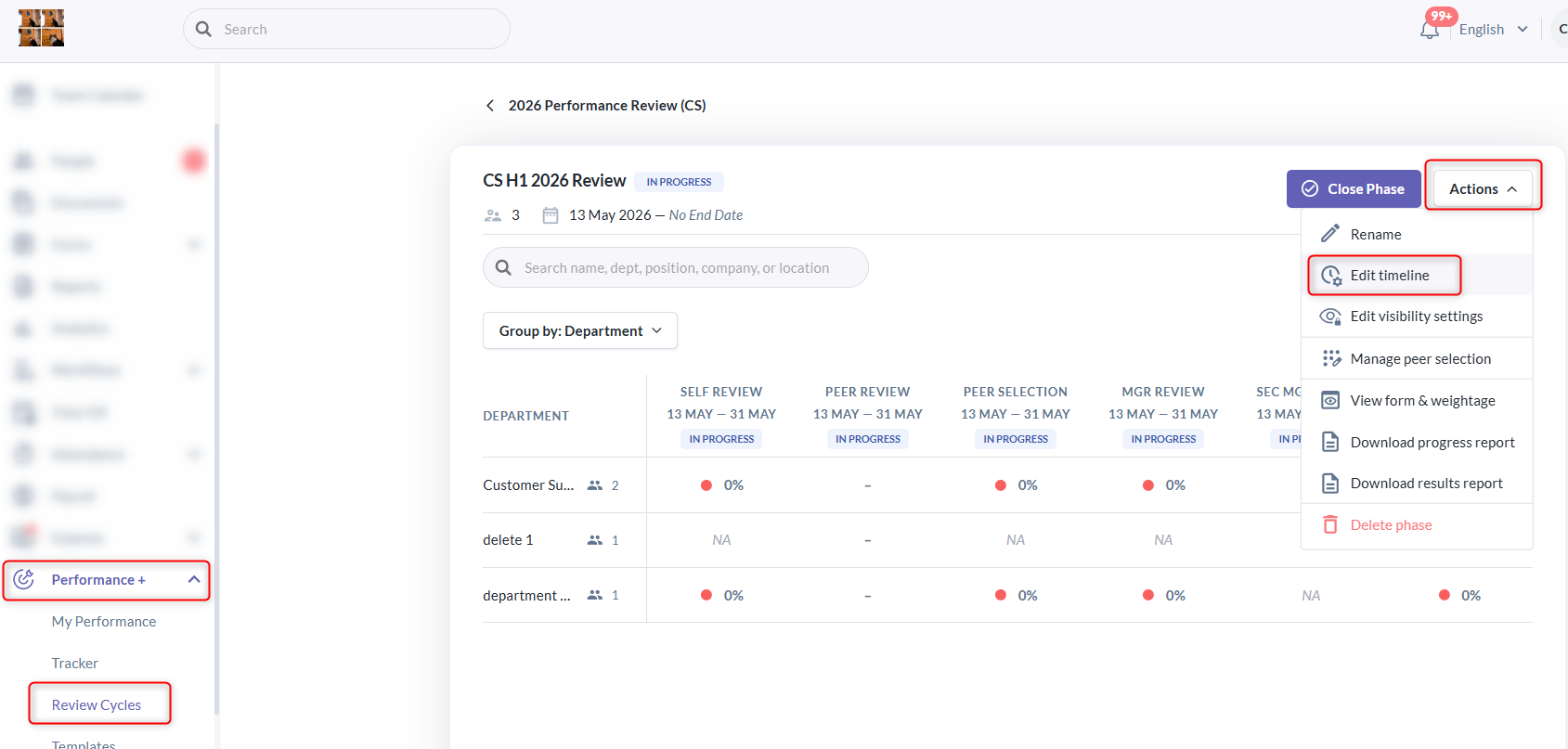
1. Go to Performance+ > Review Cycles > select the relevant review cycle. In the Review Cycle Details page, click on the respective review phase row, then click on Action menu > select "Edit timeline".
2. Select Participants & Edit timeline
Step 1 — Select Participants
- Admins first select whether the timeline changes should apply to:
- All participants, or
- Selected participants
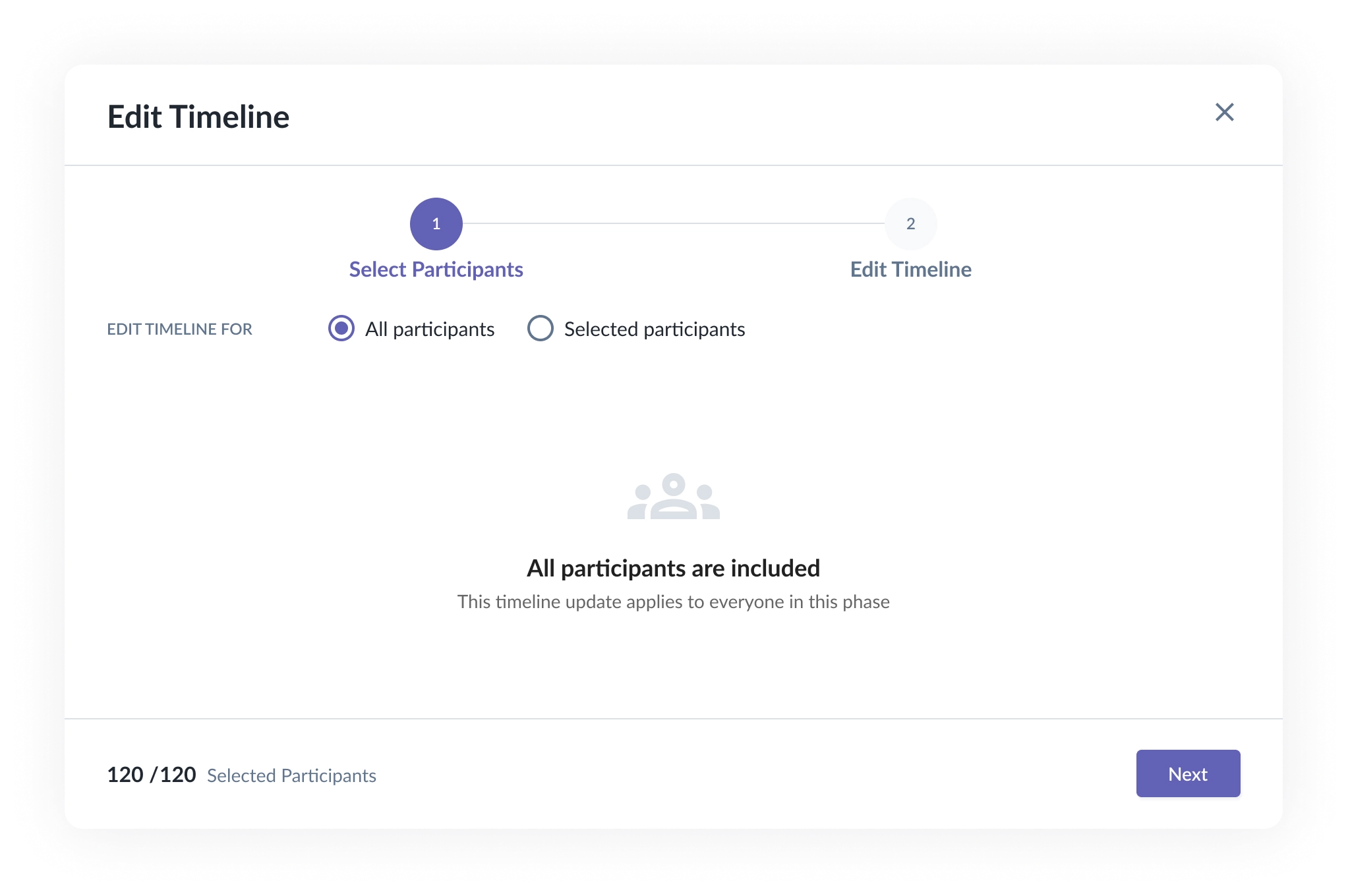
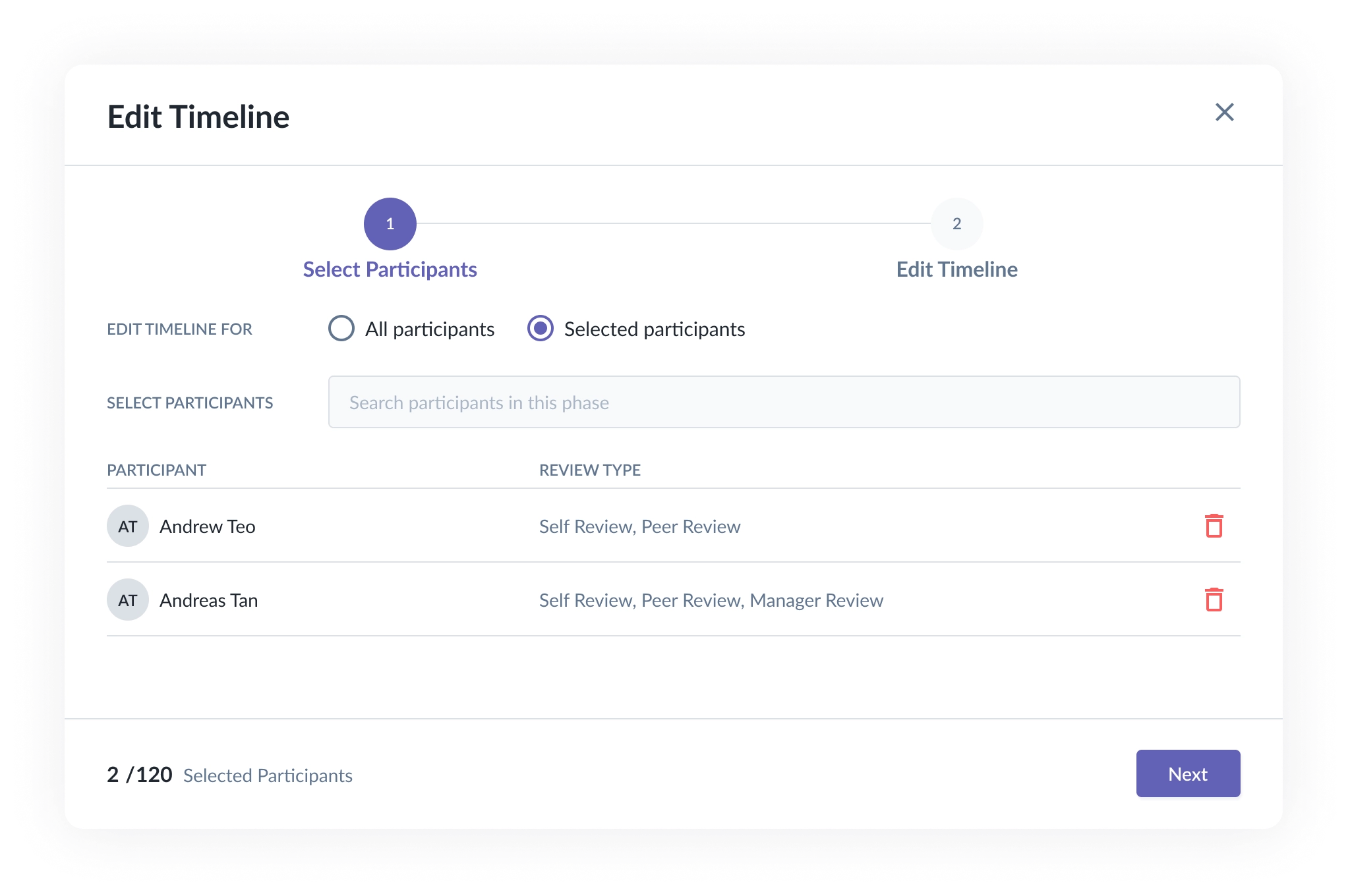
- If selecting specific participants, the admin can use a search field to find and add them. The table displays the selected participants with their names and review types.
- Participants can be removed from the selection before proceeding. Once the participant is selected, can click on Next.
Step 2 — Edit Timeline
- Admins can then update the start and end dates for each applicable sub-review type.
- The date are pre-filled based on the default timeline of the review type setup in the review phase and the review type applicable to the selected participants.
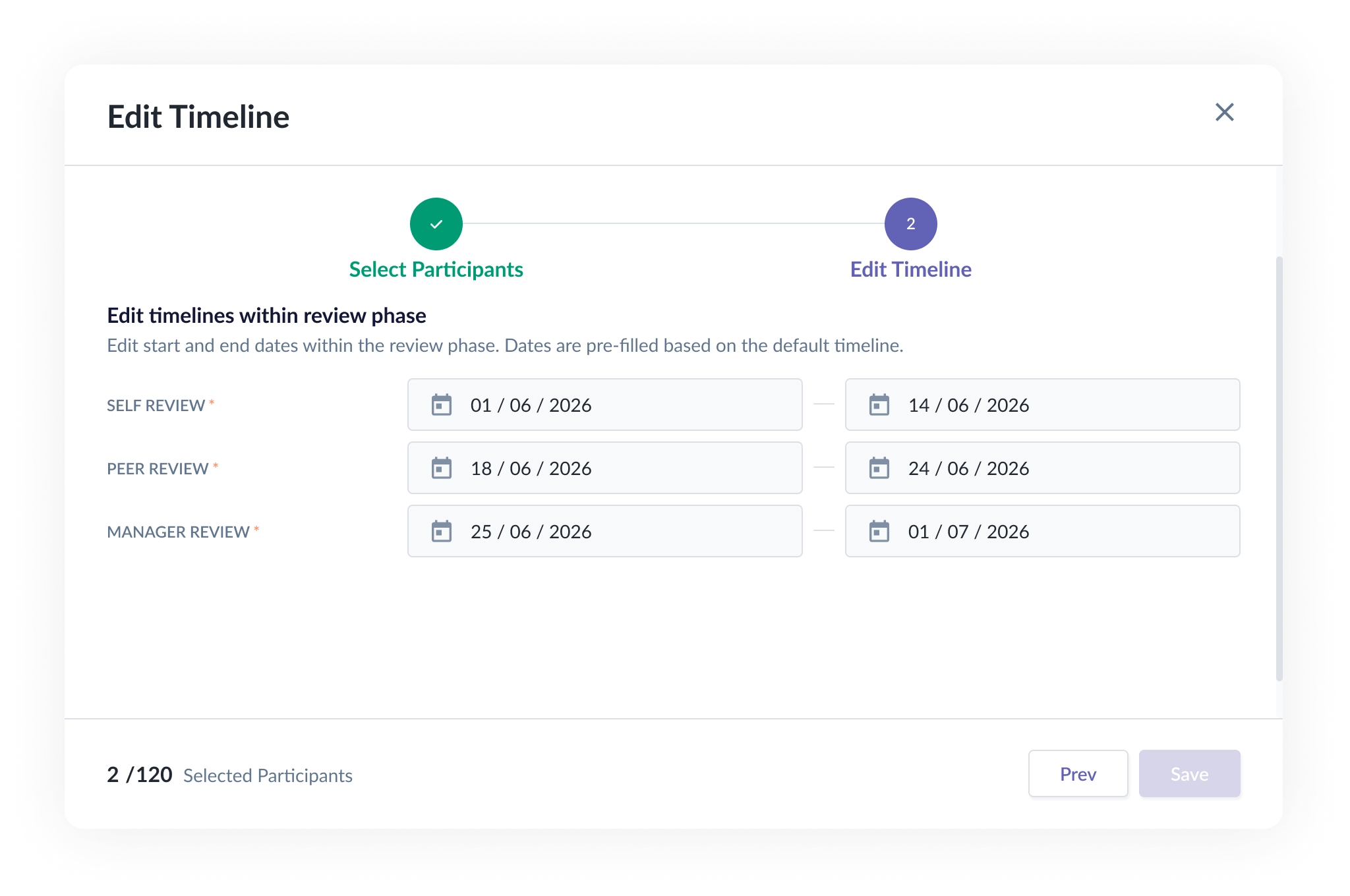
- For peer selection & closure date can be updated for all participants but not applicable for selected participants.
- The Peer Selection end date must be on or before the Peer Review end date when editing for all participants.
- If the review phase is configured to close automatically, the edited closure date must be set to today’s date or a future date.
Example: If choose all participants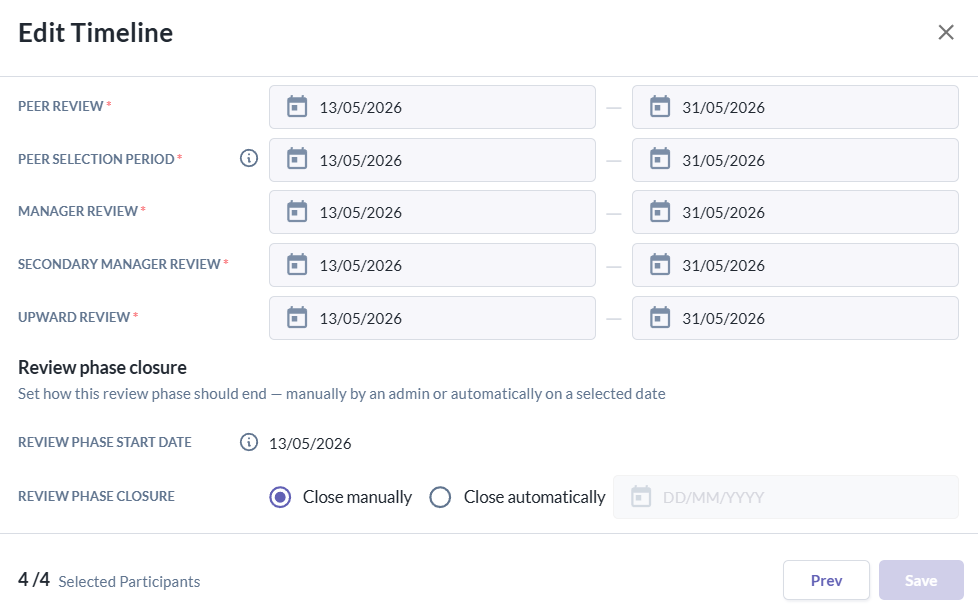
Example: If choose selected participants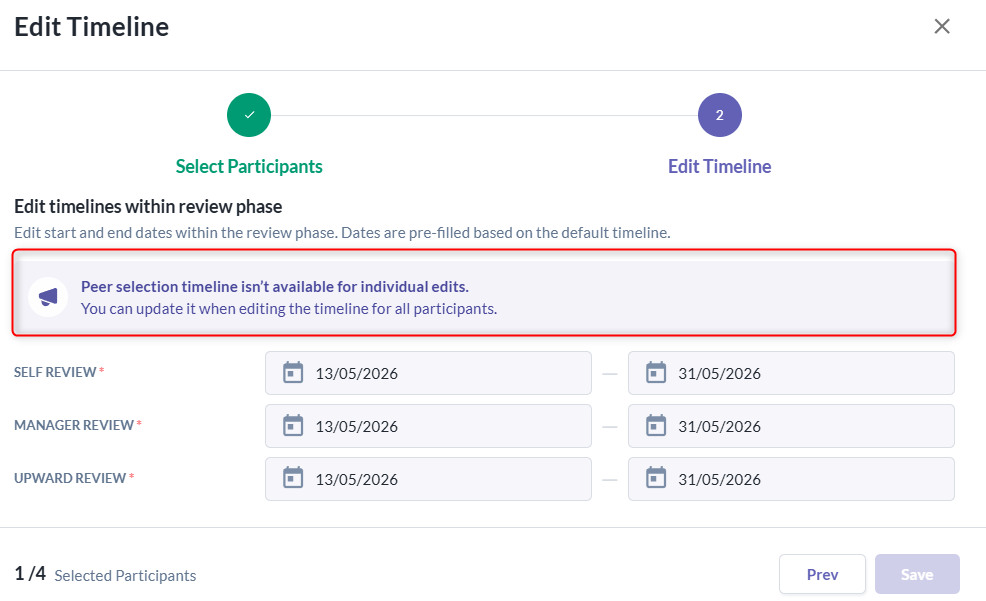
3. Once the changes are saved, a confirmation message will appear indicating that the review phase timeline has been saved successfully.
Review Edited Timelines
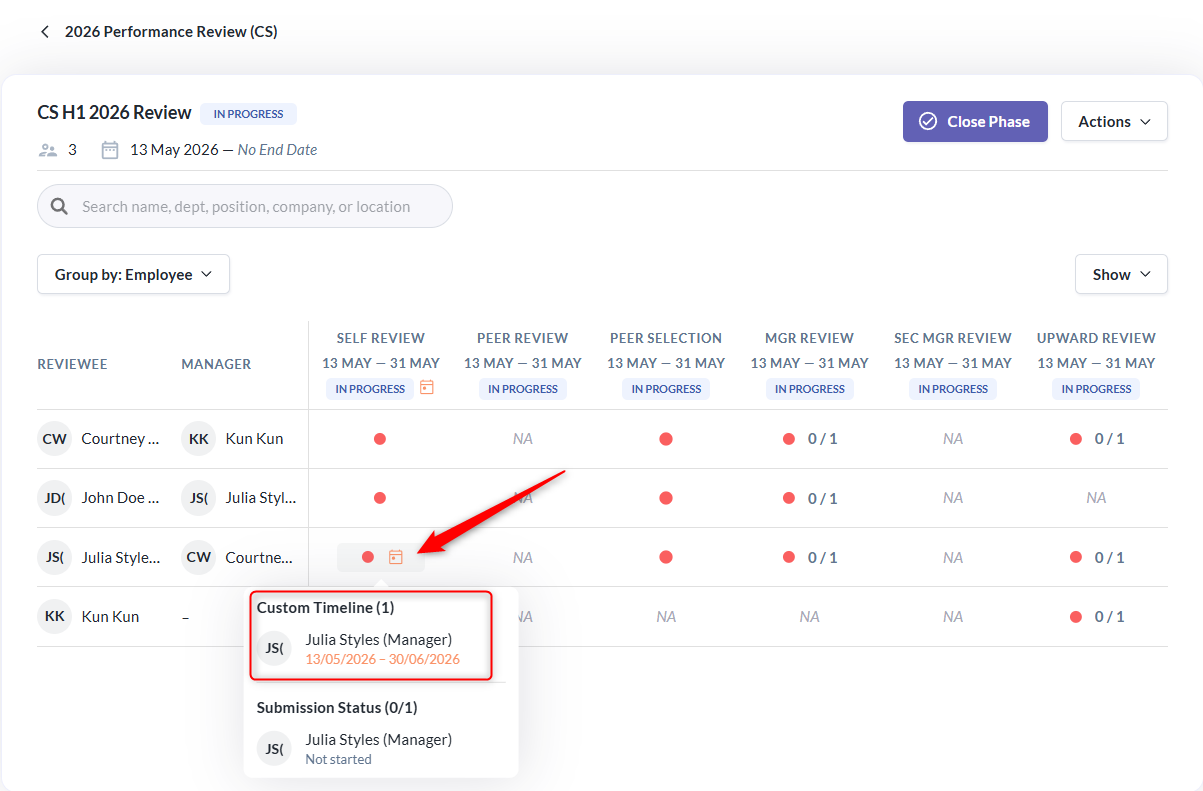
- After the timeline is edited, participants who have a custom timeline are indicated by a calendar icon next to their review status. This makes it easy for admins to identify at a glance who has a different timeline from the phase default before deciding whether to make further edits.
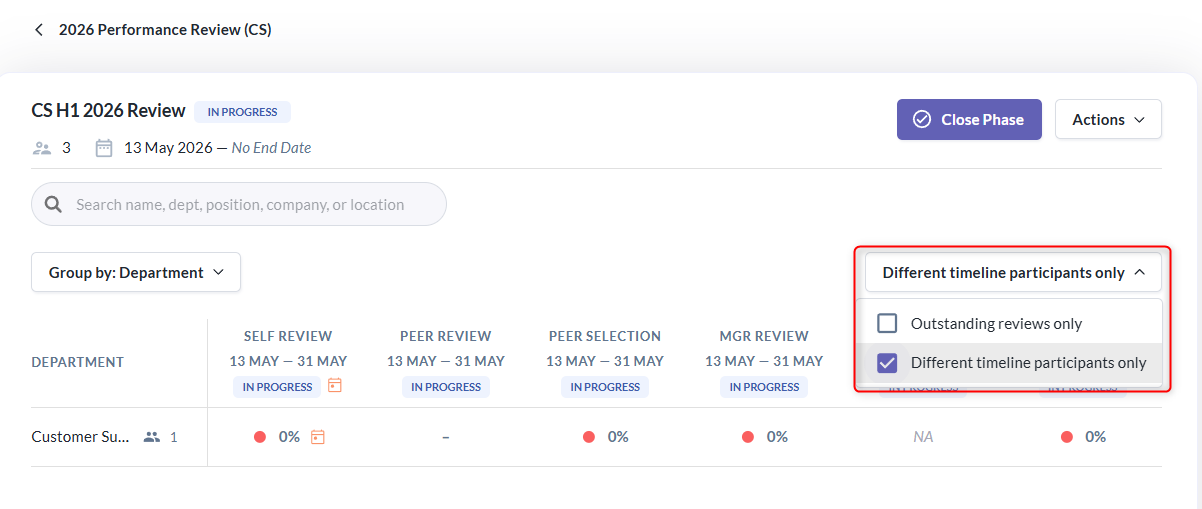
- Admins can also filter the display to show different timeline participants only by go to "Show" button > Select "Different timeline participant only".
Email Notification
- Participants will only receive email notifications when a timeline change affects them.
- Email notifications are only triggered if the related sub-review phase is currently in progress at the time the change is made.
- Participant's sub-review type is Scheduled or Closed will not receive any email notification.
Still Need Help?:
Reach out to our support team should you need further assistance.
Was this article helpful?
That’s Great!
Thank you for your feedback
Sorry! We couldn't be helpful
Thank you for your feedback
Feedback sent
We appreciate your effort and will try to fix the article