Overview:
HR admins can now launch a review phase through a guided setup flow. The article walks admins through each required configuration step before the review phase is launched.
TABLE OF CONTENTS
- Definitions
- Create and Launch a Review Phase
- End to End Setup Checklist
Definitions
Here are some definitions of the key terms used in Performance+ to help you understand better:
- Review Cycle
The performance review period vessel that can include one or more Goal Phases and one or more Review Phases. - Review Phase
A phase within the Review Cycle where performance reviews are conducted. - Goal Phase
A phase within the Review Cycle where participants create their goals. Goal Phases are optional and can be configured to support one level goals or two level goals.
Create and Launch a Review Phase
Step 1: Add a Review Phase
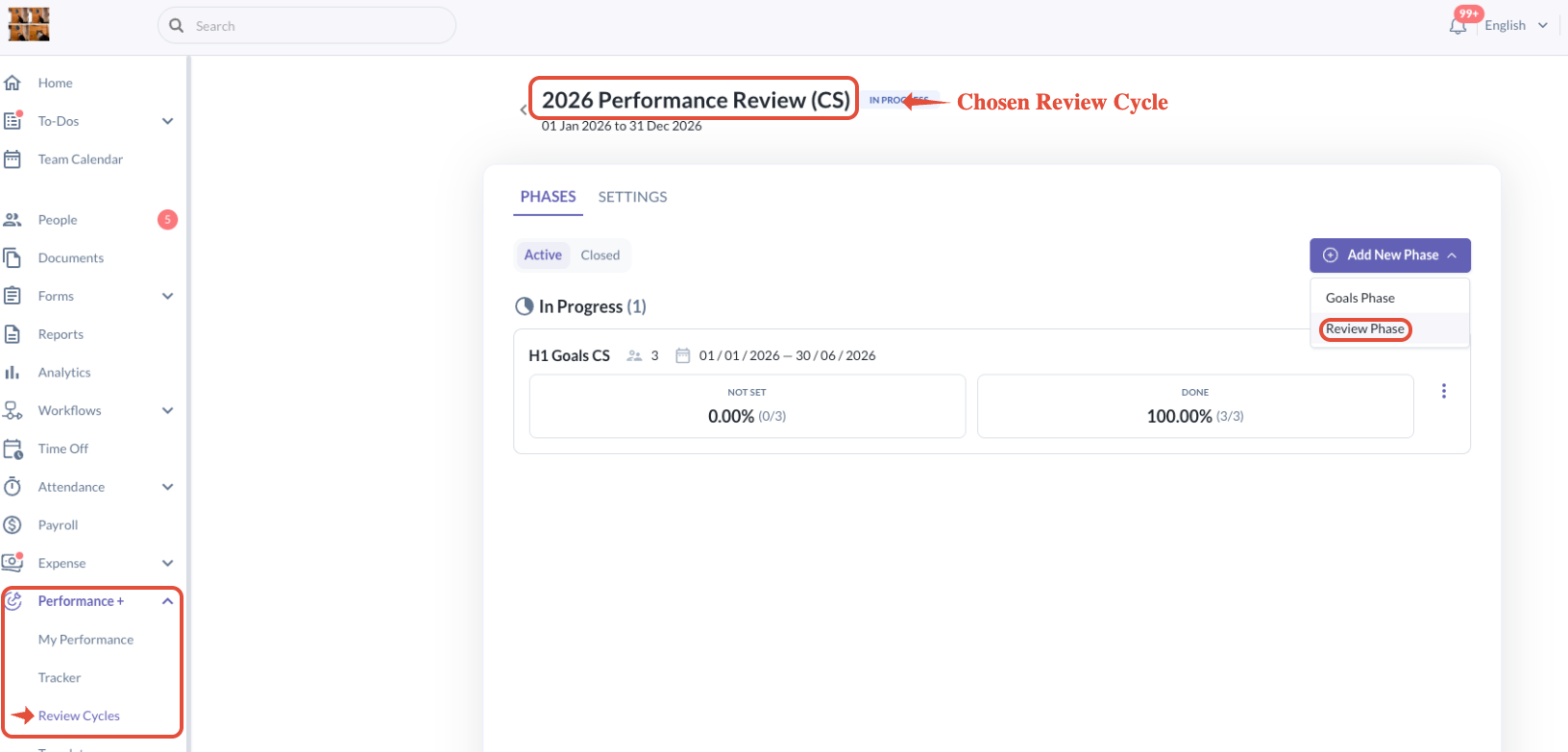
- To launch a review phase, go to Performance+ > Review Cycle and click Add Phase, then choose Review Phase
Step 2: Setup review phase basics
- Start by entering the basic information for the review phase i.e. Review Phase Name
- Next, select the master template that will be used for this review phase.
- The selected template determines what will appear in the rest of the setup flow.
- For example, if the master template includes a goal-related section, peer review, or other review components, this is what will be surfaced to be setup further.

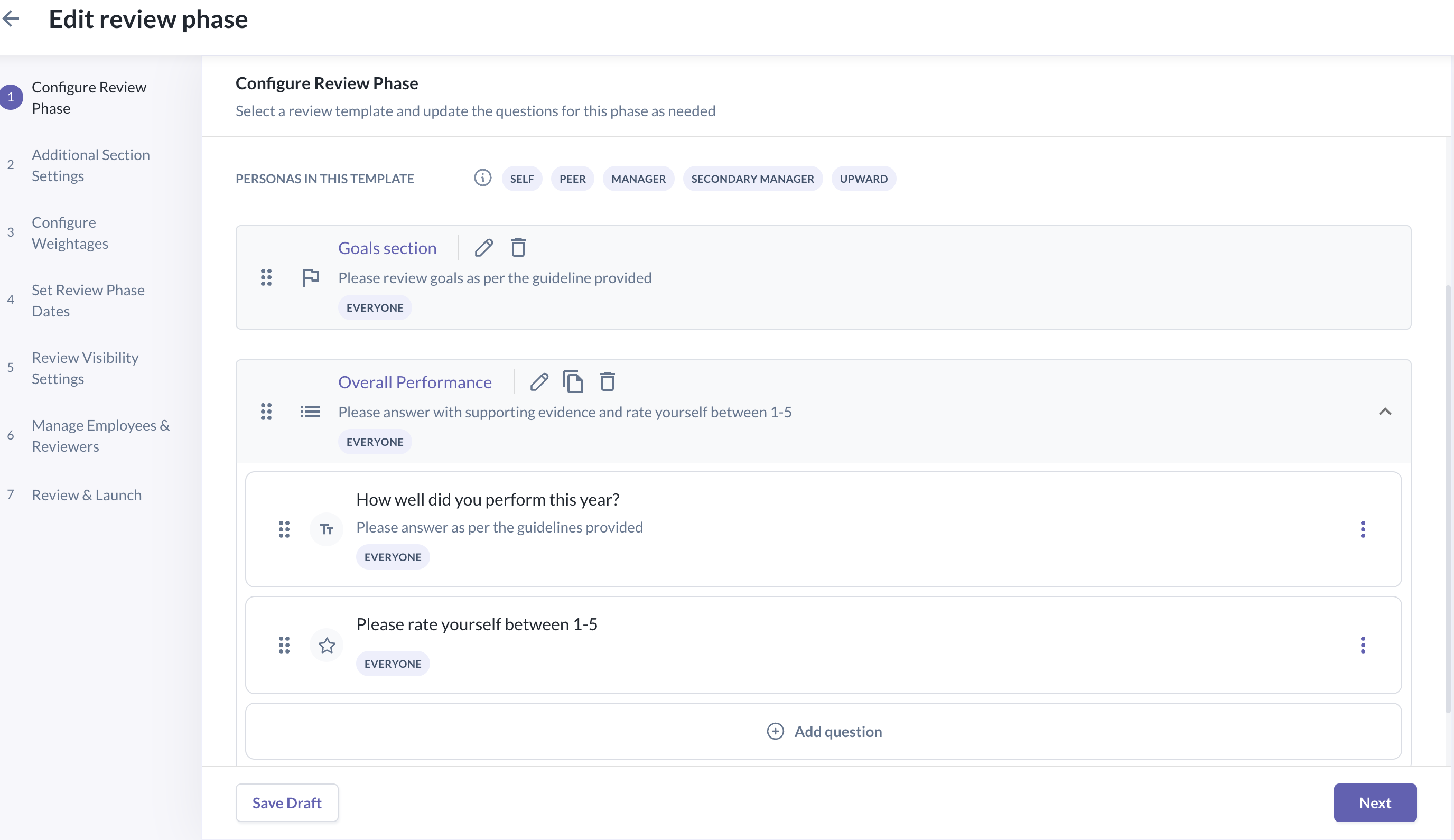
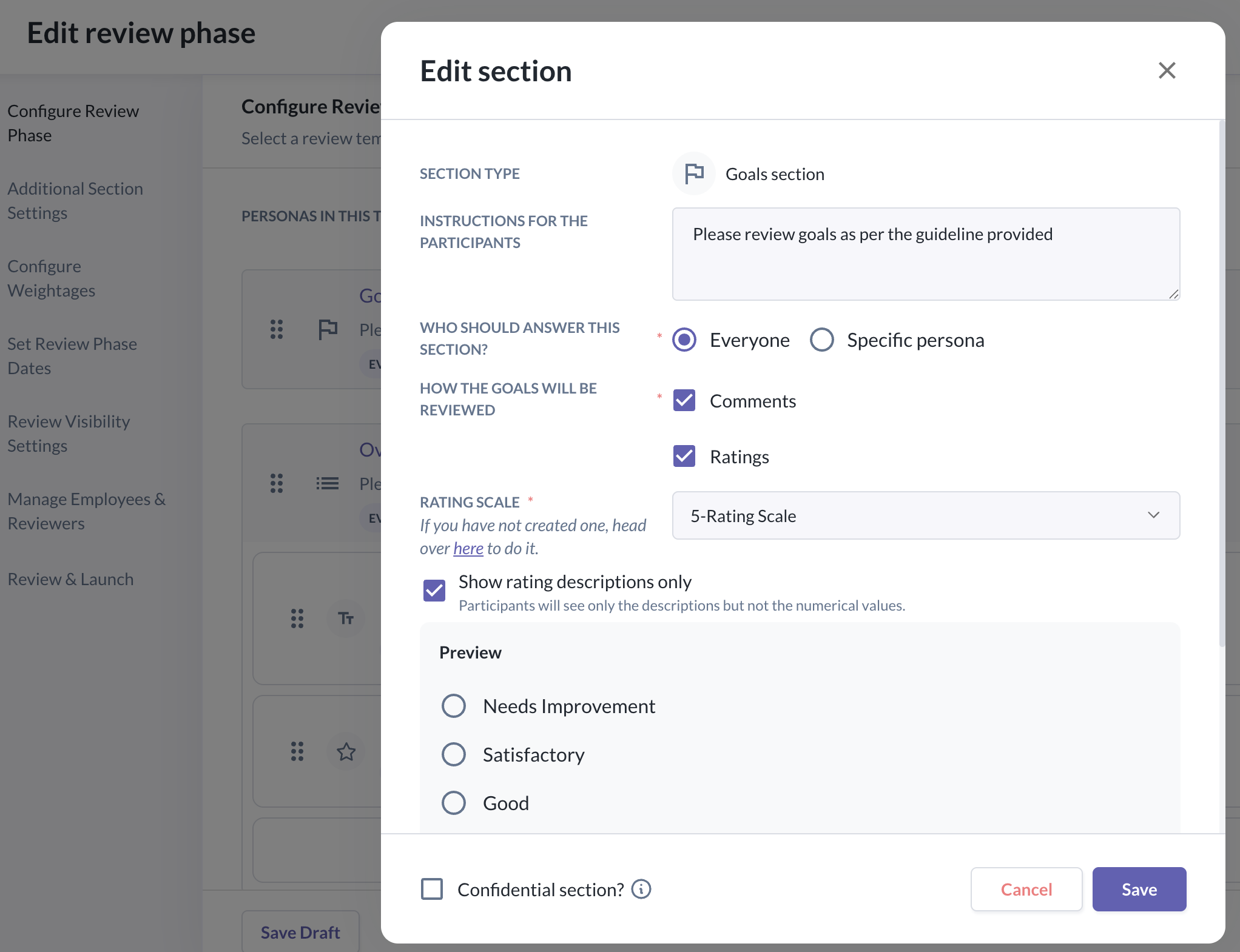
- After a template is loaded, the admin can still edit sections and questions within the launch flow.
- You can use the Preview mode to help visualise how the review form will be displayed to users.
- Note: Any changes made here apply only to the current review phase setup and do not update the original template.
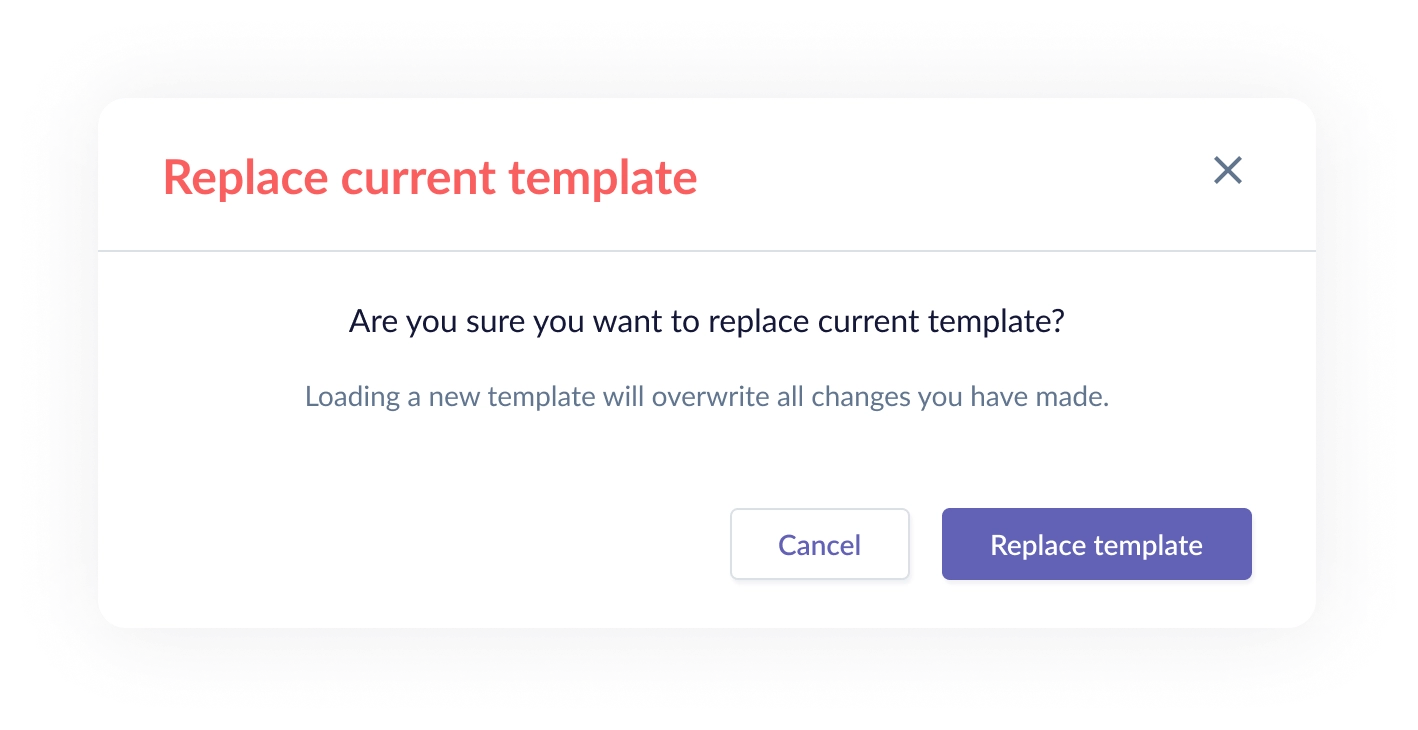
- If you change the selected template after making progress, the system will prompt for confirmation before replacing the current setup. This helps prevent accidental loss of work when switching to a different template.
Step 3: Additional Section Settings
- This step only appears when the selected template contains sections that need extra setup. The content shown here depends on what was included in the template.
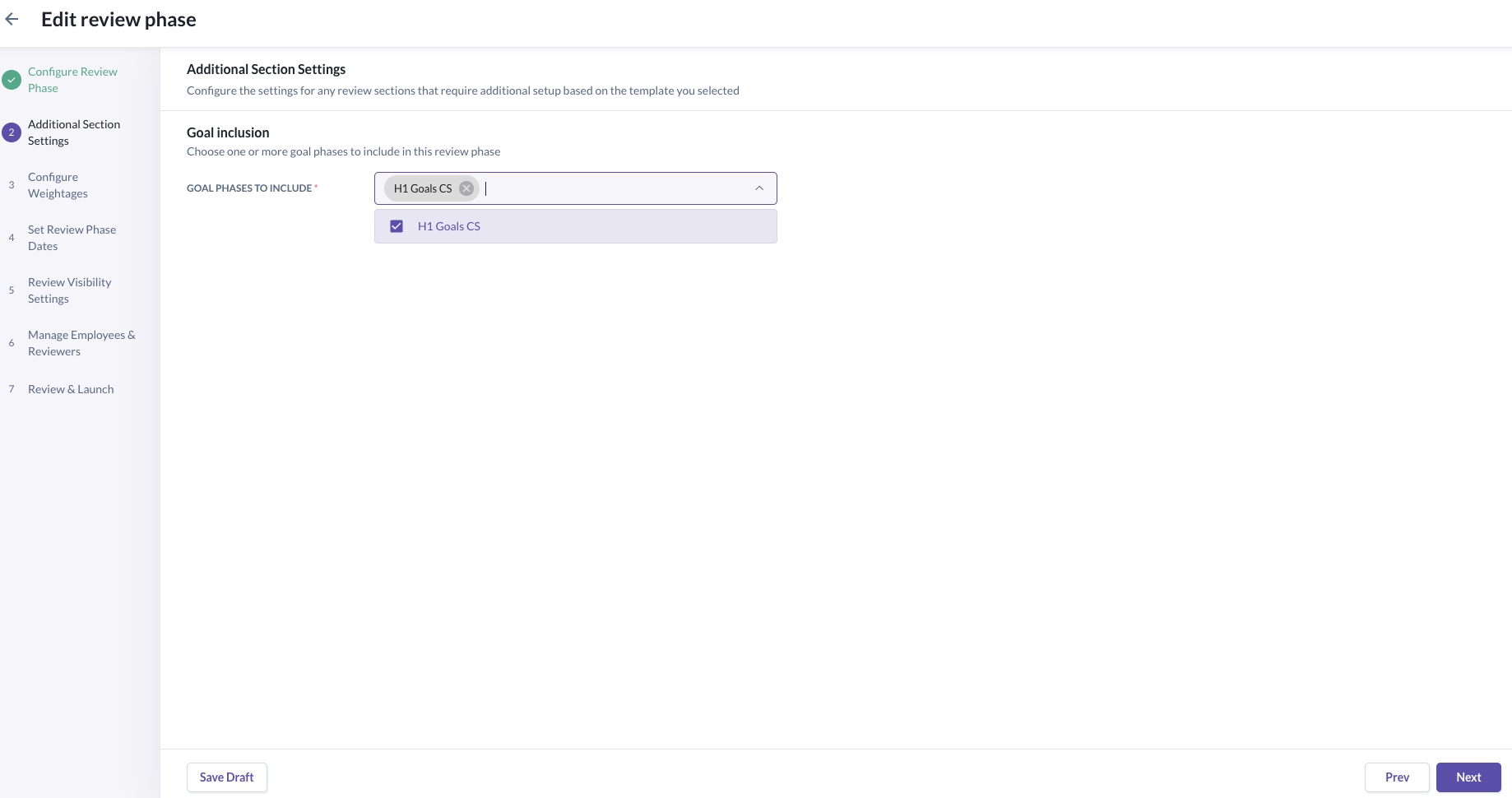
a) Goal Section
- If the template chosen includes a goal section, you will be prompted to select which goal phase(s) to include.
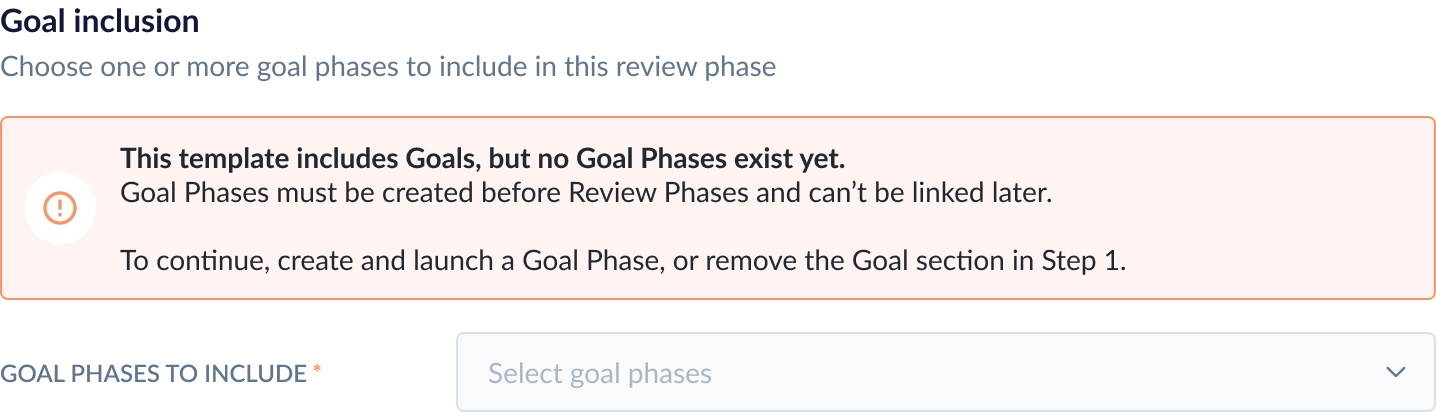
- If the template includes goals but no goal phase is selected, the system shows an error and you will not be able to continue until a goal phase is chosen.
b) Peer Selection Settings:
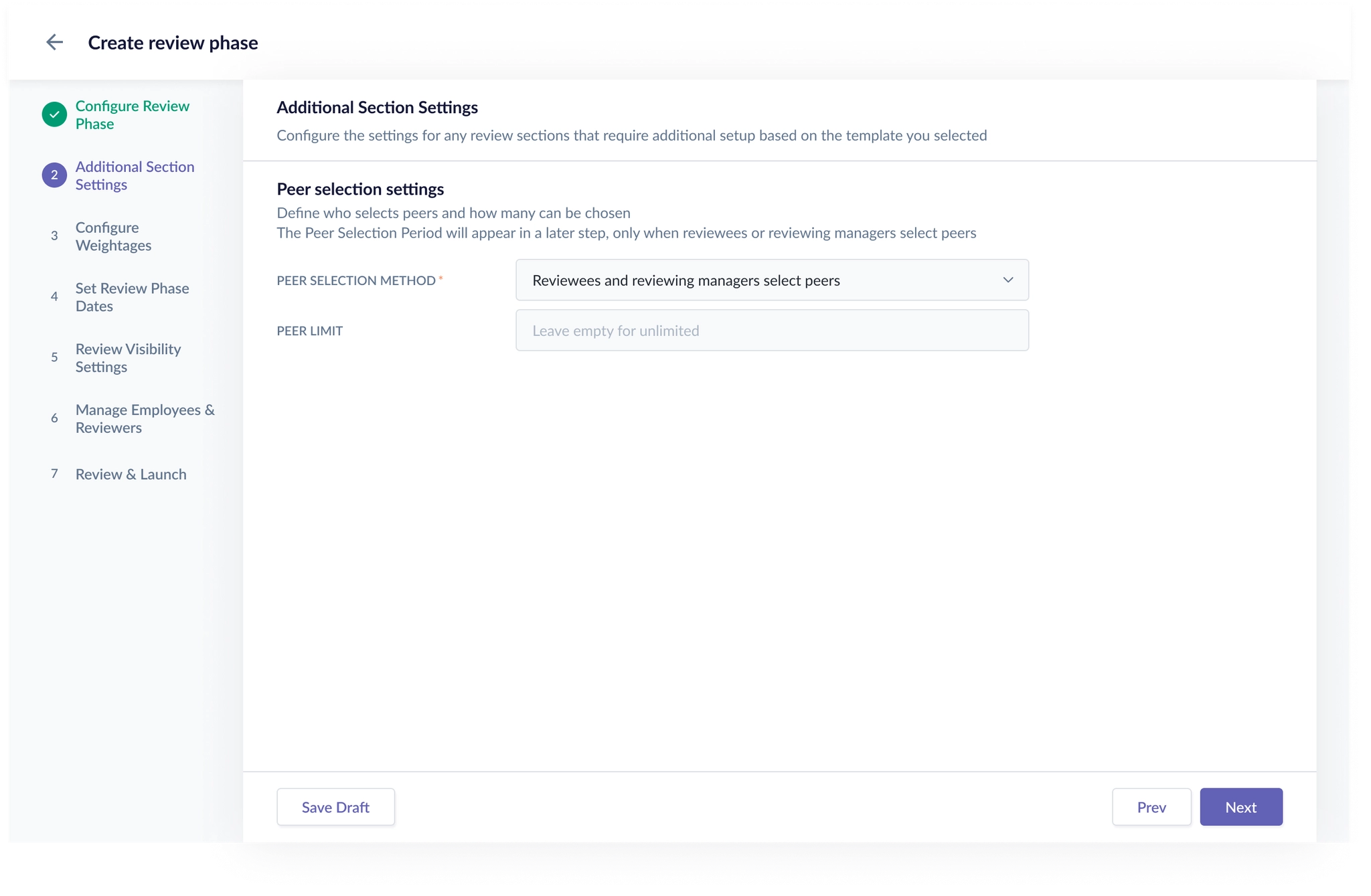
- If the template includes peer review, you can configure peer selection settings here.
- This includes defining:
- who can select peers (admins select peers, reviewing managers select peers or employees and reviewing managers select peers)
- whether a peer limit should apply (If left empty, peer selection is treated as unlimited)
Step 4: Setup Weightages
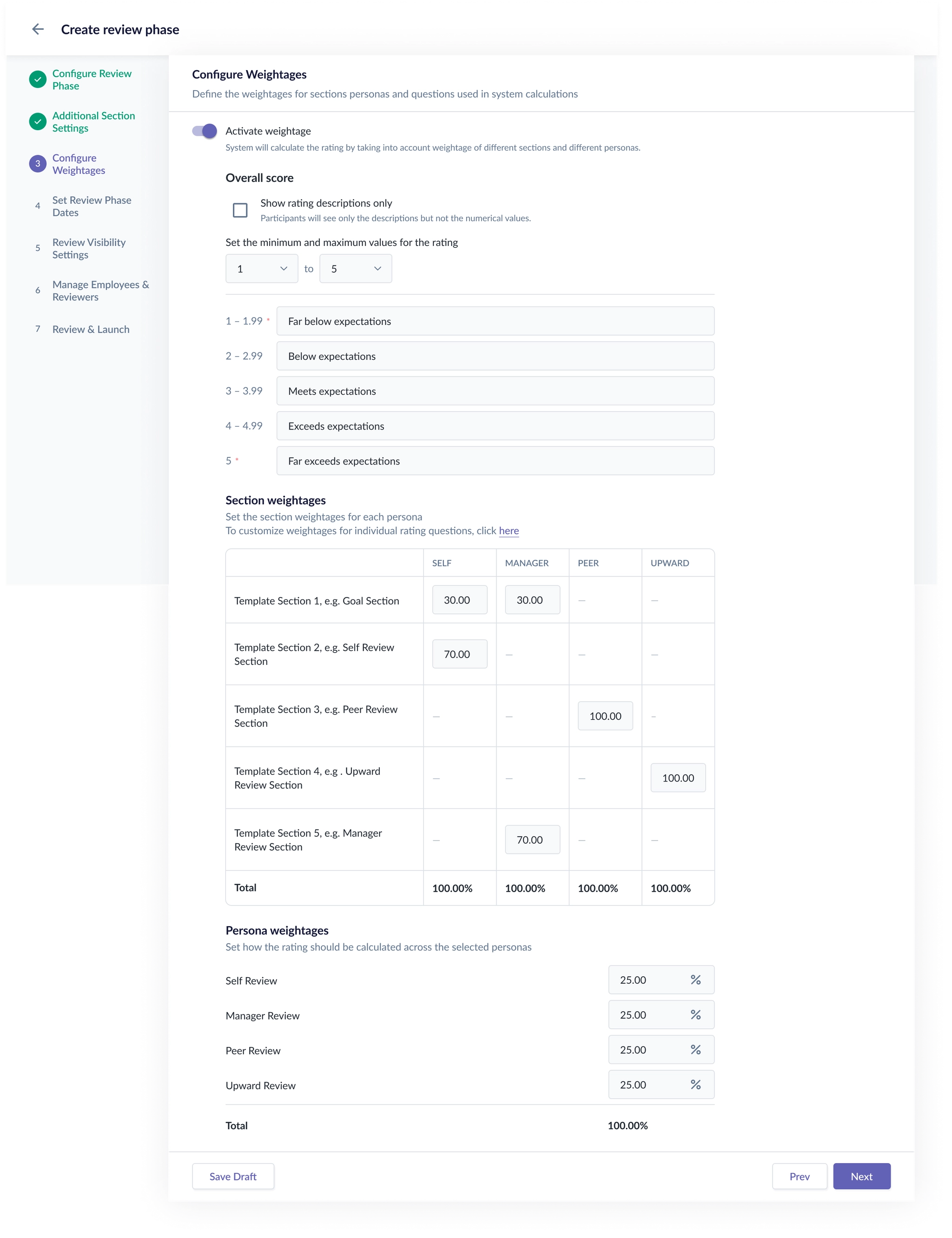
- In this step, you will have the option to activate weightages for your review phase.
- The available settings depend on the sections and reviewer types included in the loaded review phase setup.
- If your chosen master template already has pre-configured weightages, this will be auto-populated.
- You will still be able to make tweaks where necessary for the given review phase - includes defining the overall scoring scale and the different weightages used across the review phase.
- You can click here for a full article explaining how to setup weightages for different sections and personas.
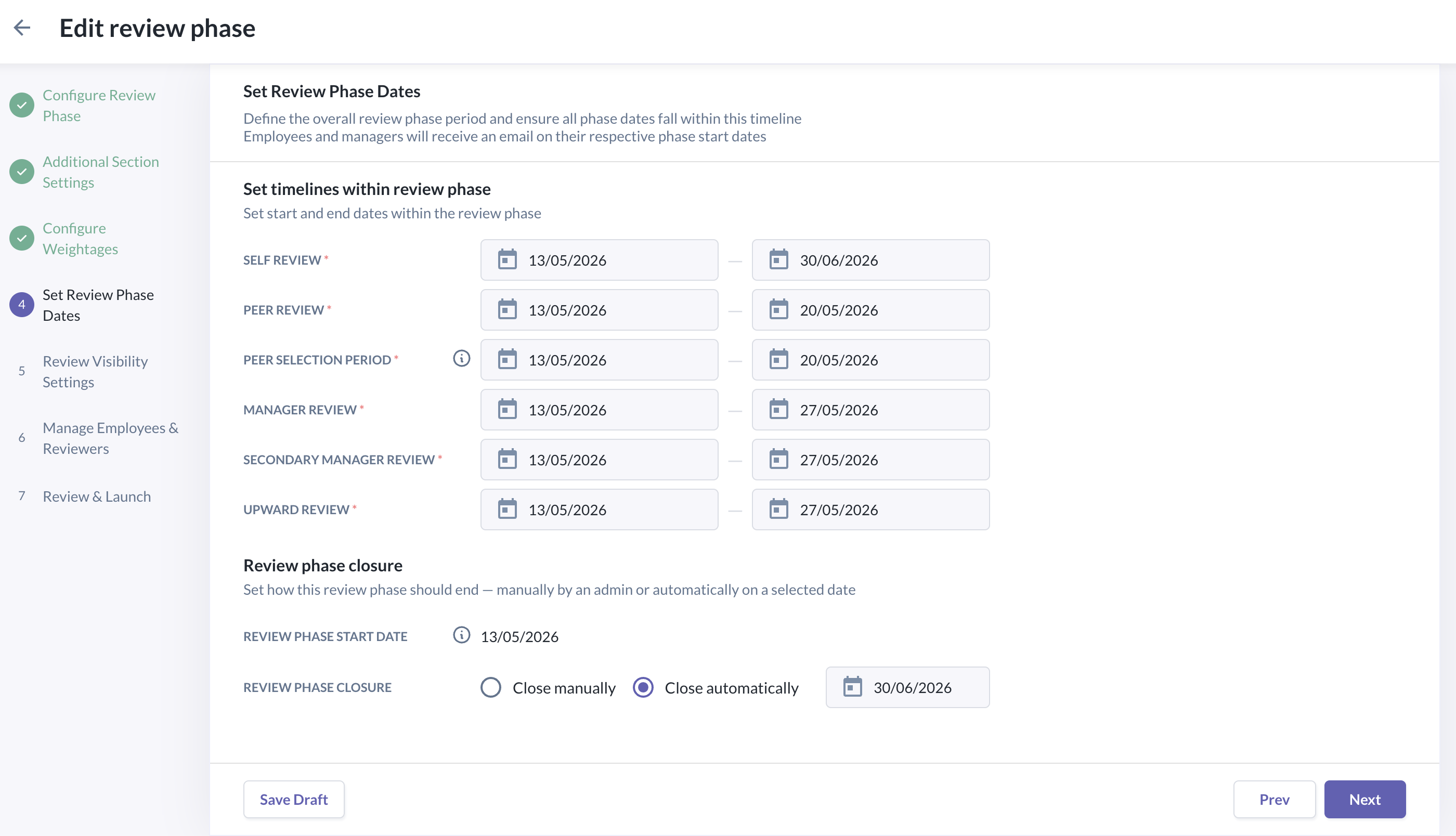
Step 5: Set review phase dates
- Depending on the setup, you will be asked to set the dates for:
- self review
- peer selection period - The peer selection end date must be before or on the peer review end date
- peer review
- manager review
- secondary manager review
- upward review
- Each sub-review phase has its own timeline so the review process can run in the intended sequence.
Review phase closure:
- You may also decide how the review phase will close. The available closure options are:
- Close manually
- Close automatically
- You may also decide how the review phase will close. The available closure options are:
Step 6: Set visibility rules
- In this step, you are able to set the visibility rules - which defines when and what information will be shown to different personas.
- The admin can configure visibility rules for each review type included in the review phase, such as:
- self review
- peer review
- manager review
- secondary manager review
- upward review
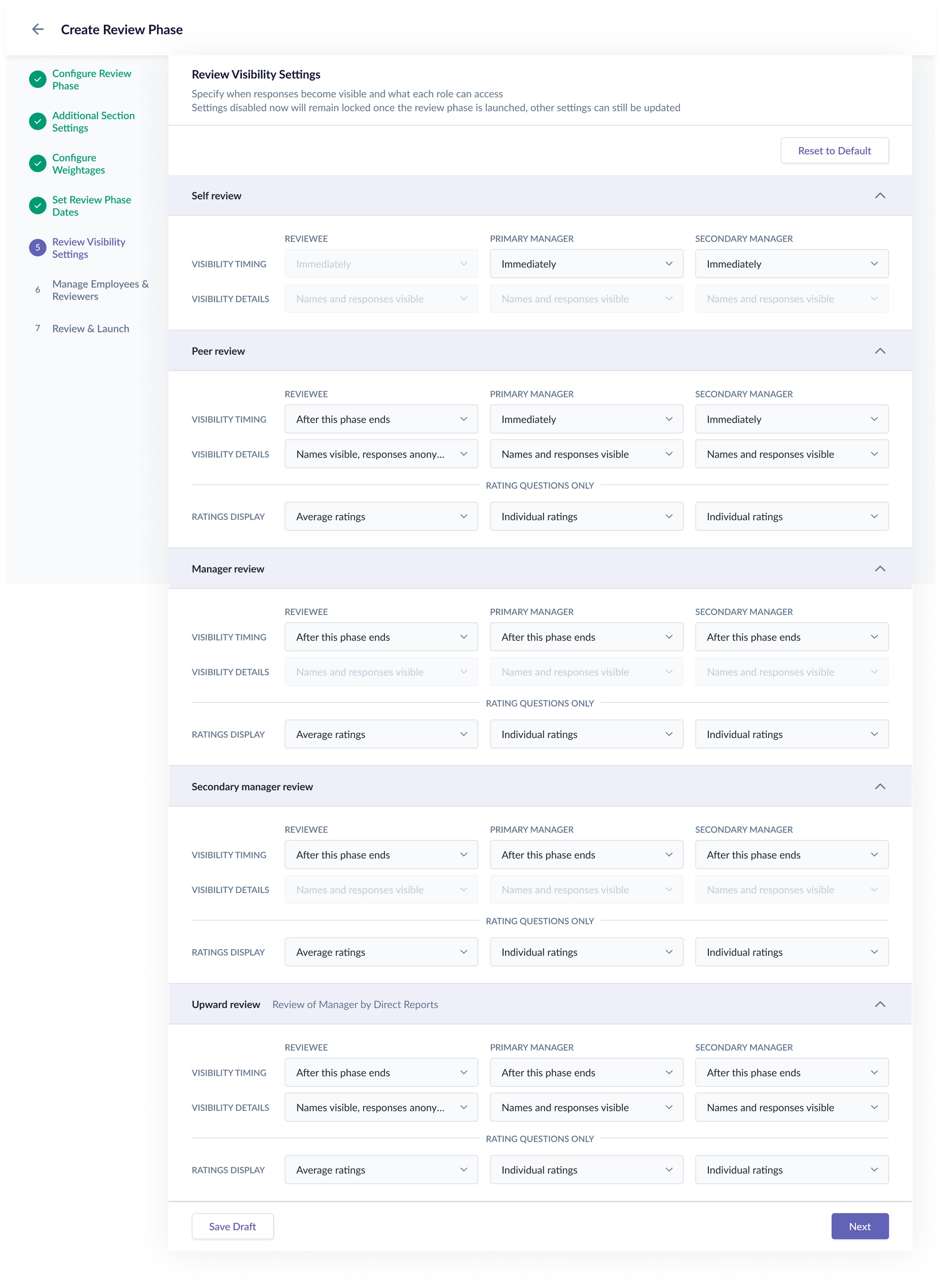
- You can click here for a full article explaining how to setup visibility rules.
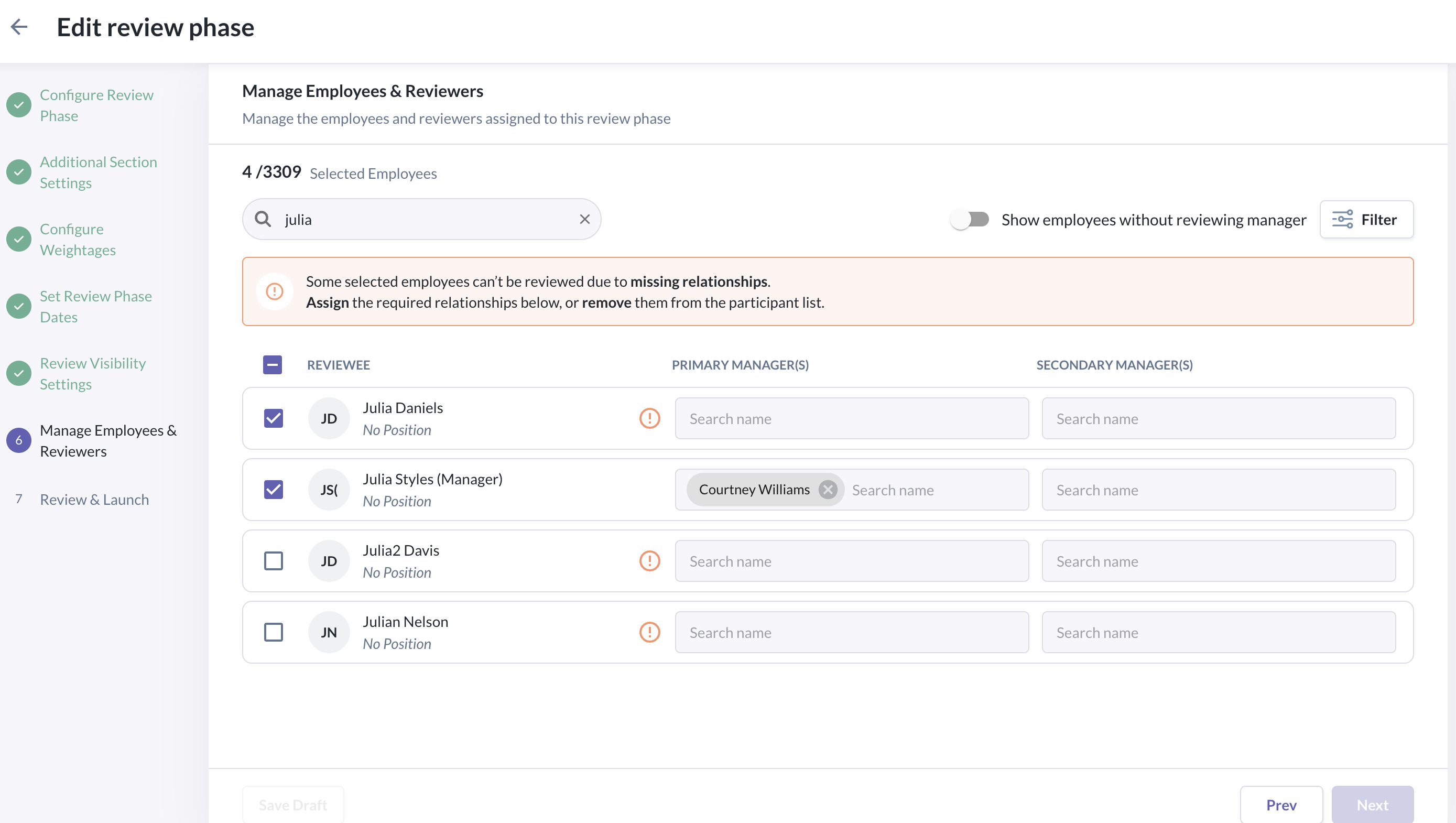
Step 7: Select your participants; Employees & Reviewing Managers
- You are able to select the participants (employees & reviewing managers) to include in the review phase.
- You can:
- choose which employees will be included in the review phase
- review the selected employee list
- assign or confirm the relevant reviewers for included employees
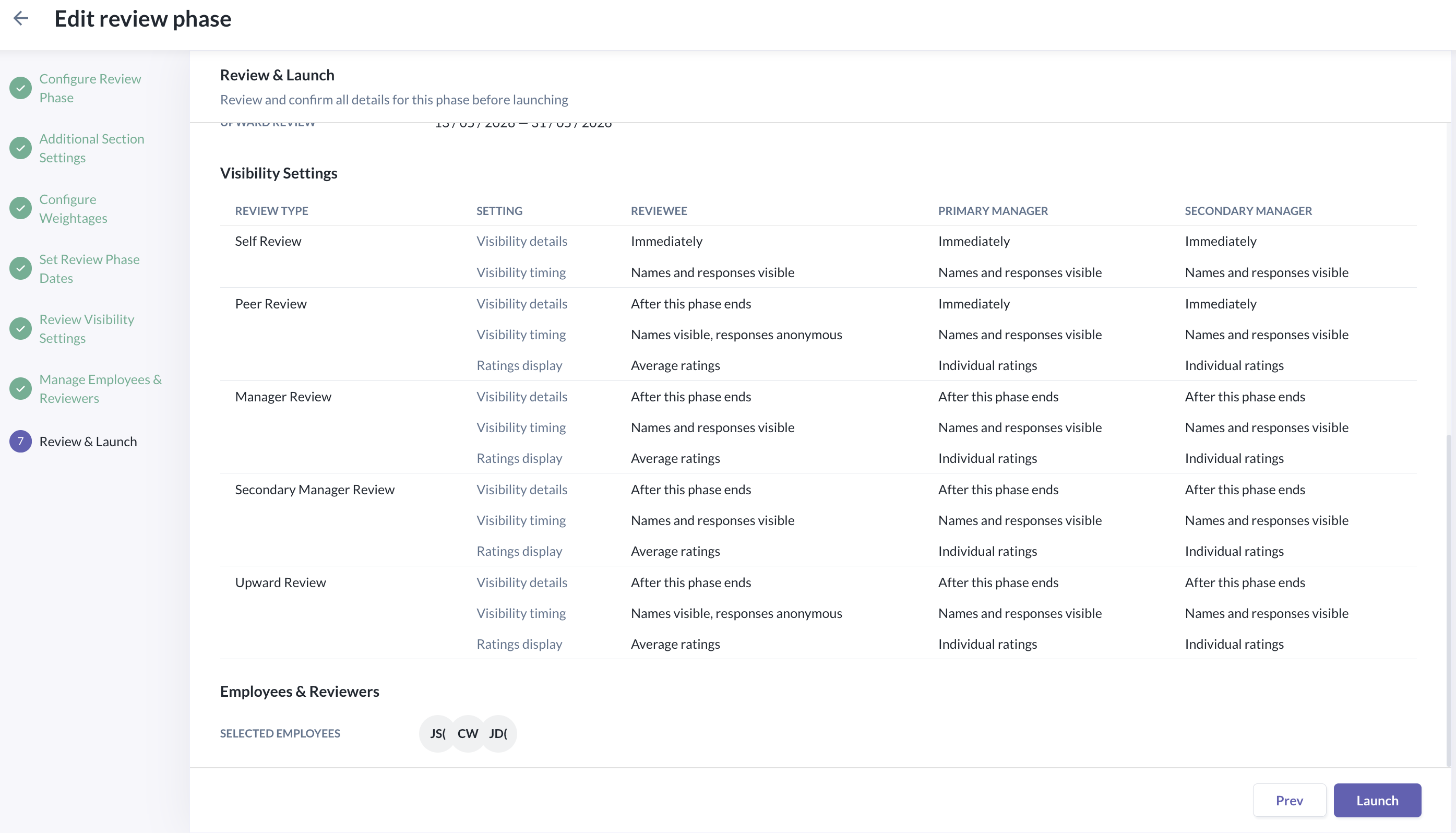
Step 8: Review and launch
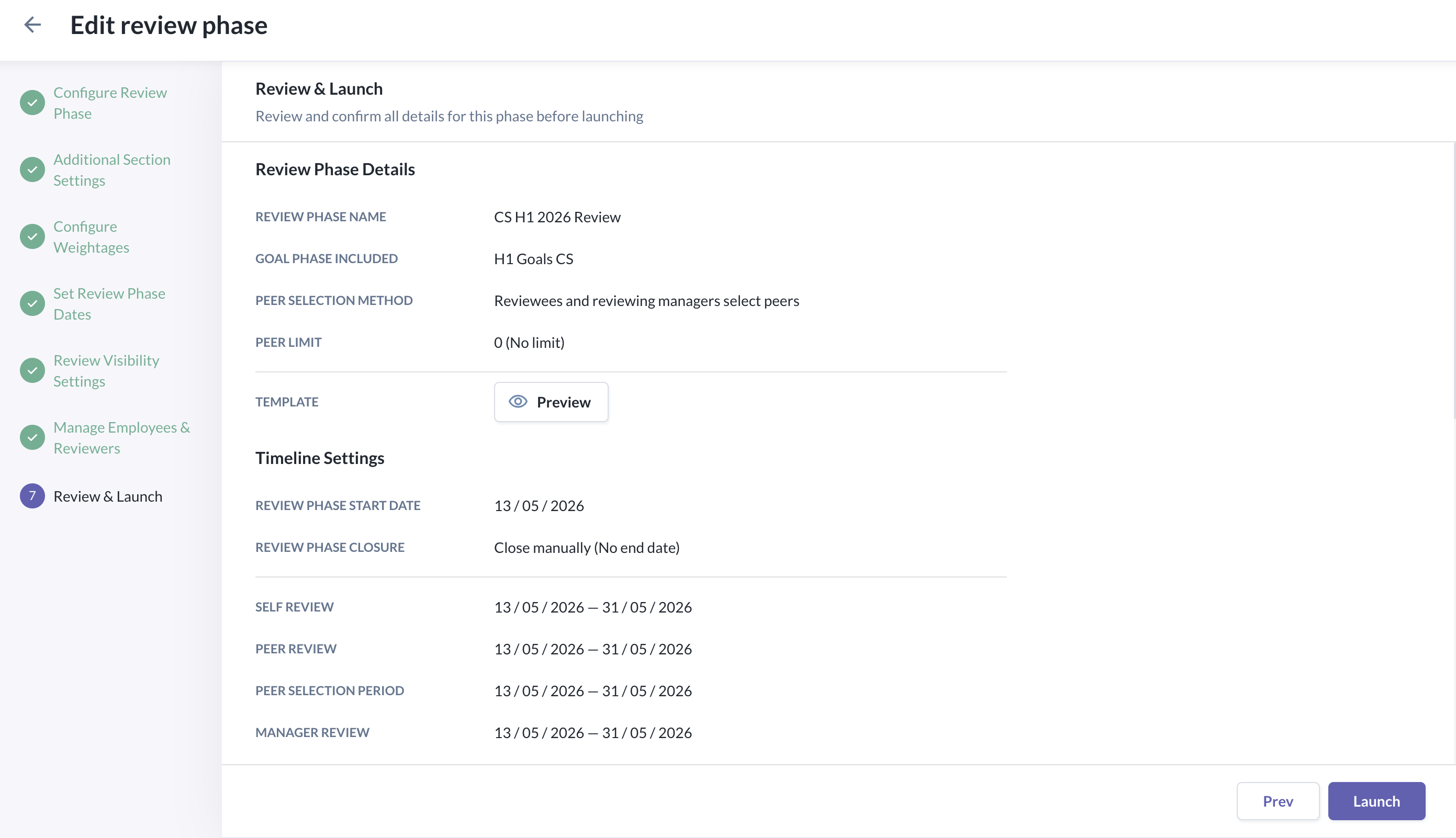
- The final step allows you to review the setup of the review phase to ensure that the configuration is as expected
- The preview can include a summary of:
- review phase details
- selected template
- included review sections
- goal inclusion or peer selection settings, where applicable
- configured weightages
- review phase dates
- visibility rules
- selected employees and reviewer assignments
- You will be able to go back to any earlier step to make changes where required
- Once everything has been reviewed and confirmed, you may launch the review phase.
End to End Setup Checklist
To launch a review phase, this is the setup checklist:
- Configure review phase to enter the basic review phase information and select a template
a. You can create a master template & rating scale template before creating a review phase - Additional section settings to configure goal inclusion or peer selection rules when required by the template
- Configure weightages to define how the review should be balanced
- Set review phase dates to define the timeline for each applicable sub-review phase and review phase closure
- Set visibility rules to define when responses become visible and what details can be seen
- Manage employees and reviewers to include participants and prepare reviewer assignments
- Review and launch to preview the complete setup before launching the review phase
Still Need Help?:
Reach out to our support team should you need further assistance.
Was this article helpful?
That’s Great!
Thank you for your feedback
Sorry! We couldn't be helpful
Thank you for your feedback
Feedback sent
We appreciate your effort and will try to fix the article