Overview
The Review Cycle Tracking experience in Performance+ helps HR admins easily monitor review progress across review phases, departments, locations, and employees — all from one place.
With this feature, admins can:
- View all review cycles and phases in a single page
- Track review progress at both summary and employee level
- Search and filter participants quickly
- Identify outstanding reviews that still require action
TABLE OF CONTENTS
- Accessing the Review Cycle Listing Page
- Review Phase Details Page
- Grouped Tracker Views
- Using Filters on the Details Page
- Group Detail View
- Employee View Hover Details
Accessing the Review Cycle Listing Page
To access the Review Cycle listing page: Performance+ → Review Cycle
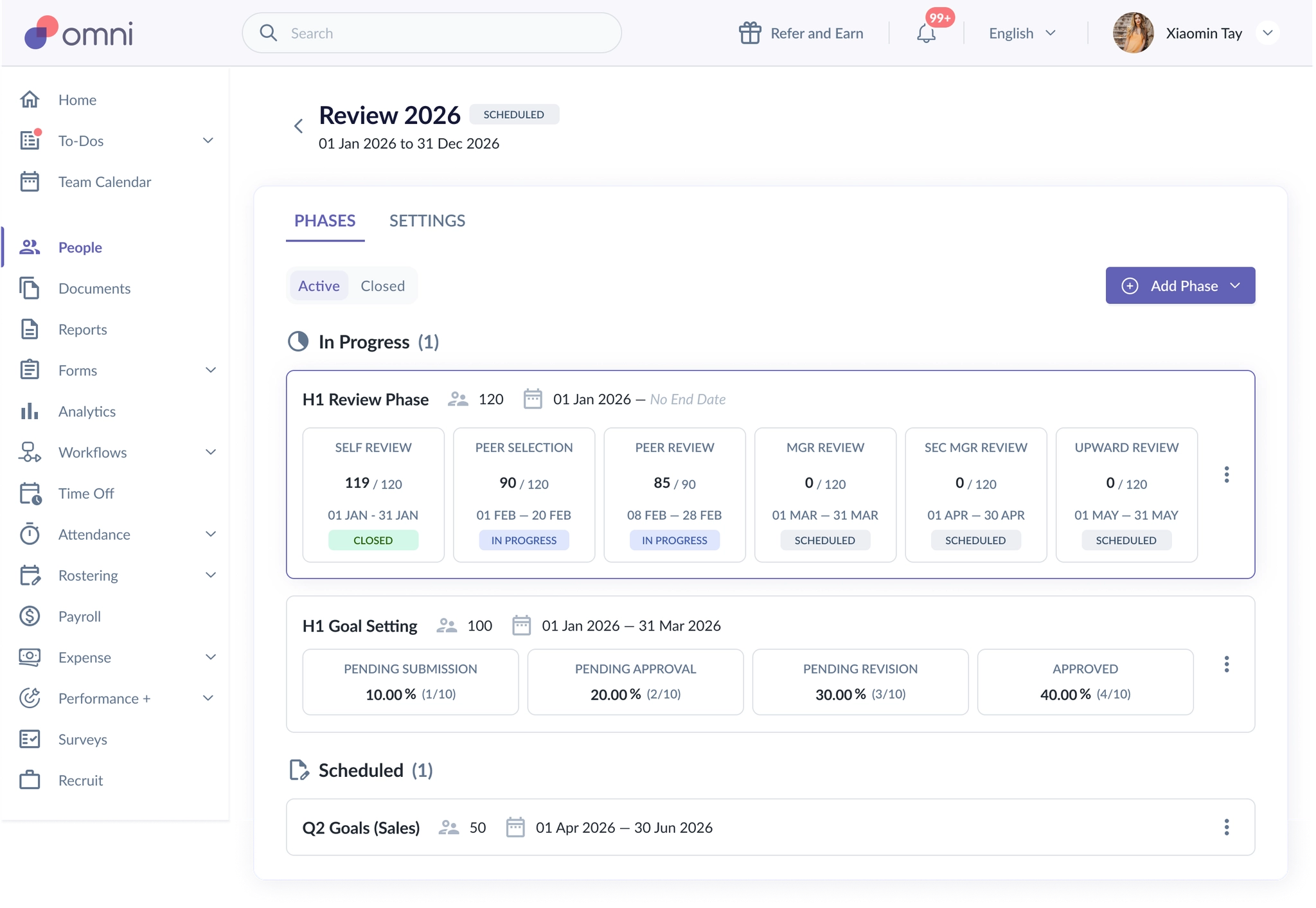
This page displays all configured review cycles and their associated review phases.
From here, admins can select and open a review phase to view more detailed progress information.
What You Can View from the Listing Page
The listing page provides a quick overview of each review phase, including:
- Review cycle name
- Review phase name
- Review period
- Current phase status
- High-level review progress
This helps admins quickly identify which review phase they would like to review further.
Review Phase Details Page
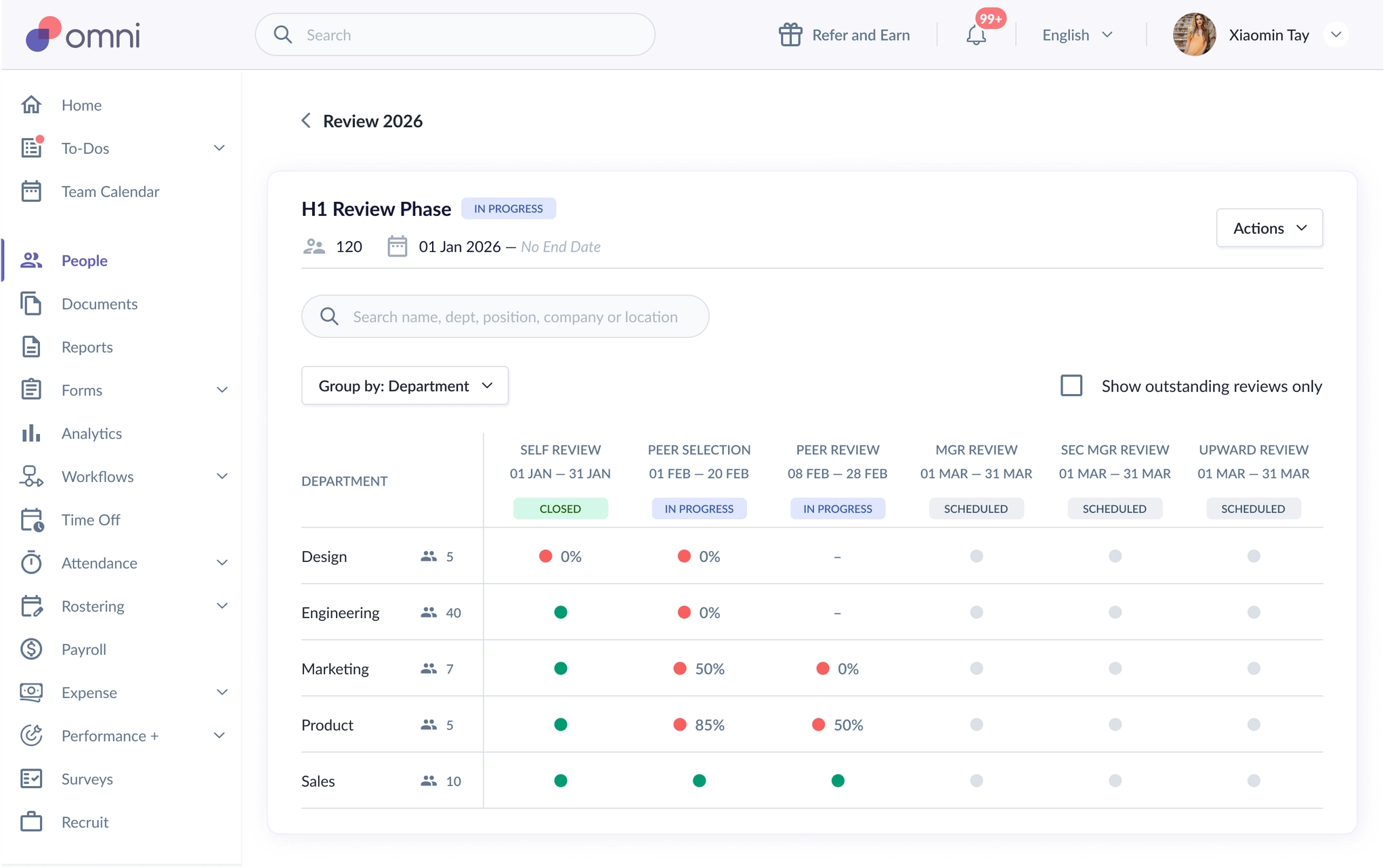
When an admin opens a review phase, they will be taken to the Review Phase Details Page.
This page provides a more detailed view of the review phase and participant progress.
What You Can View on the Details Page
Admins can view:
- Review phase name
- Phase status
- Participant count
- Review period
- Progress across sub-review phases
- Participant progress in tracker format
This allows admins to monitor review progress without needing to open each participant individually.
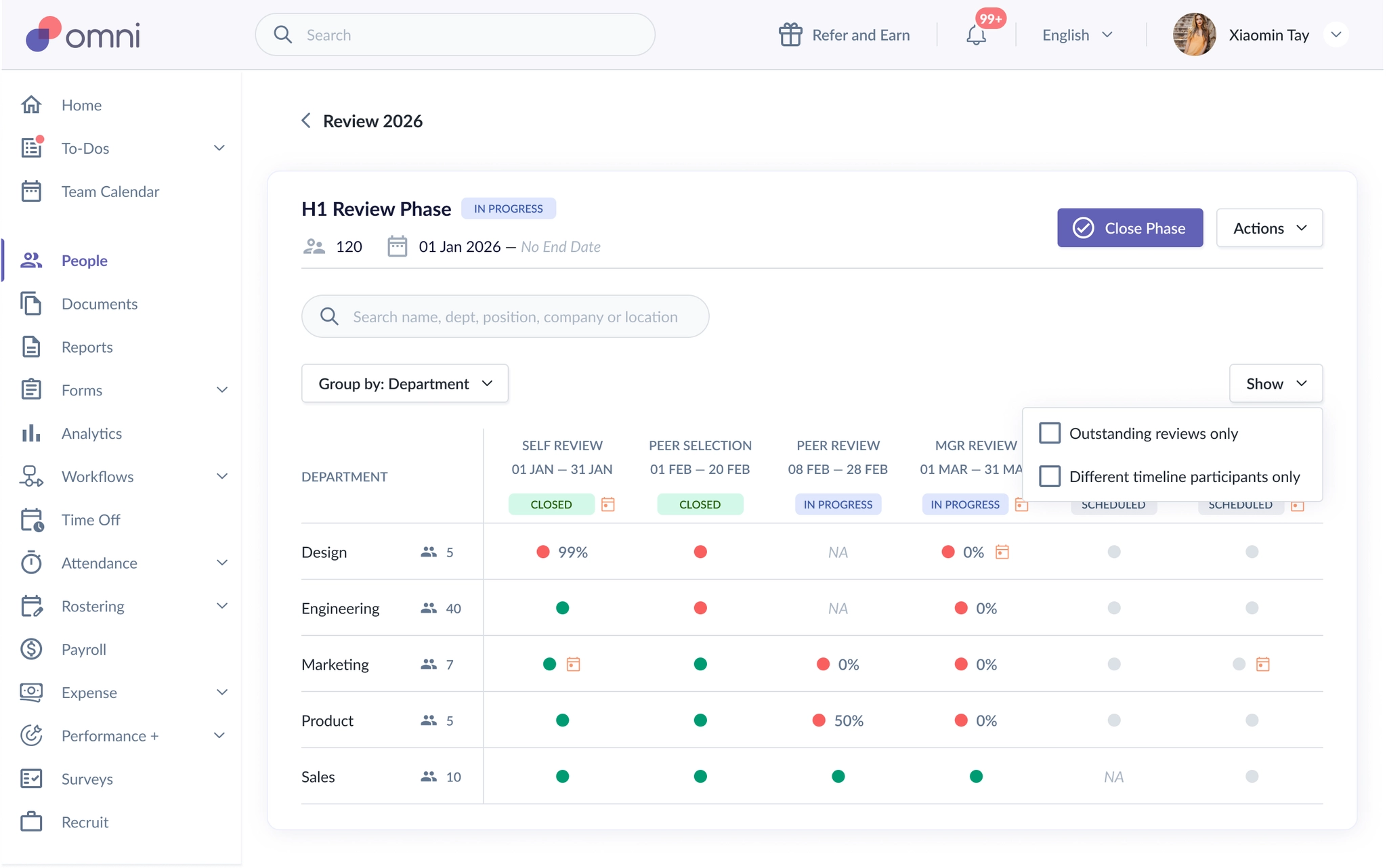
Default Tracker View
By default, the tracker:
- follows an alphanumerical order
- is grouped by Department
This provides a consistent and easy-to-scan view for admins.
Search Functionality
The details page includes a search bar that allows admins to search by:
- Name
- Department
- Position
- Company
- Location
This is especially useful for larger review phases with many participants.
Grouped Tracker Views
Admins can switch between different tracker views depending on how they would like to monitor progress.
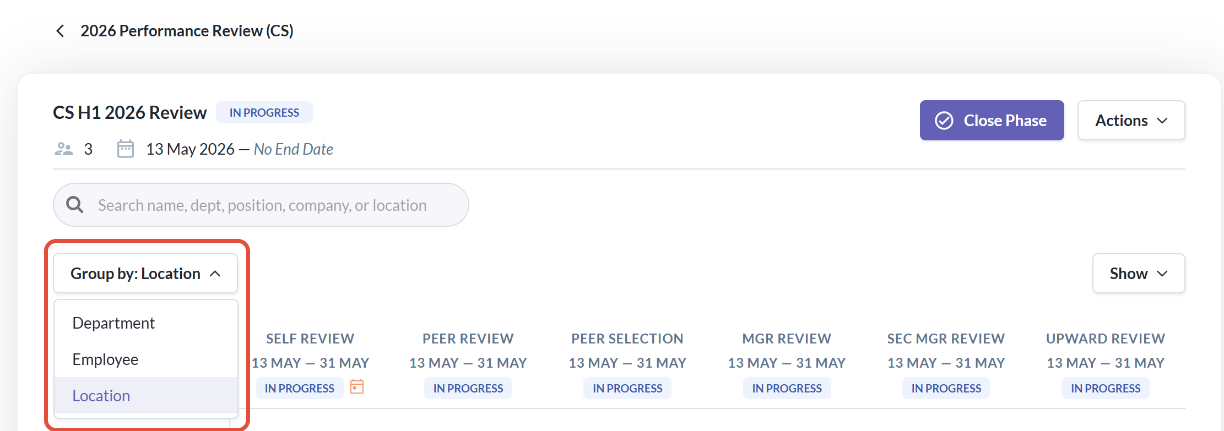
The tracker supports grouping by:
- Department
- Location
- Employee
Group by Department or Location
When grouped by Department or Location:
- each row represents a group rather than an individual participant
- admins can compare review completion progress across organisational segments
This view helps admins quickly identify which departments or locations may require follow-up or additional reminders.
Group by Employee
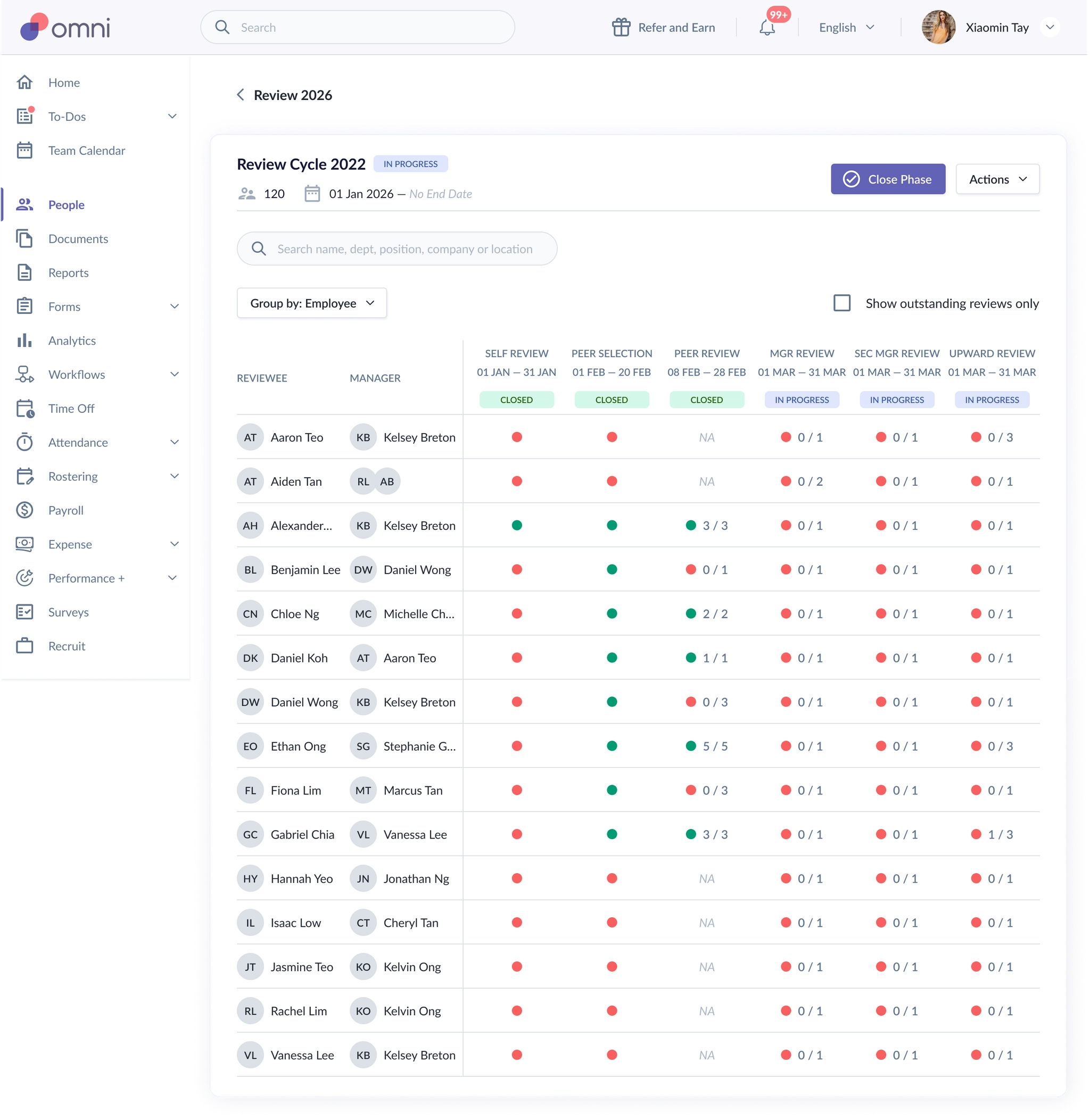
Admins can also switch to Group by Employee.
In this view:
- each row represents an individual participant
- review progress can be monitored at employee level
This view is useful when reviewing participant-specific progress, submission details, and outstanding review activity.
Using Filters on the Details Page
The details page includes filters to help admins focus on specific review progress.
A) Show Outstanding Reviews Only
Enabling Show outstanding reviews only filters the tracker to display only rows with incomplete review activity.
Outstanding statuses include:
- In Progress
- Closed
The following statuses are not considered outstanding:
- Scheduled
- NA
B) Show Different Timeline Participants Only
Admins can also enable:
Different timeline participants only
This filter shows participants who are following a custom review timeline instead of the default review phase timeline.
This is useful when tracking employees whose review schedules differ from the main review phase.
Group Detail View
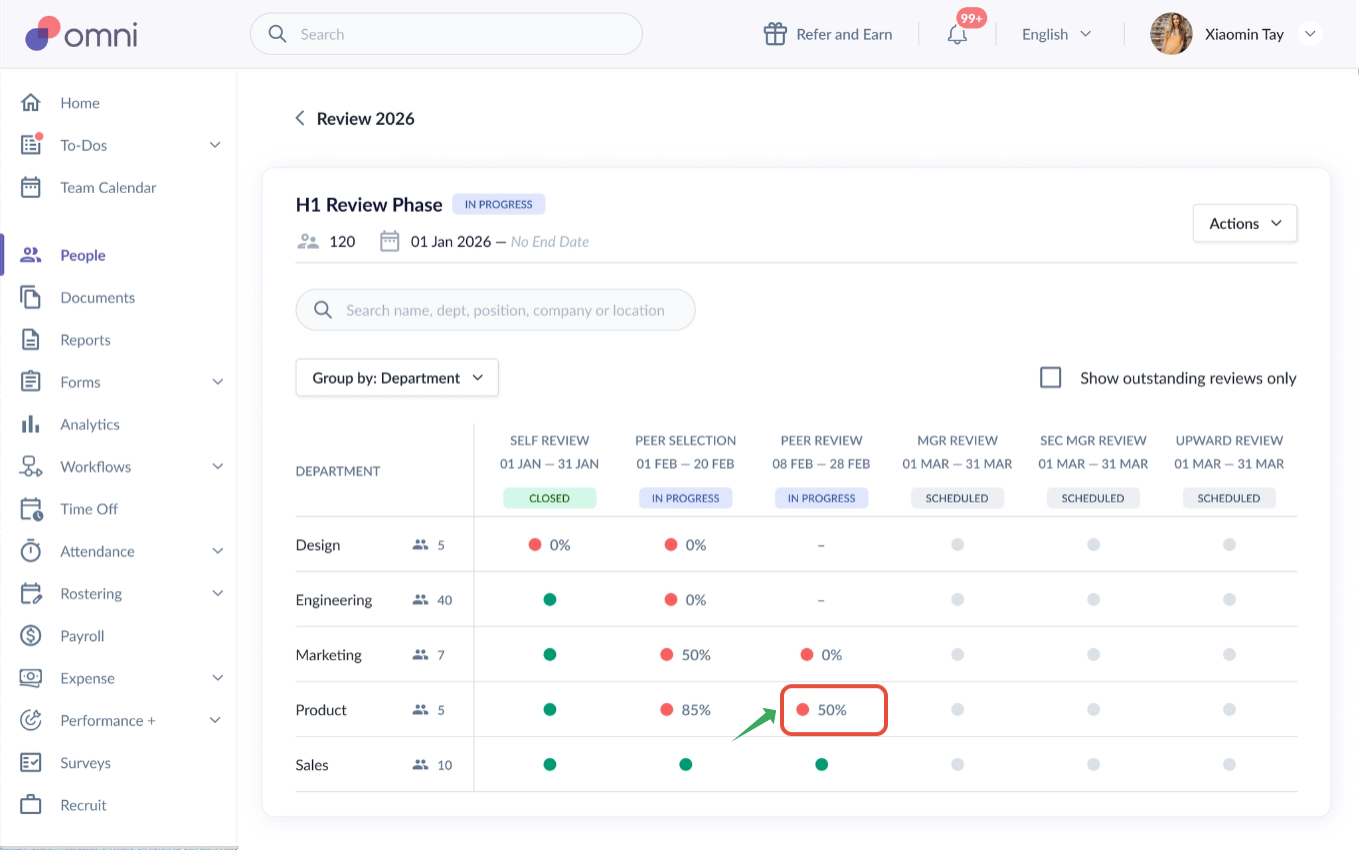
When the tracker is grouped by Department or Location, admins can open a Group Detail View directly from the grouped summary row.
This view provides a more detailed breakdown of the selected group.
Example
If an admin wants to view the Peer Review progress for the Product Department:
- Locate the Product Department row in the tracker
- Click on the relevant Peer Review progress cell
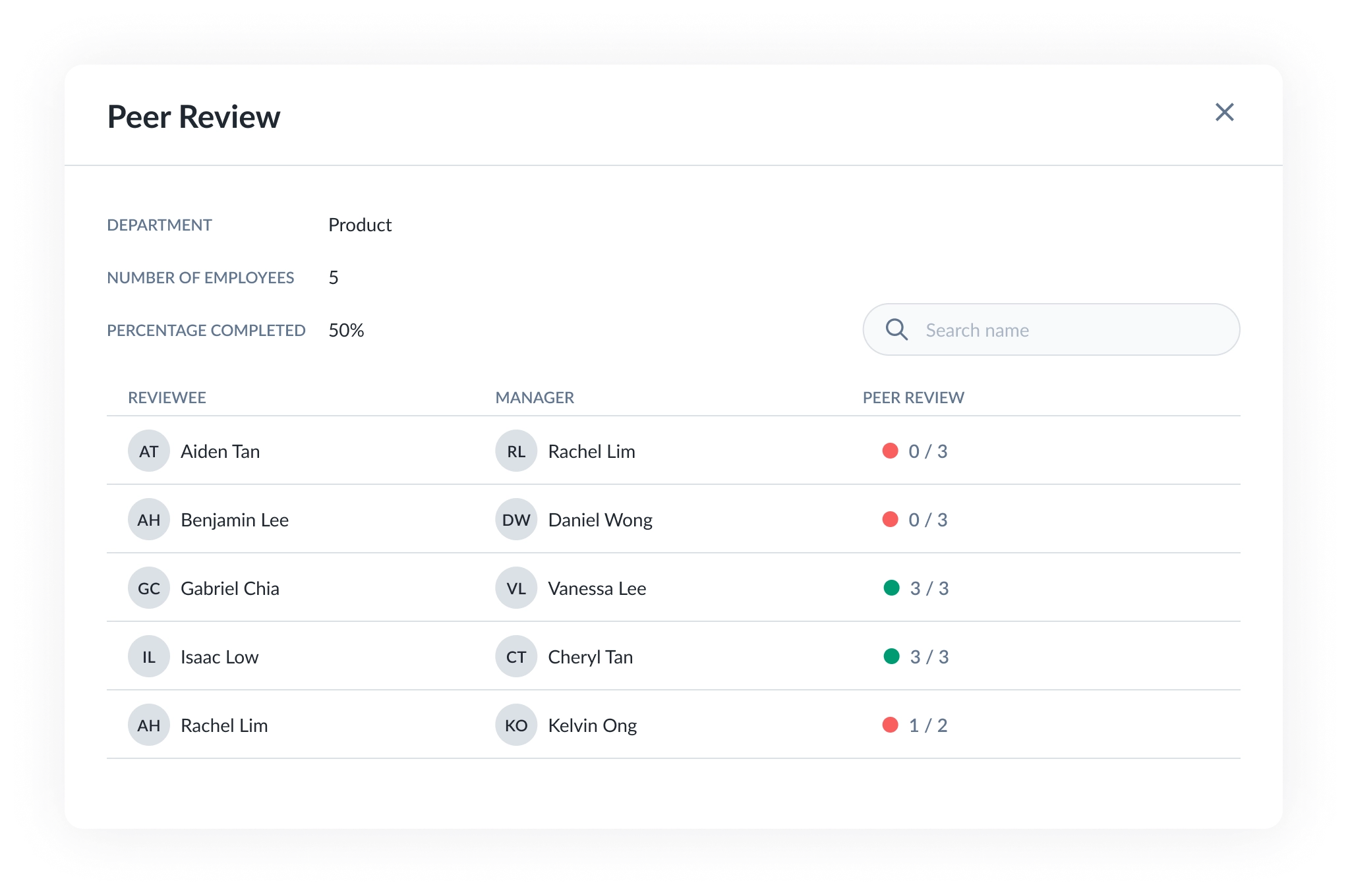
- A pop-up modal will appear showing the list of employees within:
- the selected department, and
- the selected review type/sub-review phase
This allows the admin to inspect the detailed participant-level progress behind the grouped summary.
What the Group Detail View Shows
From the Group Detail View, admins can:
- view the underlying participants within the selected department or location
- inspect individual review progress in more detail
- identify which employees have completed or outstanding reviews
This helps admins move from:
- a high-level grouped summary
to - a participant-level breakdown of review progress.
Employee View Hover Details
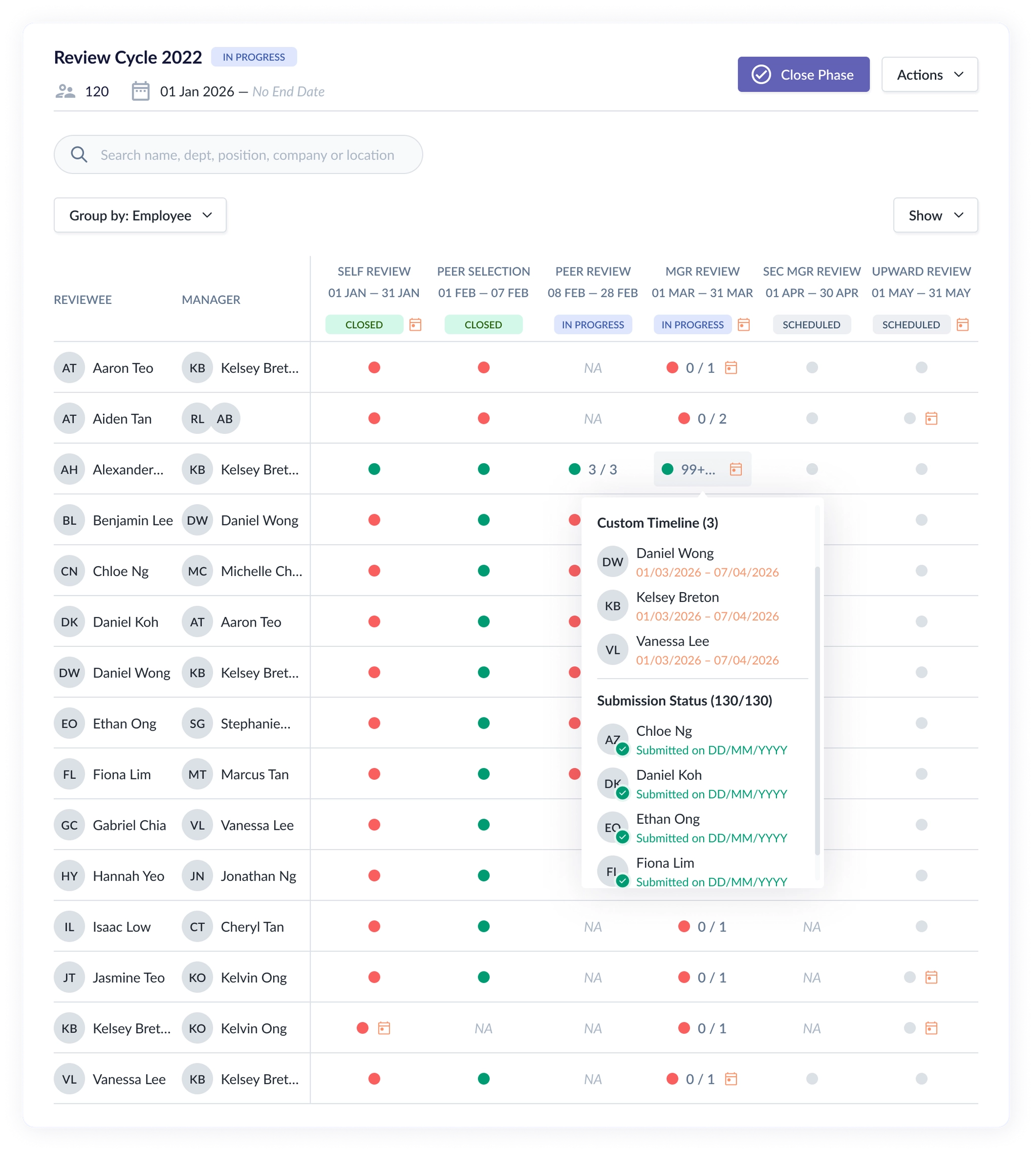
When using Group by Employee, additional details are displayed through hover states or tooltips instead of grouped modals.
What the hover detail shows
Admins can view additional participant-level information such as:
- Custom timeline indicators
- Submission status details
- Participant breakdown behind displayed counts or statuses
This provides more context without navigating away from the page.
Custom Timeline Visibility
Employees following custom timelines are surfaced through hover details in employee view.
This helps admins distinguish between:
- participants following the default timeline
- participants following a custom review schedule
This is important because different progress states may be expected for employees on custom timelines.
Summary of Capabilities
Was this article helpful?
That’s Great!
Thank you for your feedback
Sorry! We couldn't be helpful
Thank you for your feedback
Feedback sent
We appreciate your effort and will try to fix the article