Overview
Admins can now edit peer selections for employees during an active peer review phase.
Once peer selection has been saved at least once, the page title will change from Manage Peer Selection to Edit Peers.
This helps indicate that peers are being updated instead of added for the first time.
Admins can update peer selection anytime until the peer review phase is closed.
TABLE OF CONTENTS
- Benefits of This Feature
- Who Can Edit Peer Selection
- How to Manage Peer Selection
- Locking and Unlocking Peer Selection
- Deleted or Terminated Peers
- Important Notes
Benefits of This Feature
This enhancement gives admins more flexibility when managing peer reviews during an active review cycle.
Admins can now:
- quickly update peer assignments
- correct peer selections during the review cycle
- manage changes without contacting support
- easily track which reviewees have assigned or locked peers
Who Can Edit Peer Selection
This is an admin-facing feature.
Admins can edit peer selections for any reviewee during an active peer review phase, regardless of the peer selection setup used during review cycle configuration, including:
- Admins select peers
- Reviewing managers select peers
- Reviewees and reviewing managers select peers
How to Manage Peer Selection
Go to:
Performance+ → Select Review Cycles → Select Review Phase → Click Actions → Manage Peer Selection
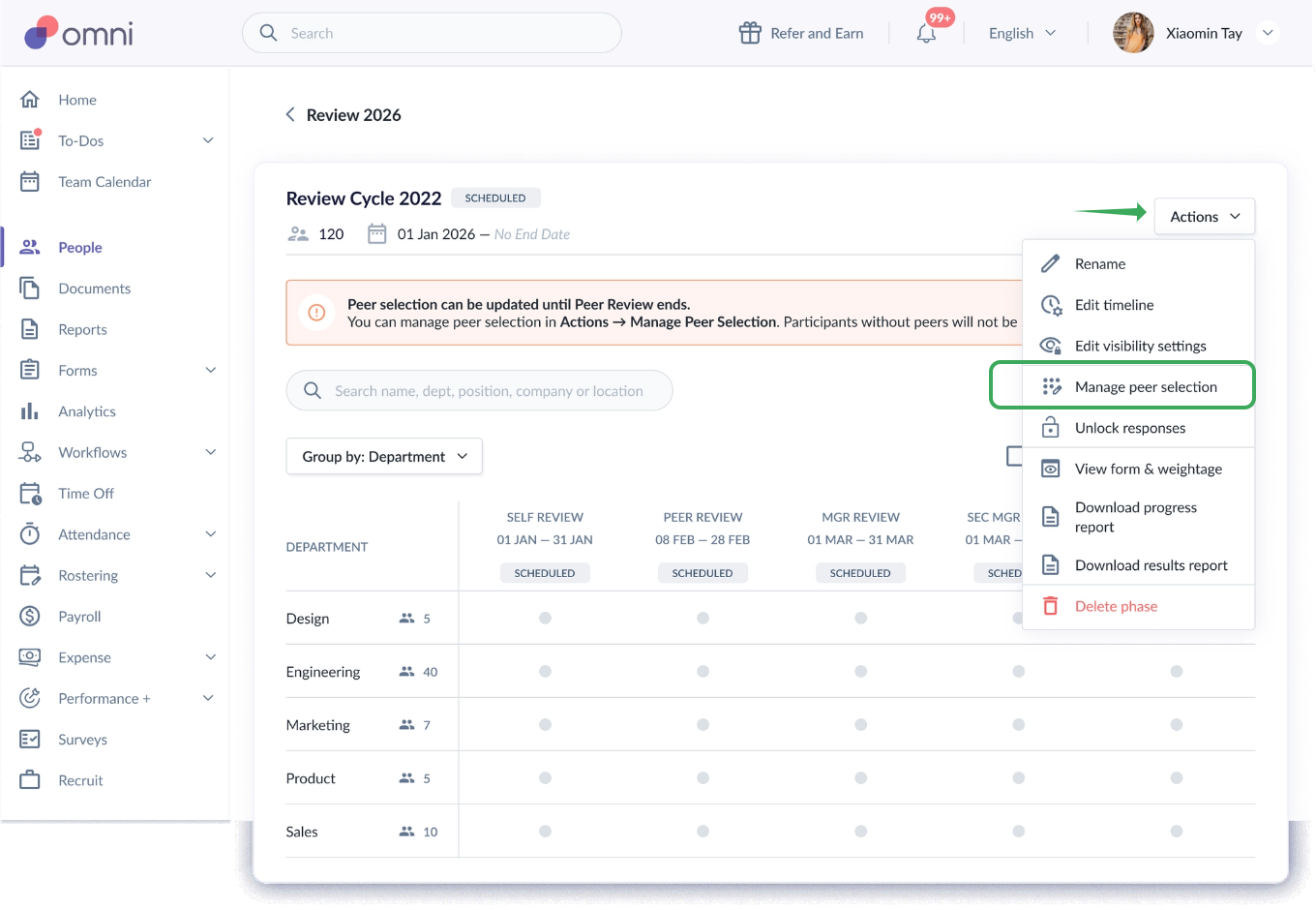
A pop-up window will appear showing the peer selection details.
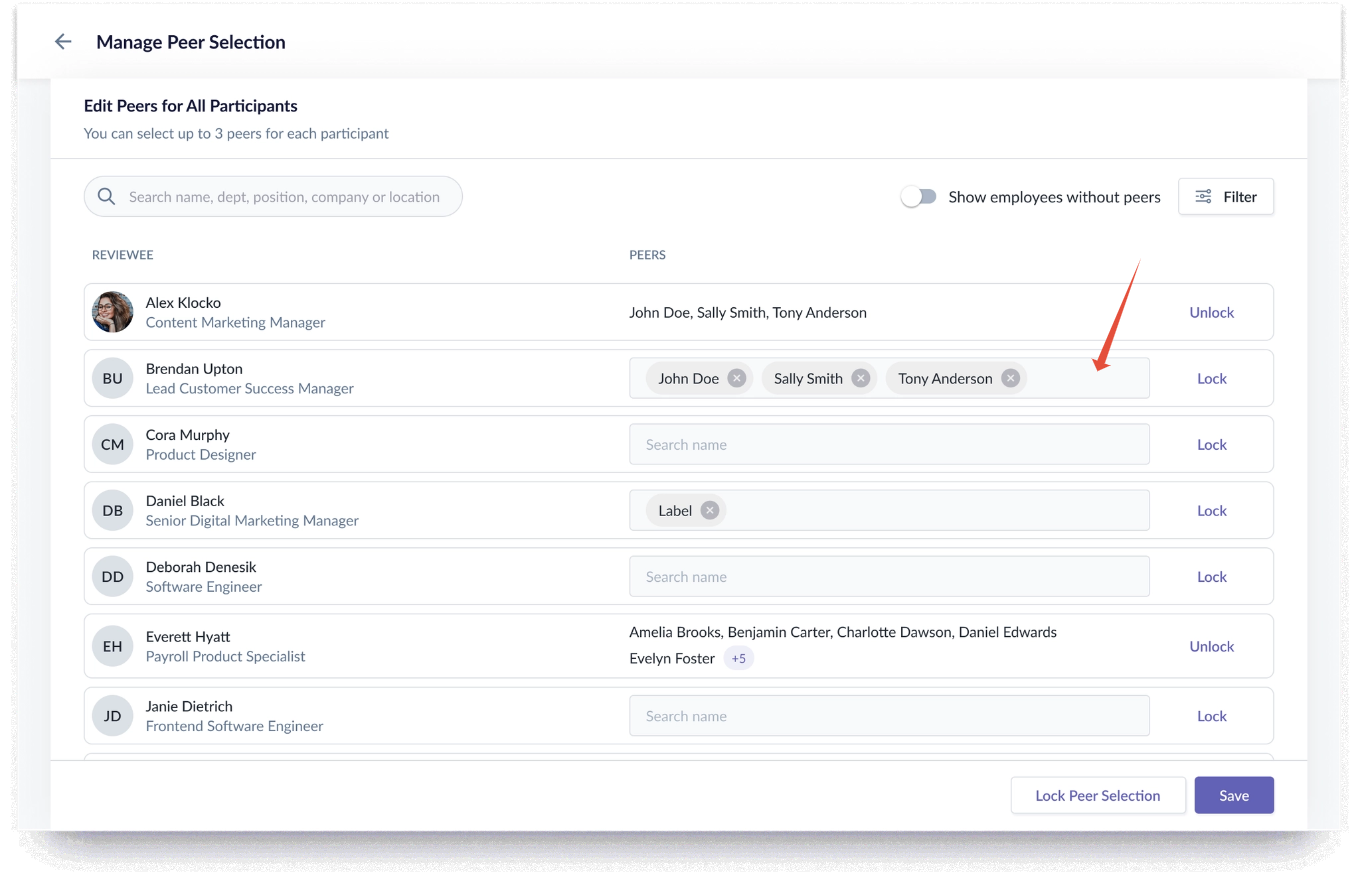
From here, admins can:
- Search and filter reviewees
- View currently selected peers
- Add or remove peers
- Save updated peer selections
- Lock or unlock peer selection
A success message will appear once changes are saved successfully.
Locking and Unlocking Peer Selection
Admins can lock or unlock peer selection:
- for individual reviewees, or
- for all reviewees in bulk
When a peer selection for a reviewee is locked:
- peer selection becomes read-only for that reviewee
- no further changes can be made unless unlocked
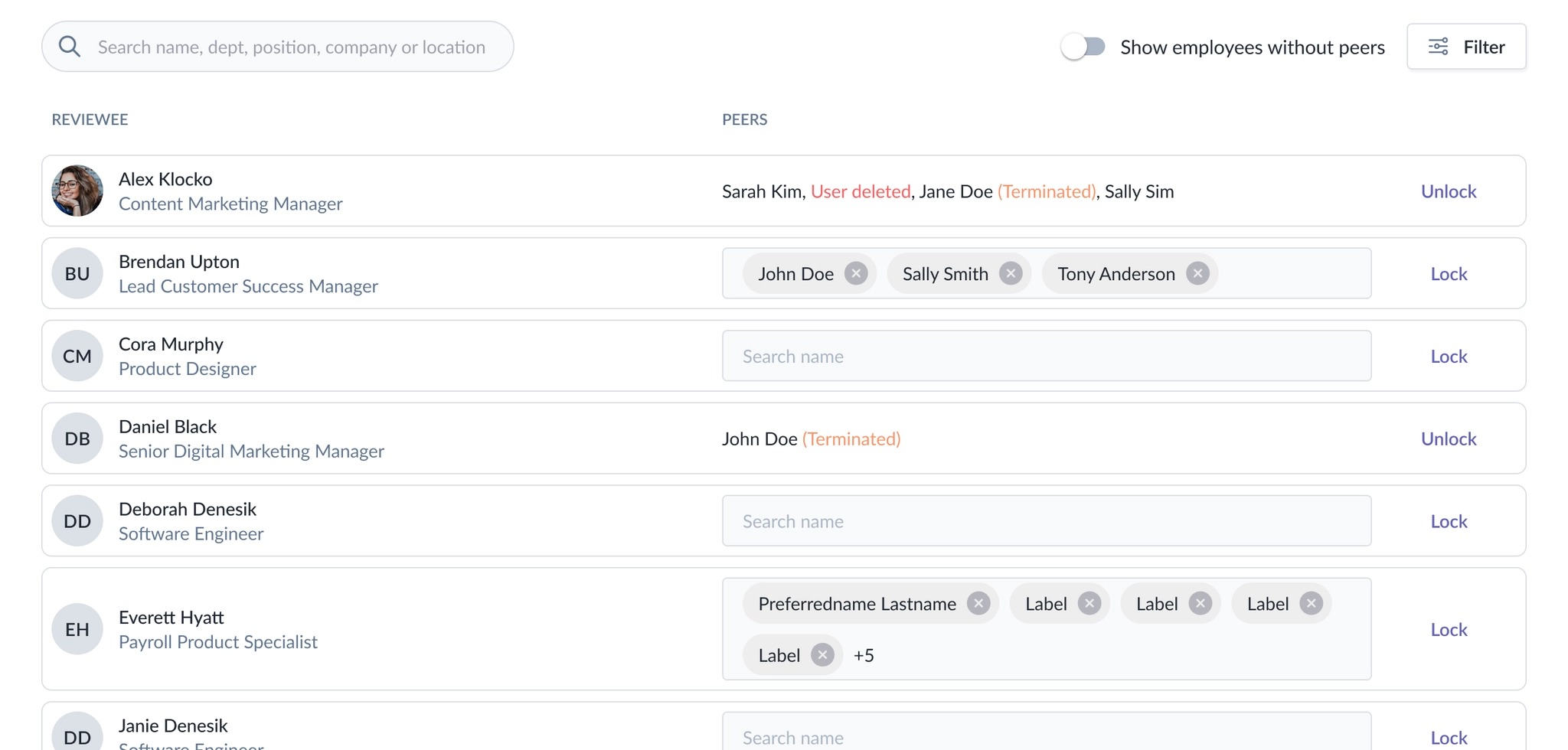
Locked reviewees will be clearly indicated in the table.
If the reviewee row is locked, invalid peers will still remain visible as read-only information.
Deleted or Terminated Peers
If a selected peer has been deleted or terminated:
- deleted users will appear as User deleted
- terminated employees will appear with a (Terminated) label
These entries will also display an alert icon.
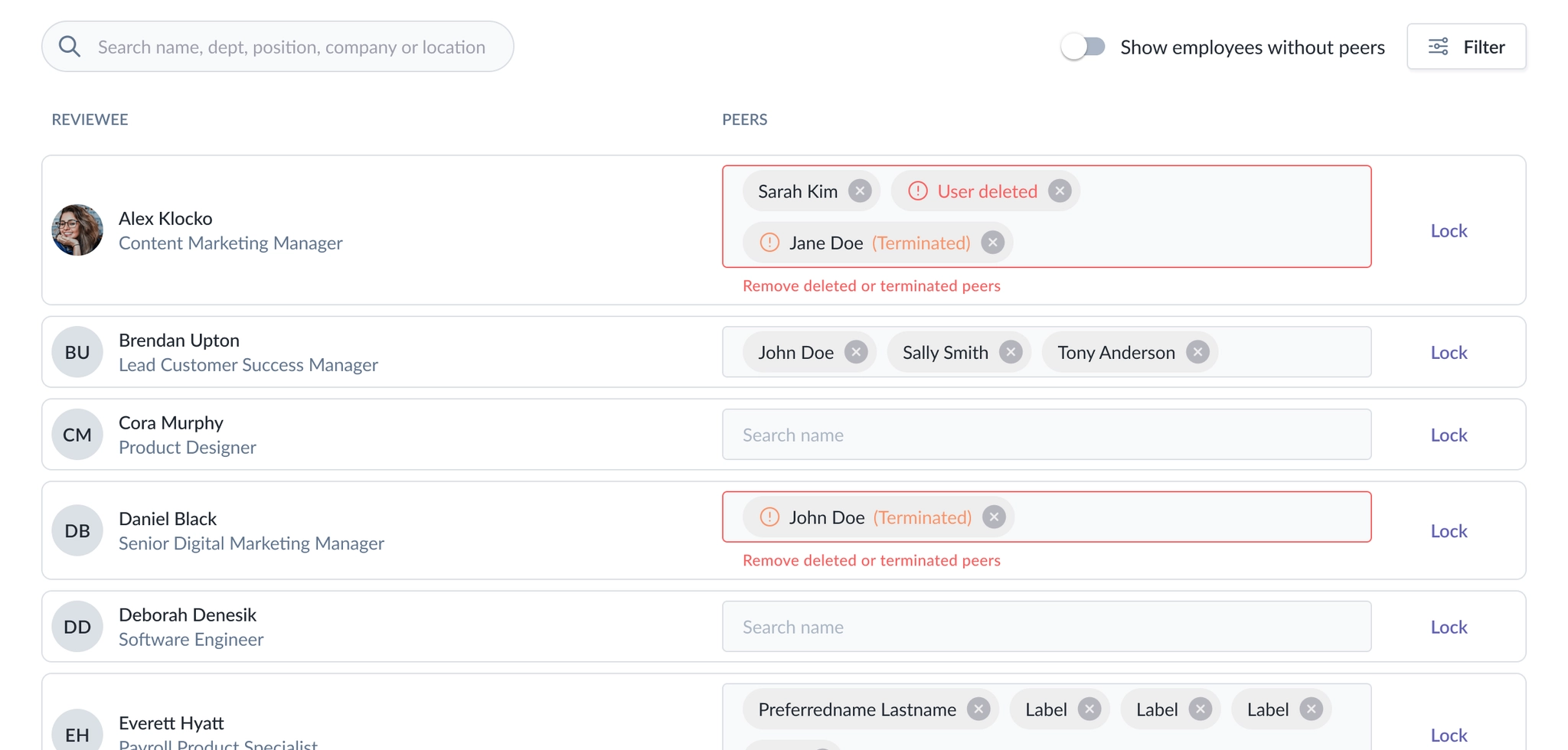
To save changes, admins must first remove any deleted or terminated peers.
If invalid peers are detected, the system will display:
- a red highlight on the affected row
- an inline error message
- a warning banner at the top of the page
Important Notes
- The Manage Peer Selection option will remain available until the Peer Review phase is closed.
- Once the Peer Review phase is closed, peer selections can no longer be edited.
Still Need Help?:
Reach out to our support team should you need further assistance.
Was this article helpful?
That’s Great!
Thank you for your feedback
Sorry! We couldn't be helpful
Thank you for your feedback
Feedback sent
We appreciate your effort and will try to fix the article