Overview :
You can now view responses written about you directly from the same page where you complete your review.
This means while writing or reviewing your performance review, you may be able to see responses submitted by:
- Your manager
- Secondary manager
- Peers
- Upward reviewers
- Yourself
Responses are shown in a read-only view and are grouped by:
- Review type
- Section
- Question
Please note:
- What you can see depends on the visibility settings configured by your company admin
- Responses are only visible after the reviewer has submitted their review
- This feature is available while the review phase is still Active
TABLE OF CONTENTS
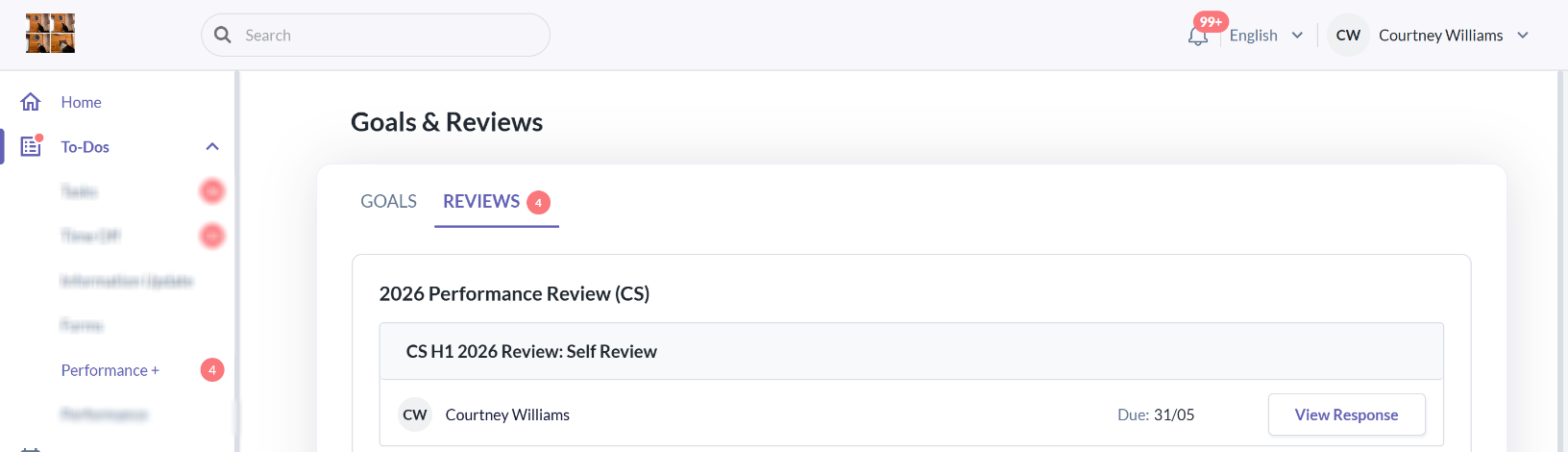
1) Where to Find It
Go to:
To-Dos > Performance+ > Reviews
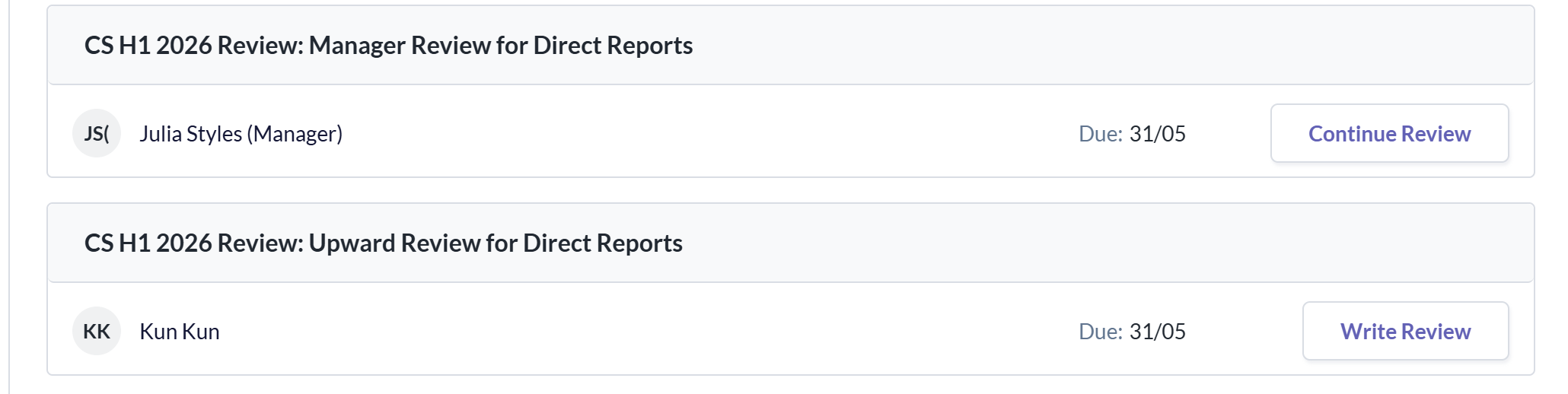
Then open your review task through:
- Write Review
- Continue Review
- Edit Review
- View Response
Within this page, you can:
- Complete or edit your own review
- View responses submitted by others (if visibility rules allow and the review has already been submitted)
2) Viewing Review Responses
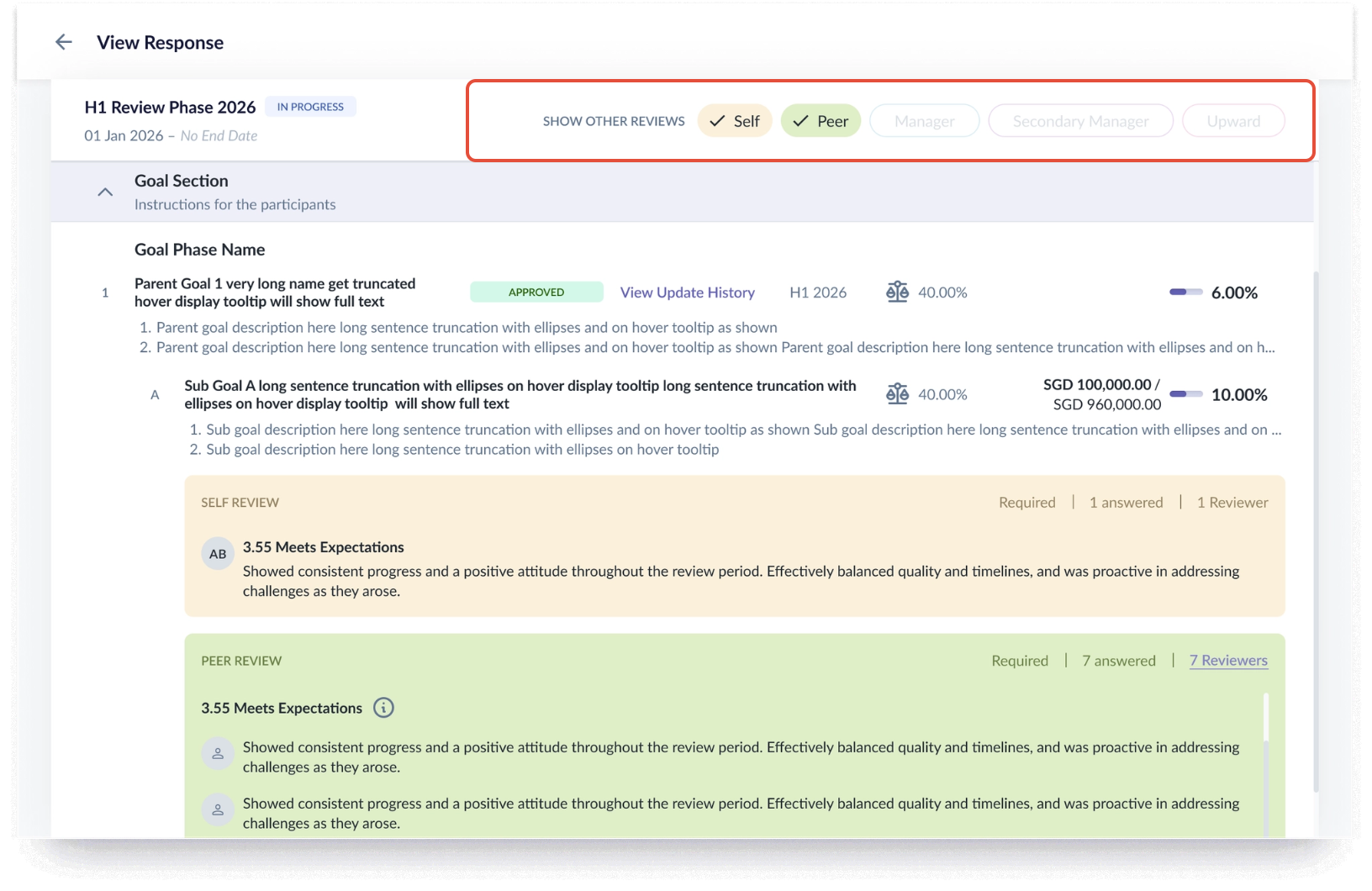
When you open your review task, you may be able to view other submitted review responses directly within the same review page.
For example, while viewing your Self Review:
- You can always see your own submitted responses
- You may also see:
- Manager Review
- Peer Review
- Upward Review
- Secondary Manager Review
This depends on your company’s visibility settings.
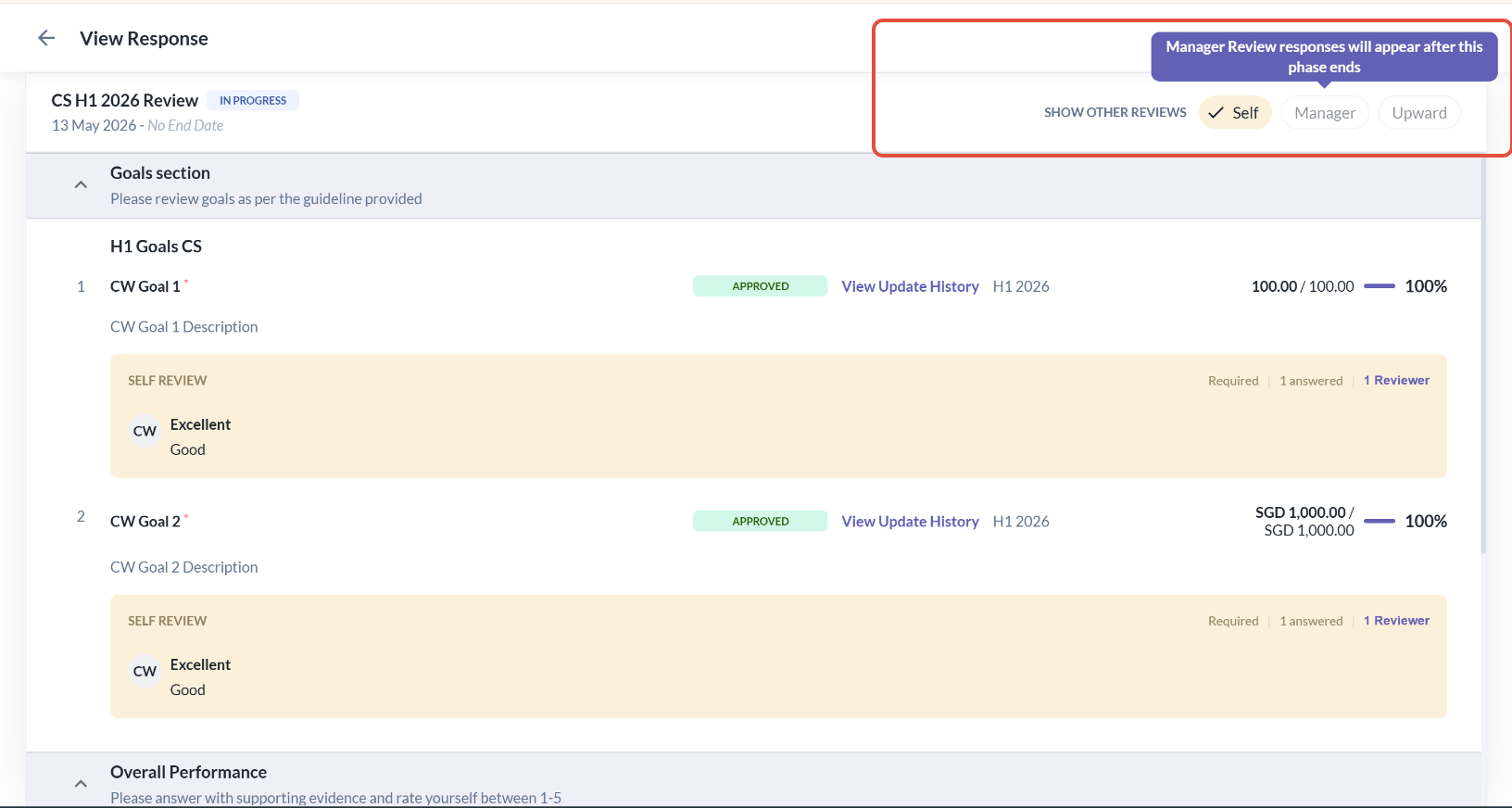
Example: Viewing Your Manager’s Review
- Your company may allow Manager Reviews to only become visible after the review phase ends
- Until then, the response will remain hidden
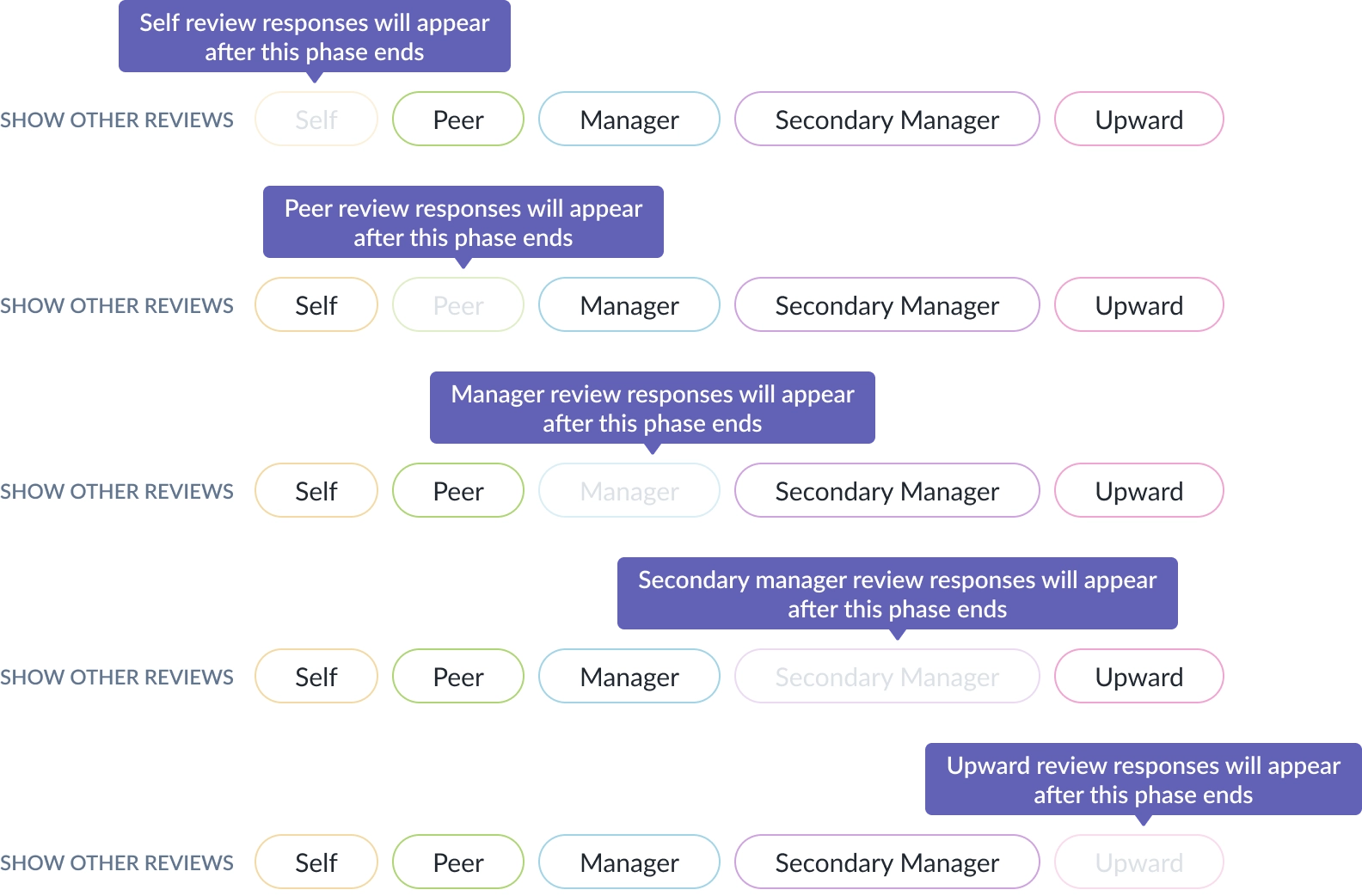
If the Review Is Not Yet Available
Sometimes a review has already been submitted, but the visibility timing has not started yet.
In this case, you may see a message such as: “Self Review response will appear after this phase ends.”
This means:
- The review has been submitted
- But it is not yet visible to you
3) What You Can See in the Response View
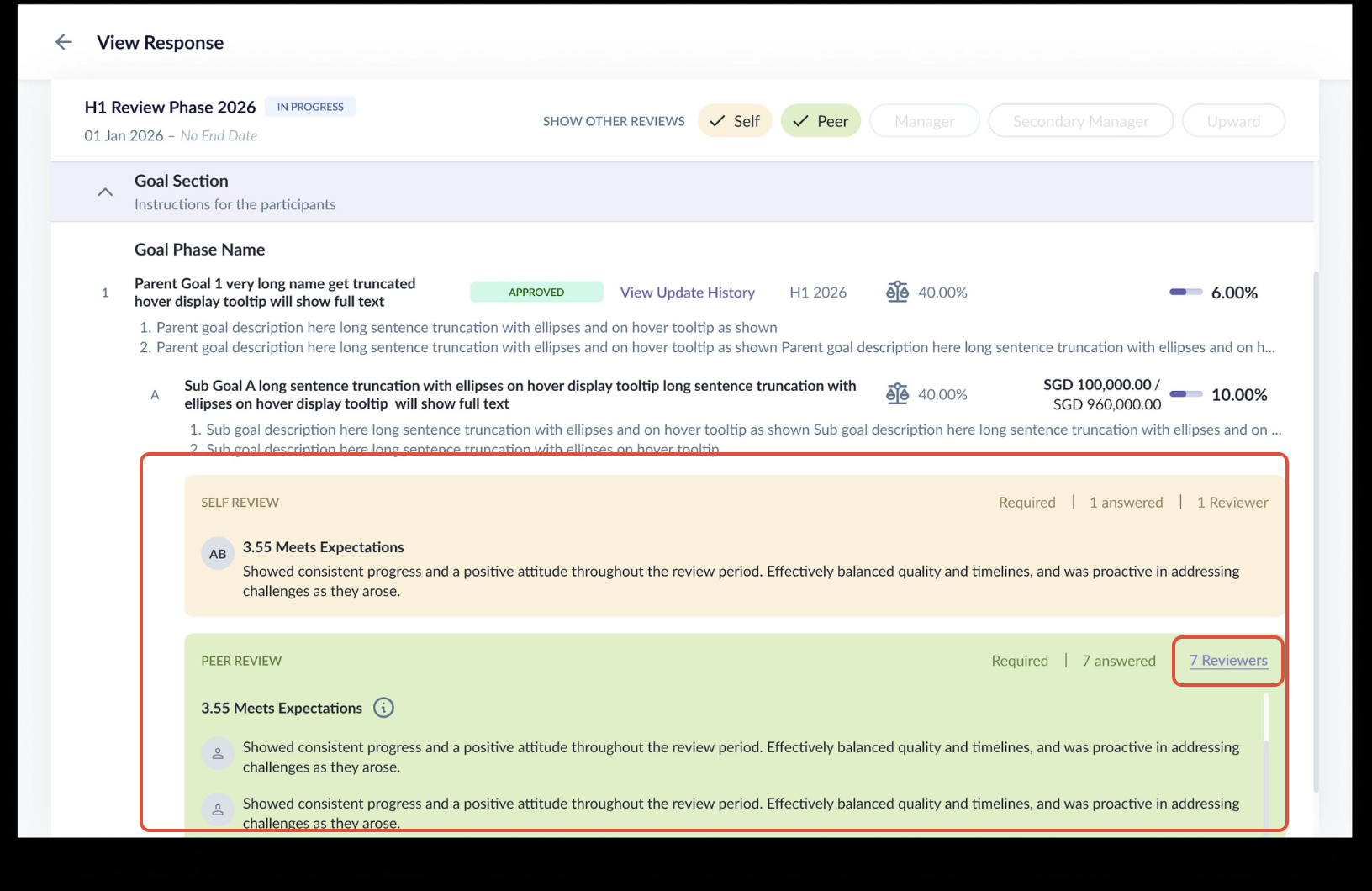
When viewing review responses, the system groups responses by review type.
Depending on your visibility access, you may see:
A) Ratings & Comments by Section
You may be able to view:
- Ratings for each section
- Comments submitted by reviewers
This depends on the visibility settings configured for your review phase.
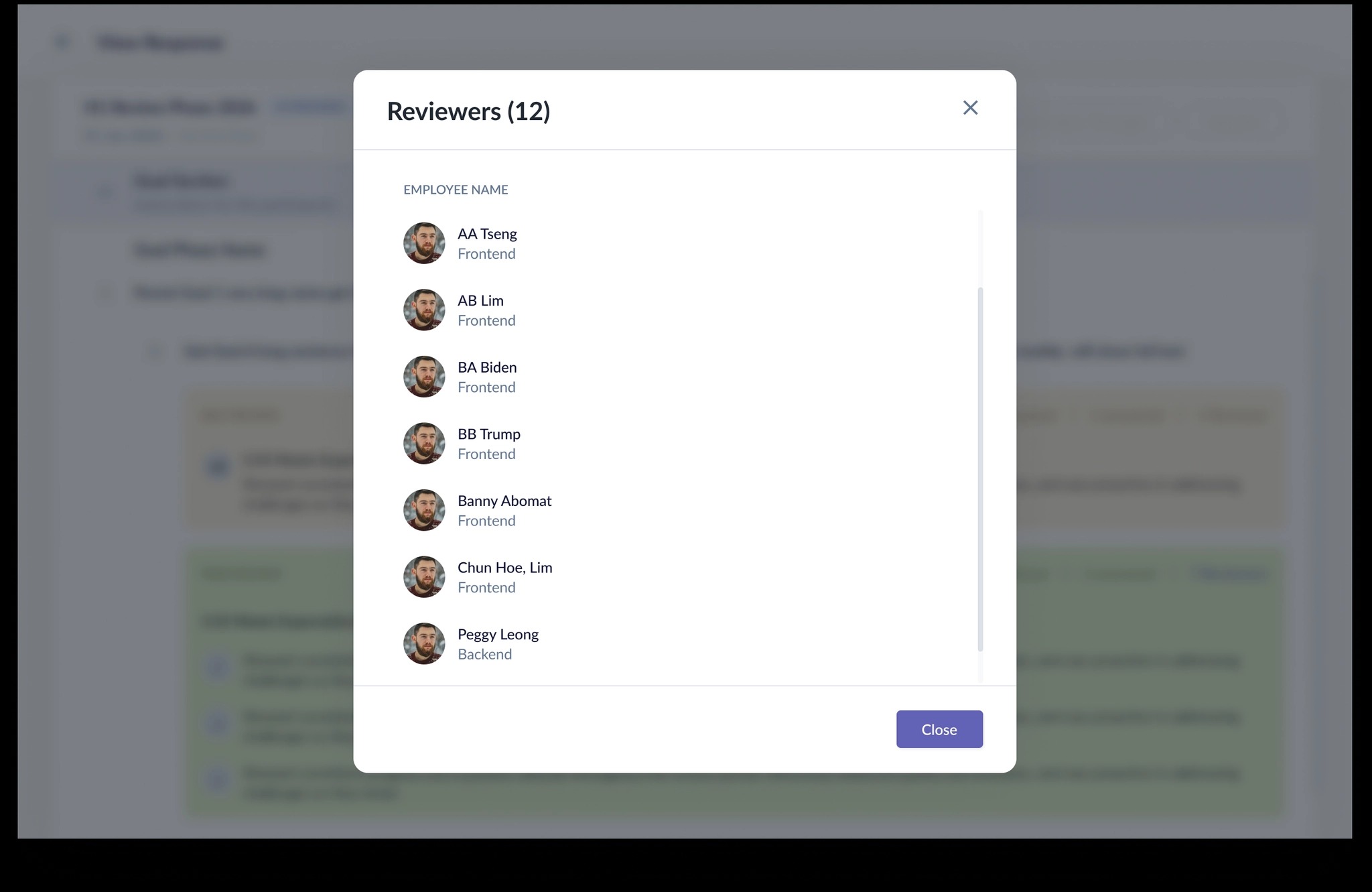
B) Reviewer Count
You may also see:
- The number of reviewers who submitted responses
If allowed by the visibility settings, you can click the reviewer count to view the reviewer list.
Note :
No email notification will be sent when a review response becomes visible to you.
We recommend checking your review task regularly from the To-Dos page during the active review phase to see newly available responses.
Still Need Help?:
Reach out to our support team should you need further assistance.
Was this article helpful?
That’s Great!
Thank you for your feedback
Sorry! We couldn't be helpful
Thank you for your feedback
Feedback sent
We appreciate your effort and will try to fix the article