Overview:
Your organization may invite you to submit a review (Manager or Secondary Manager Reviews) in an ongoing review phase as part of your performance cycle for a given period. You will be able to submit your responses directly from your To Do page in your profile.
This article will walk you through the steps to take to submit a review and what other things you can do?
TABLE OF CONTENTS
Where can I submit my reviews?
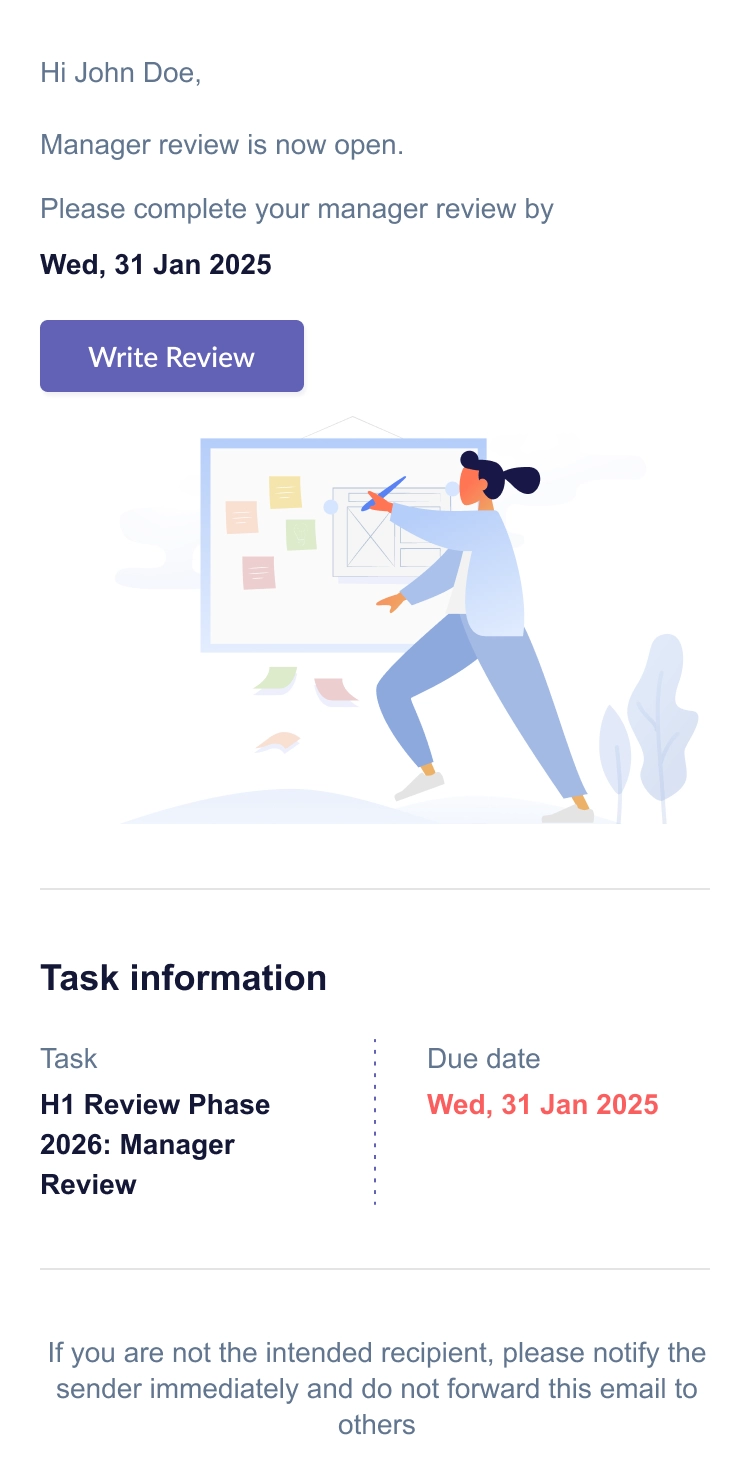
(1) Email notification
Manager Review
Secondary Manager Review
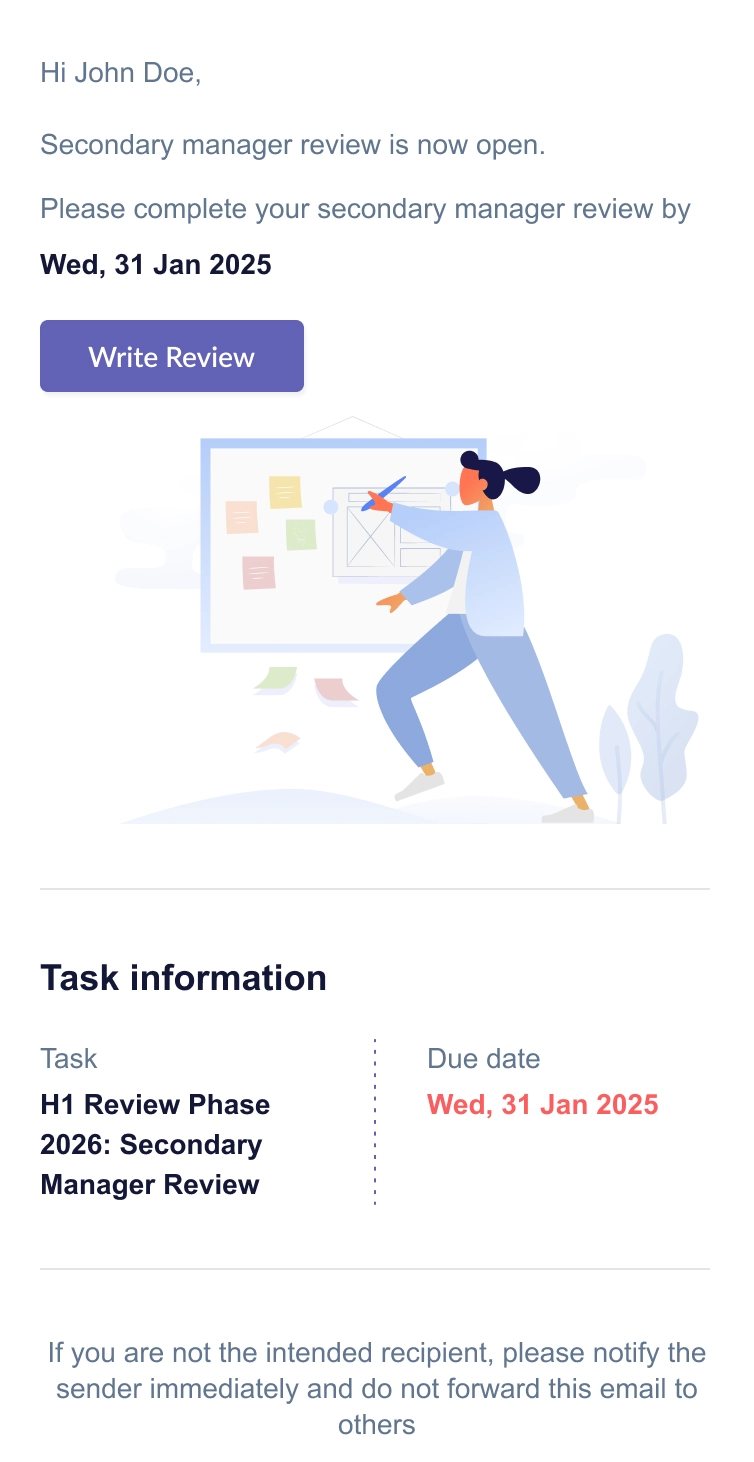
- You may then click on Write Review to be brought to your profile to start drafting your response.
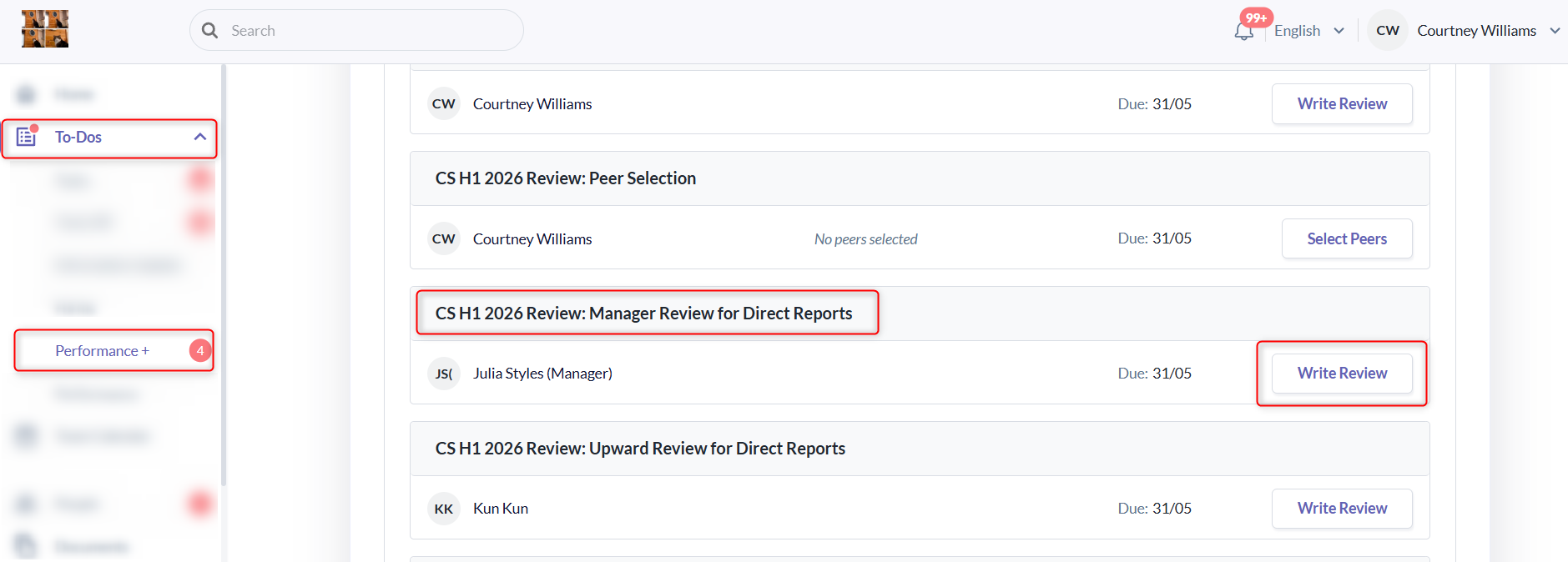
(2) From To-Dos
- You can also navigate to your reviews by going to To Do > Performance+ > Reviews.
- You may then look at the reviews that are pending your submissions and click on Write Review to get started.
Drafting and Submitting Responses
- Depending on your organization's setup, you may be required to review goals, answer open questions, as well as submit ratings for your employees.
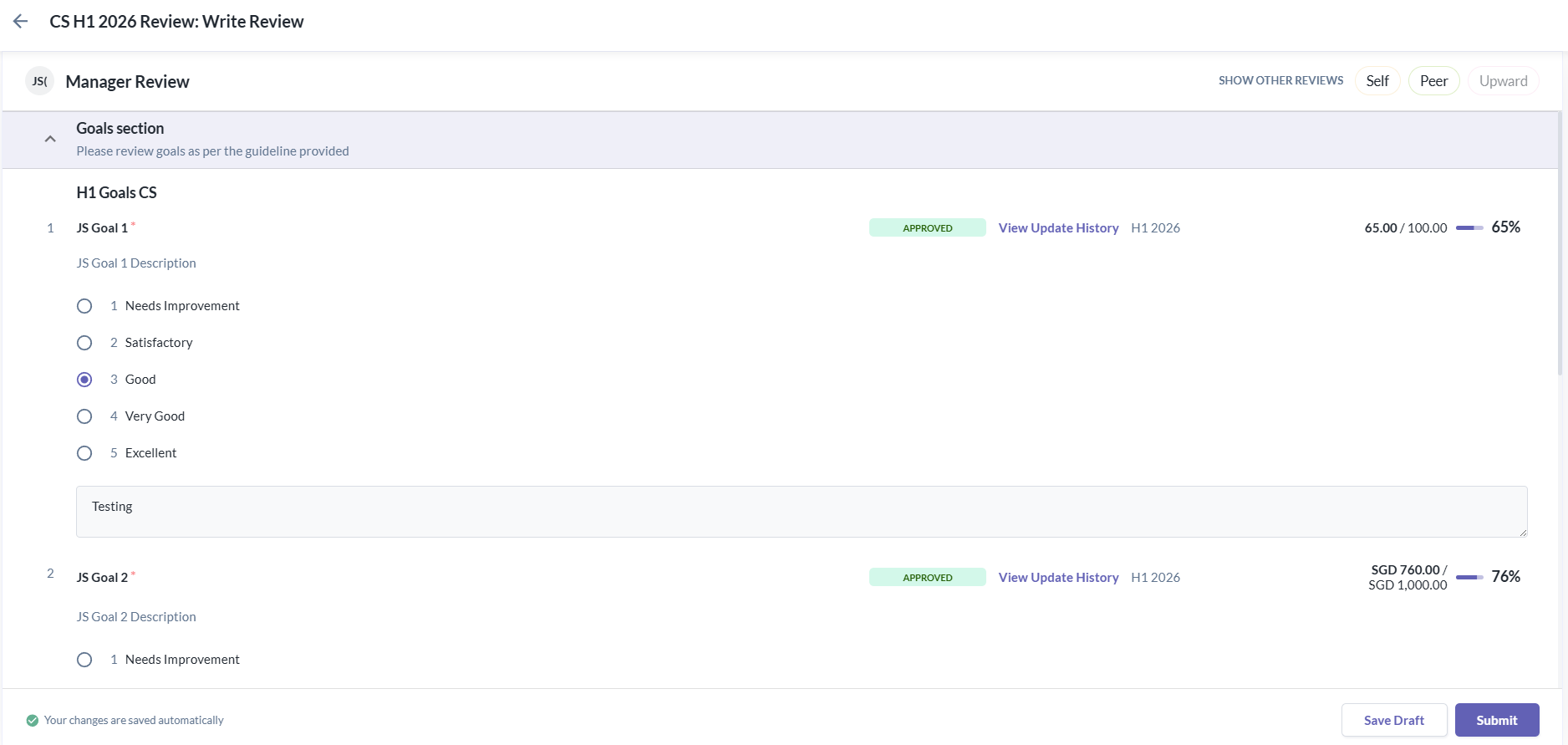
- You will be able to see at the top the name of the review form you are currently viewing, the different sections you are required to submit.
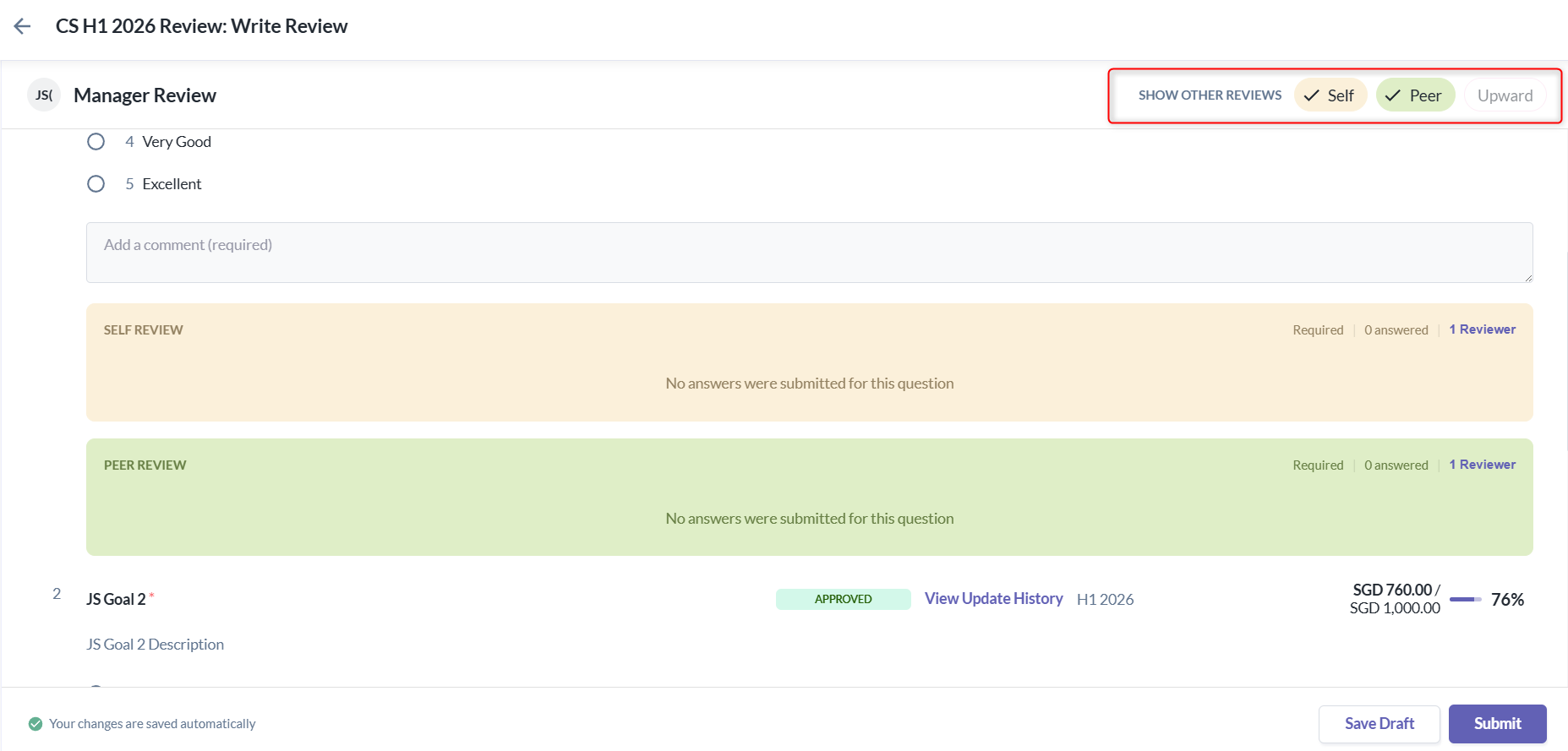
- The form also includes a “Show Other Reviews” option for each review type chip in the page header.
- On the Write Review page, all review type chips are unselected by default.
- When you select a review type chip, the responses submitted for that review type will appear inline below each question in the form (if responses are available).
- This allows you to reference other submitted responses while completing your own review.
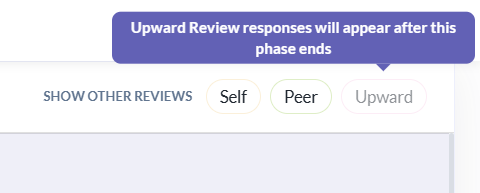
- However, if you hover over a chip and it is greyed out, this would mean that you are not able to view the response at the moment or at all depending on the setup of the cycle.
Goal Section
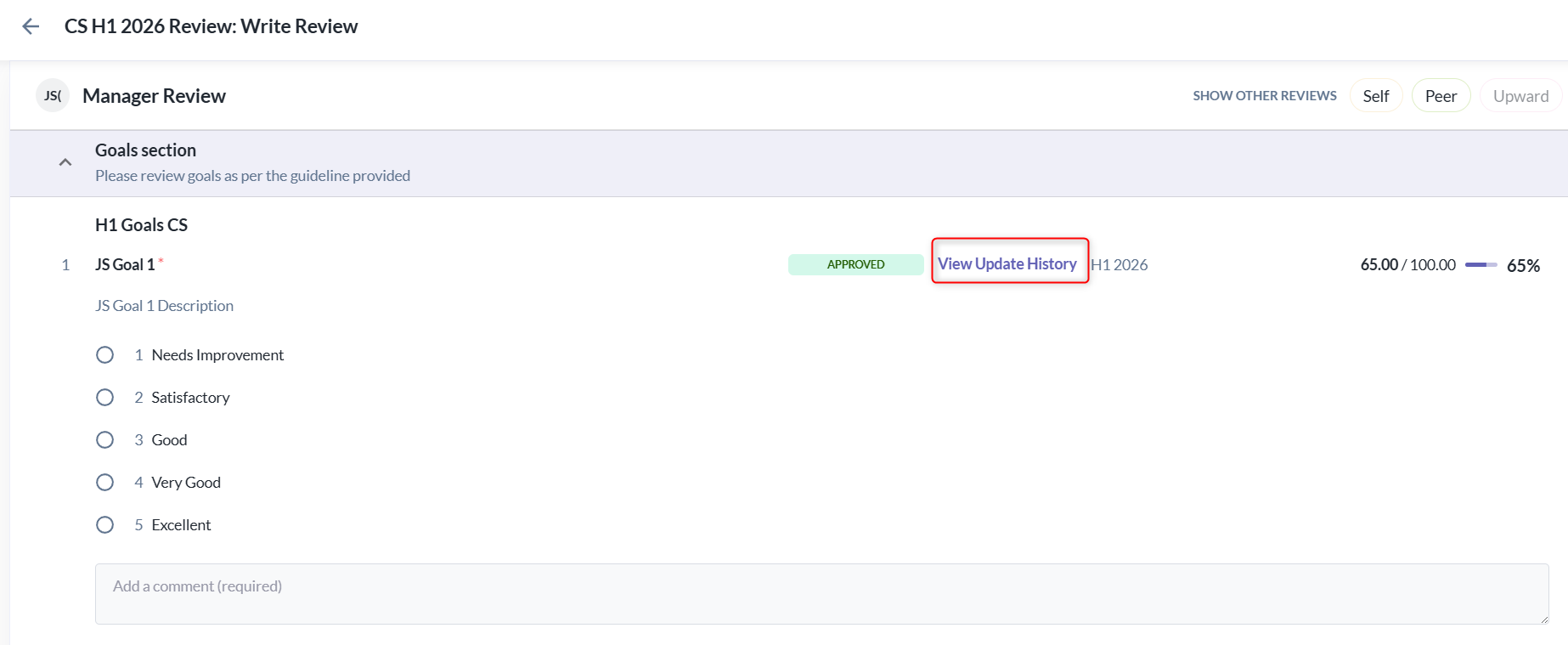
This section will display your employees' goals for the review period. This allows you to view their goals and progress, without leaving the form, allowing you to submit your responses and ratings to the questions prepared.
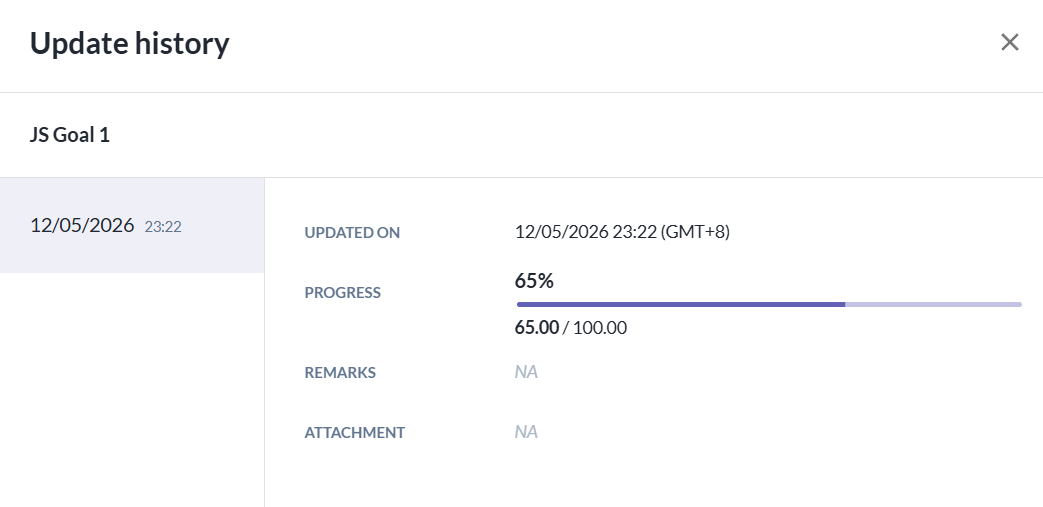
You can also click View Update History to see all the updates made to the goals progress easily.
An Update History popup is also available within this view, showing the history of changes made to goals and subgoals for reference.
Open & Rating Questions
This questions are organized into sections with a collapsible section header.
Questions are numbered and may be any of the following types: Paragraph, Single Select, Multi-Select, or Rating.
Each question shows whether it is Required or Optional.
Once you are done answering the questions, you have two options:
Save Draft: Saves your current responses without submitting. The review will remains in draft status, and the task will remains active on your To-Do page, allowing to revisit the draft at a later time.

Submit: Submits your current responses for the review. The task will be marked complete.
Once the review is submitted, a confirmation message will appear indicating that your review has been submitted successfully.

Once you have completed and submitted the review, the Write Review button will change to Edit Review. You can still edit your submitted response as long as the Manager Review or Secondary Manager Review phase has not yet closed.

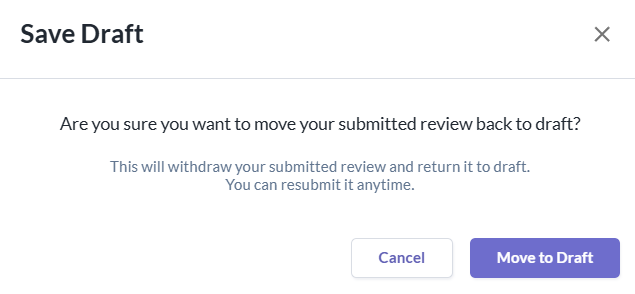
- The following confirmation message will appear when the submitted review is saved as a draft.
Still Need Help?:
Reach out to our support team should you need further assistance.
Was this article helpful?
That’s Great!
Thank you for your feedback
Sorry! We couldn't be helpful
Thank you for your feedback
Feedback sent
We appreciate your effort and will try to fix the article