Overview:
We have recently enhanced the forms module to support document attachments.
Admins can now create or edit existing forms to include a "File upload" element, which will allow users to submit supporting documents, such as receipts, contracts, signed approvals.
TABLE OF CONTENTS
- Key Capabilities Introduced
- How to create a form with the "File Upload" element?
- How to edit existing forms and include the "File Upload" element?
- Important notes on files supported
Key Capabilities Introduced
- A "File Upload" element has been added to the "Other" category in the form element toolbar.
- Customise the label, make the document field mandatory or allow multiple file uploads (up to 10 files per submission)
- Add a description field to provide instructions to users on what documents are required for that form submission
- Approvers or reviewers will be able to view and/or download the file attachments from the submitted forms
- Exporting form submissions to Excel will now include a new column depending on the type of file upload setup; Single file exports as a direct link, while multiple files export as a zip link
How to create a form with the "File Upload" element?
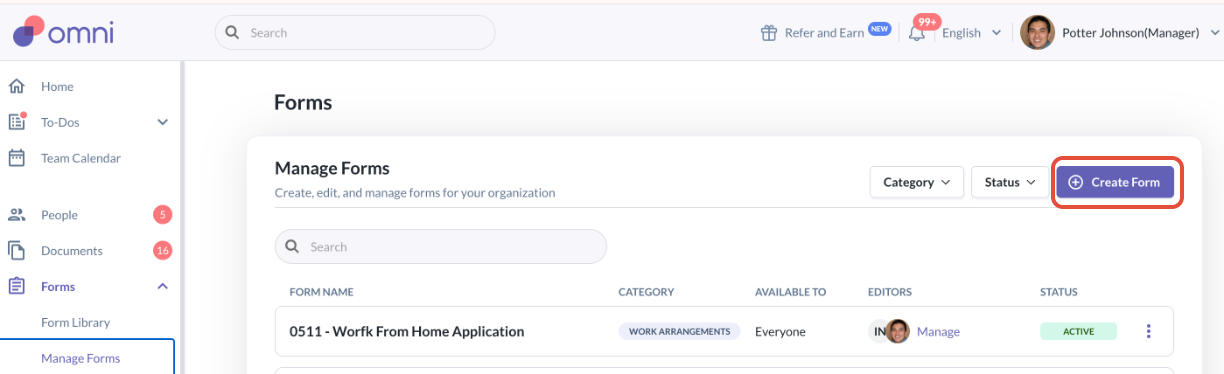
Step 1: Go to Create Forms
- Navigate to the Create Forms modal by going to Forms > Manage Forms > Create Forms
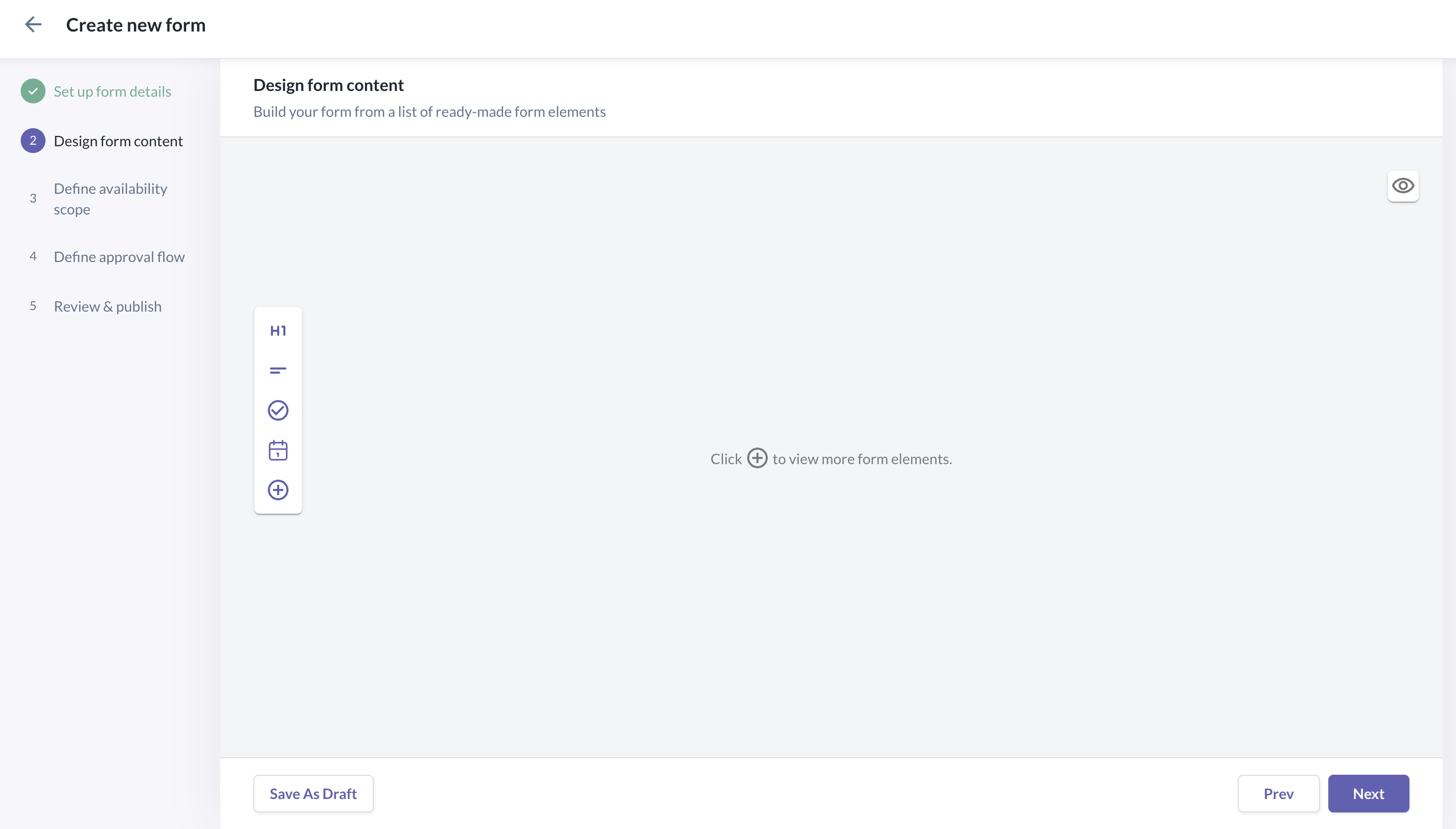
Step 2: Navigate to Part 2 (Design Form Content)
- Complete Part 1 (Set Up Form Details) and Navigate to Part 2 (Design Form Content)
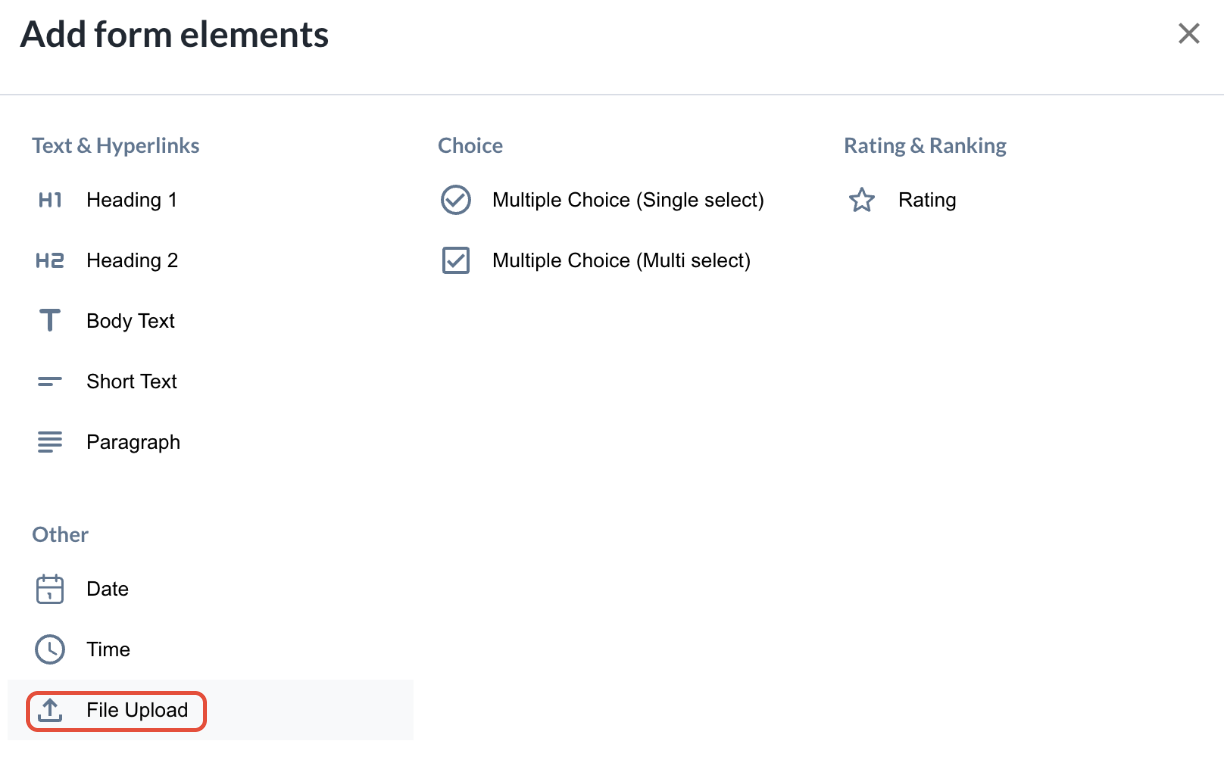
Step 3: Choose "File Upload" from Add Form Elements
- Click the + sign to view form elements
- Add the required form elements to build your form i.e. text & hyperlinks, add multiple choice fields and even rating & ranking elements
- Choose "File Upload" from the Others category to include in your form
Step 4: Configure the "File Upload" element to the form's requirements
- You may setup the "File Upload" element to the form's requirements as such:
- Setup a Label Name i.e. Attachment(s)
- Toggle on whether this element is required
- Toggle and provide form instructions in Label description pertaining to the file upload i.e. Please submit supporting documents for extended leave request i.e. itineraries, receipts, etc
- Toggle on "Allow Multiple Files" if the form requires multiple documents. Note: Maximum limit is 10 files per form submission
- You can then drag and drop the element to where you wish the file upload field should be displayed in the form
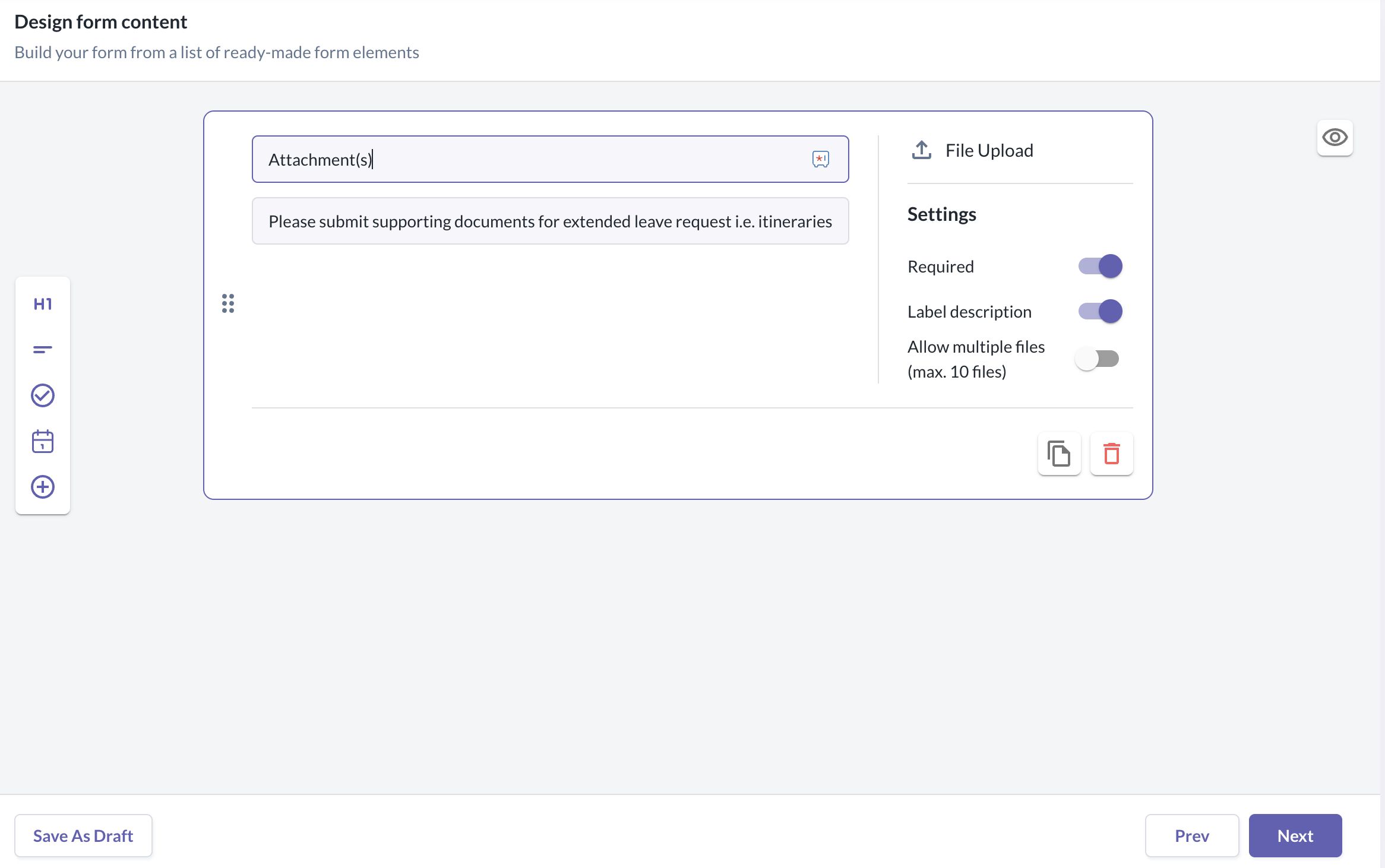
- You can click on the eye icon to preview how the element will be displayed to the users viewing the form
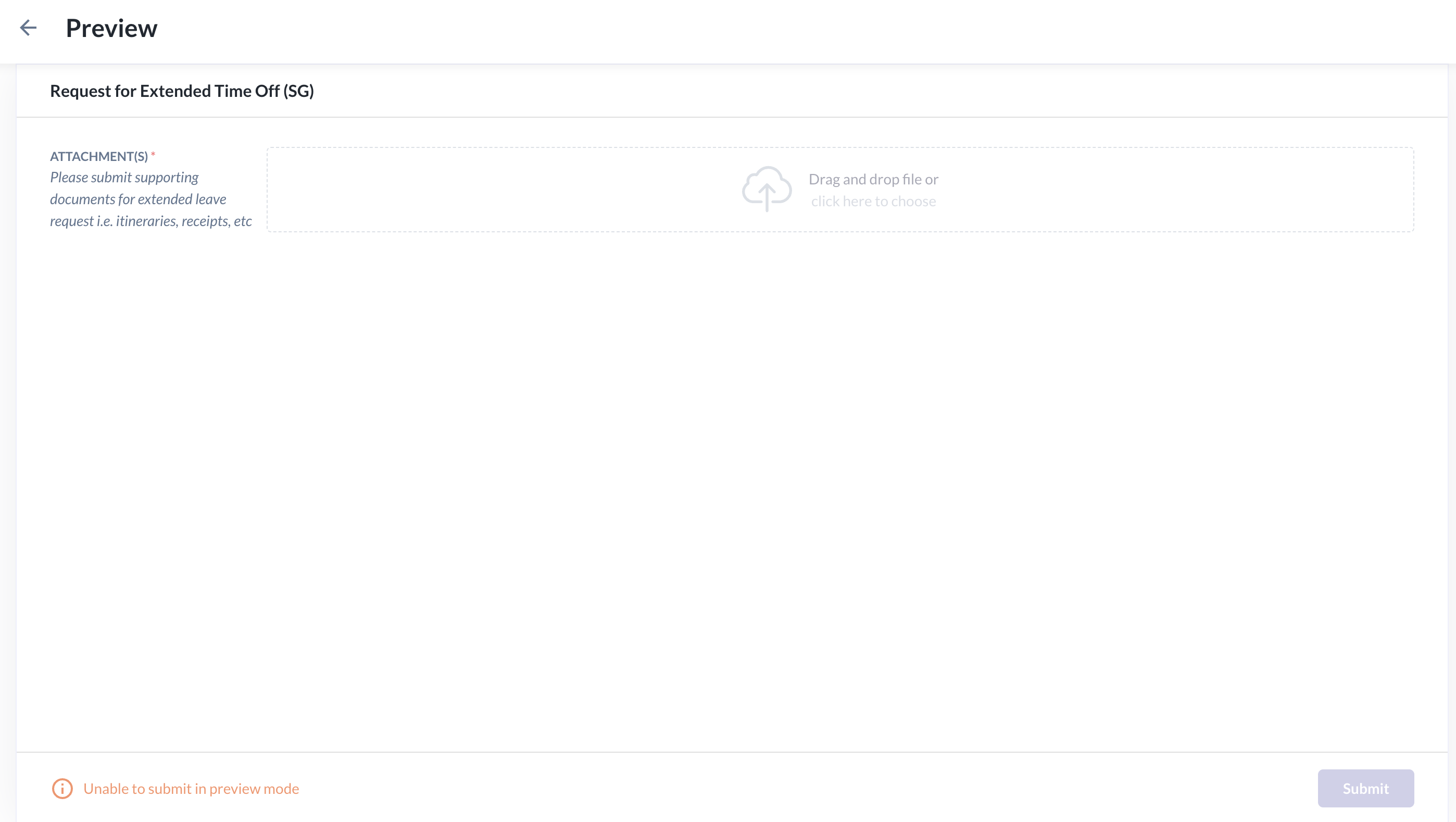
Step 5: Complete further form setup and publish the form
How to edit existing forms and include the "File Upload" element?
Step 1: Go to an existing form and click "Edit Form"
- Navigate to any forms created by going to Forms > Manage Forms
- Use the search function or locate the form and click on the three ellipses - click "Edit form"
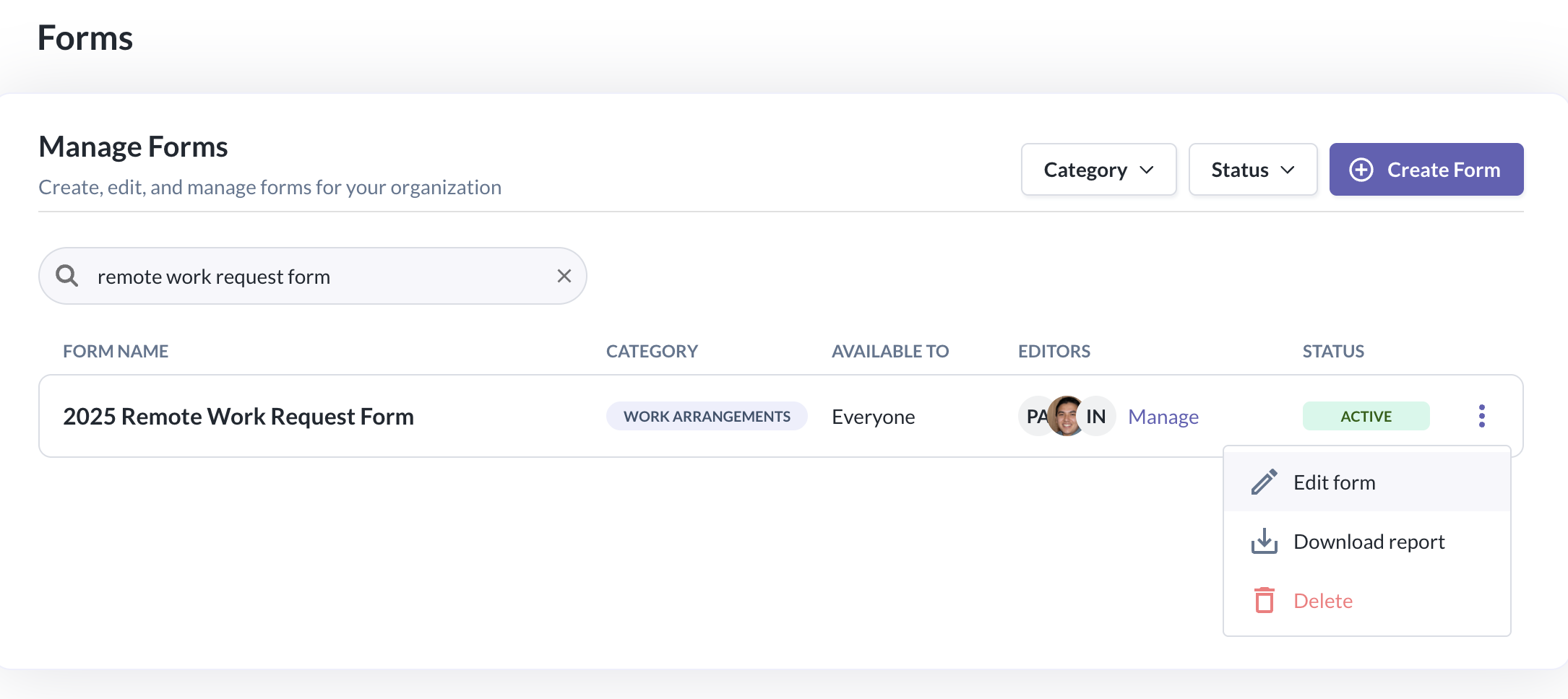
Step 2: Navigate to Part 2 (Design Form Content)
- Click "Next" to get to Design Form Content
- Click the + sign to view form elements
- Choose "File Upload" from the Others category to include in your form
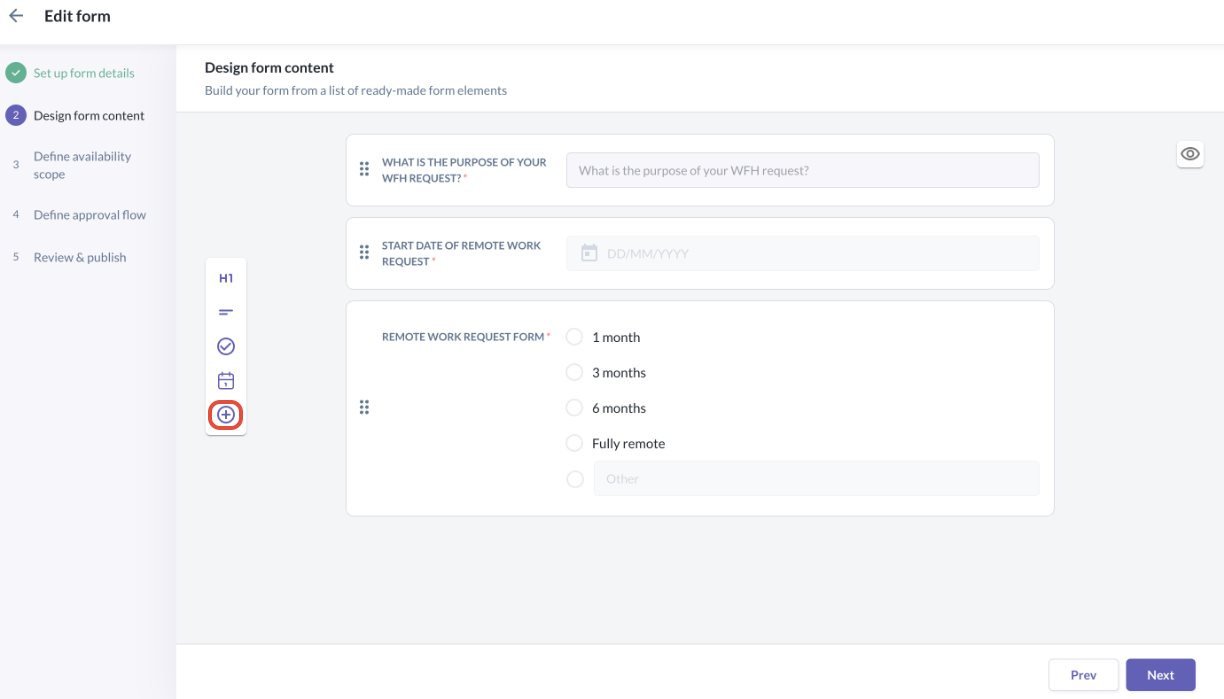
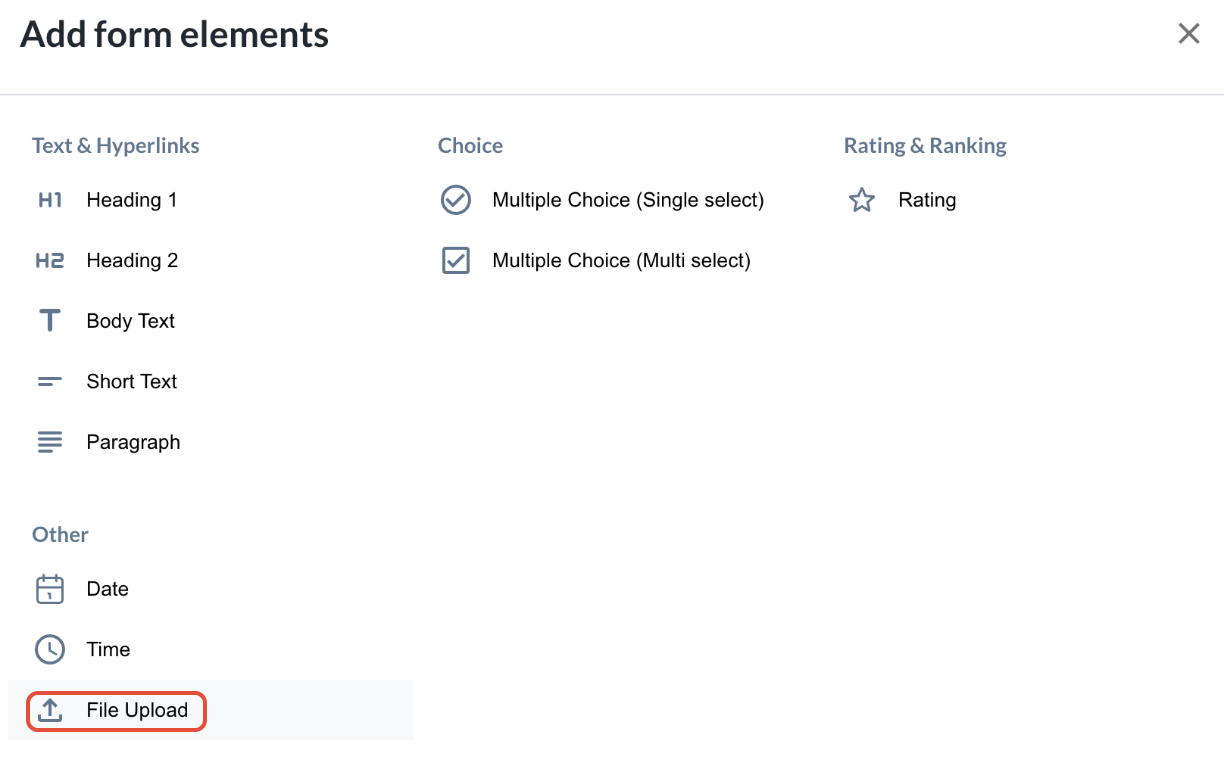
Step 3: Configure the "File Upload" element to the form's requirements
- You may setup the "File Upload" element to the form's requirements as such:
- Setup a Label Name i.e. Attachment(s)
- Toggle on whether this element is required
- Toggle and provide form instructions in Label description pertaining to the file upload i.e. Please submit supporting documents for extended leave request i.e. itineraries, receipts, etc
- Toggle on "Allow Multiple Files" if the form requires multiple documents. Note: Maximum limit is 10 files per form submission
- You can then drag and drop the element to where you wish the file upload field should be displayed in the form
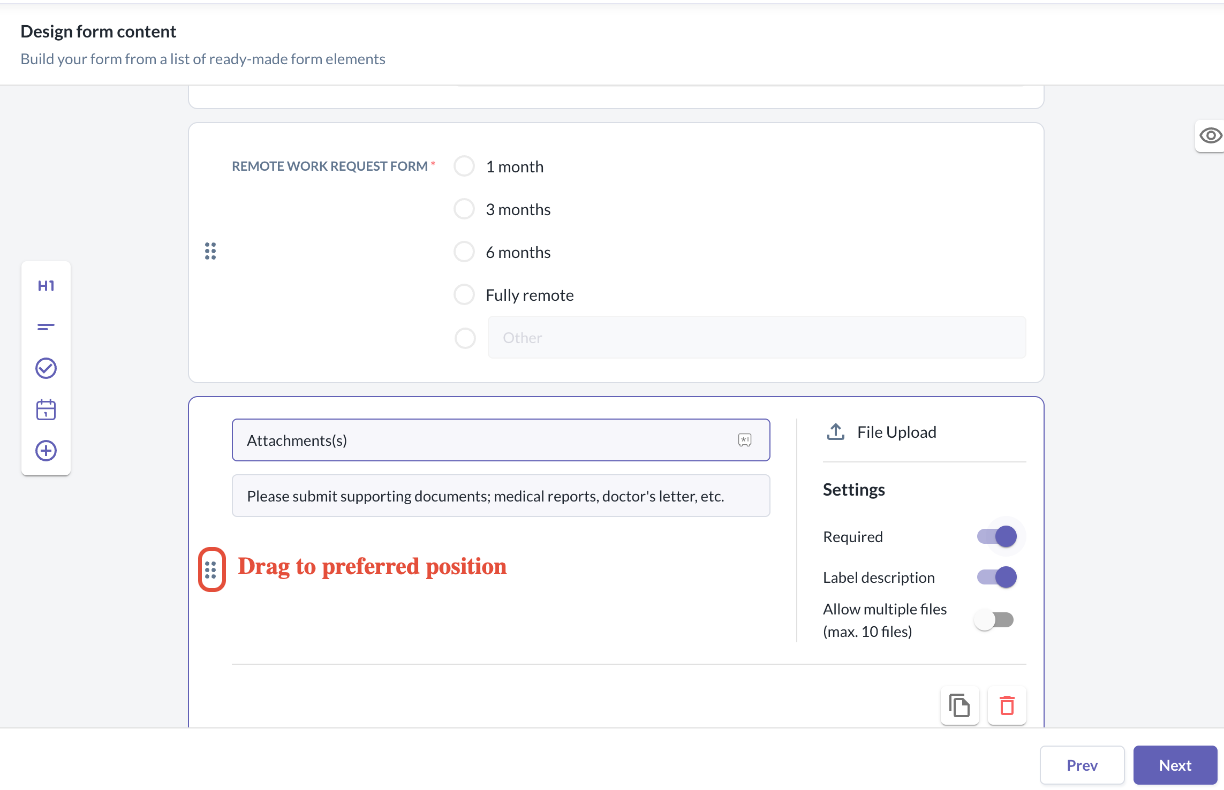
- You can click on the eye icon to preview how the element will be displayed to the users viewing the form
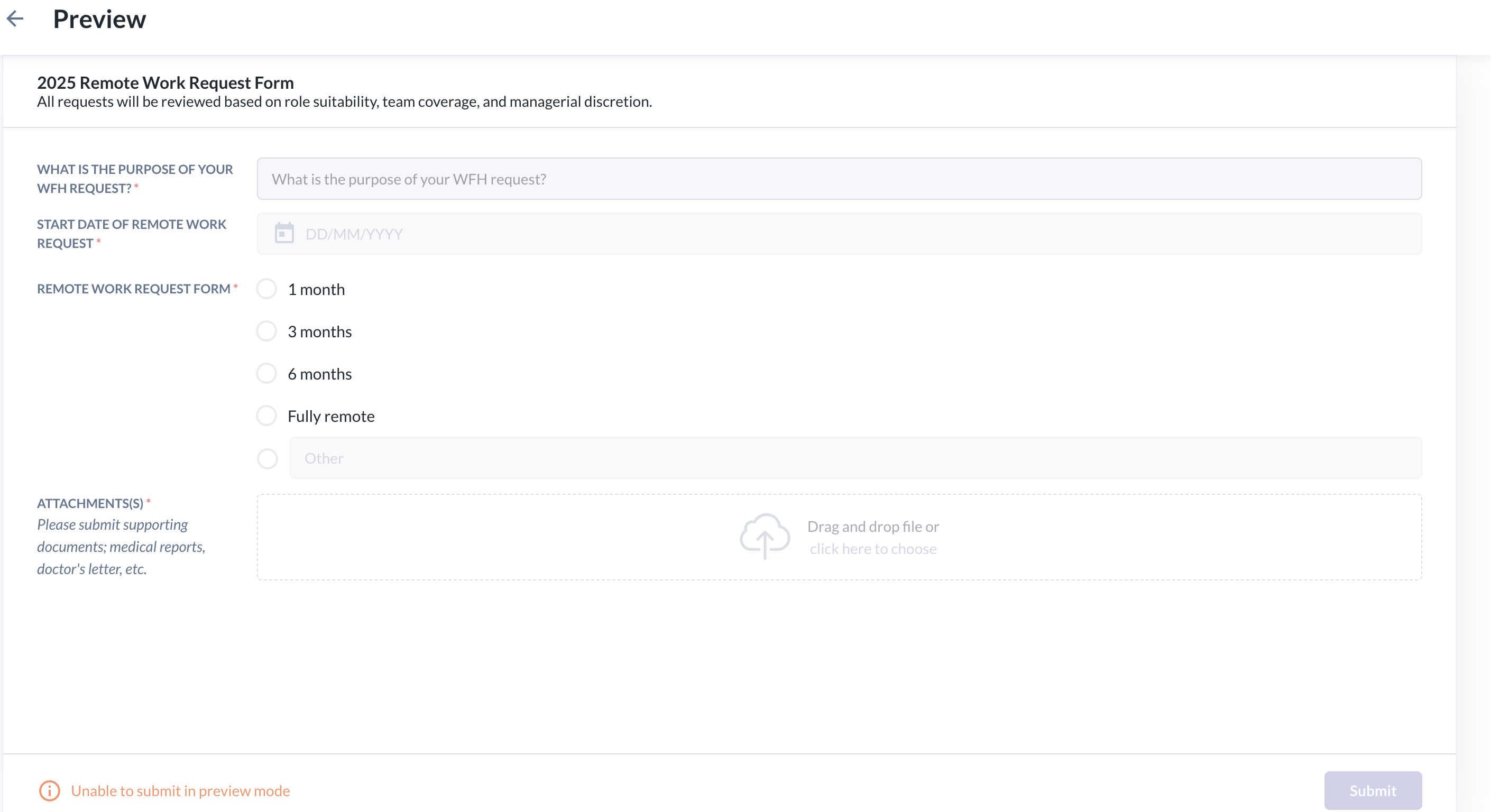
Step 4: Review further form setup and publish the edited form
Important notes on files supported
- Accepted file types: images (.jpg, .jpeg, .png, .gif, .bmp), documents (.doc, .docx, .pdf), and spreadsheets (.xls, .xlsx)
- Max file size: 5MB per file
- Multiple file limit: 10 files per form submission
Still Need Help?
Reach out to our support team should you need further assistance.
Was this article helpful?
That’s Great!
Thank you for your feedback
Sorry! We couldn't be helpful
Thank you for your feedback
Feedback sent
We appreciate your effort and will try to fix the article