Overview:
If you have employees needing to make changes or correct any mistakes in their reviews, admins can unlock a submitted response so participants can go back in, edit, and resubmit it — no need to reach out to support. You can unlock responses for everyone at once, or pick specific reviews, across Self Review, Peer Review, and Upward Review.
TABLE OF CONTENTS
How to Access
- Go to Performance+ > Review Cycle > [Cycle name] > Review Phase > Actions > select Unlock responses.
Note: You'll only see Unlock responses in the Actions menu if a review type (Self, Peer, or Upward) is still in progress and has at least one submitted response
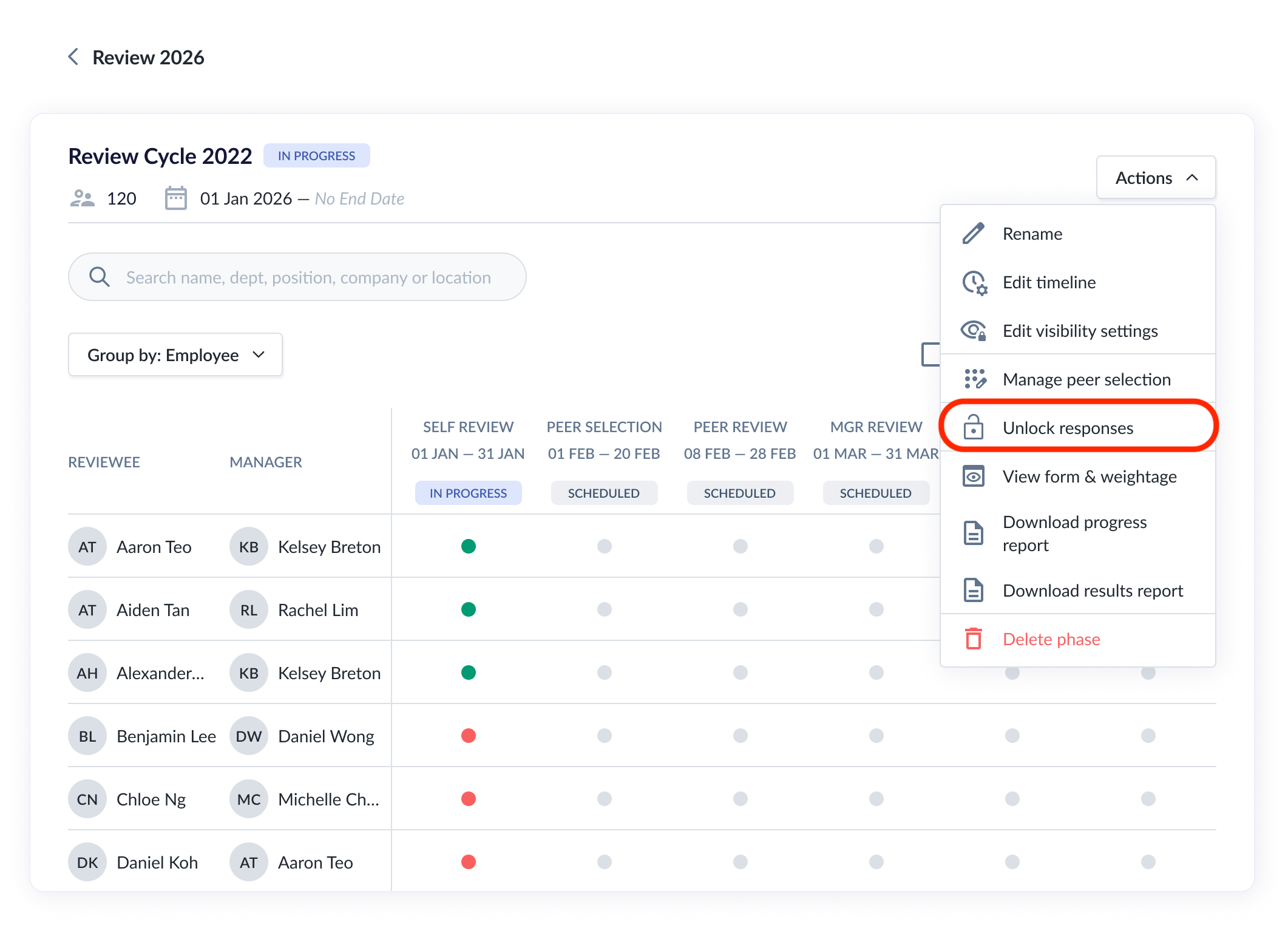
Unlock Responses
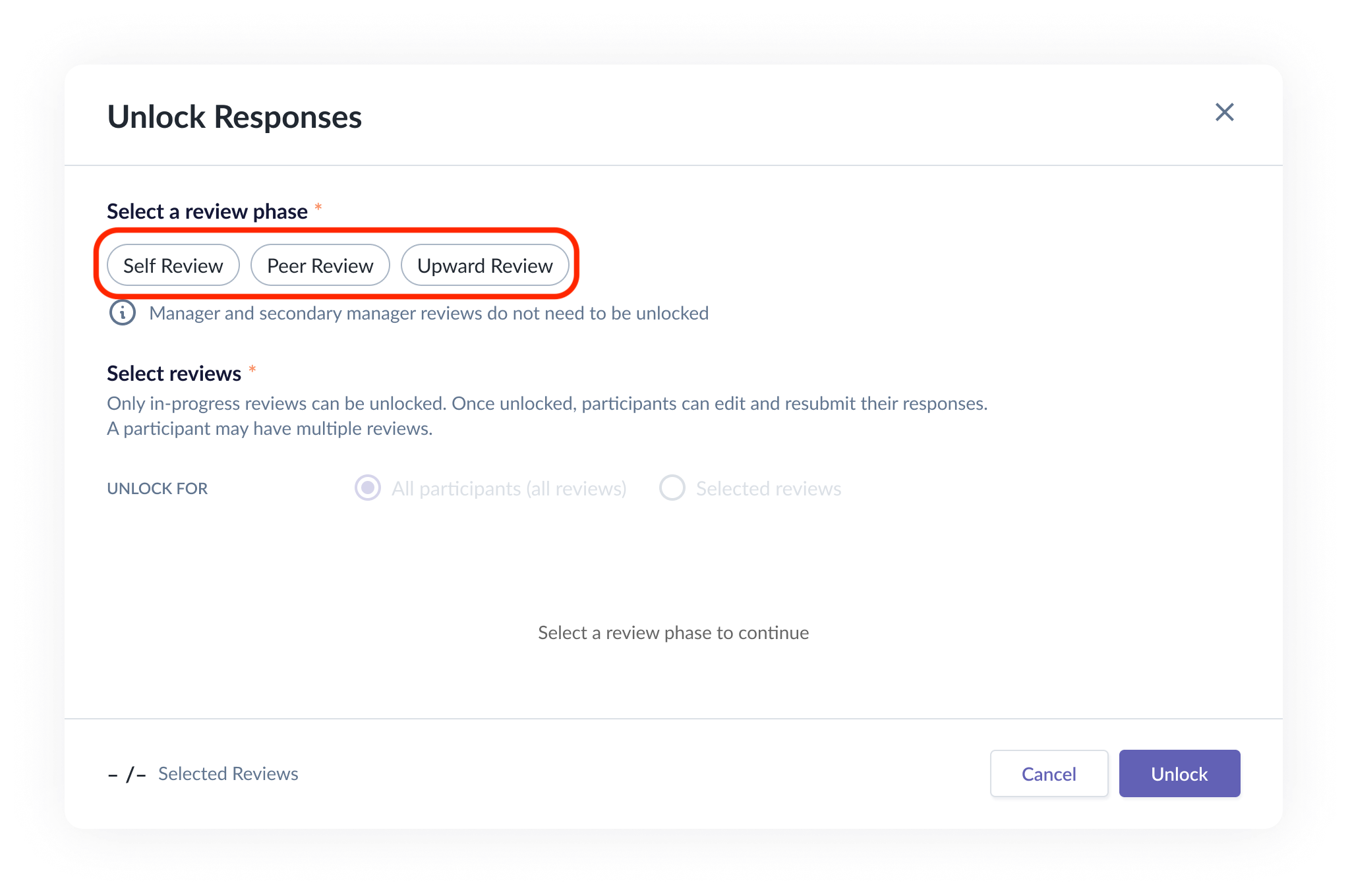
- Selecting Unlock responses opens a simple two-step pop-up.
Step 1 — Choose a Review Type
- Pick one or more review types you'd like to unlock:
- Self Review
- Peer Review
- Upward Review
Step 2 — Choose Who to Unlock
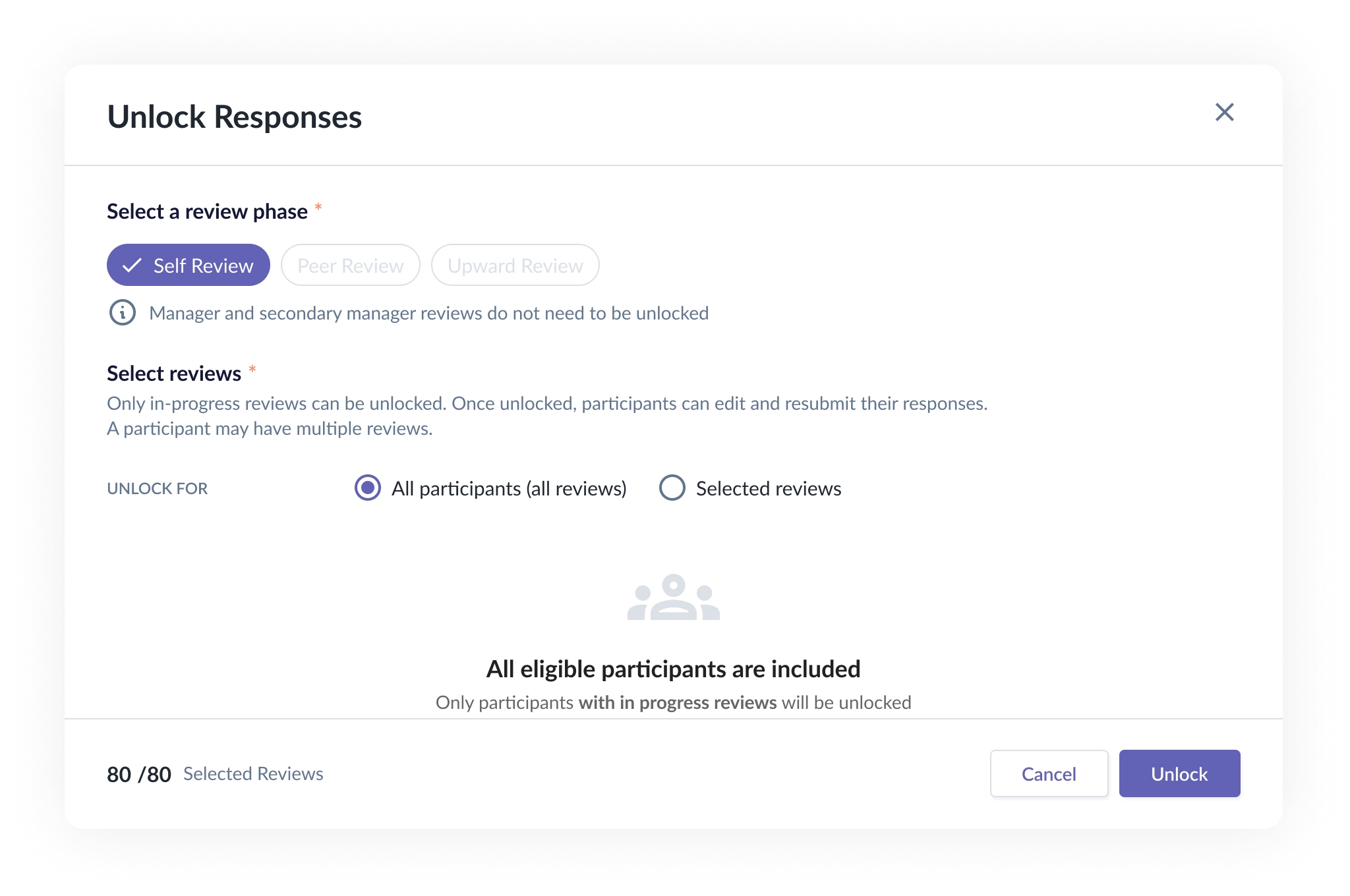
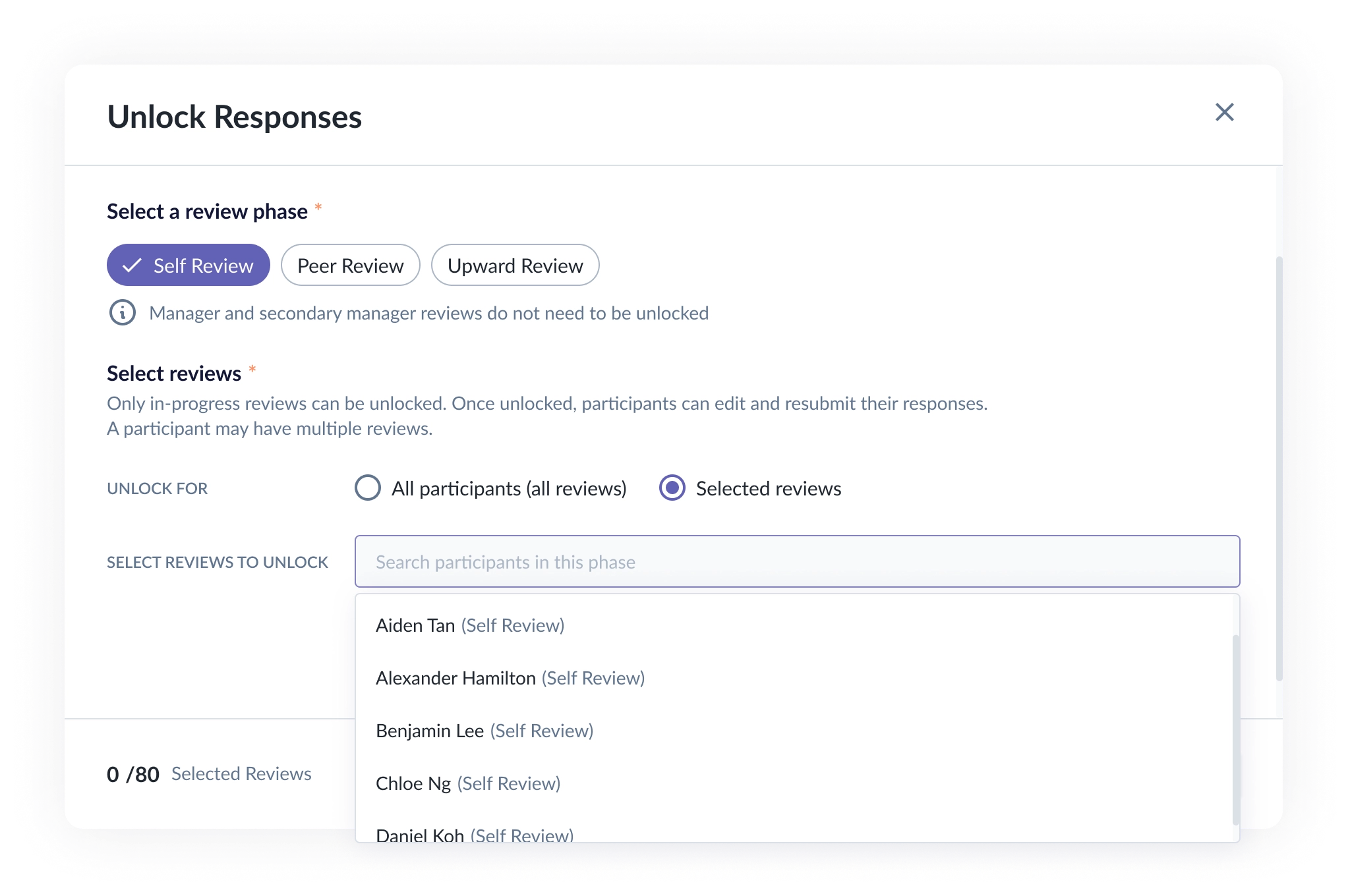
- Decide who you're unlocking responses for.
| Option | What it does |
|---|---|
| All participants (all reviews) | Unlocks every eligible response. You'll see a message confirming that only in-progress reviews will be unlocked. |
| Selected reviews | Search and pick specific reviews to unlock. Only reviews that are in progress with a submitted response will show up here. |
Option A — All participants (all reviews)
Option B — Selected reviews
Self Review
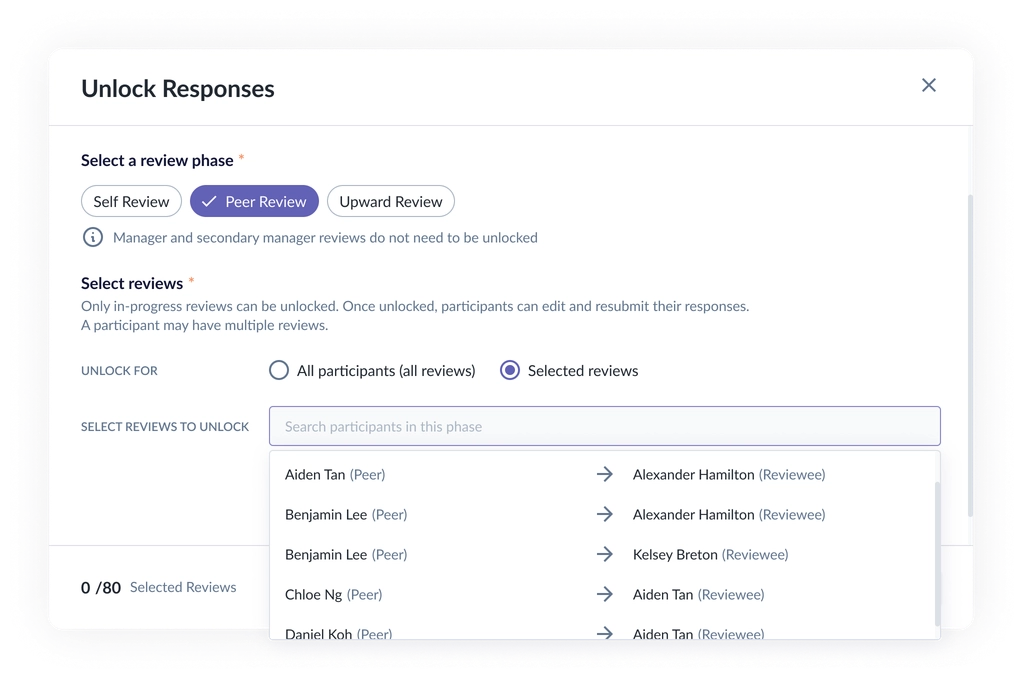
Peer Review
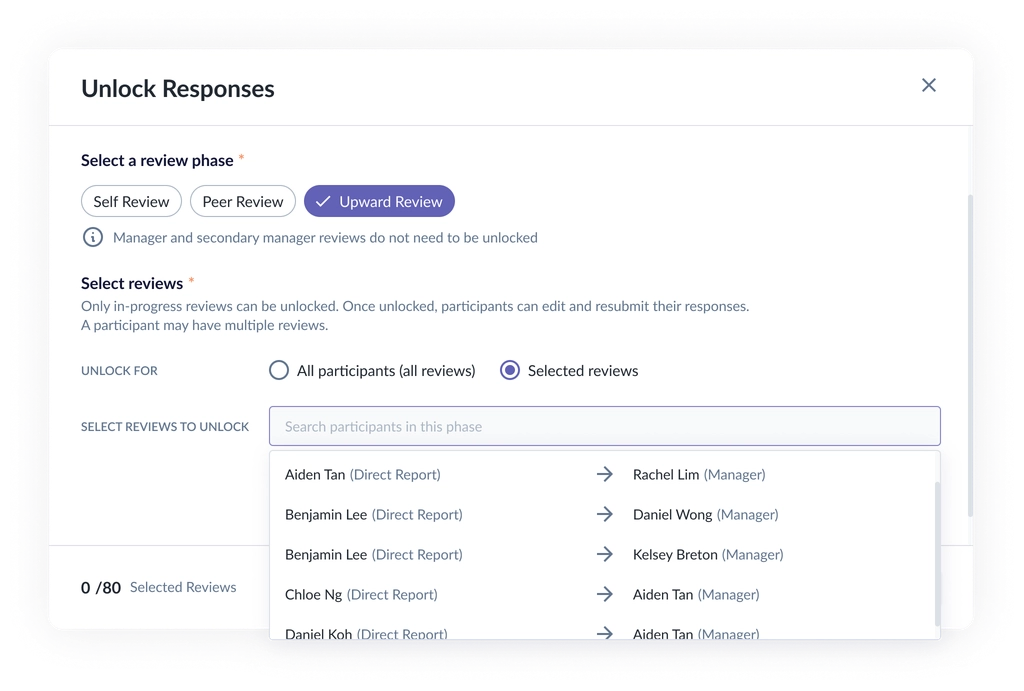
Upward Review
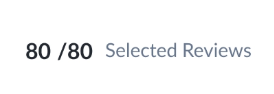
Note: The counter at the bottom shows how many reviews are eligible to unlock — not your total participant count. So if most of the group has wrapped up but one person is still in progress on a custom timeline, you'll see 1/1.
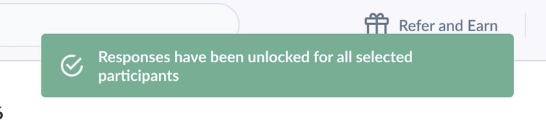
- Once you confirm your selection, the responses are unlocked right away. You will see a message like below:
Important Notes
- Manager and secondary manager reviews are editable after submission and do not require unlocking. Peer Selection is also not included — admins can manage peer selection directly via Manage Peer Selection.
- Custom timelines still count. Even if a review phase looks closed overall, a participant on their own extended timeline can still be unlocked if their review is in progress.
- No notifications are sent — participants won't be alerted automatically, so let them know if they need to take action.
- Once unlocked, participants can freely edit and resubmit their response.
- For Peer and Upward Reviews, unlocking applies to one reviewer-reviewee pair at a time, not the whole group.
Still Need Help?:
Reach out to our support team should you need further assistance.
Was this article helpful?
That’s Great!
Thank you for your feedback
Sorry! We couldn't be helpful
Thank you for your feedback
Feedback sent
We appreciate your effort and will try to fix the article