Overview:
Connecting your AI assistant to Omni HR takes about five minutes. The setup is the same idea across all three tools: give it a URL, sign in, done.
Important Notice:

This is an early version of MCP, so things may still be evolving.

Want access? Just email us at support@omnihr.co or reach out to your account manager — access isn't automatic and depends on your subscription's eligibility.
TABLE OF CONTENTS
- How to Connect Omni HR to ChatGPT
- How to Connect Omni HR to Claude
- How to Connect Omni HR to Cursor
- How does sign-in to Omni HR work
- Keeping Things Secure: Quick Checklist
- How to troubleshoot when something is not working
How to Connect Omni HR to ChatGPT
ChatGPT needs Developer Mode turned on before you can add Omni HR. It's a one-time toggle — once it's on, you won't need to touch it again.
Step 1 — Turn on Developer Mode
- Open ChatGPT in your browser and sign in.
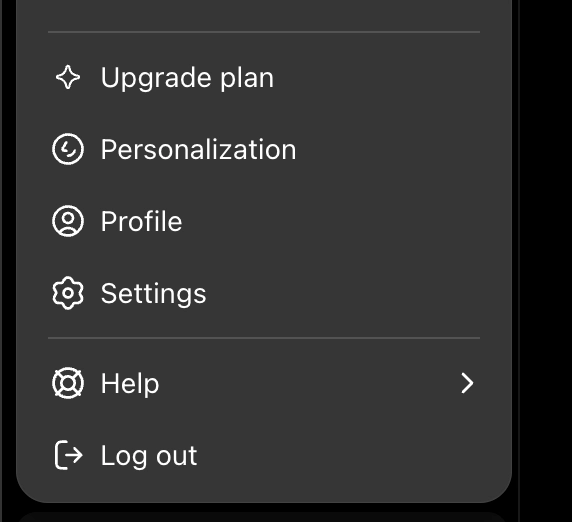
- Click your profile icon in the bottom left and pick Settings.
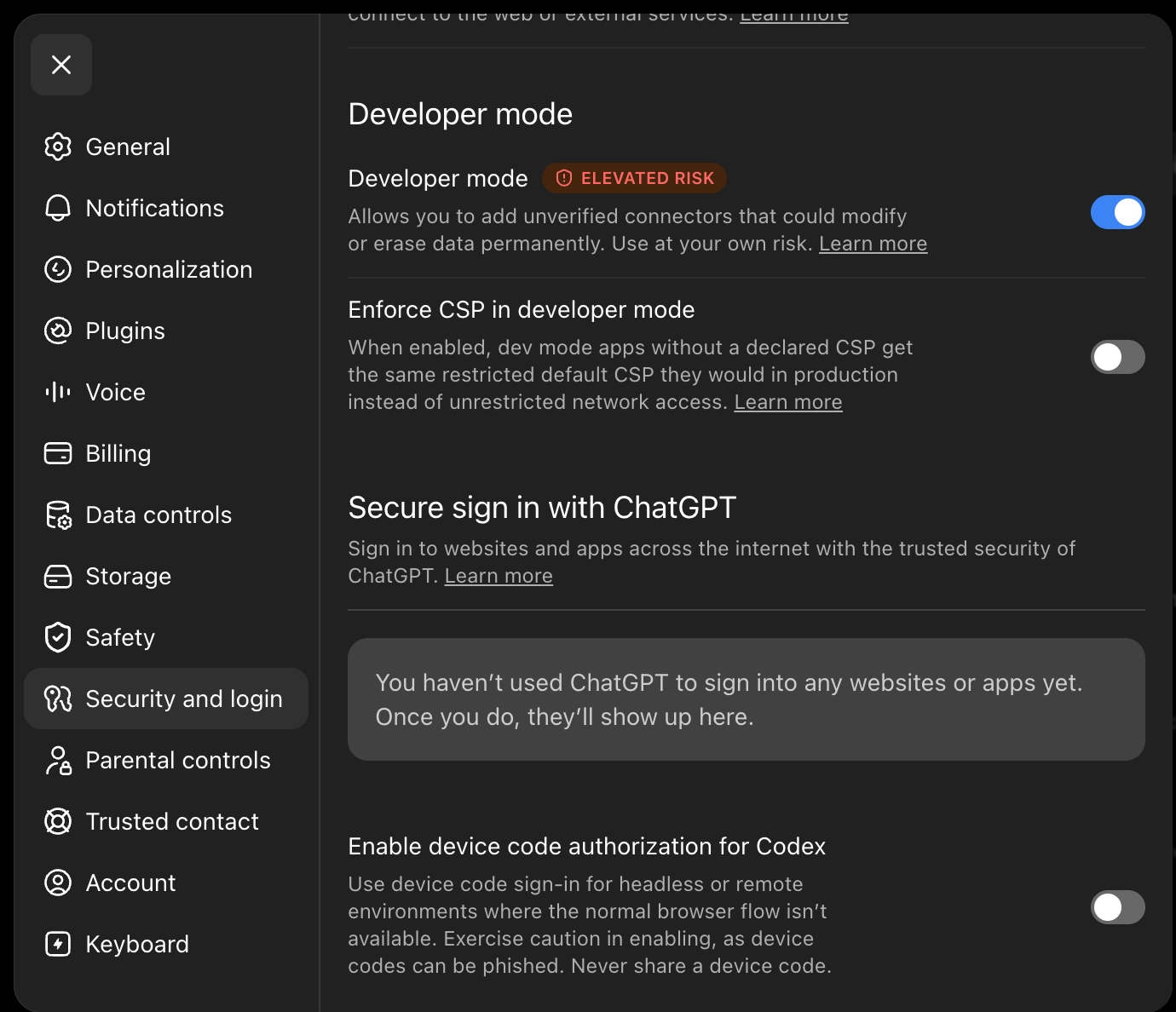
- Go to Security and login.
- Scroll to the bottom of the page to find developer mode.
- Enable Developer Mode.
Step 2 — Add Omni HR
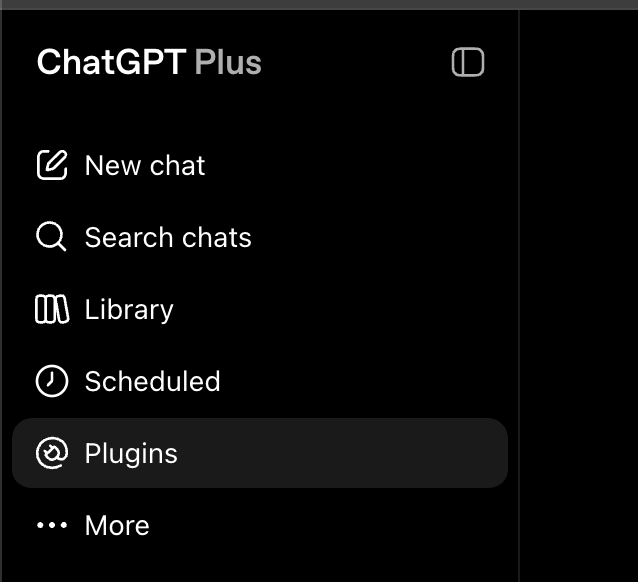
- Go to Plugins
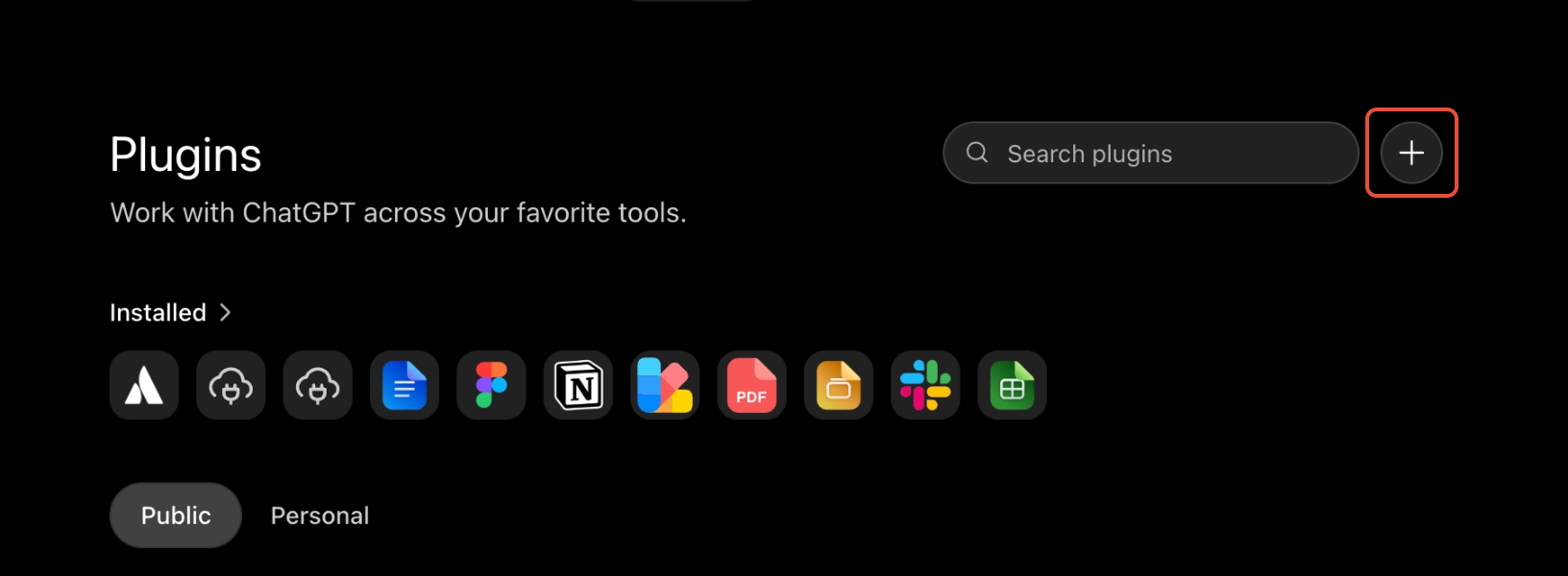
- Click the + icon on the right panel (besides the Search bar)
- In New Plugin
- Choose Server URL for Connection
- Enter:
Field Value Name Omni HR (or whatever you'd like to call it) Server URL https://mcp.omnihr.co/mcp - You'll get a warning about third-party servers — confirm it and move on.
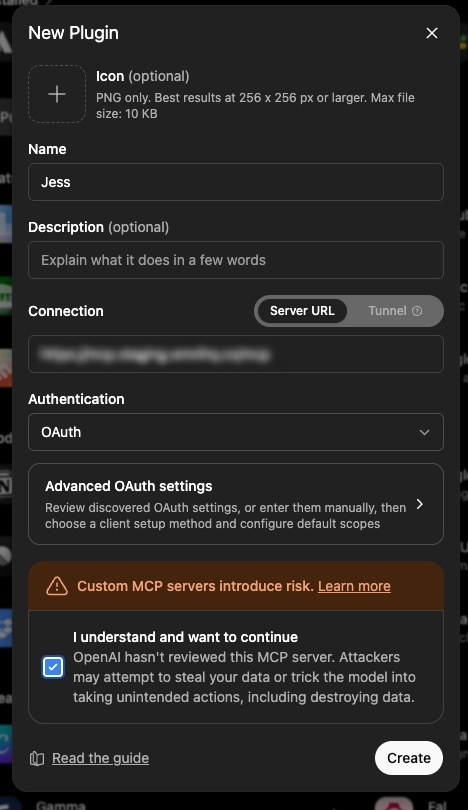
- Click Create
- Sign in to your Omni HR workspace.
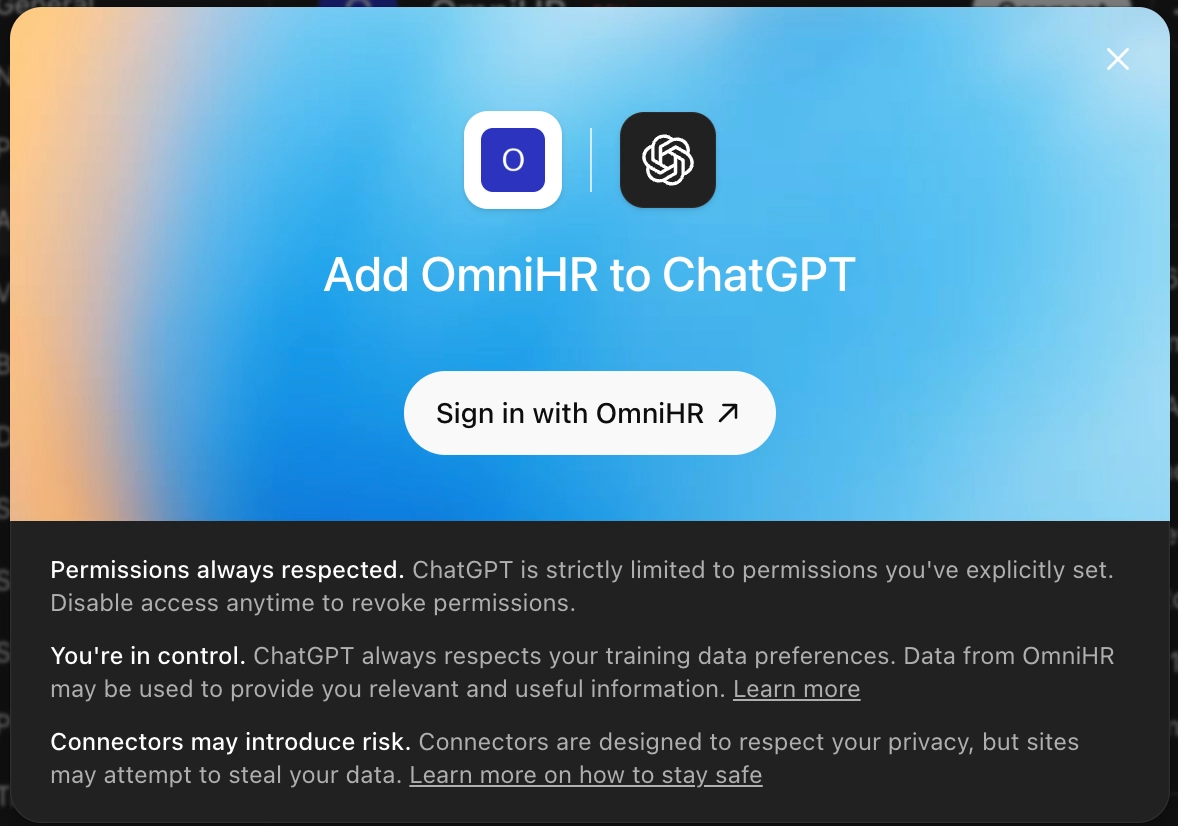
- You're connected!
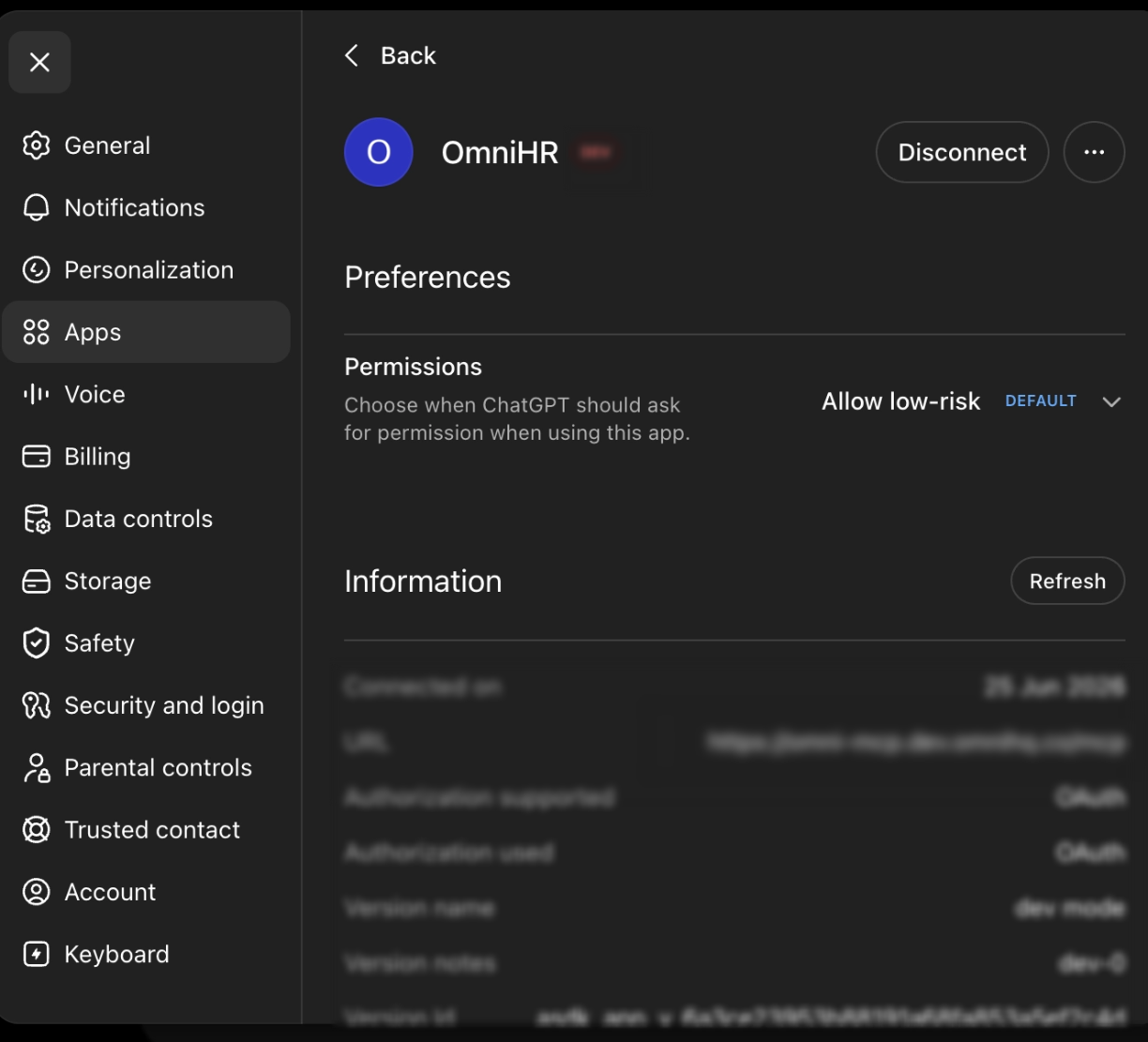
- (Optional) You can set the permissions you would like.
Click > under Permissions.
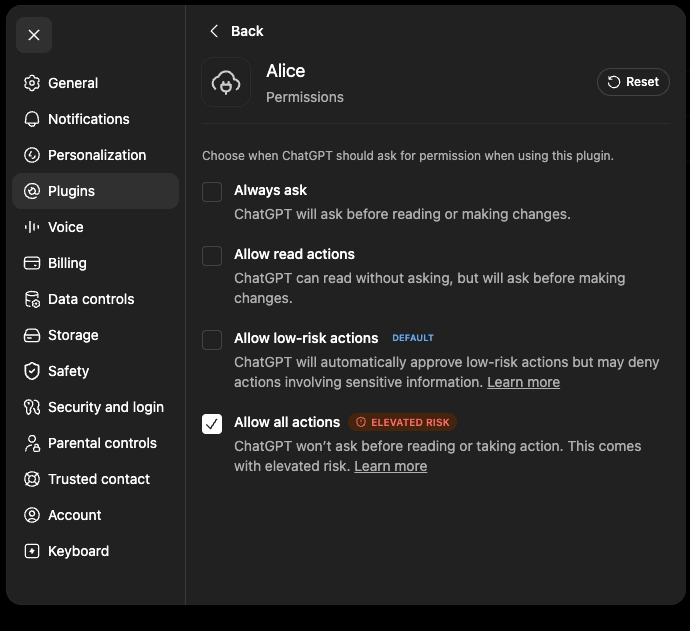
(i) You will minimally need Always askor Allow read actionsif you want to make changes to information (i.e. submit time off). — ChatGPT will ask for approval before making the change.
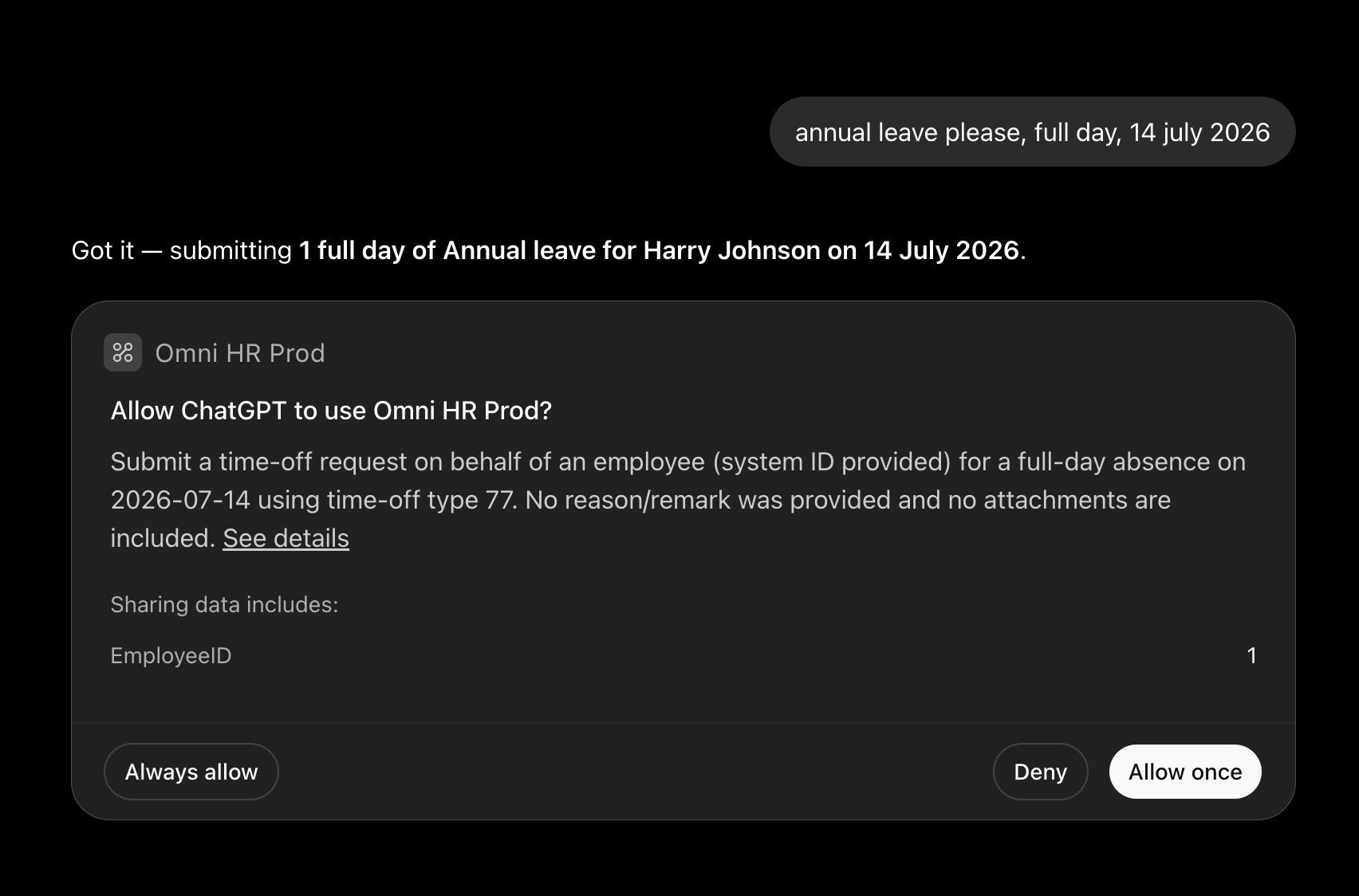
(ii) If set to Allow low-risk actions: ChatGPT will automatically deny such actions without even asking for approval.
Step 3 — Use it
Open a new chat and start asking questions. That's it.
How to Connect Omni HR to Claude
Claude's setup is slightly different — you're adding a "connector" rather than an "app" — but it's just as quick.
Step 1 — Add Omni HR
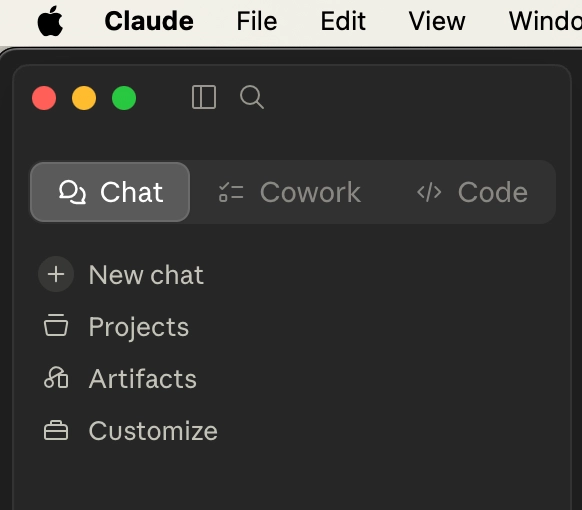
- Open the Claude Desktop App.
- Go to Customize.
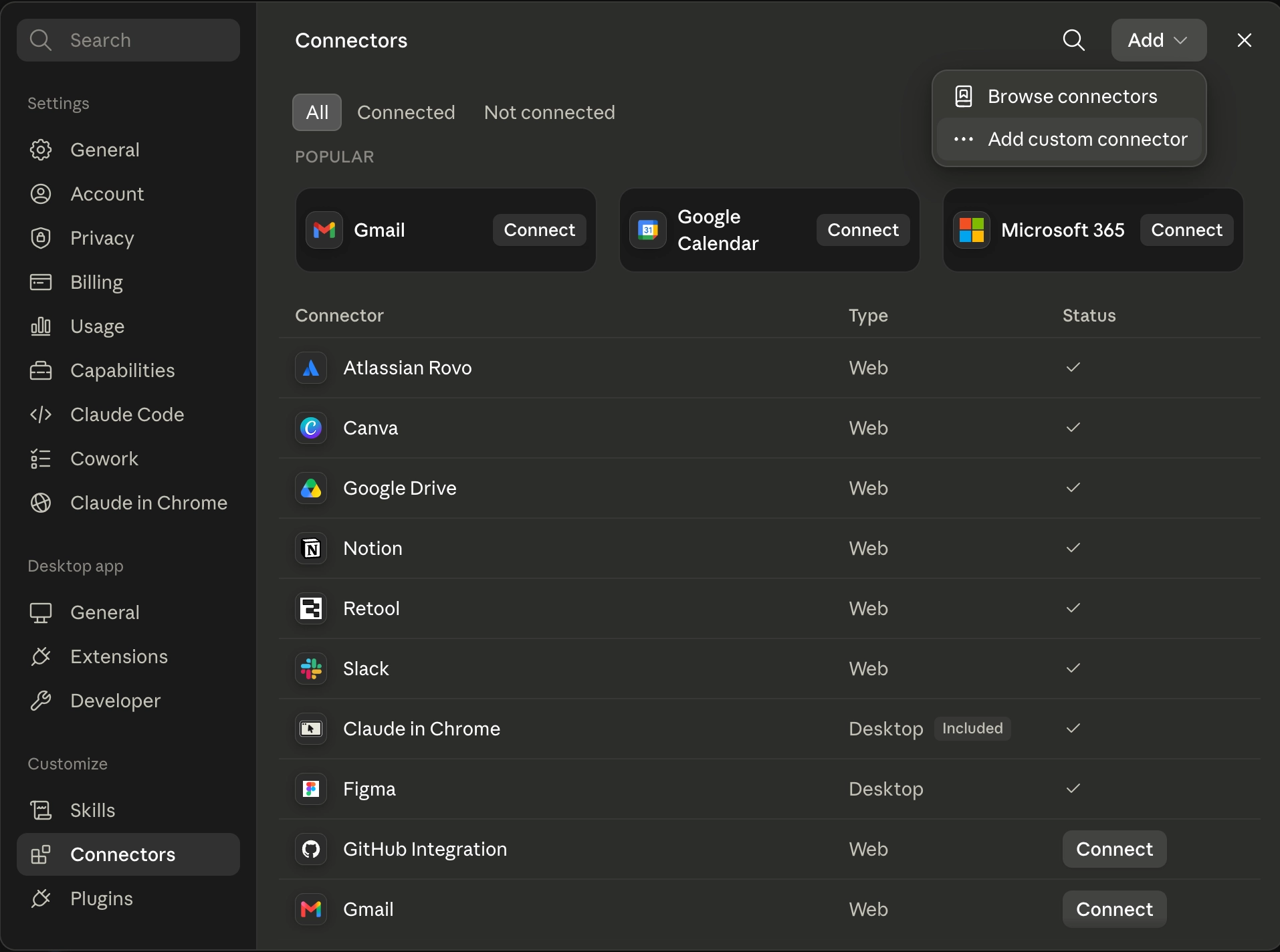
- Go to Connectors.
- Click Add custom connector.
- Enter:
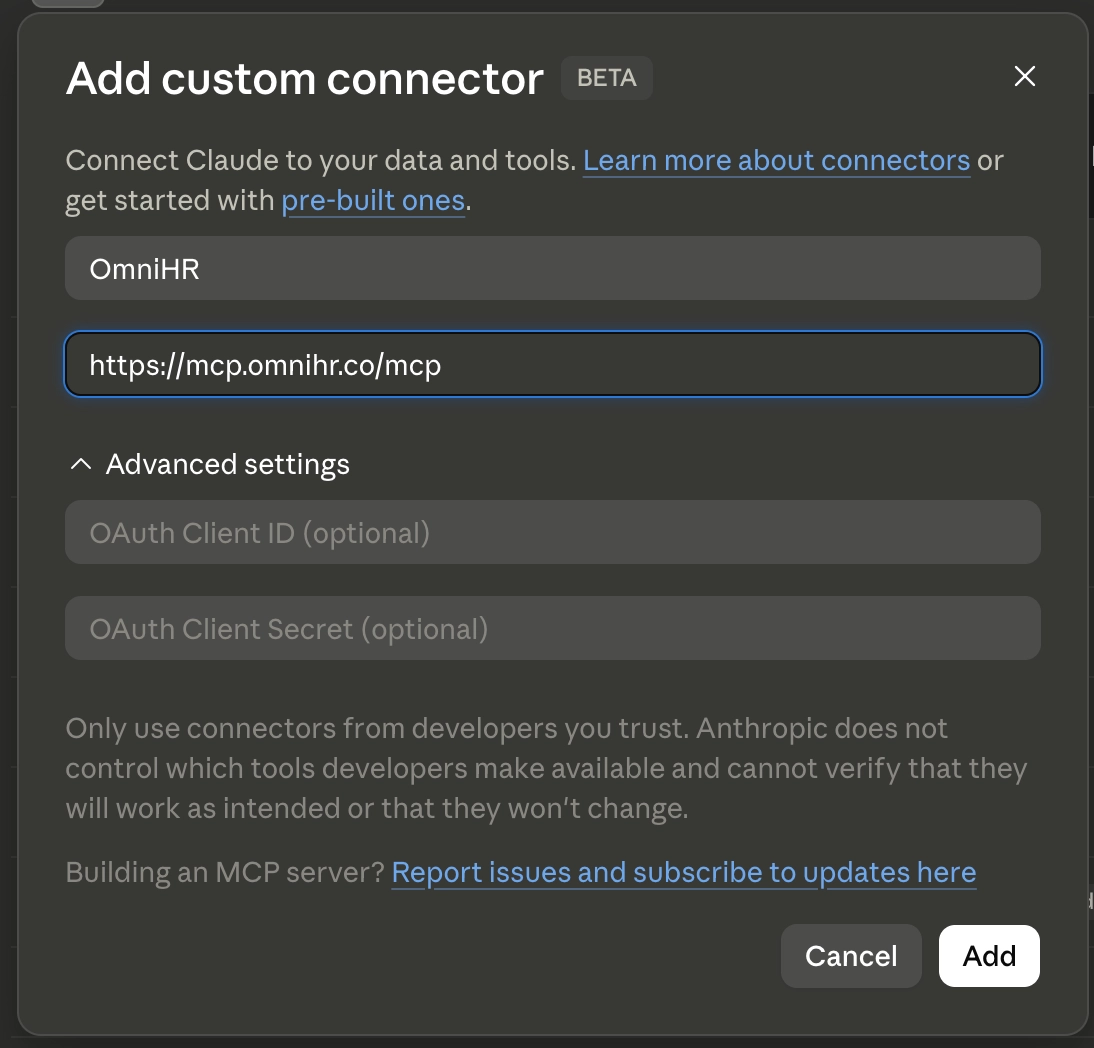
Field Value Name Omni HR (or whatever you'd like to call it) Server URL https://mcp.omnihr.co/mcp - Click Add.
- Click Connect
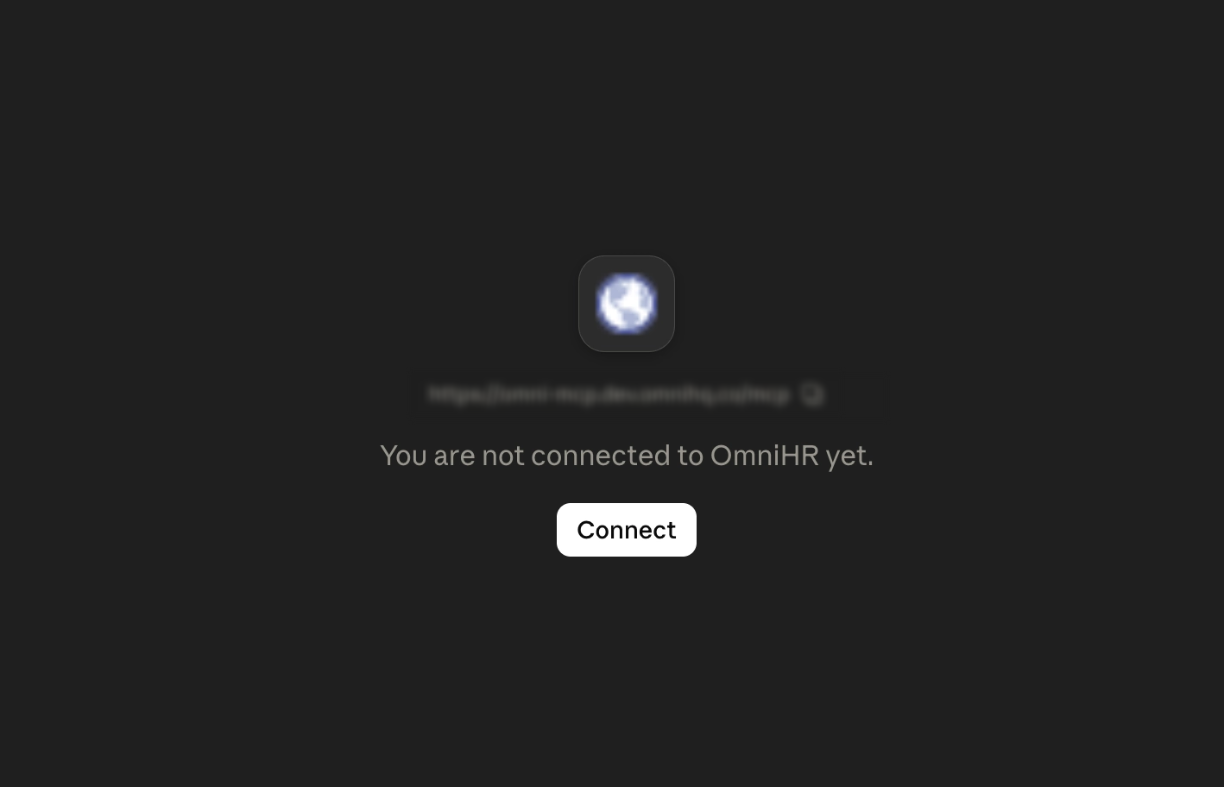
- Sign in to your Omni HR workspace.
- Restart your Claude Desktop — this is the one extra step Claude needs that the others don't.
- You're connected!
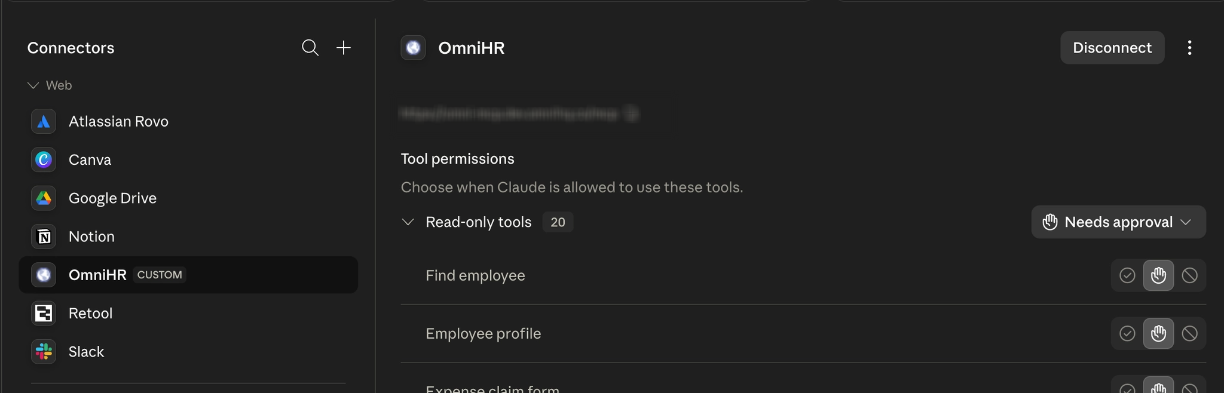
Step 2 — Use it
Open a new chat and start asking questions.
How to Connect Omni HR to Cursor
Cursor uses something called MCP servers — which sounds more technical than it is. You're just pasting a URL into a configuration file.
Step 1 — Add Omni HR
- Open Cursor.
- Click your profile icon in the bottom left and pick Settings.
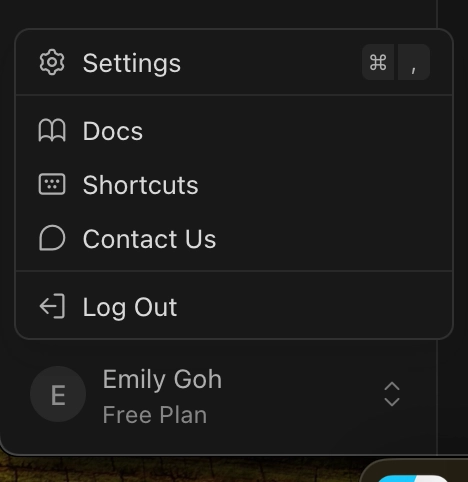
- Go to Tools & MCPs.
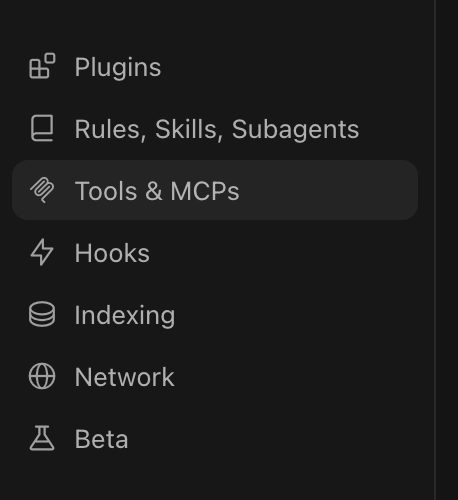
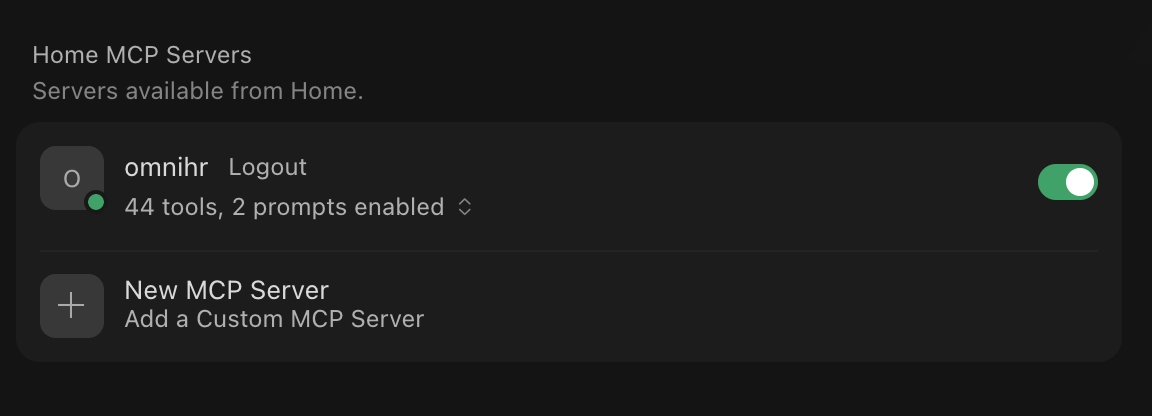
- Under Home MCP Servers, click Add Custom MCP.
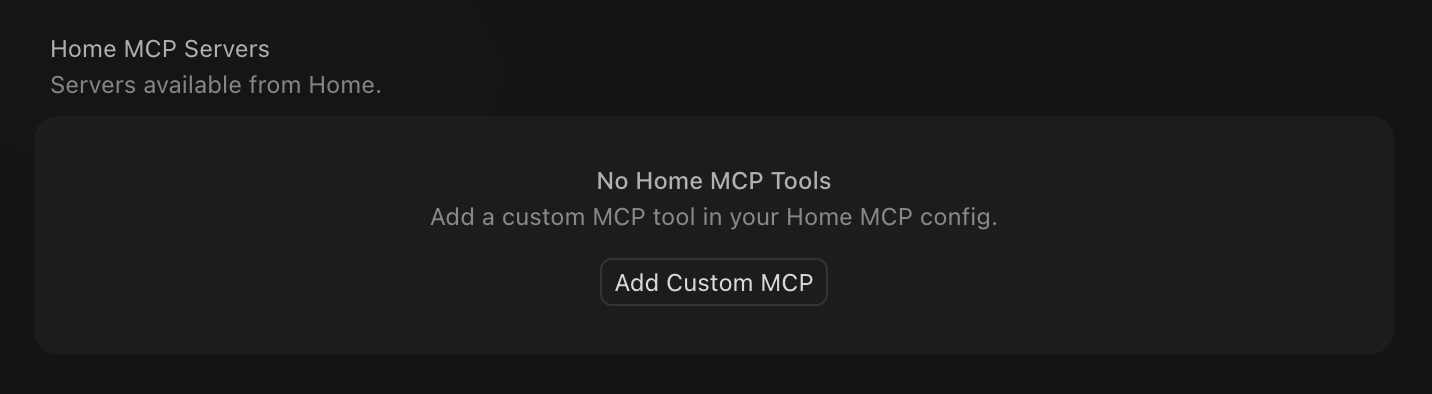
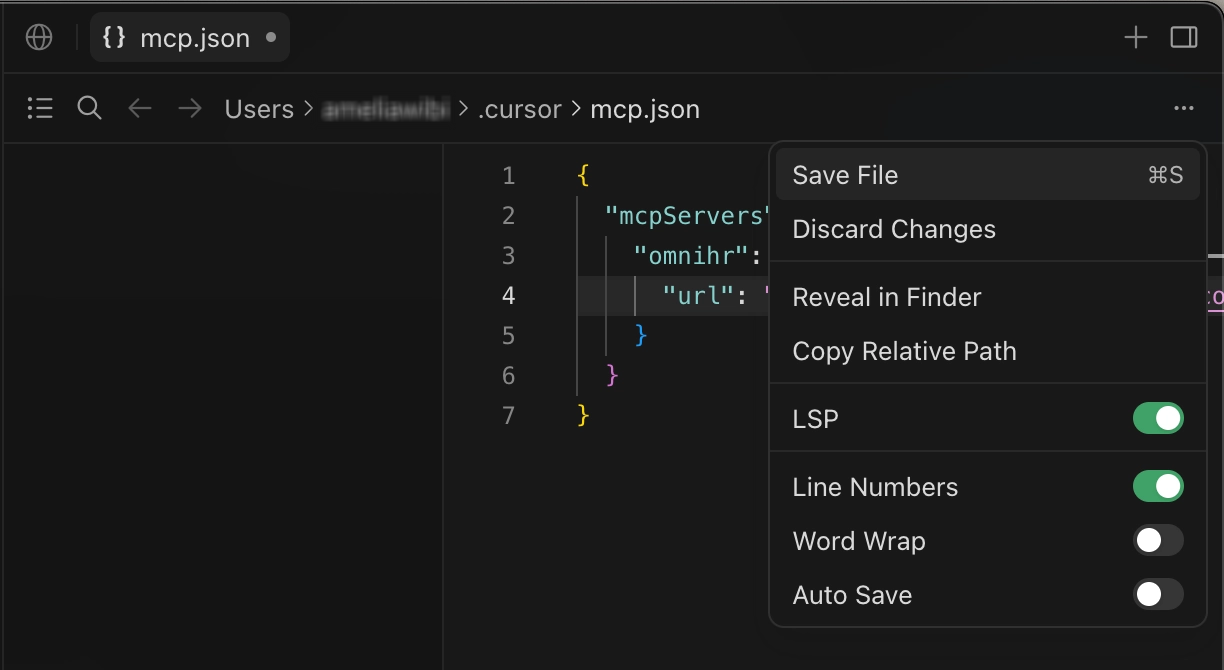
- Add this tomcp.jsonfile:
{ "mcpServers": { "omnihr": { "url": "https://mcp.omnihr.co/mcp" } } } - Hit the kebab menu (the three dots) and save the file.
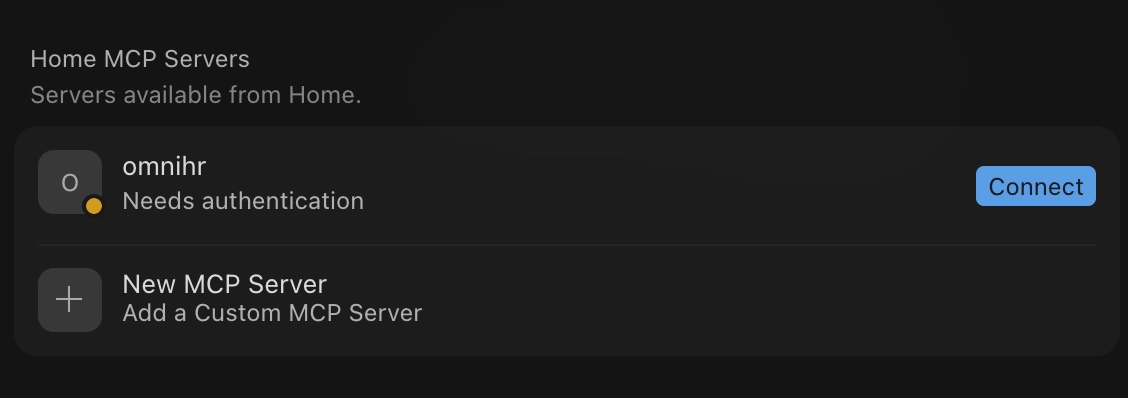
- Click Connect.
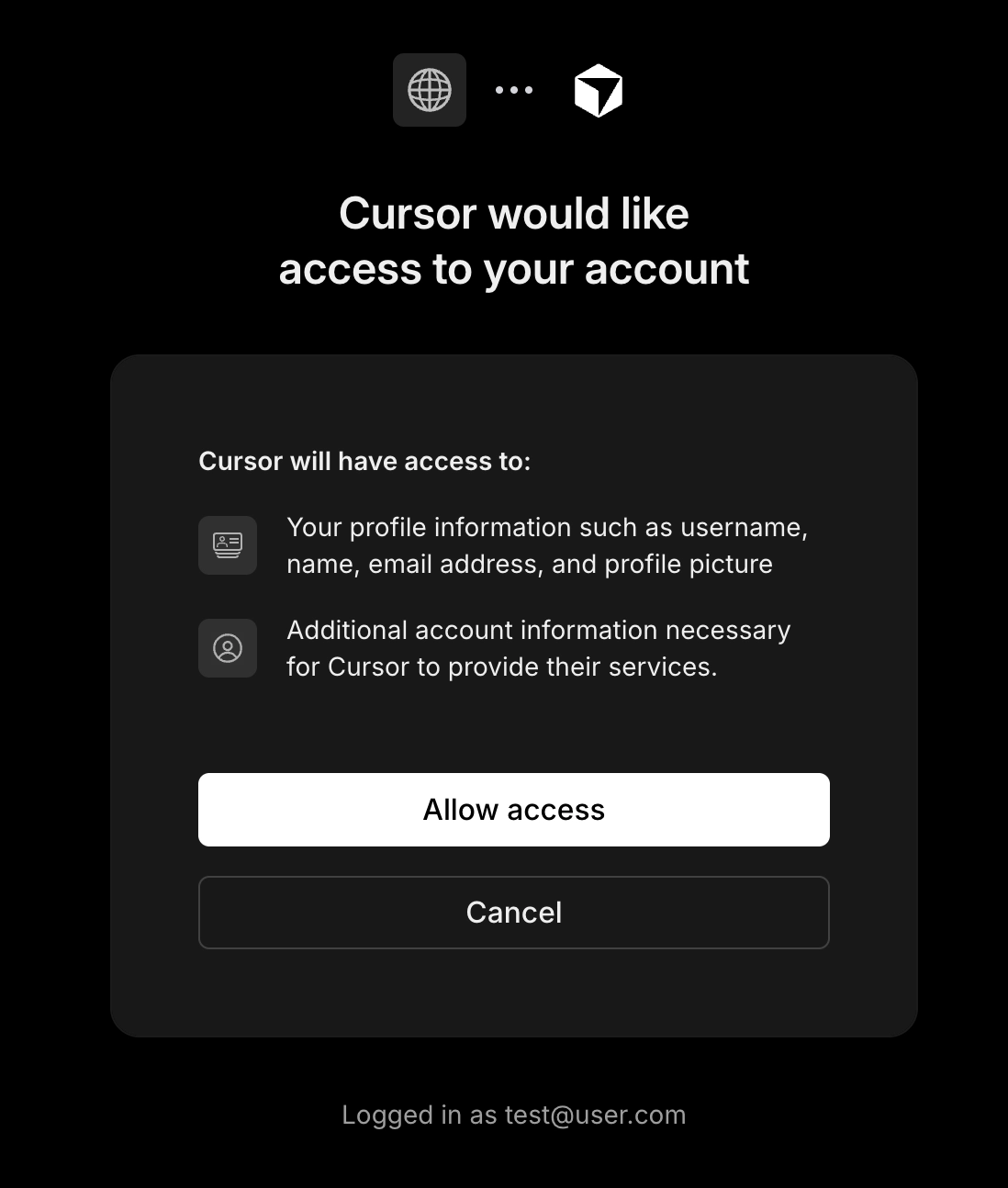
- Sign in to your Omni HR workspace.
- When the browser asks you to allow access, go ahead and approve it.
- You're connected!
Step 2 — Use it
Open a new chat and start asking questions.
How does sign-in to Omni HR work
For all AI Tools to successfully connect, you will need to sign-in to your Omni HR workspace either with email & password or Google SSO. Signing in with SSO isn't supported yet in this early release.
Keeping Things Secure: Quick Checklist
Connecting an AI assistant to Omni HR gives it access to real employee data — the same information you can see and edit in your own account. Run through this checklist to stay safe.
| Action | Why It Matters |
Use only the official link:https://mcp.omnihr.co/mcp | Fake links claiming to connect to Omni HR could expose your data. Never use an alternative URL, even if someone says it's legitimate. |
| Remember the AI has your level of access | It can do everything you can — view, edit, even process terminations. Ask yourself: would I hand a colleague my login for this task? |
| Keep "review before confirm" turned on | Lets you check what the AI is about to do before it happens. A quick glance now is easier than fixing a mistake later. |
| Don't paste untrusted content into the chat | Text from unknown or suspicious sources (emails, documents, etc.) may contain hidden instructions that trick the AI — known as "prompt injection." |
| Be aware other connected tools may share data elsewhere | Omni HR itself stays within your workspace, but other apps linked to the same AI tool might send data outside it. |
| Disconnect if something feels off | You can disconnect anytime with no data loss, and reconnect later. If in doubt: disconnect first, investigate second. |
How to troubleshoot when something is not working
This one's almost always one of four things:
| Wrong URL | Double-check you're using exactly this — copy-paste it, don't retype: https://mcp.omnihr.co/mcp |
| Wrong Workspace | Make sure you signed in to the right Omni HR workspace during setup. If your company has multiple workspaces, it's easy to land in the wrong one. |
| Stale Connection | Remove the server and reconnect from scratch. This fixes most mystery issues. |
| AI cannot detect the bot (ChatGPT) | a. For ChatGPT
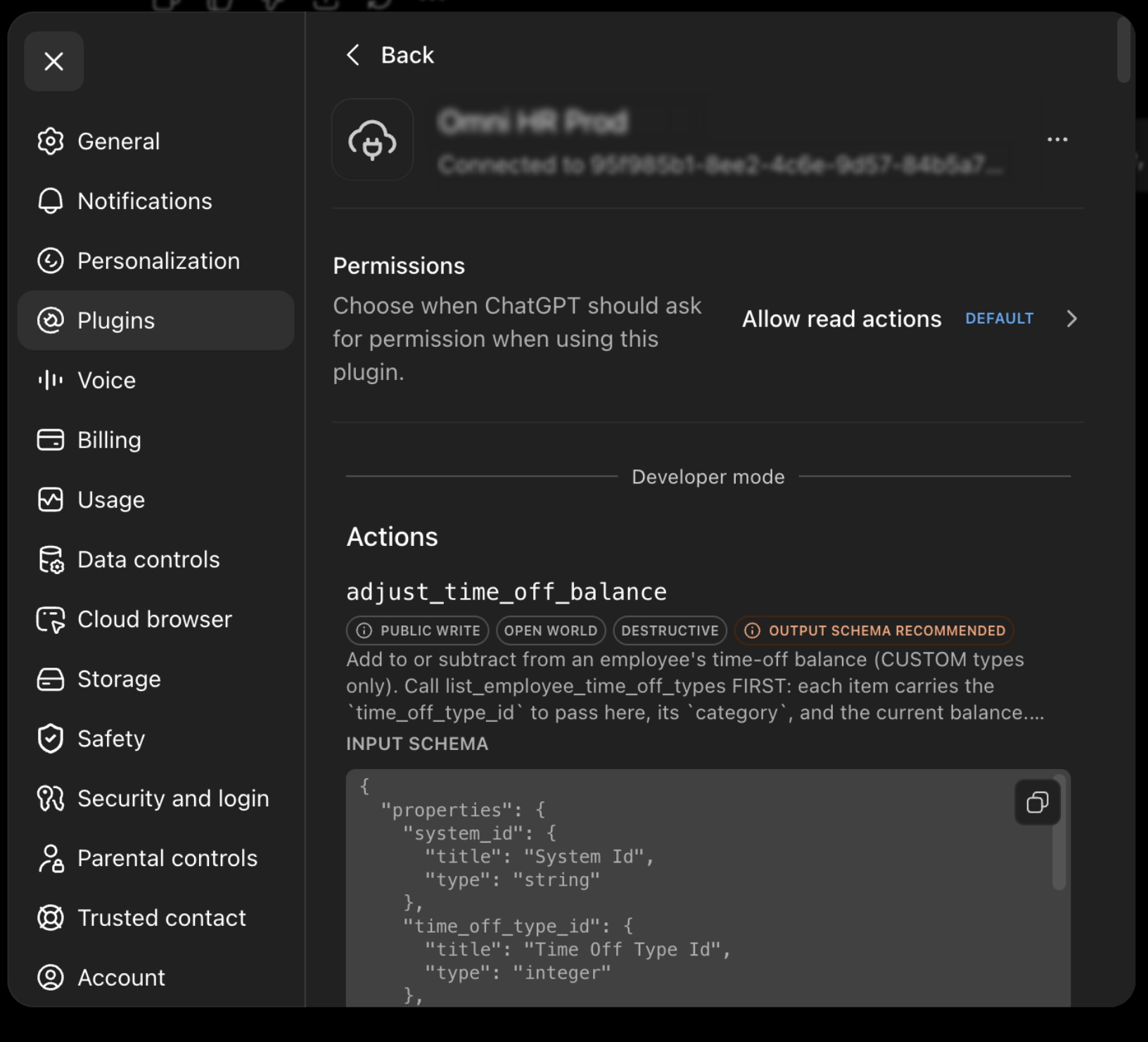 b. If you don’t, scroll all the way to the bottom to find the “Information” section → click Refresh . It may take awhile to load all the tools. After the tools are loaded, you should be able to use the bot as expected.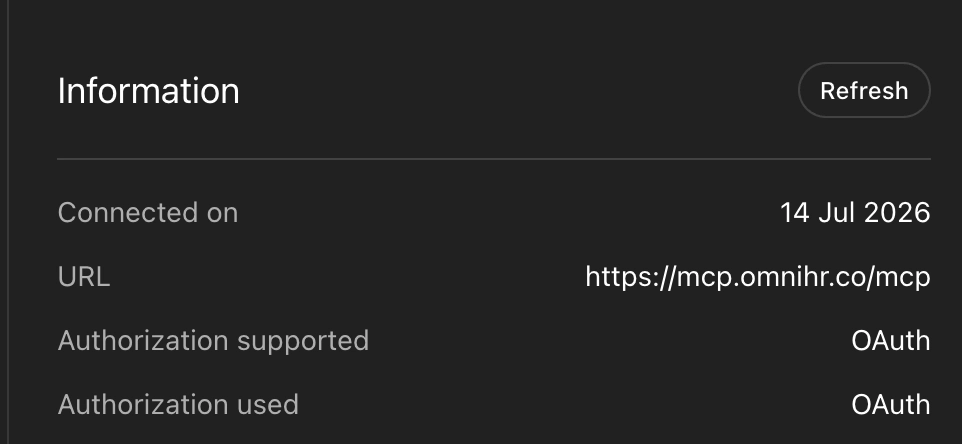 |
If none of that worked, something unusual is going on — reach out to your Omni HR administrator and mention you've already tried the steps above.
Still Need Help?:
Reach out to our support team should you need further assistance.
Was this article helpful?
That’s Great!
Thank you for your feedback
Sorry! We couldn't be helpful
Thank you for your feedback
Feedback sent
We appreciate your effort and will try to fix the article