Overview
Omni HR now lets users connect their favourite AI assistant — like Claude, ChatGPT, or Cursor — directly to Omni HR. This is powered by MCP (Model Context Protocol), but all you really need to know is: once connected, the assistant can read HR information and take simple actions (like checking or requesting time off) on the user's behalf — but only within what that user is already allowed to see and do.
As an admin, you're always in control. Nobody gets this ability automatically — you decide who in your organisation is allowed to connect an AI assistant.
Important Notice:

This is an early version of MCP, so things may still be evolving.

Want access? Just email us at support@omnihr.co or reach out to your account manager — access isn't automatic and depends on your subscription's eligibility.
TABLE OF CONTENTS
- How it works
- How does sign-in work
- What can the AI assistant actually do right now
- How do I switch off someone's access
- Other situations where access is automatically switched off
- Important Notes
How it works
- Go to Settings > Access Control > Select Role > System Permissions.
- Under Connector Tools, turn on Connect new AI assistants and manage connections.
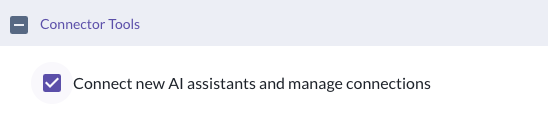
- Once this is on, users with that role can connect their own AI assistant to OmniHR.
- Need help walking a user through it? Here's a step-by-step guide for setting up ChatGPT, Claude, or Cursor with Omni HR.
How does sign-in work
- The user starts the connection from their AI assistant, which takes them to a secure sign-in screen.
- They'll sign in using either their email + password, or Google sign-in.
- Note: signing in with SSO isn't supported yet in this early release.
- Once they've signed in successfully, they're sent back to their AI assistant, and the connection is ready to use.
What can the AI assistant actually do right now
In this early release, the assistant can work with People and Time Off information only.
Want the full list of what it can do, plus example prompts you can try? Here's our user guide
When connected, the AI assistant simply acts as the signed-in user — it can only see and do what that user is already allowed to. MCP doesn't unlock any extra access, and if something's off-limits, the assistant will just say so instead of trying to find a workaround.
How do I switch off someone's access
- Go to Settings > Access Control > Select Role > System Permissions.
- Under Connector Tools, turn off Connect new AI assistants and manage connections.
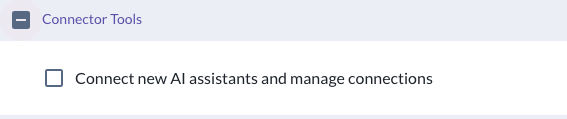
Once this is off, the user's AI assistant will stop working with Omni HR — it'll show as not authorised. If access is switched back on later, they will regain access and can continue using.
If you wish to revoke a user's use of MCP completely, please write in to support@omnihr.co for our team to assist you.
Other situations where access is automatically switched off
A user will also lose access to their connector tools if:
- They leave the company (terminated).
- Their profile is deleted.
- Your organisation uninstalls the MCP feature.
- Their Self Service access is turned off.
If any of these get reversed (for example, Self Service is switched back on), their access to connector tools comes back too.
Important Notes
| Topic | What you need to know |
|---|---|
| Connections Expire | For security, connections automatically expire after 90 days. Users will simply need to sign in again to keep using their AI assistant. |
| SSO (Microsoft, Okta,etc) not supported yet | At sign-in, only email + password or Google sign-in will work for now. SSO isn't available in this early release. |
Still Need Help?:
Reach out to our support team should you need further assistance.
Was this article helpful?
That’s Great!
Thank you for your feedback
Sorry! We couldn't be helpful
Thank you for your feedback
Feedback sent
We appreciate your effort and will try to fix the article