Overview
This article explains how to create and manage custom pay items in the payroll system. You will also learn how to setup each pay item, including whether it is subject to statutory contributions, how it is taxed, and how it appears on the payslip.
TABLE OF CONTENTS
- How to Create a Custom Pay Item in Omni HR
- How to Create or Update a Custom Pay Item in the Payroll System
- Step 1: Go to Payroll > Singapore > [Entity Name] > Go to Payroll System
- Step 2: In the payroll system, click View on a current month pay run processed.
- Step 3: Click Select Pay Items | Next >
- Step 4: Select Custom Pay Item
- Step 5: Select New Custom Pay Item
- Step 6: The next page will allow you to create, customize, and update your pay item settings for use in payroll.
- Configuring Pay Item Settings
- Using Custom Pay Items Created for Payroll Processing
How to Create a Custom Pay Item in Omni HR
- Before creating the custom pay item in the payroll system, ensure the pay item is created in Omni HR.
- You can do this by going to any employee profile's payroll tab, and click into either +New Recurring Item or +New Adhoc Payment (depending on the type of pay item you are looking to create)
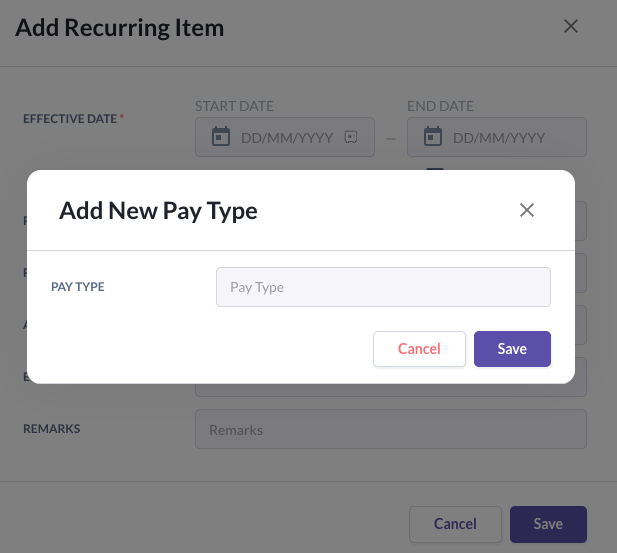
- In the pop-up modal, click into Pay Type > Add New Pay Type
- Name your new pay type and click Save. This new pay type will then be ready for Field mapping that will be covered later in the article.
How to Create or Update a Custom Pay Item in the Payroll System
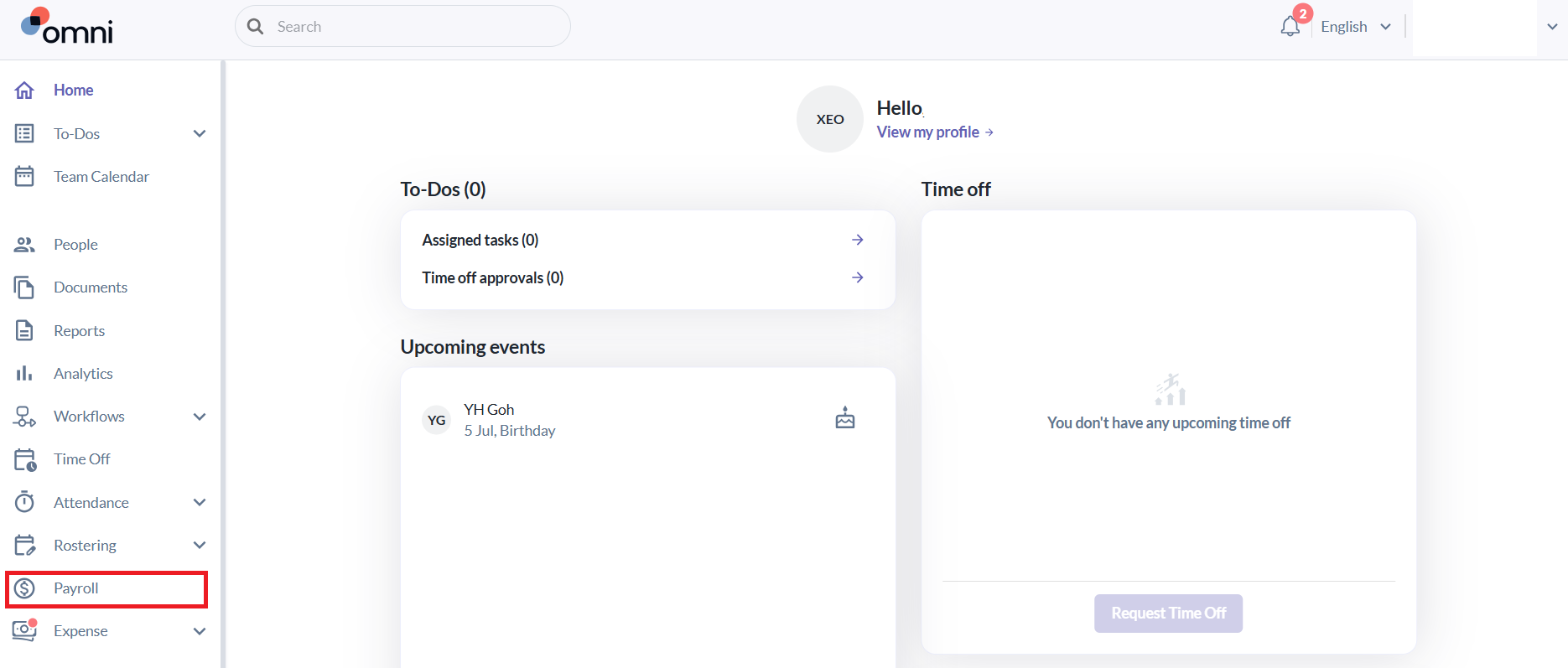
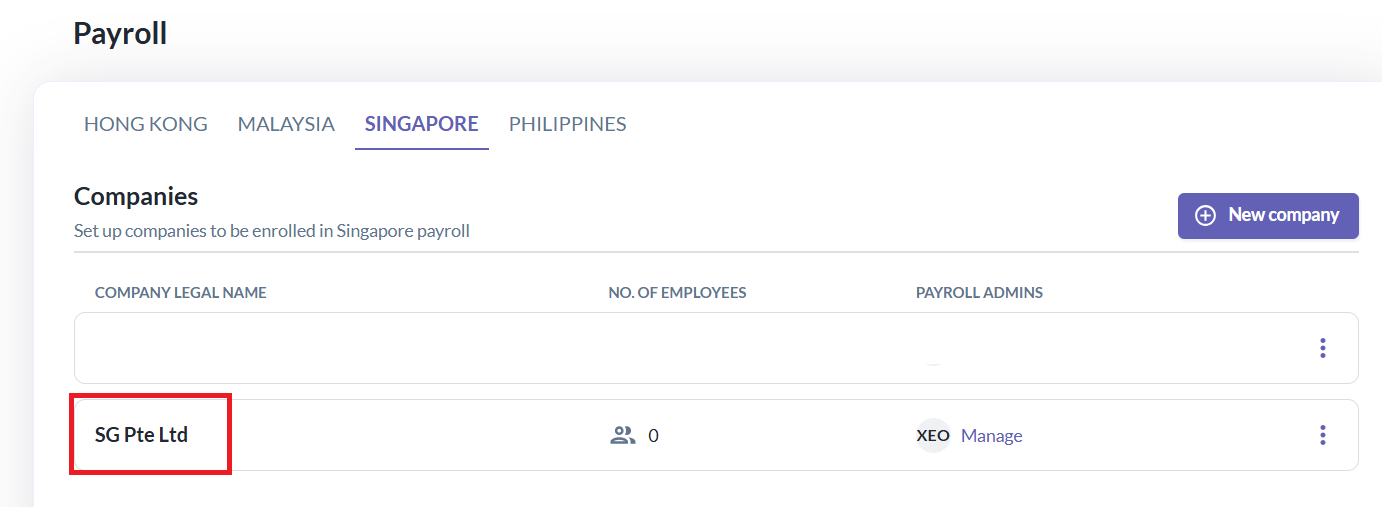
Step 1: Go to Payroll > Singapore > [Entity Name] > Go to Payroll System
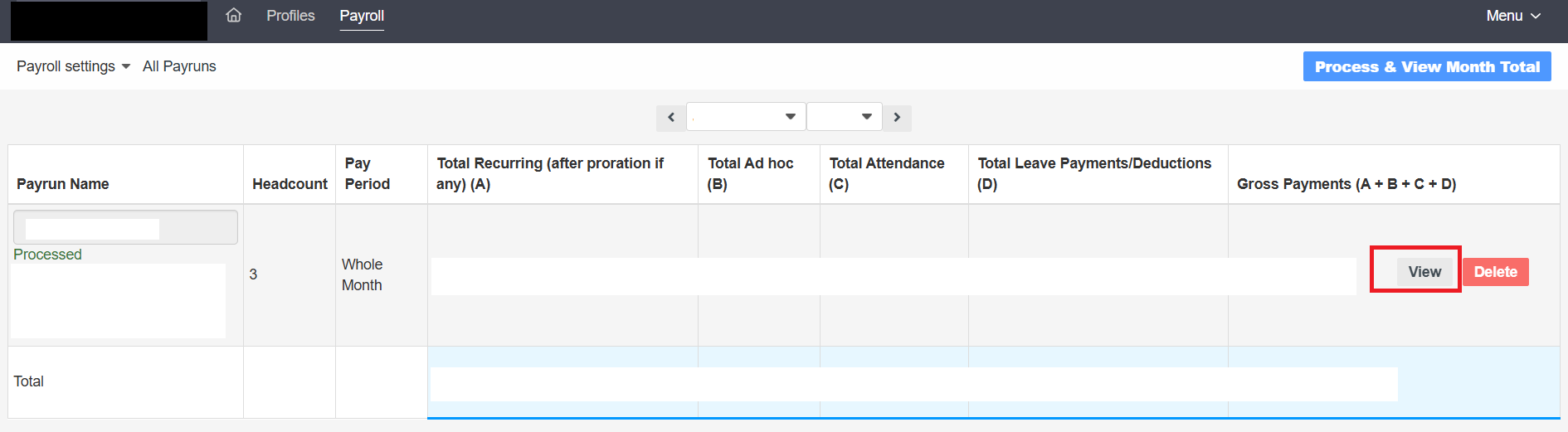
Step 2: In the payroll system, click View on a current month pay run processed.
Step 3: Click Select Pay Items | Next >
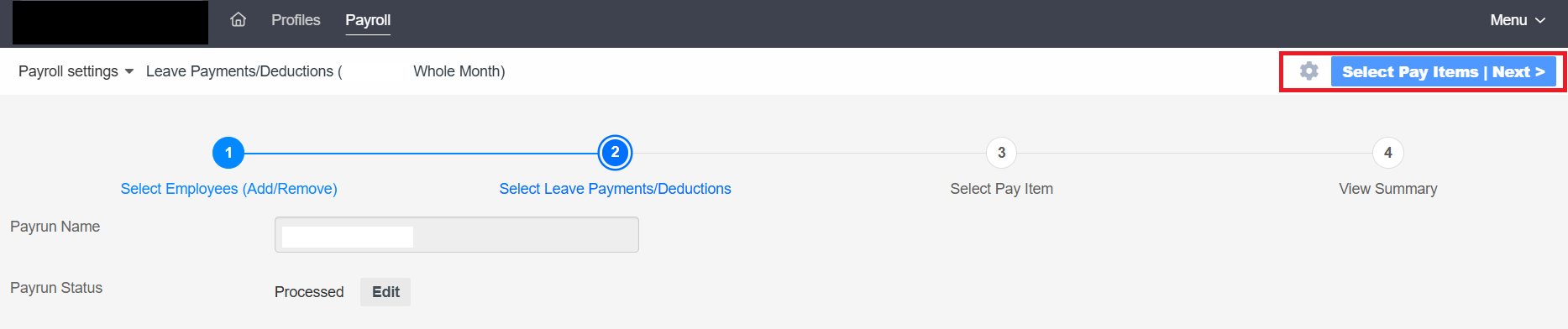
Step 4: Select Custom Pay Item
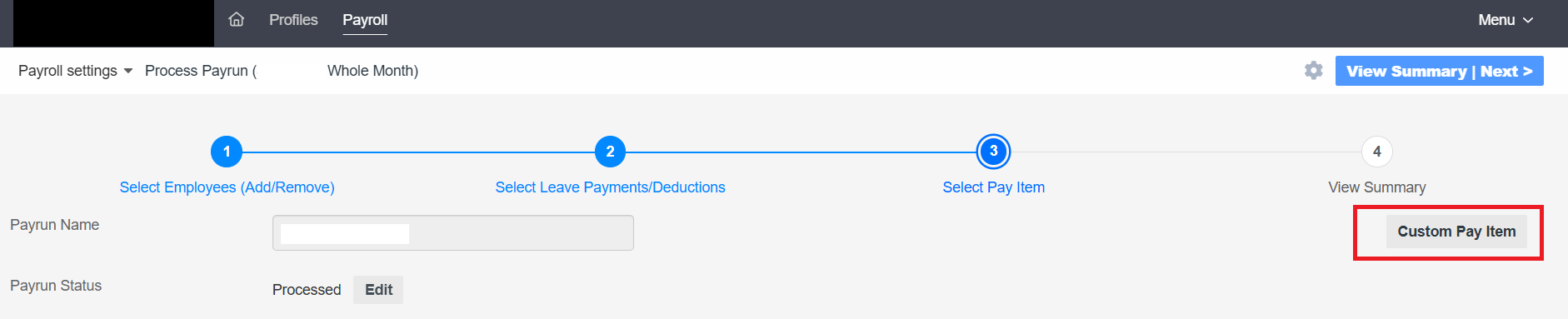
Step 5: Select New Custom Pay Item

Step 6: The next page will allow you to create, customize, and update your pay item settings for use in payroll.
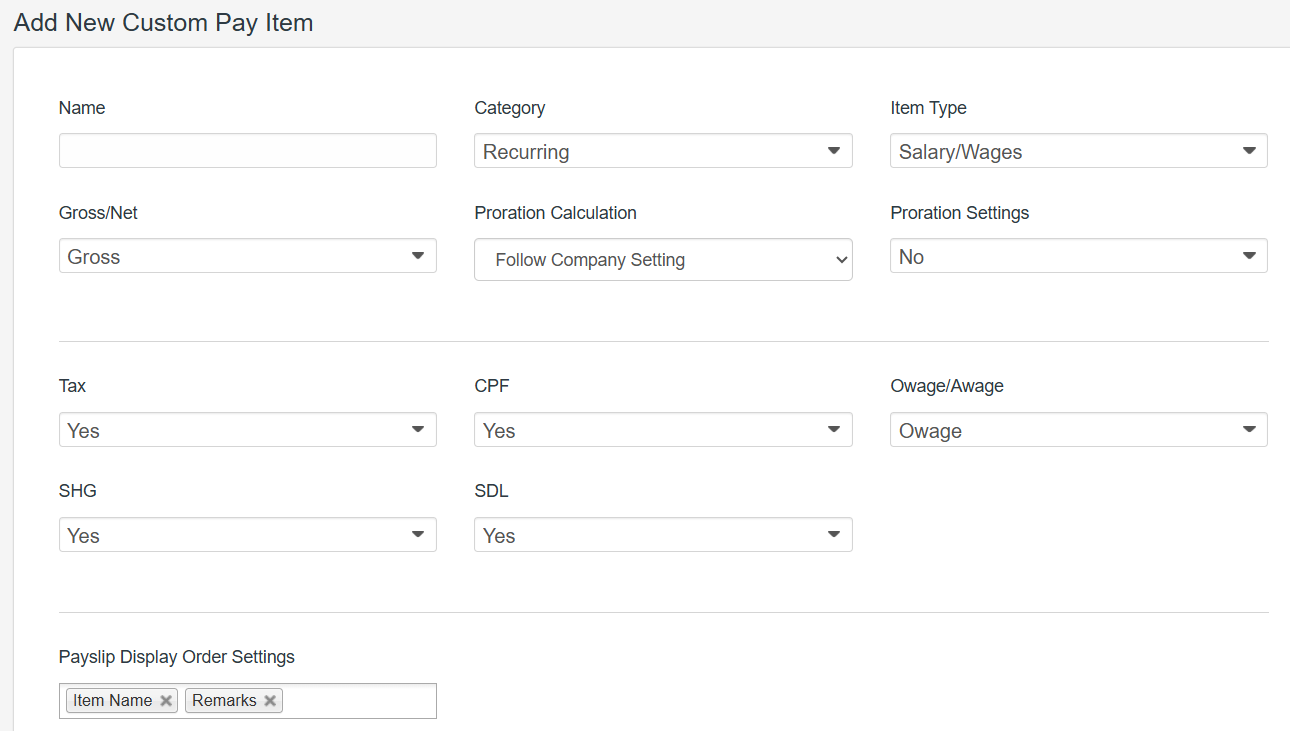
Configuring Pay Item Settings
You can create a new pay item to set up the following types of pay items for employees during payroll processing:
- Name: Determines pay item display name in payroll process.
- Category - Determines whether the pay item is Recurring, Ad Hoc, Attendance, or Additional.
- Type - Determines which fields to map the pay item to in tax forms (IR8A).
- Gross/Net - Determines whether the pay item is added to Gross or Net Salary.
- Statutory Settings - Determines if this pay items contributes to different statutory calculations in payroll.
- Payslips Display Order Settings - Define the order of how the pay item will show in payslips.
Depending on the Category you choose, a few extra settings will also appear:
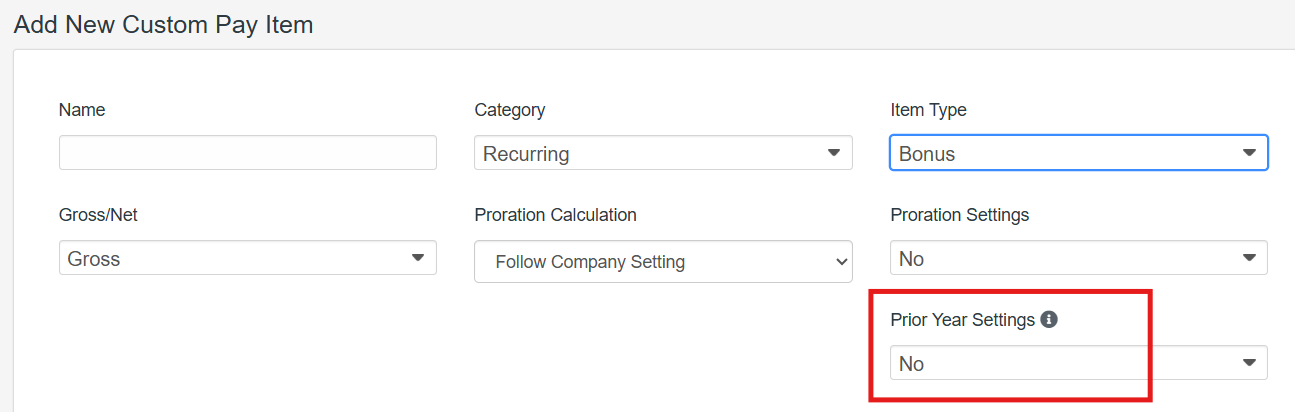
Recurring
- Proration Settings: Determines if this pay item has proration calculations automatically apply in payroll.
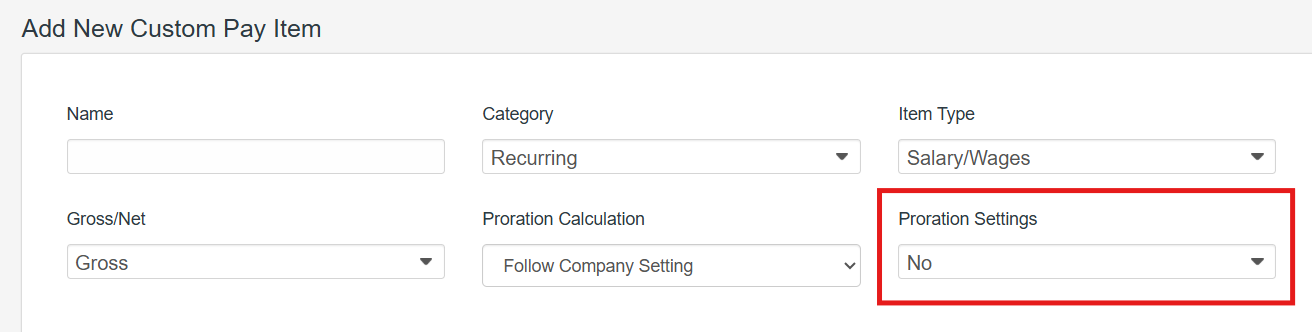
- Prior Year Settings: Applies to Bonus pay item only
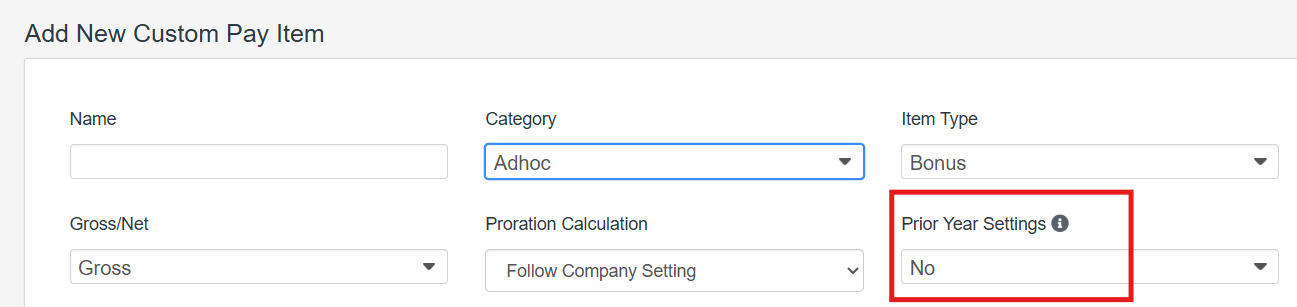
Adhoc
- Prior Year Settings: Applies to Bonus pay item only.
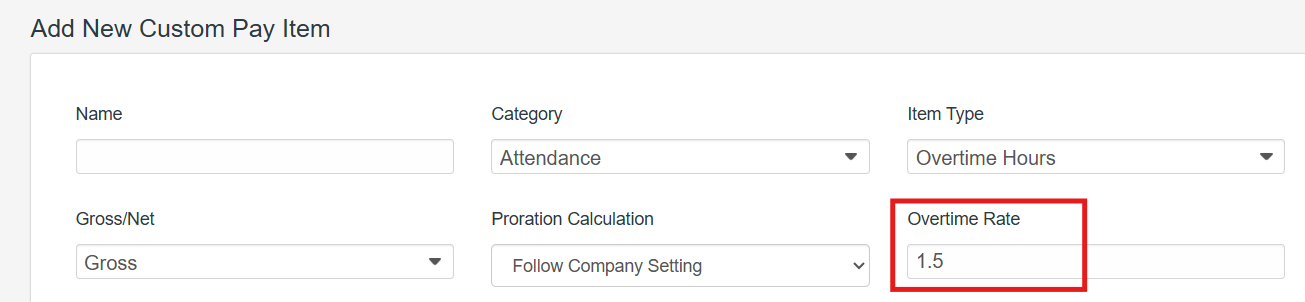
Attendance
- Overtime Rate: Applies to Overtime Pay and Holiday Pay only.
Using Custom Pay Items Created for Payroll Processing
- Once configured, your custom pay item is ready to use. Return to the Omni HR platform, select the entity again, and then select Field Mapping.
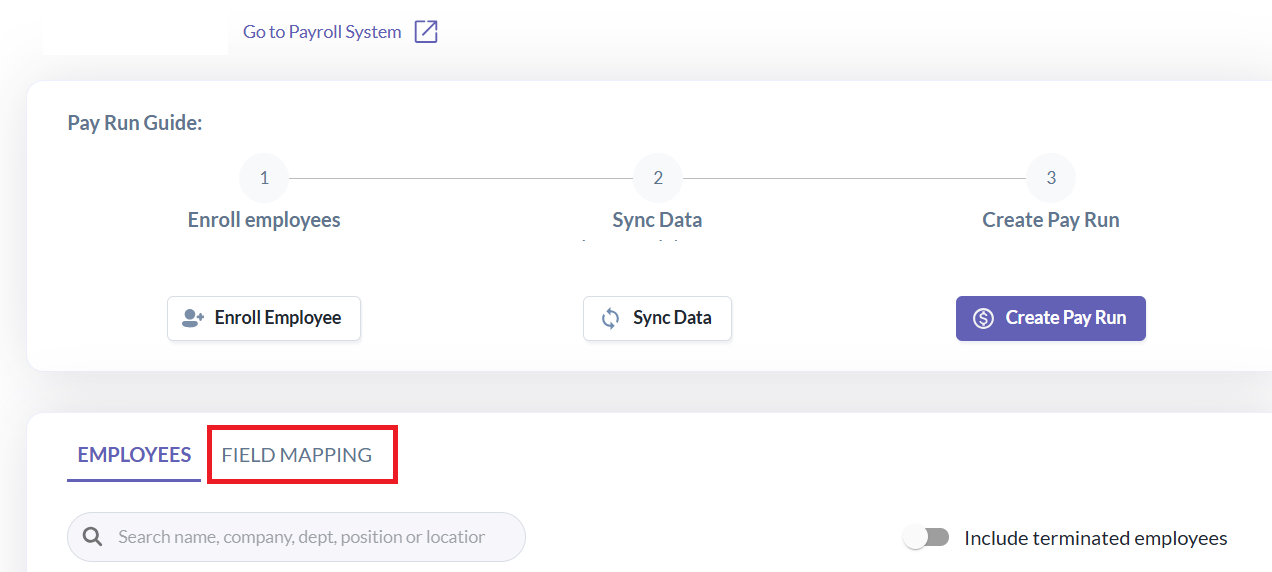
- Under Pay Type in Payroll System, map the pay type created in Omni HR to the custom pay item you created in the payroll system.
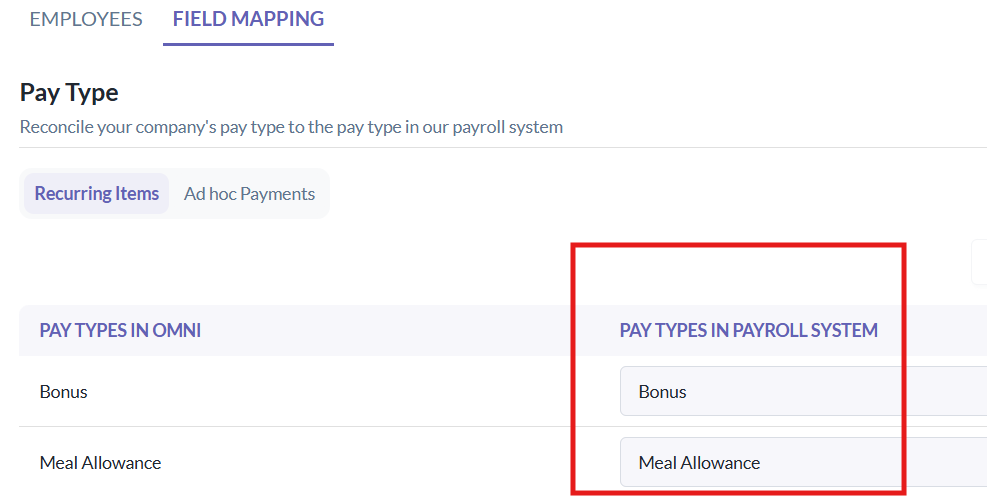
- This completes the setup for the custom pay type and can start being used for payroll processing.
Still Need Help?:
Reach out to our support team should you need further assistance.
Was this article helpful?
That’s Great!
Thank you for your feedback
Sorry! We couldn't be helpful
Thank you for your feedback
Feedback sent
We appreciate your effort and will try to fix the article