Overview
The Occupational Employment Dataset (OED) is an online registry that collects the occupational and employment data of current workers in Singapore. All registered businesses are required to provide the latest occupational and employment details of all employees (Citizens, Permanent Residents, and Foreigners) under their payroll to various government agencies.
Submission of this dataset can now be done directly to the government portal in payroll software.
Steps to generate and submit OED Submission
Step 1: First, head to Profiles and click OED Submission

Step 2: Then, click Generate.

Clicking Generate will provide you with two options on the file format:
1) Google Sheets (Edit directly through your web browser) OR
2) Excel Sheet (Download, edit and upload the file later)

Some fields will come pre-populated with information that is currently brought over from Omni HR.
- Full name
- ID Type
- ID Number
- Date Joined
- Current Job Title
- Full Time/Part Time
- Department
- Total Paid OT Hours
- Mode of Payment
- Basic Wage
- Gross Wages received
- Working days per month (if not default, admin will need to amend manually)
The remaining fields are subjective and depend on company’s interpretation and policy, hence will need to filled in manually by the payroll admin.
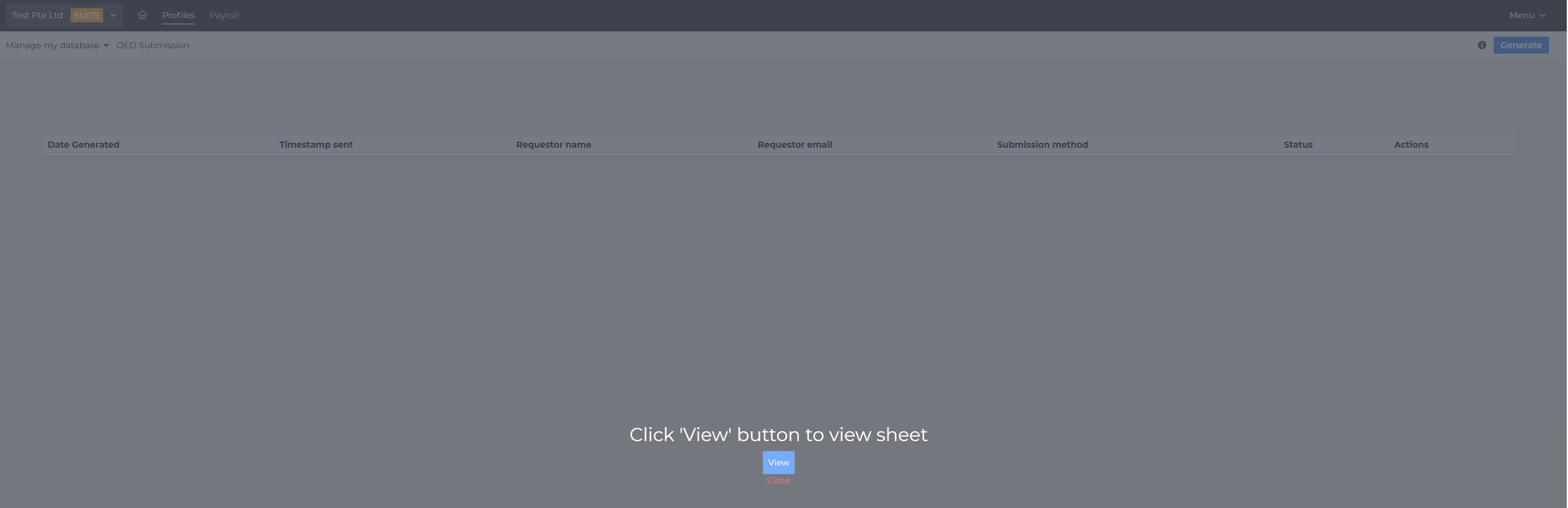
Step 3: Once generated, please click View button to view the Google Sheet or the Excel Sheet.
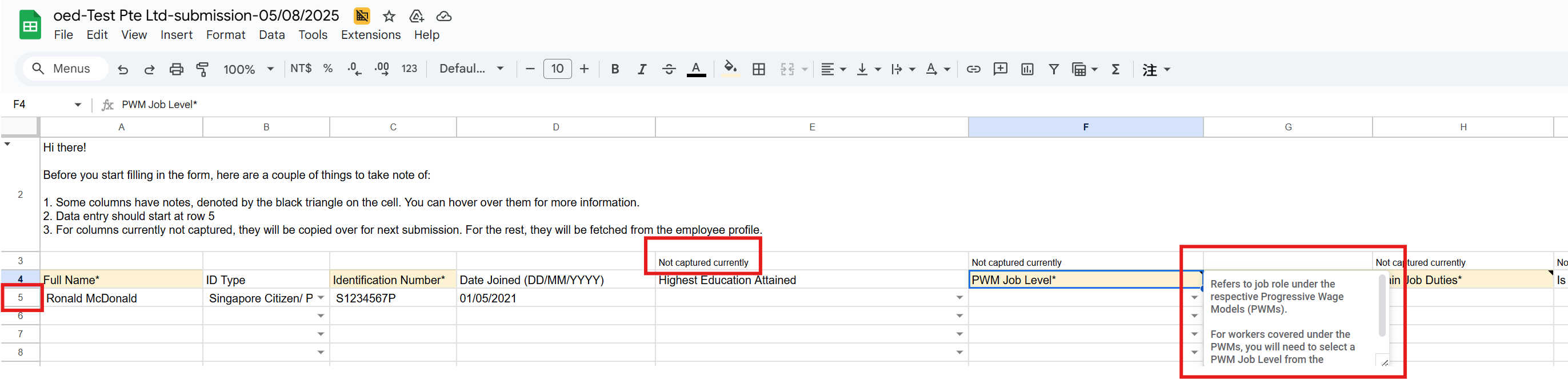
Before you start filling in the form, here are a couple of things to take note of:
- Some columns have notes, denoted by the black triangle on the cell. You can hover over them for more information.
- Data entry should start at row 5.
- For columns currently not captured, they will be copied over for next submission. For the rest, they will be fetched from the employee profile.
Step 4: Once the information has been filled, you can click Validate the data before clicking Submit. Once the button is clicked, it will be submitted to MOM.

For Excel Sheet, once you are ready to upload, you will see the Status is set as Pending, which means it's not uploaded yet.
Click the Submit button after you have validated that all information is correct.

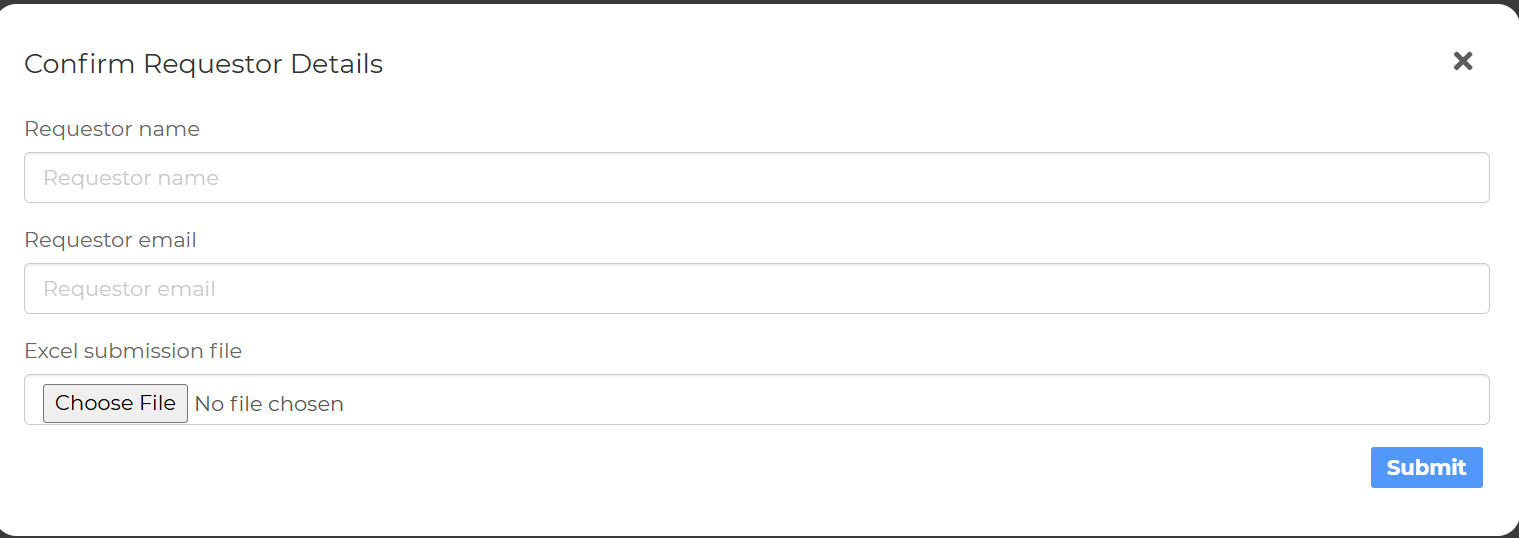
A window will appear where you head to Choose File and upload your Excel Sheet and click Submit
Another window will appear where you will need to click Authenticate to log into the MOM site with Corppass account.
Still Need Help?:
Reach out to our support team should you need further assistance.
Was this article helpful?
That’s Great!
Thank you for your feedback
Sorry! We couldn't be helpful
Thank you for your feedback
Feedback sent
We appreciate your effort and will try to fix the article