Overview:
Payroll in Singapore involves the accurate calculation and timely disbursement of employee salaries in compliance with local employment laws and statutory requirements. This includes computing basic salary, allowances, bonuses, and deductions such as CPF contributions, income tax (IRAS), and levies where applicable. Employers are expected to comply with the Employment Act, meet statutory deadlines, and maintain proper payroll records for each employee.
Step-by-Step Guide to Running Payroll in Singapore Using Omni
TABLE OF CONTENTS
- Step 1: Update Employee Information
- Step 2: Access Payroll Module
- Step 3: Enroll Employees (Step 1)
- Step 4: Sync Data (Step 2)
- Step 5: Email Validation Results
- Step 7: Select Payroll Items
- Step 8: Review Selected Employees
- Step 9: Ad-hoc Items Review
- Step 10: Expense Reimbursements
- Step 11: Final Payroll Summary
- Step 12: Payroll System Process
- Step 13: Finalize and Process Payroll
Step 1: Update Employee Information
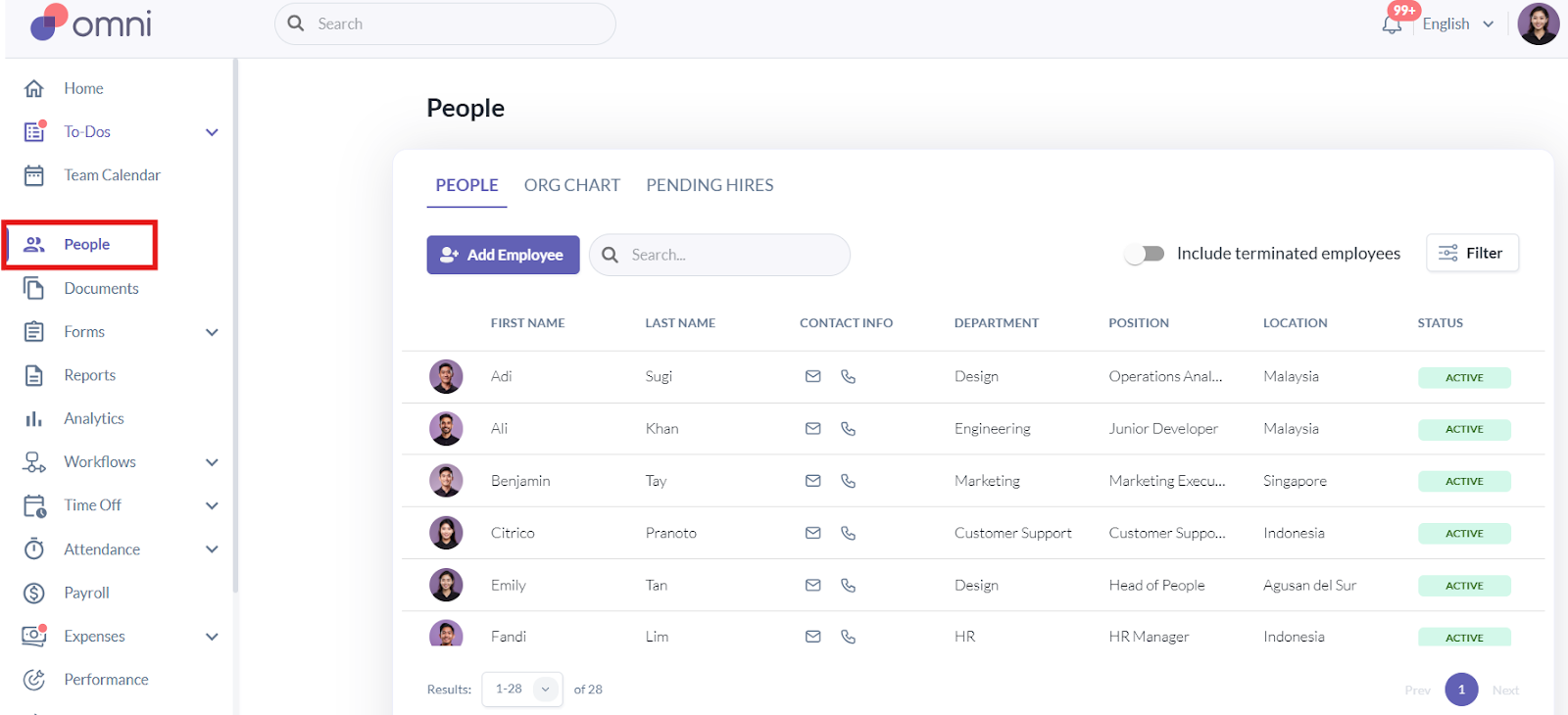
- Before processing payroll, ensure all employee details are up-to-date under the People’s tab.
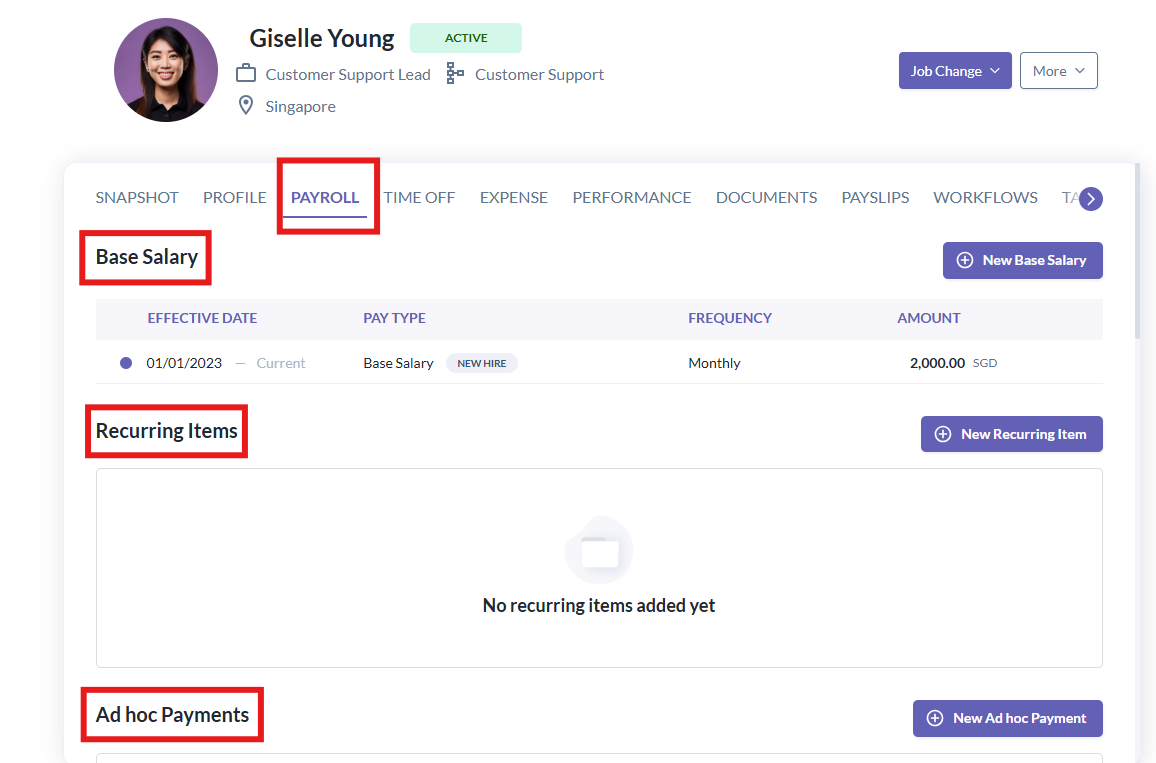
- If there are salary changes or additions such as recurring or ad-hoc income, update these in each employee's profile before creating a pay run.
Step 2: Access Payroll Module
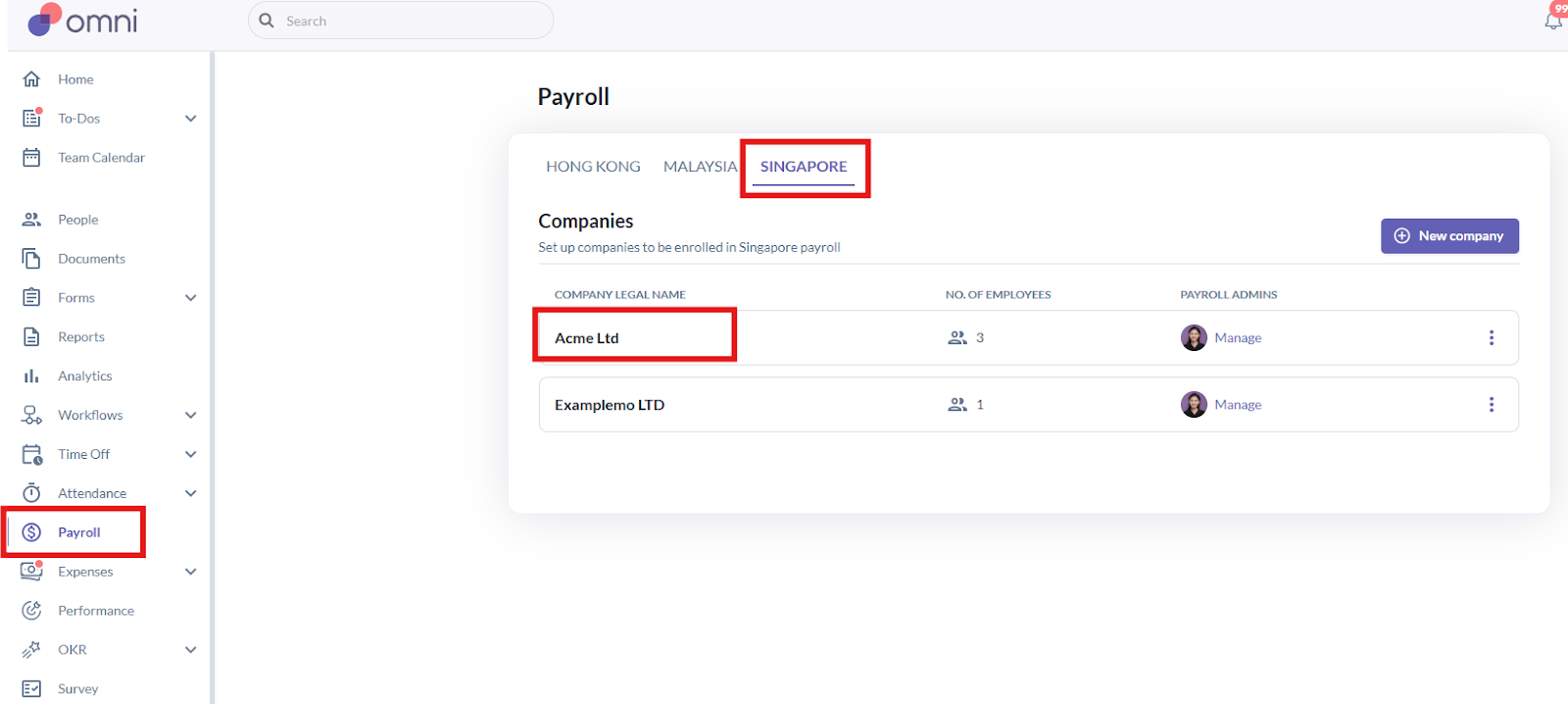
- Go to the main dashboard, select Payroll, and choose the relevant country and entity.
Step 3: Enroll Employees (Step 1)
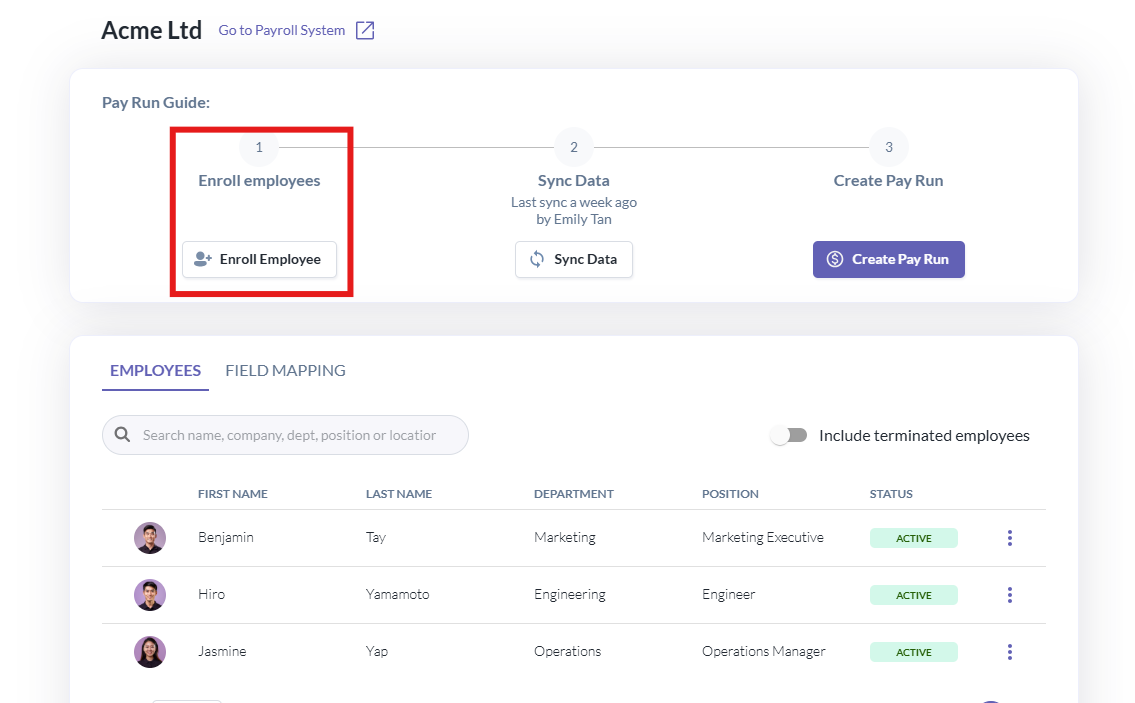
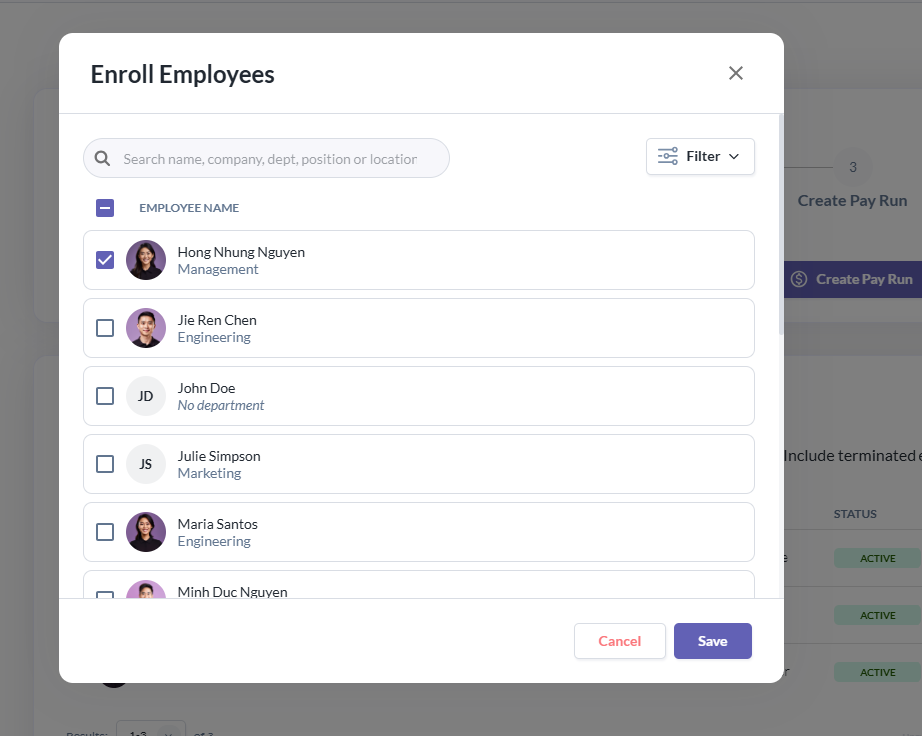
- If there are new employees not yet enrolled, complete Step 1: Enroll Employees. Select and tick the applicable employees, then click Save.
Step 4: Sync Data (Step 2)
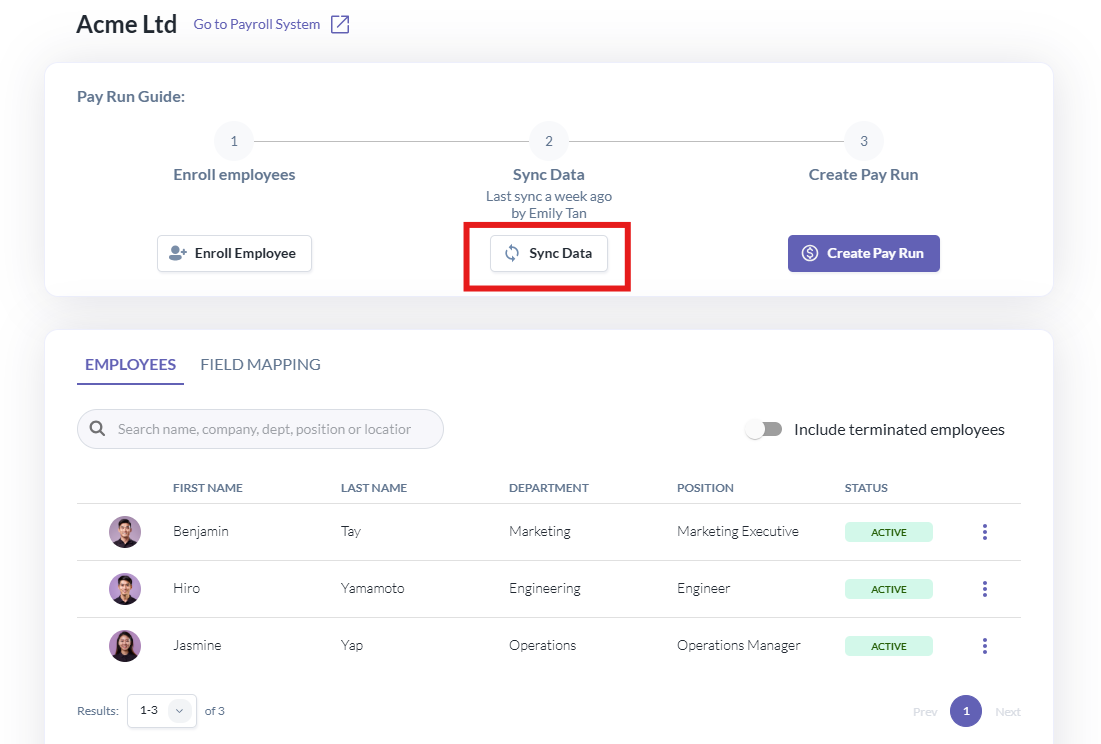
- Before creating a pay run, complete Step 2: Sync Data to ensure all monthly updates are captured in the payroll system. Syncing takes 1–2 minutes depending on the number of employees.
Step 5: Email Validation Results
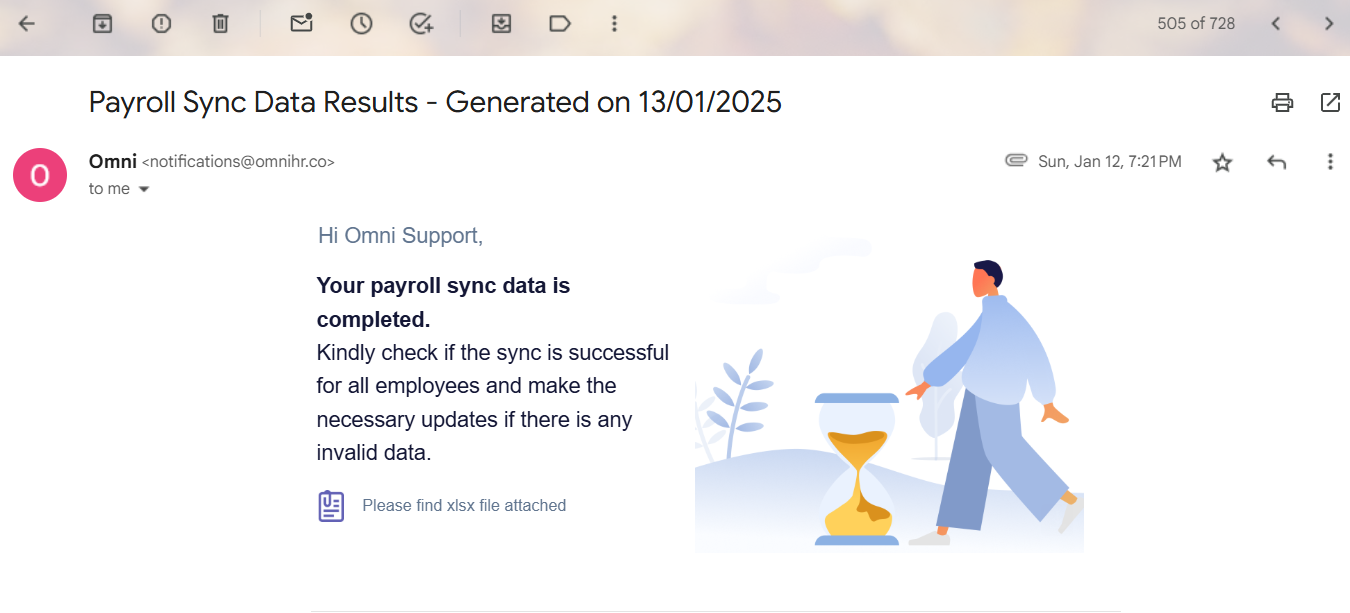
- Once syncing is complete, the authorized payroll user will receive a validation email. Ensure your primary email address is set correctly to receive this.
- The attached Excel file will show validation results. Column A must display “Success” for all employees before proceeding.
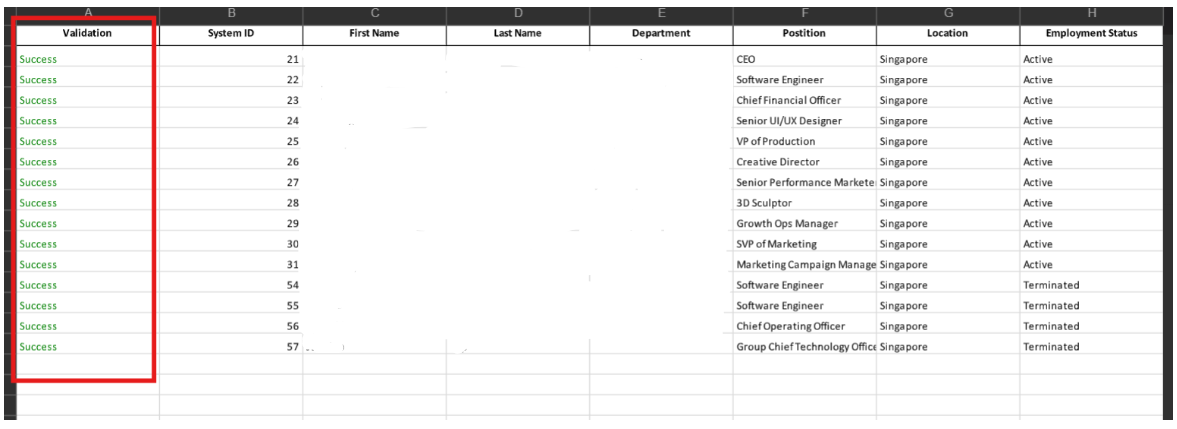
- If any employee has an error status, review the message in the validation file, update their information accordingly, and re-sync until all validations are successful.
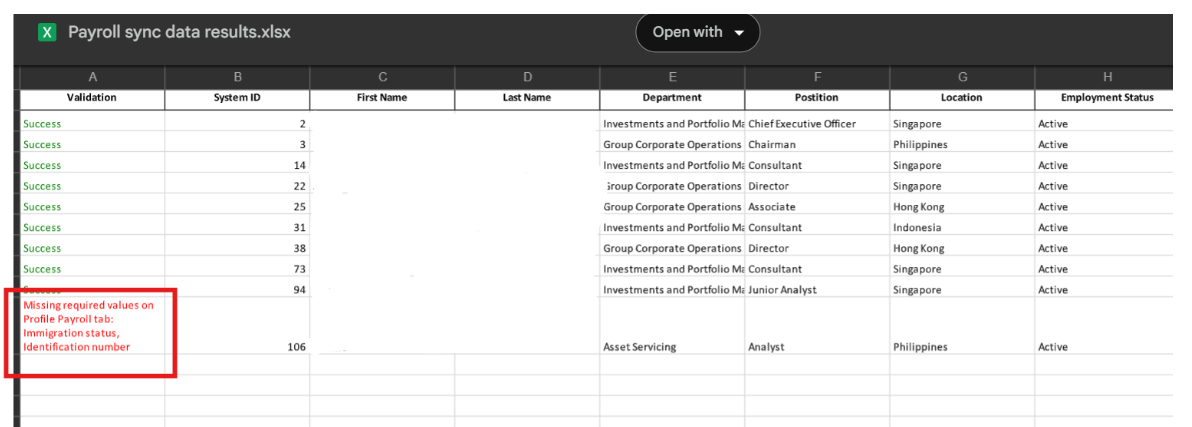
- Once all employees show a “Success” status, proceed to Step 3: Create Payrun.
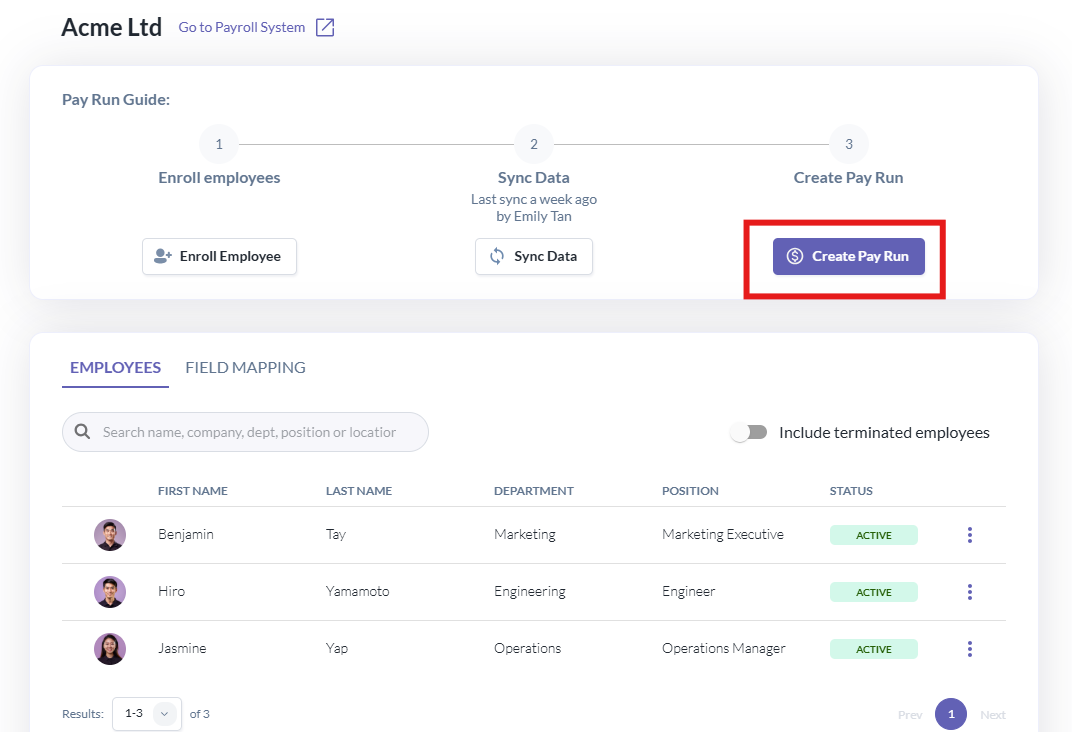
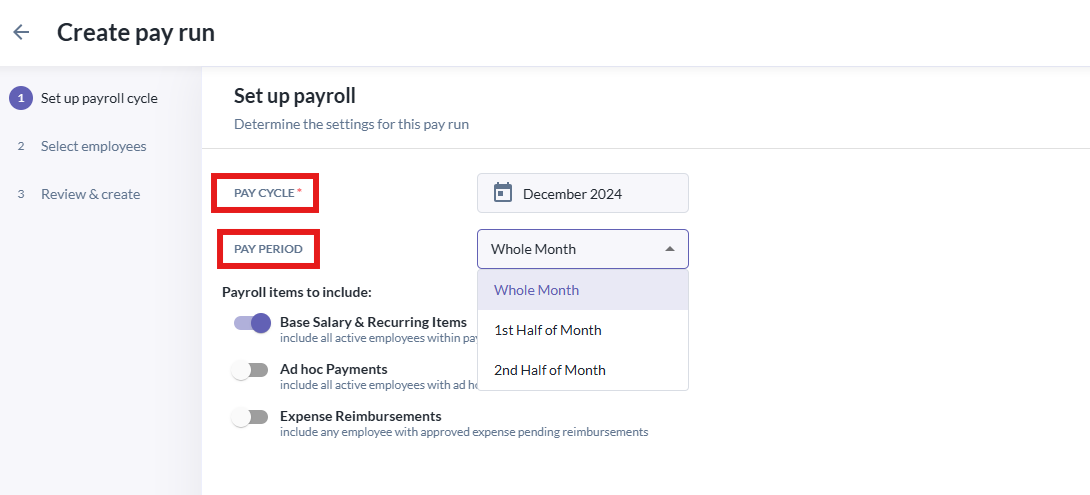
- By default, the Pay Cycle Month is set to the current month. To run payroll for a past or future month, select the appropriate period.
- For Pay Period, the default is the full month. You can change this to the 1st or 2nd half of the month if your entity runs payroll bi-weekly. (Note: Payroll in Singapore is usually processed on a whole month basis.)
Step 7: Select Payroll Items
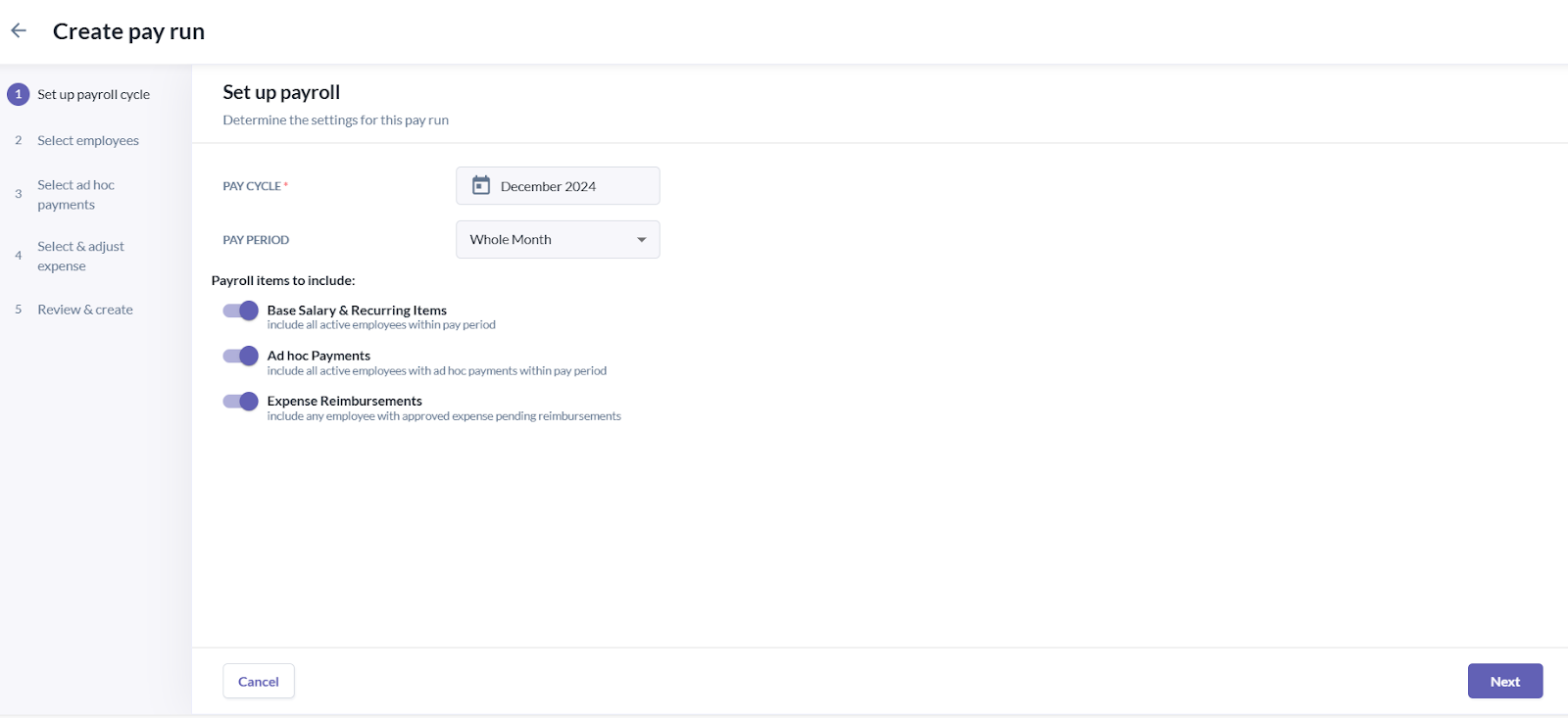
- Base salary and recurring items are selected by default.
- We recommend also ticking Ad-hoc Items and Expense Reimbursements to ensure all income added and approved expenses are captured.
- If your company runs a separate payroll for expenses, you may leave Expense Reimbursements unticked.
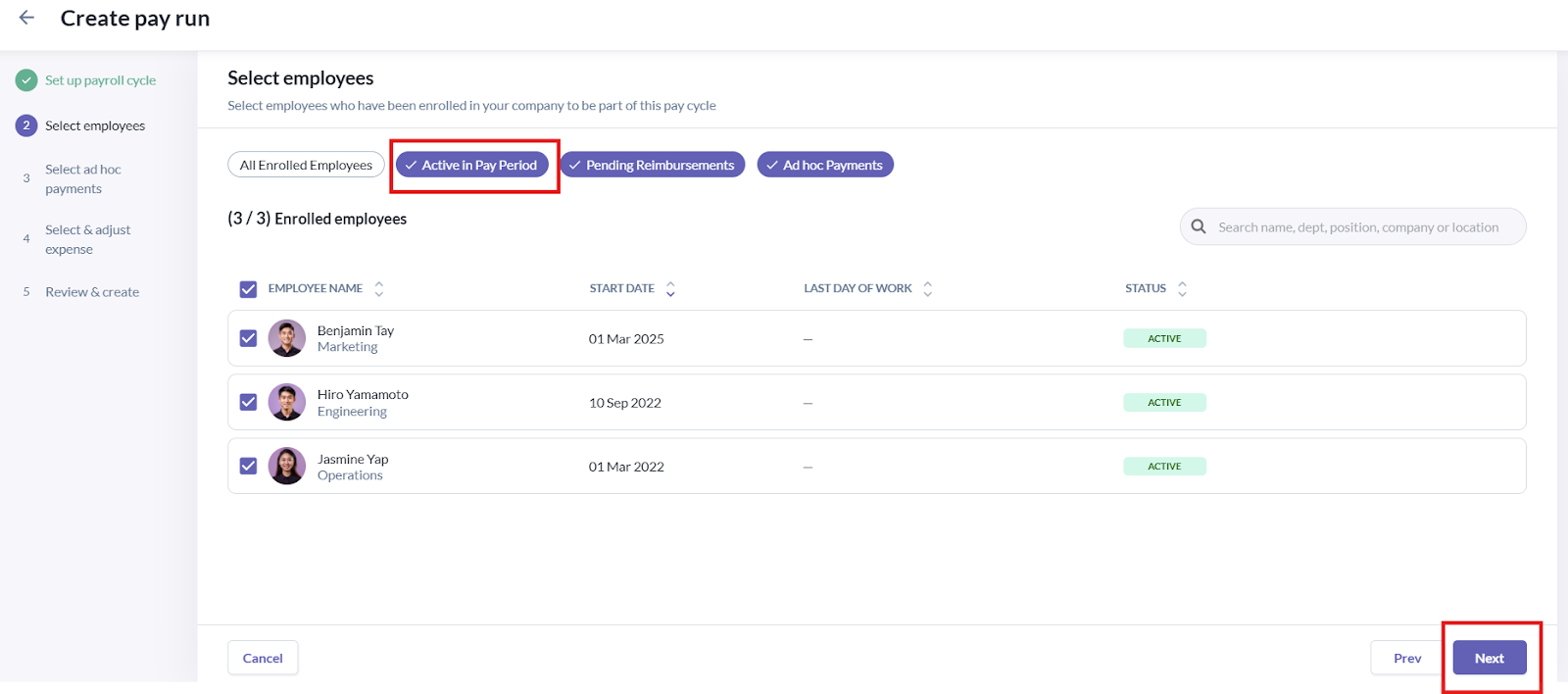
Step 8: Review Selected Employees
- The next screen shows all active employees for the selected payroll month. You can deselect employees who should not be included in the current run. Click Next.
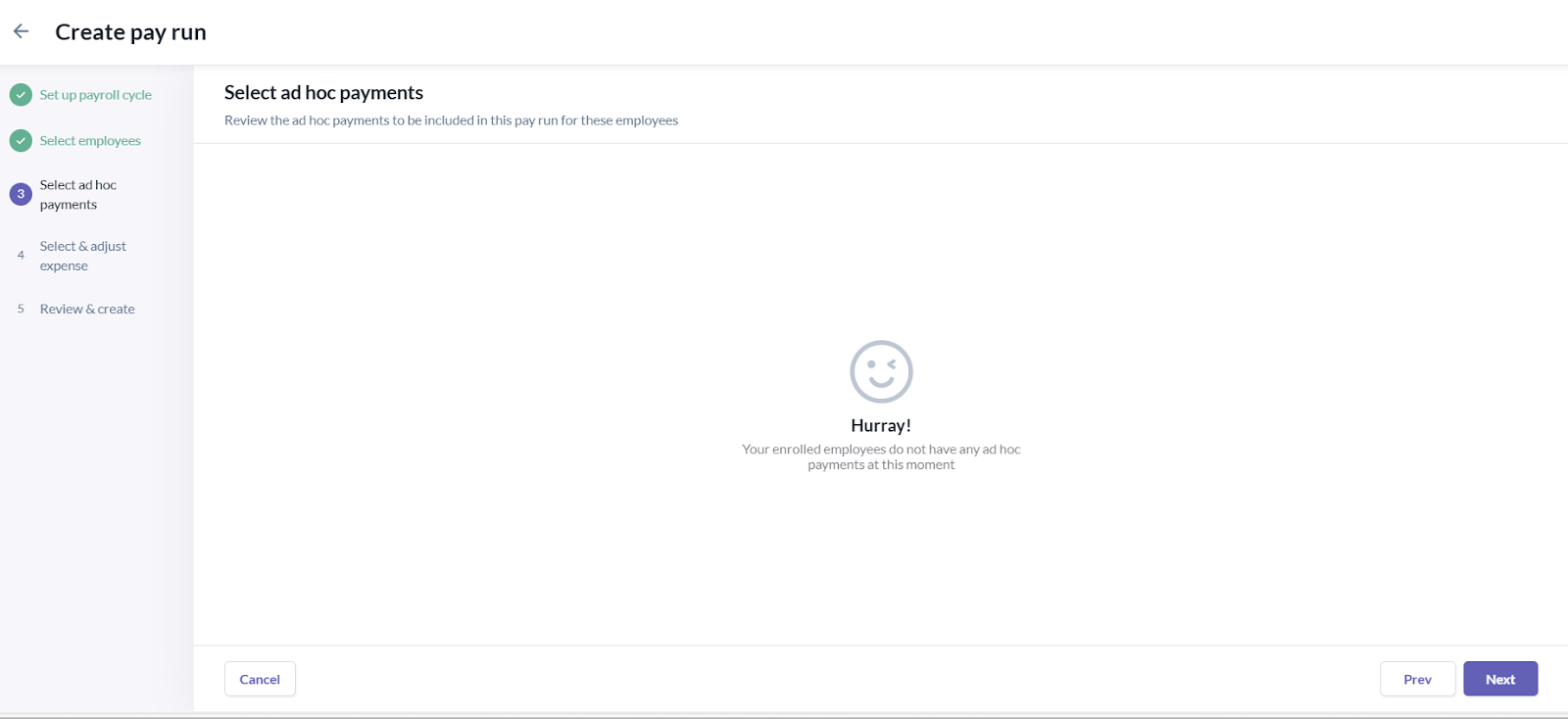
Step 9: Ad-hoc Items Review
- This screen summarizes ad-hoc payments per employee. If no ad-hoc items exist, the screen will be blank. Process to click Next.
Step 10: Expense Reimbursements
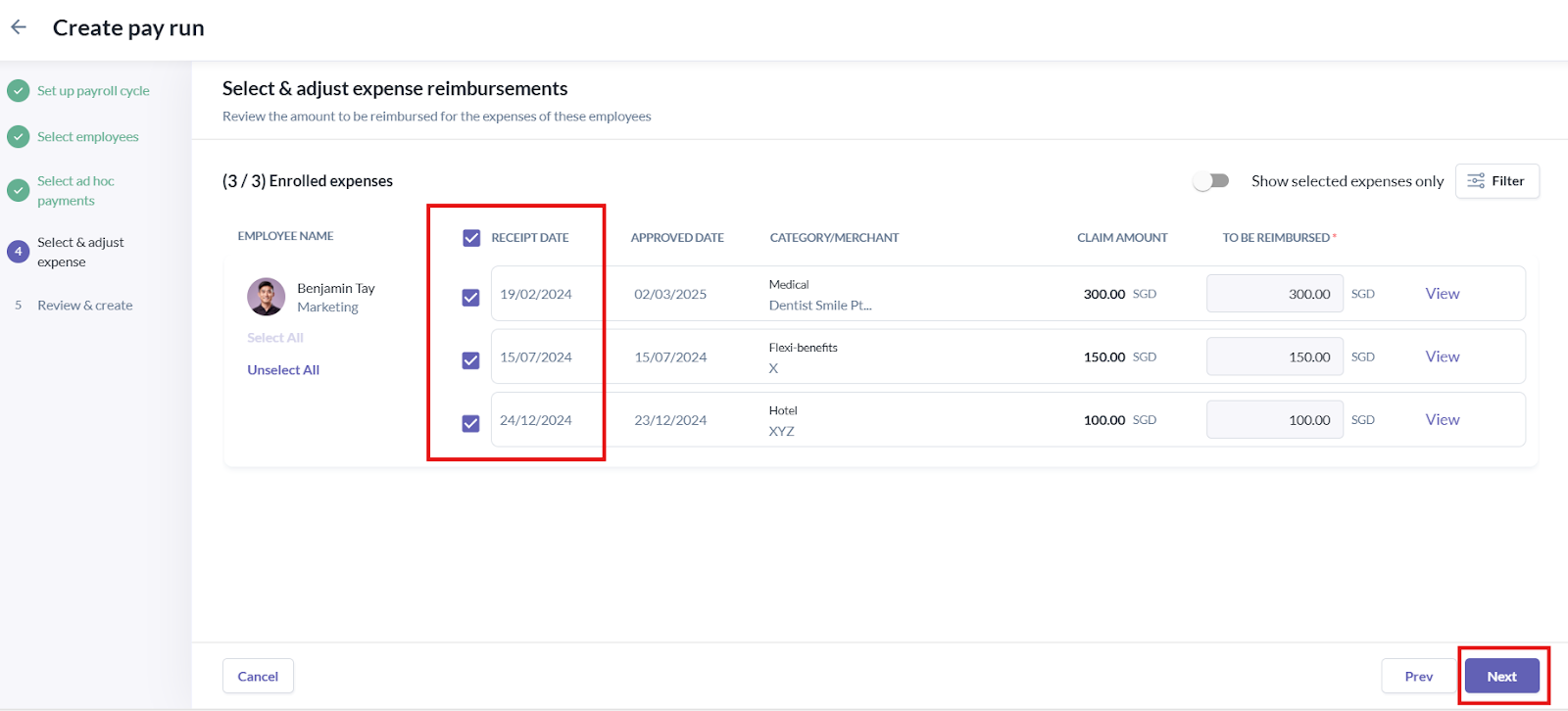
- If the expense module is used, this screen will list all approved expenses. You may select which expenses to include for the month’s payroll run.
- If there are lots of expenses items, use the Filter option to refine the list by approval/receipt date or expense category.
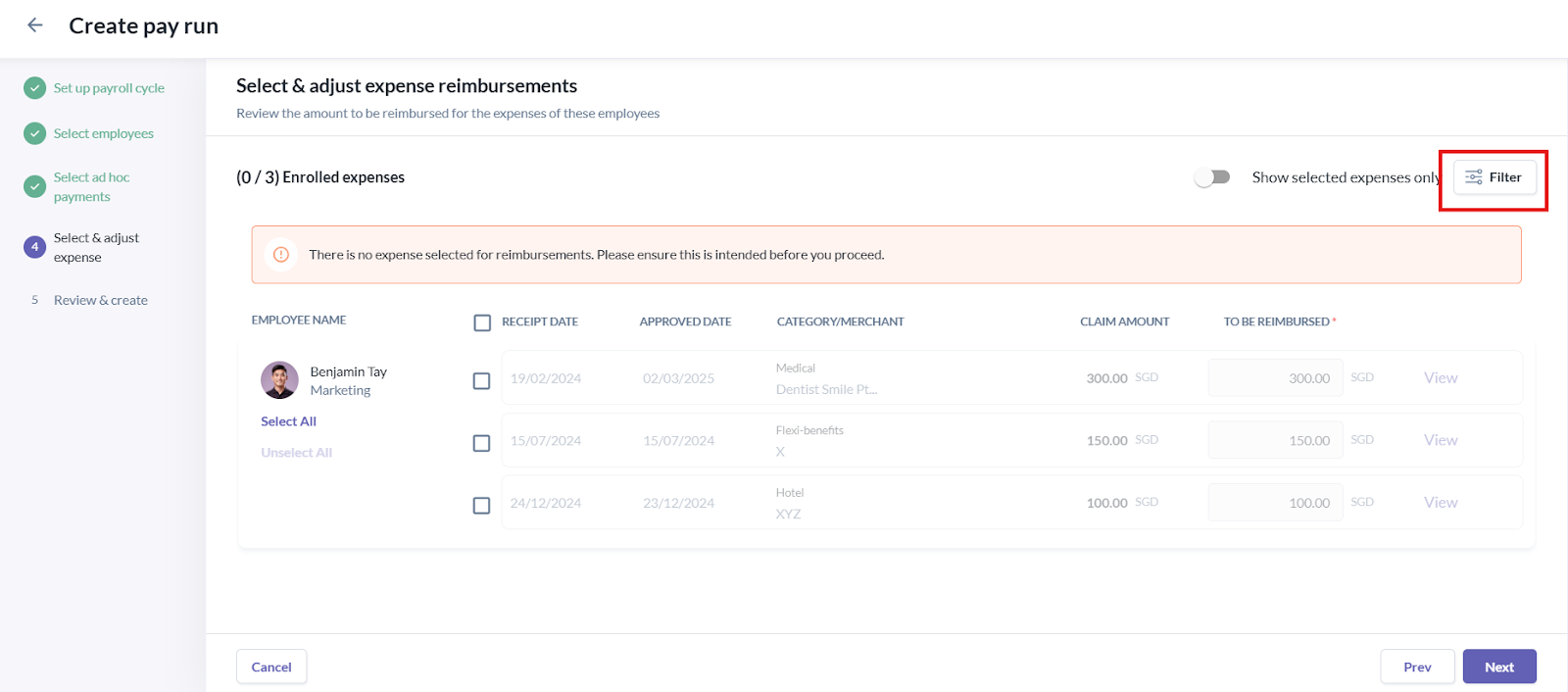
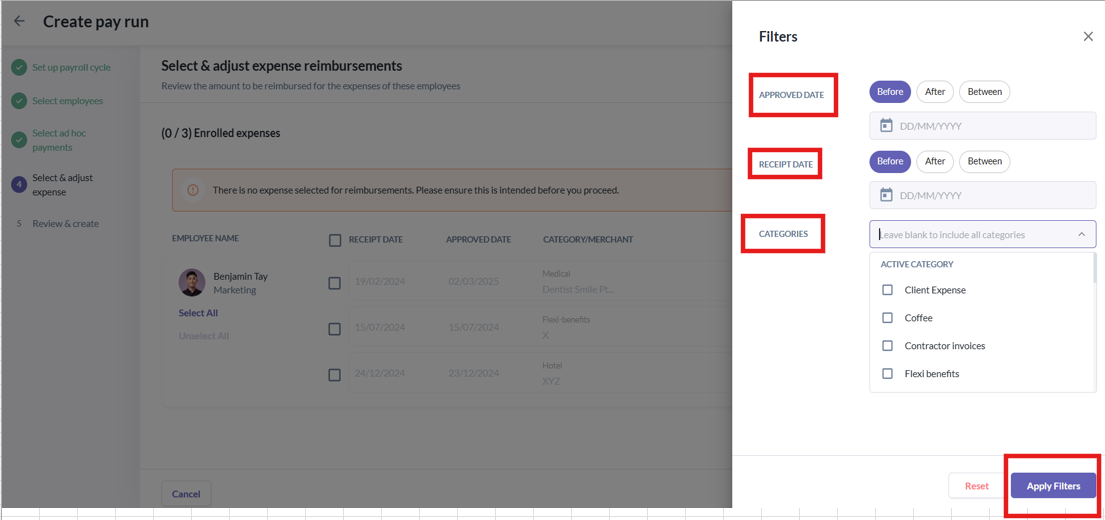
- After selecting the relevant expenses, click Next.
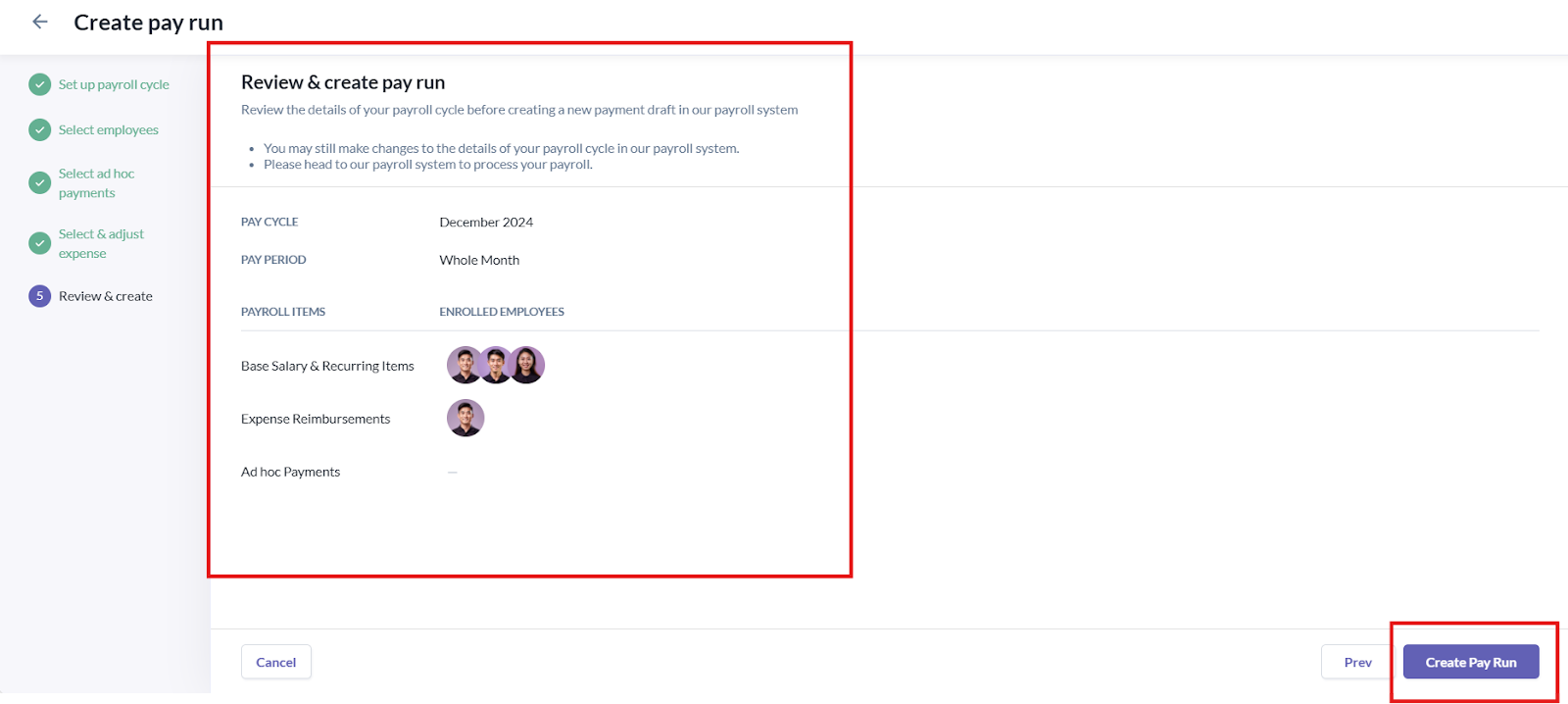
Step 11: Final Payroll Summary
- A summary screen will appear showing all payroll items and the selected month. Review for accuracy, then click Create Pay Run.
- This action will open the payroll system in a new browser tab with the complete summary and payroll details.
Step 12: Payroll System Process
- Once you click Create Pay Run, it will open another browser window that contains our payroll system. This screen will display the complete summary and details of the payroll you are about to process.
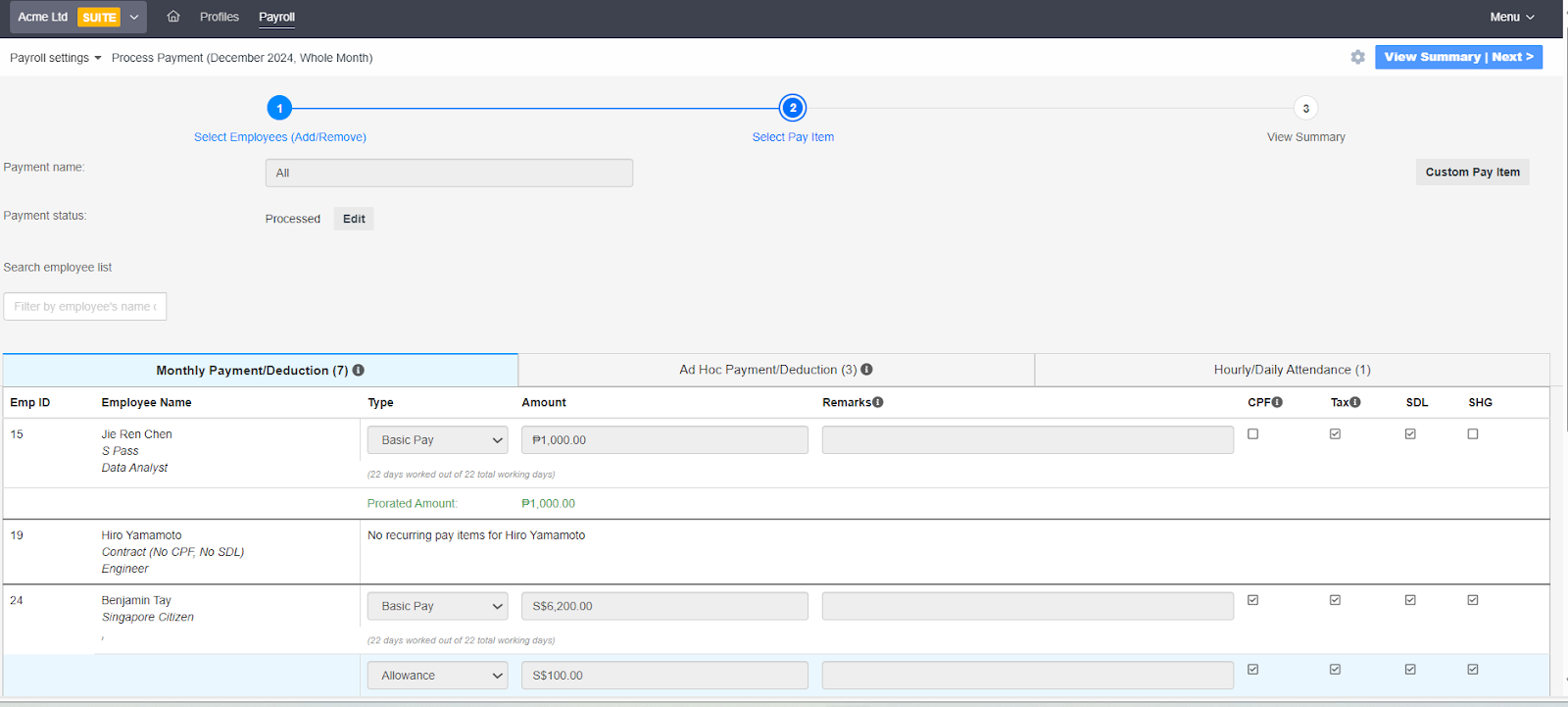
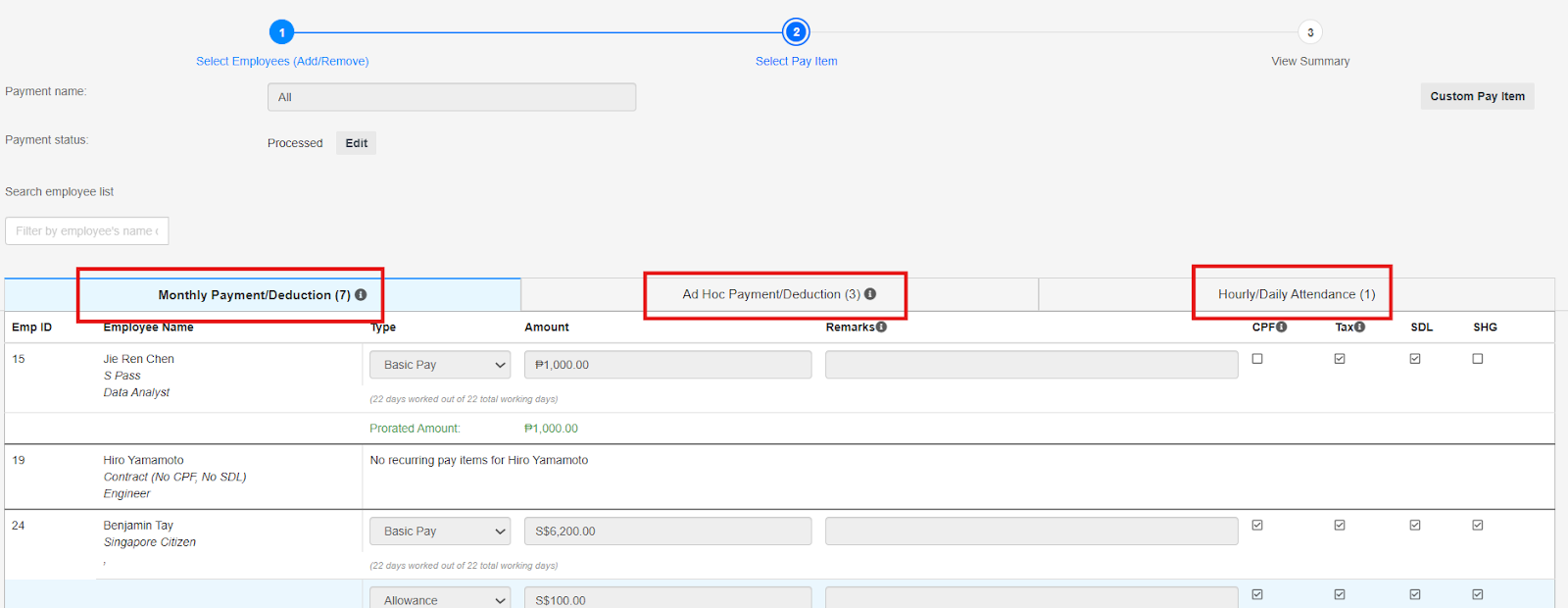
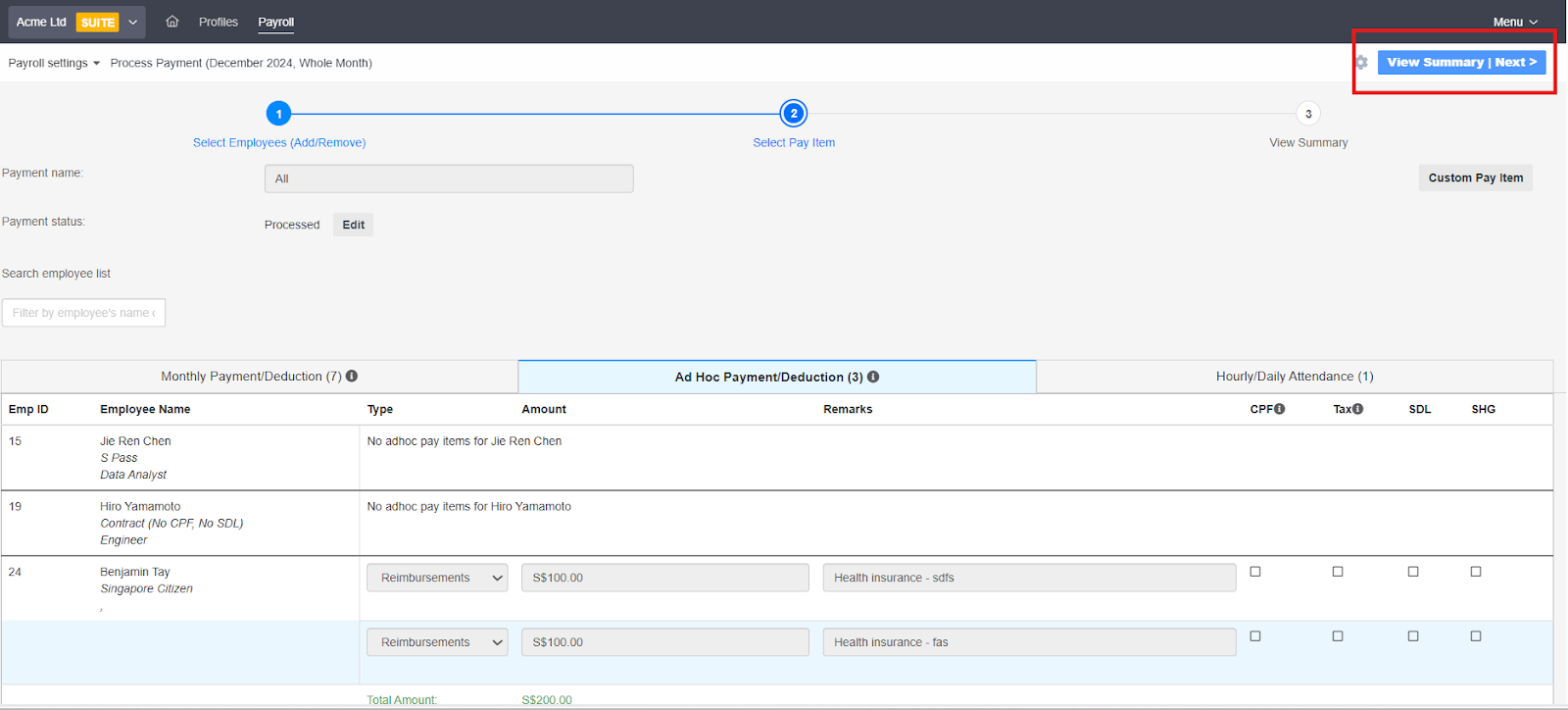
- If you missed adding any ad-hoc or additional income for an employee before creating the pay run, you can manually add it here in the payroll system;
- Monthly Payment Deduction: This tab is for base salary and recurring income.
- Ad-hoc Payment/Deduction: Use this tab to add additional income or deductions specific to the current month’s payroll.
- Hourly/Daily Attendance: Use this tab to record overtime or public holiday work. The system will calculate OT and PH pay based on MOM’s standard rates.
- If there’s nothing more to add, proceed to click View Summary | Next.
Step 13: Finalize and Process Payroll
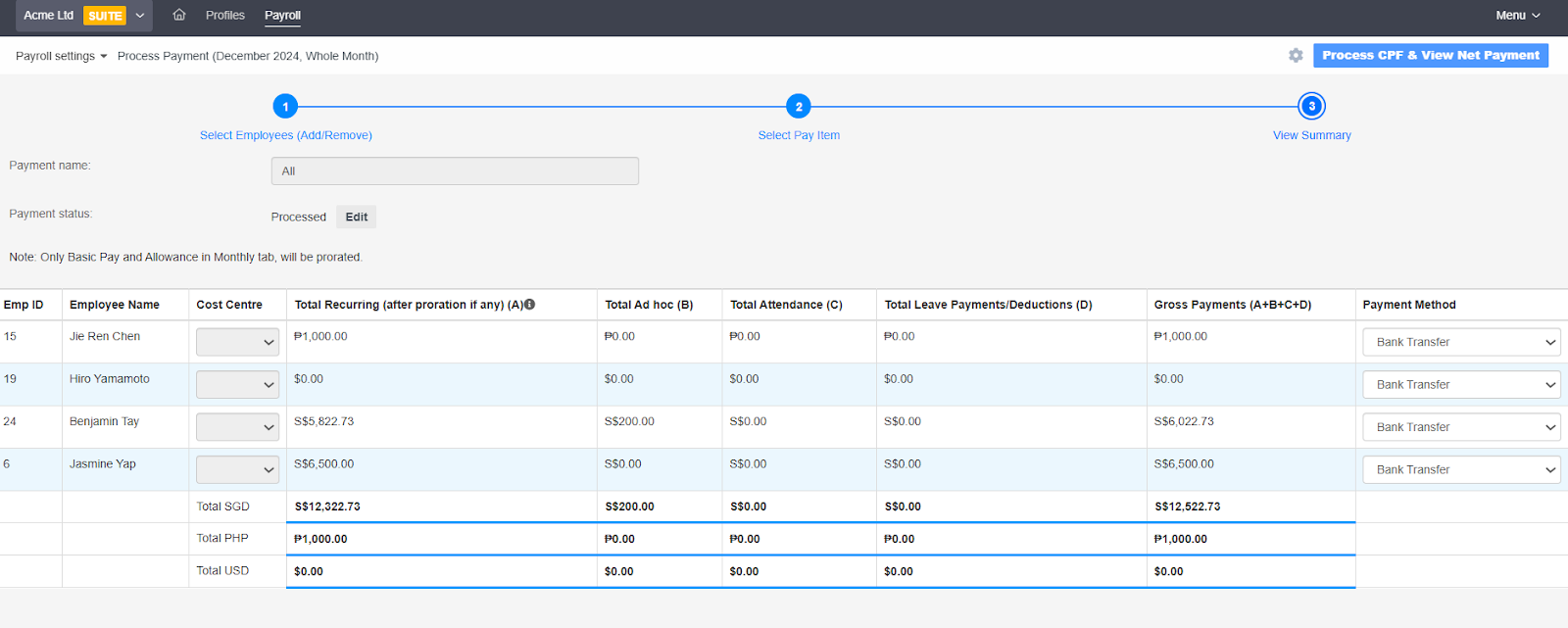
- The following screen will appear, showing a breakdown of payroll per employee. Click Process CPF & View Net Payment to finalize.
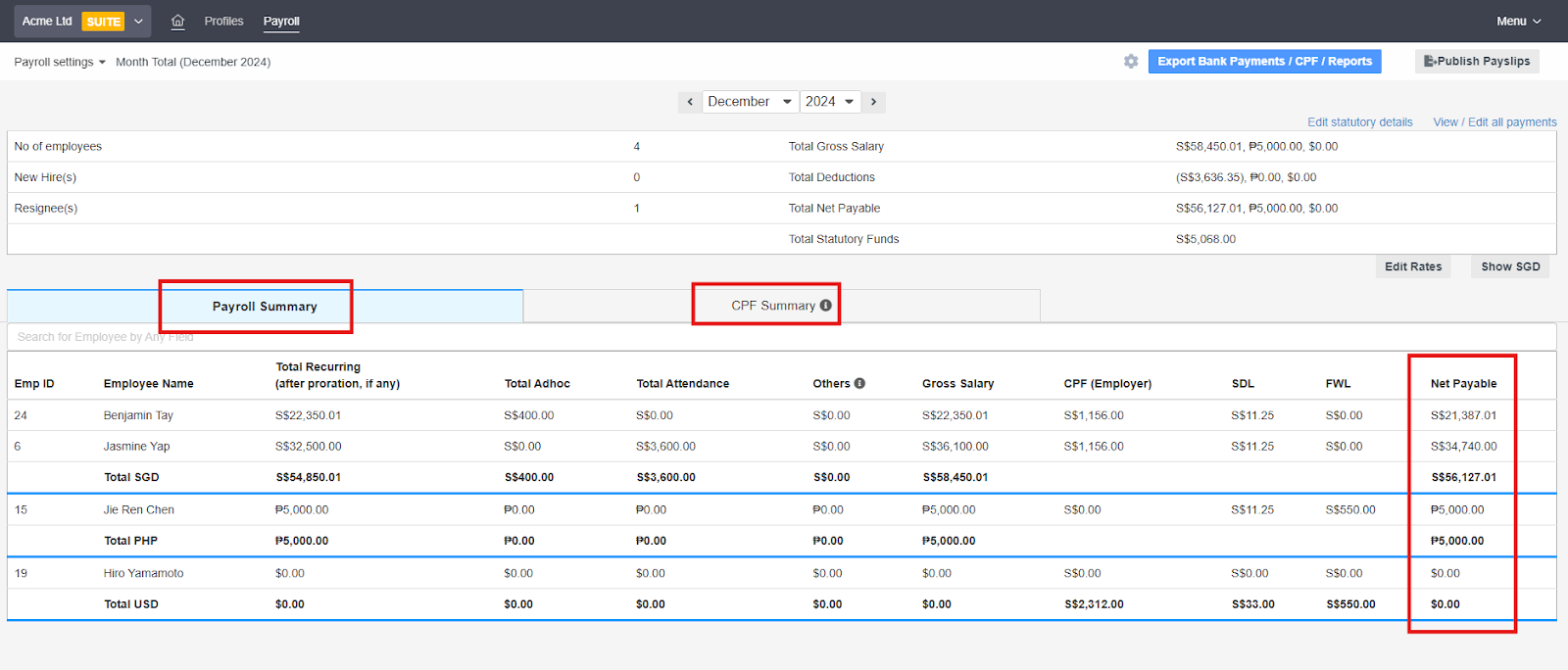
- The next screen displays the finalized payroll summary. It will show the net payable for each employee, and under the CPF Summary tab, you’ll find the breakdown of statutory contributions.
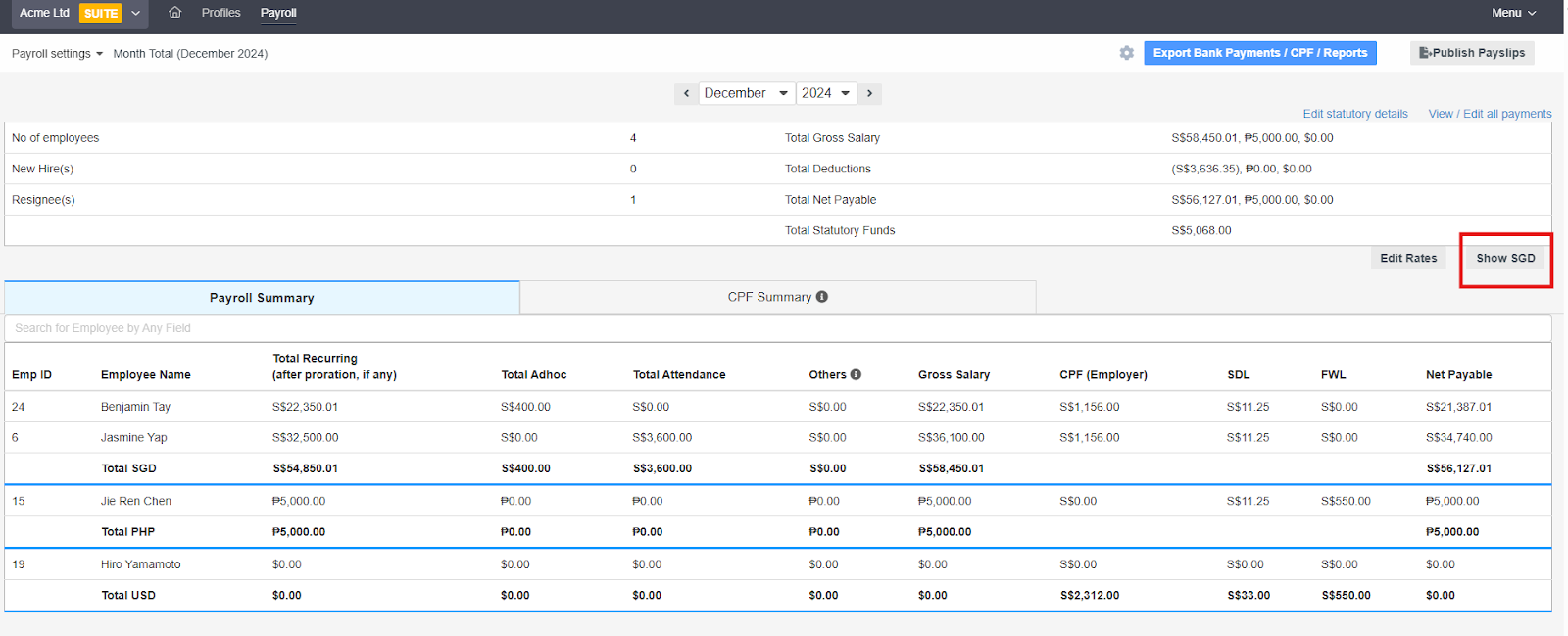
- In cases where payroll involves multi-currency, the payroll system allows you to edit the exchange rates. Click Edit Rates to update the preferred exchange rate for each employee's payroll.
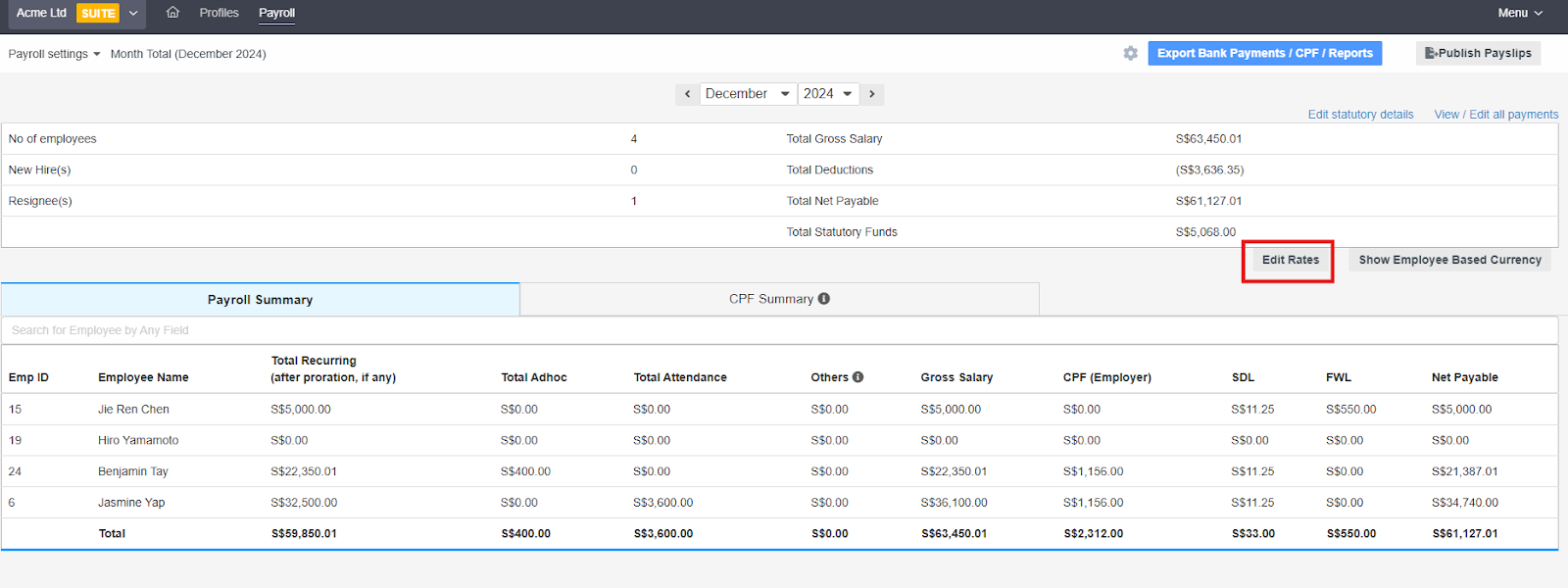

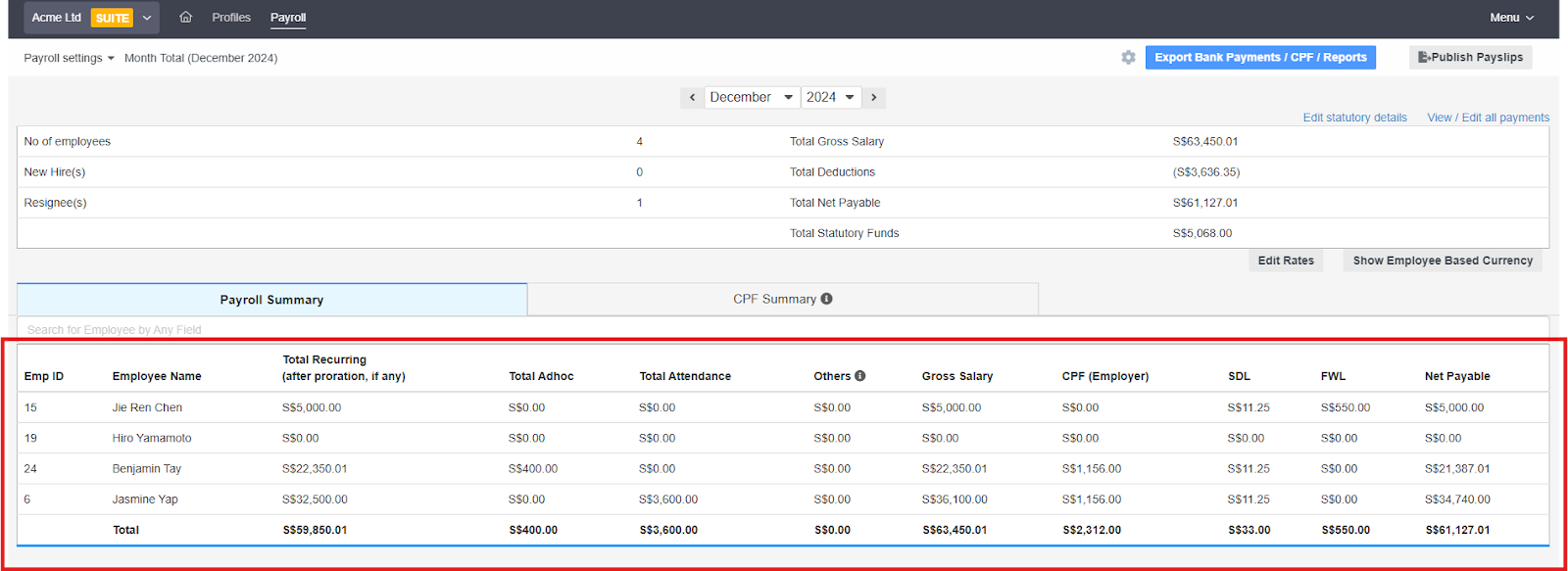
- You can also click Show SGD if you prefer to display the entire payroll summary in SGD for all employees. This simplifies viewing in a single currency.
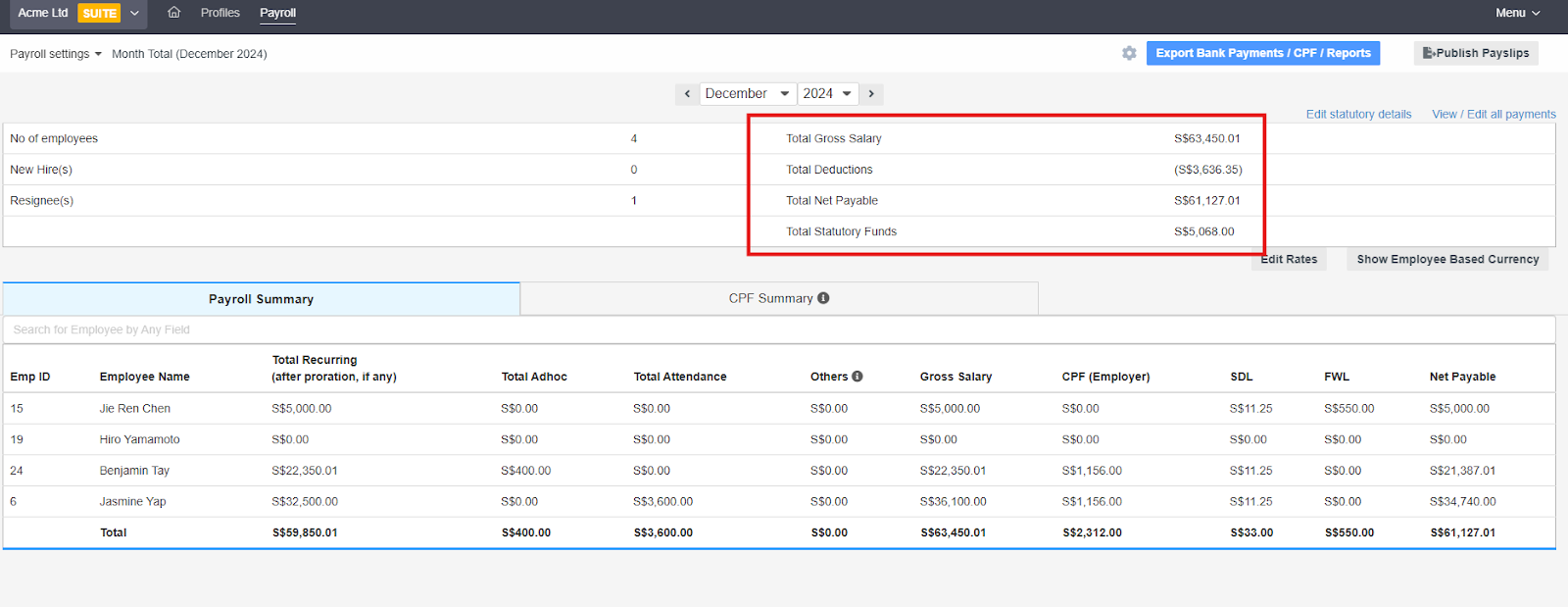
- There is also a Total Summary displayed in the upper-right corner of the screen, which can be used to provide Finance with the total payroll expense for the month.
- This completes the whole payroll run process.
Still Need Help?
Reach out to our support team should you need further assistance.
Was this article helpful?
That’s Great!
Thank you for your feedback
Sorry! We couldn't be helpful
Thank you for your feedback
Feedback sent
We appreciate your effort and will try to fix the article