Overview:
Admins can now set up automated reminders for the Review Phase, nudging participants to complete their peer selection or submit their reviews before the sub-review end dates. This helps reduce manual follow-up during review cycles and keeps everyone on track across all review types.
TABLE OF CONTENTS
Creating a Reminder
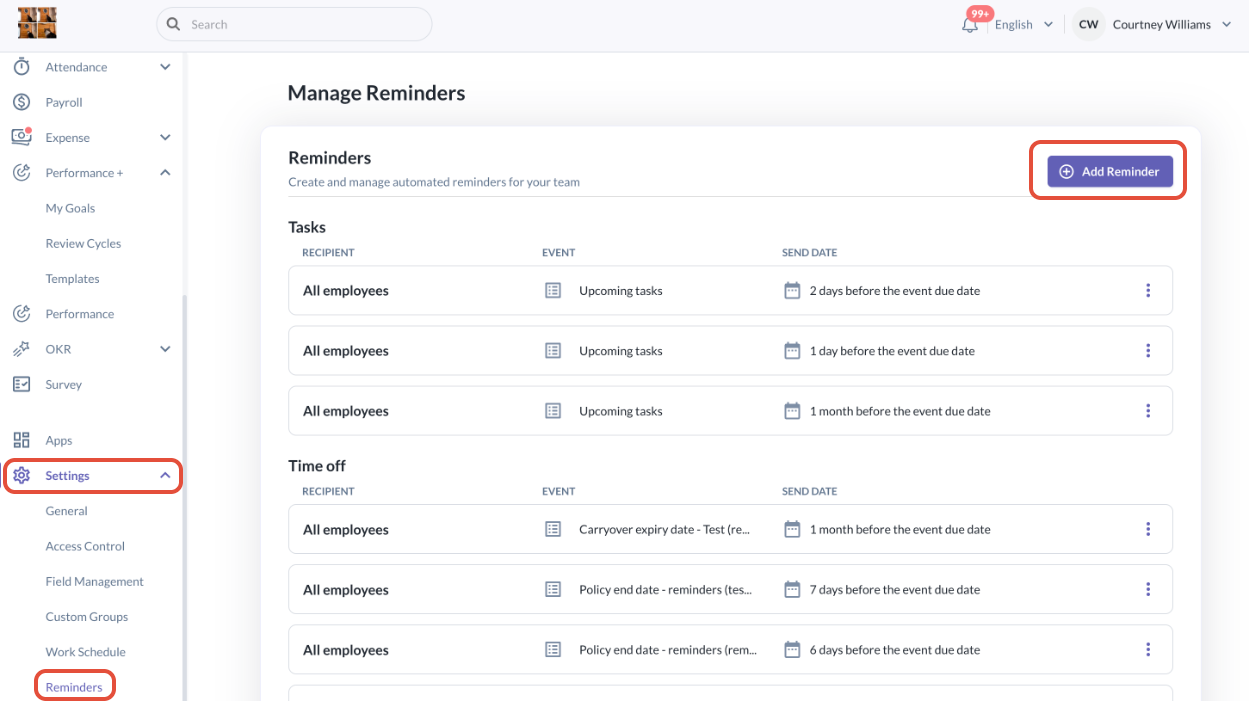
- Navigate to Settings > Reminders > Add Reminder.
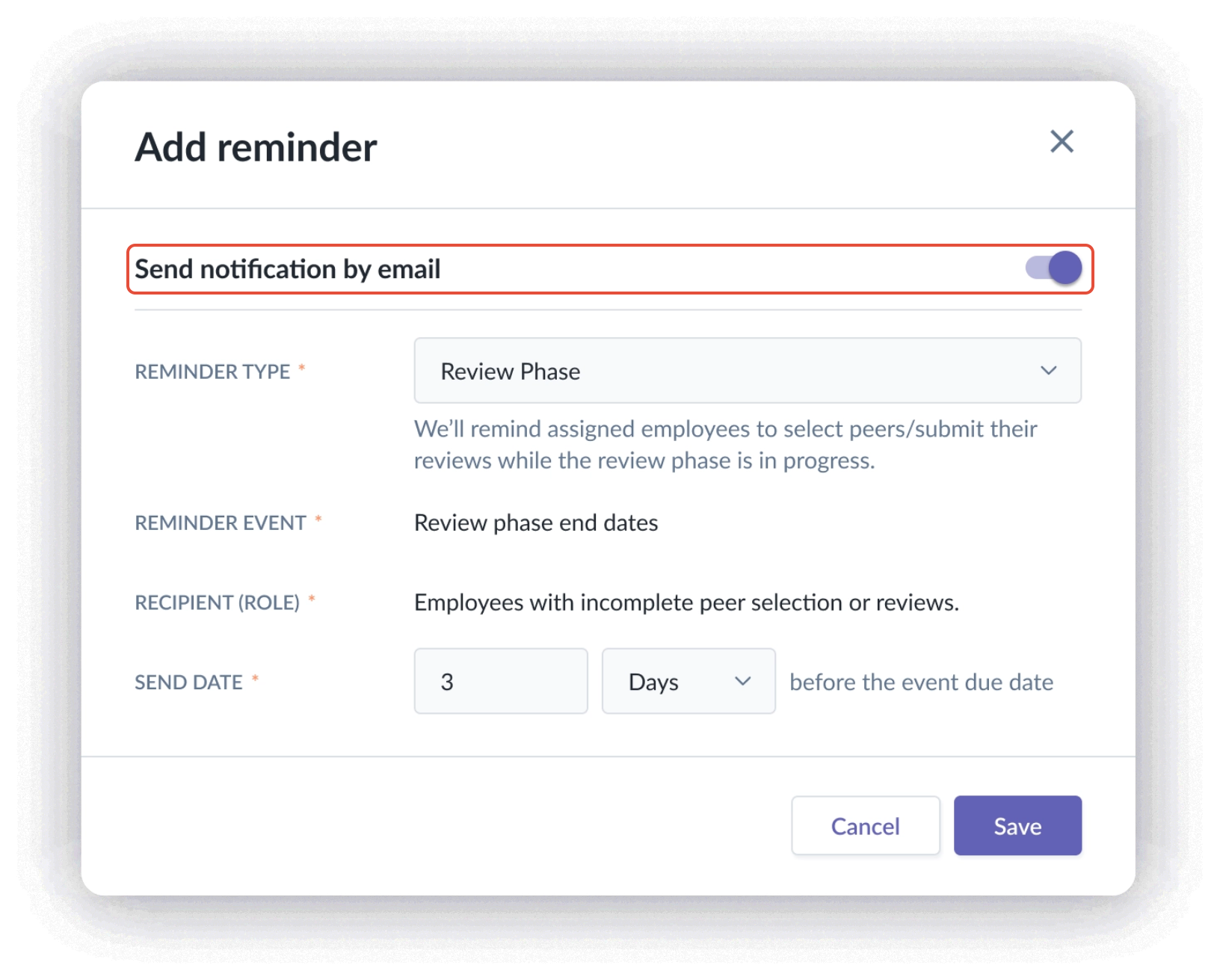
- Under Reminder Type, open the dropdown and select Review Phase from the Performance+ category
- Under the Send Date, fill in the number of days, weeks or months before the event due date. Event due date is referring to the due date(s) of sub-review phases i.e. Self Review, Manager Review, etc
- If you want the employees and managers to receive a reminder through email notification, you will need to ensure the Send notification by email is toggled On.
- Click Save.
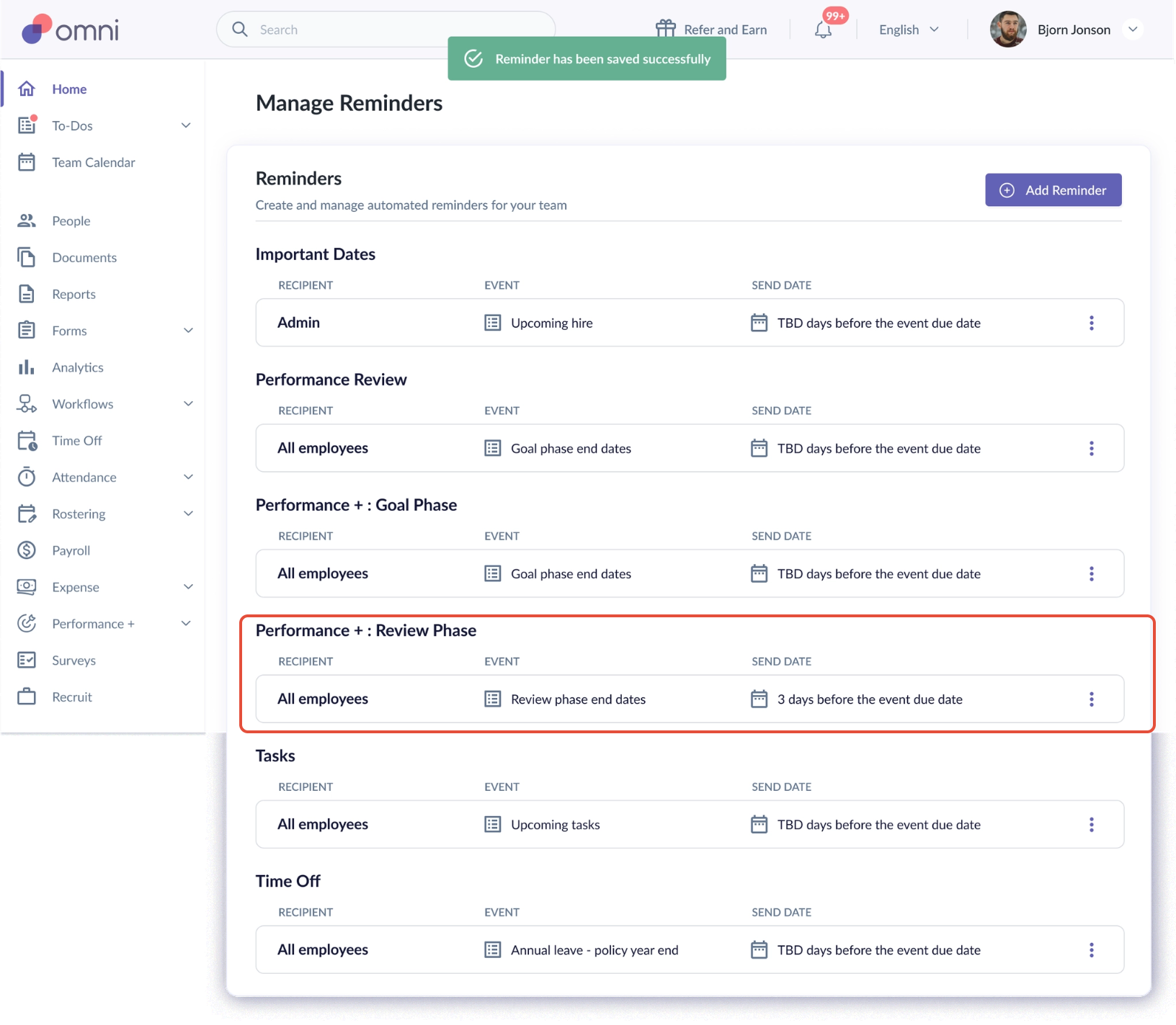
- Your new reminder will appear under the Performance+: Review Phase section on the Manage Reminders page.
- Want more coverage? You can create multiple reminders with different lead times for the same Review Phase — for example, one at 7 days and another at 3 days before the end date. There's no limit to how many you can set up.
Editing or Deleting a Reminder
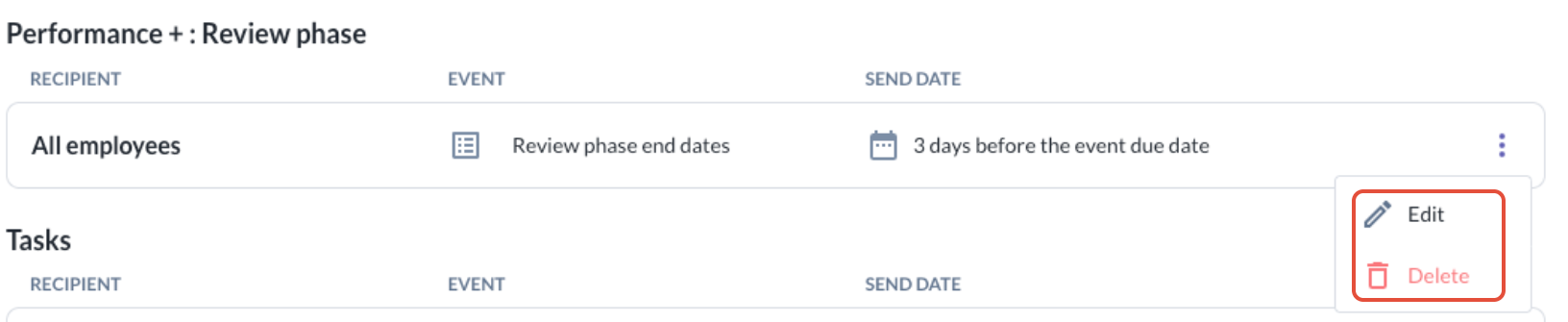
- Admins can always edit the reminder by click onto the 3 dots at the right side and click on Edit
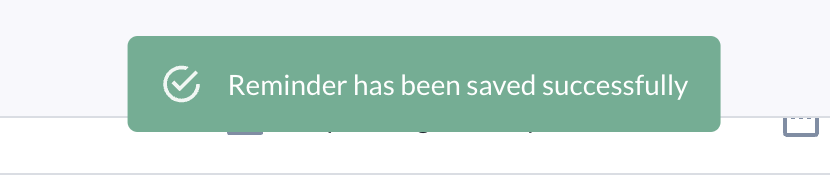
- After saving the edit, admins will be able to see a banner pop up to notify that the Reminder has been saved successfully
- By clicking on the 3 dots at the right side of the reminder, admins can also choose to delete the reminder
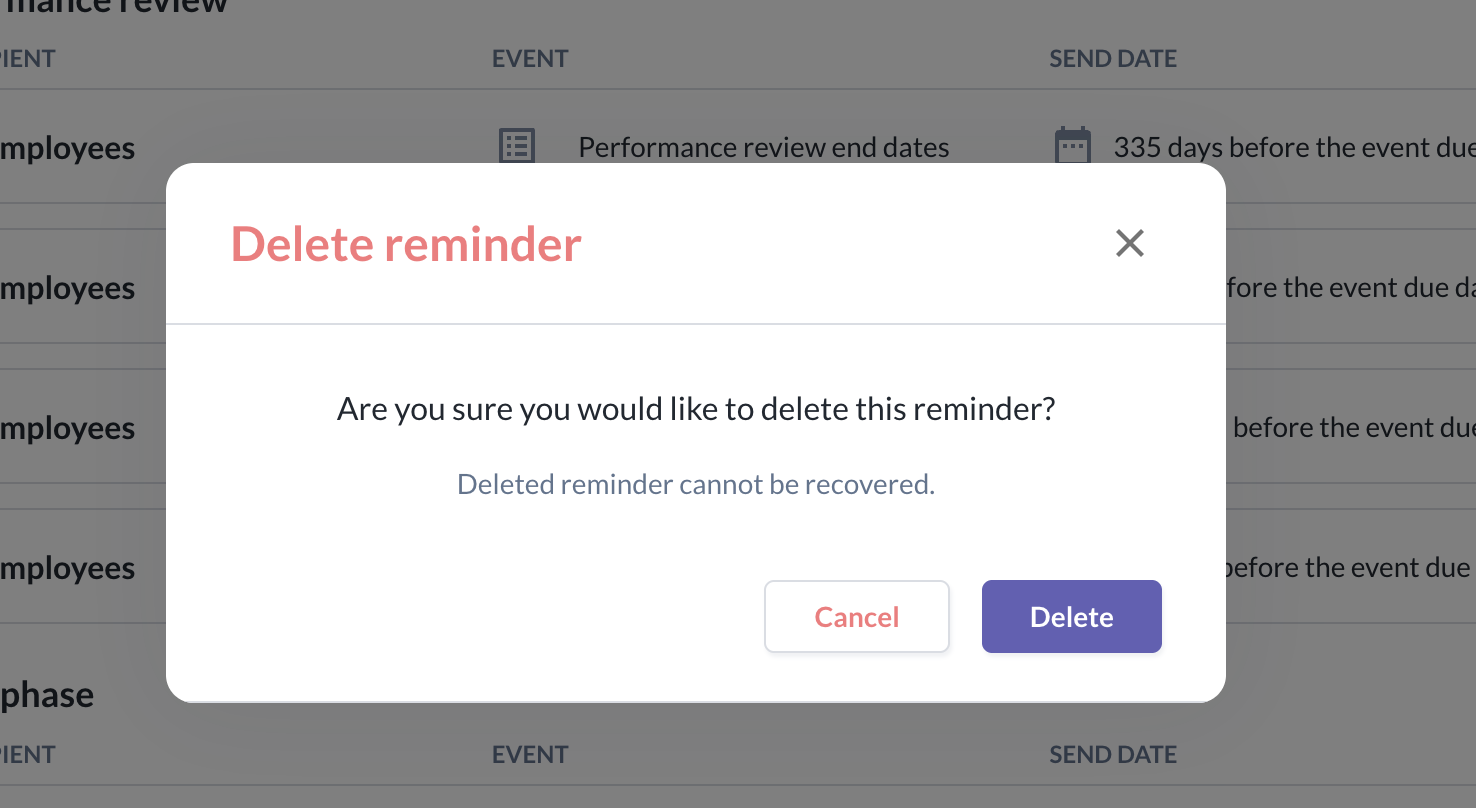
- Upon clicking the Delete, a pop up will appear to re-confirm on the deletion of the reminder
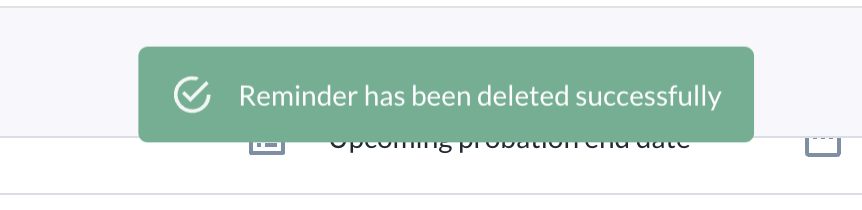
- After clicking Delete, the reminder will be removed from the list and there will also be a banner showing that the Reminder has been deleted successfully
How Participants Are Notified
Participants are notified through two channels — email and in-app.
Email Notifications
- At 9:30 AM SGT on the scheduled reminder date, the system emails every participant who still has incomplete peer selection or outstanding reviews.
- Each email includes the review cycle name, relevant review details, and a button that takes the participant straight to their To-Dos in Omni.
- Separate emails go out per review type — Self Review, Peer Selection, Peer Review, Manager Review, Secondary Manager Review, and Upward Review — so participants only get reminders relevant to them.
Sample Email Notifications
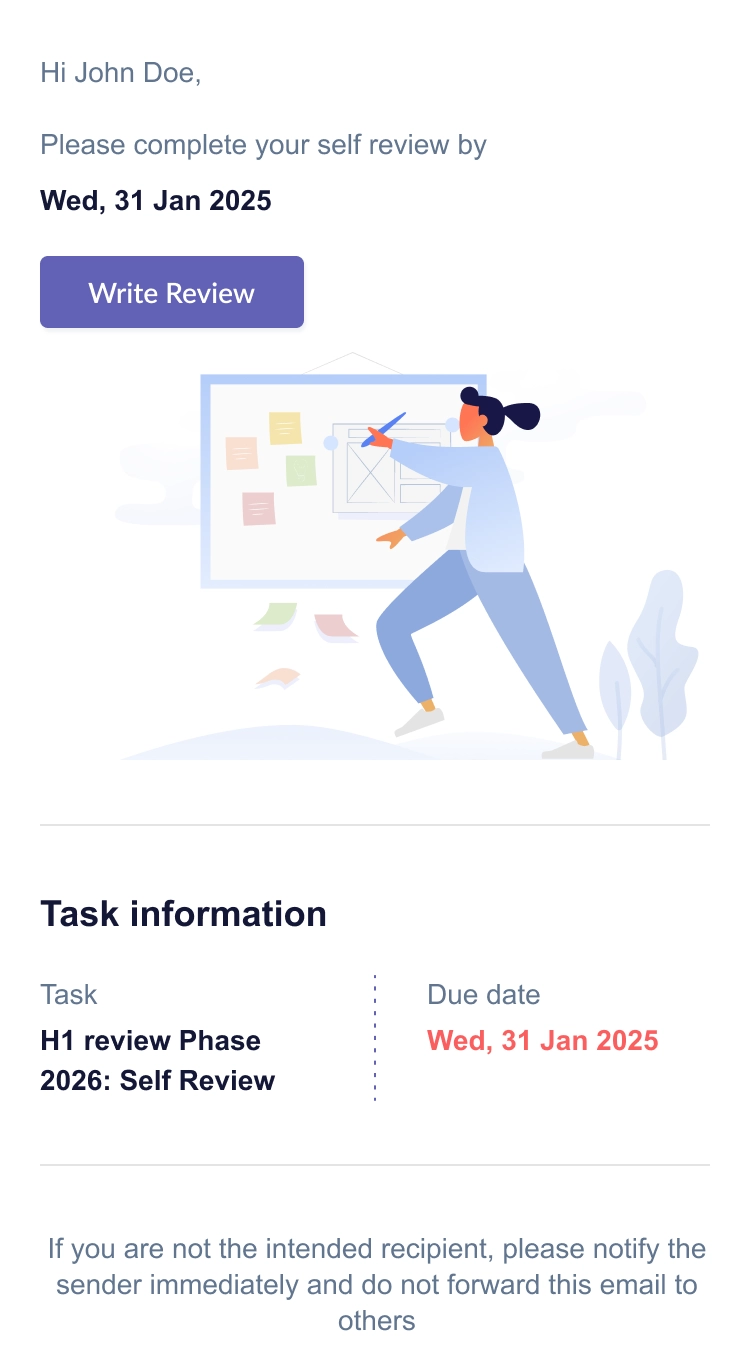
Self Review
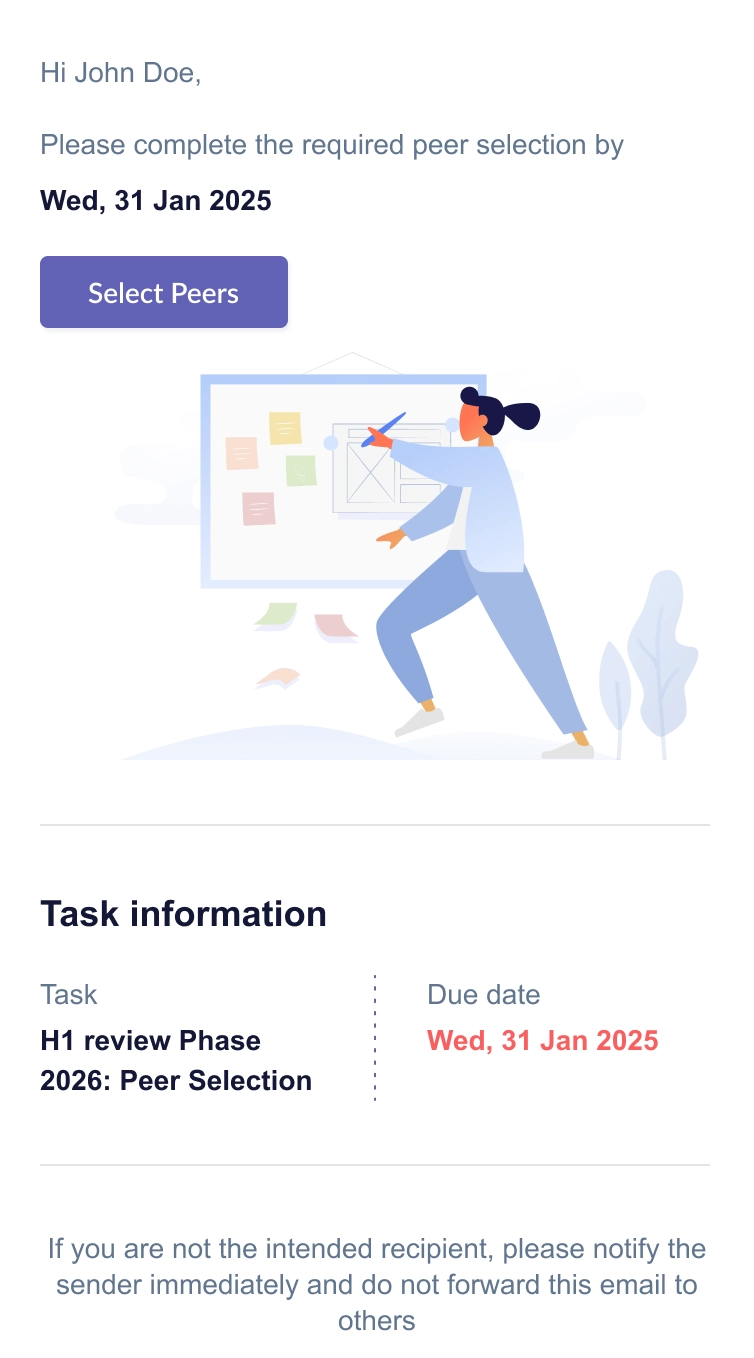
Peer Selection
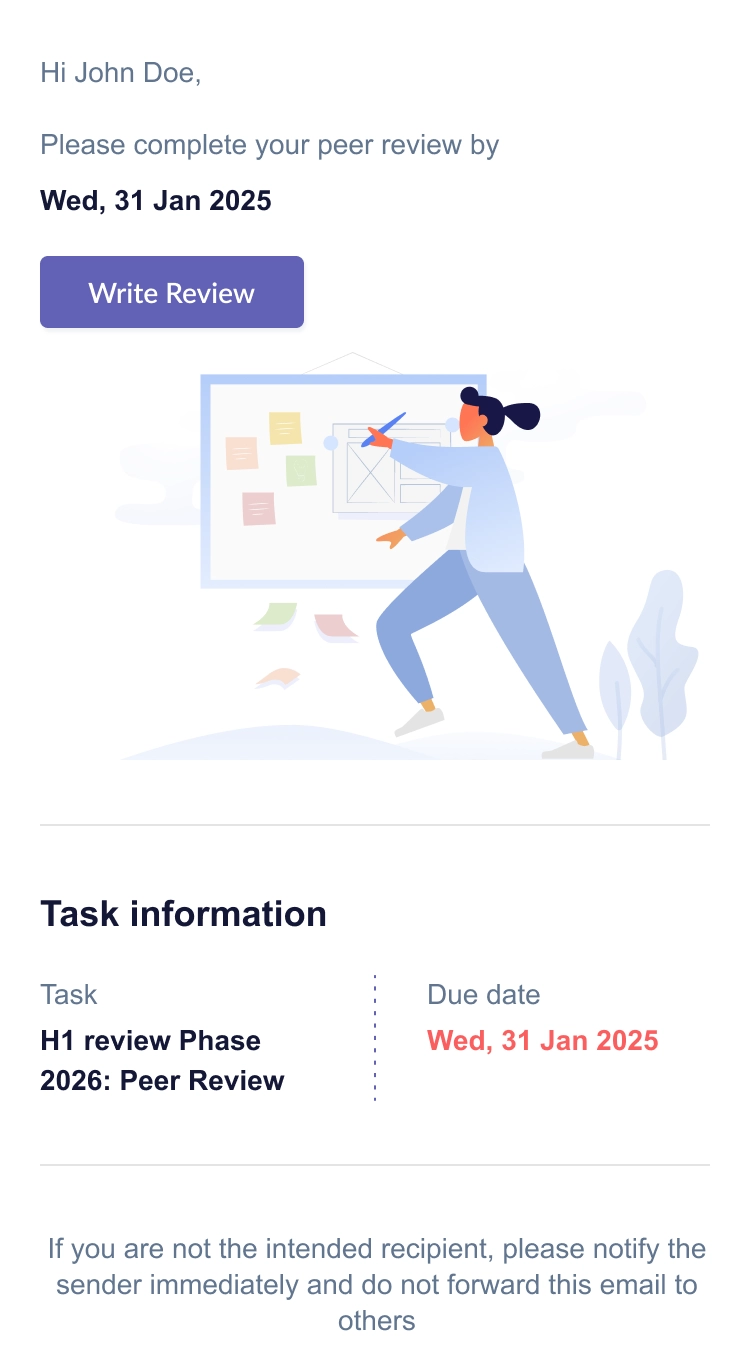
Peer Reviews
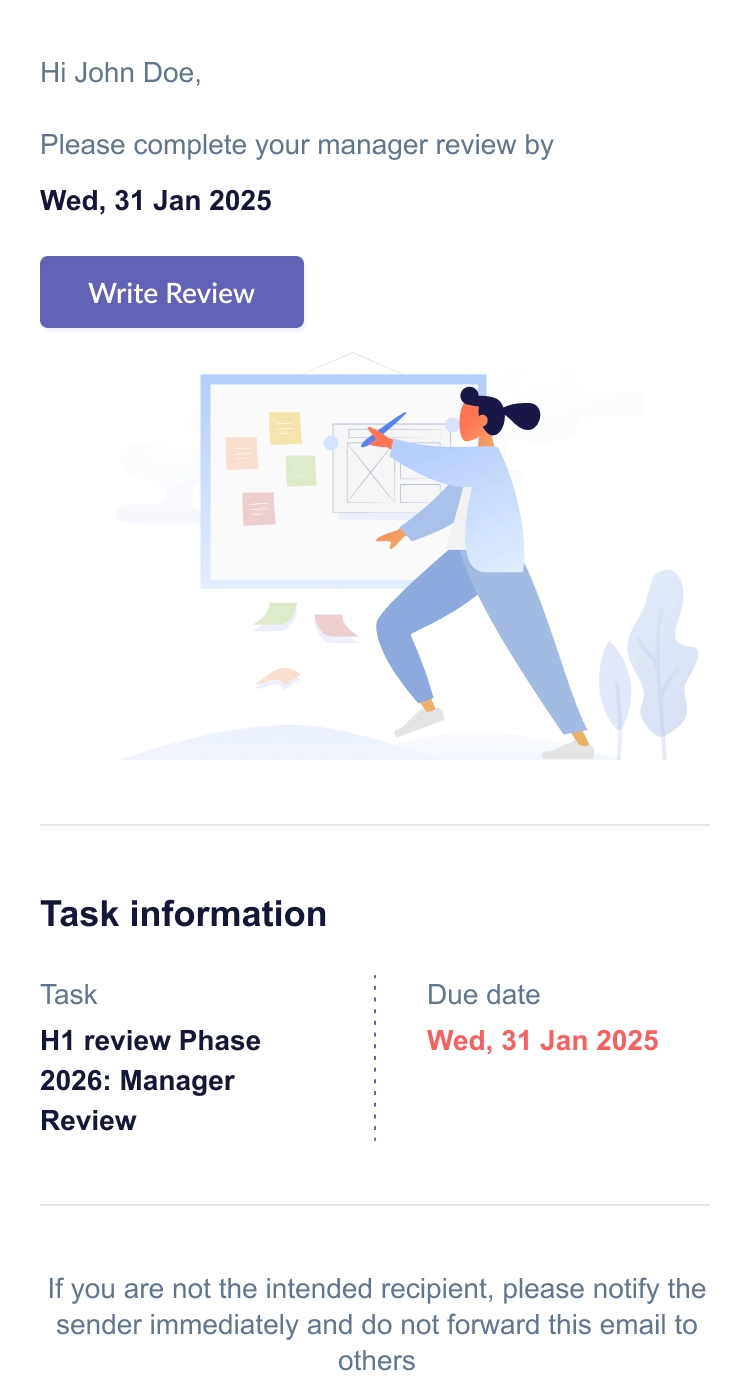
Primary Manager Reviews
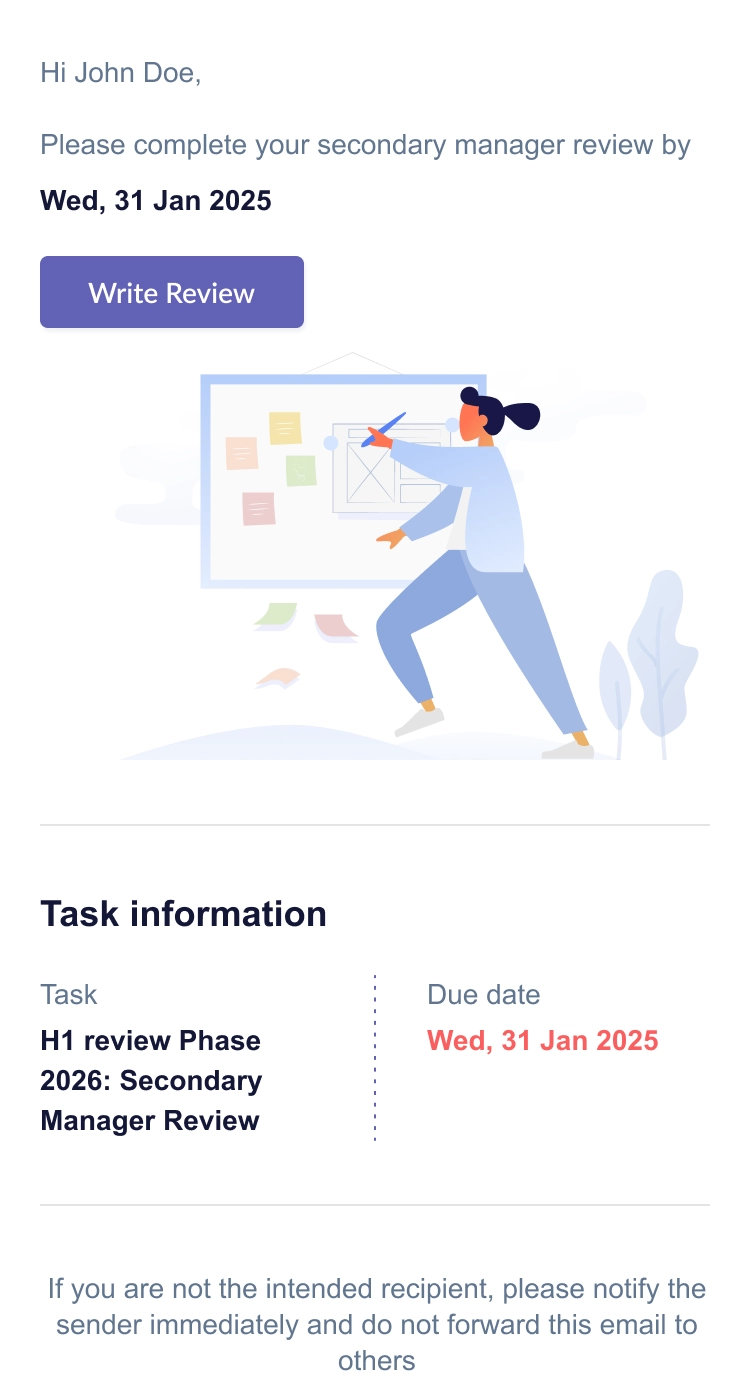
Secondary Manager Reviews
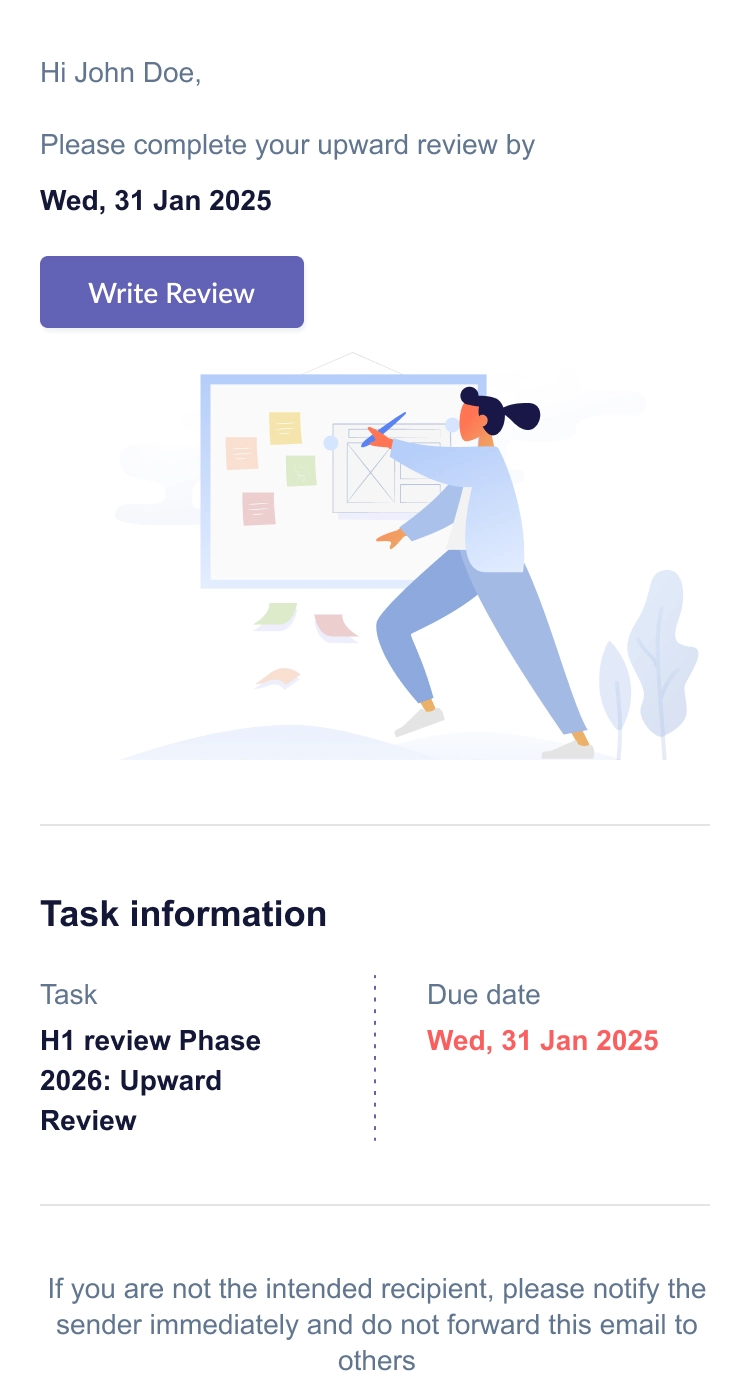
Upward Reviews
- If Send notification by email is toggled off, participants won't receive an email — only the in-app notification will be sent.
In-App Notification
- At the same time, a notification also appears in the participant's notification bell within Omni.
- The most recent notification always appears at the top of the list.
Important Notes
- Reminders only go to participants who still have incomplete peer selection or reviews at the time the reminder is triggered — anyone who's already completed their task won't be reminded.
- The reminder is tied to each sub-review phase's end date, with the send date calculated from your setup lead time.
- You can't save a reminder with identical settings to one that already exists — the system will block duplicates.
- Emails are always sent at 9:30 AM SGT, regardless of the participant's own timezone.
Still Need Help?:
Reach out to our support team should you need further assistance.
Was this article helpful?
That’s Great!
Thank you for your feedback
Sorry! We couldn't be helpful
Thank you for your feedback
Feedback sent
We appreciate your effort and will try to fix the article