Overview:
Master Form Templates serve as reusable templates for performance reviews. Each master template defines the structure, questions, personas, and weightage configuration — allowing admins to quickly generate standardised forms across different review phases.
This guide will walk you through the steps to create master form templates, that can be stored centrally and reused across multiple performance cycles. This ensures consistency, saves setup time, and maintains governance in form design.
TABLE OF CONTENTS
Creating a master form template
Step 1: Add Master Form
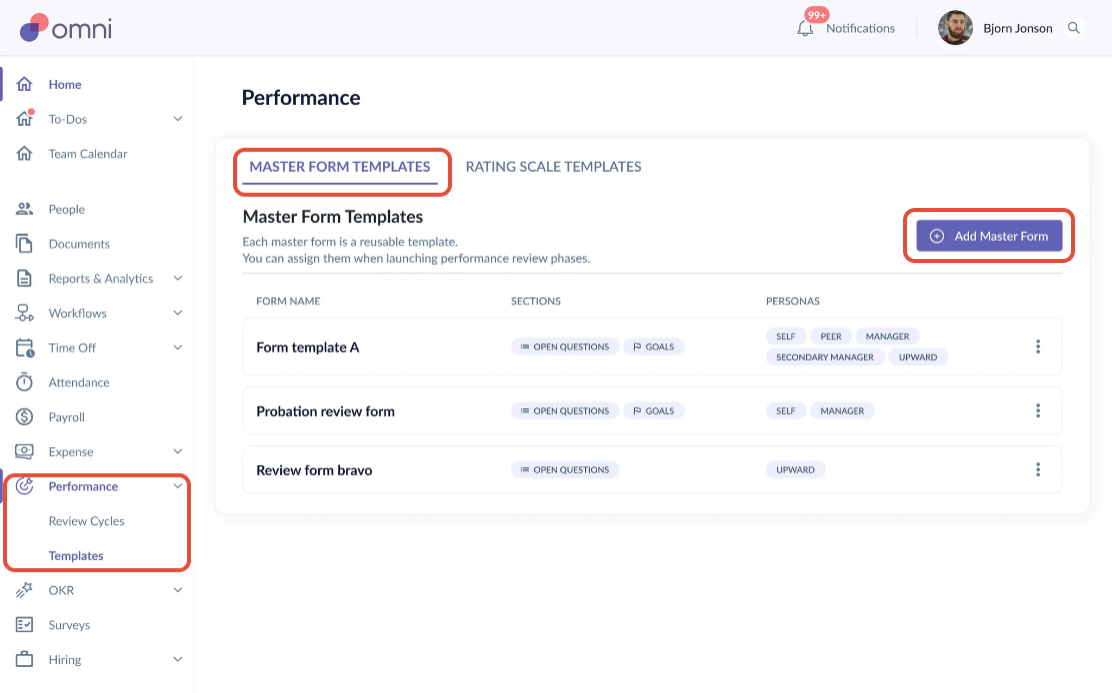
- Go to Performance + > Templates > Master form template > Add Master Form
Step 2: Template Settings
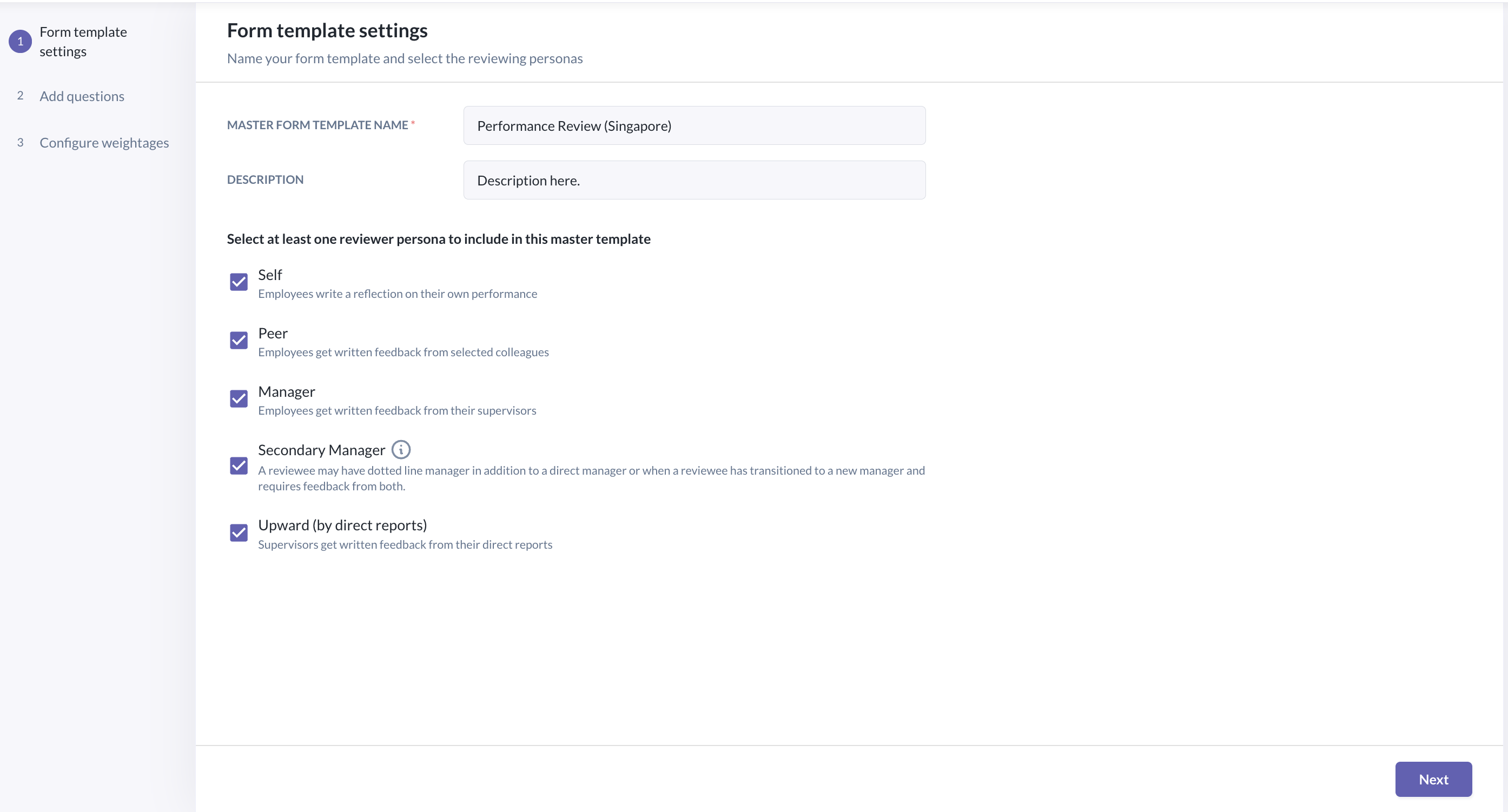
- Fill in the name for the master form template created i.e. Performance Review (Singapore) & provide a description (optional)
- Select at least one reviewer persona to include in the form:
- Self Review
- Peer Review
- Manager Review
- Secondary Manager Review
- Upward Review
Step 3: Add Section Block(s)
- You will have the option to include two types of sections: Goals Section & Questions Section
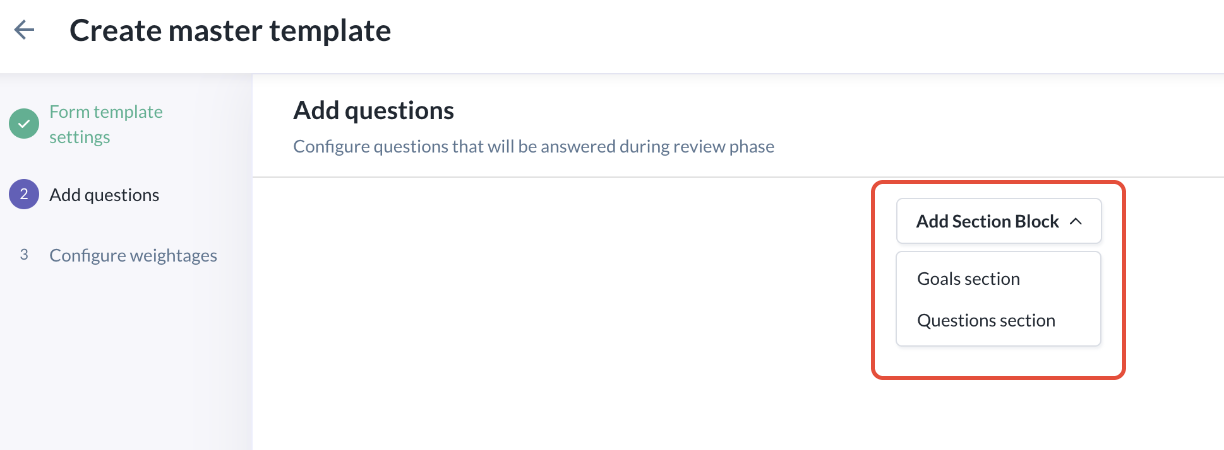
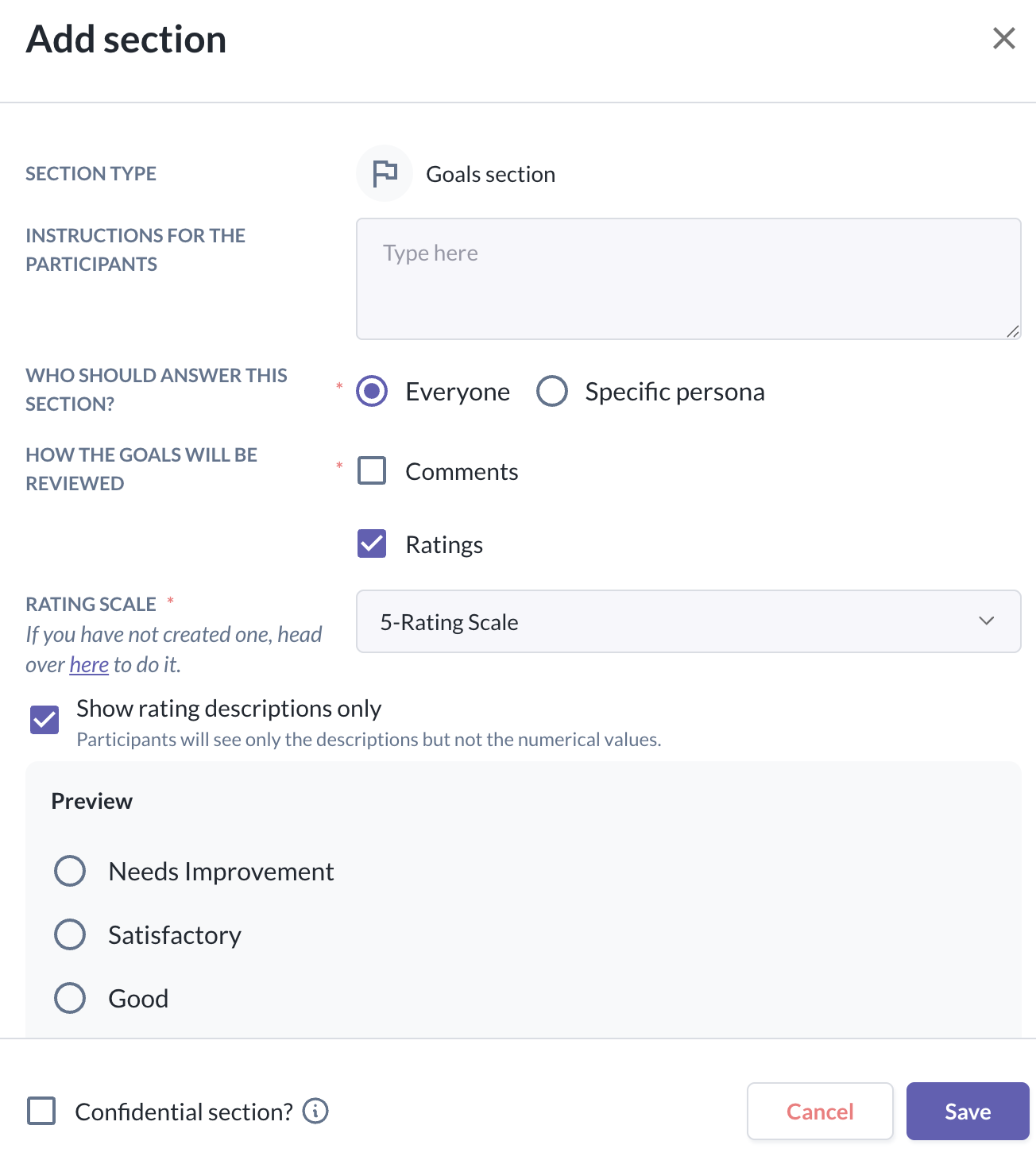
- Goals Section: Used to import goals for the reviewee within the review form. Typically used when performance forms are linked to goal tracking. Only one goal section per form can be added.
- Questions Section: Used to define structured questions for the selected reviewer personas.
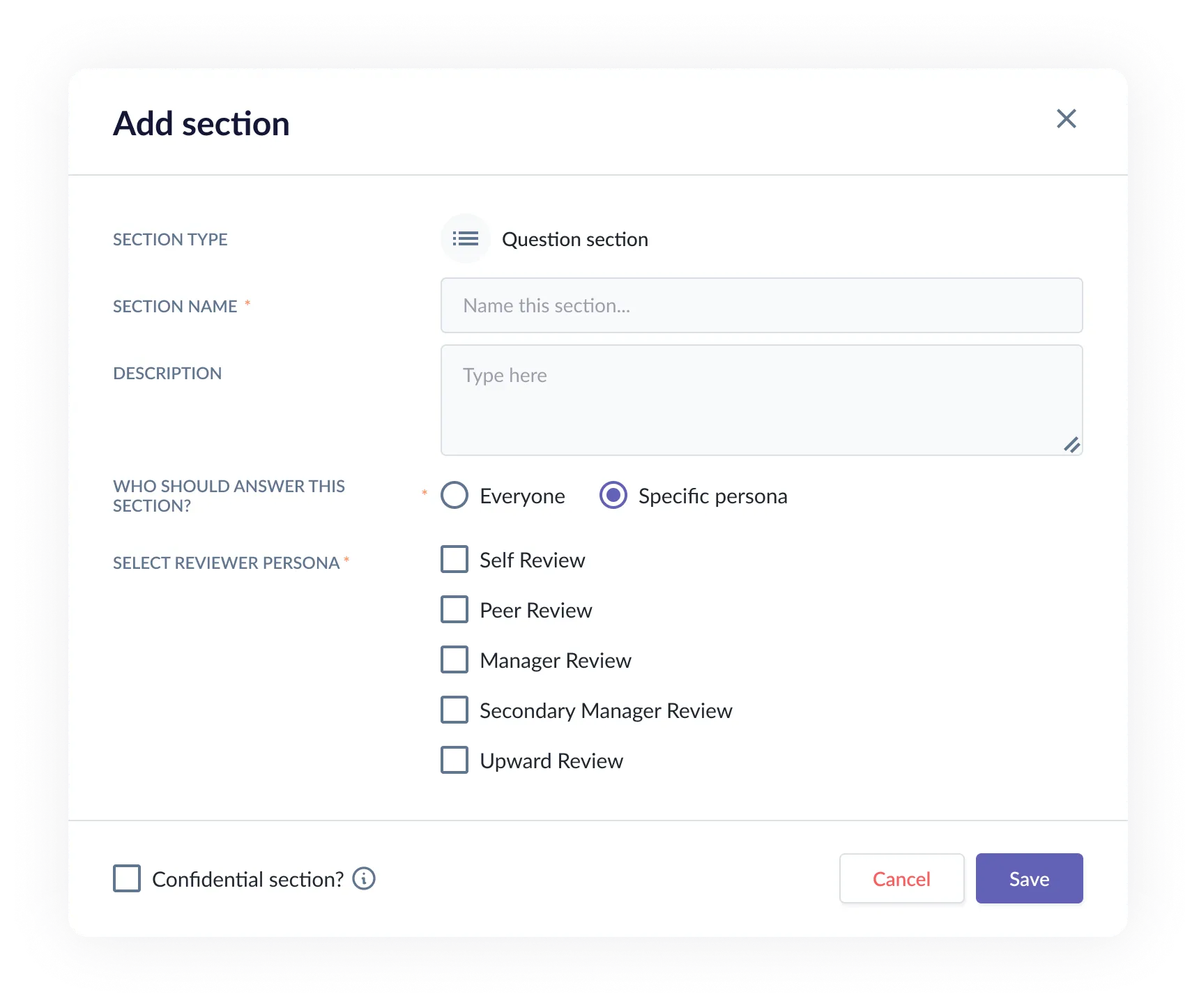
- For each section, you can setup:
- Section Name (required)
- Description (optional)
- Who should answer:
- Everyone
- Specific Persona (Self, Peer, Manager, Secondary Manager and/or Upward Review)
- Confidential Section toggle (optional)
- If enabled, controls whether section/question visibility is restricted from the reviewee.
- For goal section, you can also configure:
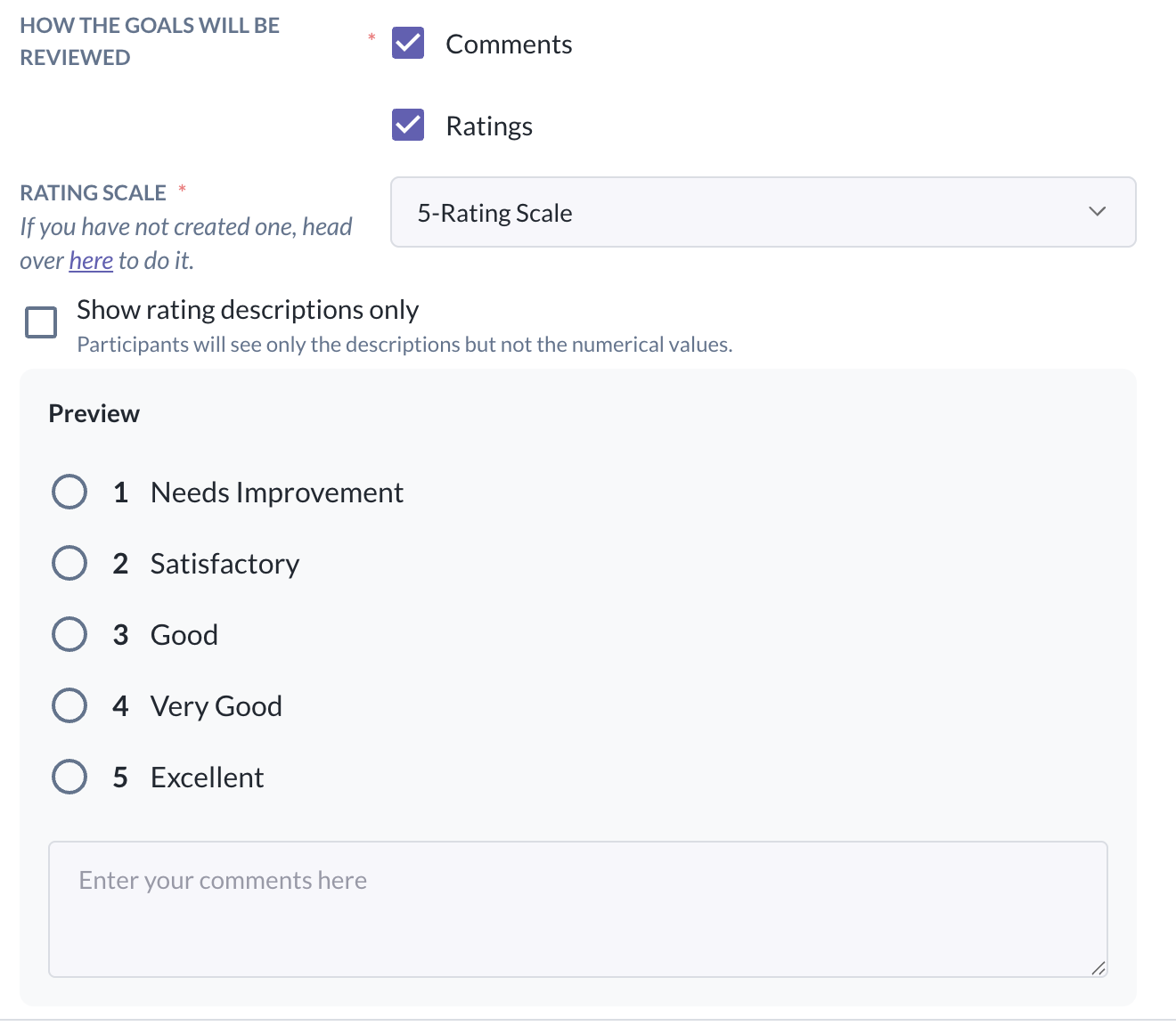
- How the goals will be reviewed:
- Comments
- Ratings
- You can select a rating template you have created and toggle on whether to show rating descriptions only, without the numerical values.
To learn more about creating a rating scale template, click here
- You can select a rating template you have created and toggle on whether to show rating descriptions only, without the numerical values.
- Both
- How the goals will be reviewed:
- You may reorder, edit or delete this sections to fit the template requirements.
Step 4: Add Questions
- You can add any number of questions under each section.
- Each question supports:
- Question Name (required)
- Description (optional)
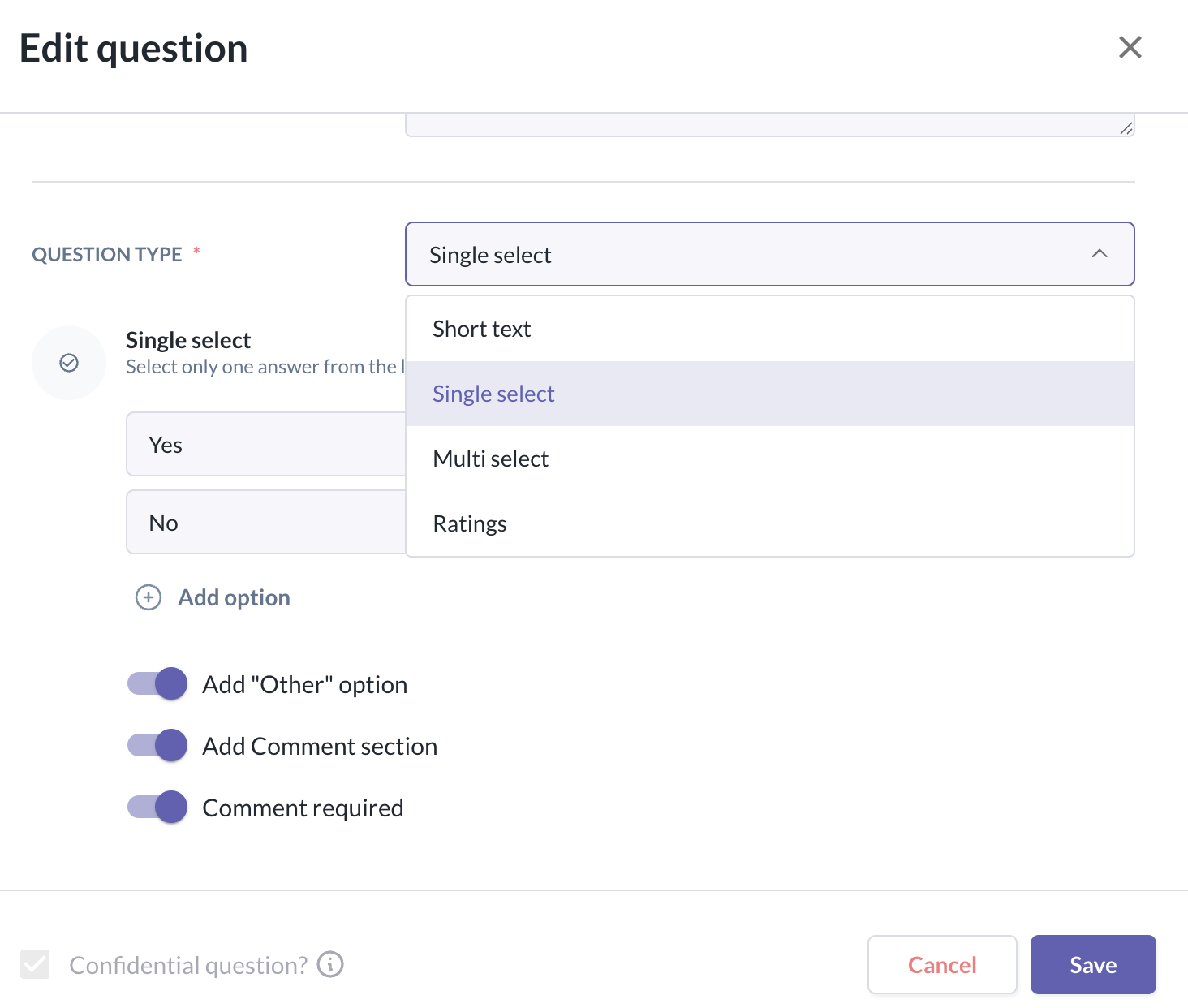
- Question Type includes:
- Short Text
- Paragraph
- Single Select (Add "Other" option)
- Multi Select (Add "Other" option)
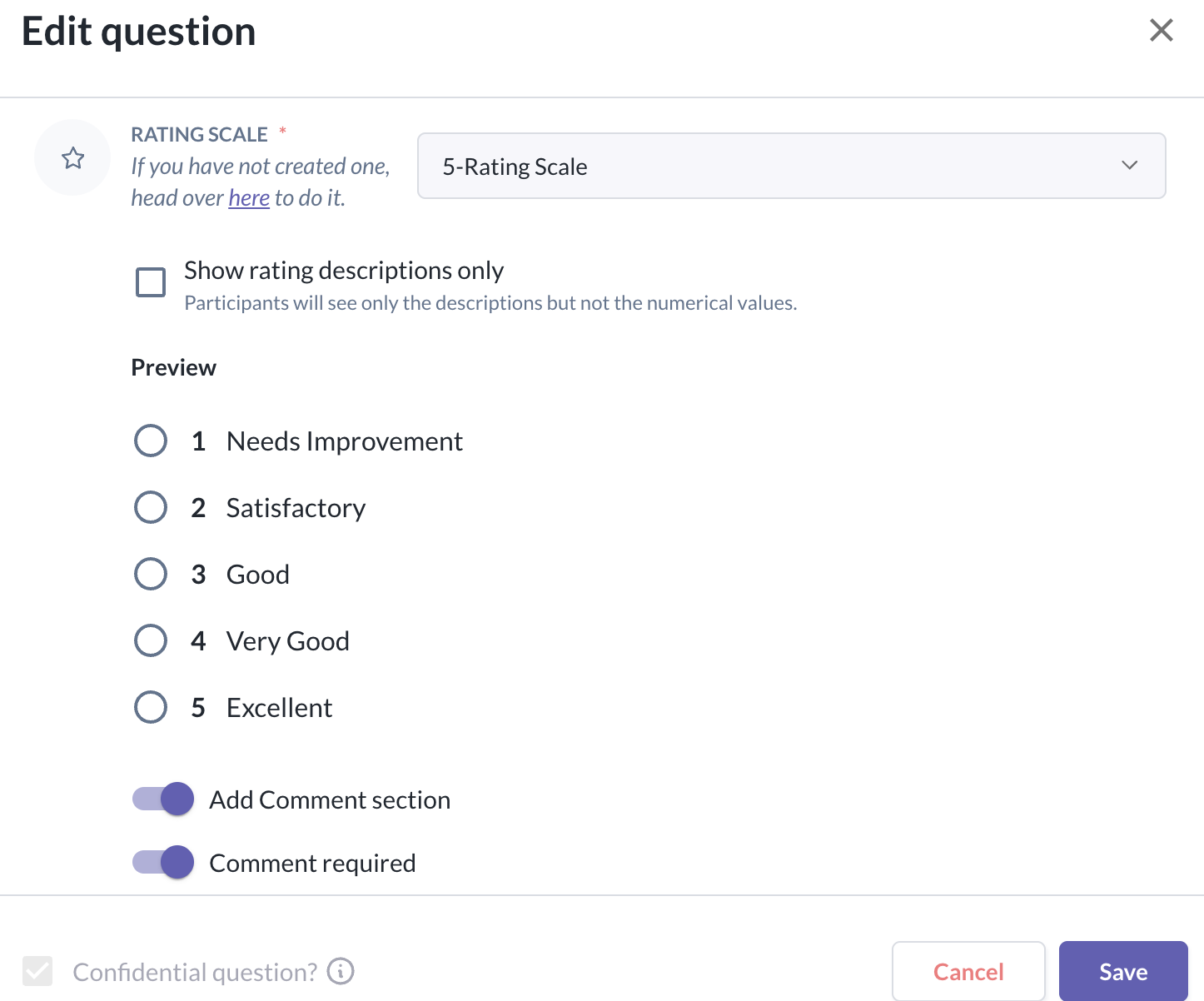
- Rating (Select the rating scale from templates)
- Add comment sections and whether it is required.
- Confidential Question toggle per question
- You may also reorder, duplicate, edit or delete questions where you see fit
Step 5: Configure Weightages
- By default, this option is disabled, and you can click Save if you do not wish to set it up.
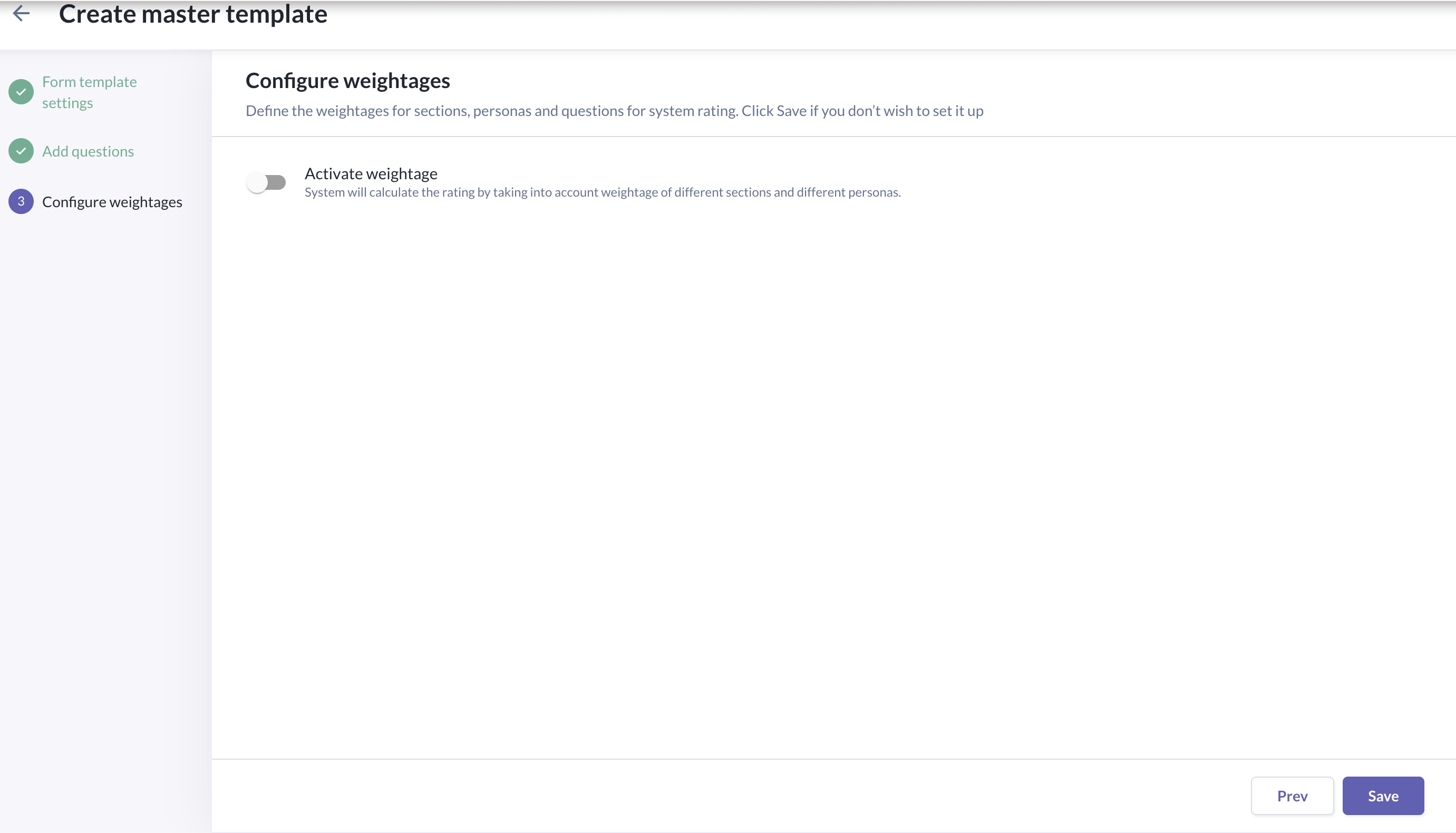
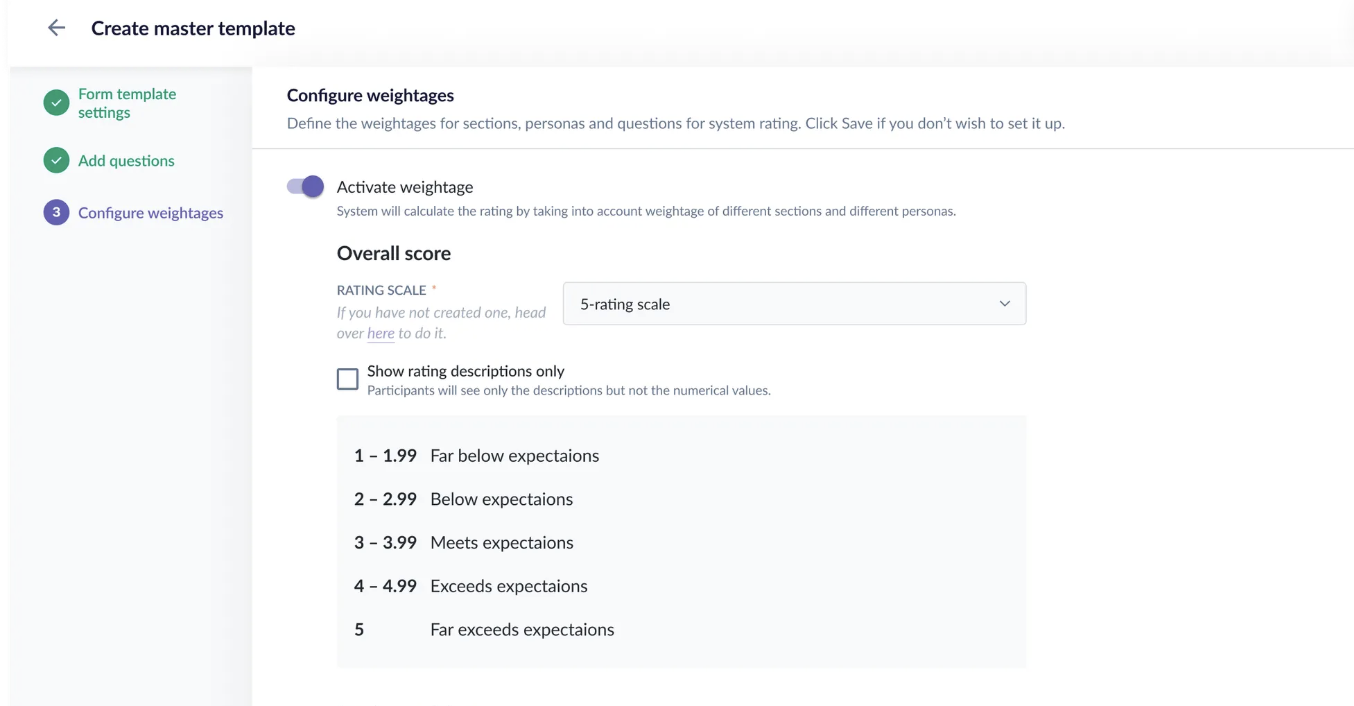
- You may toggle on Activate Weightages if you wish to define the weightages for sections, personas and individual questions for system rating.
- The system will calculate the rating by taking into account weightages of different sections and different personas.
- Overall Score
- You can set the maximum overall score for the review phase. This defines the scoring scale used for the final review result.
- You will be required to select an existing rating scale template (or create a rating scale), which determines:
- The maximum possible score (e.g., 5-point, 10-point scale)
- The rating bands (e.g., 1–1.99 = “One”, 2–2.99 = “Two”)
- You can toggle on Show Rating Descriptions Only to hide numerical ranges and show only the descriptions for participants.
- You can set the maximum overall score for the review phase. This defines the scoring scale used for the final review result.
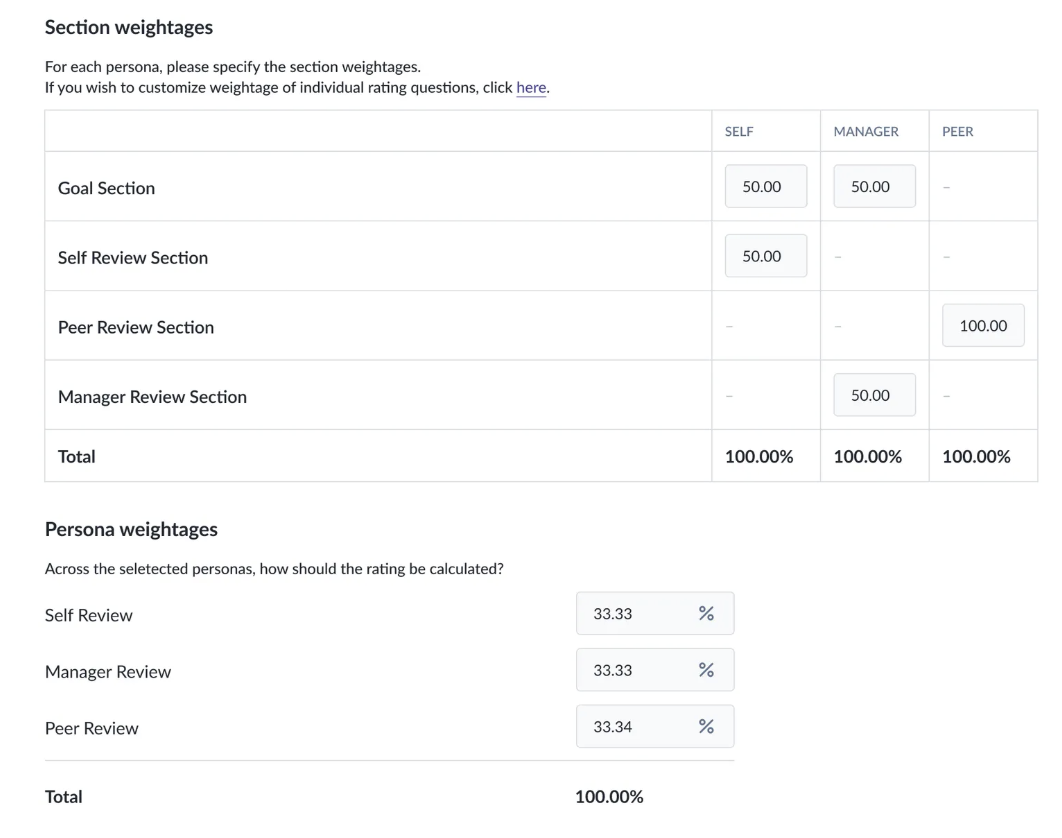
- Section Weightages by Persona
- You can setup the section weightage by persona. This determines how much each section contributes within a given reviewer type.
- For example, within a particular persona, the admin can decide how much weight should come from the goal section compared with other sections included in the review phase.
- Persona Weightage
- You can setup the specific persona weightages. This determines how much each reviewer type contributes to the final result.
- For example, different weight can be assigned to self review, manager review, peer review, secondary manager review, or upward review, depending on which reviewer types are included in the review phase.
- This allows the organisation to reflect whose feedback should carry more influence in the final result.
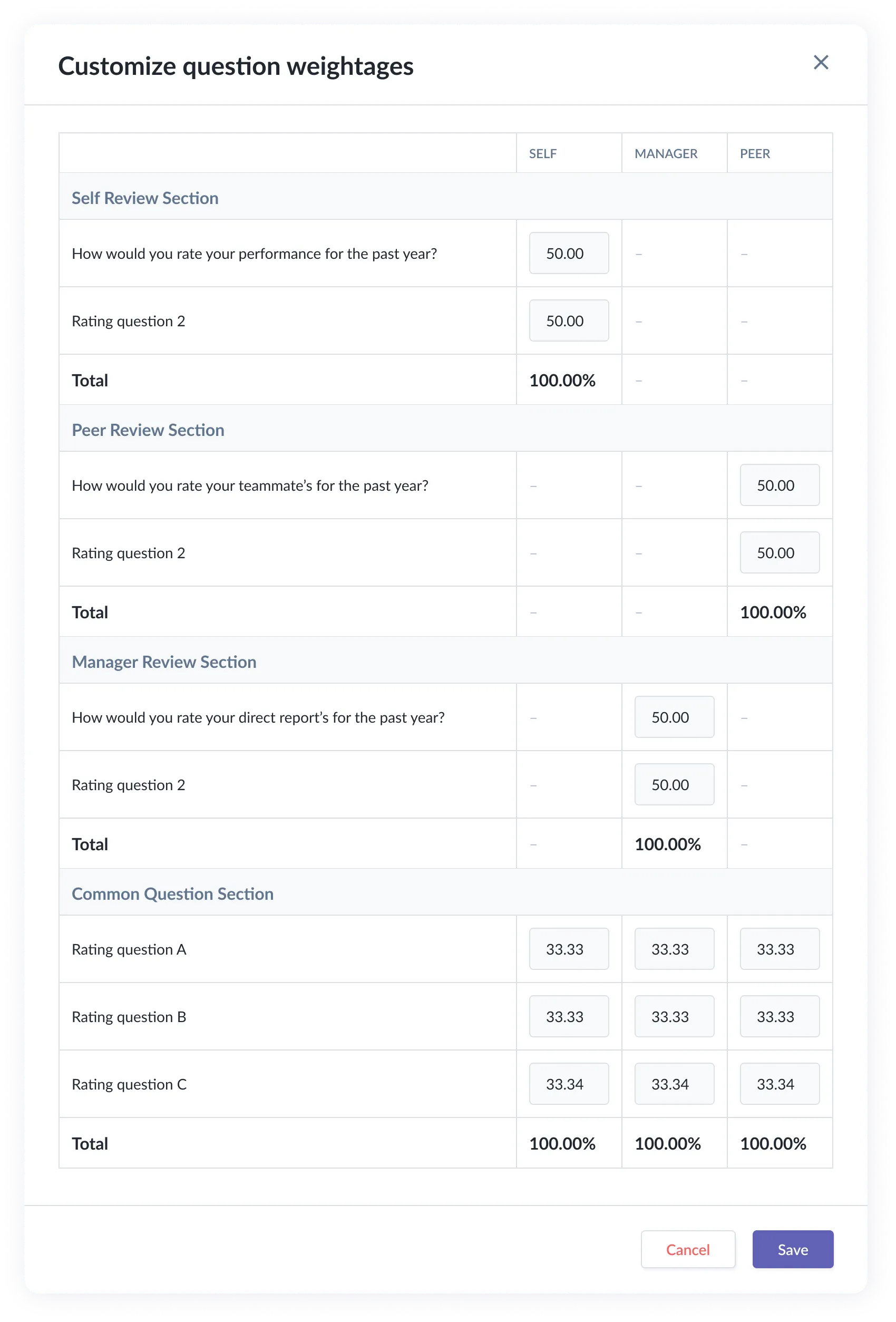
- Custom Question Weightages
- If required, you can also setup question weightages in specific sections.
- This determines how much each question contributes within its section.
- Questions with a higher weight have greater impact on the section result than questions with a lower weight.
- This gives you more control over how individual questions are prioritised within the review phase.
- Once done, click Save to complete creating your master form template.
Managing Templates
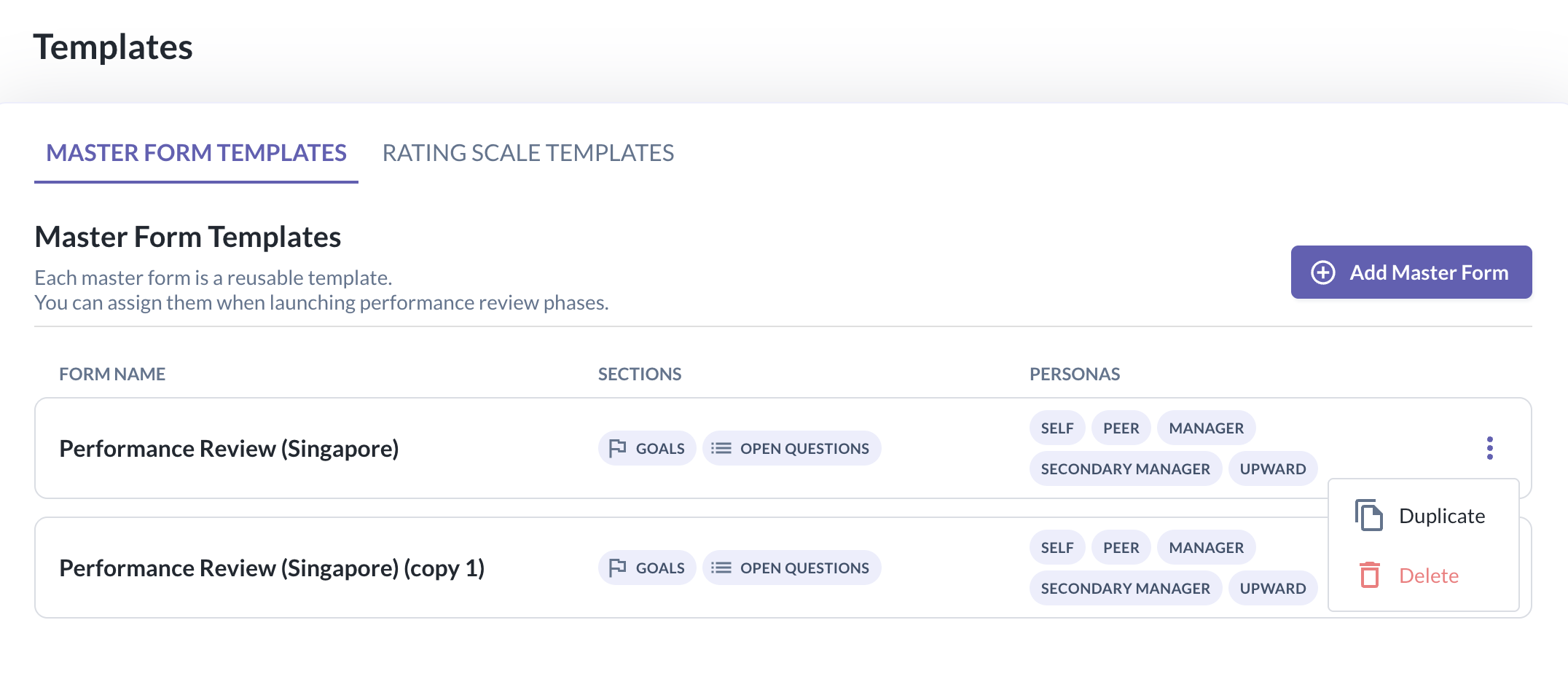
- Admins can manage their form templates from Performance + > Templates > Manage Form Templates
- From this page, admins can:
- View all master form templates
- Add a new template
- Edit existing template
- Duplicate or delete existing templates
Still Need Help?:
Reach out to our support team should you need further assistance.
Was this article helpful?
That’s Great!
Thank you for your feedback
Sorry! We couldn't be helpful
Thank you for your feedback
Feedback sent
We appreciate your effort and will try to fix the article