Overview:
Primary managers can now unlock a direct report's submitted self review directly from Team Reviews, so the employee can revise and resubmit — as long as the self review phase is still in progress.
TABLE OF CONTENTS
When the Lock Icon Appears
The lock icon only appears on a row when all three of the following are true:
- You're the primary manager selected for that reviewee in this review phase.
- The self review phase for that reviewee is In Progress (this takes individual timeline extensions into account).
- The reviewee's self review is currently Submitted.
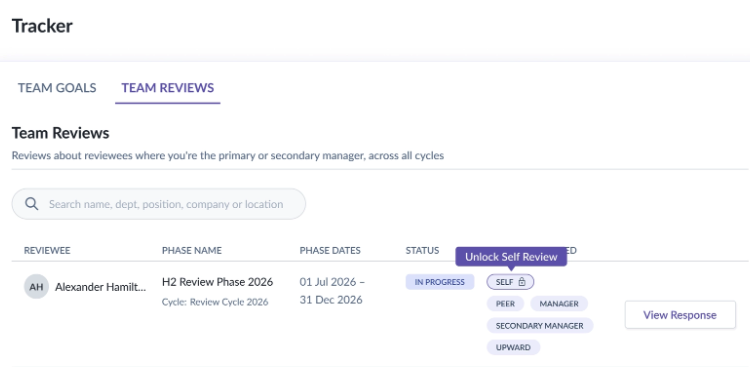
Note: If any of these conditions isn't met, the lock icon won't show on that row. Secondary managers never see the lock icon, regardless of status.
How to Unlock a Self Review
- Go to Performance+ > Tracker > Team Reviews.
- Use the search bar to find the reviewee and confirm their review phase is In Progress.
- Hover over the lock icon — a tooltip will confirm "Unlock Self Review."
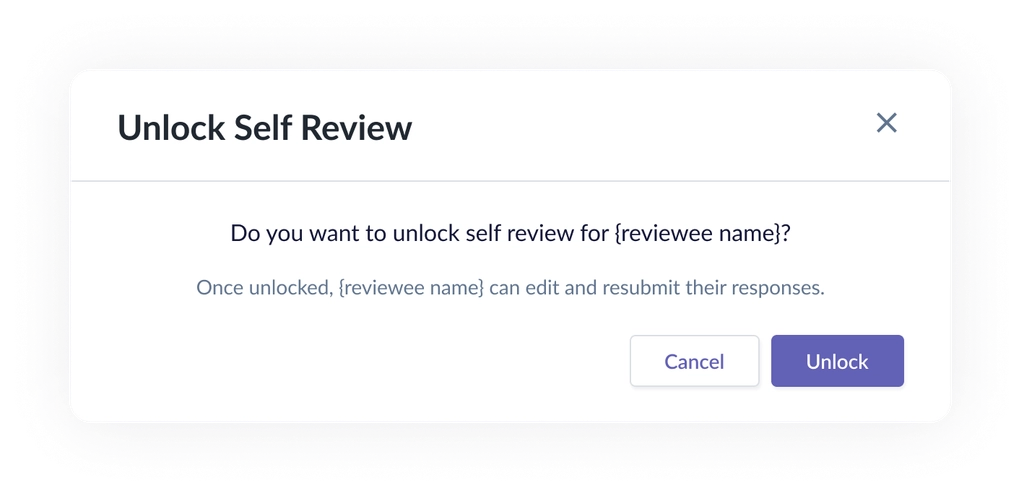
- Click the lock icon. A confirmation pop-up will appear.
- Click Unlock. Here's what happens:
- The employee's self review reverts from Submitted back to Draft, so they can edit it.
- The lock icon disappears from the row immediately — no need to refresh the page.
- A success message confirms: "Self review unlocked. {reviewee name} can now edit their responses."
Once the employee revises and resubmits their review, the lock icon will reappear on their row (as long as all three conditions are still met) — so you can unlock it again if needed.
Important Notes
- The lock icon is scoped to primary managers only — secondary managers won't see it under any circumstance.
- Unlocking is only possible while the self review phase is still in progress; once the phase closes, the option is no longer available.
- There's no limit to how many times you can unlock and re-unlock a self review, as long as the conditions continue to be met.
- No page refresh is needed — the row updates immediately after unlocking.
Still Need Help?:
Reach out to our support team should you need further assistance.
Was this article helpful?
That’s Great!
Thank you for your feedback
Sorry! We couldn't be helpful
Thank you for your feedback
Feedback sent
We appreciate your effort and will try to fix the article