Overview:
For any template you've used with Bulk Send, you can pull a completion report showing who has signed or acknowledged their document and who hasn't — without opening each employee's profile individually.
Pre-requisite
To download the document progress report, a user's role must be granted system function access with the "Manage Templates" permission.
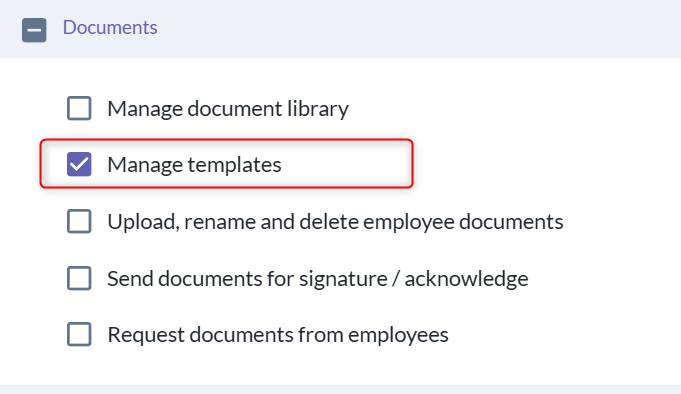
TABLE OF CONTENTS
How to download the progress report
- Go to Documents > Internal Templates > Open the three-dot menu on the template you want to check > click "Download Report"
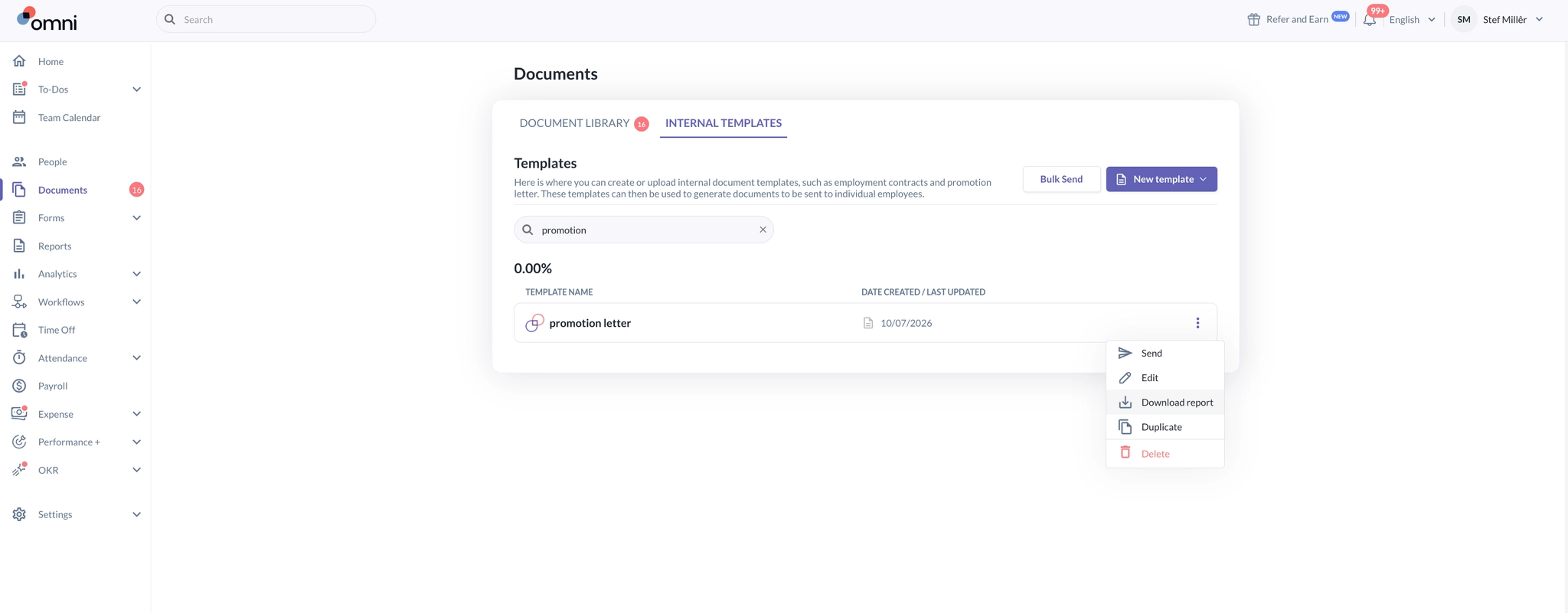
- After you click Download Report, a snackbar appears confirming that the report is on its way — you don't need to wait on the page for it to generate.

- The report is then emailed to you with the subject "Document progress report: {Template name}."
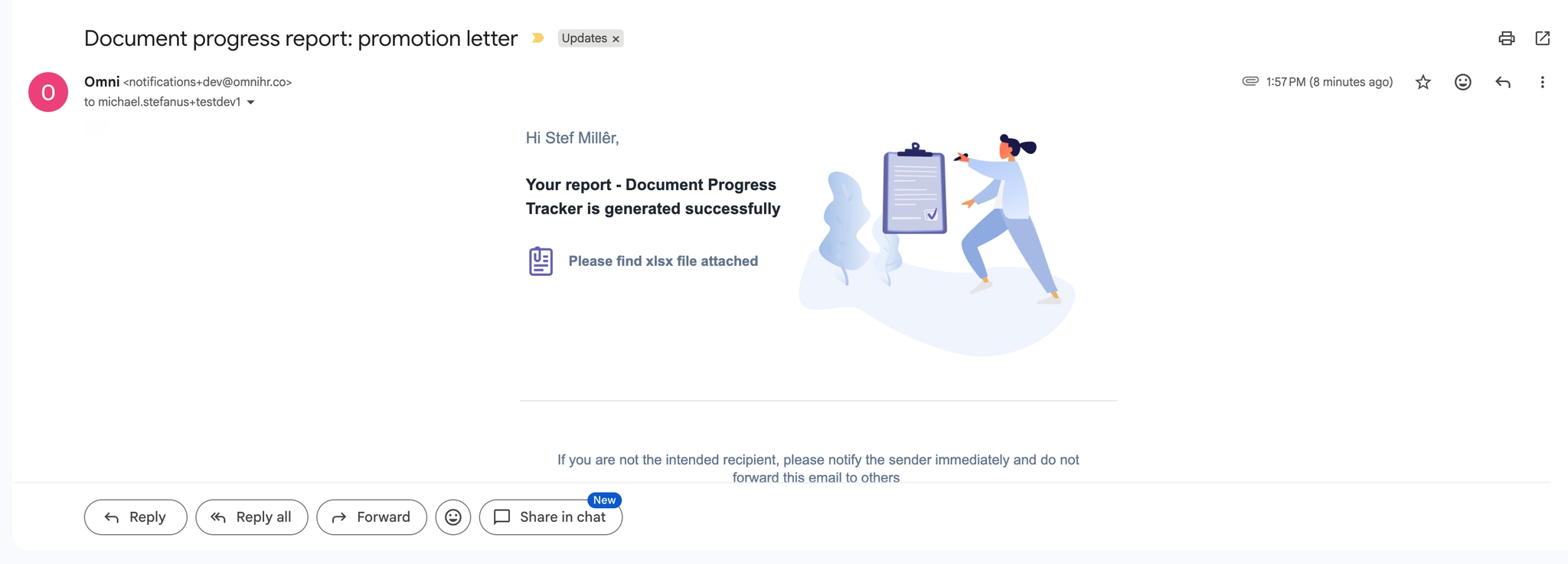
- The report lists every document ever sent from that template, one row per assignee, including:

- Document data section
- Sent document name
- Send Date
- Due Date
- Doc Status — this is a rolled-up status for the whole document
- Outstanding — while anyone (recipient or countersigner) still has an open task
- Done — once everyone involved has finished
- Assignee section
- Assignee's System ID
- Assignee's First name
- Assignee's Last name
- Assignee's Primary Email
- Employment Status — if the employee has since been terminated, they'll still appear in the report, shown with an employment status of "Terminated." Their document remains Outstanding until it's completed.
- Action — Acknowledgement or Sign
- Task Status — this is the employee's individual status: Outstanding or Done
- Completion Date
- Other job information such as: Country, Location, Company, Department, Team, and Position
- Countersign (This field will be blank if the template has no countersign step)
- Same as assignee's column
- Document data section
- The report is then emailed to you with the subject "Document progress report: {Template name}."
How the report behaves when records are deleted
- If the document has only a single assignee (no countersign):
- Once the task is deleted, or the employee's profile is removed, that row will be removed from the report entirely.
- If the document has a countersign step:
- If you delete the task or profile on just one side (either the assignee's or the countersigner's), only that side's data is cleared from the report. The row itself stays in the report as long as the other side's task still exists.
- For example, if the assignee's data is removed but the countersigner's data remains, the row will still show in the report with only the countersigner's information — and vice versa.
- The row is only removed completely once both the assignee's and the countersigner's tasks (or profiles) have been deleted.
Still Need Help?:
Reach out to our support team should you need further assistance.
Was this article helpful?
That’s Great!
Thank you for your feedback
Sorry! We couldn't be helpful
Thank you for your feedback
Feedback sent
We appreciate your effort and will try to fix the article