Overview:
We’ve introduced a new Rating Scale Template system, allowing admins to create reusable rating scales that can be integrated with Master Form template, ensuring consistency and efficiency in performance form setups.
This guide aims to walk you through the steps to take to create a rating scale template under Performance+
TABLE OF CONTENTS
- Steps to Create a Rating Scale Template
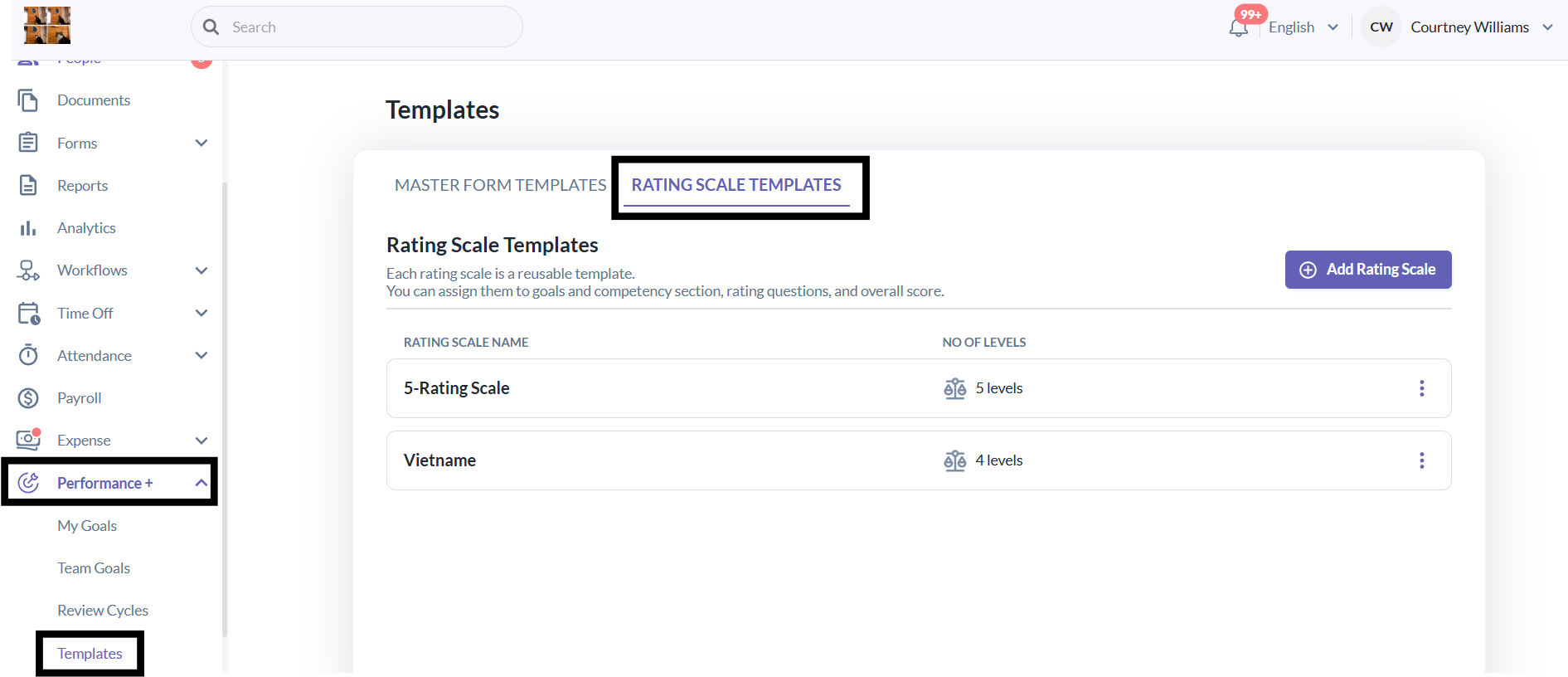
- 1. Go to Performance+ tab > Templates > Rating Scale Templates.
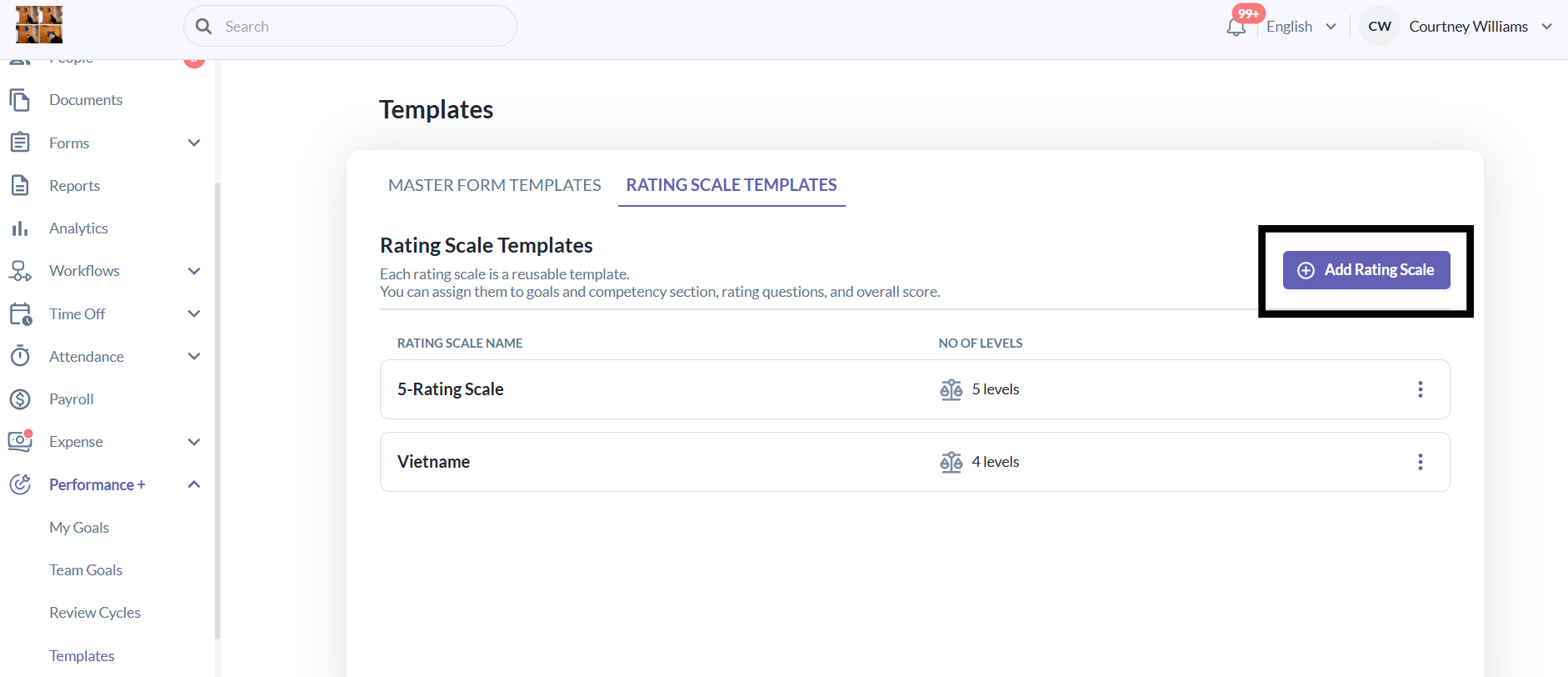
- 2. Click Add Rating Scale.
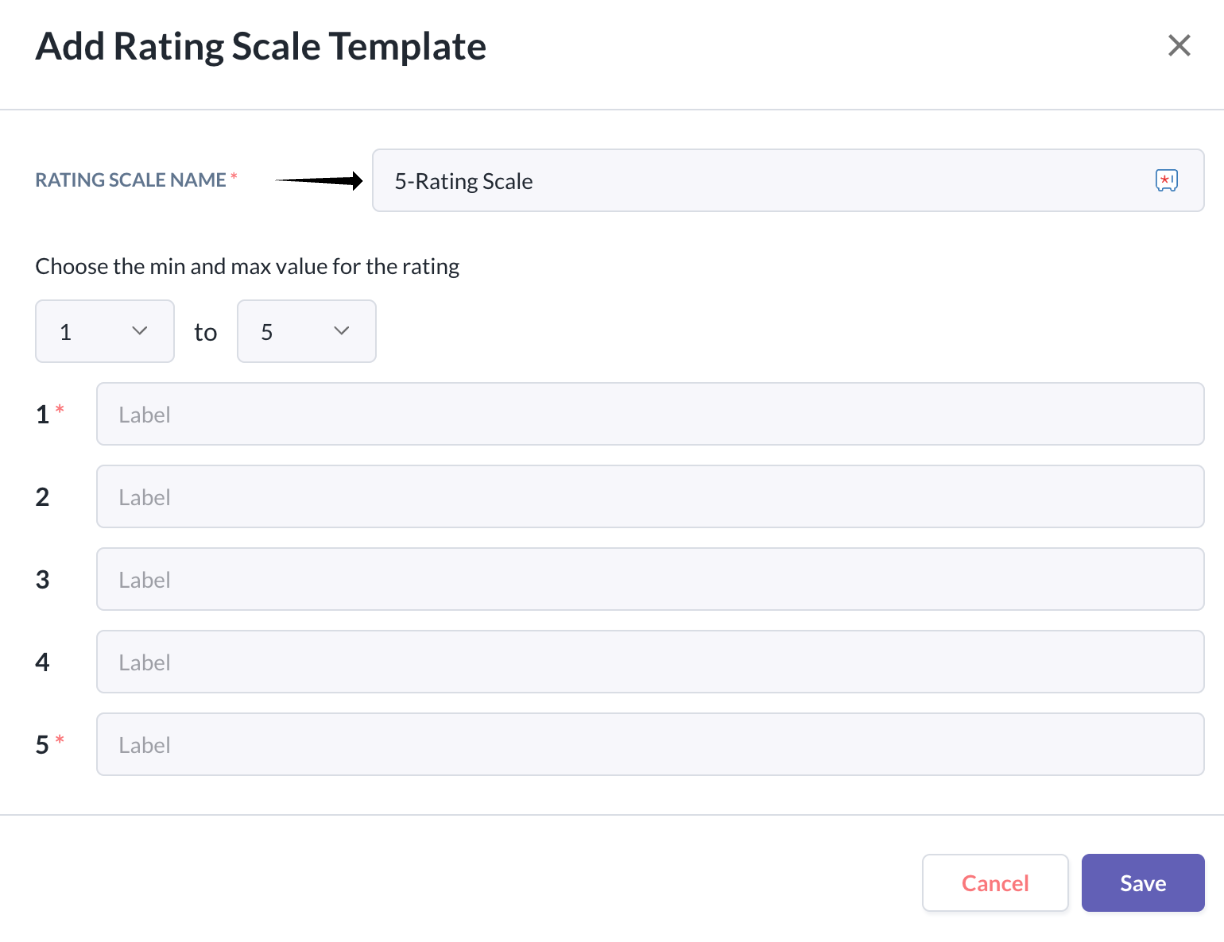
- 3. Enter a rating scale name. (e.g., 5-Rating Scale).
- 4. Configure minimum (0–1 supported) and maximum (1–10 supported) scale values.
- 5. Assign custom labels/descriptions to each level. (e.g., Needs Improvement, Excellent)
- 6. Click Save to complete the setup.
- Important Notes
Steps to Create a Rating Scale Template
1. Go to Performance+ tab > Templates > Rating Scale Templates.
2. Click Add Rating Scale.
3. Enter a rating scale name. (e.g., 5-Rating Scale).
4. Configure minimum (0–1 supported) and maximum (1–10 supported) scale values.
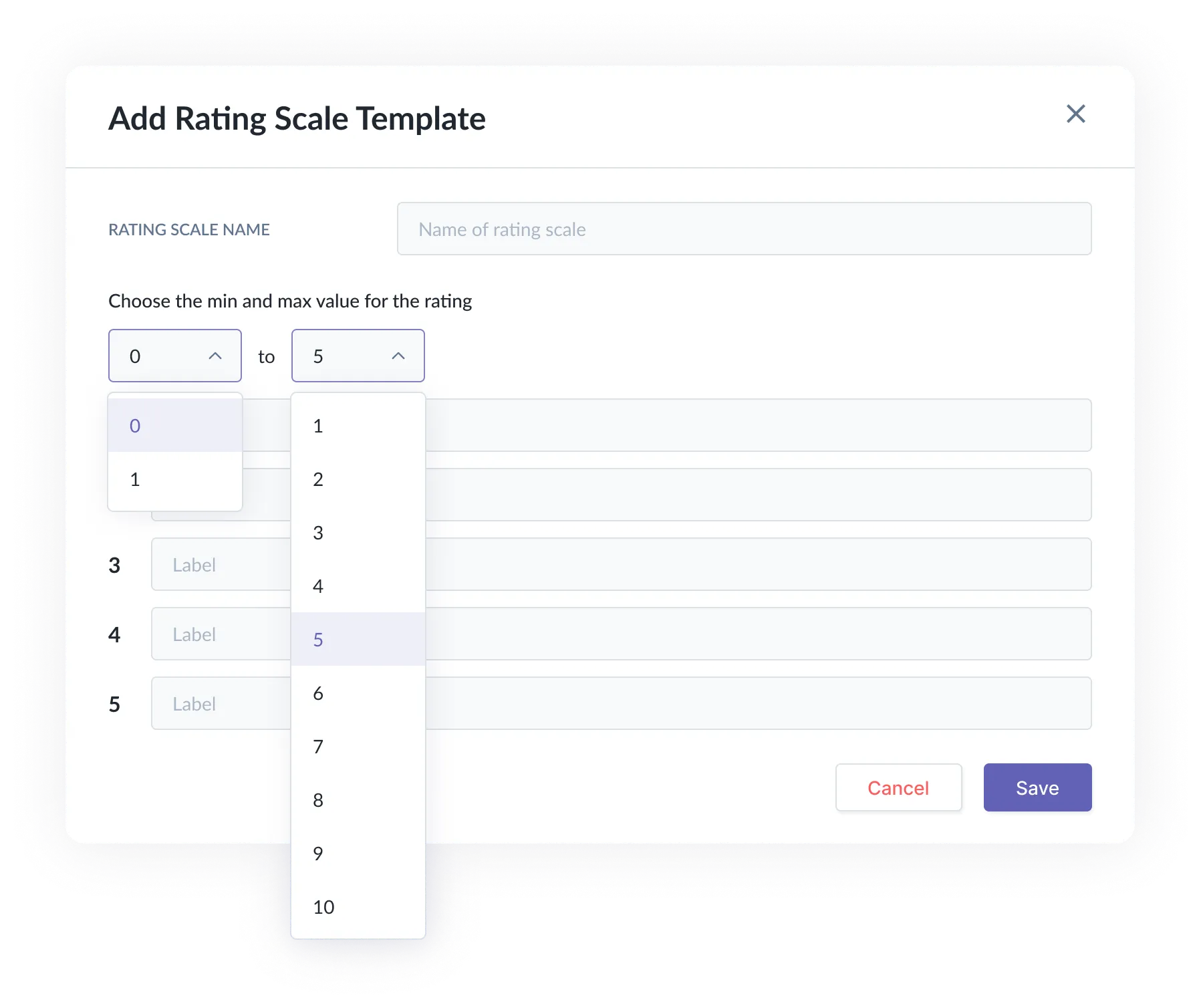
5. Assign custom labels/descriptions to each level. (e.g., Needs Improvement, Excellent)
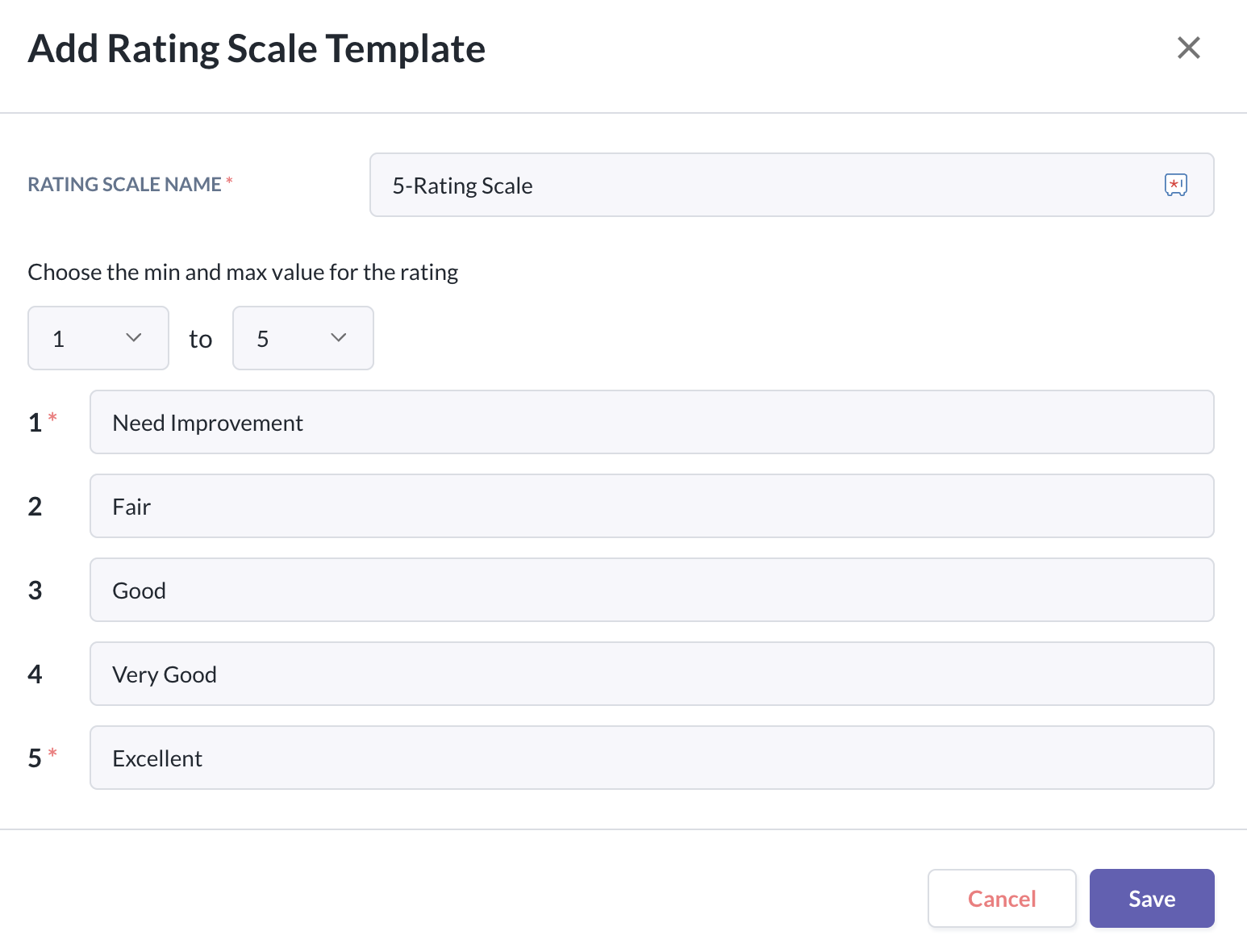
6. Click Save to complete the setup.
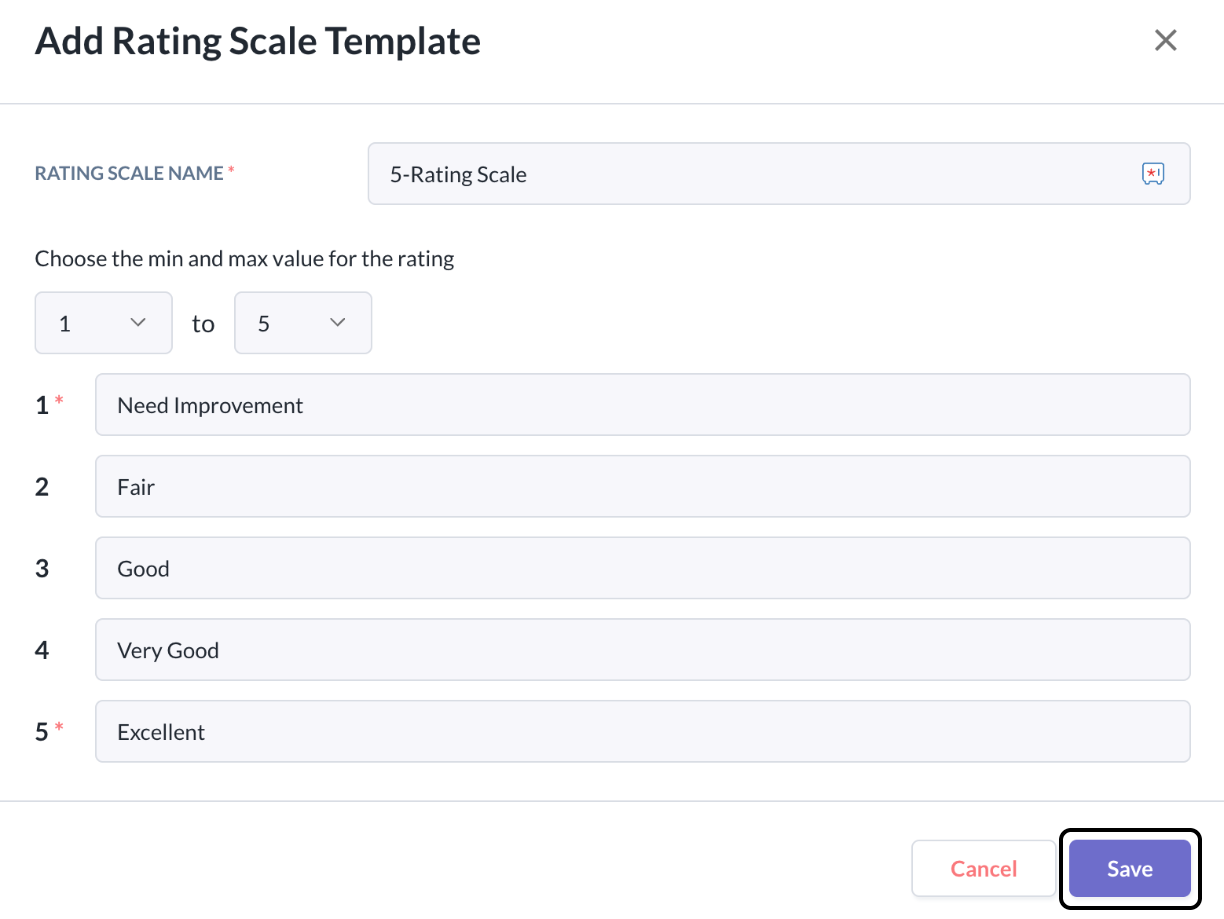
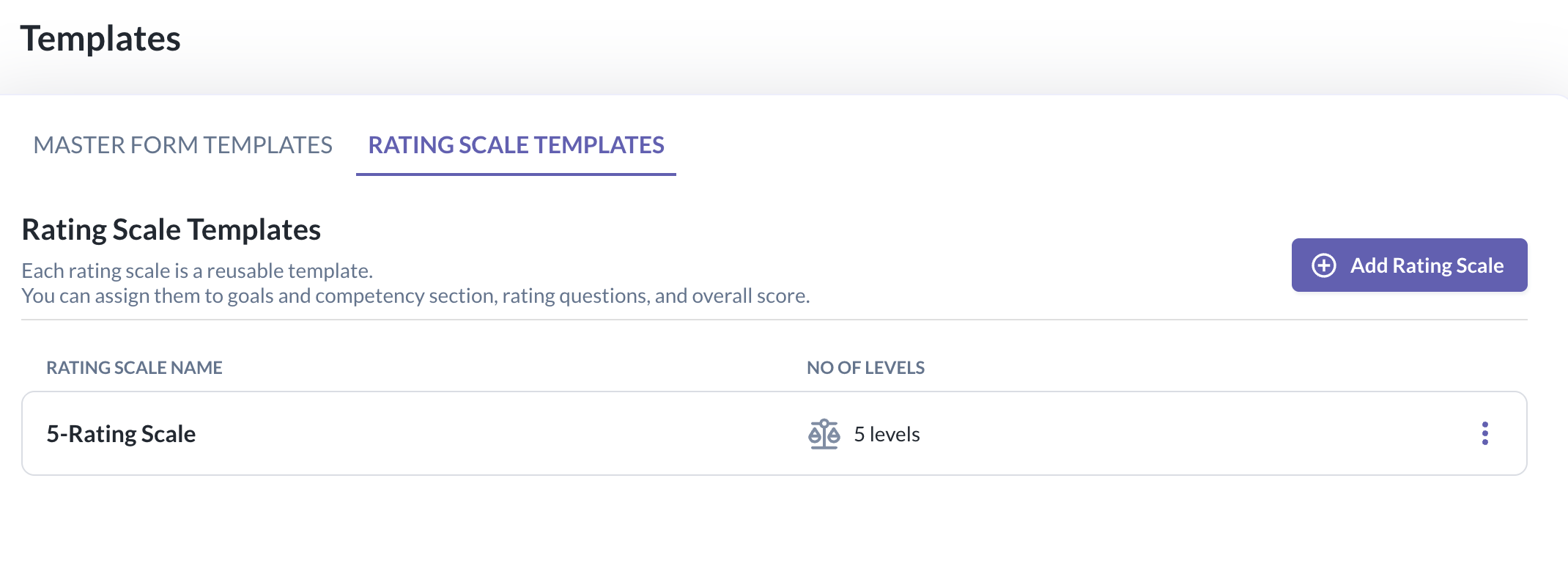
Once the template has been created, you will be able to view the template created and manage it directly from this view:
Important Notes:
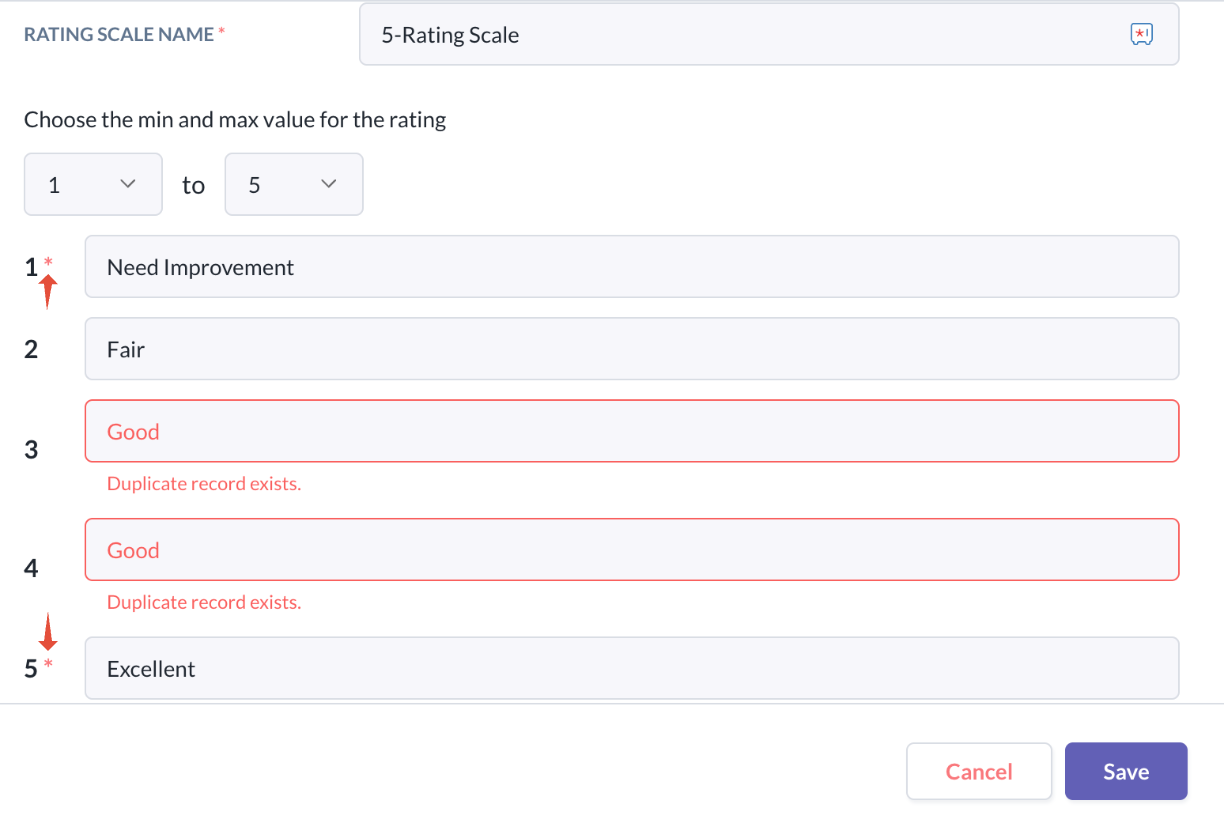
- For the rating scales, only the first and last rating fields are mandatory (represented by the * next to 1 - 5), the intermediate levels are optional fields.
- The system will be able to validate and prevent duplicate labels or descriptions before saving.
Still Need help?
Reach out to our support team for further assistance.
Was this article helpful?
That’s Great!
Thank you for your feedback
Sorry! We couldn't be helpful
Thank you for your feedback
Feedback sent
We appreciate your effort and will try to fix the article