Overview:
Shift Templates allow you to create reusable shift patterns that can be assigned to multiple employees. This helps maintain consistency across teams, enables faster shift assignments, and provides a scalable foundation for future rostering features.
This article walks you through how to create and manage Shift Templates for different shift types, including the key details to configure and how templates behave once they are assigned to employees.
TABLE OF CONTENTS
How to Create Rostering Shift Templates?
- Go to Rostering > Shift Templates. If you already have some created shift templates, you'll see them in this page.
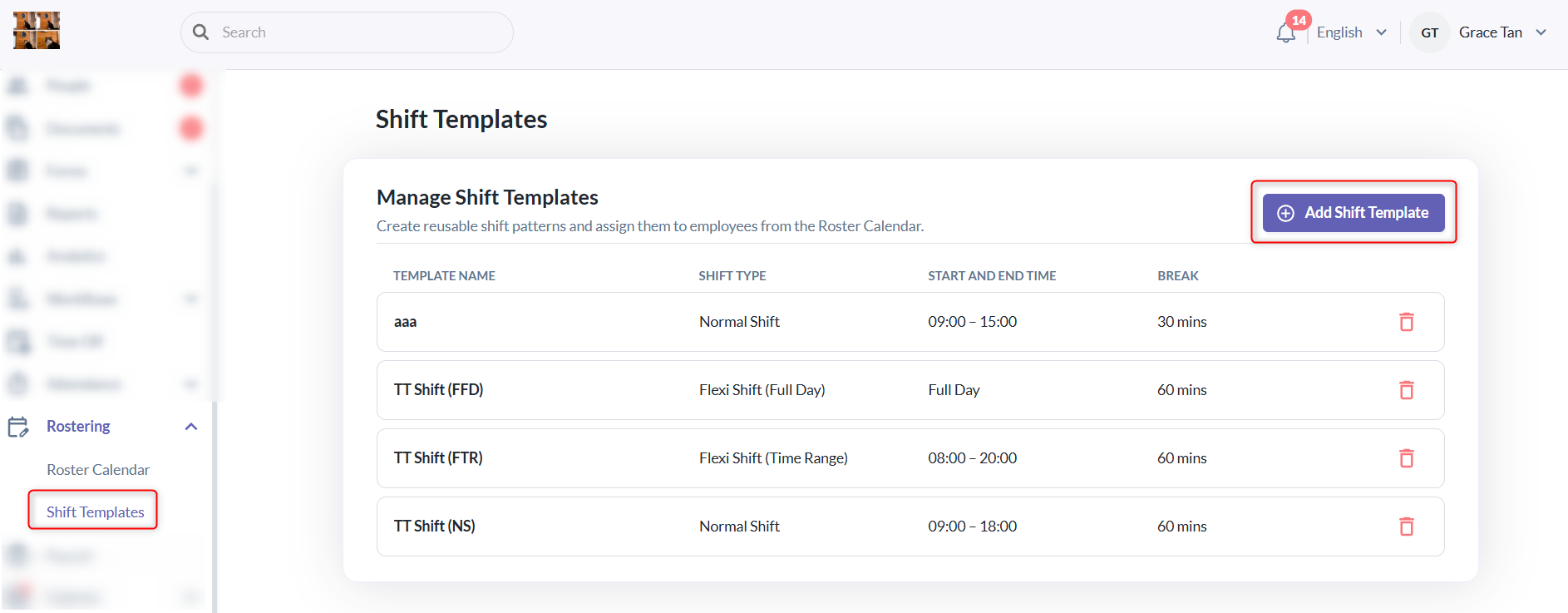
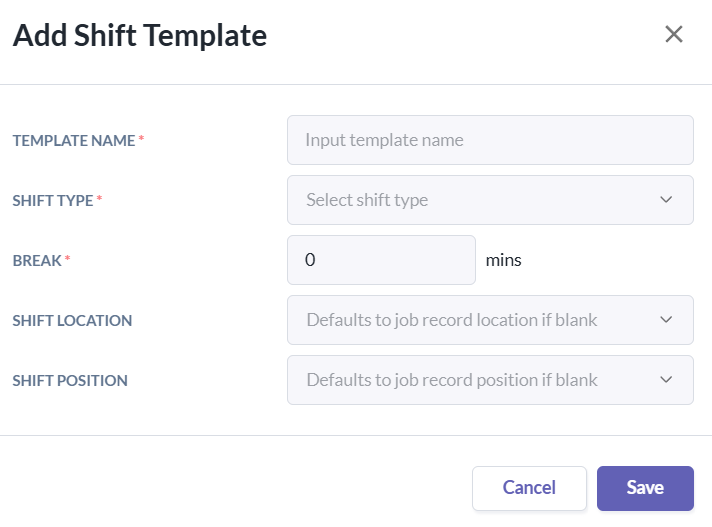
- Click Add Shift Template. A setup window will appear where you can configure the following details:
- Template Name – Enter a name to identify the shift template.
- Shift Type – Select the type of shift you want to create. (the available shift types are explained in the Shift Types section below)
- Normal Shift
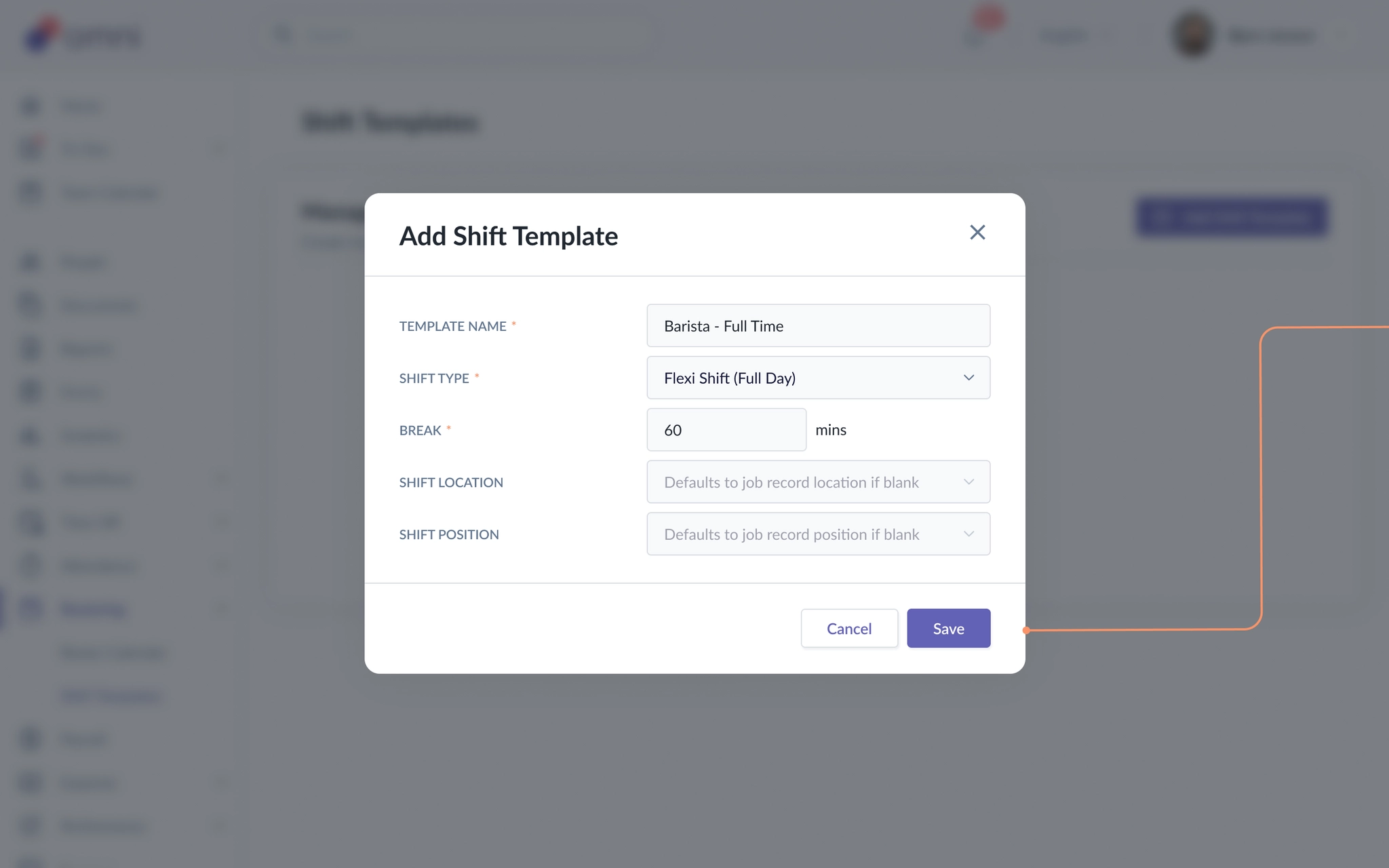
- Flexi Shift (Full Day)
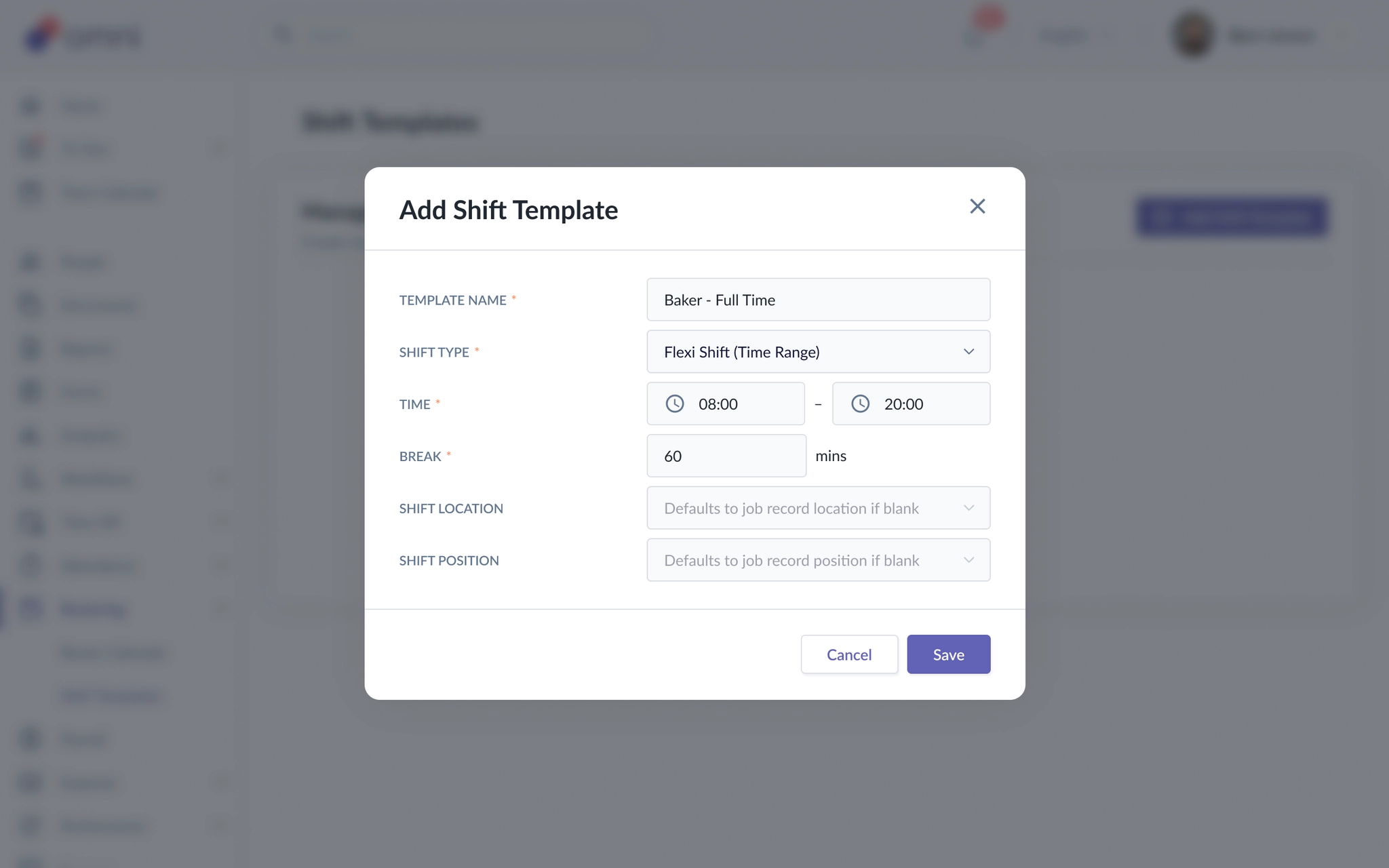
- Flexi Shift (Time Range)
- Break duration – Enter the break duration in minutes.
- Shift location (optional)– Specify the location for the shift. If left blank, the system will use the location from the employee's job record.
- Shift position (optional) – Specify the position for the shift. If left blank, the system will use the position from the employee's job record.
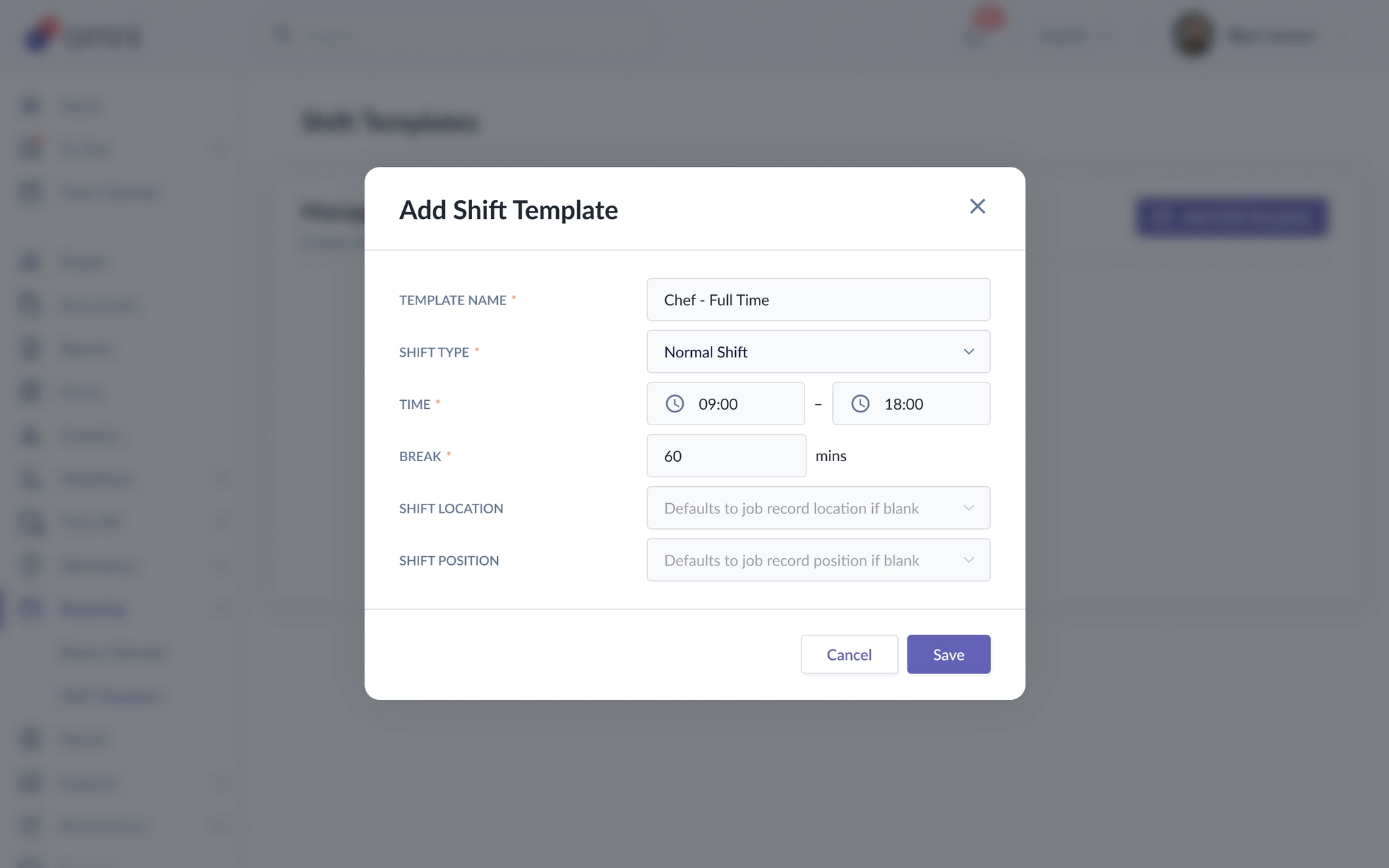
- Once you have filled in all the required details, click Save. The Shift Template will be created successfully and will be available for selection when assigning shifts in the Roster Calendar. For instructions on assigning shifts in Roster Calendar, refer to the guide here.
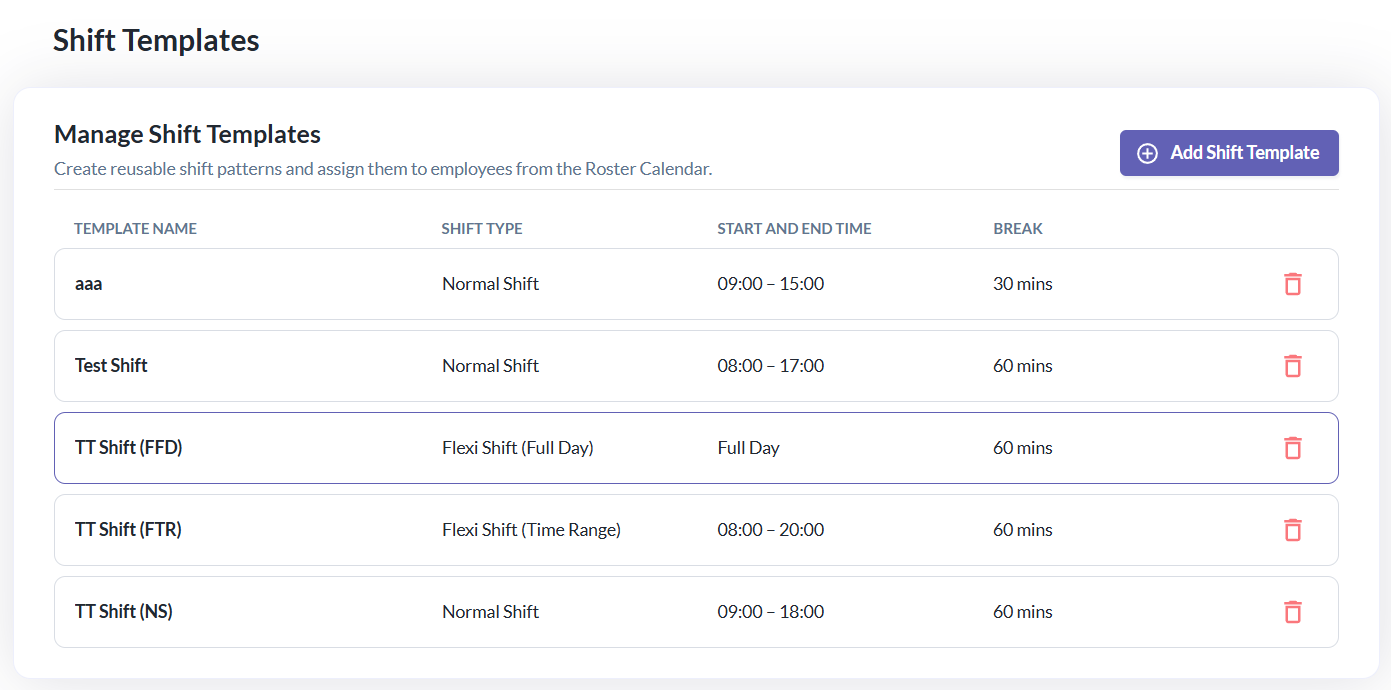
Shift Types
A. Normal Shift
- A Normal Shift has a fixed start and end time. Employees are expected to clock in and out according to the scheduled hours.
- Example: 09:00 to 18:00
B. Flexi Shift (Full Day)
- A Flexi Shift (Full Day) does not have a fixed start or end time. Employees can clock in and out at any time during the day.
- This is useful when employees have flexible working hours.
C. Flexi Shift (Time range)
- A Flexi Shift (Time Range) allows employees to clock in and out within a defined time range, instead of following one fixed start and end time.
- For example, the time range can be 08:00 to 20:00. Employees can start and finish at different times within this range, as long as they meet the required working duration.
- Example: An employee may clock in at 09:00 and work for 8 hours, instead of being required to start exactly at 08:00.
Important Notes
- Once a Shift Template is assigned to an employee, the assigned shift is not affected by future changes to the template.
- Editing a Shift Template: Changes to the template will not update shifts that have already been assigned.
- Deleting a Shift Template: Deleting a template will not affect shifts that have already been assigned and appear in the Roster Calendar.
In short, Shift Templates are used to create future shift assignments only. Once a shift has been assigned, it remains unchanged even if the template is later edited or deleted.
Still Need Help?:
Reach out to our support team should you need further assistance.
Was this article helpful?
That’s Great!
Thank you for your feedback
Sorry! We couldn't be helpful
Thank you for your feedback
Feedback sent
We appreciate your effort and will try to fix the article