Overview:
Proxy View allows an authorised operator to access Omni HR as a specific employee.
With Proxy View, the operator can see Omni HR from the employee’s perspective, including their sidebar, permissions, and data, and perform actions on their behalf.
This can be useful when:
- An employee is unable to access or complete something in Omni HR.
- An admin needs to troubleshoot an issue based on what the employee can see.
- An employee is unavailable, such as when they are on leave or offline.
- An admin needs to perform an action on behalf of an employee.
All proxy sessions and changes made during the session are recorded in the backend audit trail.
TABLE OF CONTENTS
How to Set Up Proxy View
- Go to Setting > Access Control > then go to the access role of the user who should manage and monitor operator in the proxy view.
- This access permission is disabled by default for every role.
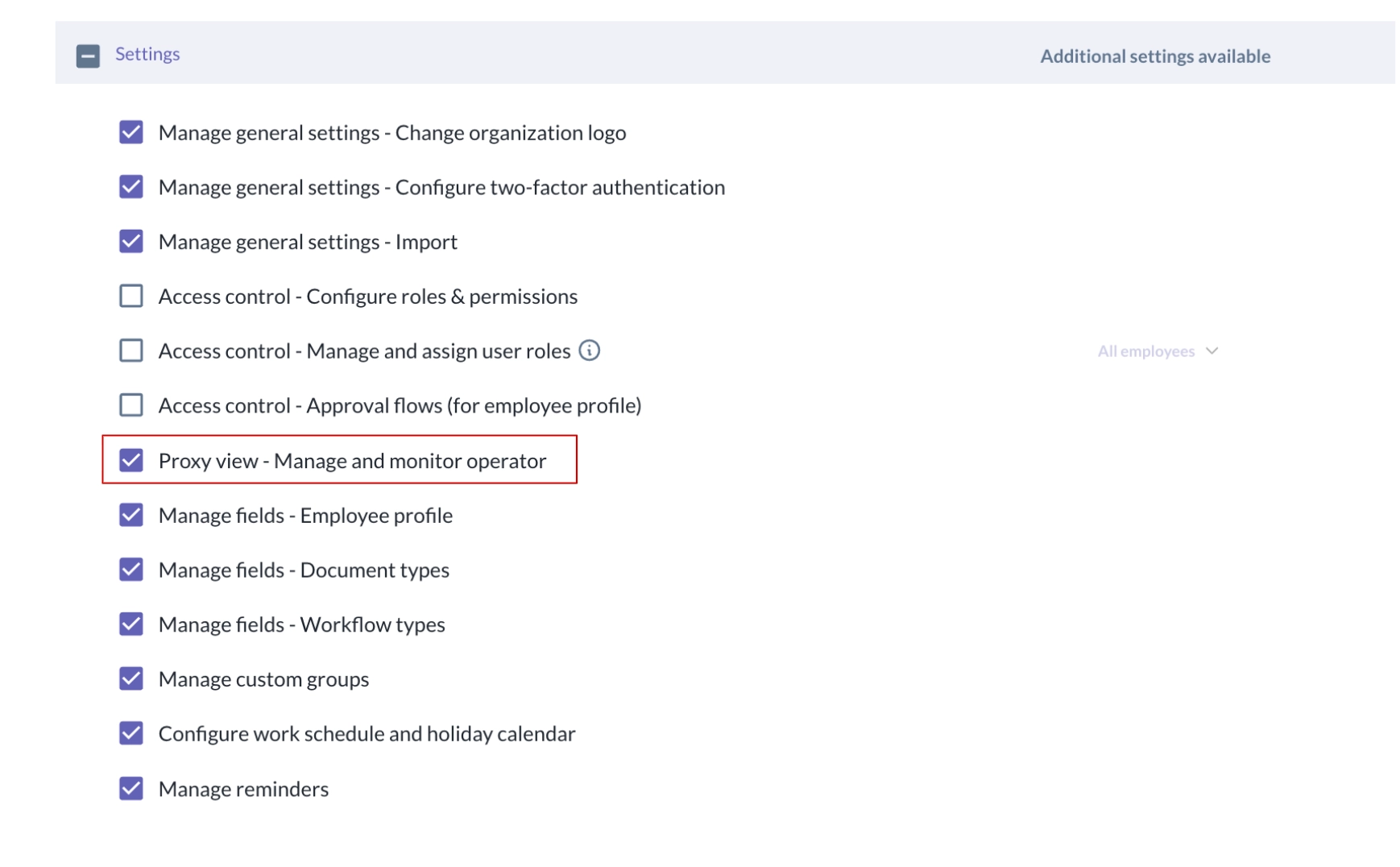
- This access permission is disabled by default for every role.
- After the access permission in Step 1 is granted, the admin with the permission should be able to see Proxy View under Settings > Proxy View.
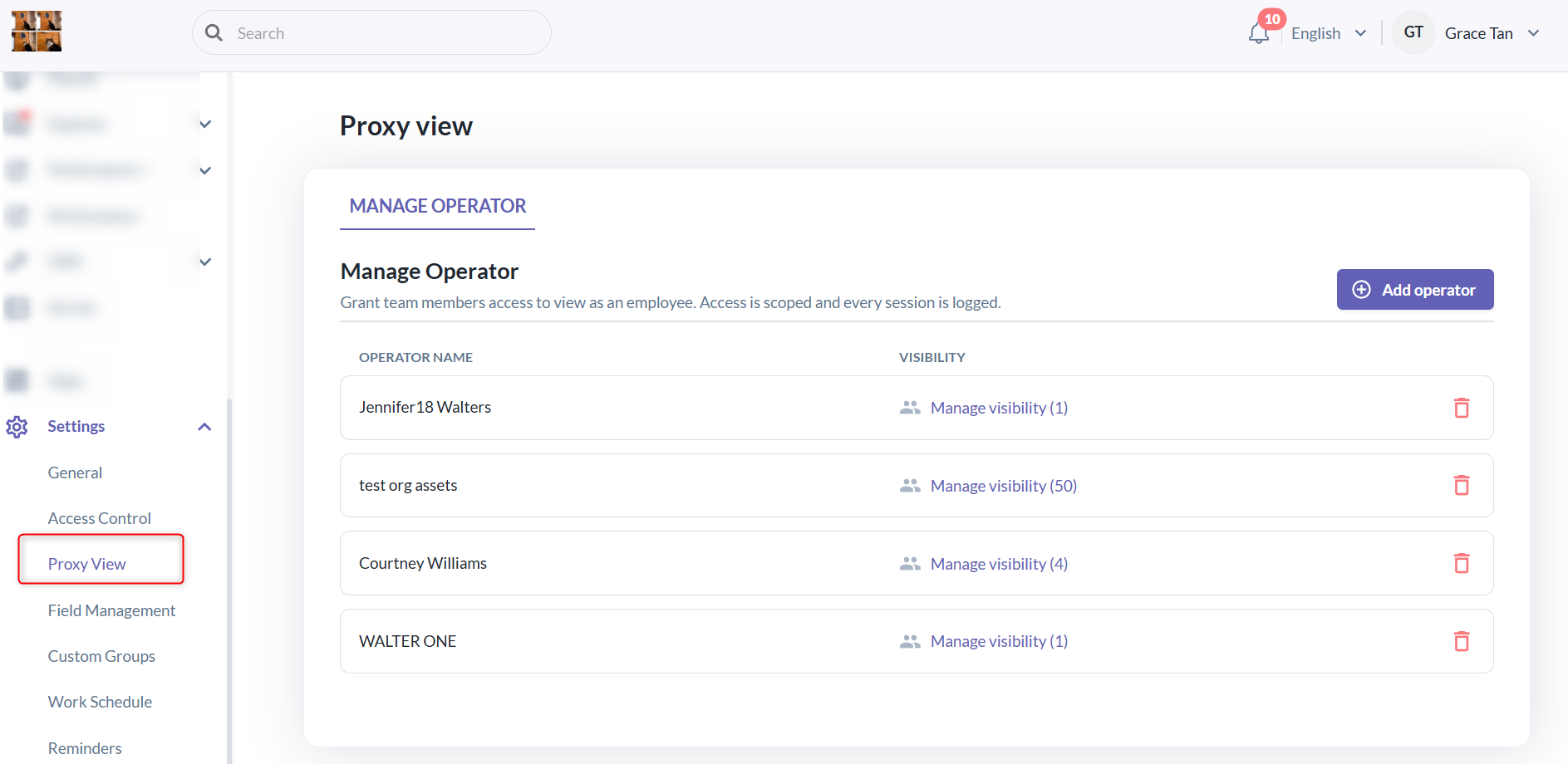
- Next, you can manage the operators by clicking “Add Operator” to grant the operator access to view as an employee.
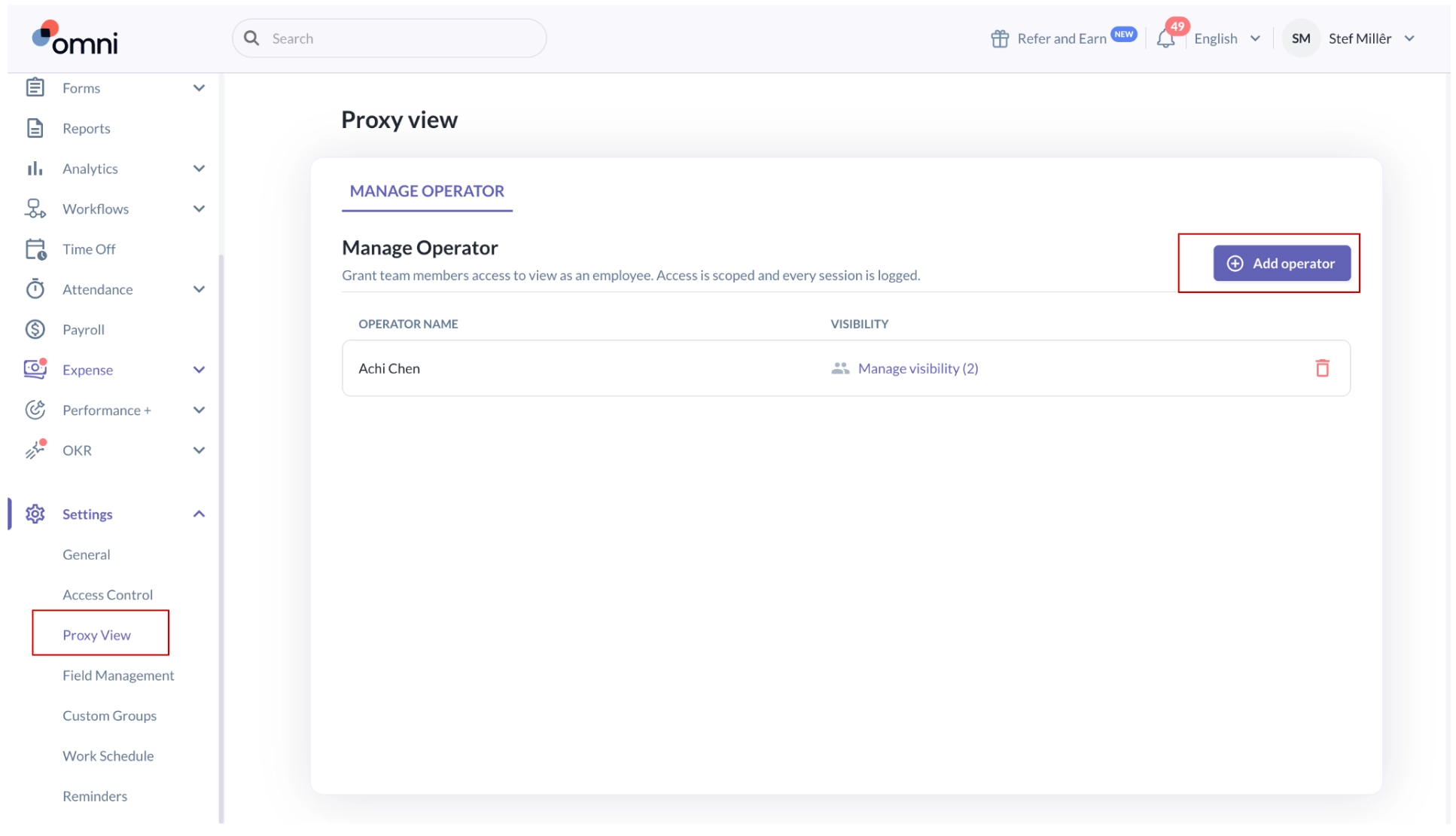
- Step 1 – Add Operator Information: Select the employee who will be allowed to operate as others employees.
- Step 2 – Set the Visibility scope: Under Visibility scope, select the employees that the operator is allowed to operate as.
- Important: Although this page currently displays all employees in the organization, the operator can only operate as employees whose profiles they already have access to.
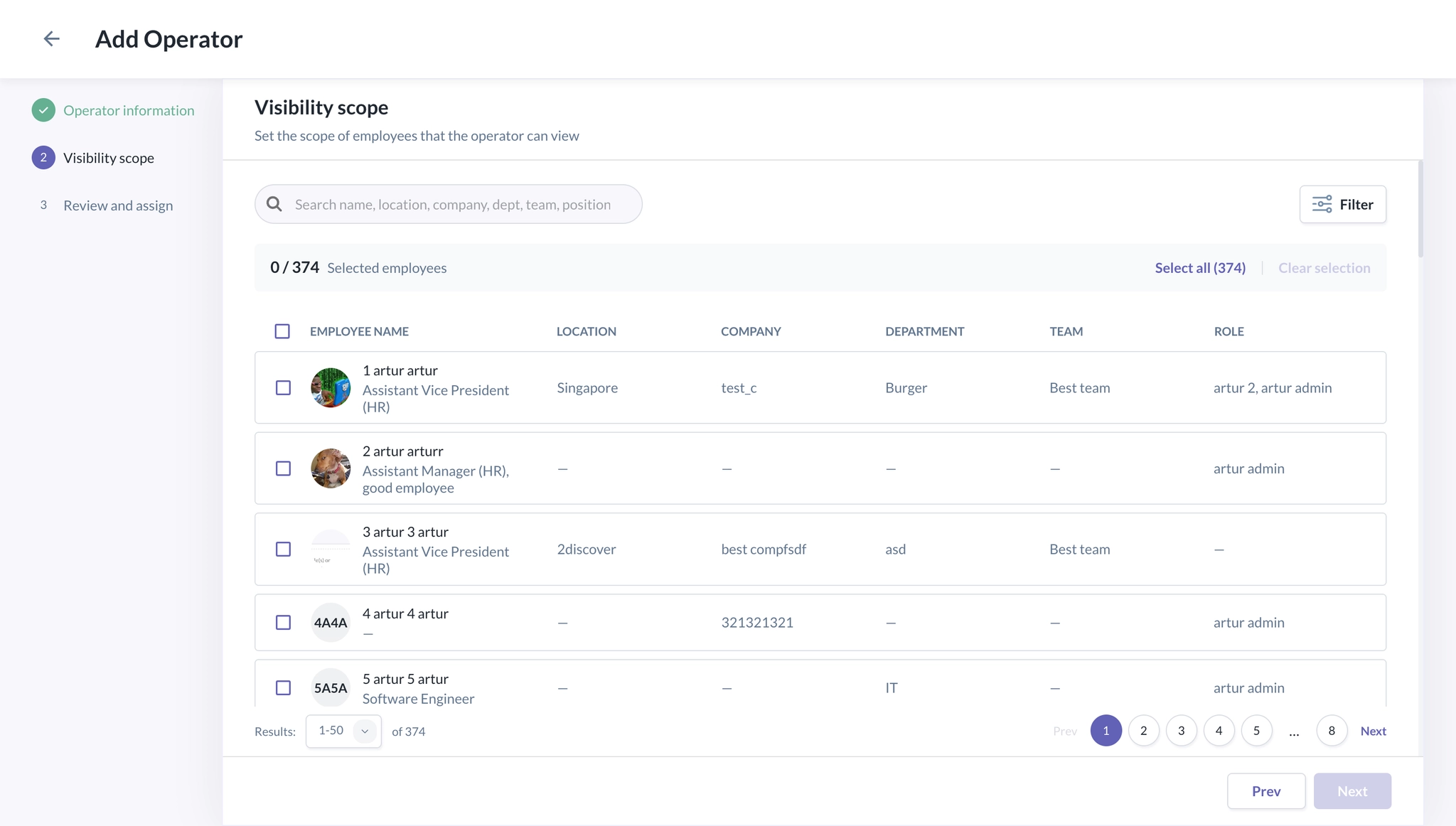
- Important: Although this page currently displays all employees in the organization, the operator can only operate as employees whose profiles they already have access to.
- Step 3 – Review and Assign: Review the operator and employee visibility scope, then click Save to assign the access.
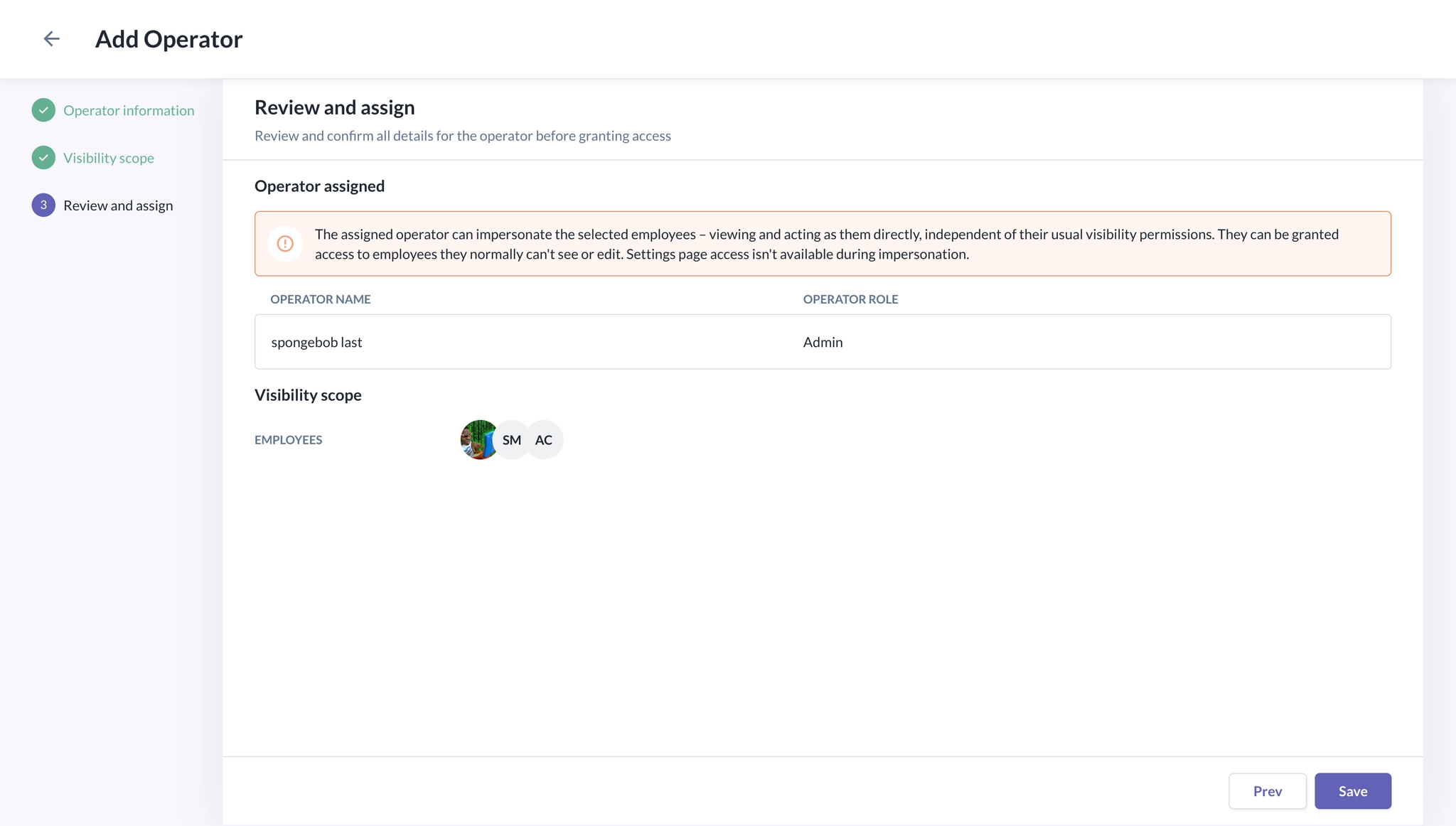
- You can later manage the visibility by clicking on the operator and selecting Add Scope if you want to add more employees to their scope. You can also manage their visibility, remove employees from their scope, or delete the operator.
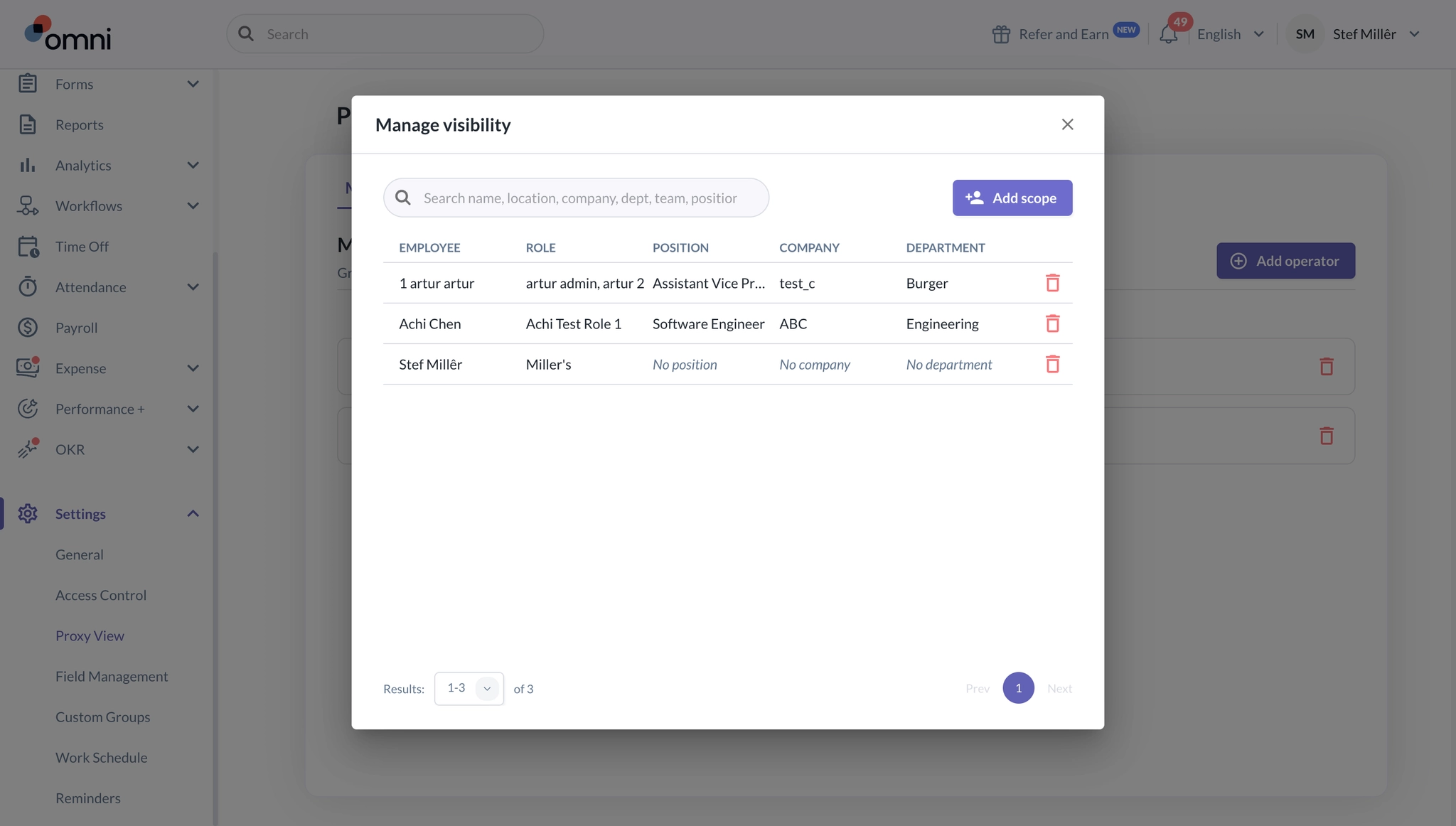
- You can later manage the visibility by clicking on the operator and selecting Add Scope if you want to add more employees to their scope. You can also manage their visibility, remove employees from their scope, or delete the operator.
- Step 1 – Add Operator Information: Select the employee who will be allowed to operate as others employees.
How to Operate as an Employee
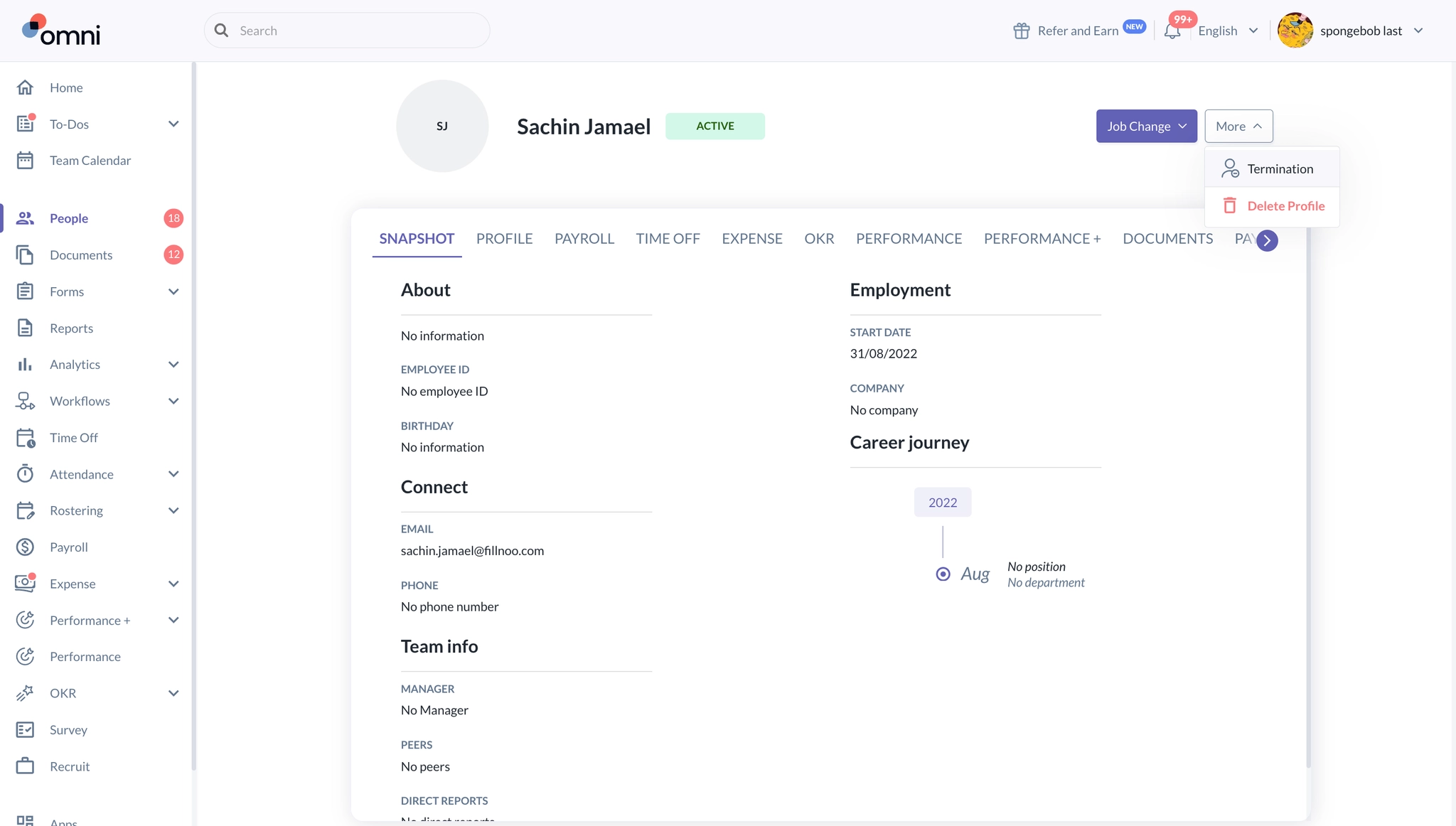
- Once Proxy View has been configured, go to the Employee’s Profile > Click More >
Select Operate as employee.
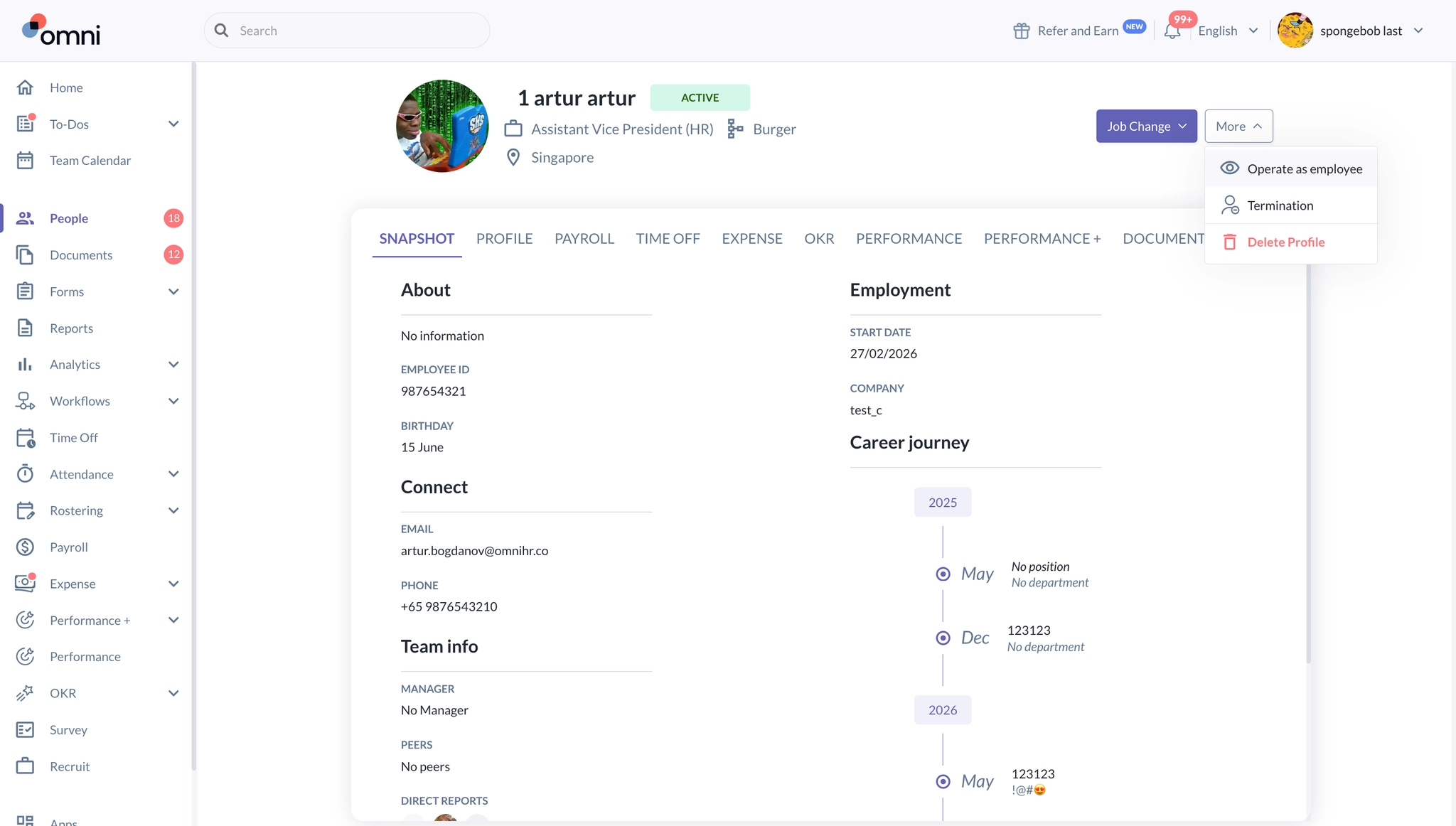
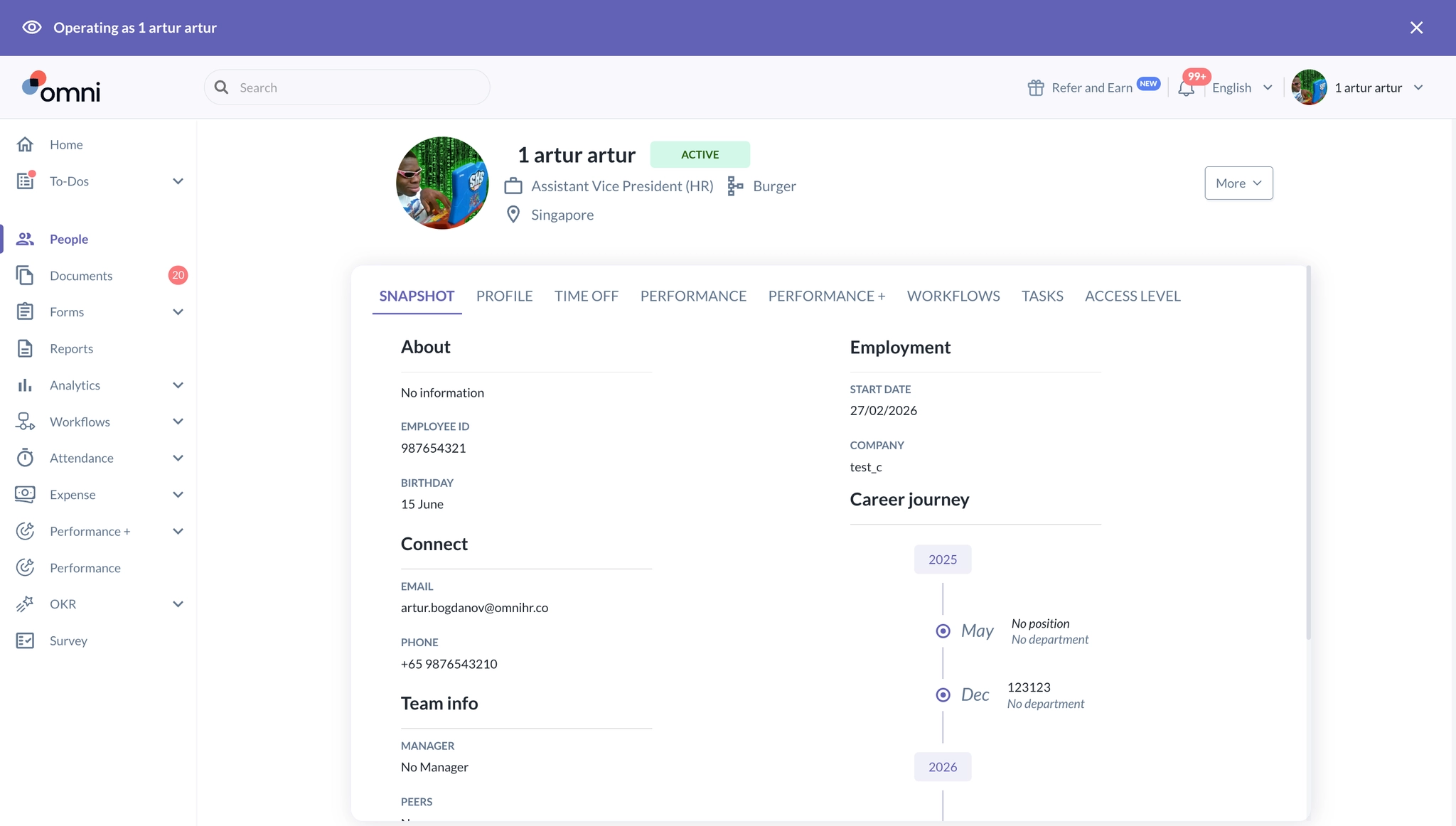
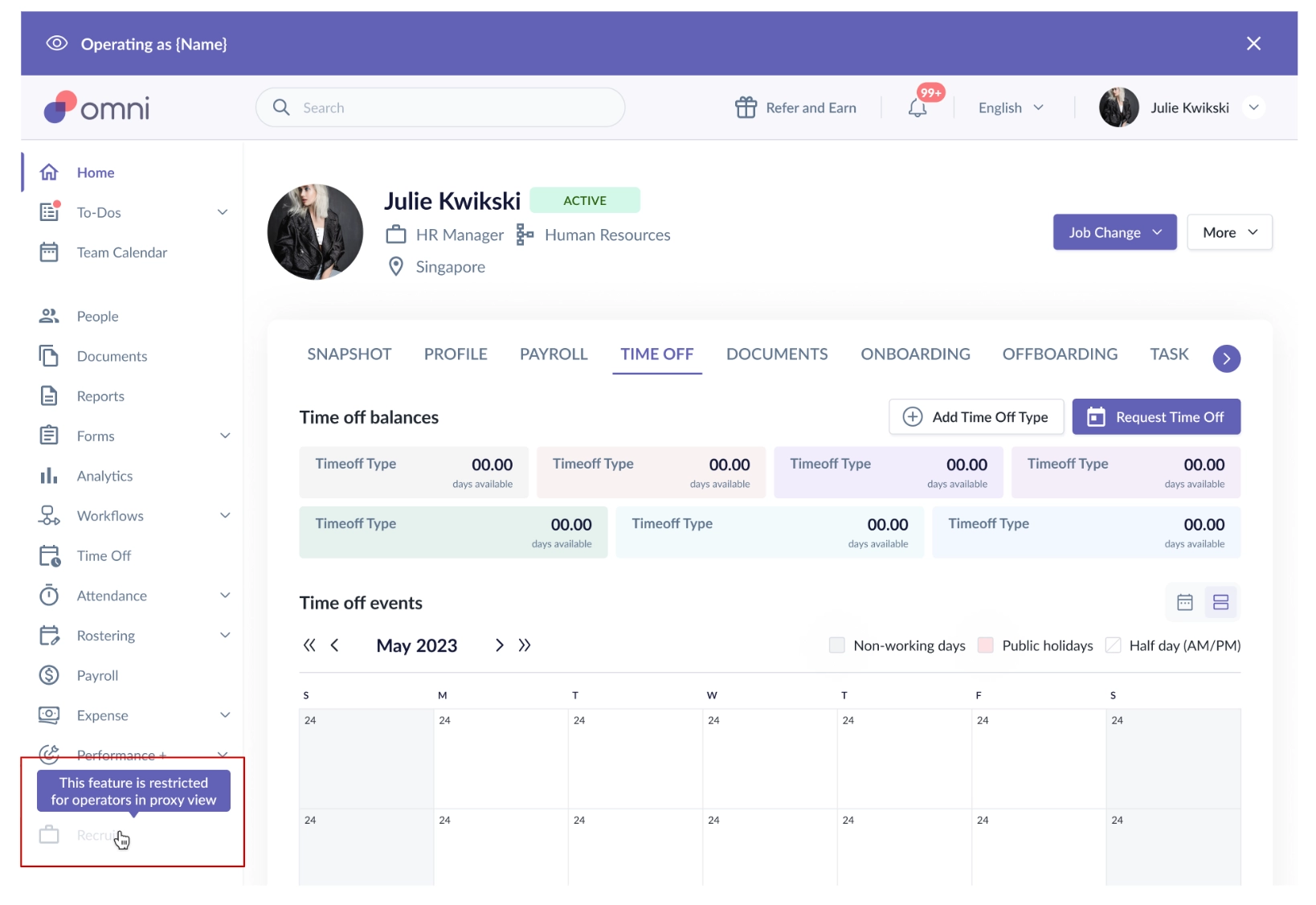
You will now be viewing as that employee. While in Proxy View, you will see
You will see the employee’s sidebar.
You will have the employee’s permissions.
You will see the employee’s data.
You can perform actions on behalf of the employee.
A proxy banner will remain visible throughout the session.
How to End a Proxy Session
- To exit Proxy View, you can click the X on the proxy banner. You will be returned to your own account.
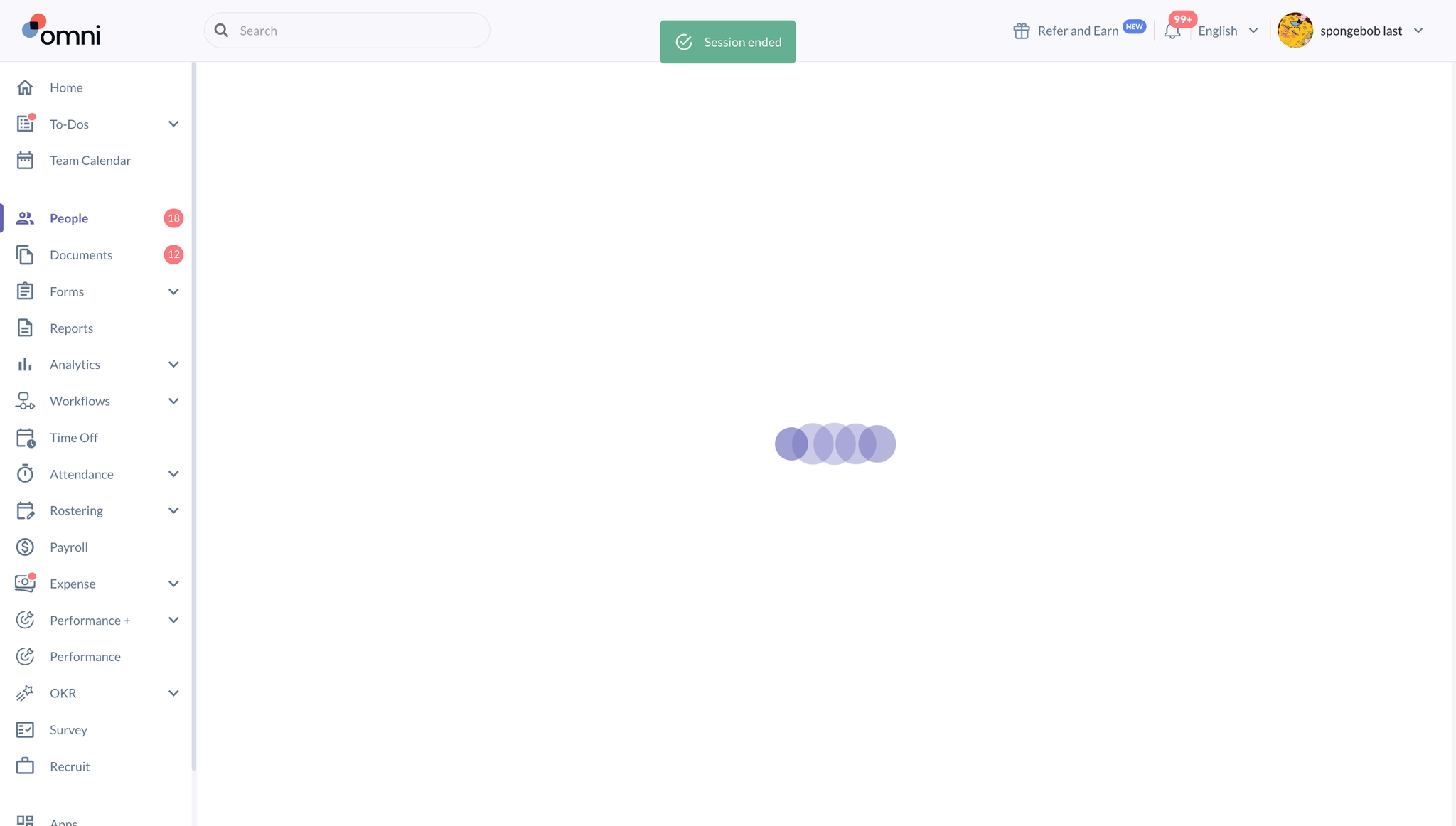
- A "Session ended" confirmation will be displayed.
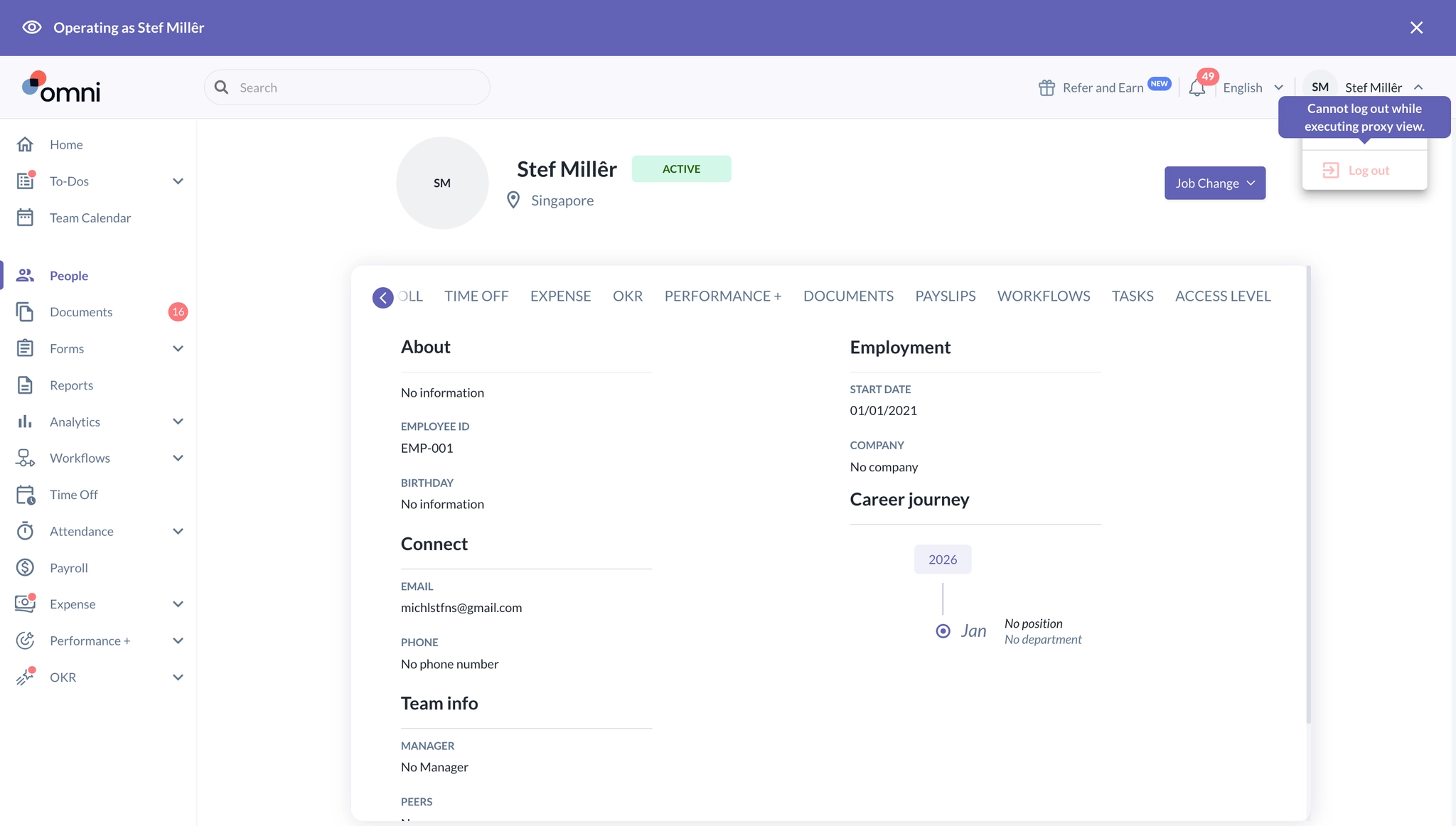
- Proxy sessions will also end automatically after 30 minutes. When the session expires, the operator is not logged out of Omni HR. They are simply returned to their own account.
- A "Session ended" confirmation will be displayed.
Important Notes
- What if the "Operate as employee" option doesn't work?
- You may check whether the operator has visibility of the employee's profile. Even if the employee has been added to the operator's Proxy View scope, the operator must also have the necessary employee profile visibility through their access role.
- You may check whether the operator has visibility of the employee's profile. Even if the employee has been added to the operator's Proxy View scope, the operator must also have the necessary employee profile visibility through their access role.
- If you remove an employee from the operator's scope, the change will take effect immediately. The operator will no longer be able to operate as that employee. However, any previously recorded sessions will remain available in the audit trail.
There are currently several areas that cannot be accessed through Proxy View due to security and scope considerations. Tooltips will be displayed within the product for these restricted areas:
Side Menu
Payroll
Recruit
Global Settings
Apps
People page
Add Employee button
Pending Hire Tab
Employee Profile
Access Level tab on the Employee Profile
Payroll Tab > Tax & Statutory
Payroll Tab > Prior Employment
Was this article helpful?
That’s Great!
Thank you for your feedback
Sorry! We couldn't be helpful
Thank you for your feedback
Feedback sent
We appreciate your effort and will try to fix the article